A non-technical guide for how code works
How vibe coders can understand the way that code works.
Published 2025-03-31
If you've been exploring the world of vibe coding, you’ll know how mind-blowing it is to watch AI write thousands of lines of code right in front of your eyes. As a non-technical person, it’s both convenient and intimidating in equal measure!
But, if you’re anything like me, you’re probably also curious to know what all that code actually means. And how it all comes together to form a functioning app.
That's exactly what I'm tackling today!
But, rather than learning syntax or programming concepts, I'm breaking down the universal architecture that underpins virtually every modern web application—using Vercel's SaaS starter kit as our real-world example.
Ping me in slack or on X with ideas for future guides and videos in this series! 🙂
p.s. handy links that I talk about further down this post:
Thanks to community members Colleen, Justin, Alexander, Kieran, Nick, Lorenzo, Christian, Wyatt, Este and others for reviewing early videos and giving feedback!
Breaking down a code project
Start by opening up Vercel's SaaS starter kit which we’ll use as our example.
When you look at a code project like this, don't think of it as thousands of lines of code. Instead, see it as a building with different rooms, each with a specific purpose.
When I look at this project, I see two sides: a GitHub repository filled with code, and the actual application—a simple SaaS site with a dashboard, pricing page, and subscription functionality.
The Anatomy of the project
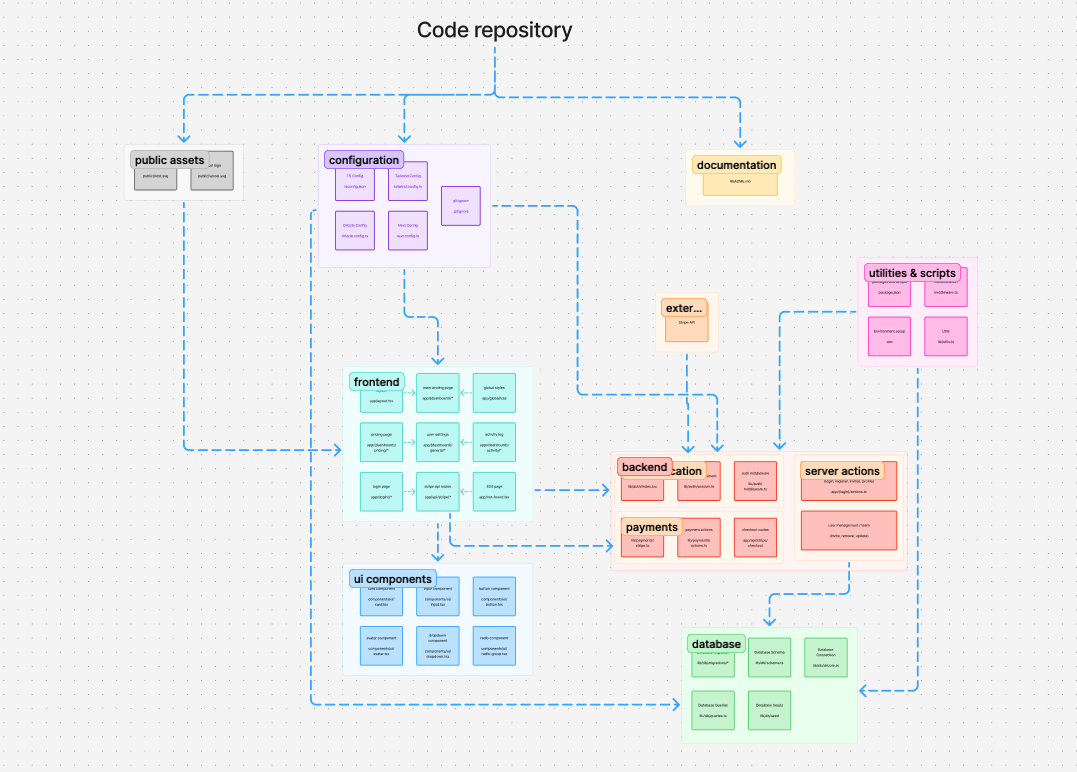
Here's how the different parts fit together:
Documentation
Think of documentation as the "how to use this thing" pamphlet that comes with flat-pack furniture. Except this one's called README.md. The README file explains how to get started with the site.
The README file tells you:
- What the project does
- How to get it running
- Basic usage instructions
AI will usually generate this for you when it’s writing code for your project.
Public assets
These are your images, logos, and other media files. That logo you see on the site? It lives in your public assets folder.
Configuration
Think of this as the settings panel for your app. It defines how the code should work:
- TypeScript configuration: Defines programming language rules
- Tailwind config: Controls the design system (colors, spacing, styles)
- Next.js config: Settings for the framework that builds the application
- Drizzle config: Settings for database communication
- .gitignore: Tells GitHub which files to ignore
💡 Tip: Don't worry too much about understanding the contents of these files. AI will manage these for you. Just know they contain important settings that your application needs.
Front end
This is what users actually see and interact with:
- Layout page: Structures pages with headers, footers, and content areas
- Main landing page: Your homepage
- Other pages: Pricing, user dashboard, login, 404 page
- API routes: Handles specific functions like payment processing
UI components
These are reusable pieces that that give your application consistency. Things like:
- Buttons
- Dropdown menus
- Cards that display information in standardized ways
- Radio buttons
So for example, instead of coding a button from scratch every time you need one, you just reference your button component.
Once you understand components, you'll see them everywhere in your code!
Utilities and scripts
This is where the technical magic really happens. But even as a non-technical person, you should know about:
Packages: References to external code you're using in your project. For example, rather than building Tailwind CSS from scratch, you simply install it as a package.
Looking at Vercel's SaaS starter kit package.json file, you can see it's using Tailwind, UI components, Stripe, and animations.
The good news? Even though this is technical, AI can handle installing, updating, and removing packages for you.
Environment setup: This is your password manager, containing sensitive information like:
- Database URLs
- API keys
- Authentication details
⚠️ Important reminder: Never share your actual .env file with anyone - it contains passwords and secret keys!Utilities: Functions that handle common tasks, like grouping class names for consistent styling.
Back end
The back end is the warehouse, factory, and security system of your application. Key components include:
Authentication: Handles user signup, login, and session management.
Middleware: Protects pages that require login.
Payment processing: Code that handles what happens before and after a payment.
Server actions: Manages authentication flows, user management, and team invites.
Database: Stores and structures all your application data.
- Seed data: Placeholder information to test your app
- Database connection: Establishes connection to your database
- Schema: Structures the database with headers and fields
- Migration: Updates the database structure when needed
- Database queries: Code that creates, reads, updates, and deletes data
How data flows through the system
Understanding how these components interact helps demystify what's happening when someone uses your application, and helps you pinpoint problems when they crop up:
Authentication flow
When a user logs in, a complex dance occurs behind the scenes:
- User visits the login page
- They enter their email and password
- Frontend sends this information to authentication backend
- Backend verifies credentials against the database
- If valid, a session is created and stored as a cookie
- User is redirected to the dashboard
- On future visits, middleware checks this cookie to keep them logged in
Payment flow
When someone subscribes to or pays for your service:
- User selects a subscription plan on the pricing page
- They click "Get Started" which triggers a payment action
- Backend creates a checkout session with Stripe
- User is redirected to Stripe's payment page
- After payment, Stripe sends them back to your site
- Backend verifies the payment and updates their subscription in the database
- User gains access to premium features
💡 Tip: When something breaks, knowing this flow helps you tell your AI assistant exactly where to look.
Exploring code with AI
One of the coolest things about modern development is how AI can help you understand code without needing to be an expert programmer.
Using GitHub Copilot for instant explanations
When browsing a repository on GitHub, you can get instant explanations:
- Select any file in the repository.
- Click "Ask Copilot" in the top right corner.
- Ask questions like "What does this file do?" or "Explain this function".
Copilot will analyse the code and provide a plain-language explanation of what's happening.
Importing and exploring with Replit
To go deeper with the code, Replit offers powerful tools for exploration:
- Create a new Replit project.
- Import the GitHub repository (I'm using the SaaS starter as our example).
- Open the Assistant tab on the right side.
- Now you can have rich conversations about the code:
- "Explain what app/page.tsx does"
- "What database is this project using?"
- "How does the authentication work?"
You can even ask the Assistant to add explanatory comments directly to the code, making it much easier to understand complex functions or workflows.
Running and testing the application
With Replit, you can also run the application to see it in action:
- Click the "Run" button in the terminal console.
- Watch as Replit builds and launches the application.
- When the app is running, you'll see a preview window where you can interact with it.
For the Vercel SaaS starter kit starter project, you'll need to set up environment variables first (for your database connection, authentication keys, etc.), but Replit makes this easy through its Secrets management tool.
For anything you’re unsure of or don’t know, ask the assistant in your vibe coding tool of choice!
The takeaway
Understanding code projects doesn't require becoming a programmer any more than appreciating architecture requires becoming a builder.
By recognizing the universal structure that underpins modern applications, you can confidently navigate, discuss, and direct the development of your digital products—even if you never write a line of code yourself.
The future of building belongs to those who can effectively direct AI tools, not necessarily those who can code. With these basics and the right AI assistants at your disposal, you're already ahead of the curve.
Recommended next steps
Ready to put this knowledge into practice? Here's how to get started:
- Explore an existing project: Fork a starter template on GitHub and examine its structure using Copilot to explain unfamiliar parts.
- Make a small change: Try updating text on the landing page or changing a color in the design system to see how front-end elements connect.
- Connect a database: Follow the instructions in
.env.exampleto set up a simple database connection - this is easier than you might think! - Build a simple feature: Use AI to help you add a contact form or a new page, focusing on what you want rather than how to code it.
- Deploy your application: Make your creation accessible online using platforms like Vercel, which can automatically build and host your project.