Exploring Anthropic’s Computer Use API
Use Anthropic’s Computer Use API and Replit to let AI control a web browser and search for information like a human would.
Published 2025-01-09
.jpg)
In one of the most exciting AI developments of recent times, Anthropic have released their Computer Use API. This lets AI take control of a computer—in the same way a human would—to complete complex tasks based on simple prompts.
Let’s take a look.
The easiest way to get started is by using Replit. There’s a template that allows the AI to control a web browser without you needing to do any coding or setup.
Before we go further, it’s worth watching this Replit introduction video:
Getting set up in Replit
If you haven’t already, create a Replit account and make sure you’ve got an Anthropic API key with some paid credit loaded.
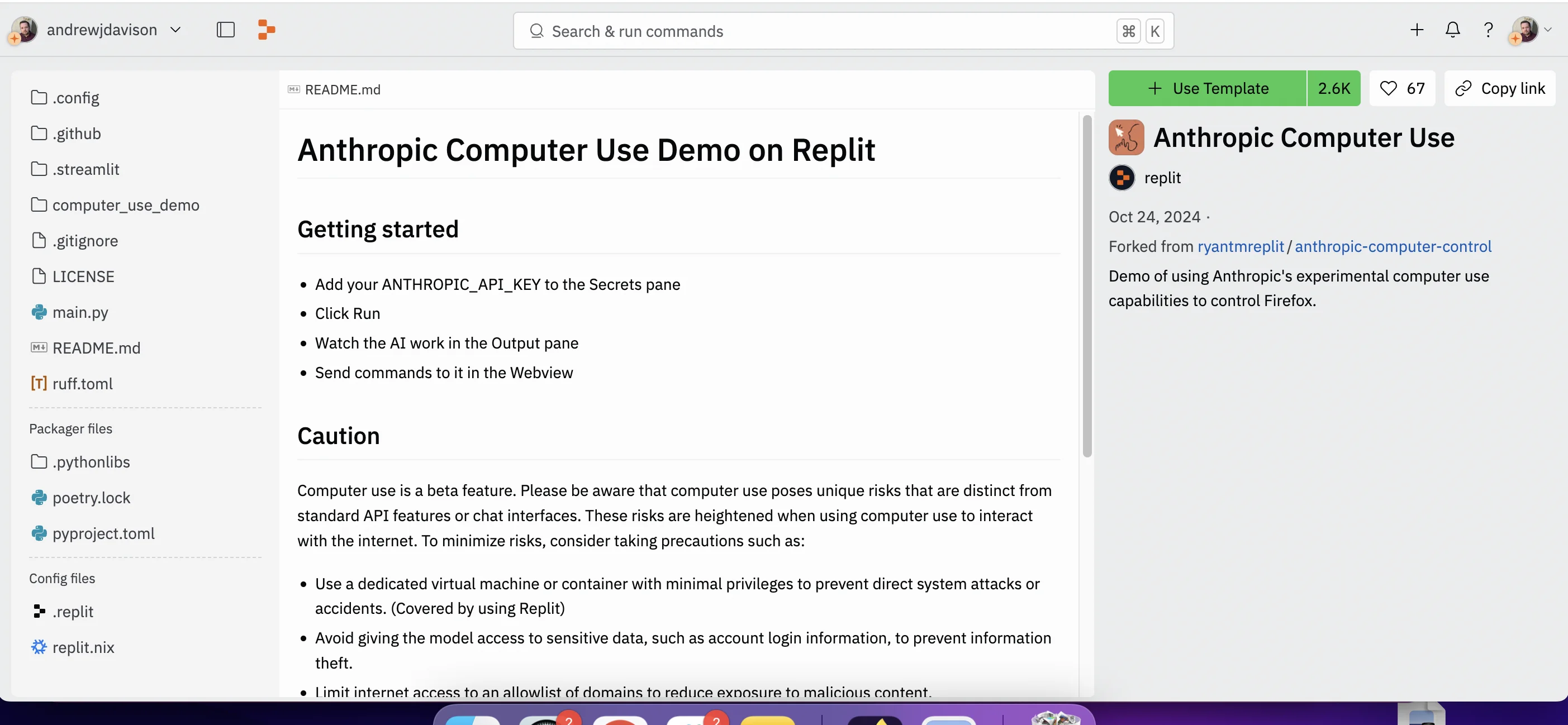
Once you’re logged into Replit, head to this page: https://replit.com/@replit/Anthropic-Computer-Use and click “Use Template”.
The Replit code editor will load and you’ll get a warning about missing secrets in the bottom right corner.
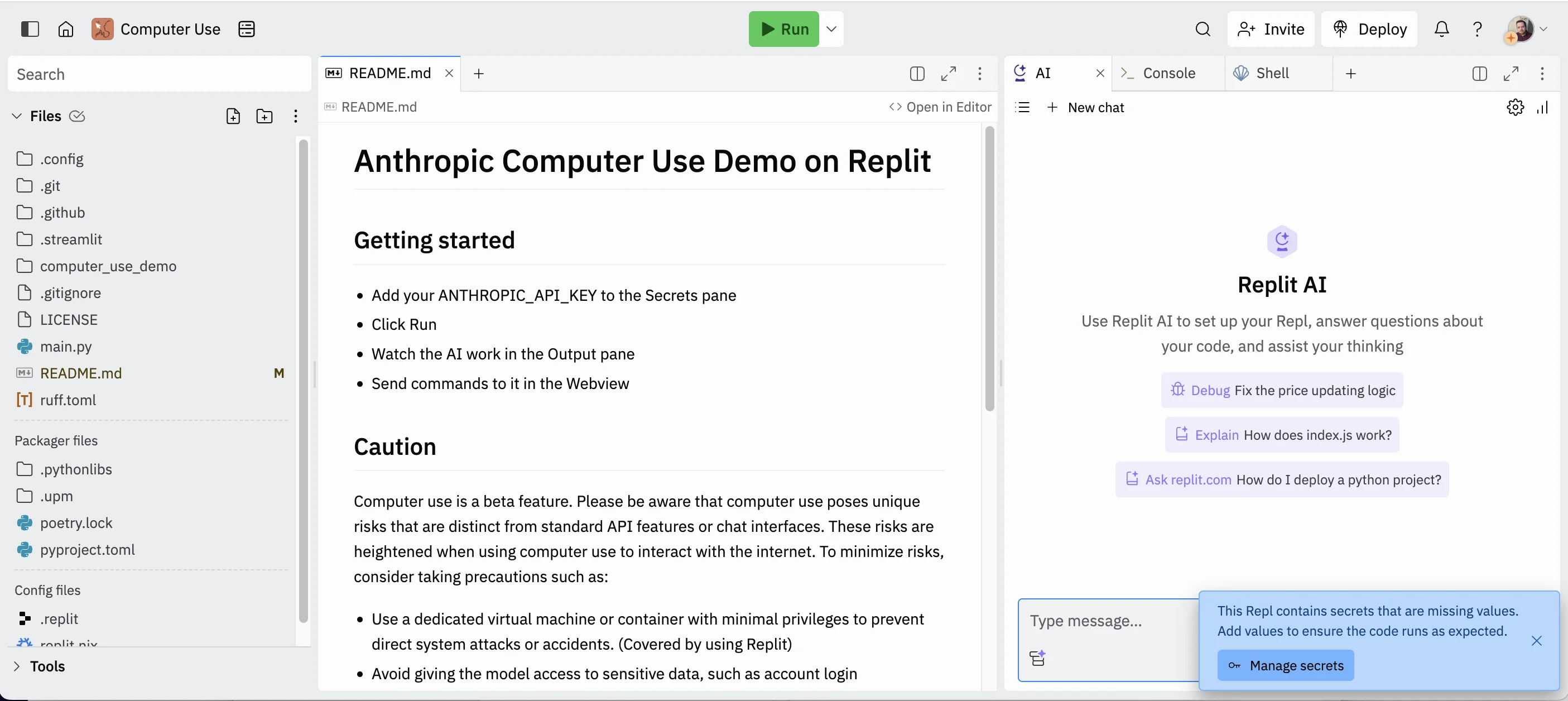
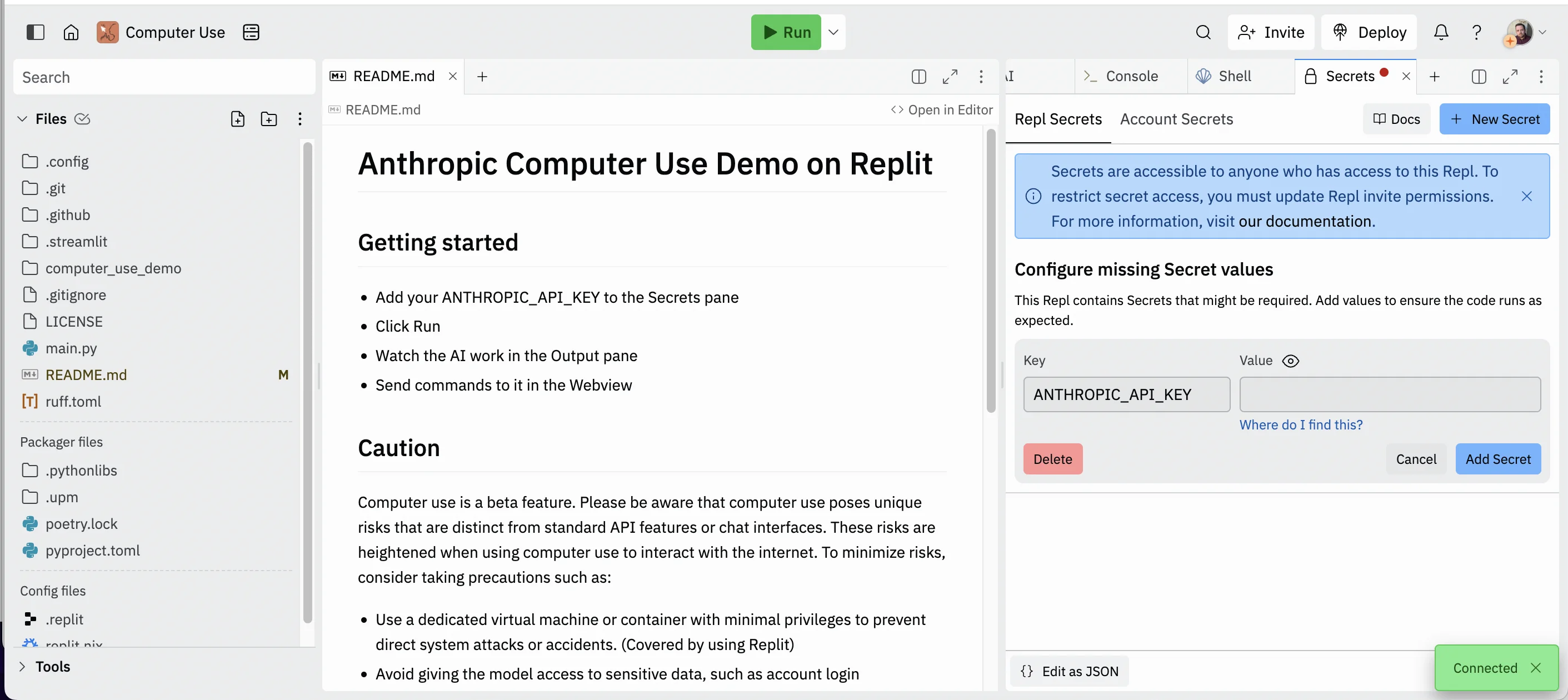
Click “Manage secrets” and in the right column, a “Secrets” tab will appear where you can add your Anthropic API key.
Let’s get browsing
Once that’s added, click the green “Run” bottom you see at the top of the page.
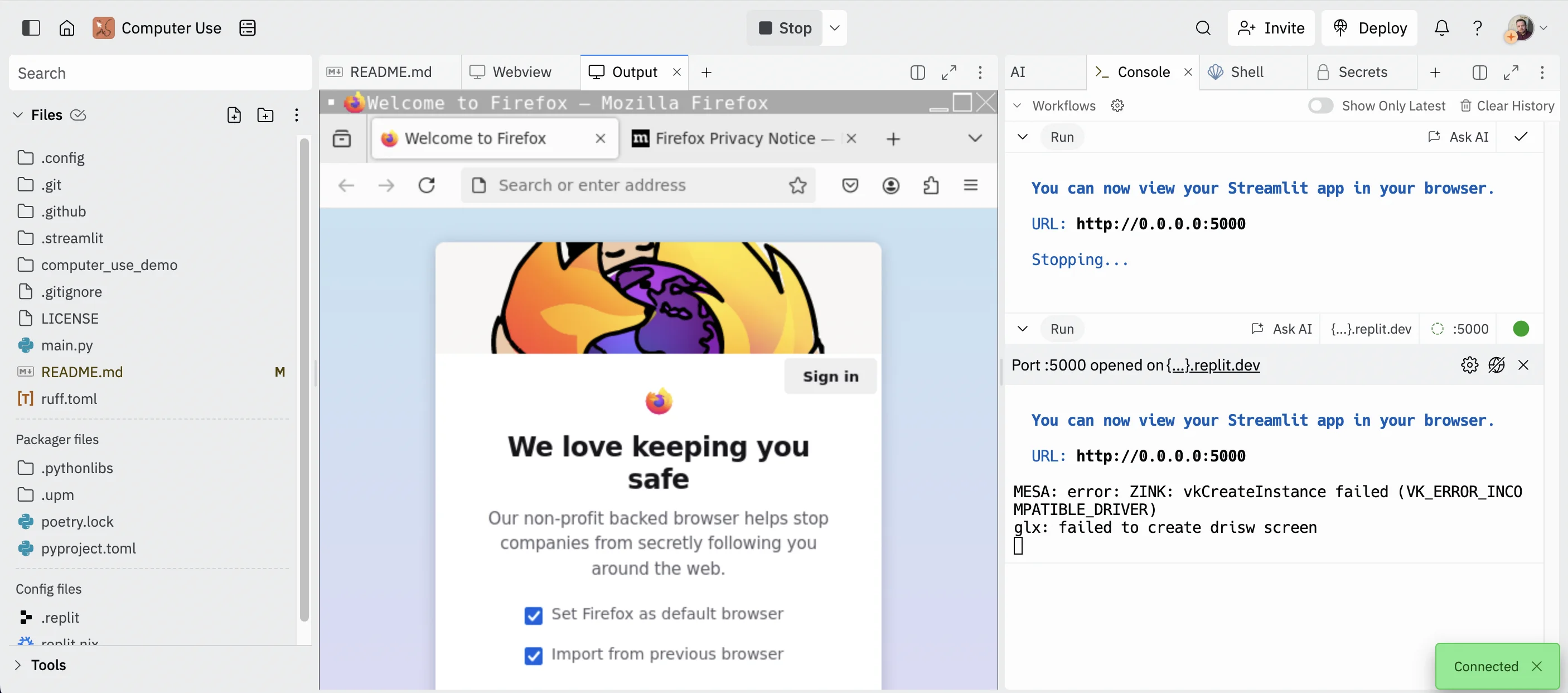
Once it’s going, you’ll see a two new tabs open in the top right - a “Webview” and “Output” tab.
To make things easier, click on both tabs and while holding down the mouse, drag them over so they are positioned in the center column of the screen.

In the “Output” tab you’ll see Firefox running in what looks like its own browser.
You can move your mouse around, click stuff and even visit websites. This is the browser that the Computer Use API is going to control on our behalf (note: ignore any mention of errors on the right hand side).
Meanwhile, the “Webview” is where we’ll give the AI instructions and see the results.
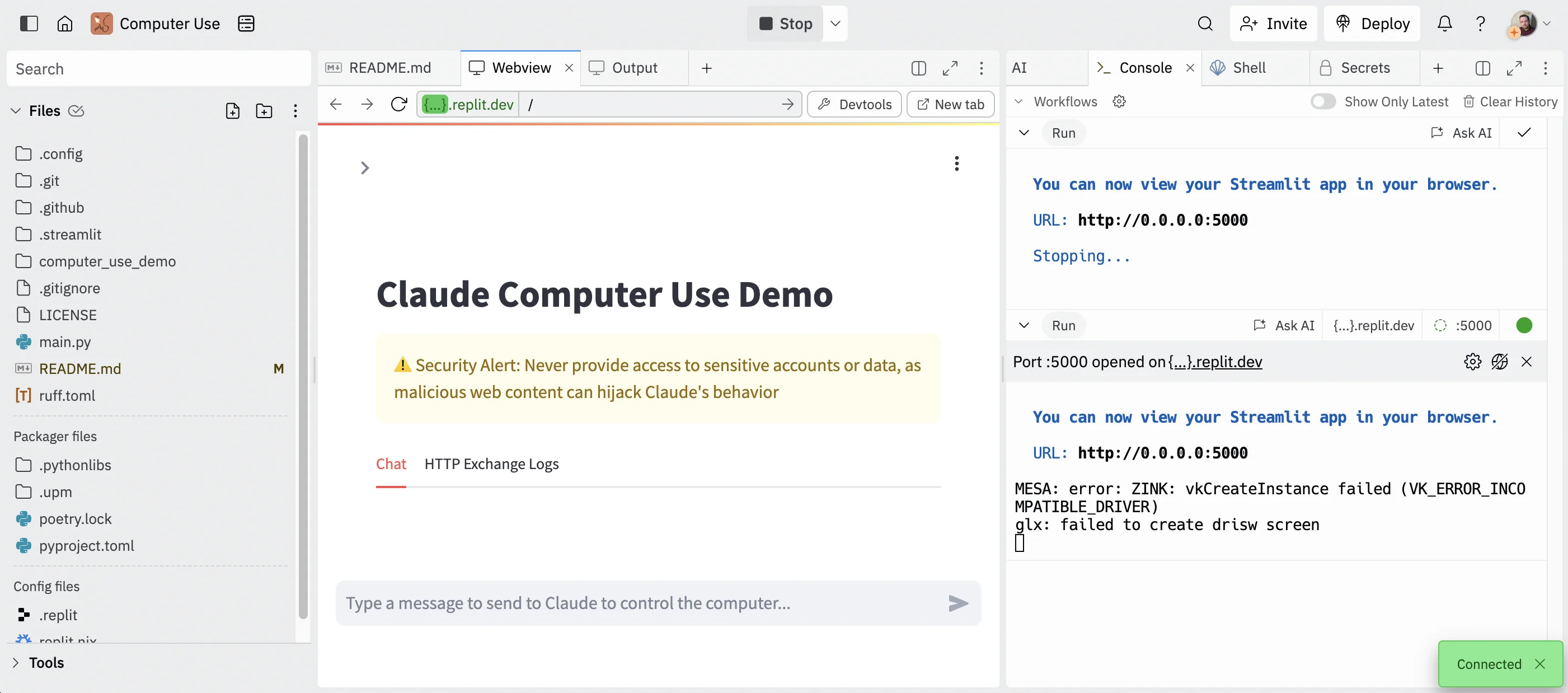
I’ll be easier to work with if you click the “New tab” button top right of the centre column.
This will open the control screen it its own tab in your browser.
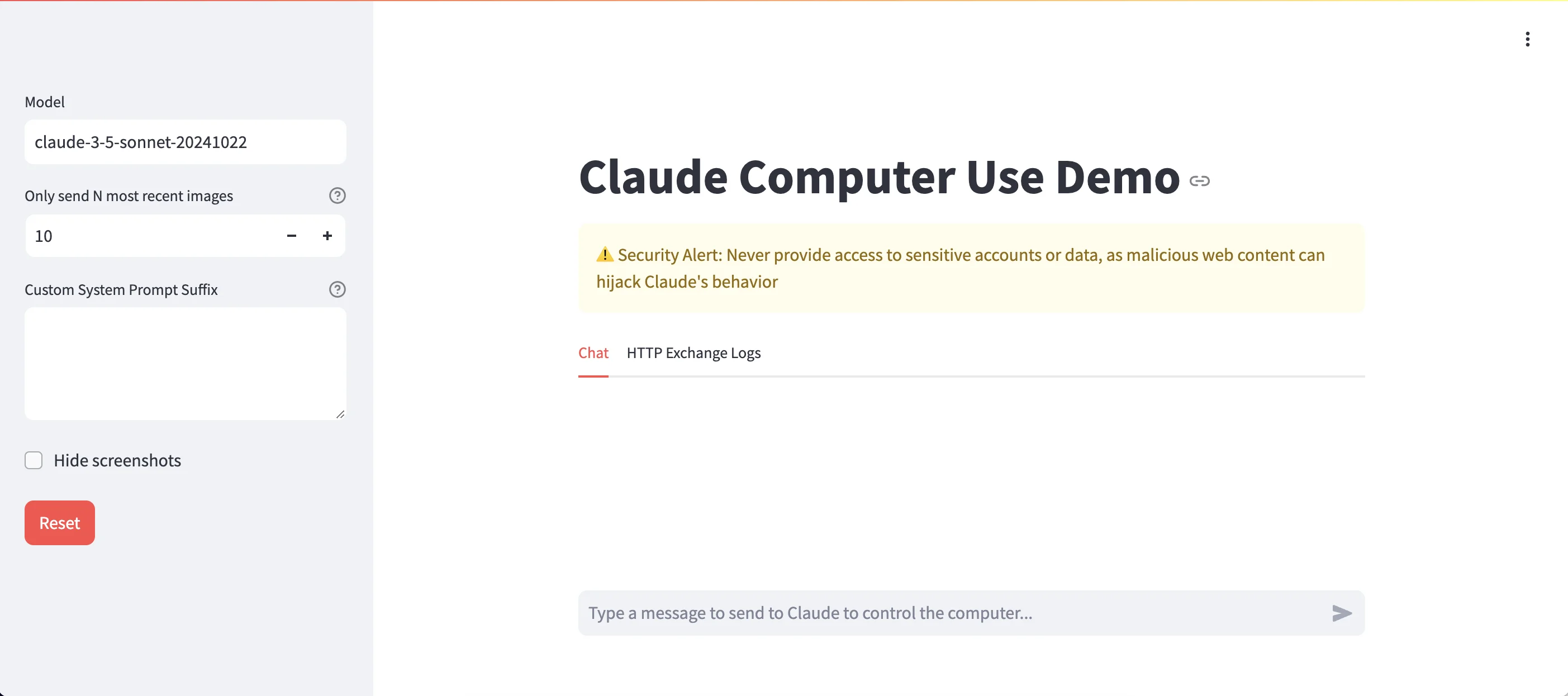
Finally, we can start to have some fun.
A bit like a ChatGPT window, in the field at the bottom, you can tell Claude what you want it to do.
In this case, I went with something quite simple.
Prompt:
go to the nyt, find the business section and summarise today's news for me.
I’ve deliberately used “nyt” instead of “New York Times” to see if it can handle the ambiguity here.
Click the arrow button next to the prompt input to get started.
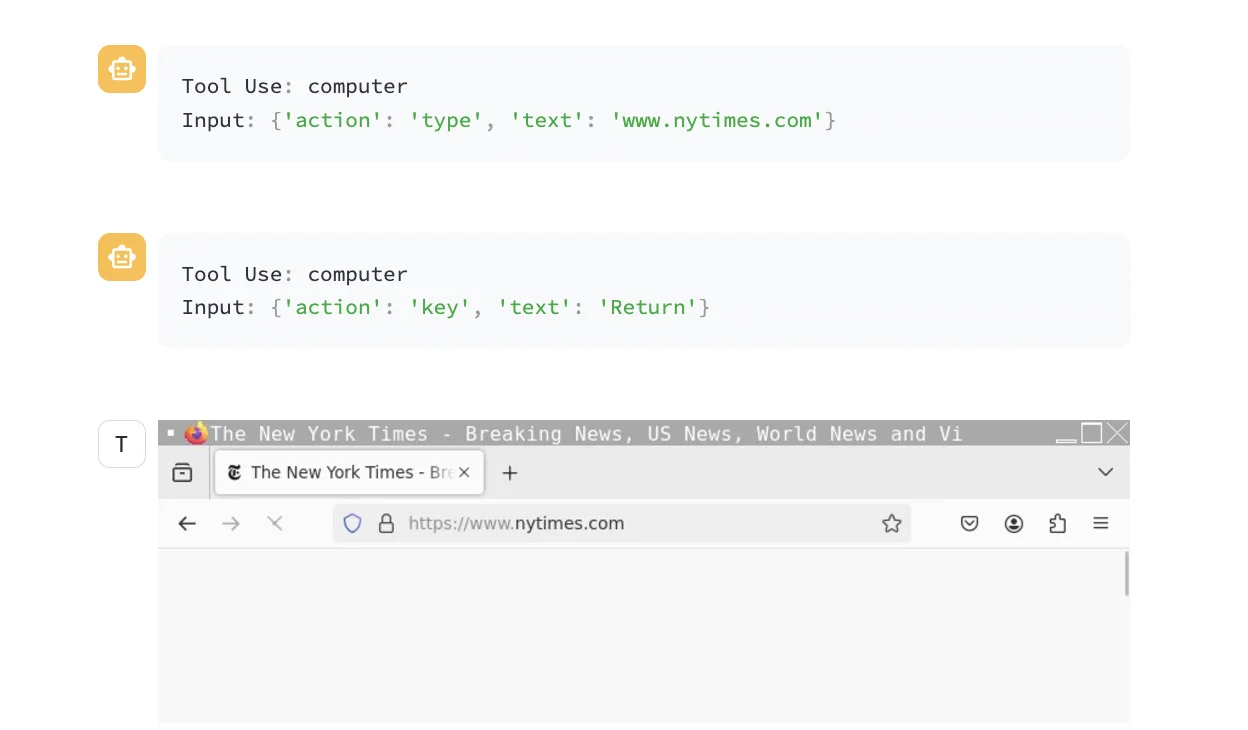
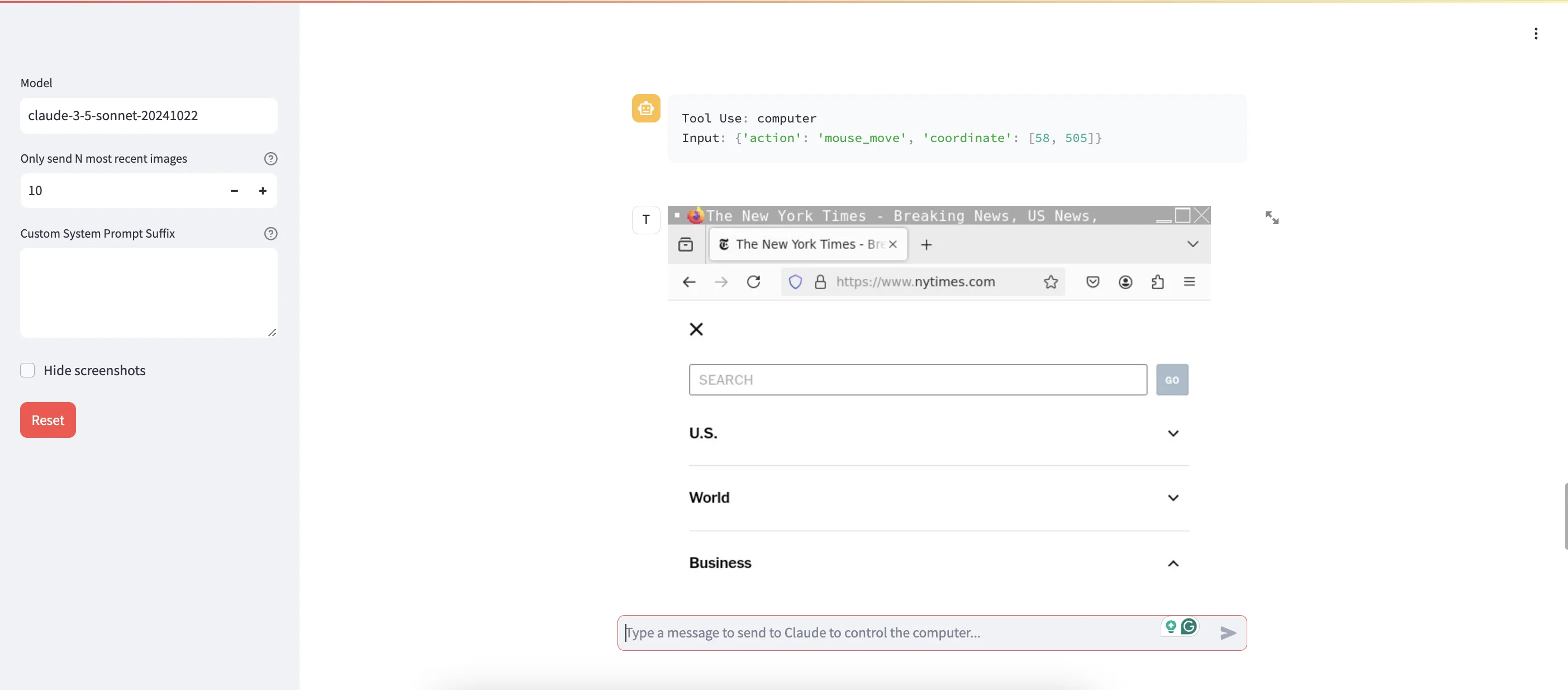
The stream above the prompt input will fill with a mix of text boxes telling you what action the API is performing, and screenshots from the browser, showing exactly what the API is seeing.
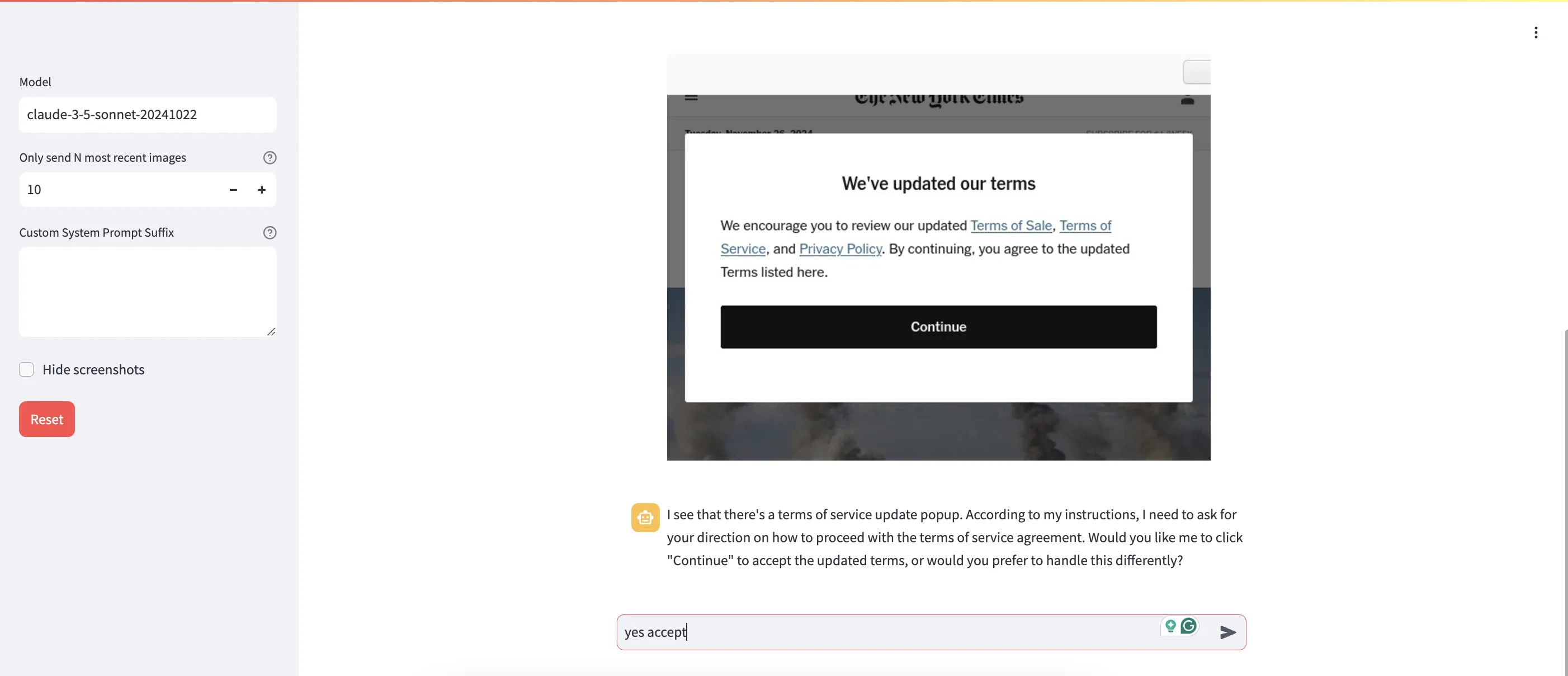
Once on the site, it asks me how I want to handle a terms and conditions box.
And within 30 seconds it already found its way to the business section.
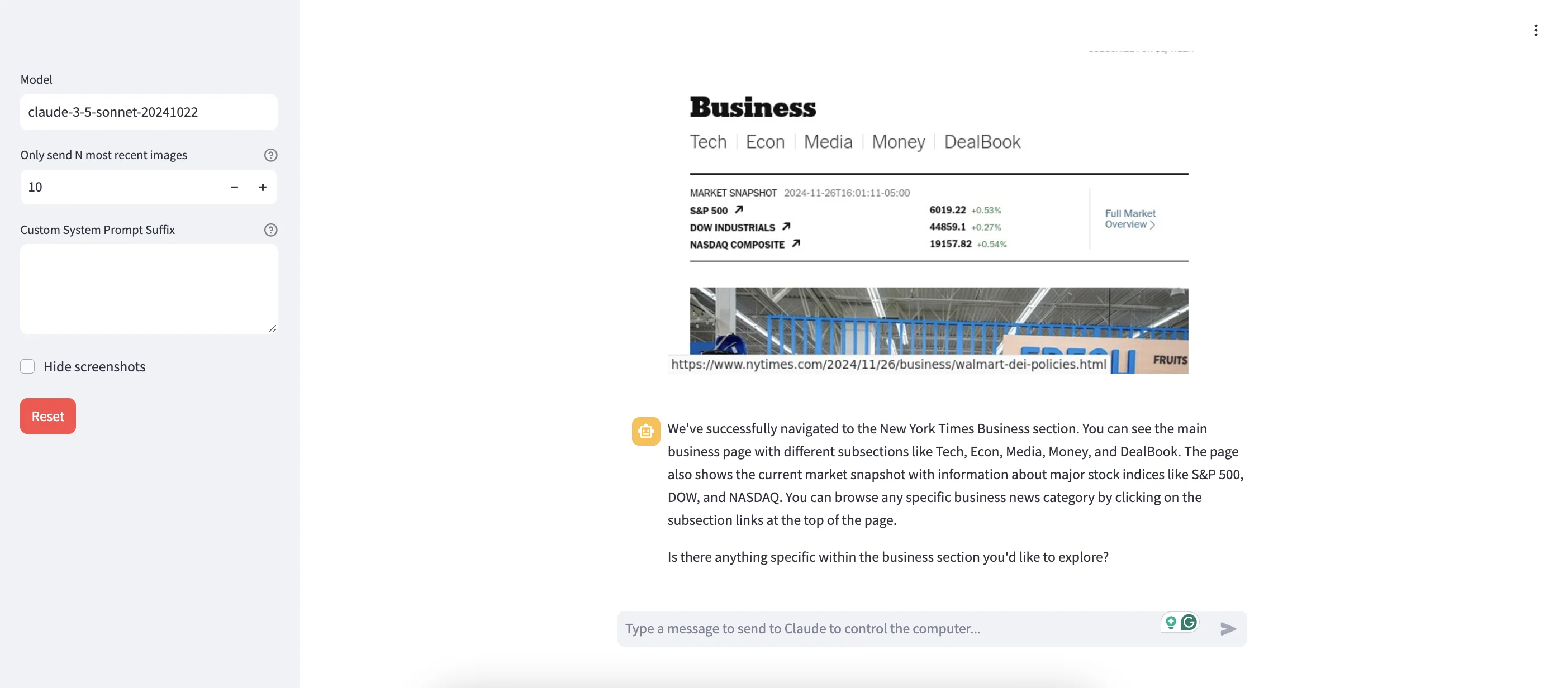
From there, it creates an initial analysis and then starts scrolling down to read more articles to summarise
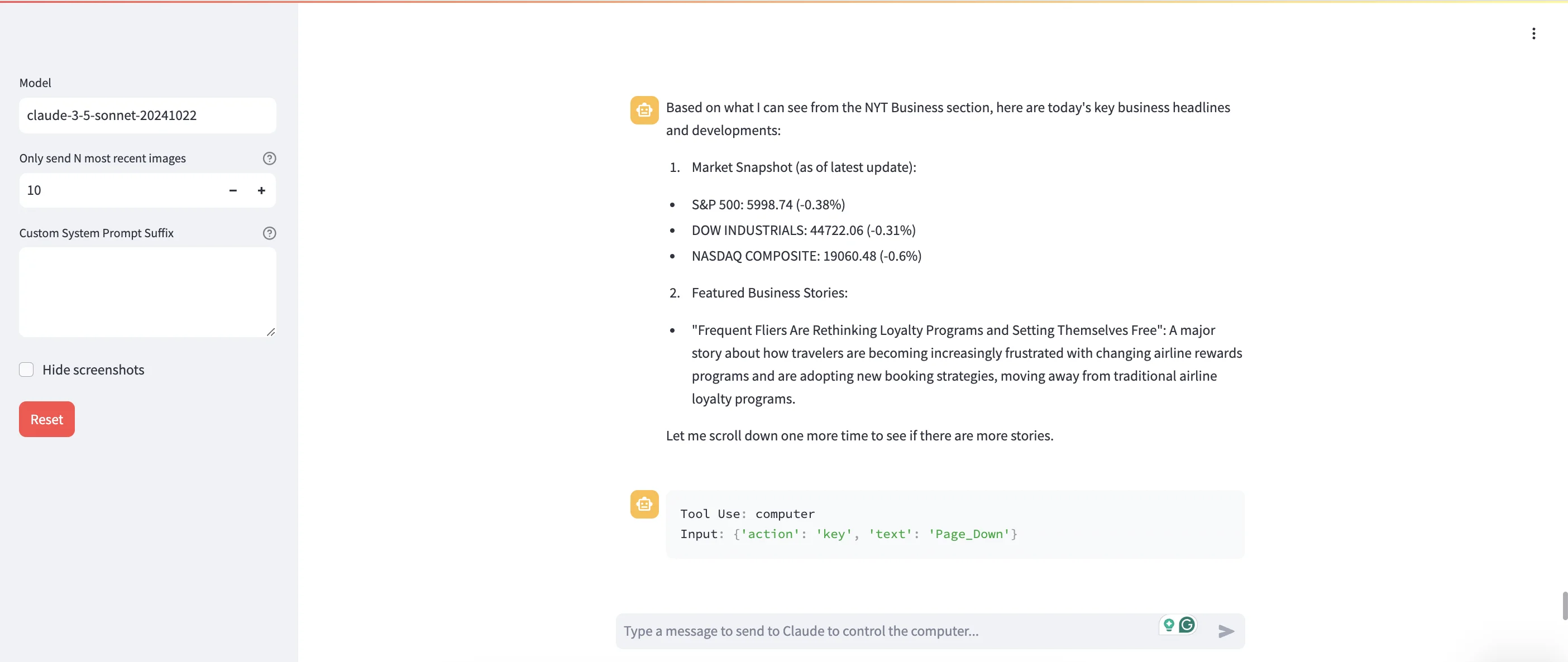
About a minute later it’s done. Very impressive stuff!
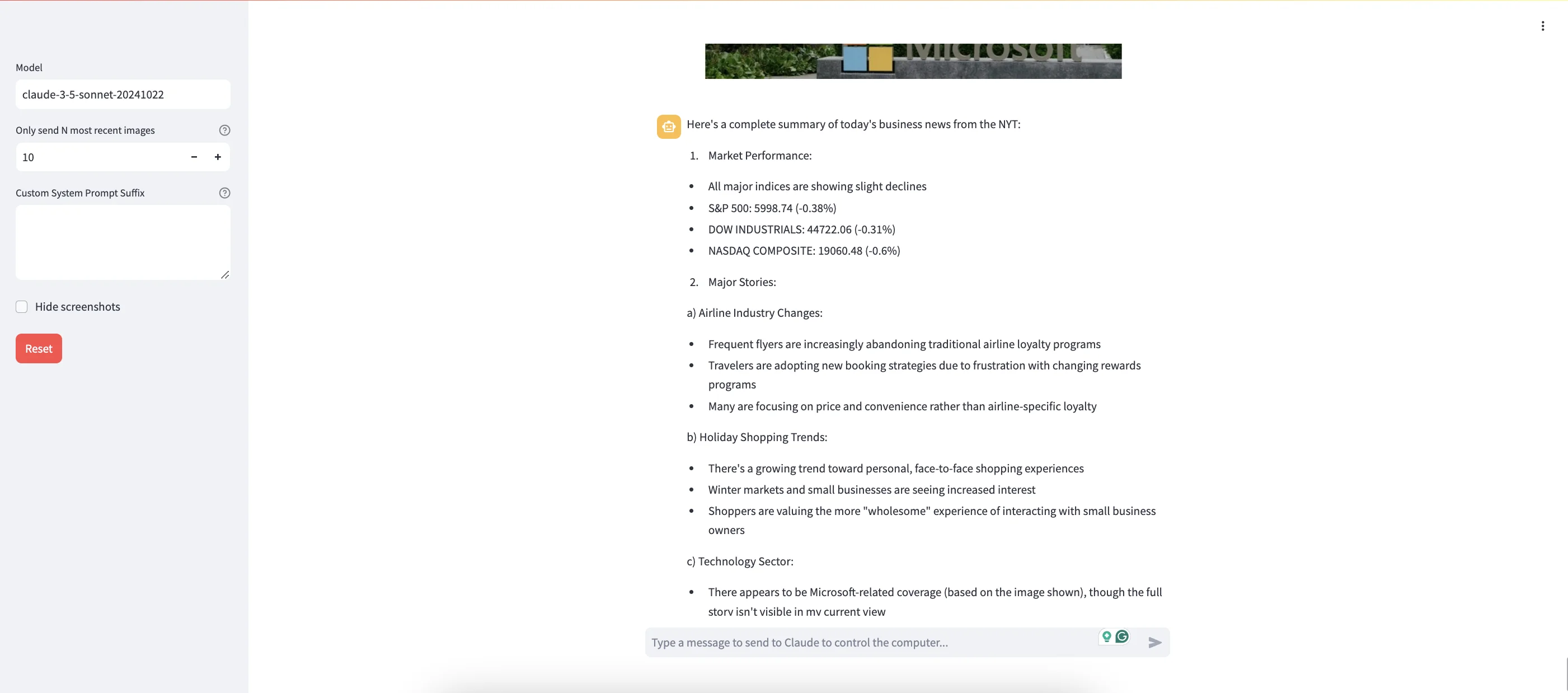
From here, you could take things further. Maybe have it check other sections—or even check out the business sections of other news websites to create a comparative summary.
Some limitations
Right now, the Computer Use API will refuse any prompt that asks it to log into a website itself—however, you can use the browser in the “Output” tab in Replit to log in yourself and then ask the AI to take over from there.
With that in mind, you could do stuff like login to the IKEA website, and then ask the AI to summarise your purchases over the last year. To do that it would navigate to the order summary page and scroll to see what you’ve been buying.
Without a tool like this, you’d need to build something or use a tool to scrape your account data. Using the Computer Use API is arguably easier.
Where the Computer Use API could be most useful in the future
Right now the biggest thing holding back meaningful use of the API is its cost and speed compared to other solutions.
Where I think this API will be most interesting is for extracting data across disparate sources. Think legacy sites and systems where there’s no built-in API and simply scraping all the page’s content doesn’t suffice. Think pages where you have to click buttons to filter or present the data in a certain way. Here, having an API that can see the screen in front of it and deduce what to do will be a game-changer.
It’ll also be useful in situations where the API needs to read and understand instructions in one place to know what steps to take in another. Think complex online forms where guidance notes are found on a different page or even in a linked PDF.
This post was written by Andrew.