Getting started with Create: A beginner's guide
Best practices and tips to help jumpstart your use of AI coding tool Create.
Published 2025-03-25
Think of this guide like a Ben’s Bites snack pack—packed with bite-sized tips to help you build, refine, and scale your projects. Whether you're whipping up a quick prototype or developing a full-fledged web app, these best practices will help you navigate Create’s AI-assisted environment like a pro. Let’s get started!
1. What is Create?
Create is an AI-powered platform that turns your plain-text descriptions (or even images) into fully functional web apps—no coding required. Simply describe what you want, and Create instantly builds it for you.
2. Start with a clear vision
Before you begin, define what you want to build.
- ❌ Avoid generic requests like “Create a homepage.”
- ✅ Instead, be specific: ”Design a landing page for a B2B SaaS product with a header, pricing options, testimonials, and a footer.”
Helpful tips:
- Use templates – Explore Create’s ready-made templates for quick starts.
- Use visual aids – Upload wireframes or mockups, and the AI will interpret them.
- Iterate gradually – Build feature by feature, testing as you go.
3. Building blocks of Create
Think of these as the foundation of your app:
Pages
Each screen in your app is its own Page. Start with one (like a homepage) and expand as needed.
Components
Reusable UI elements that keep your app consistent. Examples:
- Navigation bars
- Footers
- Buttons
Functions
These handle backend logic:
- Connect to APIs
- Perform calculations
- Manage databases
4. Navigating the interface
Modes
Create offers different modes for seamless development:
- Demo Mode – Test functionality in real time.
- Select Mode – Move or modify elements.
- Code Mode – View and edit the underlying code.
Views
- Canvas View – See multiple elements together for a broad overview.
- Focused View – Zoom in for precise edits.
5. Leverage the “Infinite Canvas” for multi-page apps
The Infinite Canvas feature in Create provides a visual overview of all your app’s pages—no more juggling dozens of browser tabs.
6. Use “Screenshot to App” for quick layouts
Upload a picture (like a hand-drawn sketch or a screenshot of a design) and watch Create turn it into a functioning web page.
7. Collaborate in real-time
Invite teammates, clients, or friends to your Create project. Everyone can see and contribute changes live.
This is perfect for:
- Quick feedback: Gather immediate input on design or features.
- Brainstorming sessions: Co-create layouts and component ideas.
- Rapid iteration: Fix bugs or refine UIs together in real time.
8. Extensive integrations
Create offers over 50 built-in integrations to power up your applications:
- AI models: Incorporate advanced AI functionality from models like ChatGPT, Claude 3.5 Sonnet, and GPT-4 Vision.
- Image generation: Use tools such as Stable Diffusion and DALL·E 3 to dynamically create and embed images.
- Data handling: Add capabilities like web scraping, PDF generation, and audio transcription for richer data processing.
- Geolocation services: Integrate Google Maps and Places for location-based features—perfect for store locators or travel apps.
How to use them: Access these integrations via the chat interface or the “Add-ons” menu. Just pick what you need, and Create handles the rest.
9. Enhanced database functionality
Create provides PostgreSQL databases for all apps—no separate configuration required!
Key features
- Automatic schema design: Describe your app in the chat, and Create auto-designs the database schema.
- Seamless data management: The platform generates functions for data retrieval and storage without the need for manual queries.
- Integrated UI components: Create builds UI elements that connect directly to your database, streamlining front-to-backend communication.
- Test and live environments: Keep your test data separate from production data to avoid accidental overwrites.
Why it matters: Even non-technical users can launch data-driven apps swiftly, and advanced devs can still fine-tune or expand as needed.
10. Version control
Create has a robust version control system that saves your project history automatically.
Accessing version history
- Automatic saving: Every change you make in the chat is recorded.
- Viewing previous versions: Tap on past iterations in the chat to see how your project evolved.
- Restoring versions: Revert to any past state if you need to roll back or fix mistakes.
Managing published versions
Check the Version History settings to see:
- All published versions
- What’s currently live
This helps you keep track of your deployment history and maintain a clean update process.
11. Linking pages, functions, and components
Use the / command in the chat to easily link app elements:
- Link pages – Type / → Select “Link Page” → Choose target page.
- Reference functions – Attach a function (e.g., database query) to buttons/forms.
- Embed components – Insert reusable components for consistency.
12. Style guides
Use Style Guides in Create to maintain professional, cohesive designs across your entire project.
A single tweak can update multiple components instantly. Once applied, the Style Guide standardizes:
- Colors
- Typography
- Spacing
- Component styles
- Visual hierarchy
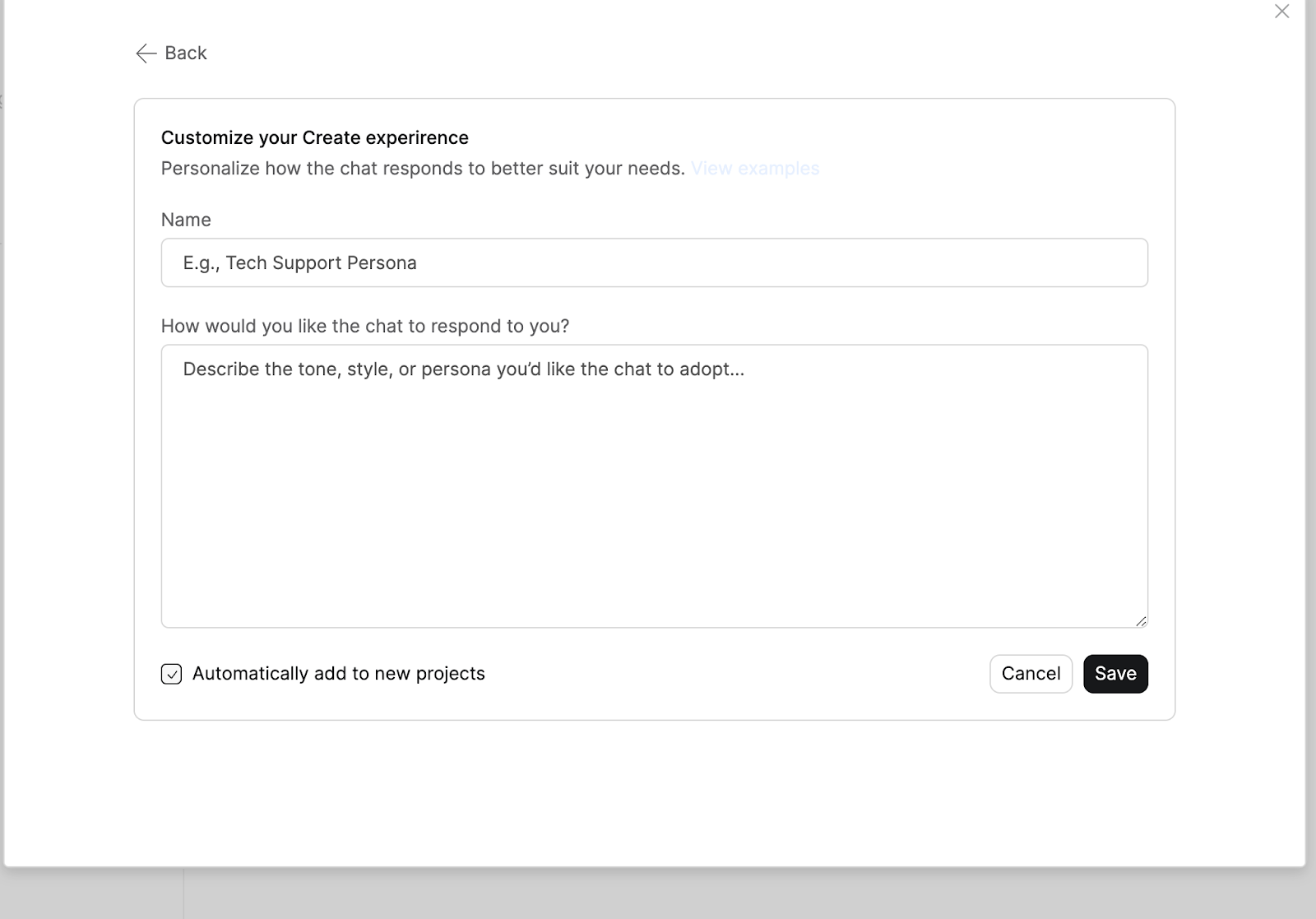
13. Custom instructions for precise control
Use Custom Instructions to fine-tune how the AI builds your application. This feature allows you to specify additional details about your project so the AI generates results more closely aligned with your vision.
In summary
Create is a powerful AI-driven platform for building full-stack web apps right in your browser. By providing clear, step-by-step prompts—along with screenshots, references, and feedback—you can guide the AI to generate exactly what you need. Keep an eye on version history, leverage integrations, and always test new features incrementally.
Now dive in and start building—your next great app is just a few prompts away! 🚀
This post was created by Amie.