Accelerate your job search
Learn how to use Clay to streamline your job search process and find relevant opportunities quickly.
2024-11-13
In this tutorial, we'll walk you through how to use Clay to accelerate your job search.
Clay is a powerful tool that acts like a super-powered Excel spreadsheet, automatically importing data from various sources like LinkedIn, Apollo, and many more platforms into synced tables. But it doesn’t stop there, you can also perform automated, AI-powered outreach from the tool as well.
You'll learn how to use Clay to find relevant job listings, identify potential networking contacts within your target companies, contact them to set up informational interviews, and easily apply to job listings.
Steps we’ll follow in this tutorial:
- Setting up your job search
- Importing job search results
- Enriching your data with potential contacts
- Utilizing your Clay data
Let’s dive in!
Setting up your job search
To begin, you'll need to create a free account on Clay.

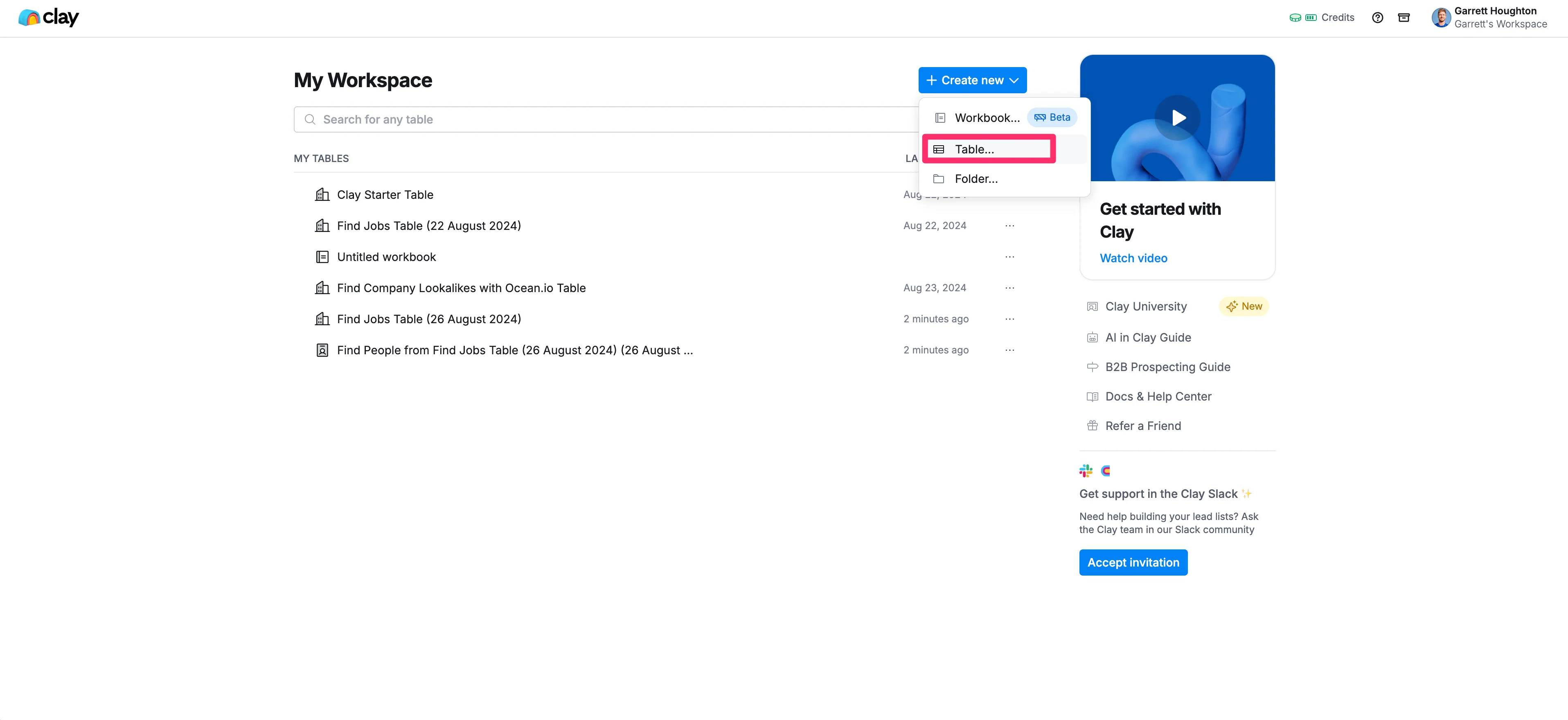
Once you've done that, navigate to the My Workspace page, click the "Create New" button, and select the "Table" option from the dropdown menu.
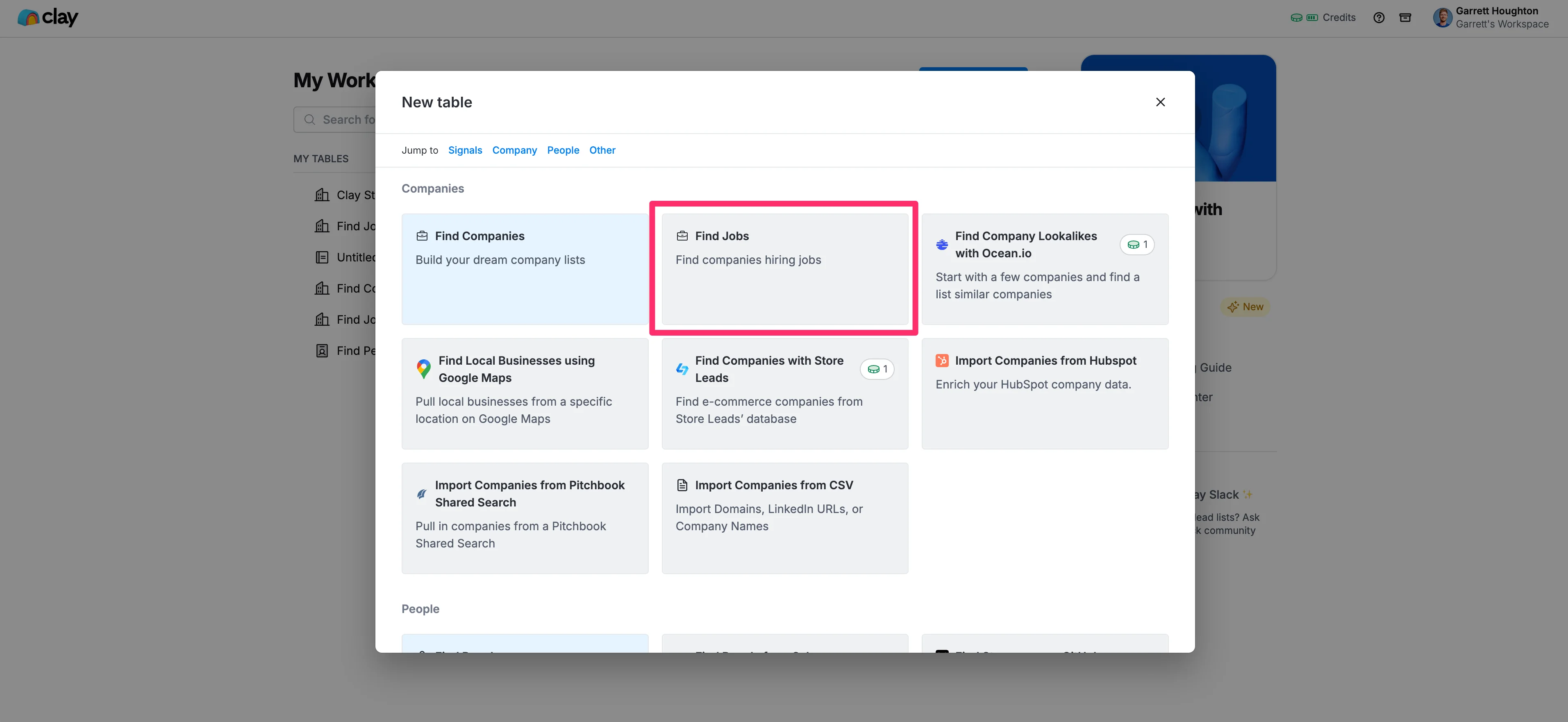
We'll use Clay's "Find Jobs" template to set up our job search. In the pop-up window, locate the "Companies" section, and click on the "Find Jobs" option.
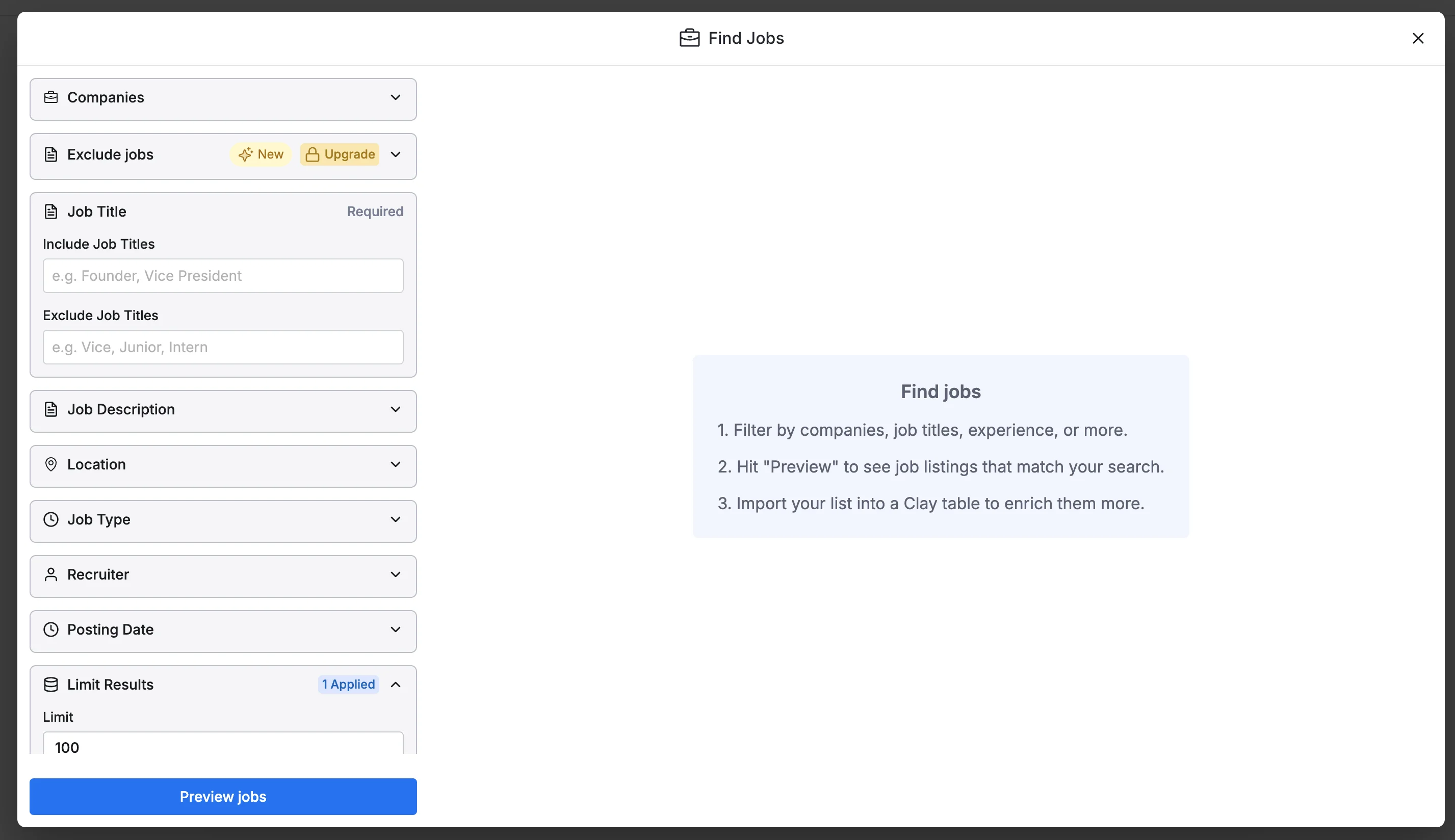
Next, you'll need to enter your job search criteria. Clay allows you to filter by various parameters, including Companies, Job Titles, Job Descriptions, Locations, Job Types, and more.
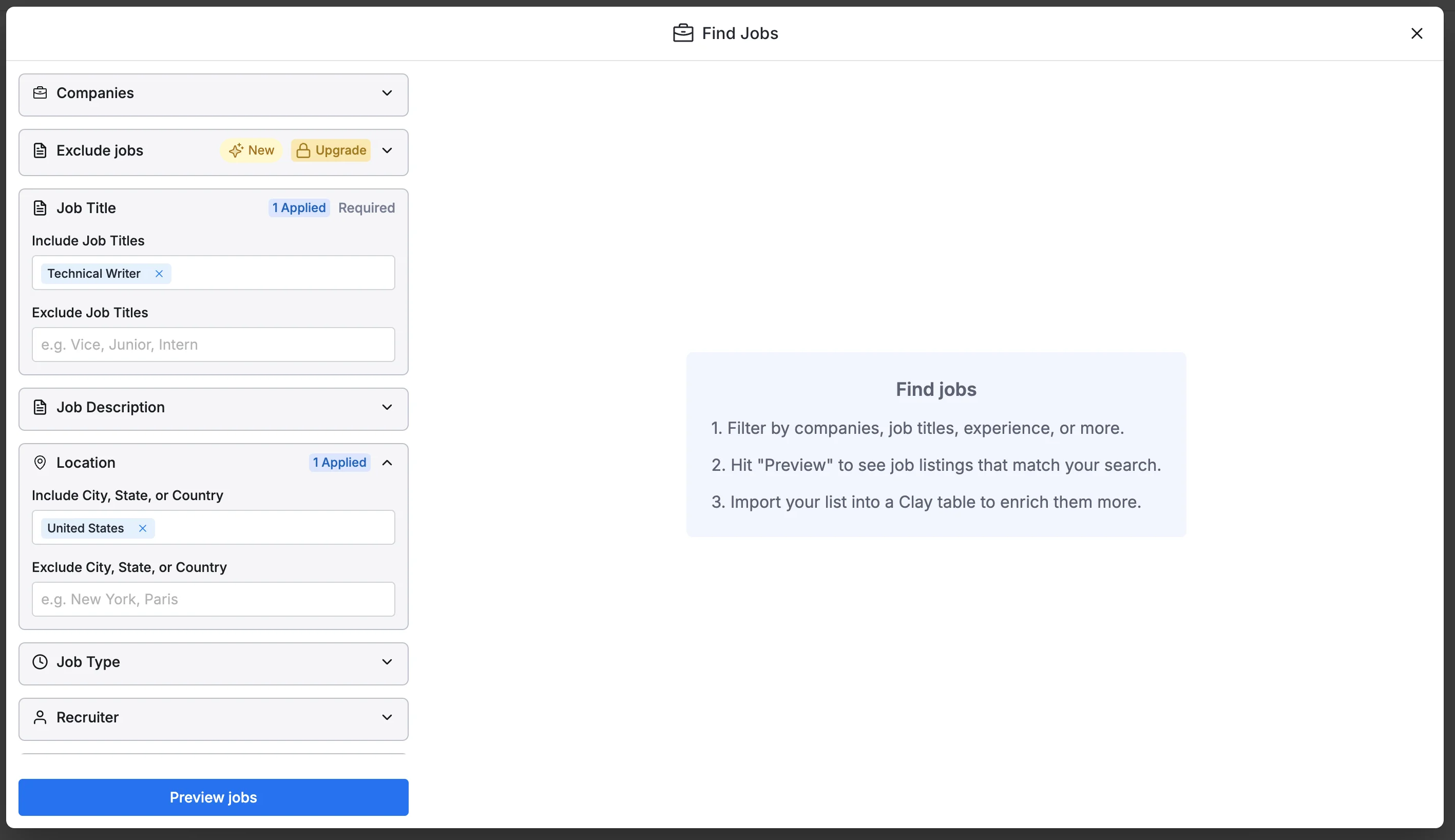
In the "Job Titles" box, click on the "Include Job Titles" text box and enter the job role(s) you’re interested in applying to. For this tutorial, we'll focus on finding Technical Writer positions. We’re also going to search for positions in the United States exclusively. To add a location filter, in the "Location" field, enter your preferred location(s).
Finally, you can set a search limit. This is how many job records you want Clay to find. Note, that the number of records you import will impact the credit cost of future data enrichments in Clay. We’re going to import 10 jobs to start (you can adjust this based on your needs).
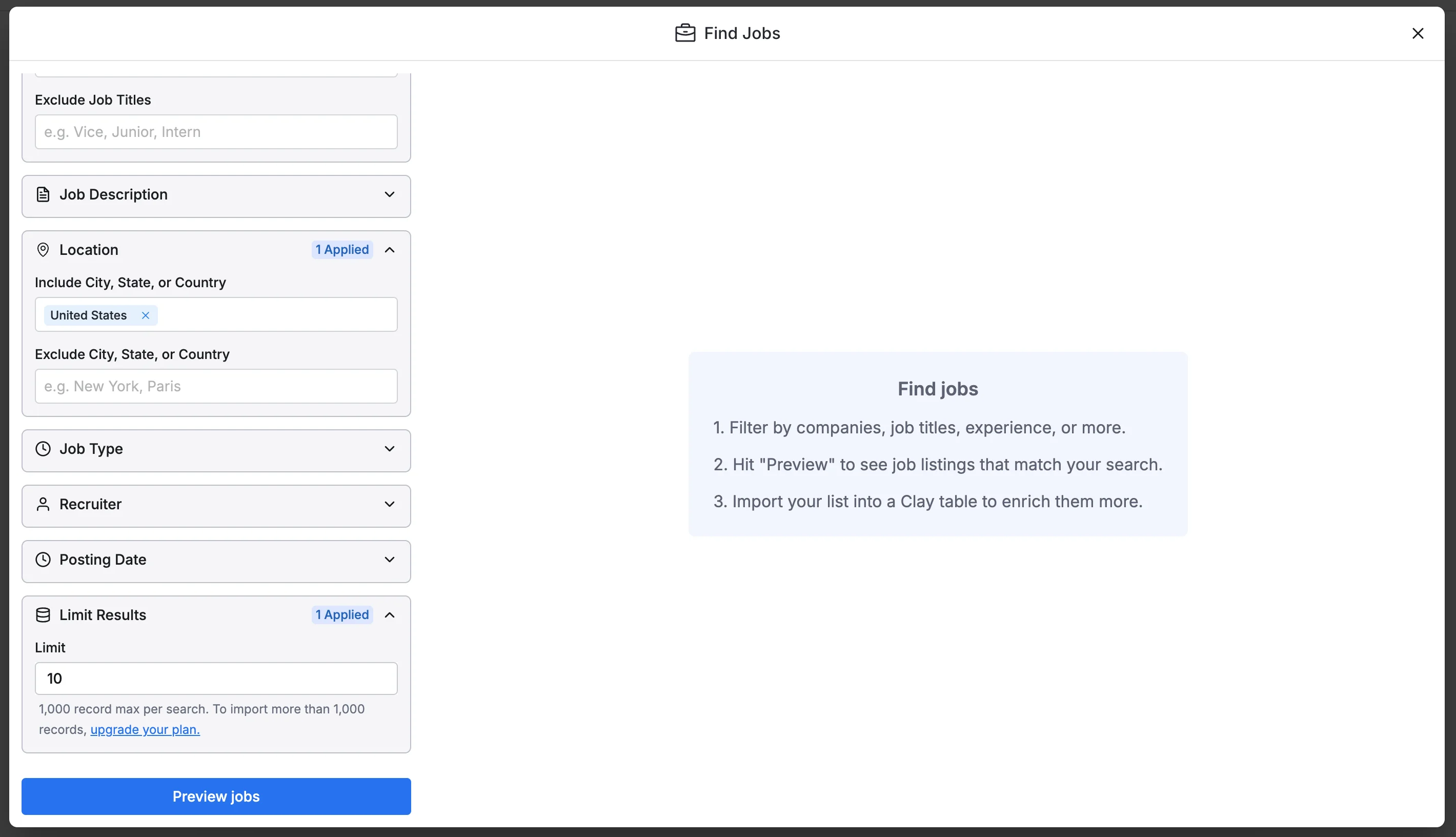
To run the search, click the "Preview Jobs" button to ensure your search criteria are returning the desired results.
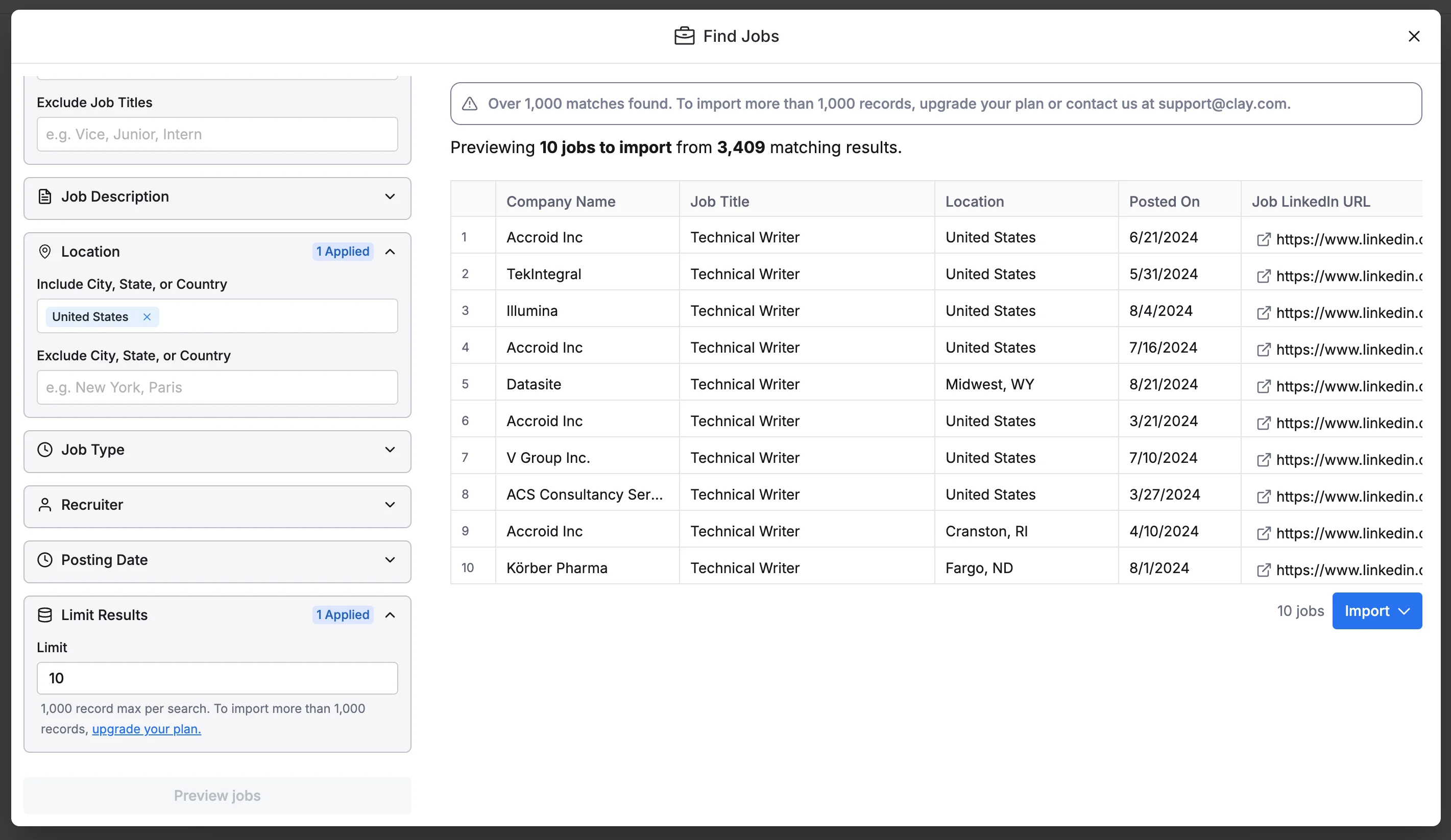
Importing your job search results
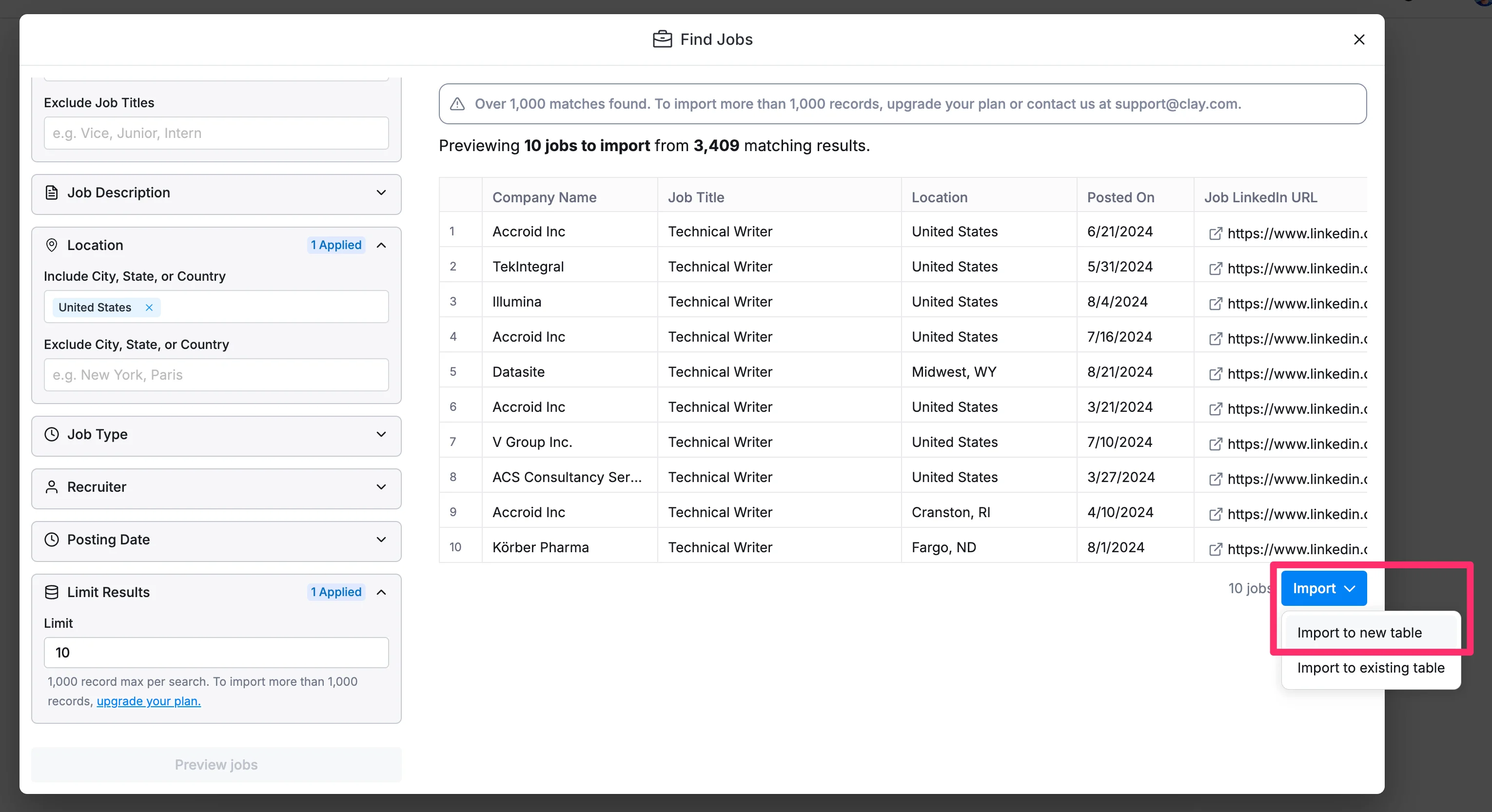
Once satisfied with your preview results, we can generate a table with the job data. To do this, click the "Import" button and select the "Import to new table" option.
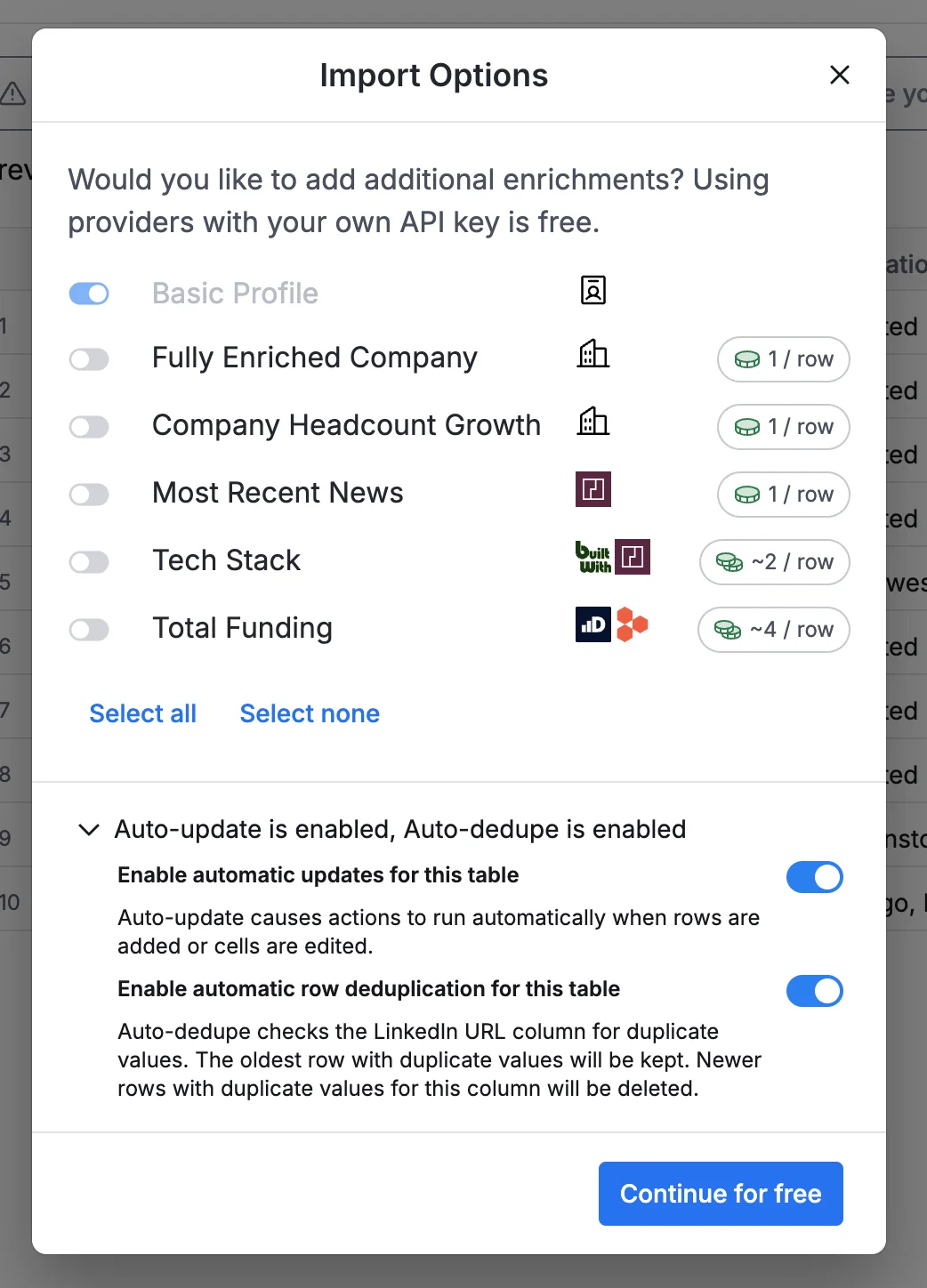
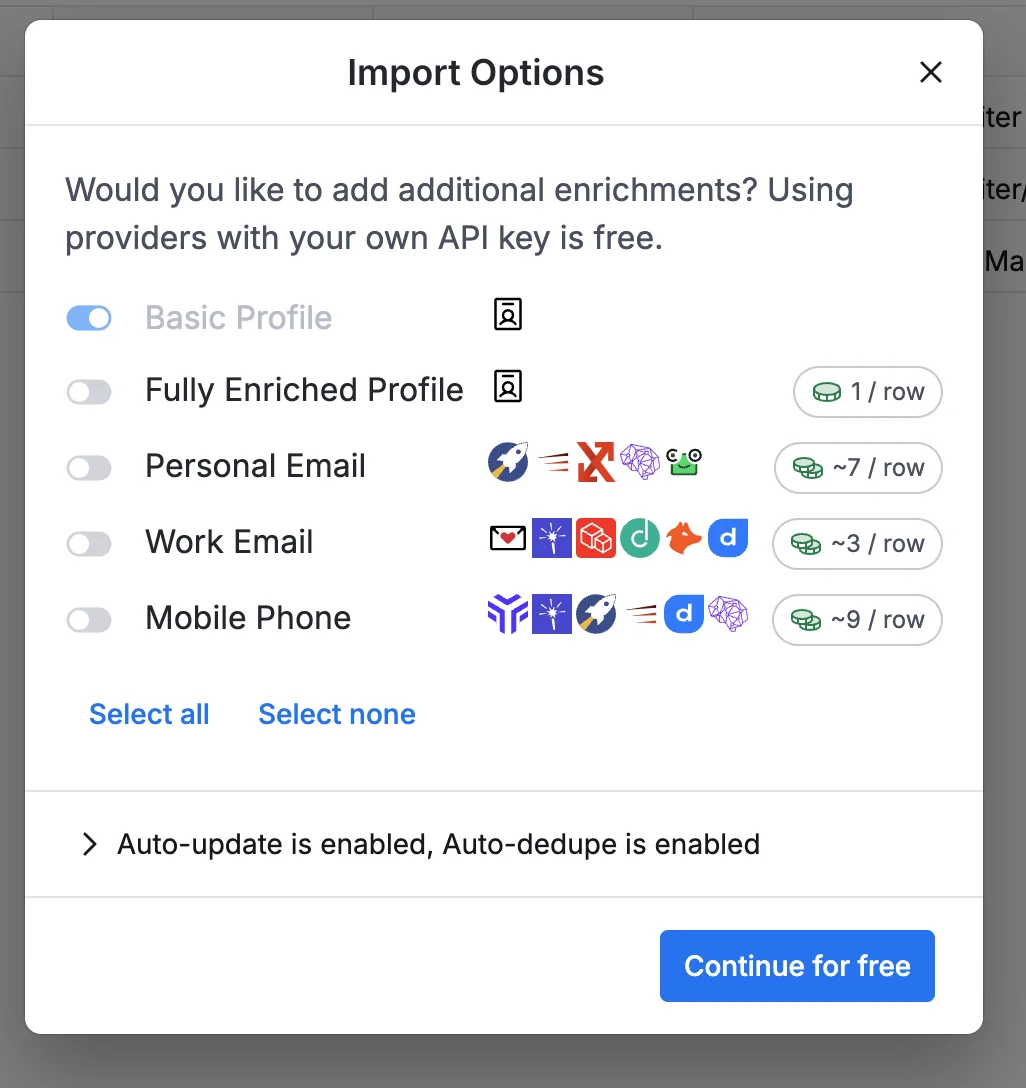
From here, you can choose additional data enrichments (e.g., recent news, tech stack, total funding, etc.). You’ll see the credit cost of each data enrichment on the right side of the pop-up window. We’re going to continue with just the Basic Profile.
Click the "Continue" button to import your job listings when you’re ready.
And just like that, we’ll get our list of jobs that we can start reviewing, filtering, and enriching.
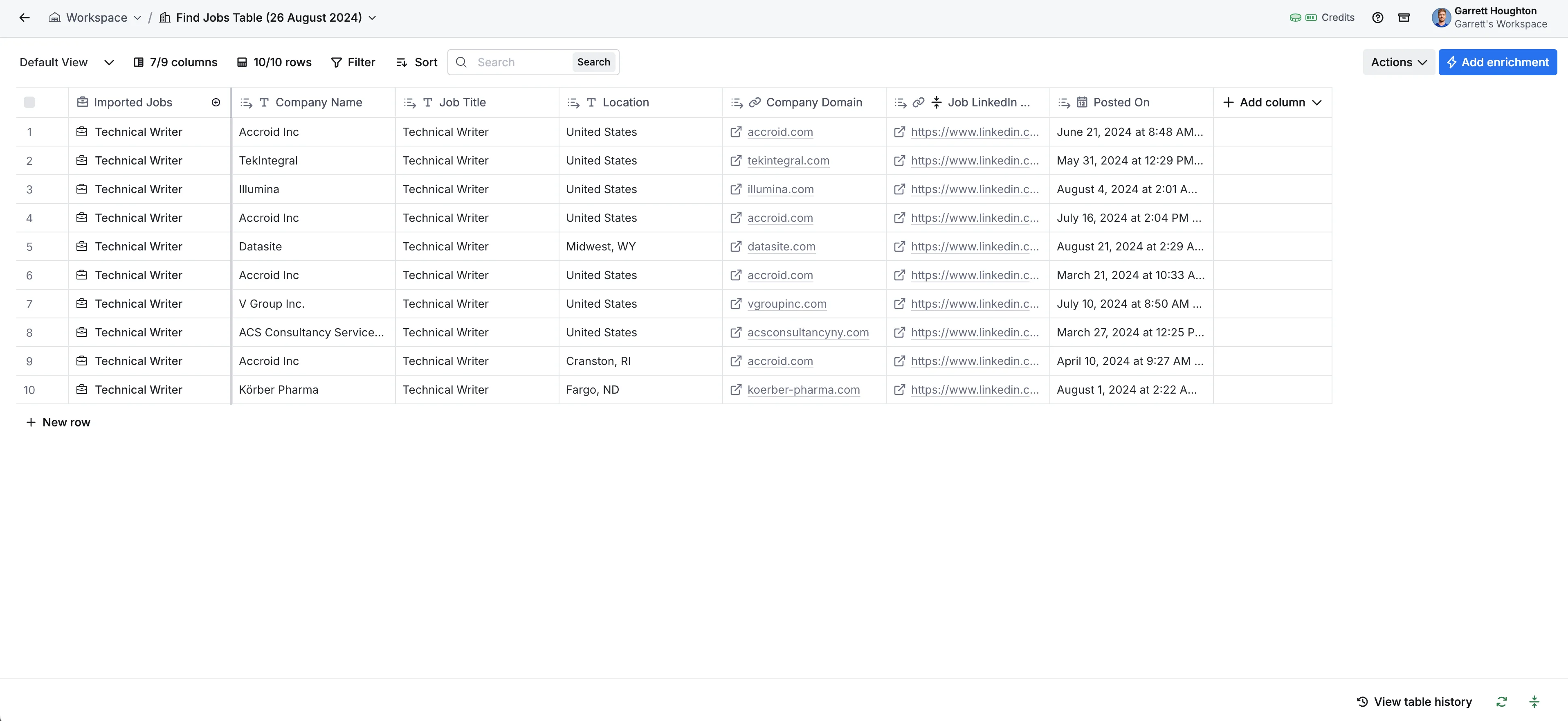
Enriching your data with potential contacts
One of the more helpful data enrichments Clay provides out of the box is allowing you to find potential contacts at your target companies. To get started with this, click the "Actions" button in your job listings table and select the "Find people at these companies" option in the dropdown menu.
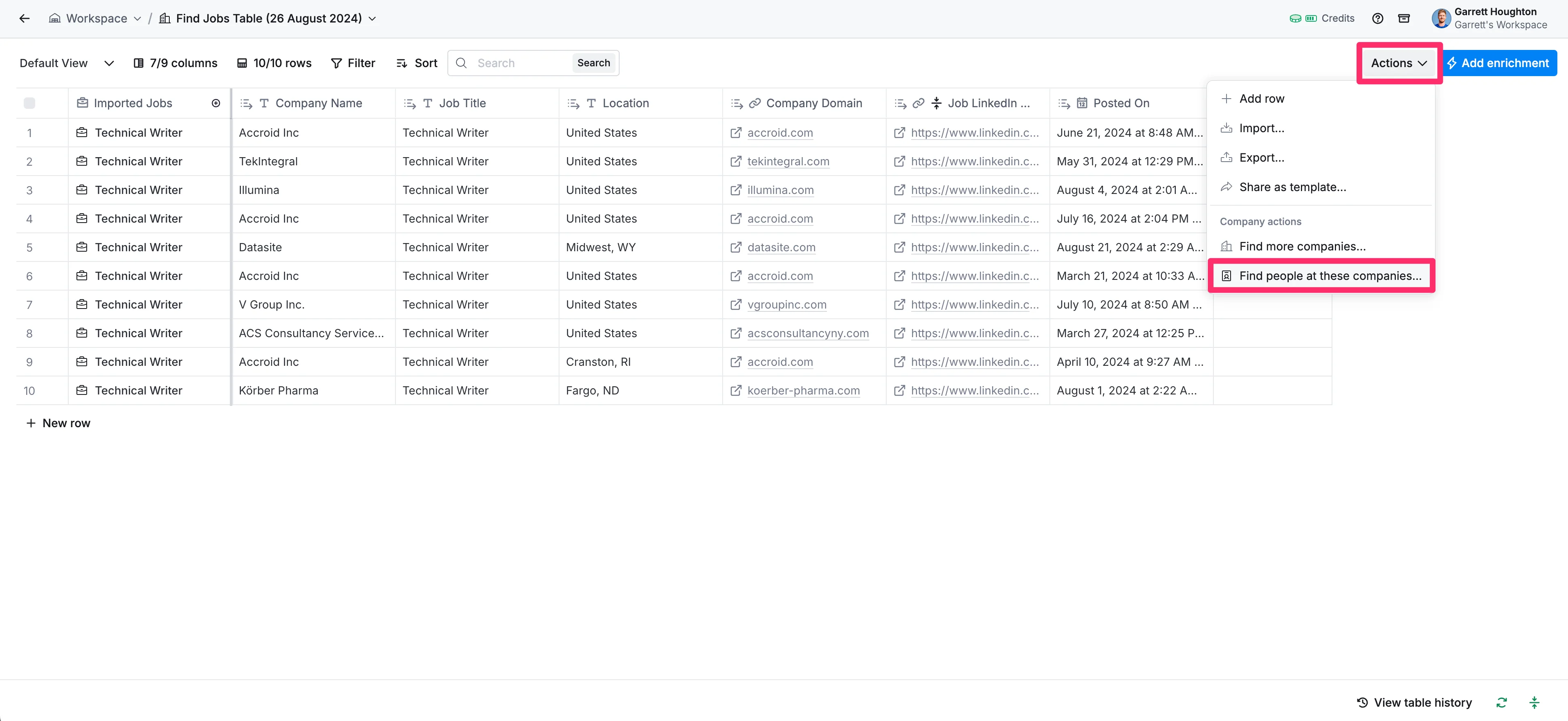
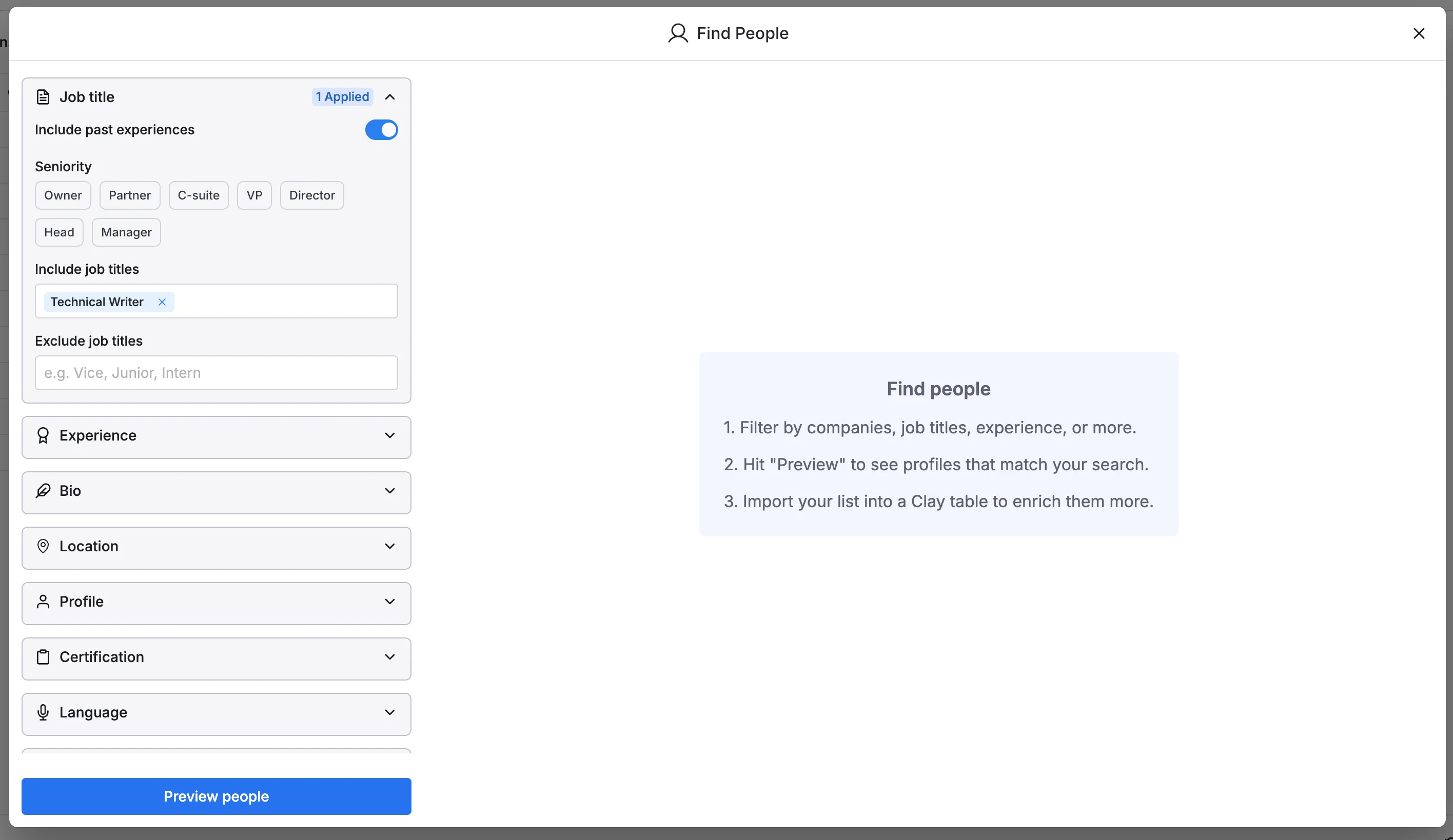
With this action, you can search for potential hiring managers or other relevant people to reach out to. In this example, we’re going to search for other Technical Writers at these companies. This helps create a list of people to reach out to for informational interviews.
To do this, in the “Include job titles” field of the pop-up, enter "Technical Writer" (or your desired position) to find people with similar roles.
To finalize our people search, we will set the limit to one result per company (adjust as needed) and a total of 10 records. Click the “Preview people” button to view the results to ensure they meet your criteria.
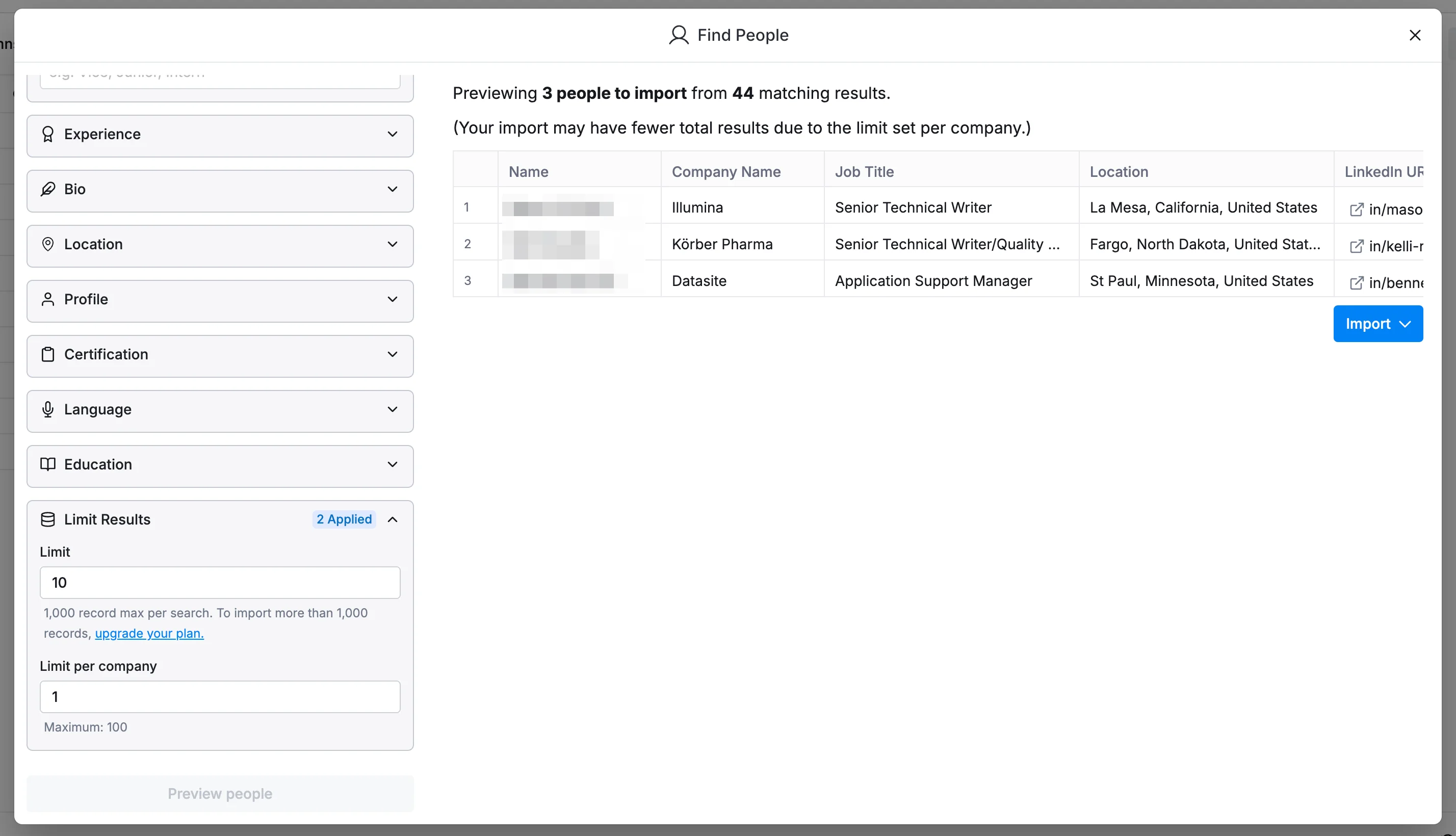
Lastly, click the "Import" button, select the import to a new table option, and select the additional data enrichments you want included in your people search.
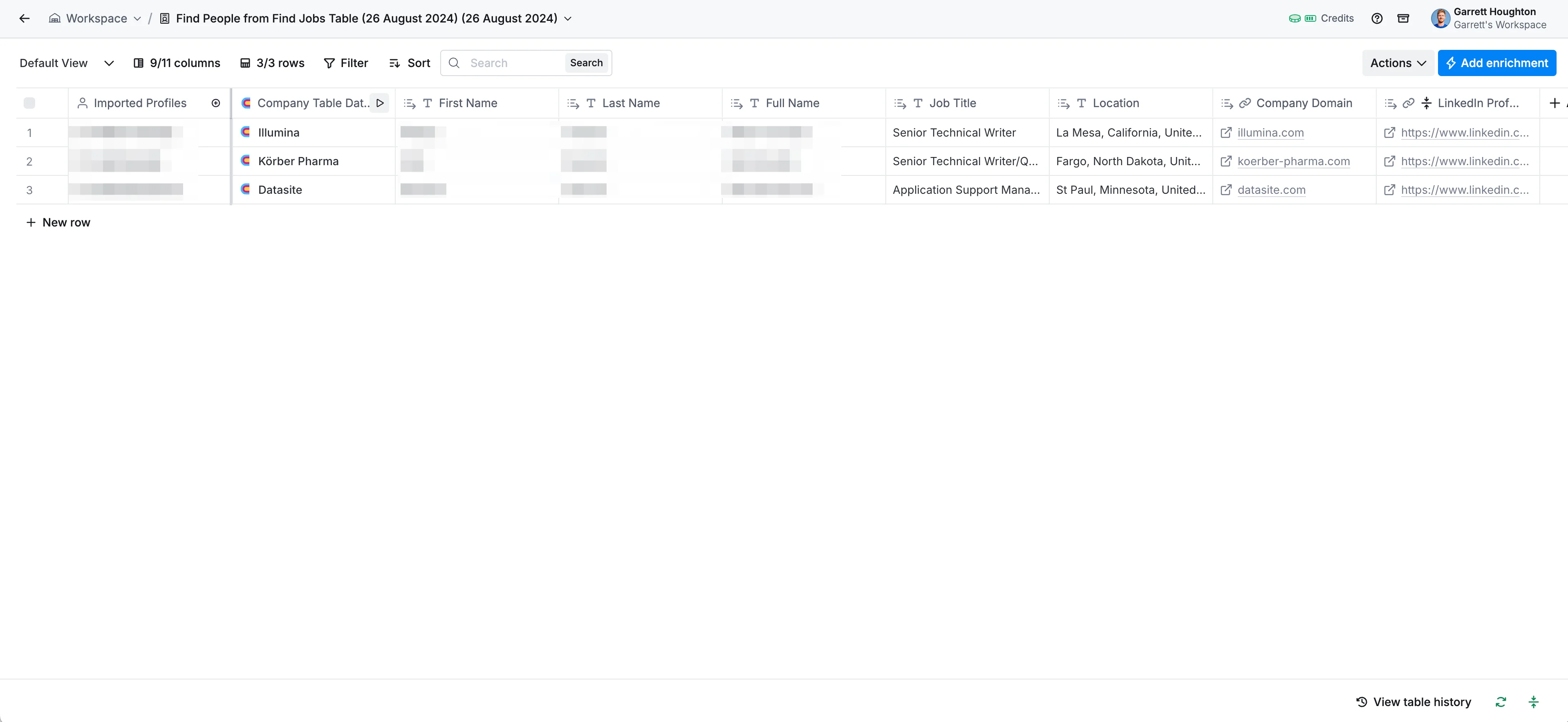
Once imported, you’ll get a new table (synced and connected to your jobs table) of contacts.
Using your Clay data
Now that you have both job listings and potential contacts imported into Clay, you can leverage this information to accelerate your job search:
- Use the LinkedIn URLs on the Company table to apply directly to jobs of interest
- Reach out to the contacts you've identified for informational interviews or networking opportunities
- Add additional enrichments to either your job listings or contacts table as needed
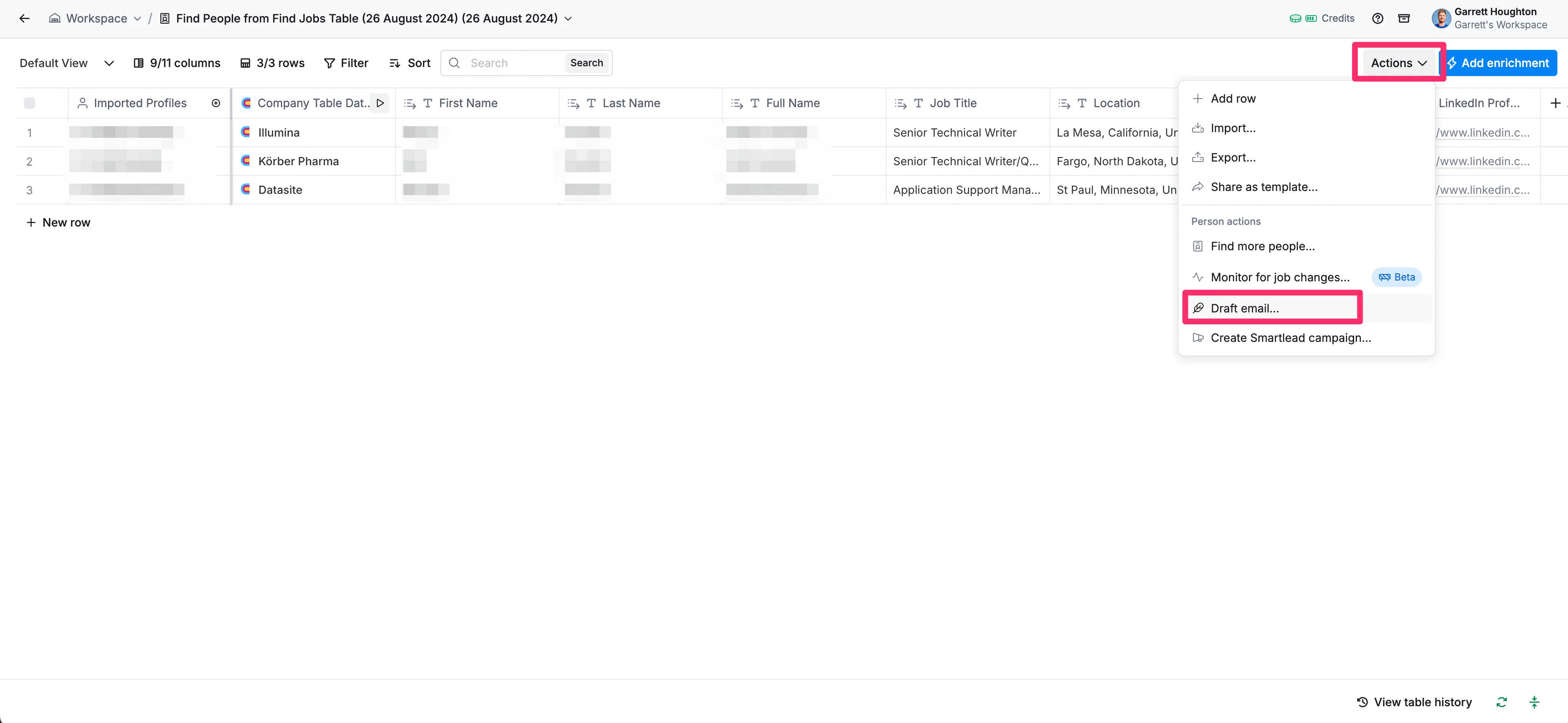
If you imported contact email data (e.g. personal or work email) for your contacts, you can draft outreach emails directly to the contacts you imported — right from Clay. To do this, in your contact table, click the “Actions” button in the top right corner and select “Draft email…” in the dropdown menu.
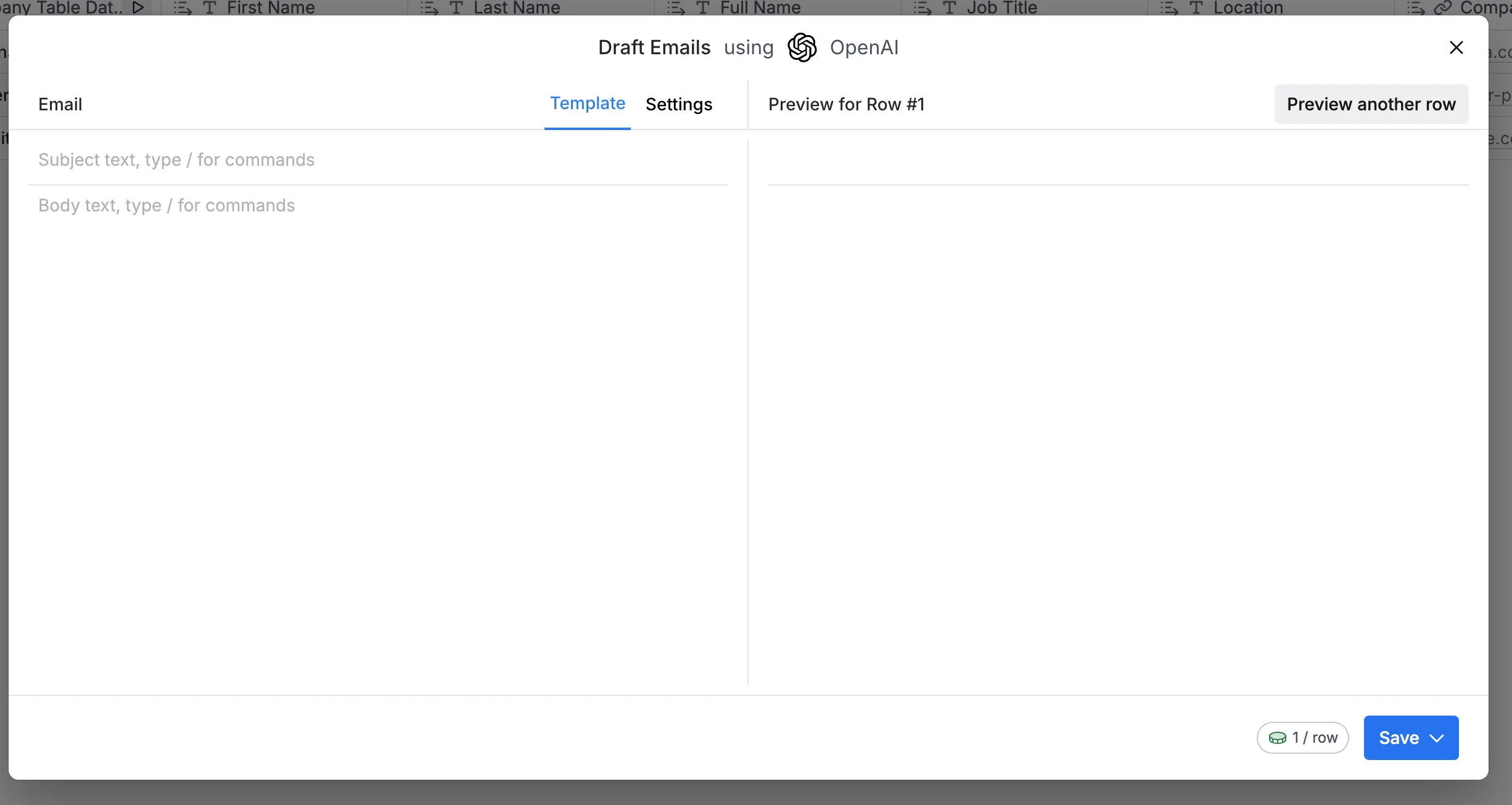
A pop-up will appear where you can draft an email template, equipped with variables for mass-sending options and content creation support from OpenAI.
That’s it! By using Clay to streamline your job search process, you can save an enormous amount of time and gather a wealth of information to help you in your career journey.
Remember to regularly update your search criteria and reimport data to keep your job leads fresh and relevant. Good luck with your job search!
This tutorial was created by Garrett.