Auto-extract podcast insights into Google Docs
Learn how to use Zapier Central to auto-extract insights from podcast transcripts and save them to Google Docs.
2024-11-13
Zapier Central is fast becoming one of our favorite AI tools. It allows you to bring the power of LLMs and Zapier Actions with you across the web. It’s a truly effective new AI tool that acts as a web-browsing AI copilot, complete with advanced AI capabilities and automation.
In this tutorial, we’re going to walk through how to automatically extract insights from podcast episode transcripts and add them to Google Docs using the Zapier Central browser extension.
You’ll need:
- Zapier account
- Zapier Central browser extension
- Chrome browser
Steps:
- Add the Zapier Central browser extension to Chrome
- Create a Google Doc Creation Behavior in Zapier Central
- Navigate to the podcast page and generate a Google Doc
Step 1: Add the Zapier Central browser extension to Chrome
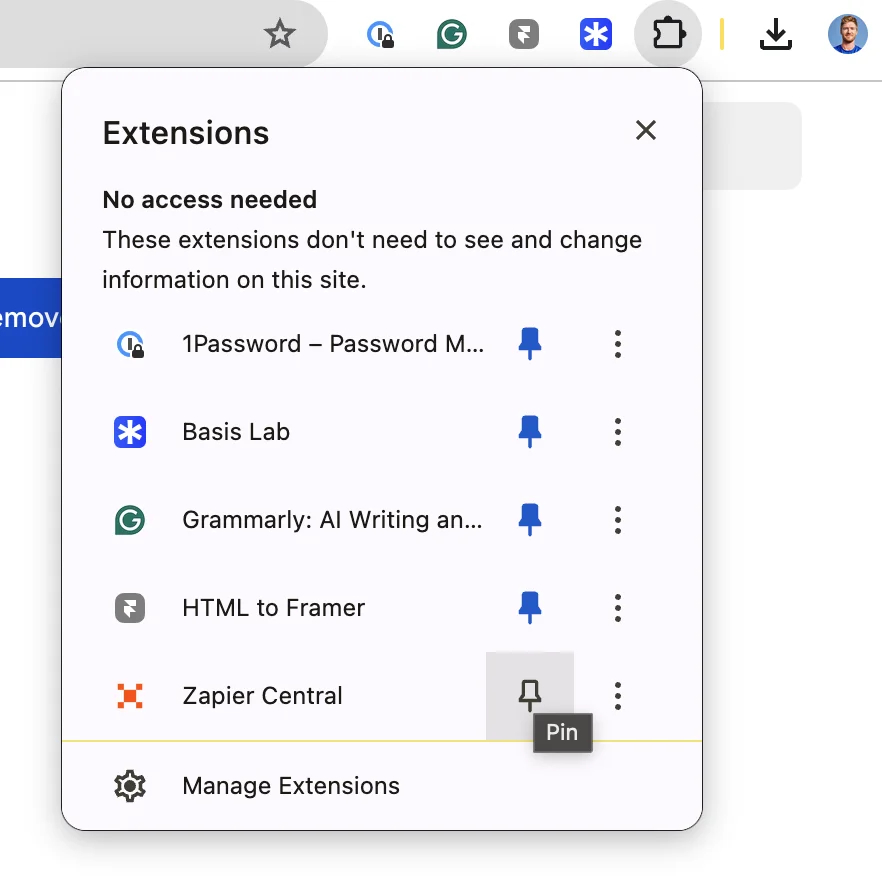
First things first, you’ll need to add the Zapier Central browser extension to your Chrome browser. To do this, navigate to the Zapier Central browser extension page and add it to Chrome.

Once added, you can pin it to your Chrome toolbar for easier access.
Step 2: Create a Google Doc Creation Behavior in Zapier Central
Now that we have the Zapier Central Chrome extension added, we can create our podcast summarizing bot. To do this, go to your Zapier Central bot dashboard and click the “New bot” button in the top left corner of the page.

This will create a new, untitled bot. We can rename the bot by clicking on the three dots icon in the top right corner of the screen. We’ll rename our bot to “Podcast Summarizer”.

Now that our bot is renamed, we can add a Behavior. A Behavior is a series of settings that we’ll configure that defines how we’ll trigger the bot action, what the instruction for the bot should be upon being triggered, and what action it should take within 3rd party applications. To add a Behavior, click the “Behaviors” button at the bottom of the screen.

For the Behavior Trigger, we’ll set it to “When I message the bot.” This will allow us to Trigger this Behavior when using the Chrome extension we installed in the previous step.

Once we select the Trigger, we need to define a specific phrase or keyword that triggers the Behavior. We’ll set it to “summarize.”

With the Trigger set, now we can add instructions to our Zapier Central Bot. These Instructions are essentially a system prompt for the Bot (i.e. what it will be instructed to do each time it’s called). We’re going to instruct our Bot to extract takeaways from the podcast transcript and save them to a Google Doc.
Sample prompt:
Extract key takeaways from the podcast transcript and save them to a Google Doc.
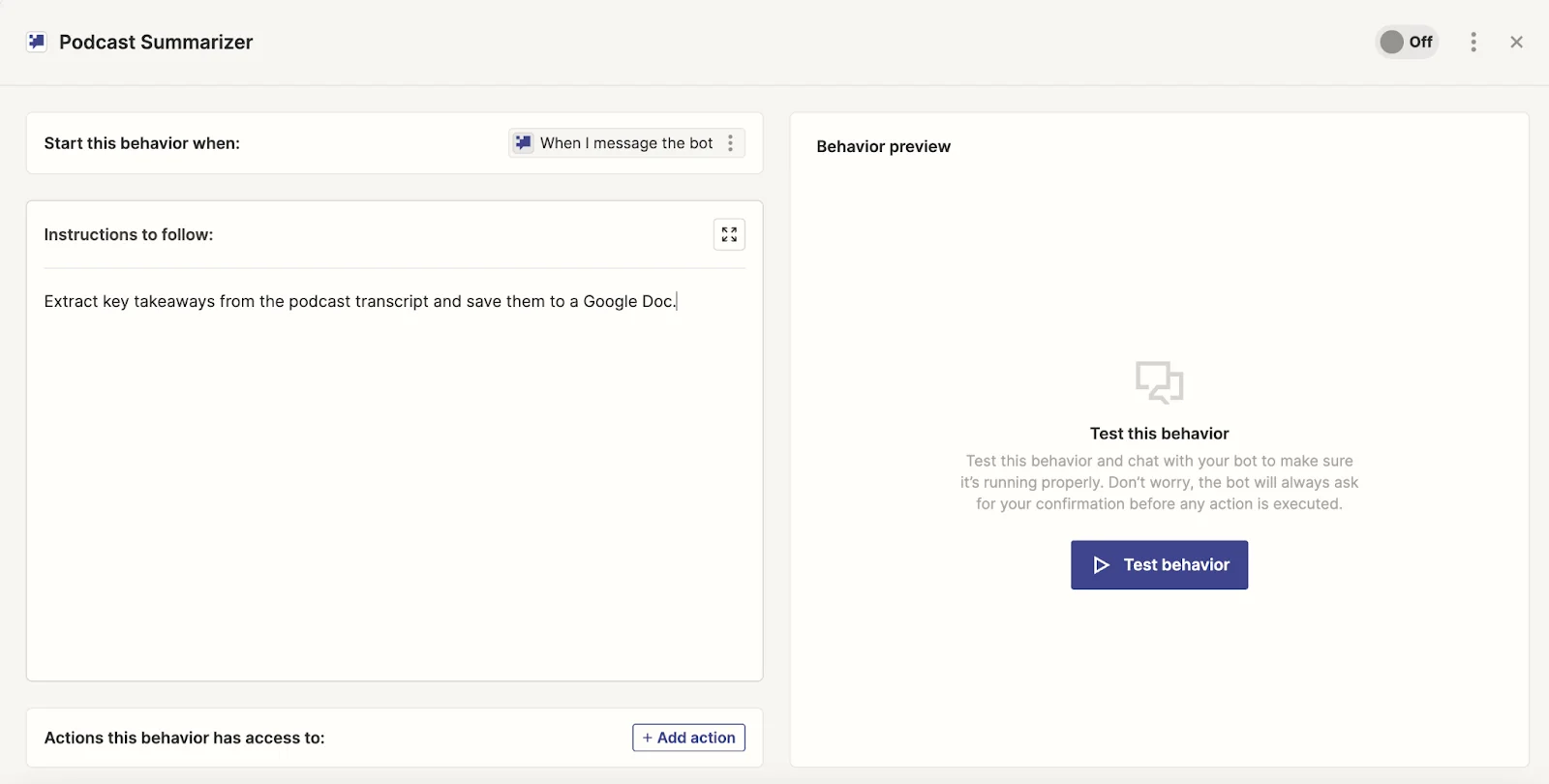
The last step of setting up the Zapier Central Bot Behavior is the Action step. This is where you’ll add the action it should perform in a 3rd party application given your Trigger and Instruction. For our Action, we’ll select Google Docs as the application.

Zapier Central will then prompt us with a few options for actions. Note, that it will intuit and rank the actions based on your previously defined Instruction, which is helpful. For this example, we’ll be going with the Create Document from Text Action. We’re choosing this because we’ll be sending the podcast transcript text from a web page with the custom instructions to generate the Google Doc.

With these parameters set, you can define a few additional settings, like defining the Document Name and Document Content — we’ll leave these to the default values, letting the AI generate the values for these fields.

With the Action set, we need to enable the Behavior to complete the setup process. To do this, set the Behavior to “On” by toggling the switch in the top right corner.

Step 3: Navigate to the podcast page and generate a Google Doc
With our Zapier Central Bot Behavior created, we can go to a podcast page with a transcript and test our Bot Behavior. We’re going to go to an episode of Lenny’s Newsletter podcast. On the podcast page, click the pinned Zapier Central extension in your toolbar to open the Zapier Central sidebar and click on the Podcast Summarizer bot we just built.

With a new chat open, enter the Trigger Phrase, which for us, is “summarize.”

The Zapier Central Bot will then start working step-by-step to extract the key insights from the podcast transcript and then create a Google Doc with the insights. At the very bottom of the message, the Zapier Central Bot will provide a link to the Google Doc. Click on that link to open up the Google Doc.

And that’s it! In the Google Doc, you should see a summarization of the key points from the podcast. Research has never been easier!

This tutorial was created by Garrett.