Automate calendar management
Learn how AI-powered productivity tool Reclaim can organize your healthy habits, focus time and meetings.
2024-11-13
Reclaim is an intuitive AI scheduling app that automatically finds the best time for your meetings, tasks, habits and breaks.
It deploys AI in a subtle but powerful way that will significantly change the way you manage your calendar and tasks moving forward. It’s like having a helpful, calendar assistant available 24/7 to make sure you accomplish all of your top priorities—across both your personal and professional life.
In this tutorial, we’ll walk you through getting started with some of Reclaim’s most helpful features, including task management, habit building, and smart meeting scheduling.
You’ll need:
- Google Calendar (Outlook Calendar integration is waitlist only)
- Reclaim account
Steps we’ll follow in this guide:
- Connect your Google calendar to Reclaim
- Add timing considerations
- Set weekly habits
- Block focus time and other tasks
- Book smart meetings
Let’s jump in!
Connect your Google calendar to Reclaim
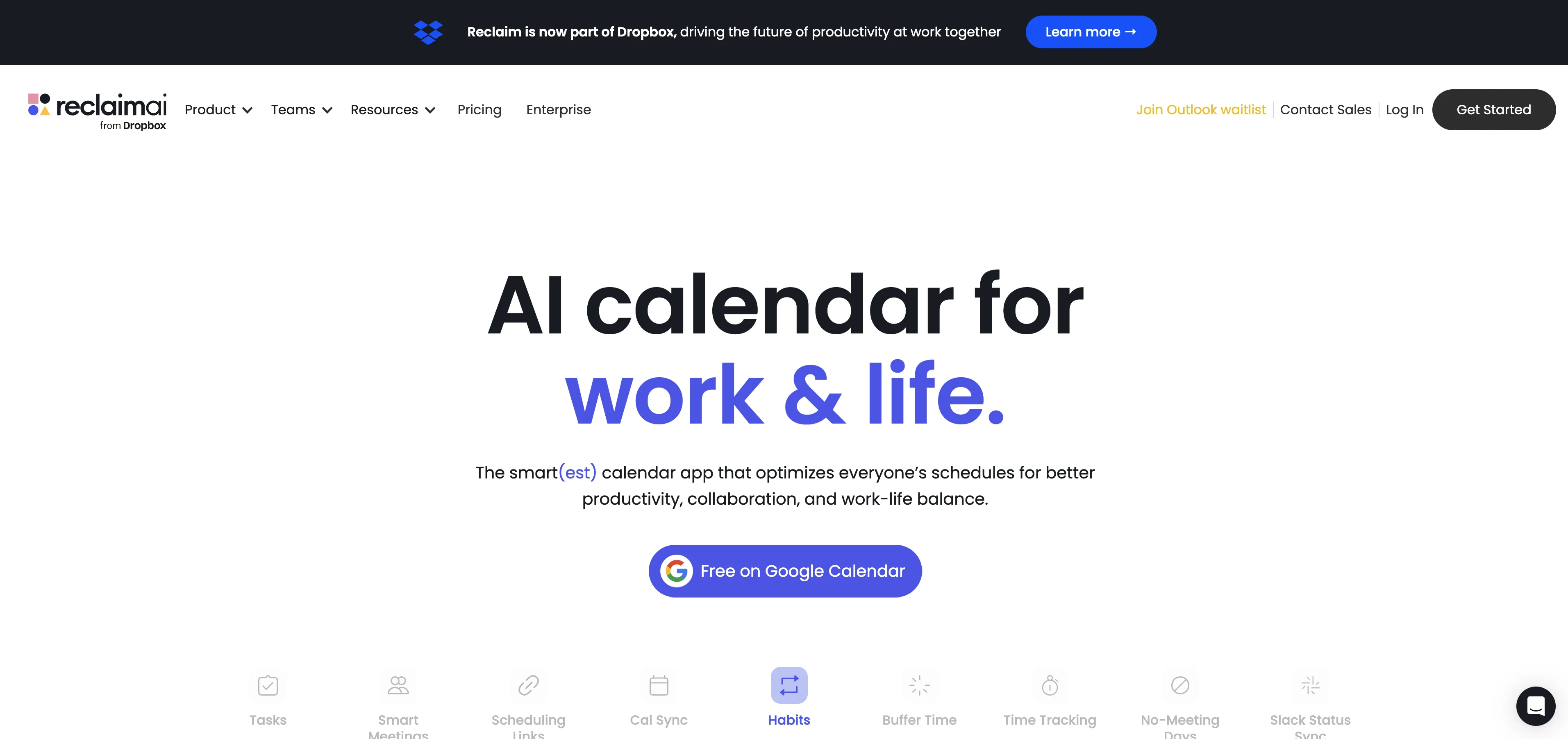
To get started, create a free Reclaim account and select the “Free on Google Calendar” option.
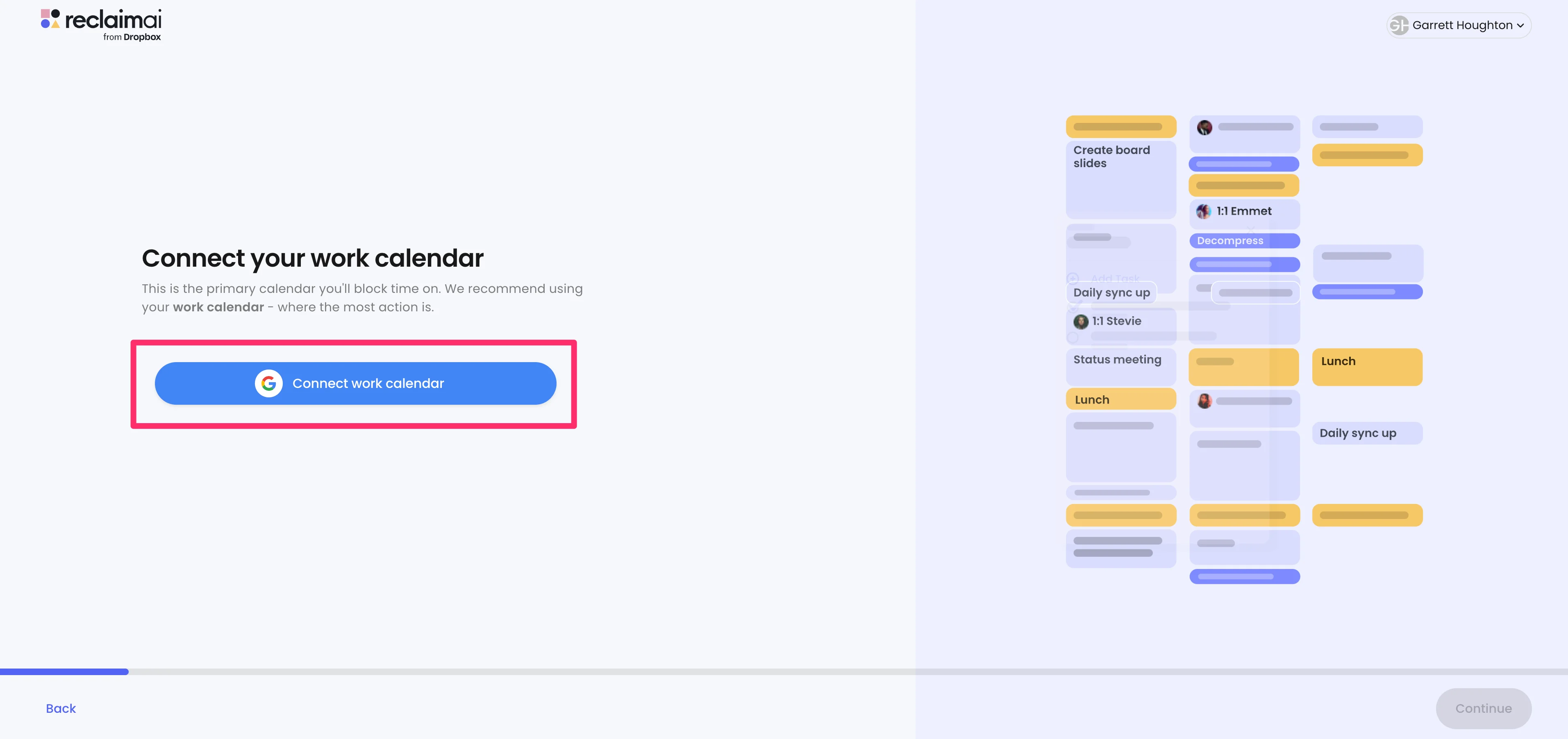
Then, connect your Google calendar.
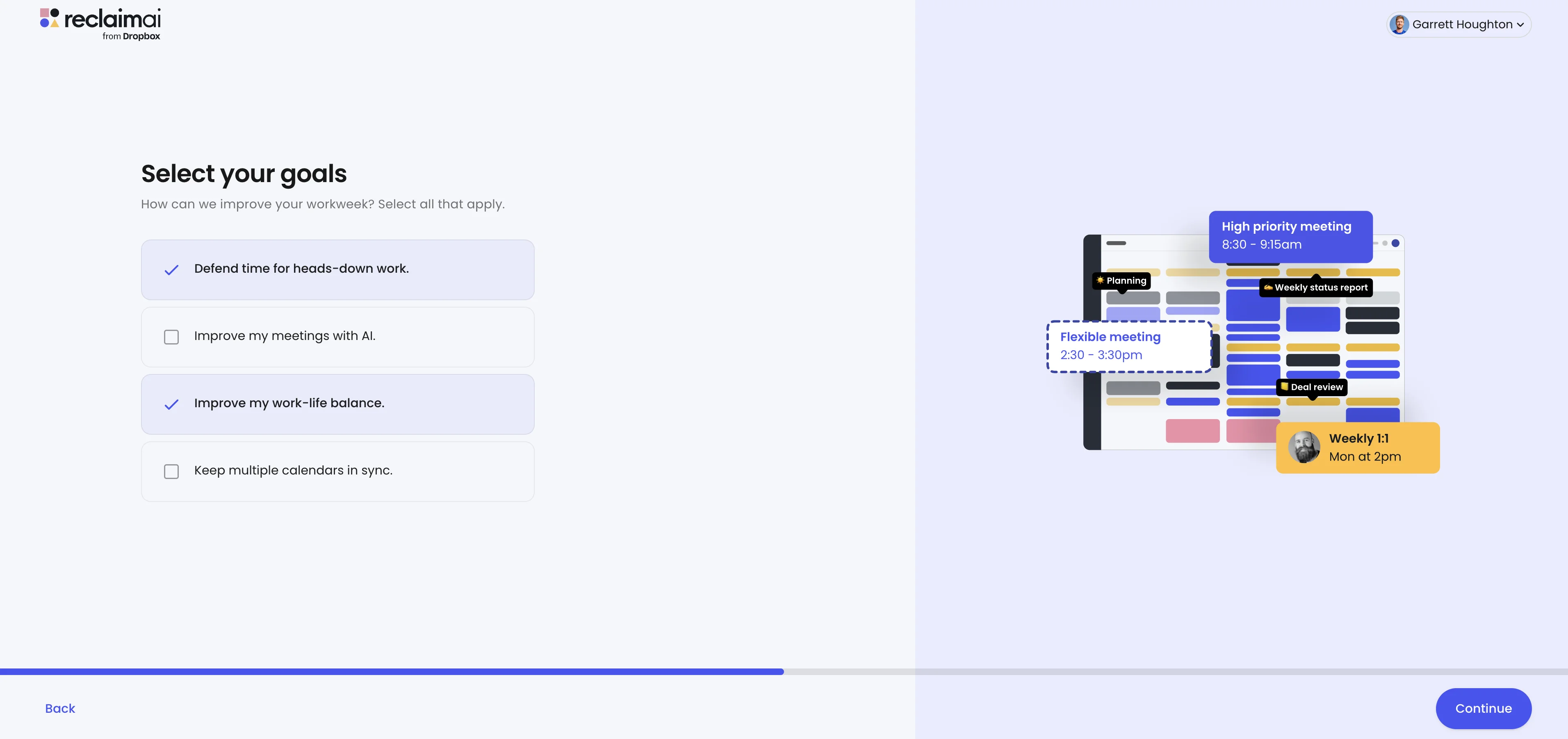
Within the onboarding process, you can select some of your goals to inform your Reclaim settings.
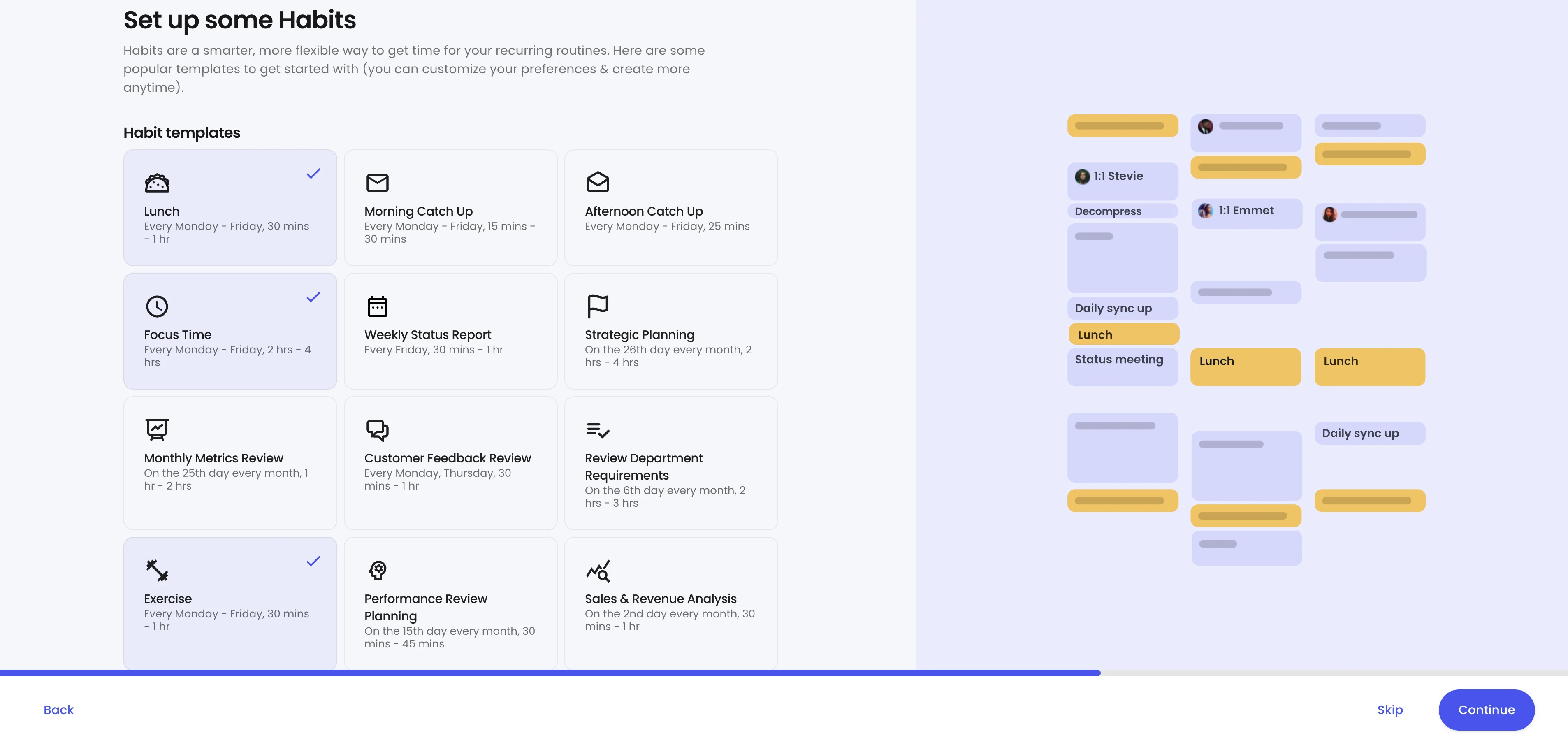
And even set up some recurring habits to add to your calendar. For example, we’re selecting Lunch, Focus Time, and Exercise Habits in this example.
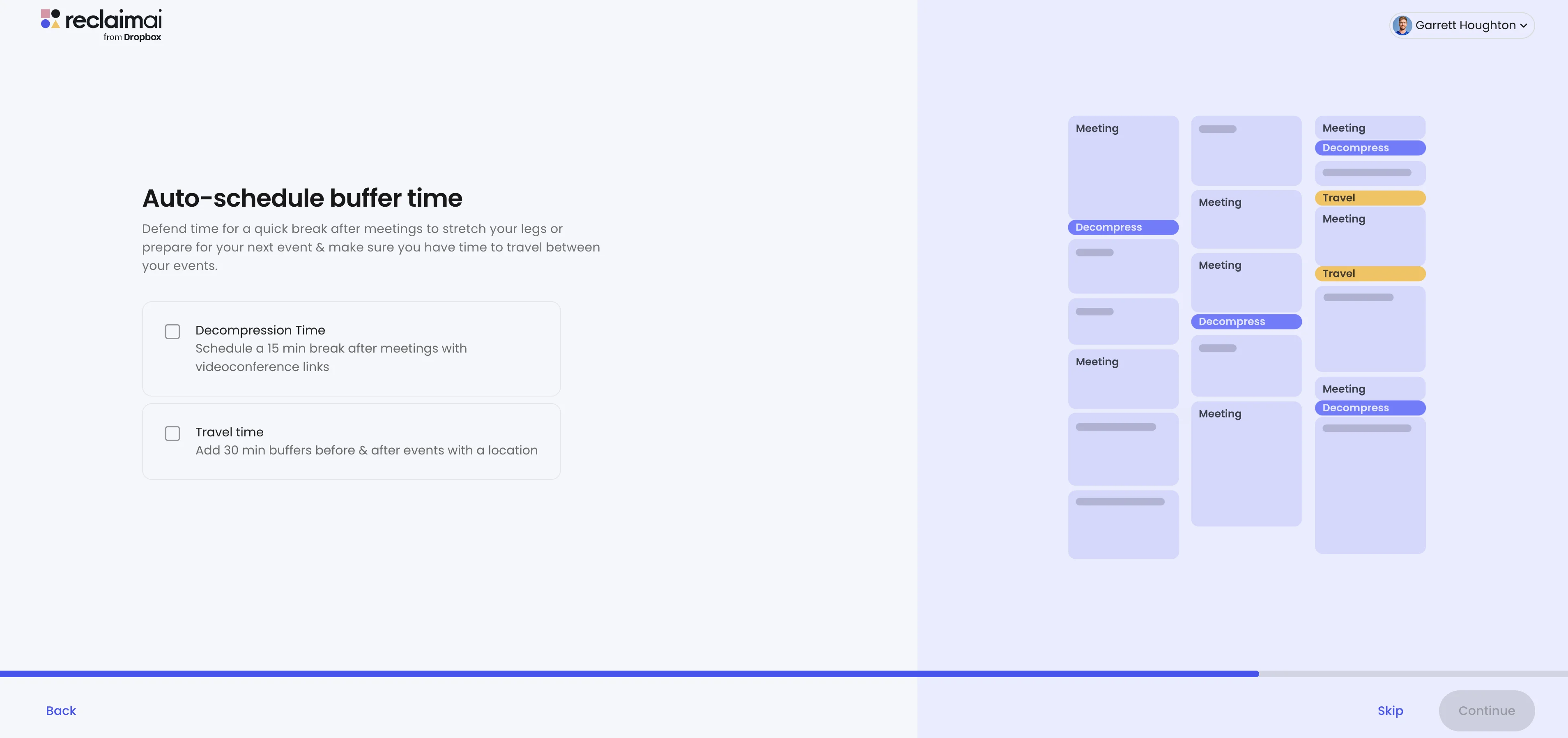
Finally, you can set up auto-scheduled buffer time, which will add blocks after your meetings for travel, bathroom breaks, or simply some decompression time. We’re going to skip this step for now.
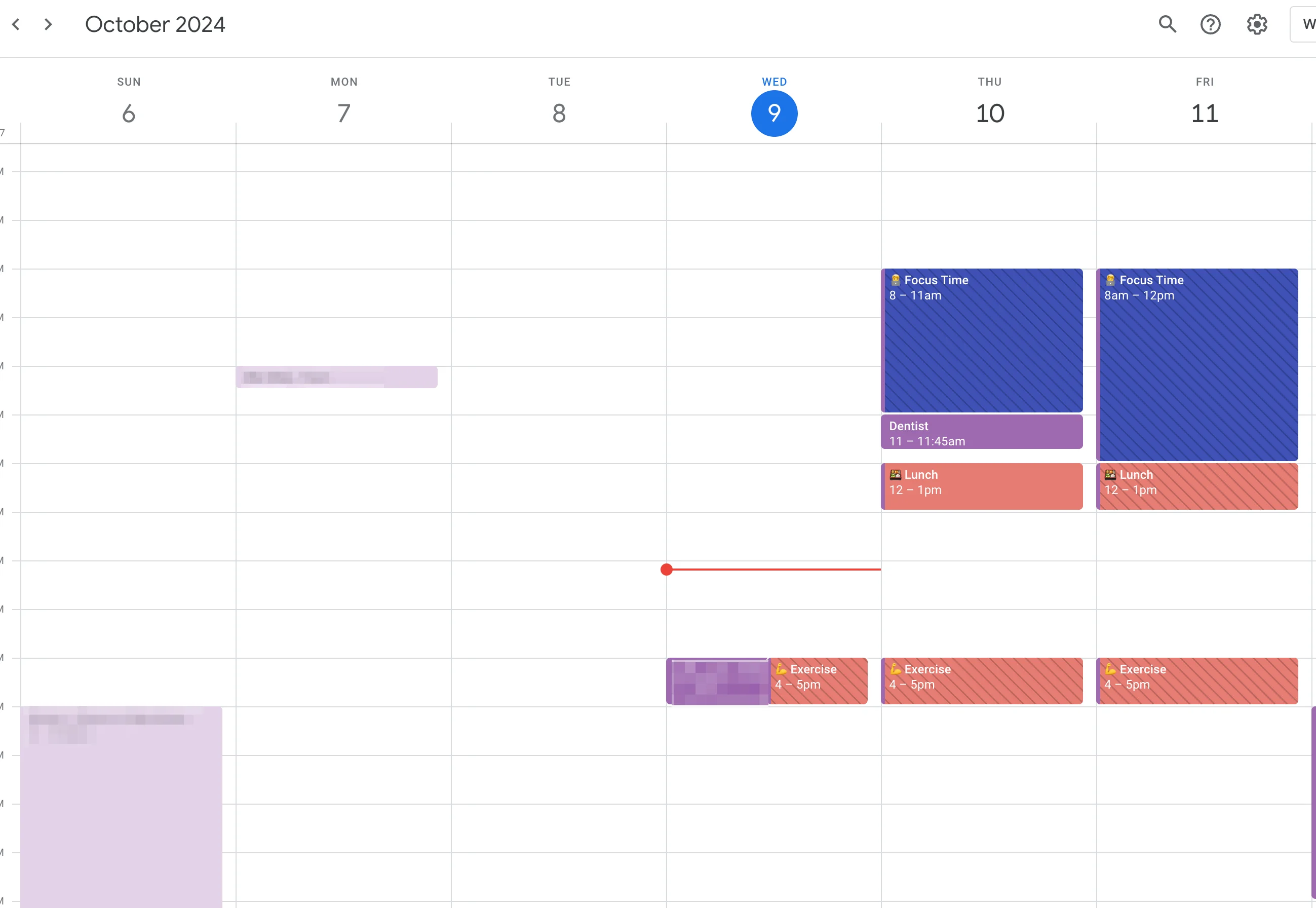
After you complete the onboarding process, you can check your connected calendar and see the habits you selected already scheduled on your calendar. For instance, mine include Lunch, Exercise, and Focus Time.
Add timing considerations
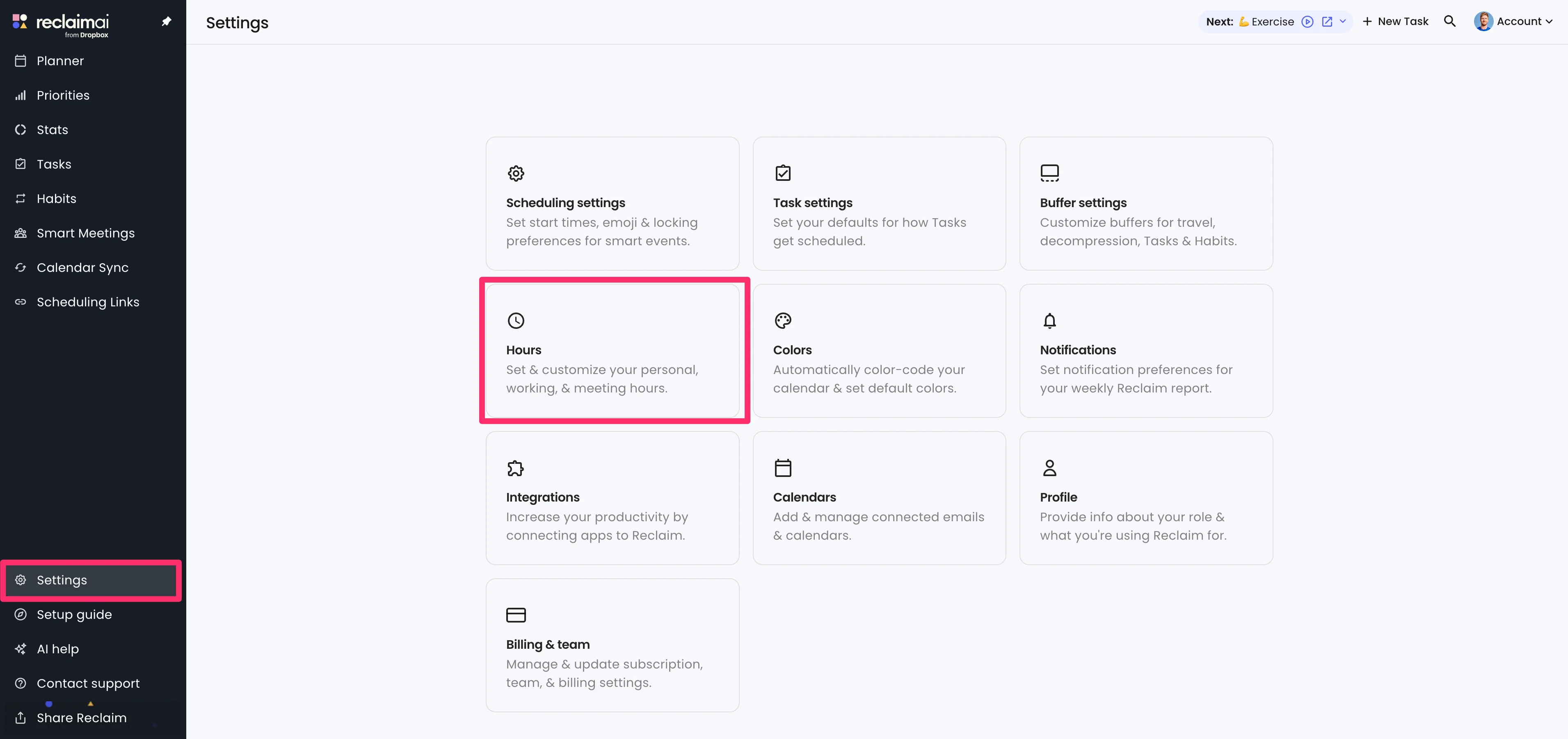
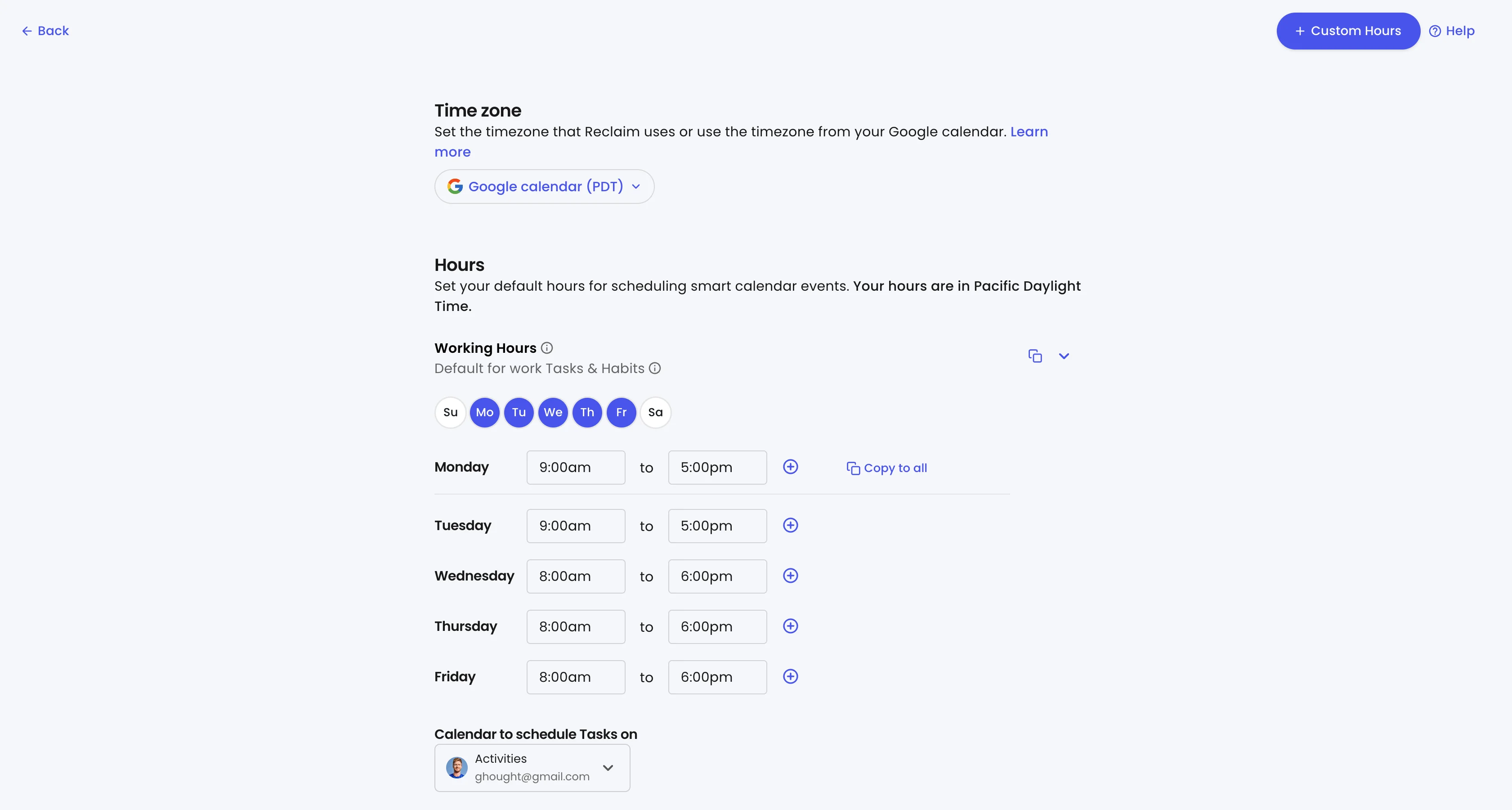
After completing the onboarding process, you’ll land in the Reclaim app. The first thing we recommend doing is setting up your calendar hours. You can do this by navigating to the “Settings” tab and selecting the “Hours” option.
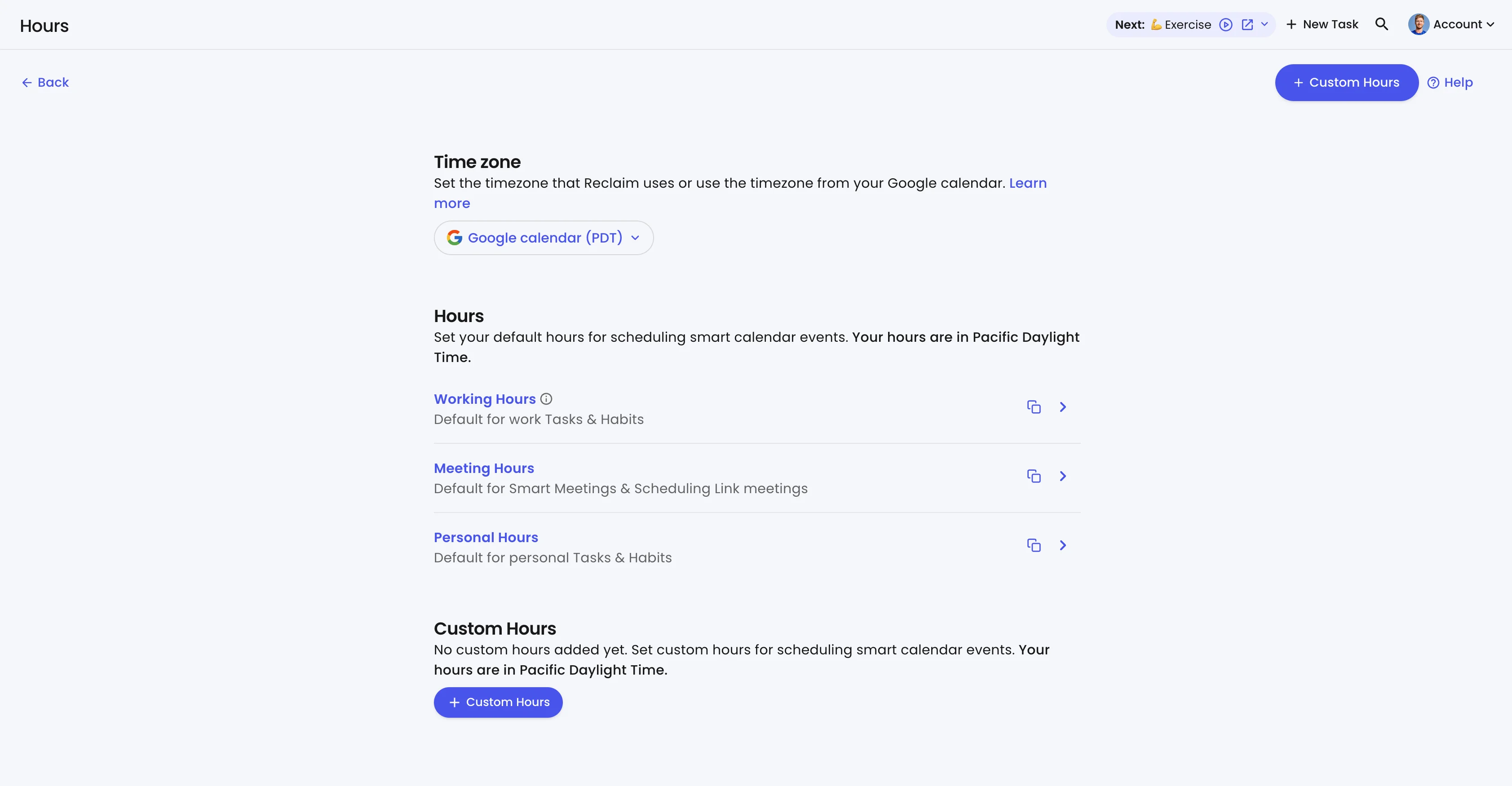
Reclaim comes with a Working Hours, Meeting Hours, and Personal Hours schedule by default. You can click on any of these options to update the days and times or add additional custom hours.
We’ll first select the Working Hours schedule and update it to 9:00 am-5:00 pm. This is the default time allotment for the work Tasks and Habits you set up in the Reclaim app.
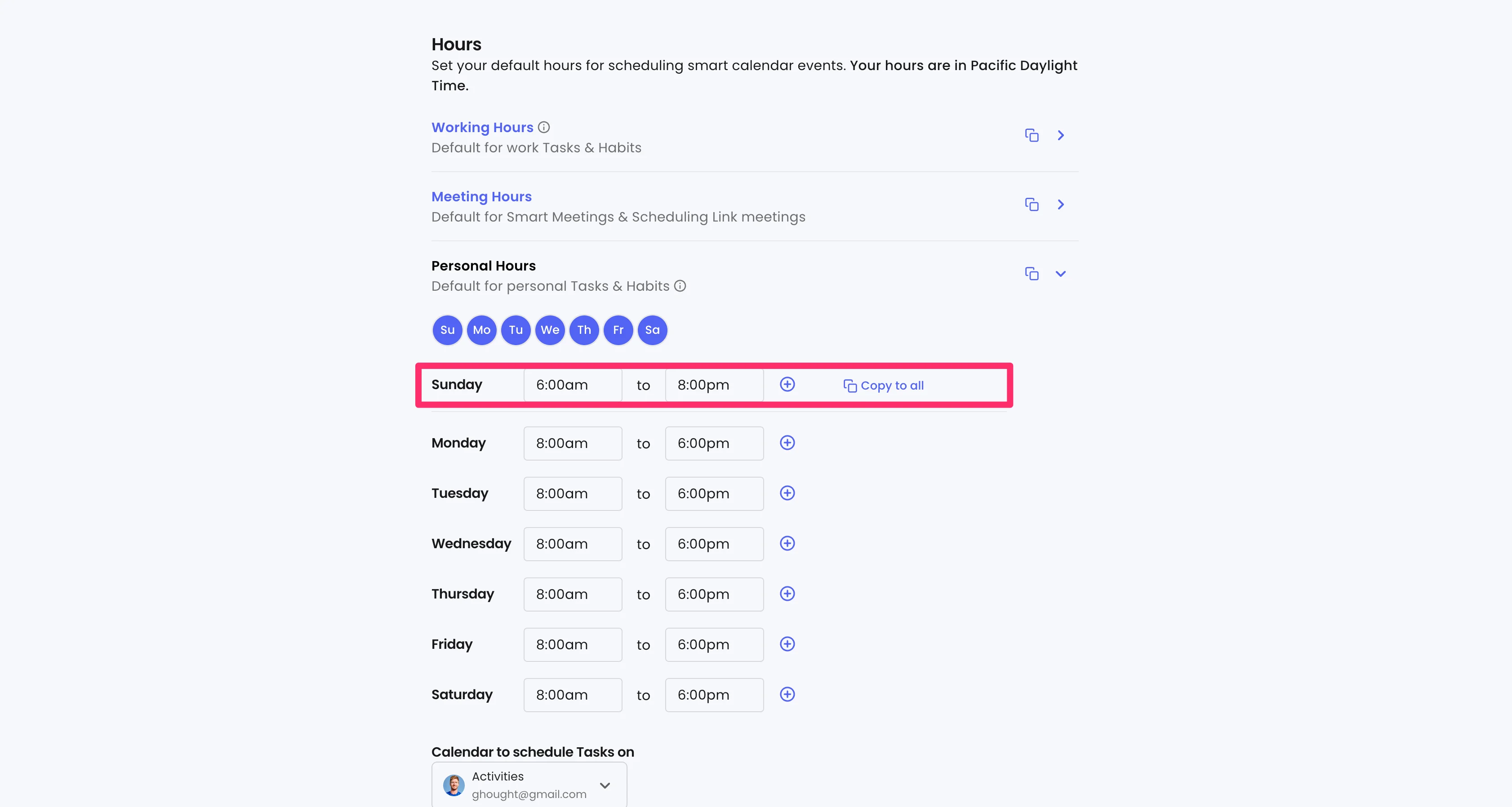
Next, we’ll update our Personal Hours. This is the default availability for your personal Tasks and Habits. If you want to set the same time availability for every day, you can update the first day in the grid’s hours (in this case Sunday) and click the “Copy to all” button to update all hours for this schedule.
Set weekly habits
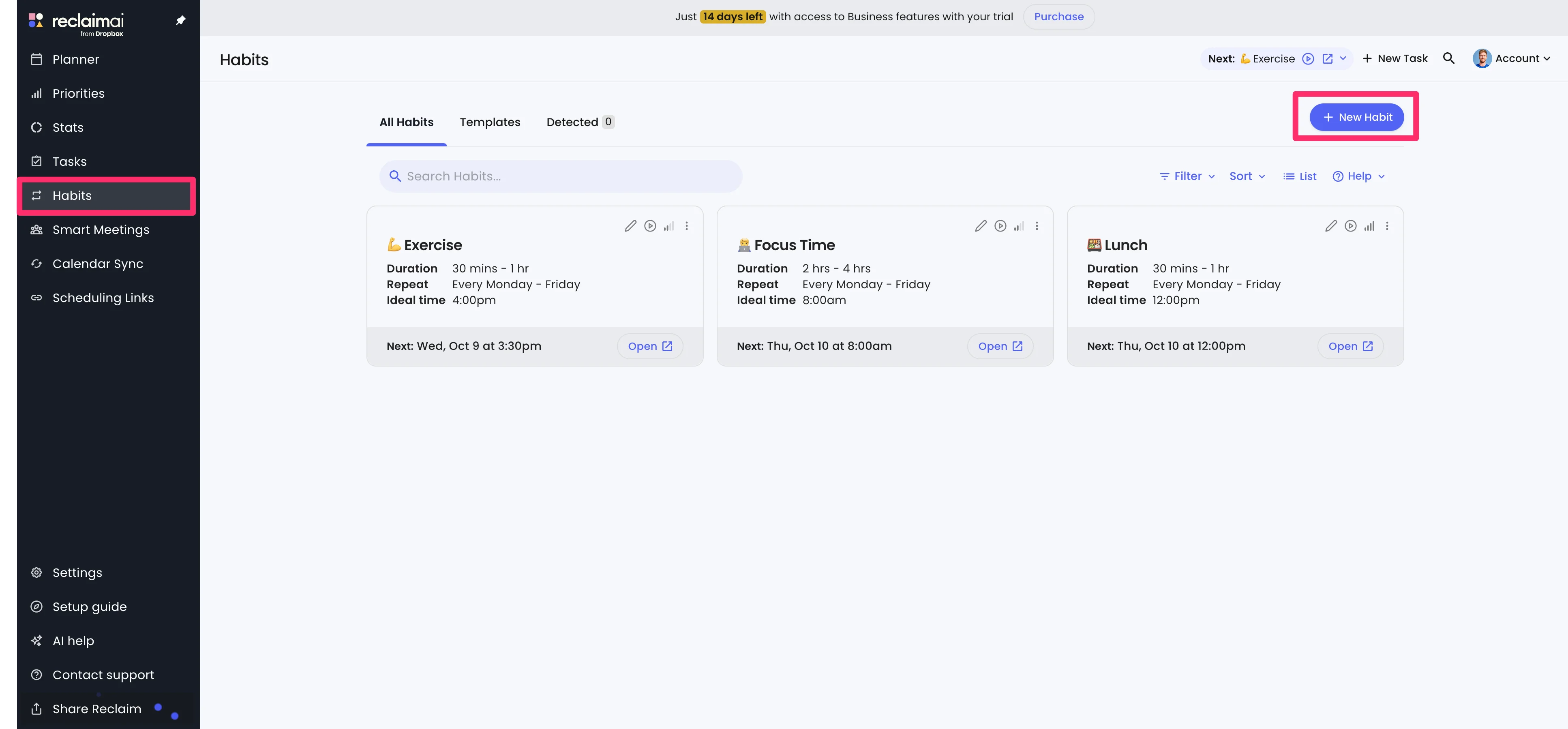
Now that our hours are set, we can start creating some Habits. Habits are recurring blocks of time that Reclaim will schedule on your calendar. Navigate to the “Habits” tab and click the “New Habit” button in the top right corner to create a new Habit.
On the resulting page, you can name your Habit, add the priority, and select the Habit category and color. In addition, you can select the hours you want to book this Habit to (e.g. Work Hours, Personal Hours, etc.). In this example, I’m adding “Morning Meditation” to my Personal Hours, which means those hours we set in the previous section will be available for this Habit.
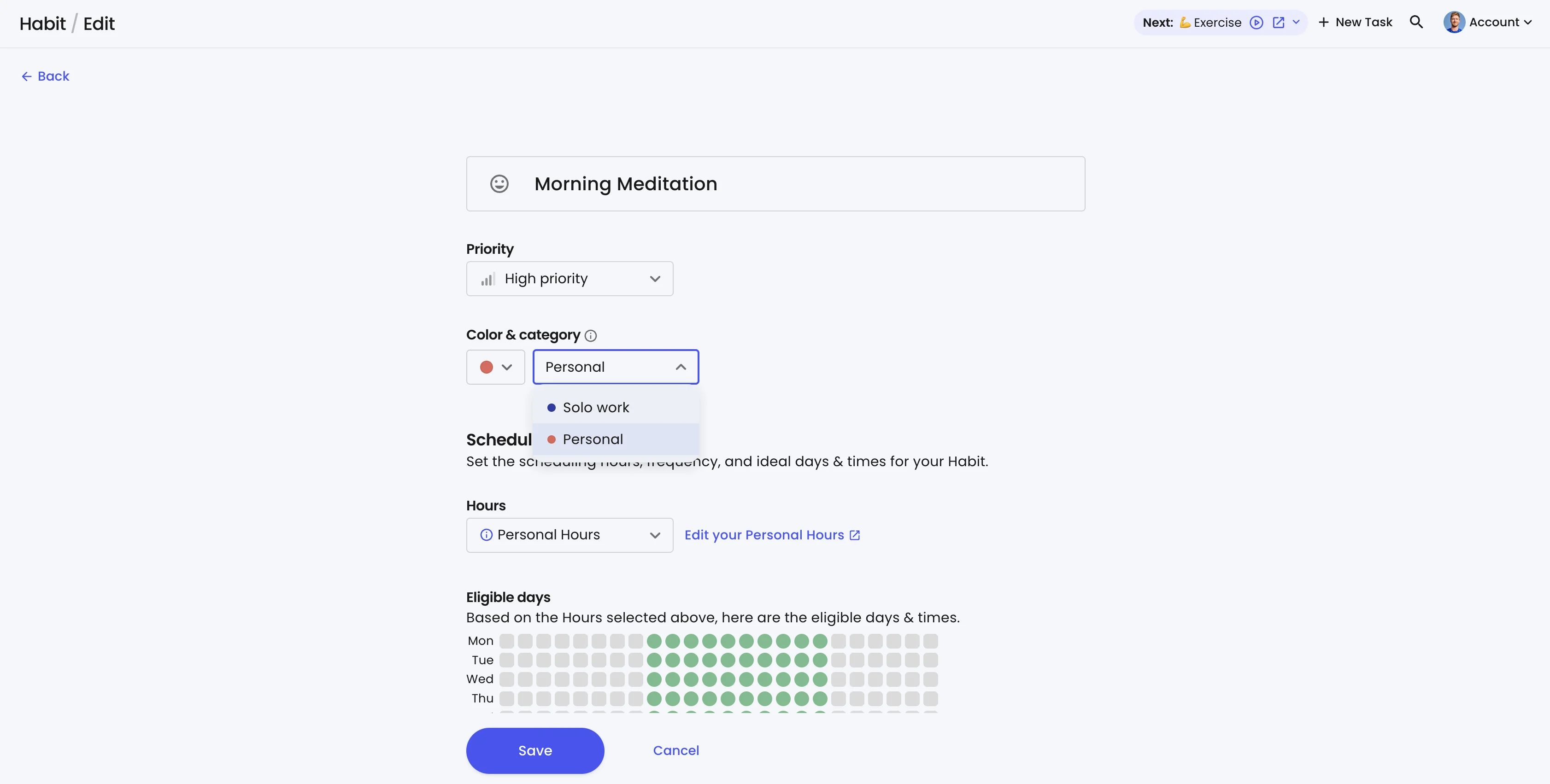
From there, you can define how often you want this Habit repeated, the ideal days and times, the duration, and when you want it to start and stop on your calendar.
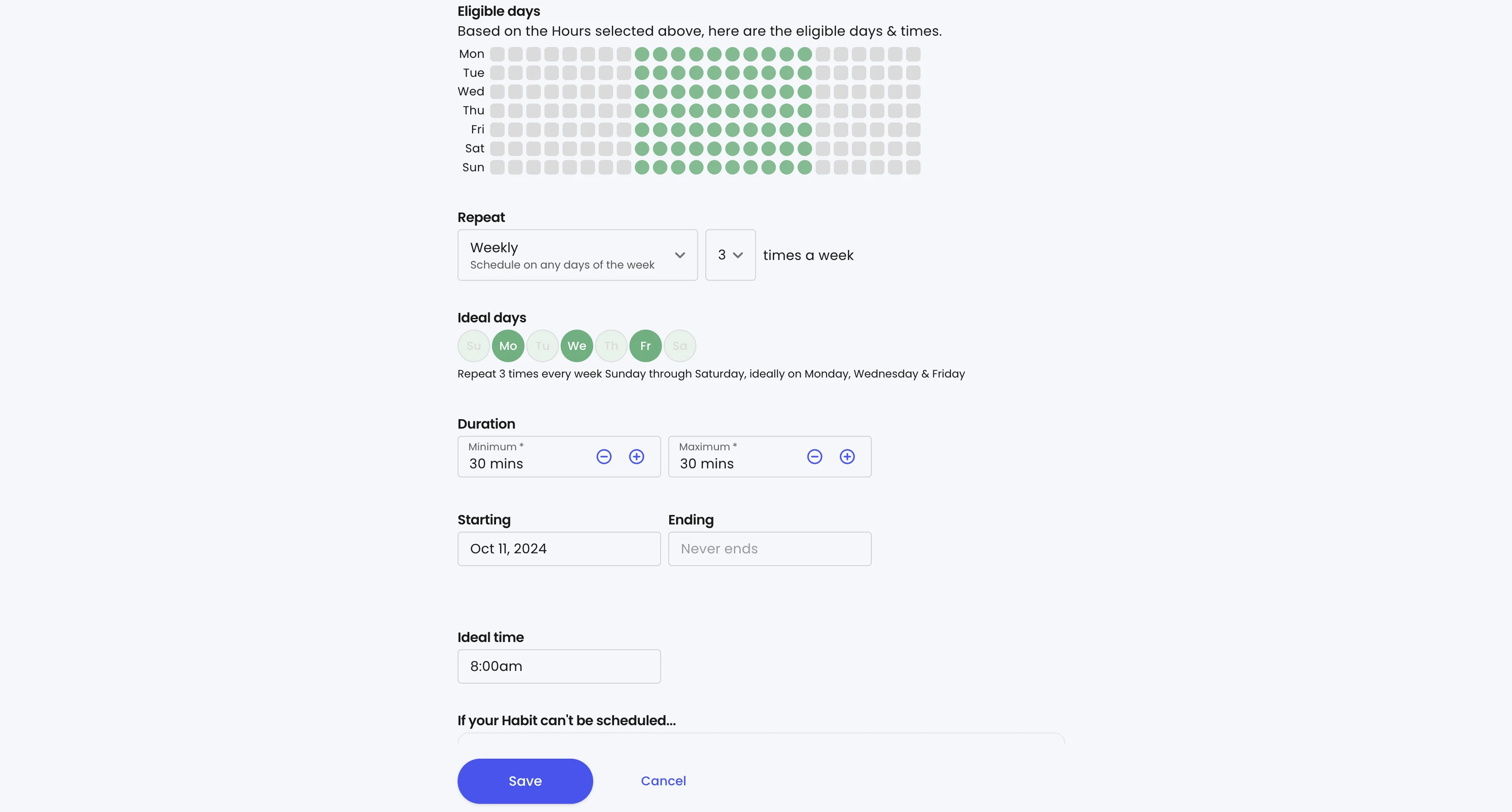
Lastly, you can define some additional settings around visibility and rebooking before saving and adding the Habit to your calendar.
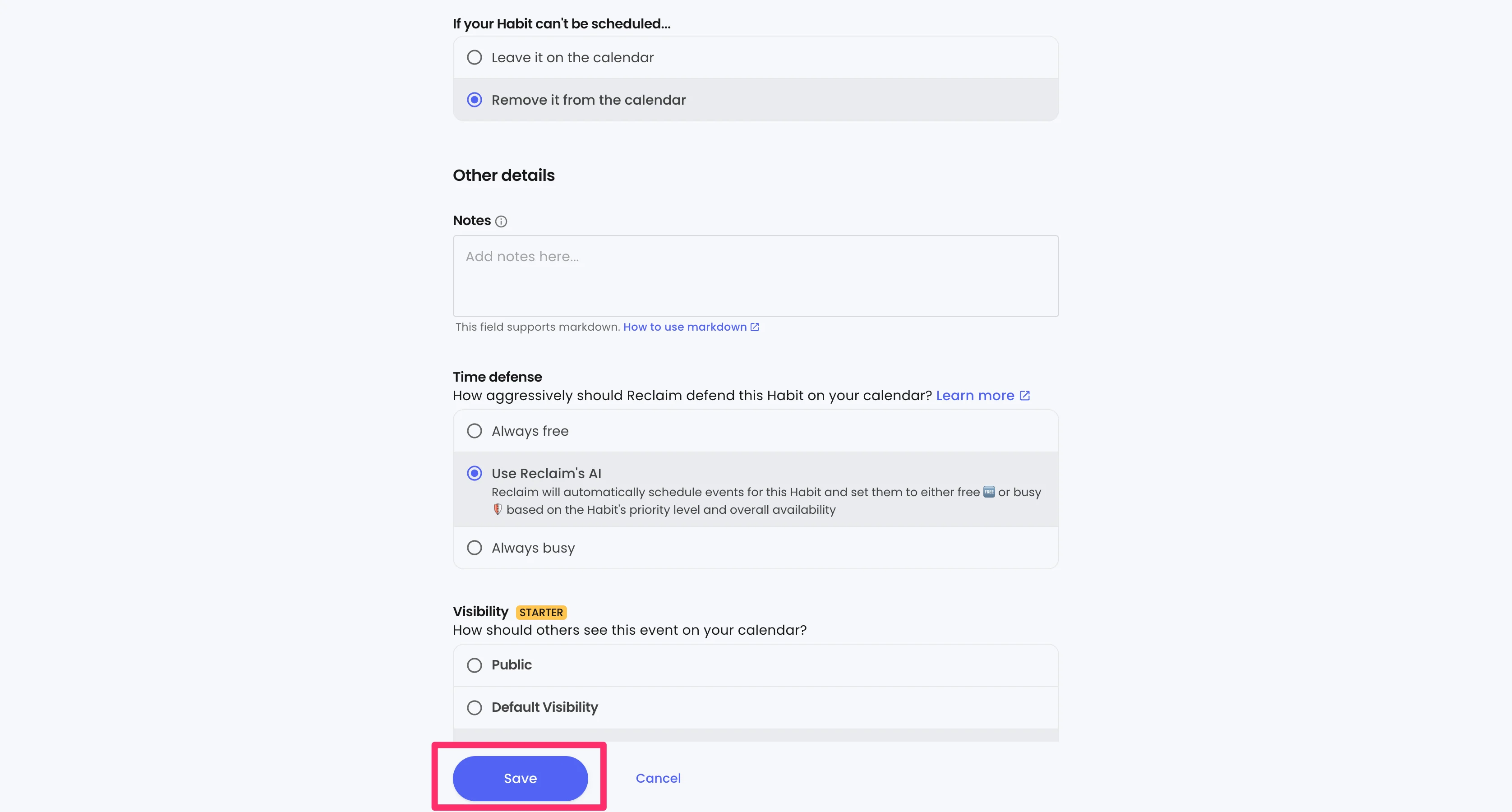
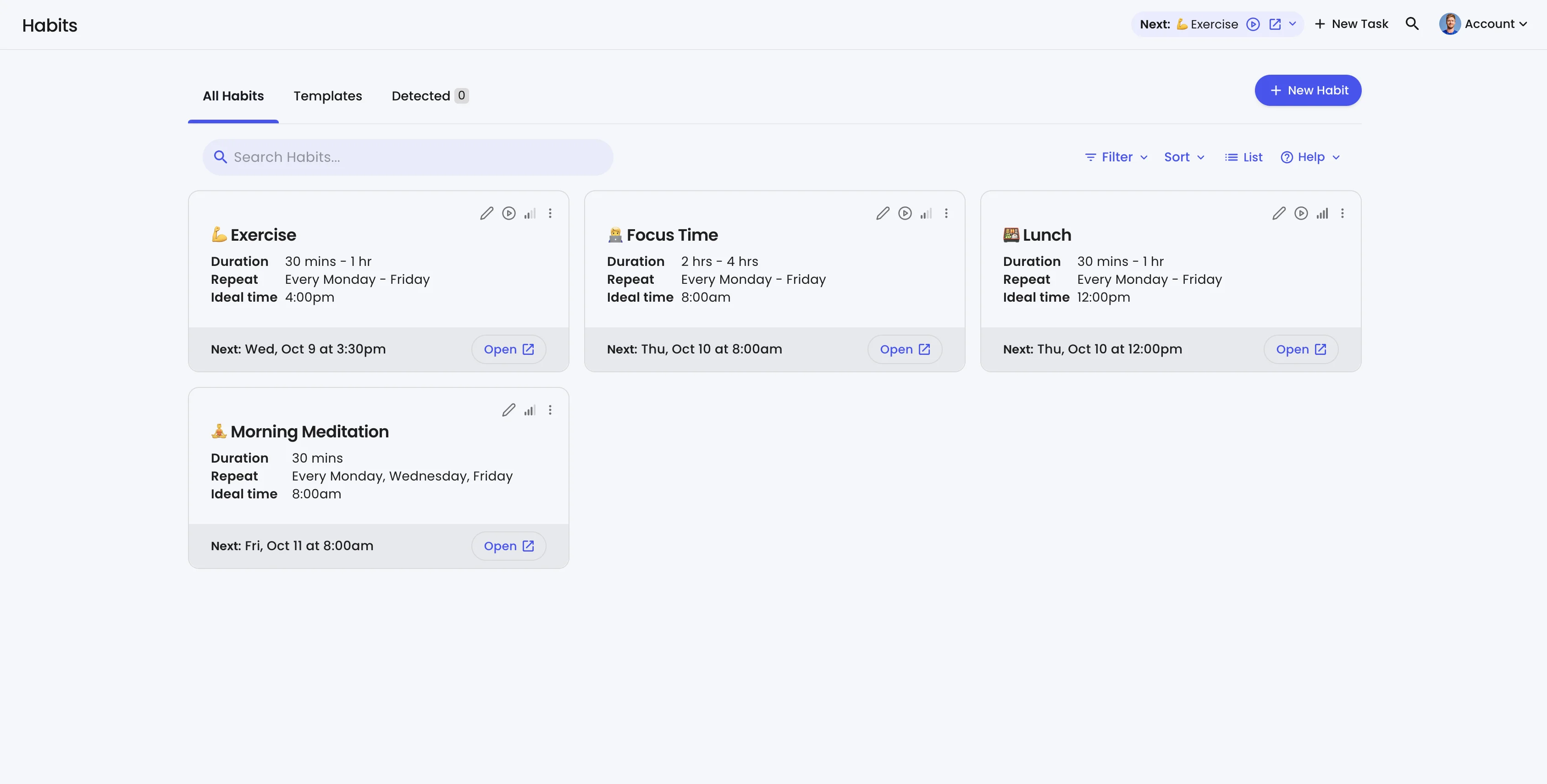
And that’s it, the new Habit will be added to Reclaim and your calendar.
Block focus time and other tasks
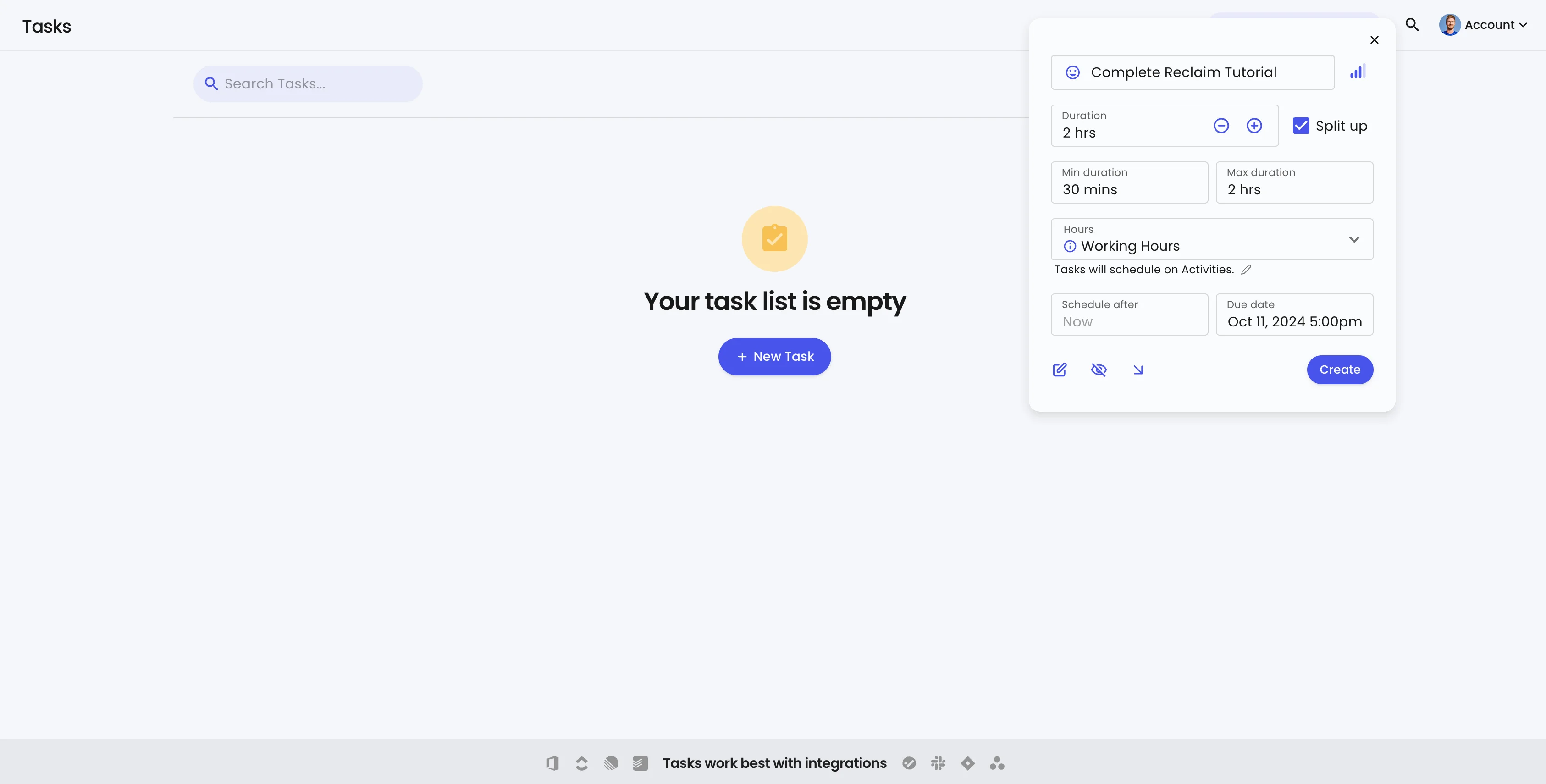
You can also use Reclaim to block off time in your calendar for focused work and other tasks. To do this, click the “Tasks” tab and click the “New Task” button.
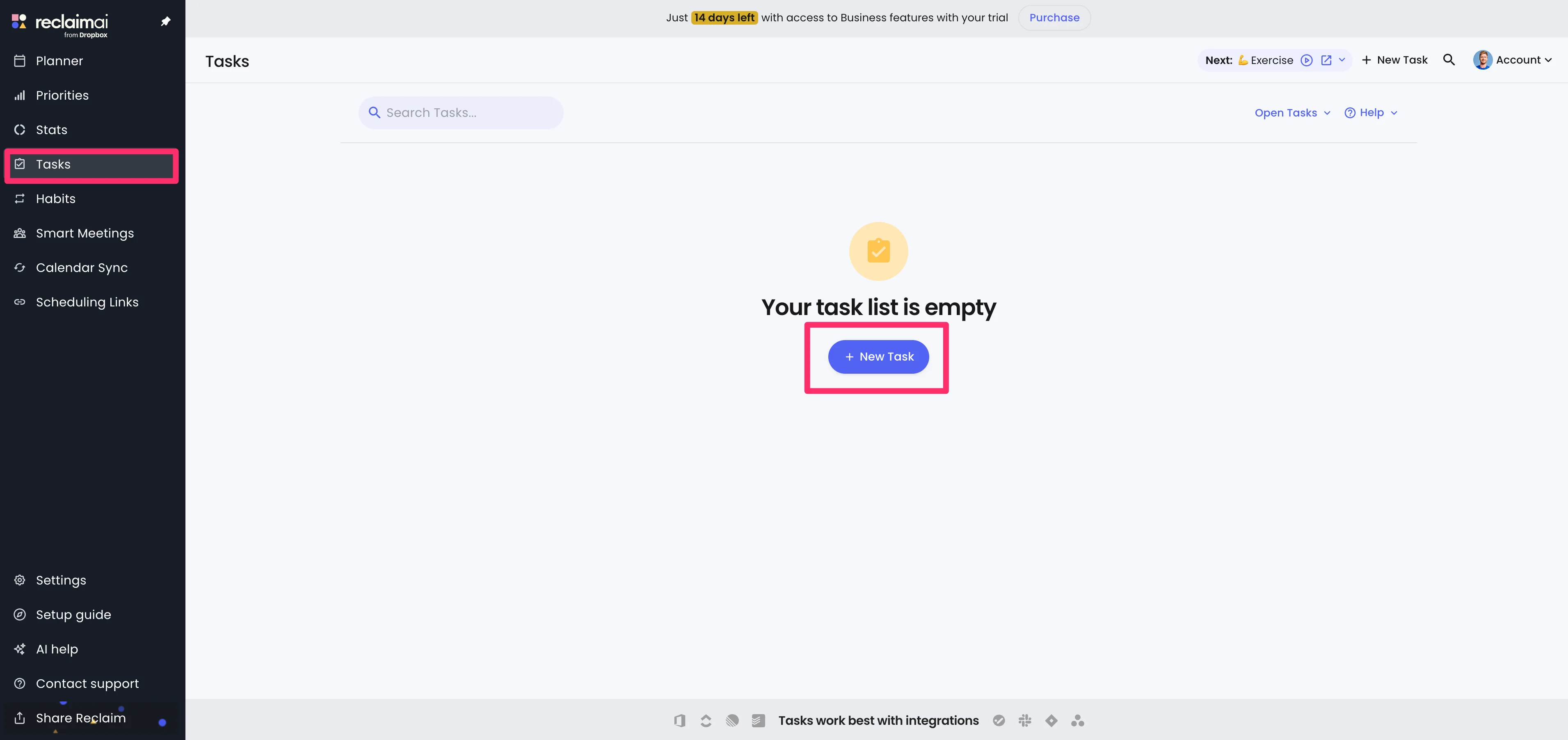
You can name your task, set the overall duration, and add a due date.
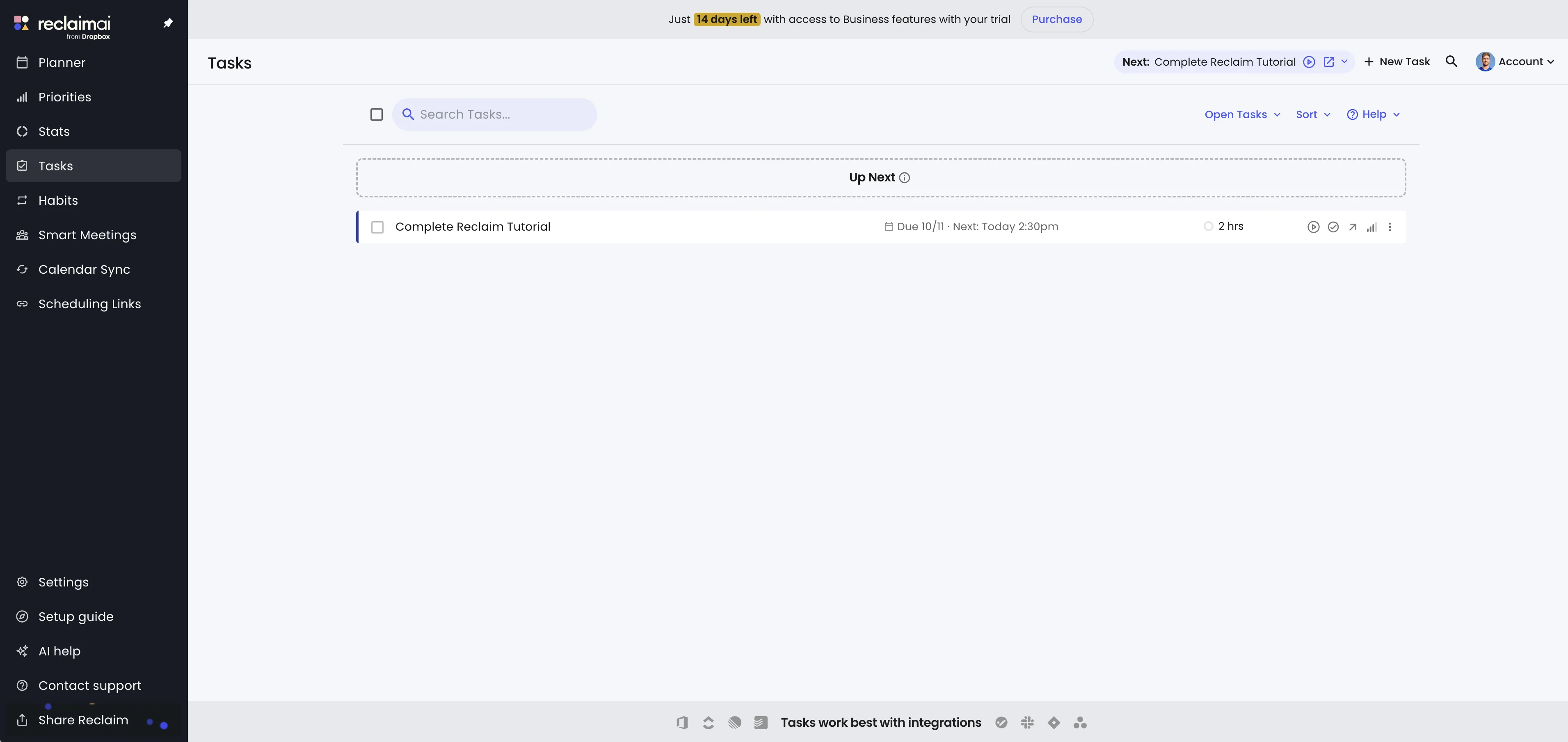
Reclaim will then add this new Task to your Task view.
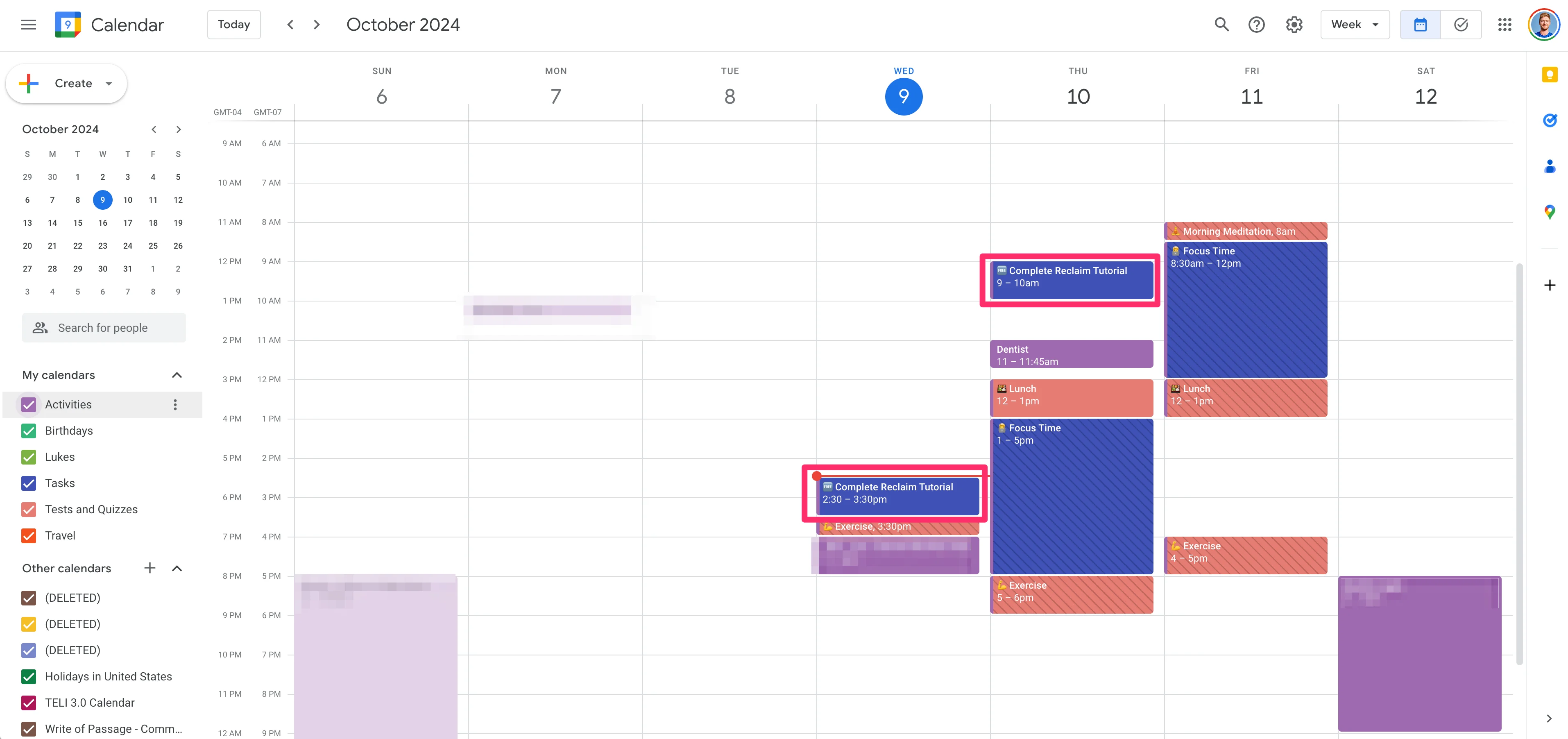
It will also automatically schedule the Task on your calendar based on your availability, the total duration needed to complete the Task and the deadline date.
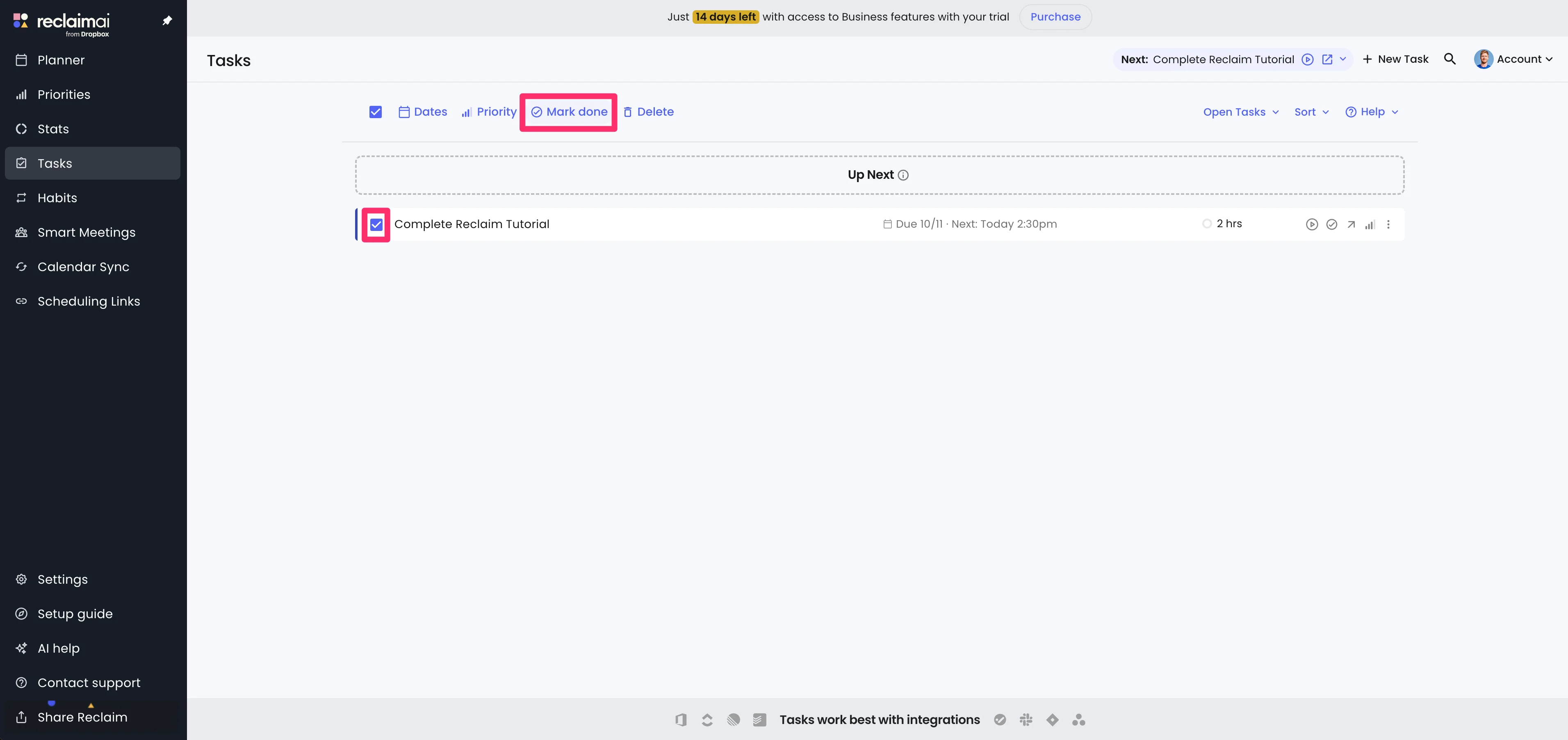
When you’ve completed the task, you can mark it as done, and Reclaim will remove the calendar blocks from your calendar.
In addition, if you have multiple Tasks, you can set the priorities of them and Reclaim will schedule them in your calendar accordingly.
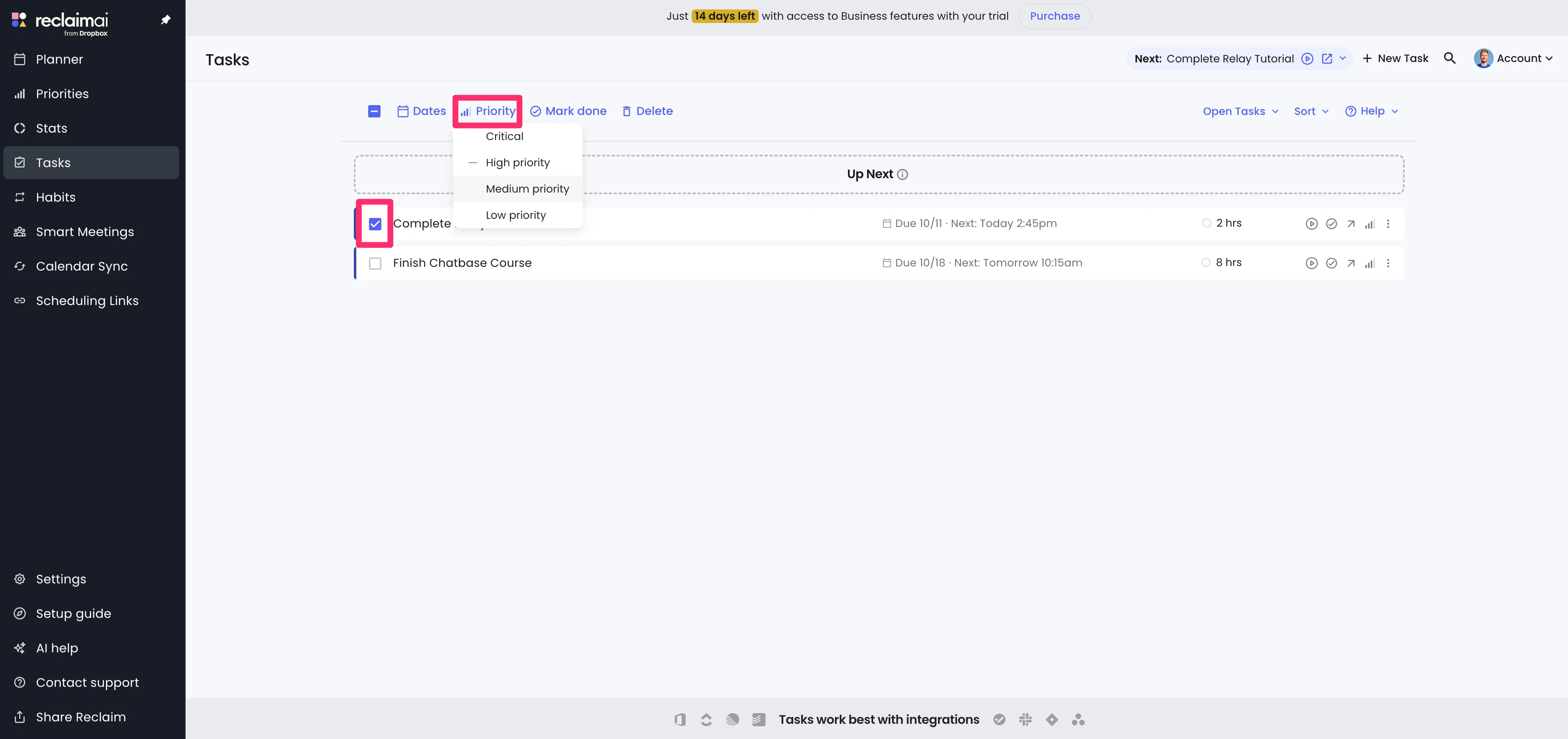
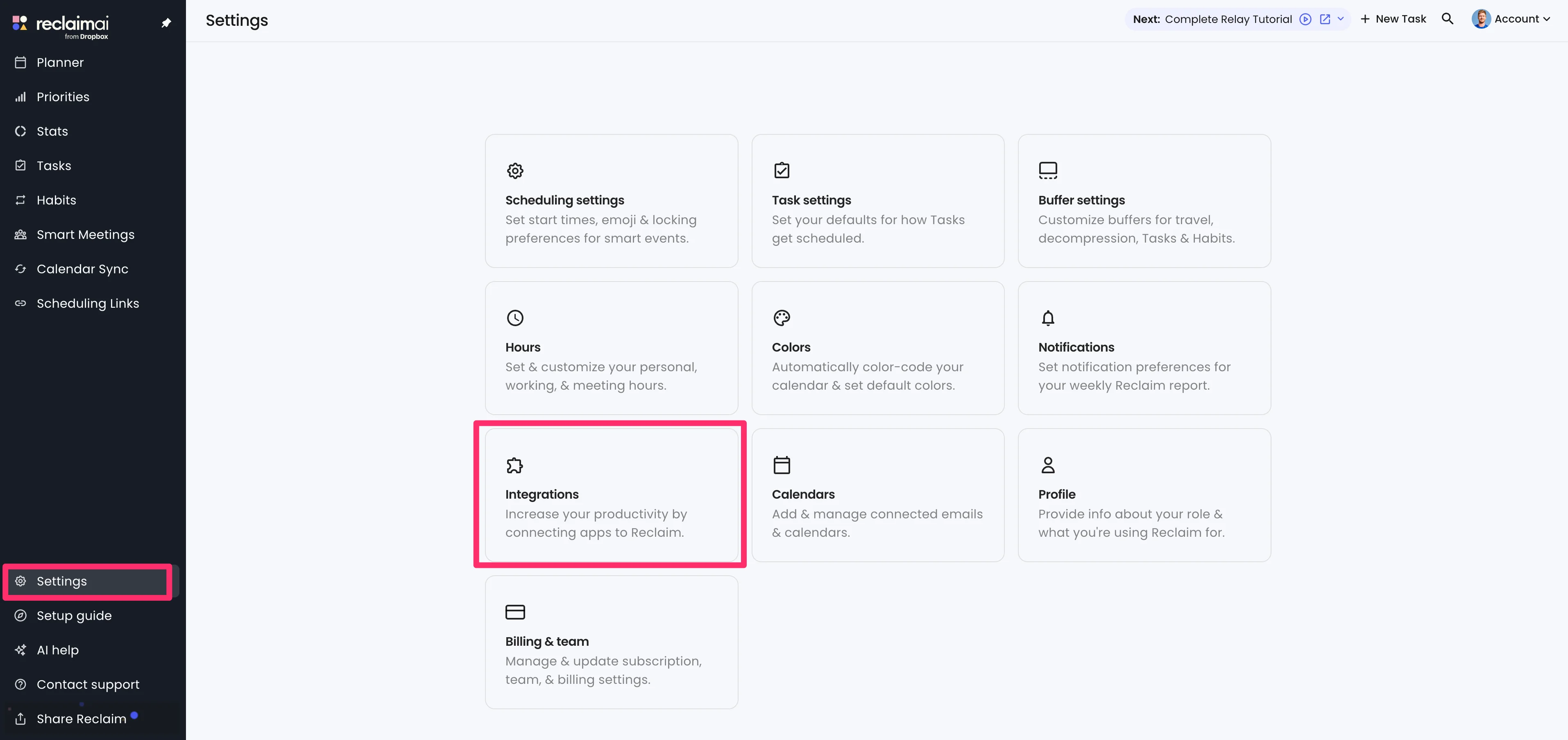
Last but not least, you don’t have to create Tasks in Reclaim manually. You can integrate your project management software to pipe in your tasks automatically. To do this, click the “Settings” tab in the app and select the “Integrations” option.
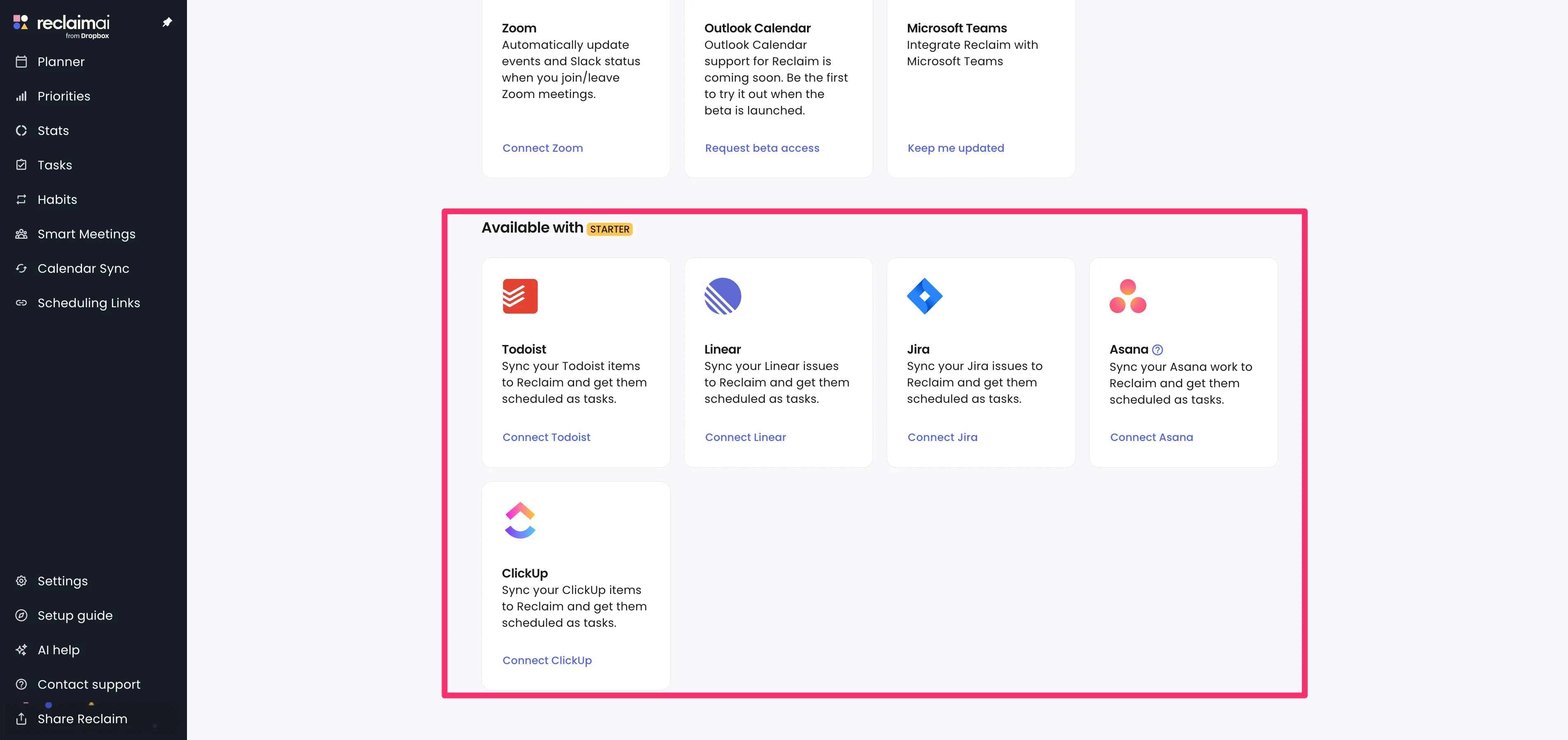
Scroll down and you’ll see all of the project management apps that you can sync to Reclaim.
Book smart meetings
The last thing we’ll walk through in this tutorial is booking smart meetings with Reclaim. What is a smart meeting? It’s a meeting that Reclaim will automatically book on your behalf based on the availability of everyone’s schedules. To set up a smart meeting, navigate to the “Smart Meetings” tab and click the “New Smart Meeting” button.
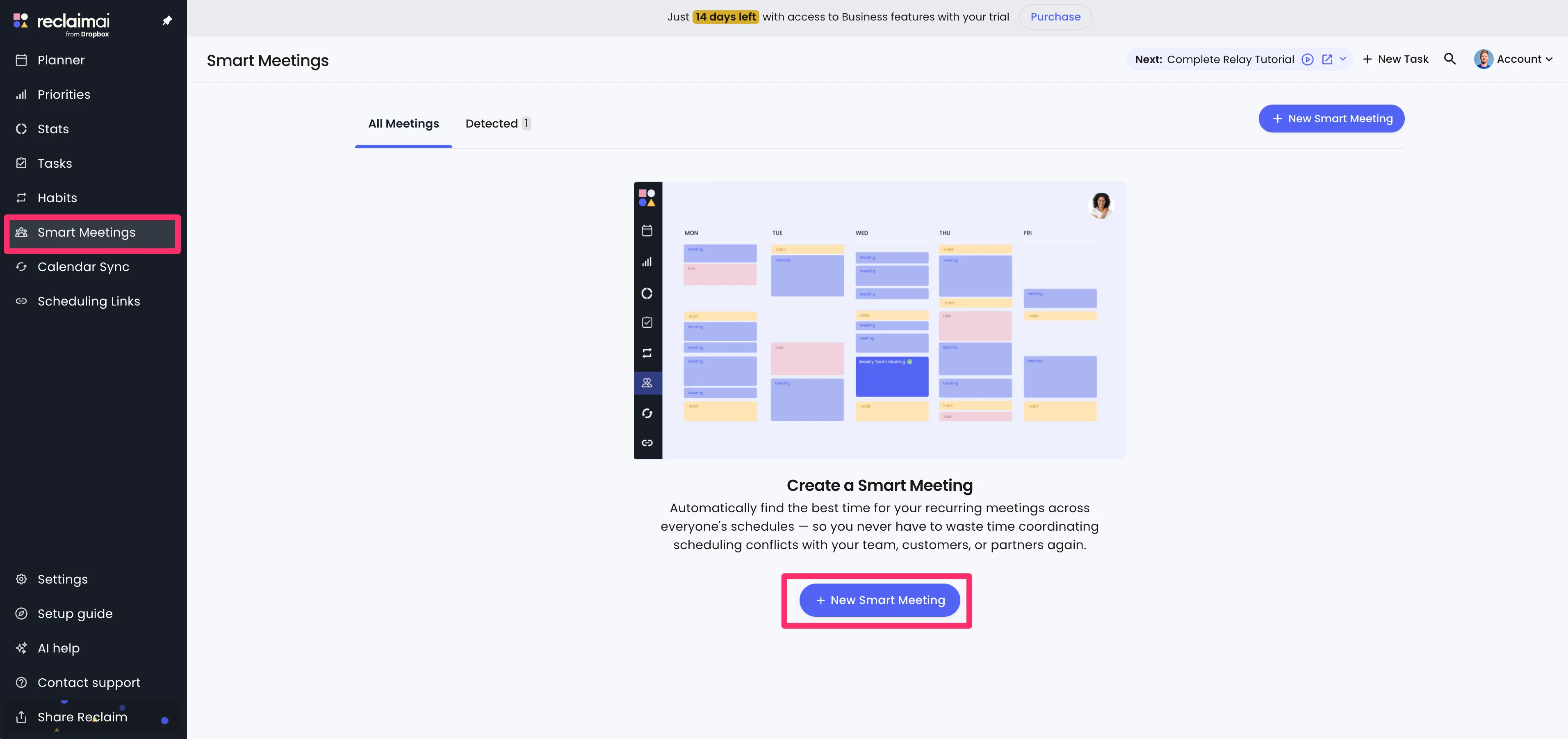
You can then add your meeting attendees, their requirement status, and hours of availability.

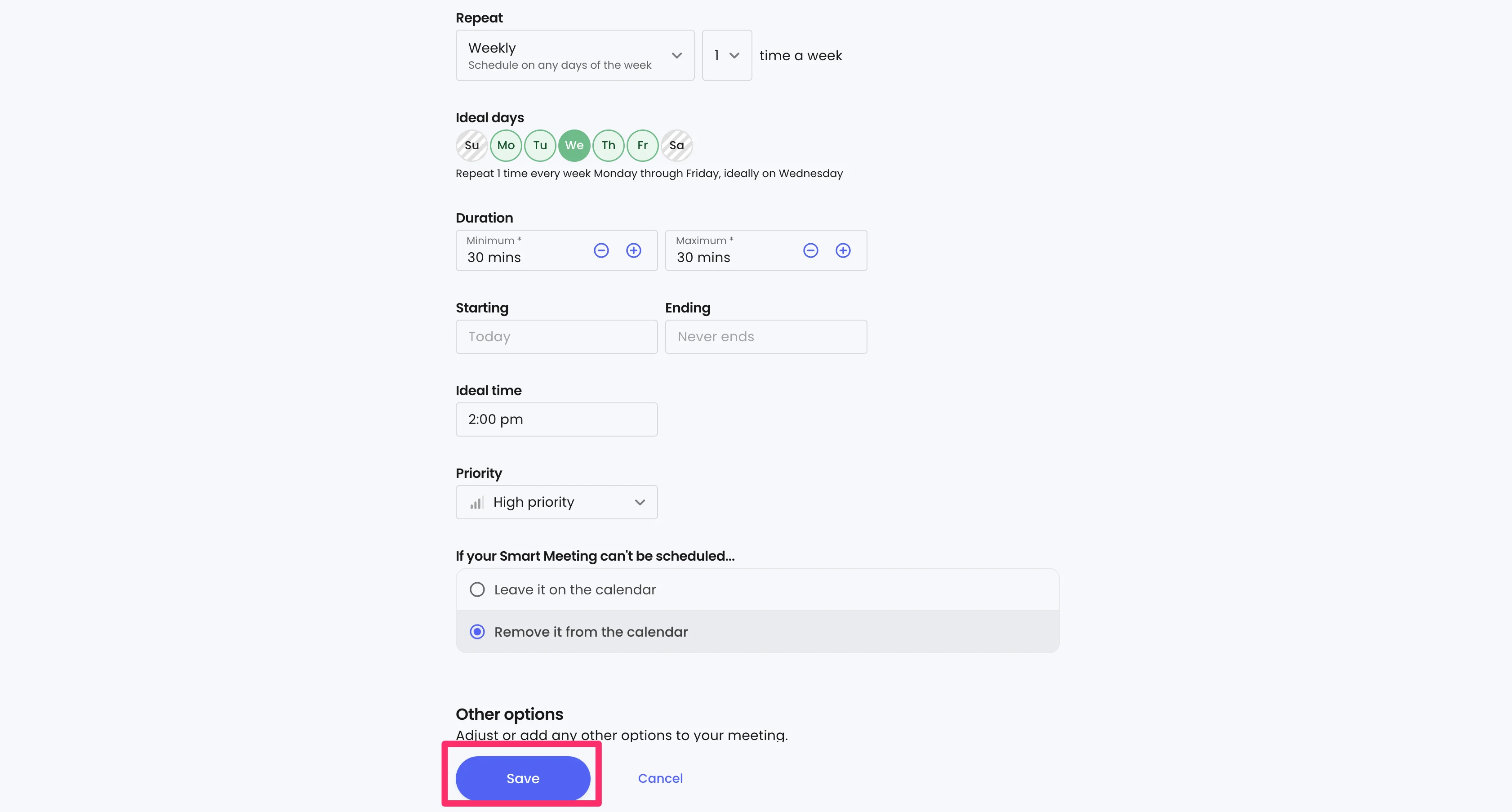
From there, you can set your ideal days and times, the meeting duration, and priority. Click “Save” and Reclaim will schedule the meeting taking all parameters into account.
There’s a lot more to explore in the Reclaim app, like viewing your calendar statistics, using their scheduling links (a Calendly scheduling alternative feature), going deep on the Planner tab, and working directly with Reclaim in your Google Calendar via their Google Calendar Add-on.
So explore the app, set up some habits, block off valuable time—and dare we say it, reclaim back some of your time!
This tutorial was created by Garrett.