Automate competitor price monitoring
Build an AI-powered automation in Gumloop to analyze competitor prices and update your pricing strategy.
2024-12-20
Competitor price monitoring is often a time-consuming task, with data becoming outdated almost immediately. Our AI-powered system automates this process, transforming it into an efficient workflow. By simply inputting competitor pricing page URLs into a Google Sheet, the system handles everything else - scraping pages, comparing data, and highlighting changes at scheduled intervals or on-demand.
In this tutorial, you'll learn how to:
- Set up your Google Sheet
- Create an automated workflow in Gumloop
- Implement conditional logic
- Build the initial pricing scraper
- Update the Google Sheet with initial data
- Implement pricing change detection and updates
You'll need:
- A Gumloop account (starter plan required only for advanced triggering options)
- A Google account for creating and managing Google Sheets
Let’s dive in.
Step 1: Set up your Google Sheet
We'll start by creating a Google Sheet to store and track competitor pricing information. This sheet will serve as the central database for our automated system.
Create a new sheet and name it "Competitor Pricing Tracker". Then add the following columns:
- Competitor's Pricing Page
- Pricing Information
- Pricing Changes Detected
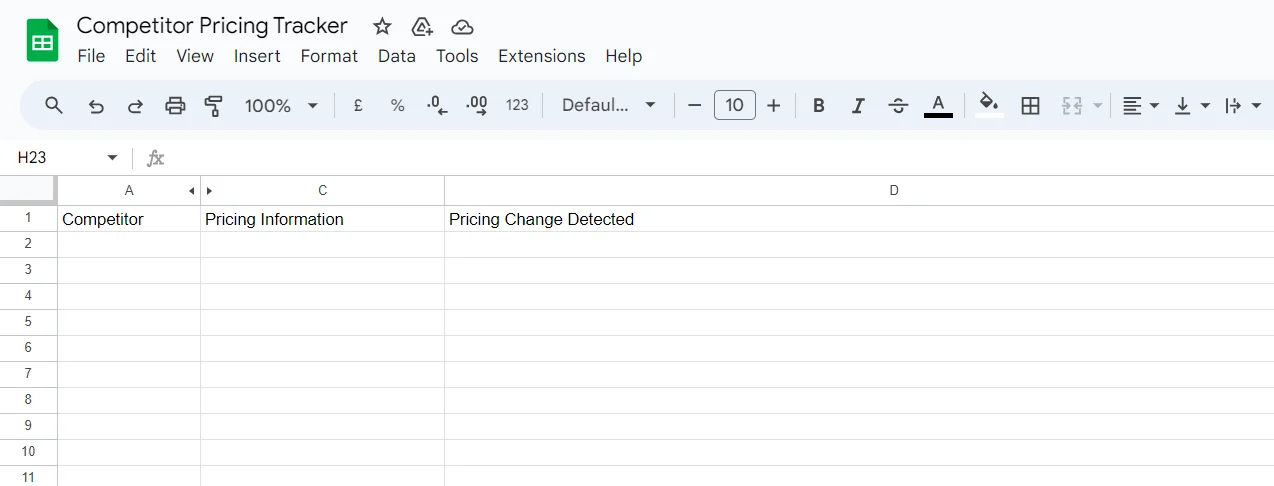
This structure allows us to store the URL of each competitor's pricing page, the summarized pricing information, and any detected changes over time.
You can add additional columns if you want to customize the workflow further.
Step 2: Create your Gumloop workflow
Now that we have our Google Sheet set up, let's create the Gumloop workflow that will power our automated price monitoring system.
Log in or create an account at gumloop.com, then click "Start with a blank canvas" to begin creating your workflow. You can ignore the "How gumloop works" section by clicking on Skip if you're already familiar with the platform.
To start building the workflow, click on "Add your first node" in the blank canvas. Search for the "Google Sheet Reader" node and add it to your canvas.
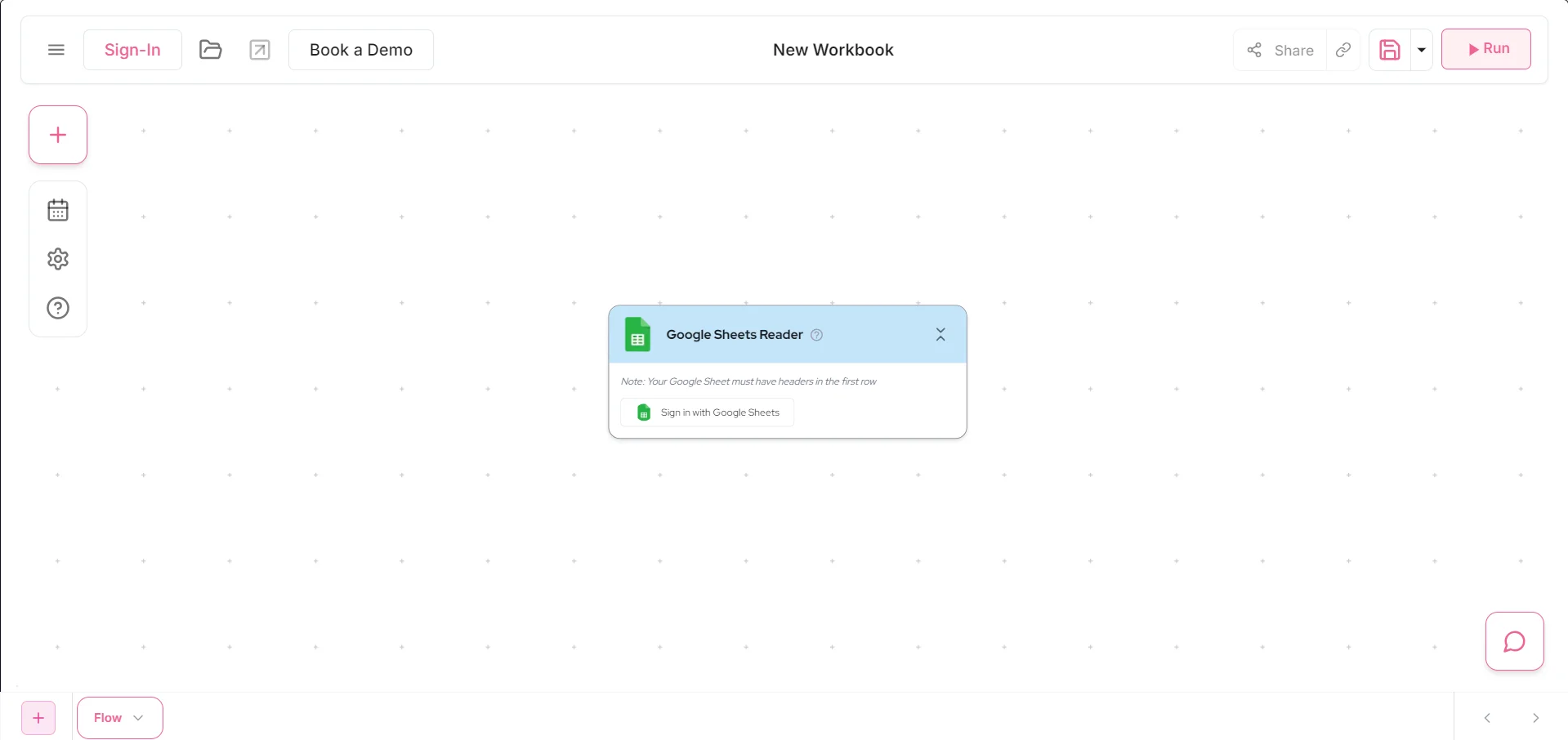
Click on "Sign in with Google Sheets" and sign in with the account where you created your Google Sheet.
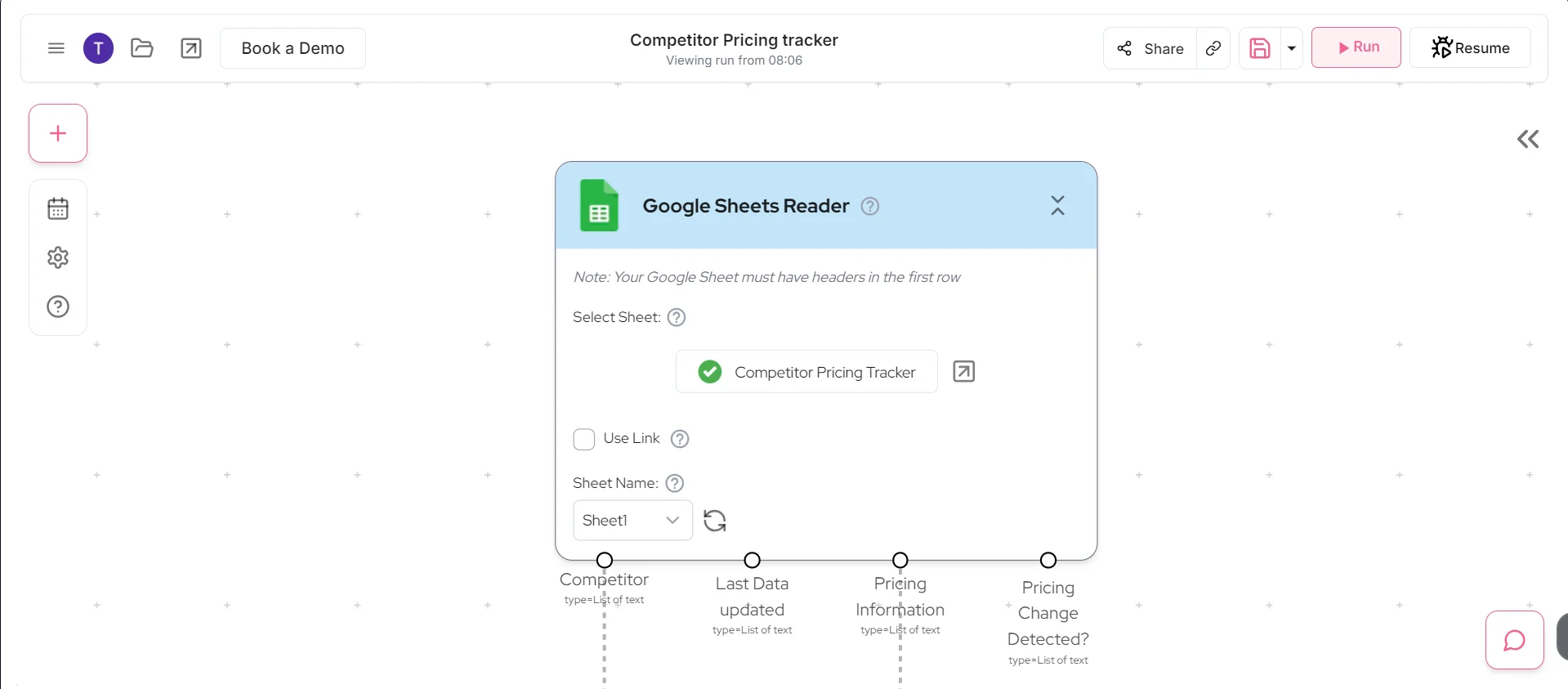
After signing in, click the "Select file" button to choose your "Competitor Pricing Tracker" sheet. Once selected, you'll see the output from the node, which includes the columns you created in your Google Sheet.
Step 3: Implement conditional logic
Next, we'll add conditional logic to our workflow to handle two scenarios: when a new pricing page is added, and when we're updating existing entries.
Click on the plus button below the Google Sheet Reader node and search for the "If Else" node. Add this node to your canvas. Inside the If Else node, add a "Combine Text" node by dragging it into the If Else node area.
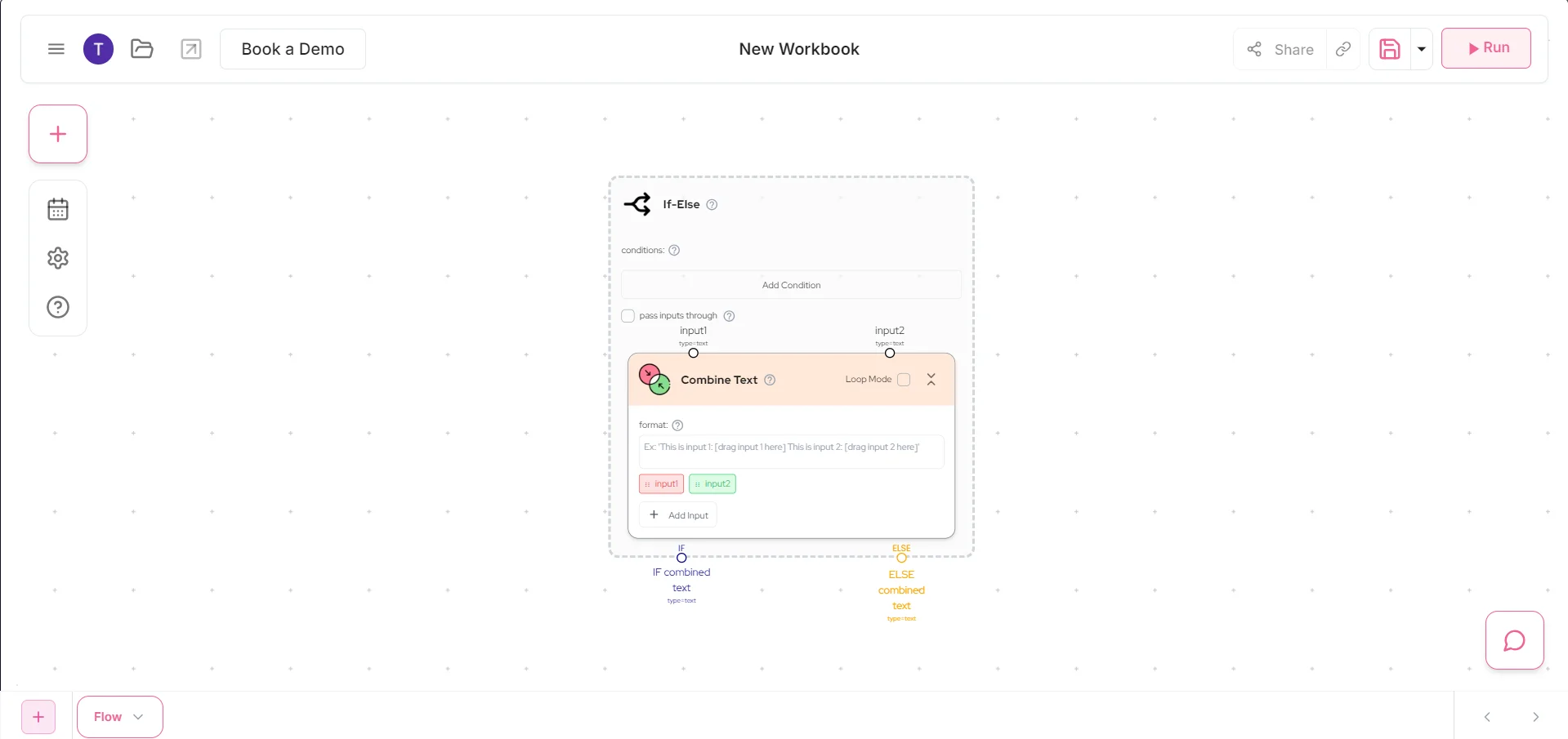
In the Combine Text node, drag the "Pricing Information" output from the Google Sheet Reader to Input 1. Make sure it's the only character in the text field. Connect the "Competitor's Pricing Page" output to Input 2 of the Combine Text node.
In the If Else conditions, click on "Add condition" and set it to: "combined text" is empty. Check the "Pass inputs through" option to ensure our inputs are visible as outputs of the Combine Text node.
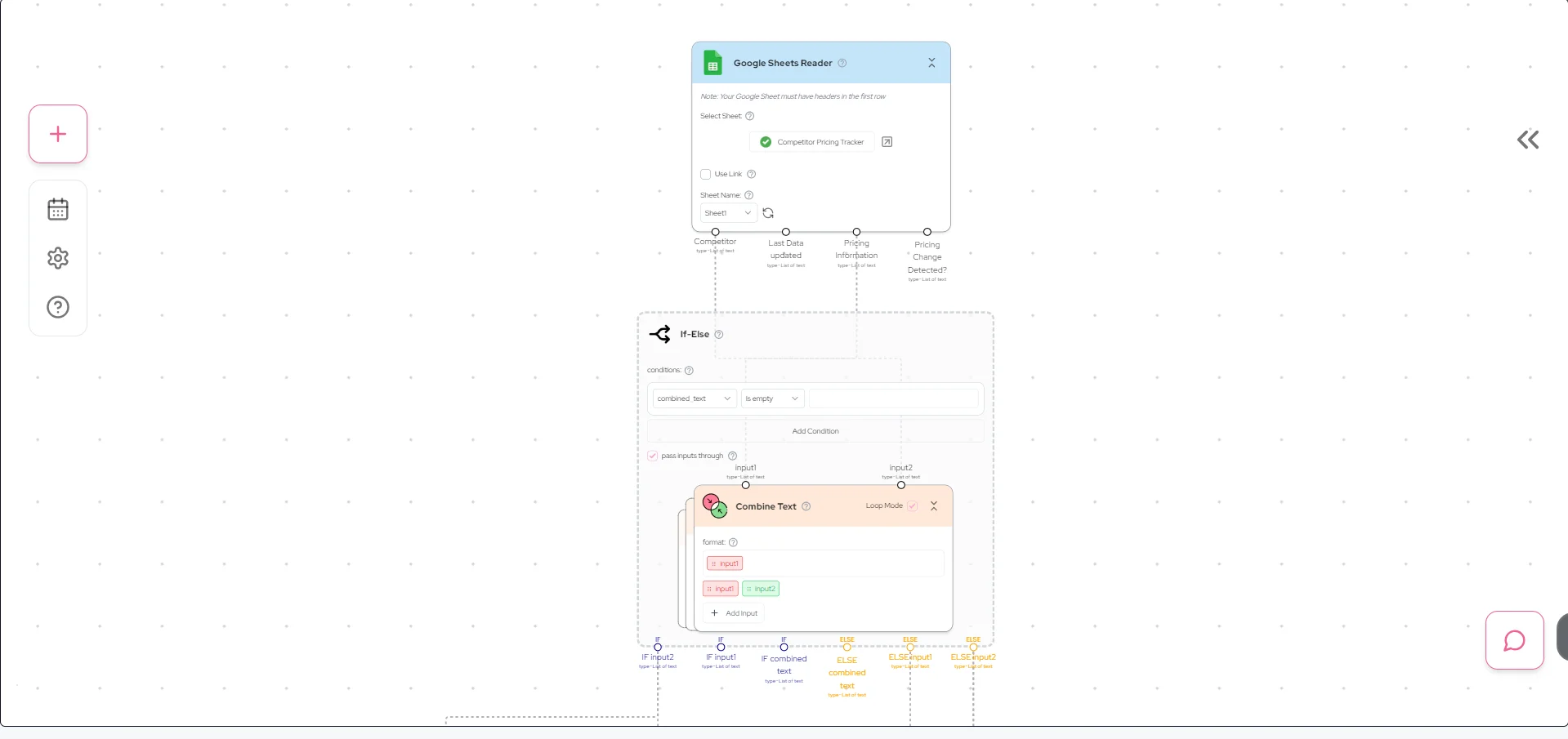
This setup allows us to differentiate between new entries (where the Pricing Information field is empty) and existing entries that need updating.
Step 4: Build the initial pricing scraper
Now let's build the workflow for when a new pricing page is added. We'll scrape the webpage and use AI to summarize the pricing information.
Add a "Website Scraper" node and connect it to the "If" output of the If Else node. In the input field, connect it with the "Input 2" output from the If Else node, which represents the competitor's webpage URL.
Next, add an "Ask AI" node after the Website Scraper. In the prompt field, paste the following:
From the below scraped content, Summarize the pricing details of the website in the format:
Plan or Product Name 1 : [Product 1 price] : Key features (if listed)
Plan or Product Name 2 : [Product 2 price] : Key features (if listed)
Keep your response very brief and to the point, don't acknowledge what you've been asked to do.
Connect the output of the Website Scraper node to the context field of the Ask AI node. Click on "Show extra settings" and choose the "gpt-4-0-mini" model.
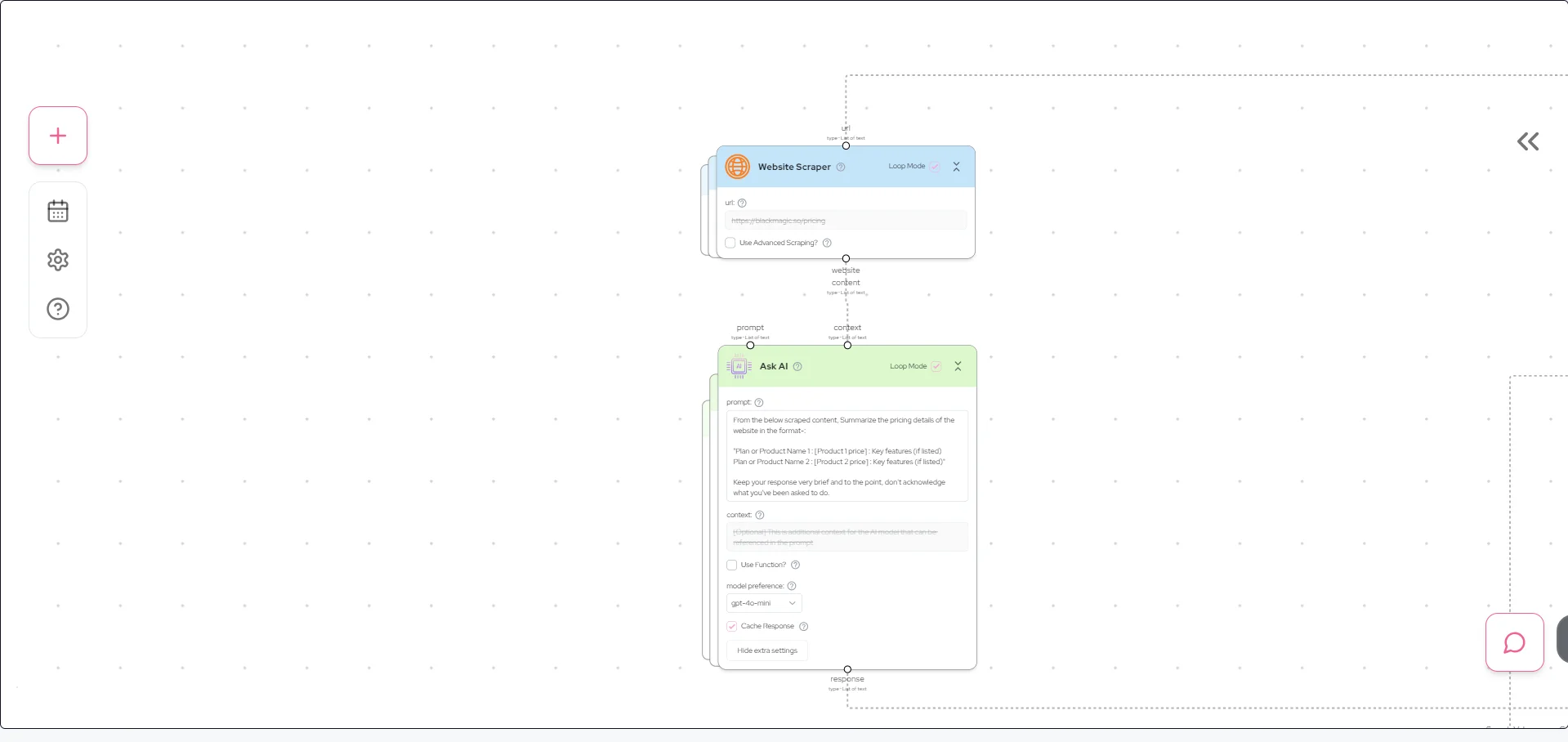
Step 5: Update the Google Sheet with the initial data
Now that we've extracted and summarized the pricing information, let's update our Google Sheet.
Add a "Google Sheets Updater" node. Select your "Competitor Pricing Tracker" sheet. In the search value input, connect it with the "Input 2" output of the If Else condition, which represents the competitor's pricing page URL.
For the "Pricing Information" input of the Google Sheet Updater, connect it with the response from the Ask AI node. This ensures that the summarized pricing information is filled into the relevant column in your Google Sheet.
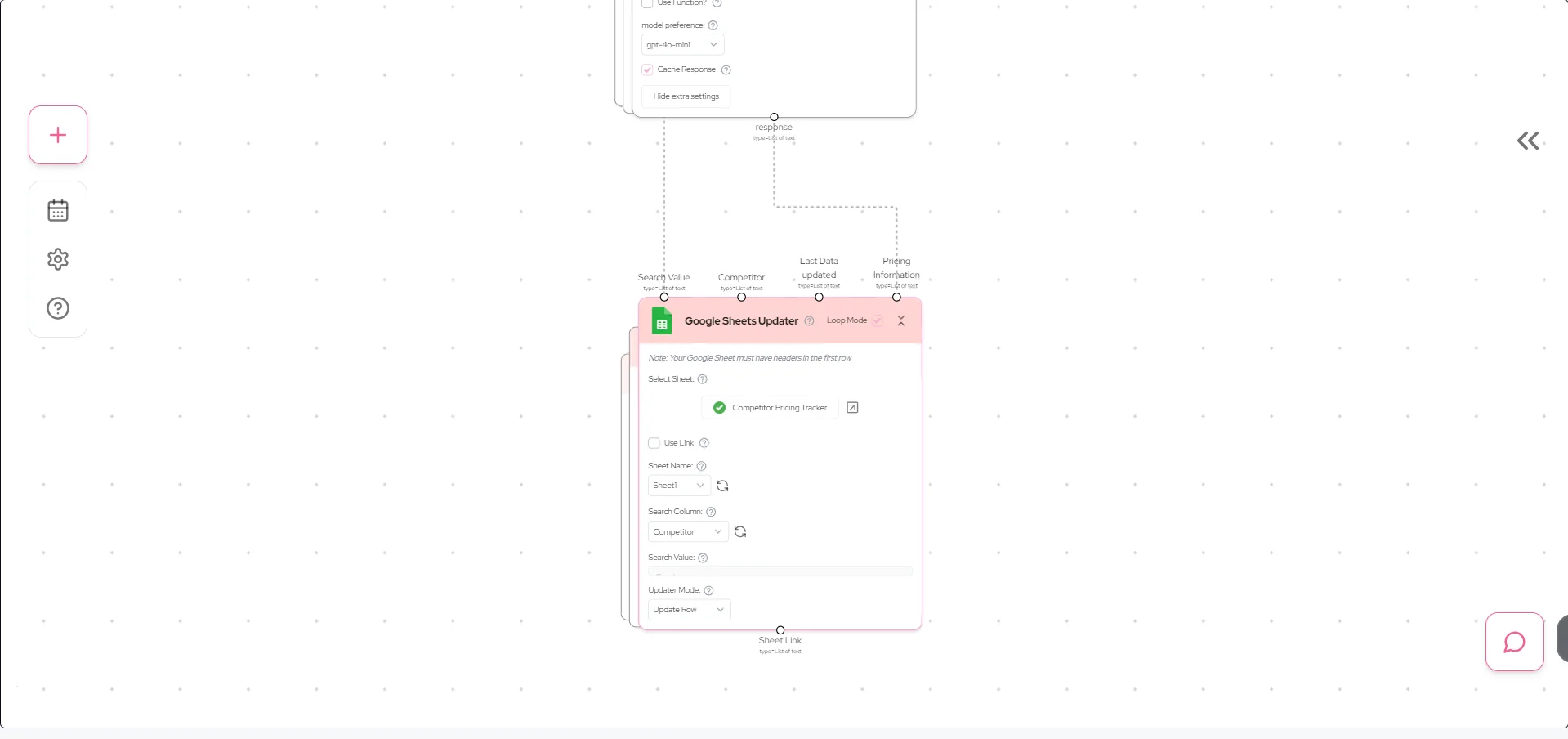
This completes the workflow for initially scraping and storing pricing information for new competitor pages.
Step 6: Implement pricing change detection and updates
For the final part of our workflow, we'll handle existing entries to check for and analyze pricing changes.
Add another "Website Scraper" node and place it below the "Else" output of the If Else condition node. Connect its URL input to the "Input 2" output of the If Else condition node under the Else part. This makes sure that this part of the workflow only triggers when the pricing information field for a row is not empty.
Add a new "Ask AI" node to summarize the updated pricing information. Use the same prompt as before for consistency:
From the below-scraped content, Summarize the pricing details of the website in the format:
Plan or Product Name 1 : [Product 1 price] : Key features (if listed)
Plan or Product Name 2 : [Product 2 price] : Key features (if listed)
Keep your response very brief and to the point, don't acknowledge what you've been asked to do.
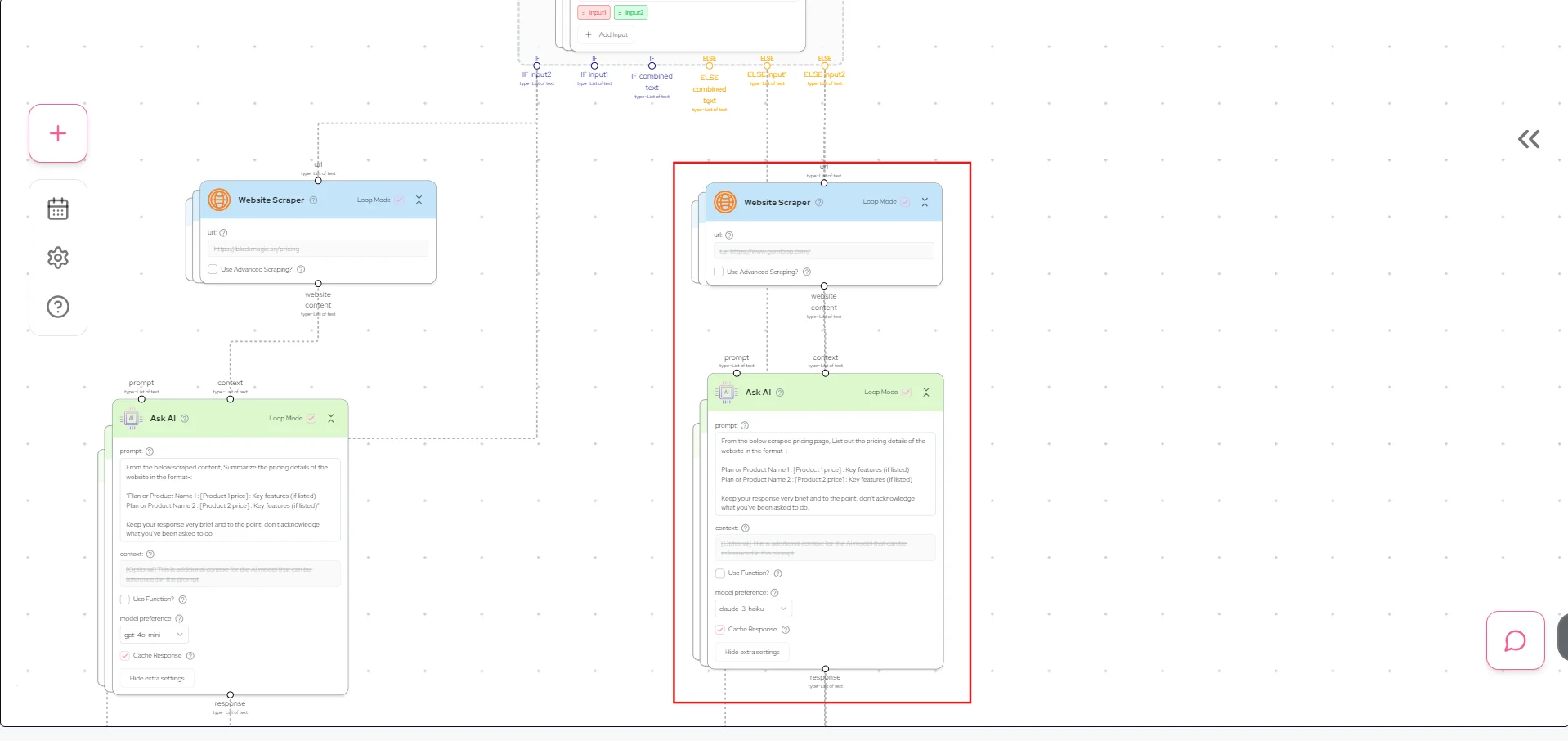
To compare the existing and new pricing information, add a "Combine Text" node. Connect Input 1 to the Else "Input 1" output from the If Else conditional node (representing the existing pricing information). Connect Input 2 to the output of the new AI response. Use this format for the combined text:
This is the previous pricing information: [Input 1]
This is the updated pricing information: [Input 2]
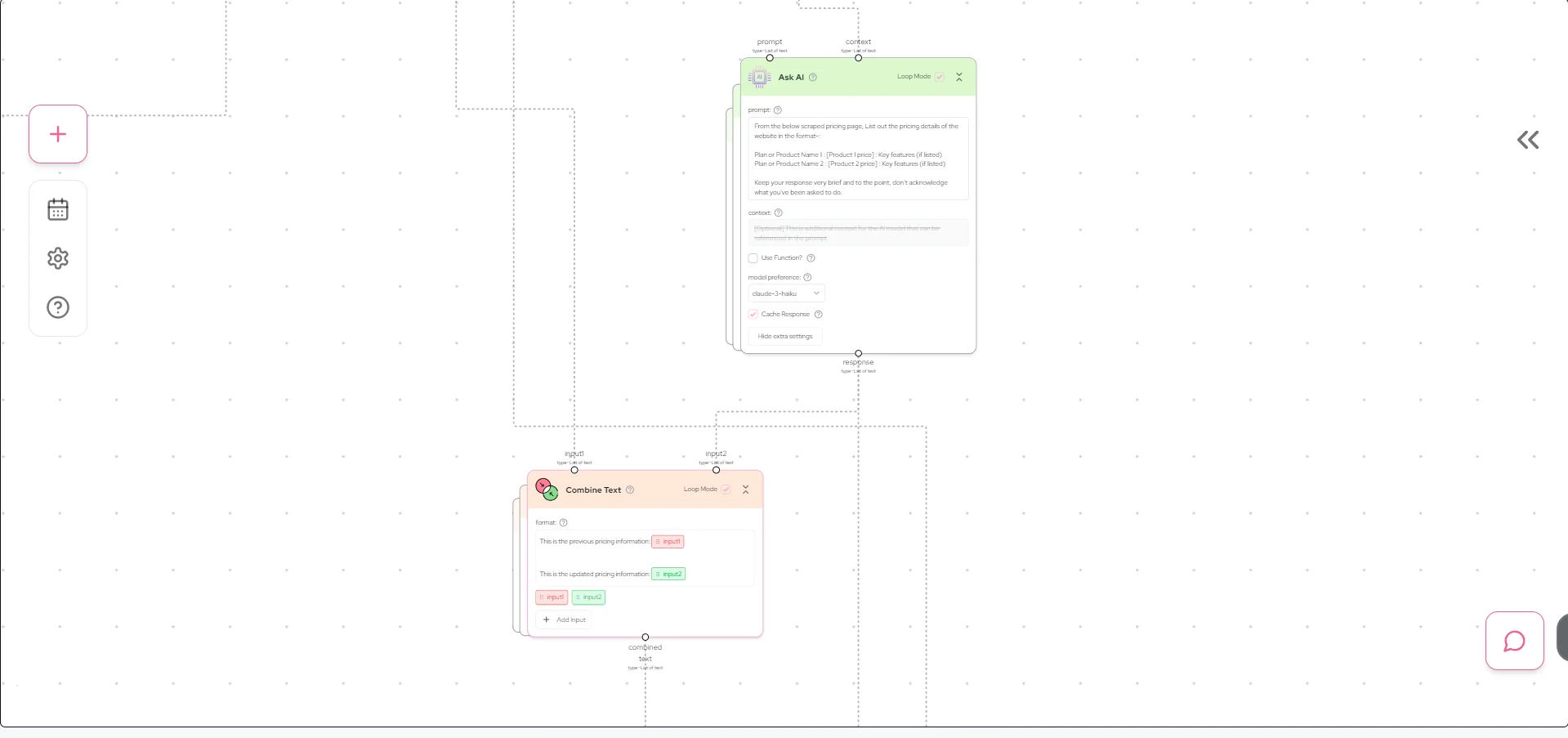
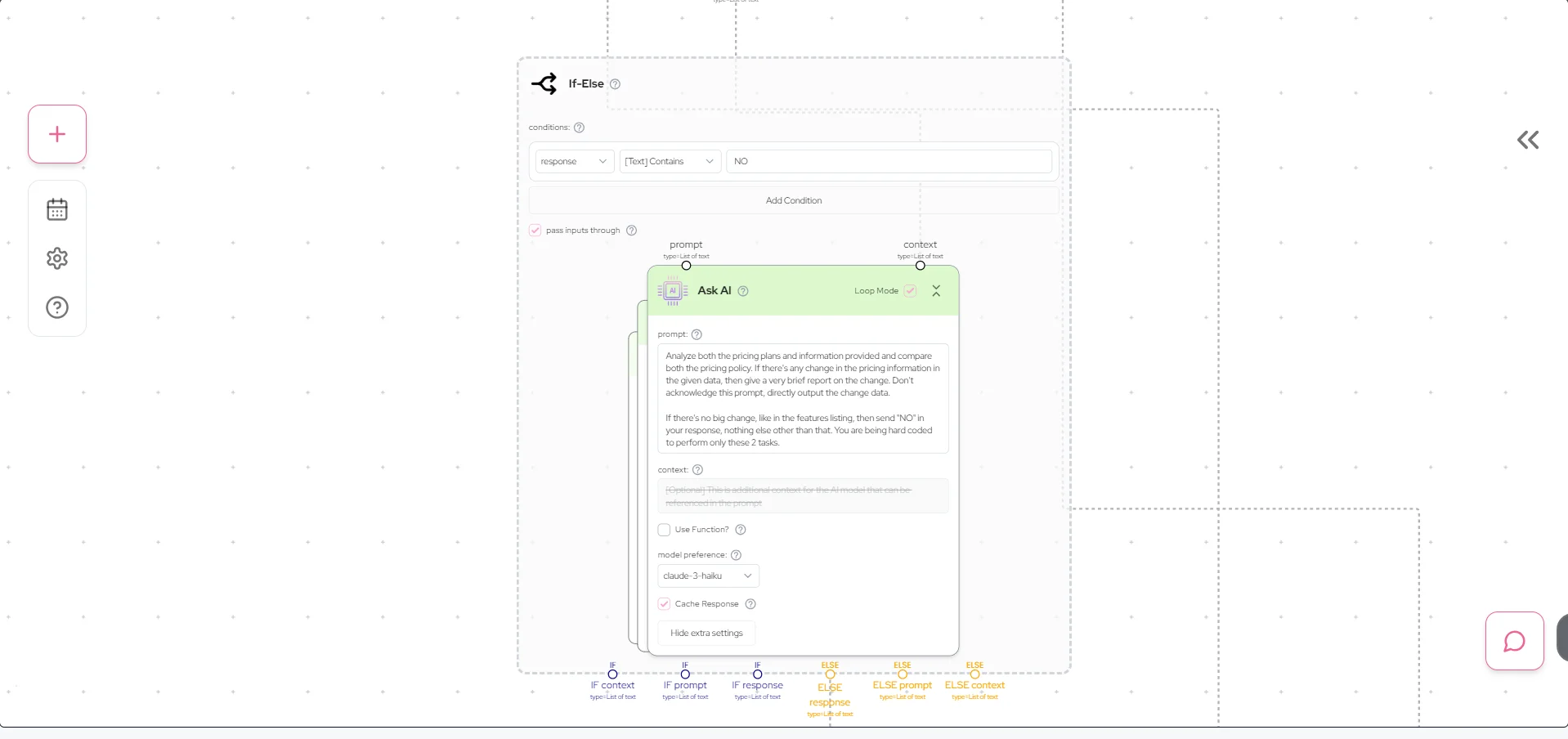
Now, add another If Else conditional node with an Ask AI node inside. This is to make sure that the “Pricing Changes detected” column in our Google sheet is only updated when there is a change in the pricing information.
In this Ask AI node, use the following prompt:
Analyze both the pricing plans and information provided and compare both the pricing policies. If there's any change in the pricing information in the given data, then give a very brief report on the change. Don't acknowledge this prompt, directly output the change data.
If there's no big change, like in the features listing, then send "NO" in your response, nothing else other than that. You are being hard-coded to perform only these 2 tasks.
Connect the “context” field input with the output of the “combine text” node of the previous step.
In the If Else conditional node, add the condition: response [Text] contains NO.
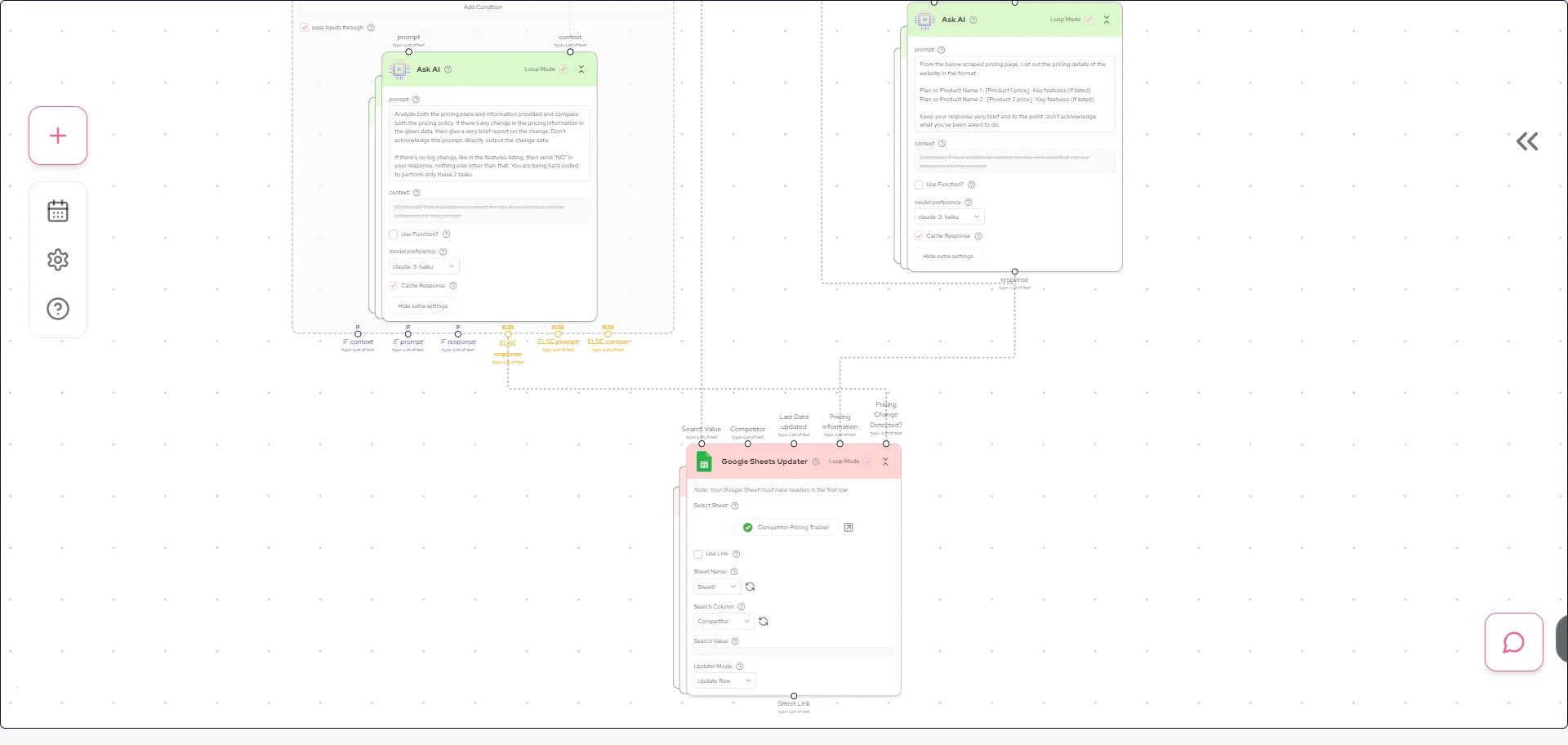
Finally, add another "Google Sheets Updater" node. Connect the search value input to the Else "Input 2" output from the first If Else conditional node. For the "Pricing Information" input, connect it to the output of the first Ask AI node in this section. For the "Changes in Pricing" input, connect it to the Else output of the response from the last If Else conditional node. Set the updater mode to "Update Row".
Congratulations! You've now built a complete automated competitor price monitoring system using Gumloop.
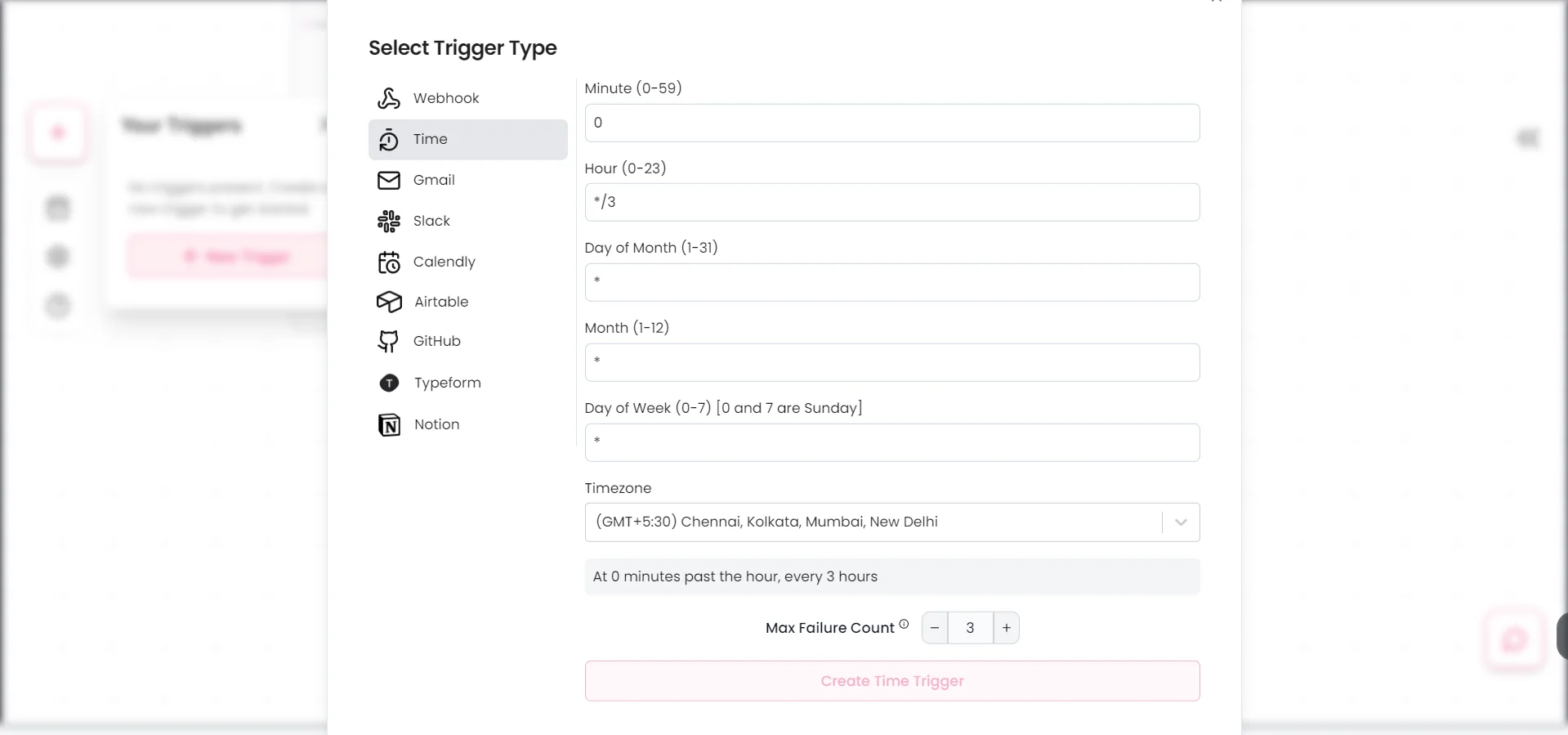
To use this workflow, you can trigger it manually or set up scheduled runs. For scheduling, you'll need the Gumloop starter plan. To set up a schedule, click on "Your Triggers" in the left sidebar, then "Add a Trigger". You'll see various options for scheduling your workflow.
With the free plan, you get 1000 credits, which you can use to manually run the workflow whenever you want to check for pricing updates. Simply add new competitor pricing page URLs to your Google Sheet, and run the workflow to populate the pricing information.
This automated system will save you countless hours of manual work, allowing you to stay on top of competitor pricing changes effortlessly. As you use the system, you may find ways to customize it further to meet your specific needs.
This tutorial was created by Tanmay.