Automate feature request analysis with Zapier
How to have AI automatically review product feature requests and notify your team.
2024-12-20
Product managers and development teams face a constant challenge: how to effectively evaluate and prioritize the flood of feature requests they receive. Manual analysis of each request can be time-consuming and inconsistent, leading to backlogs, overlooked opportunities, and potential misalignment with business objectives.
This tutorial introduces an automated solution that leverages AI to streamline feature request analysis, helping product managers make informed decisions quickly and effectively. By leveraging AI for initial analysis, teams can quickly obtain objective, data-driven insights for each feature request, streamlining the decision-making process and ensuring no good idea goes unnoticed.
In this tutorial, you will learn how to:
- Set up a Typeform to collect feature requests
- Create a Zap to process new submissions with Claude AI
- Craft an effective prompt for AI-powered feature analysis
- Deliver analysis results to your team via Slack
You'll need:
- A Zapier account
- A Typeform account
- An Anthropic API key
Let's get to it.
Step 1: Setting up Typeform
First, we'll create a form in Typeform to collect structured feature requests from users or team members. This form will gather essential information for our AI analysis.
Sign up for an account if you don't have one already.
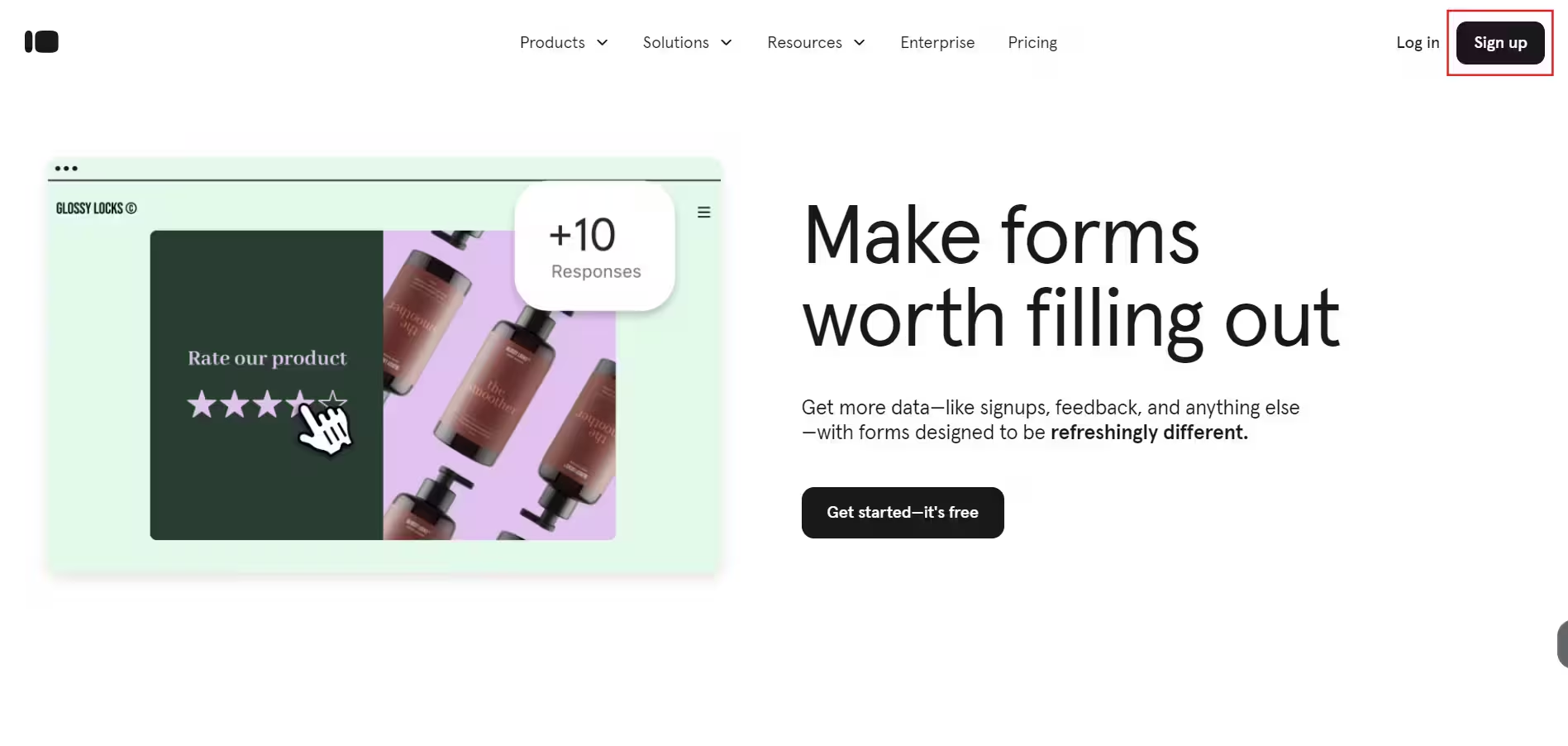
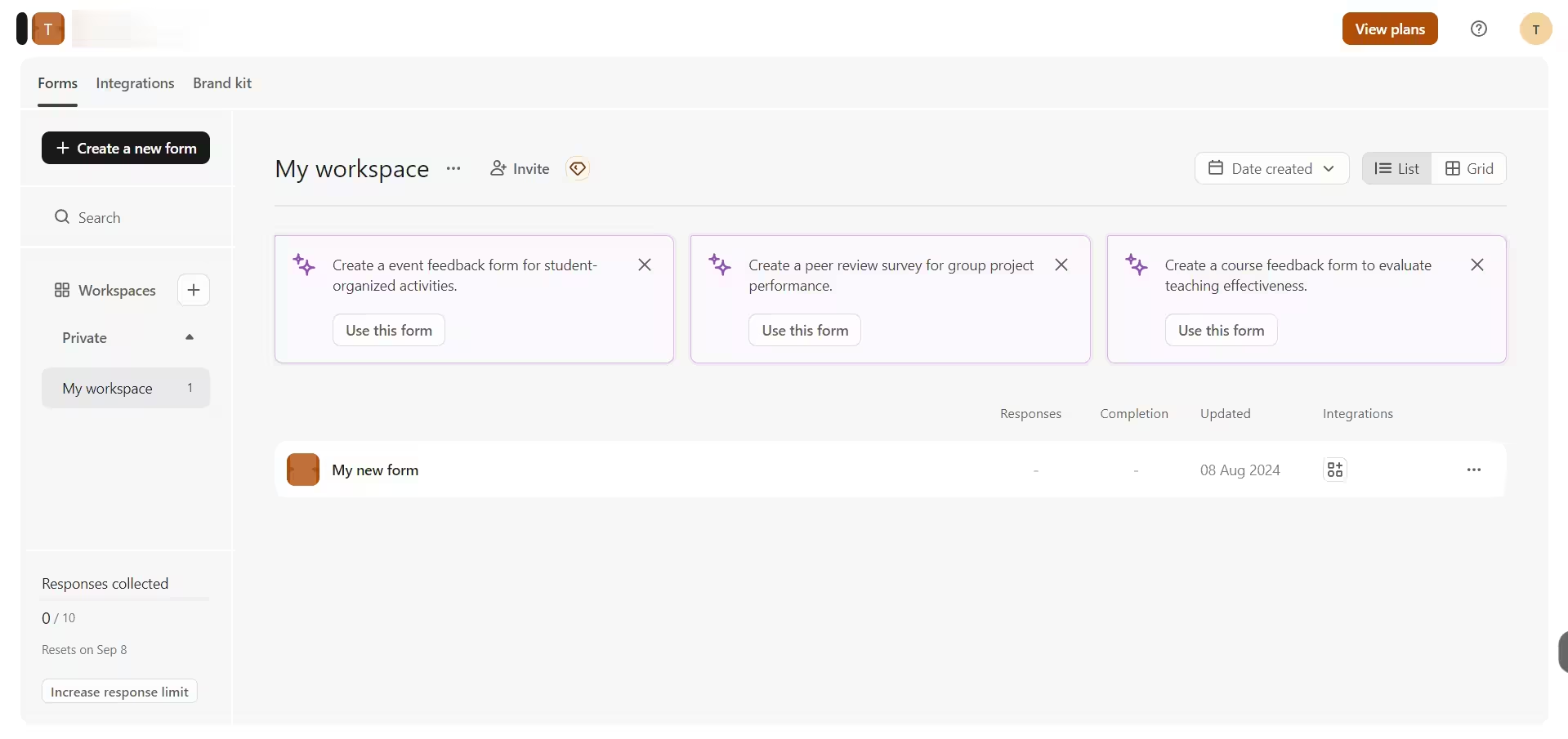
Once logged in, click on "Create a new form" to start a new form.
Add the following questions to your form:
- Feature title (Short text)
- Feature description (Long text)
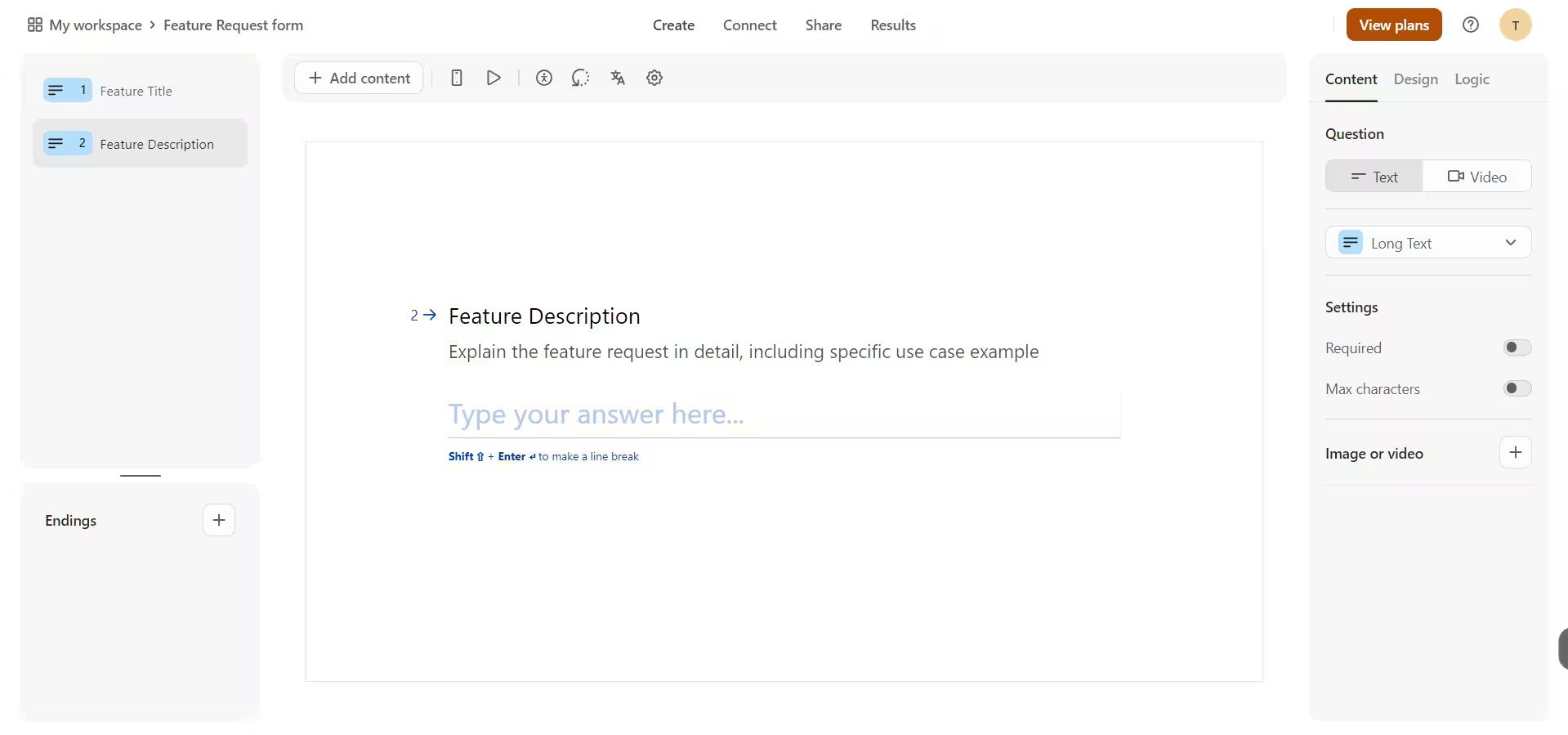
Customize the options and wording to fit your product and team's needs. Once you're satisfied with your form, click "Publish" in the top right corner and note the form ID for use in Zapier.
Step 2: Creating your Zap
Now, let's set up the automation workflow in Zapier. We'll create a Zap that:
- Triggers when a new Typeform submission is received
- Sends the submission to Claude AI for analysis
- And delivers the results to Slack
Start by going to zapier.com and logging into your account.
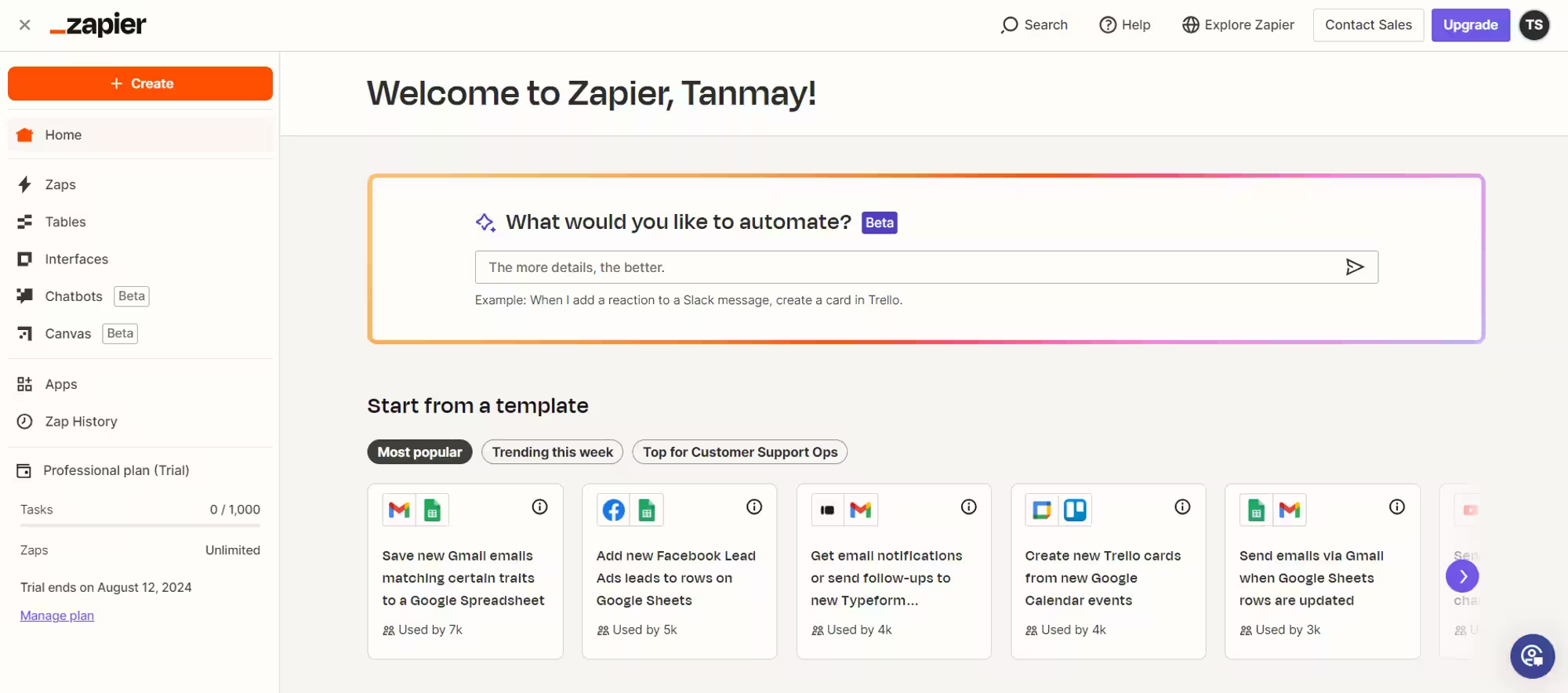
On the Zapier homepage, you'll see a text input field at the top of the page - this is their beta AI feature. In this field, enter the following prompt:
Create a Zap that triggers new feature requests from [DATA_COLLECTION_TOOL], sends the request data to Anthropic API for analysis, and then sends the analysis to Slack.
Replace [DATA_COLLECTION_TOOL] with your preferred method (e.g., Typeform, Google Forms, Airtable).
Zapier's AI will generate a basic template for your Zap. This will give us a good starting point to build upon. Click on the "Try it" button next to the prompt.
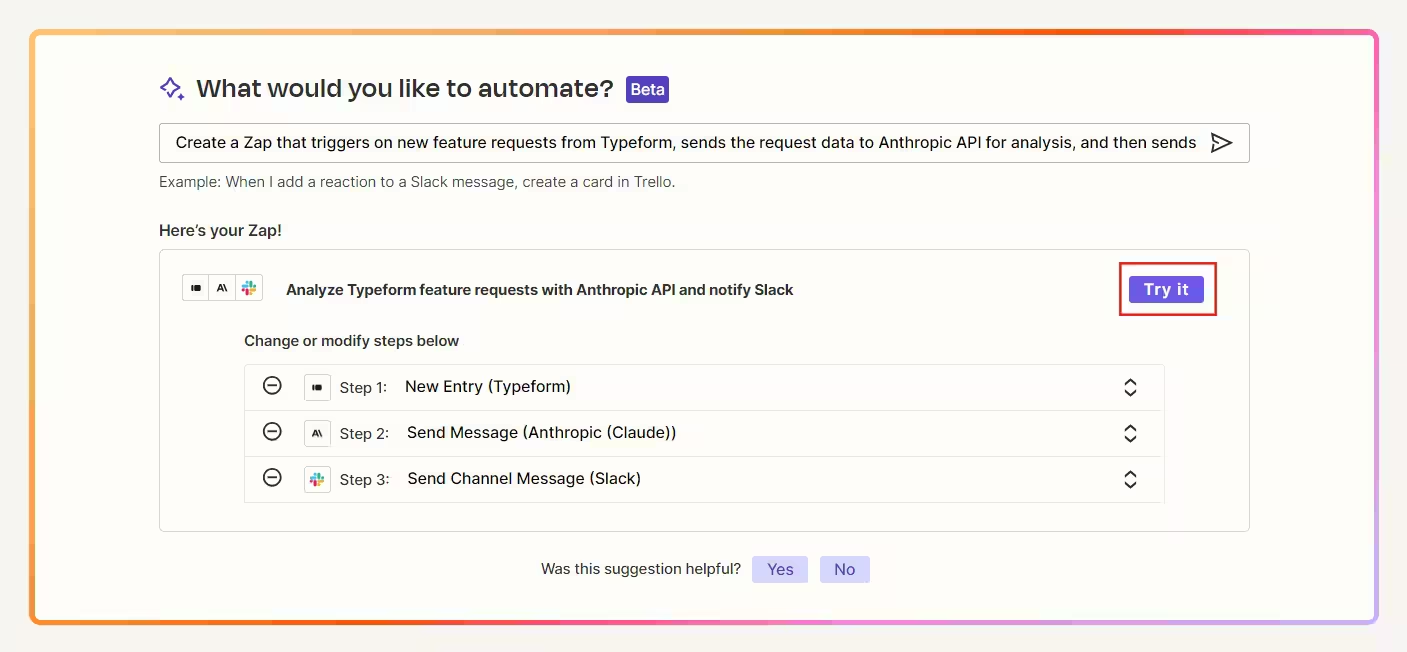
Review the Zap template created by Zapier's AI. Note that we'll need to customize this further to fit our specific needs.
Step 3: Configuring the trigger
Now let’s configure the trigger to a new entry in the Typeform.
In the first step of your Zap, connect your Typeform account if you haven't already.
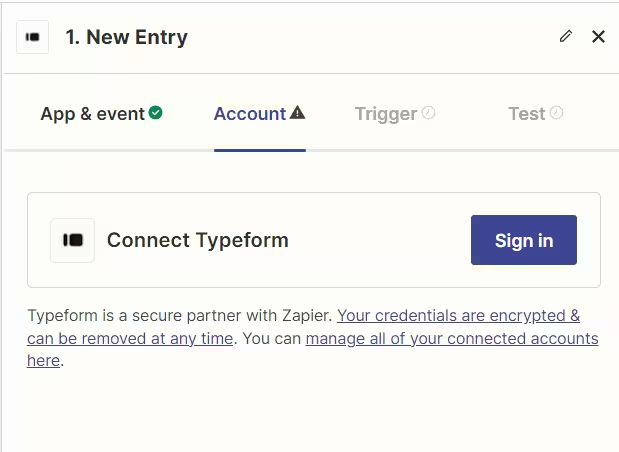
Select the form you've created for collecting feature requests.

Click on Continue and test the step to ensure the trigger is set up.
Step 4: Integrating Anthropic's API
Now, let's set up the integration with Anthropic's API to analyze our feature requests.
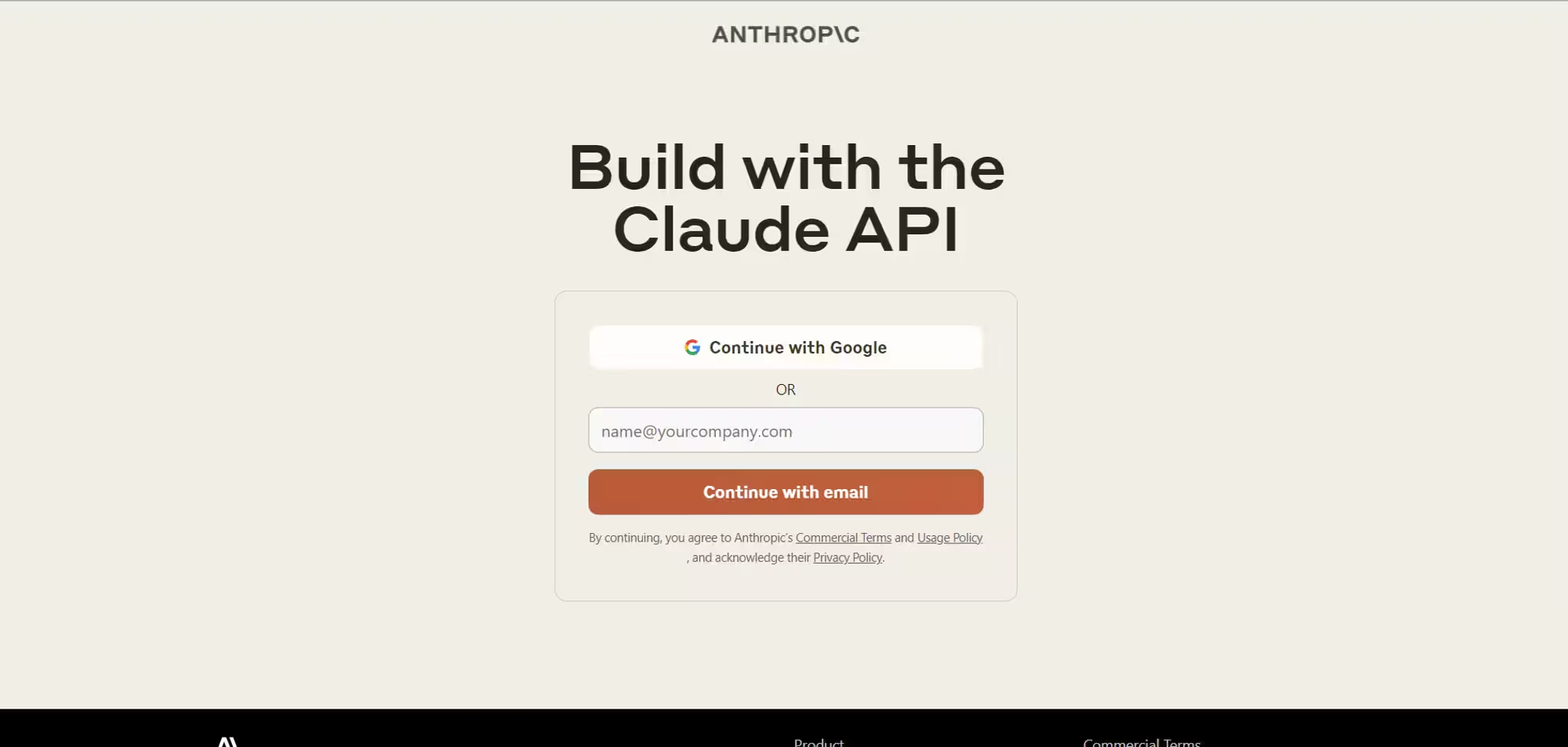
First, you'll need to get your API key from Anthropic. Go to console.anthropic.com and sign up for an account if you don't have one.
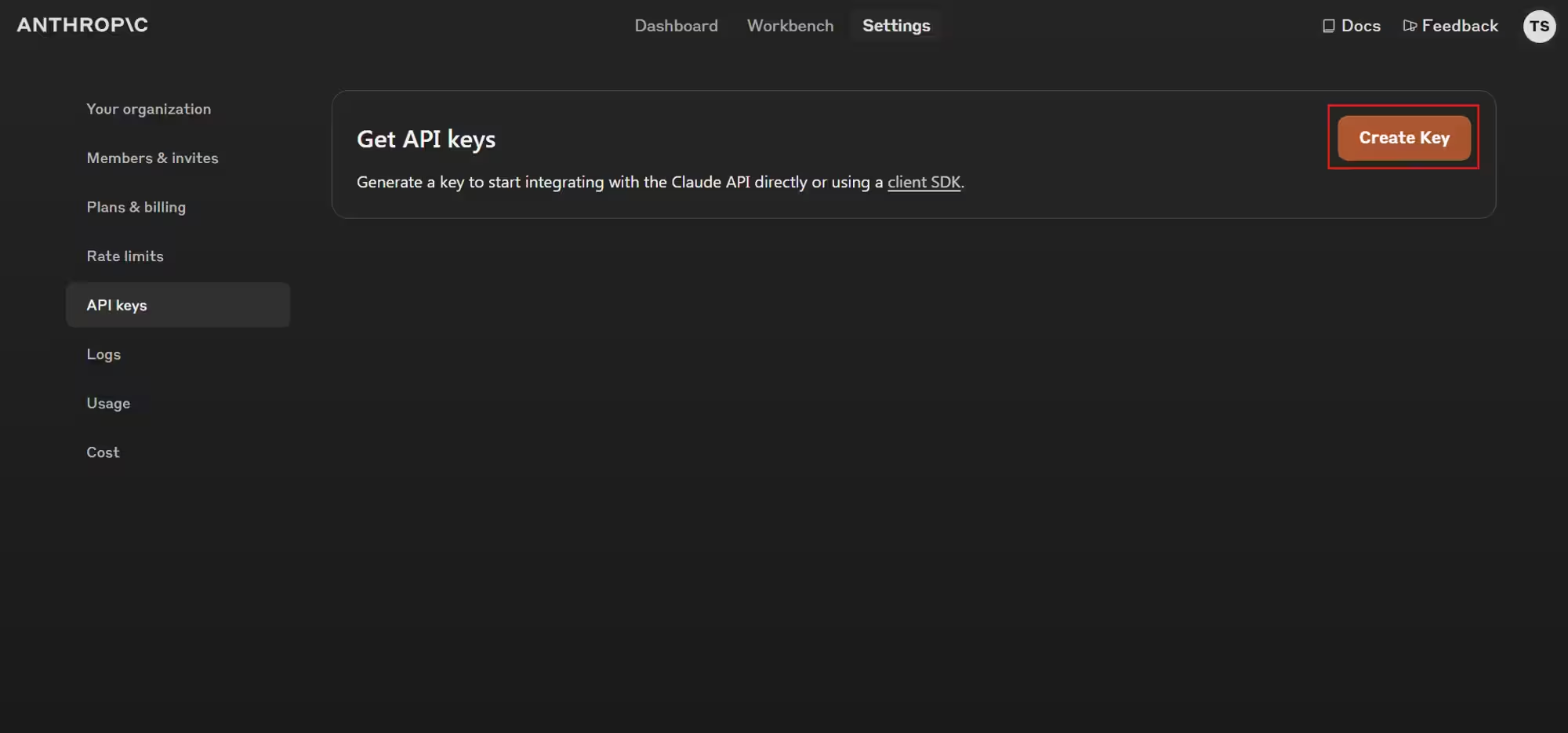
Once logged in, navigate to the "API Keys" section in your account settings.
Click "Create Key", give it a name like "Zapier Feature Analysis", and copy the generated key. Keep this key secure and don't share it publicly.
Back in Zapier, in the second step, choose "Send message" as the event. You'll be prompted to connect your Anthropic account - click "Sign in" and paste your API key when asked.
In the "User message" field in next step, we'll craft our prompt to Claude. Here's a template you can use:
You are an AI assistant helping to analyze feature requests for [YOUR_PRODUCT_NAME]. Use the following information to provide your analysis:
Feature Title: {{feature_title}}Feature Description: {{feature_description}}
Company Context:
[COMPANY_NAME] is a [COMPANY_DESCRIPTION]. Our product, [PRODUCT_NAME], is [PRODUCT_DESCRIPTION].
Target Market: [TARGET_MARKET_DESCRIPTION]
Current User Base: [USER_BASE_DESCRIPTION]
Key Competitors: [LIST_OF_COMPETITORS]
Company Size: [COMPANY_SIZE]
Available Development Resources: [RESOURCE_DESCRIPTION]
Please provide a comprehensive analysis of this feature request, including:
1. Potential business value (score 1-10 and brief explanation)
2. Technical feasibility (score 1-10 and brief explanation)
3. Estimated development time (in weeks/months)
4. Potential impact on user experience (score 1-10 and brief explanation)
5. Market differentiation potential (score 1-10 and brief explanation)
6. Key risks and considerations
7. Recommended priority (High/Medium/Low) with brief justification
8. Suggestion on whether this should be integrated into the current product or developed as a separate offering
Please provide a concise explanation for each point, considering the provided company context. Your analysis should help the product manager make an informed decision about whether to pursue this feature request.
Replace the placeholders (e.g., [YOUR_PRODUCT_NAME], [COMPANY_NAME]) with your specific information. You can adjust the questions and context as needed to best fit your company's decision-making process.
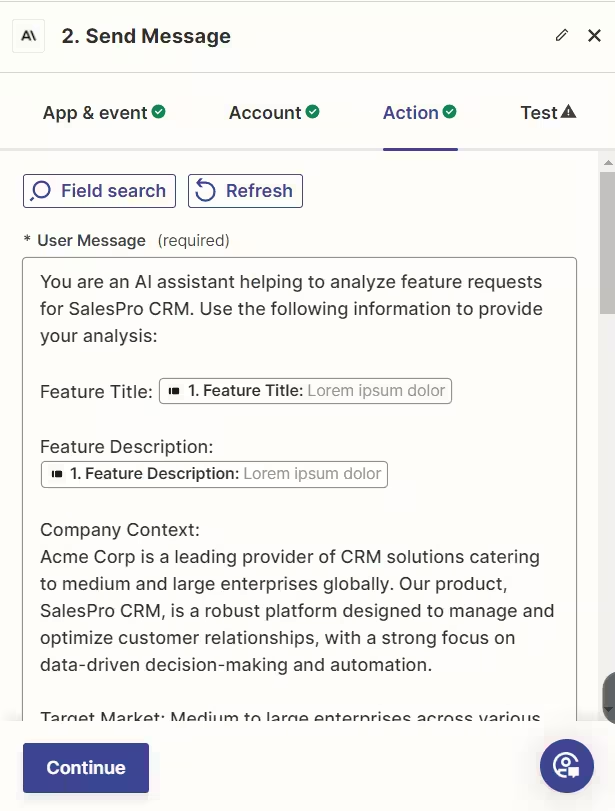
In the "Model" field, select "claude-3-5-sonnet-20240620" (or the latest available version).
Set the maximum tokens to around 800 to ensure you get a comprehensive response without it being overly long. Adjust the temperature to 0.75 for more consistent outputs.

Click "Continue" and test this step to ensure you're receiving a well-structured response from Claude.
Step 5: Delivering results to Slack
Finally, let's send the analysis results to your team via Slack. Add another action step to your Zap, search for "Slack", and select it as the action app.
Choose "Send Channel Message" as the action event. Connect your Slack account if you haven't already, then select the channel where you want to send the analysis.
In the message text field, use the following template:
New Feature Request Analysis:
{{feature_title}}
Analysis:
{{claude_response_content}}
Replace the placeholders with the corresponding fields from your Typeform and Anthropic steps.
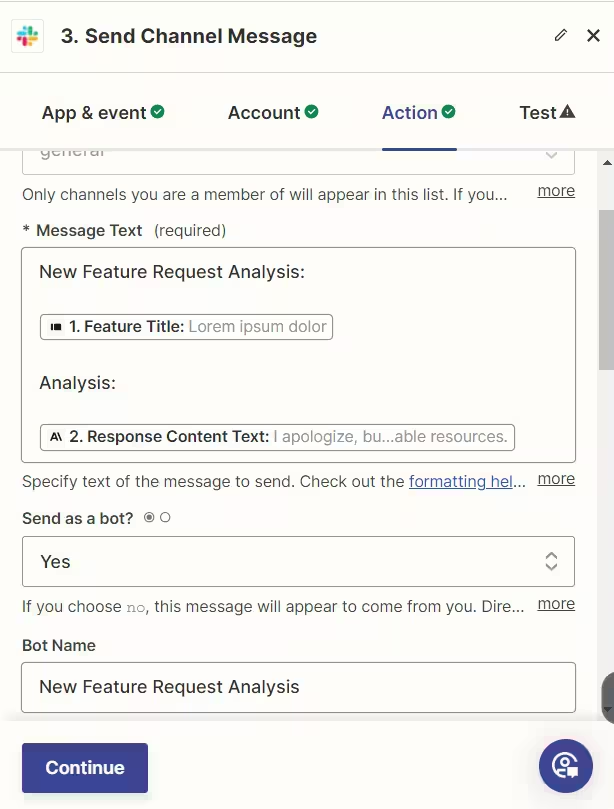
Test this step to ensure the message is formatted correctly and contains all the necessary information.
Step 6: Finalizing and activating your Zap
Review all the steps of your Zap to make sure everything is configured correctly. Run a test of the entire Zap to see it in action.
If everything looks good, turn on your Zap by clicking the toggle switch in the bottom right corner. Your automated feature request analysis system is now live!
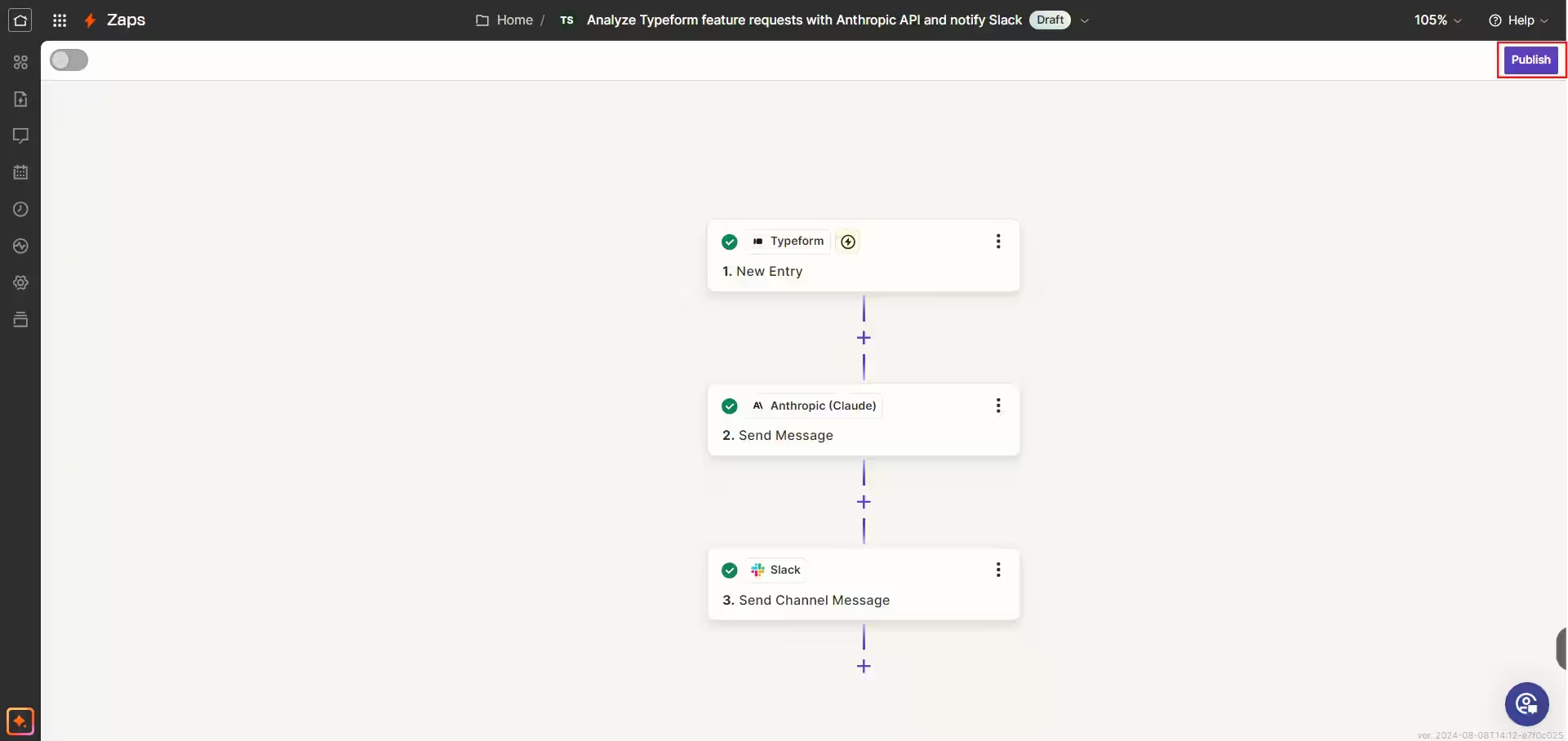
By following this tutorial, you've created a powerful tool for streamlining feature request analysis. This system will help your team quickly evaluate new ideas, prioritize development efforts, and make data-driven decisions about your product roadmap.
Remember to regularly review and refine your AI prompt to ensure it continues to provide valuable insights for your specific product and business needs. You may also want to periodically review the AI's outputs to ensure they're meeting your expectations and adjust the prompt or model parameters as needed.
This tutorial was created by Tanmay.