Automate meeting note-taking and post summaries to Slack
Use OtterAI to capture, organize, and post meeting notes directly to your Slack workspace.
2024-11-13
Meetings are essential for collaboration, but they often lead to information overload and lost productivity. Implementing an automated system for recording, transcribing, and analyzing meetings can dramatically streamline your workflow. By capturing spoken content and transforming it into searchable, shareable knowledge, every conversation will contribute to your team's collective intelligence.
This automated approach eliminates the need for manual note-taking, allowing participants to focus fully on the discussion. Real-time transcription and intelligent summarization make it easy to review key points, assign action items, and share outcomes with team members who couldn't attend.
In this tutorial, you will learn how to:
- Set up your Otter AI account
- Record and transcribe your meetings
- Review and edit transcripts
- Set up Slack integration and post summaries
- Leverage Otter Chat for cross-meeting insights
You'll need:
- Otter AI account (free or paid)
- Slack account
- Google Calendar (optional, for automatic meeting imports)
Let’s dive in.
Step 1: Set up your Otter AI account
First, you'll need to create an Otter AI account and configure some initial settings.
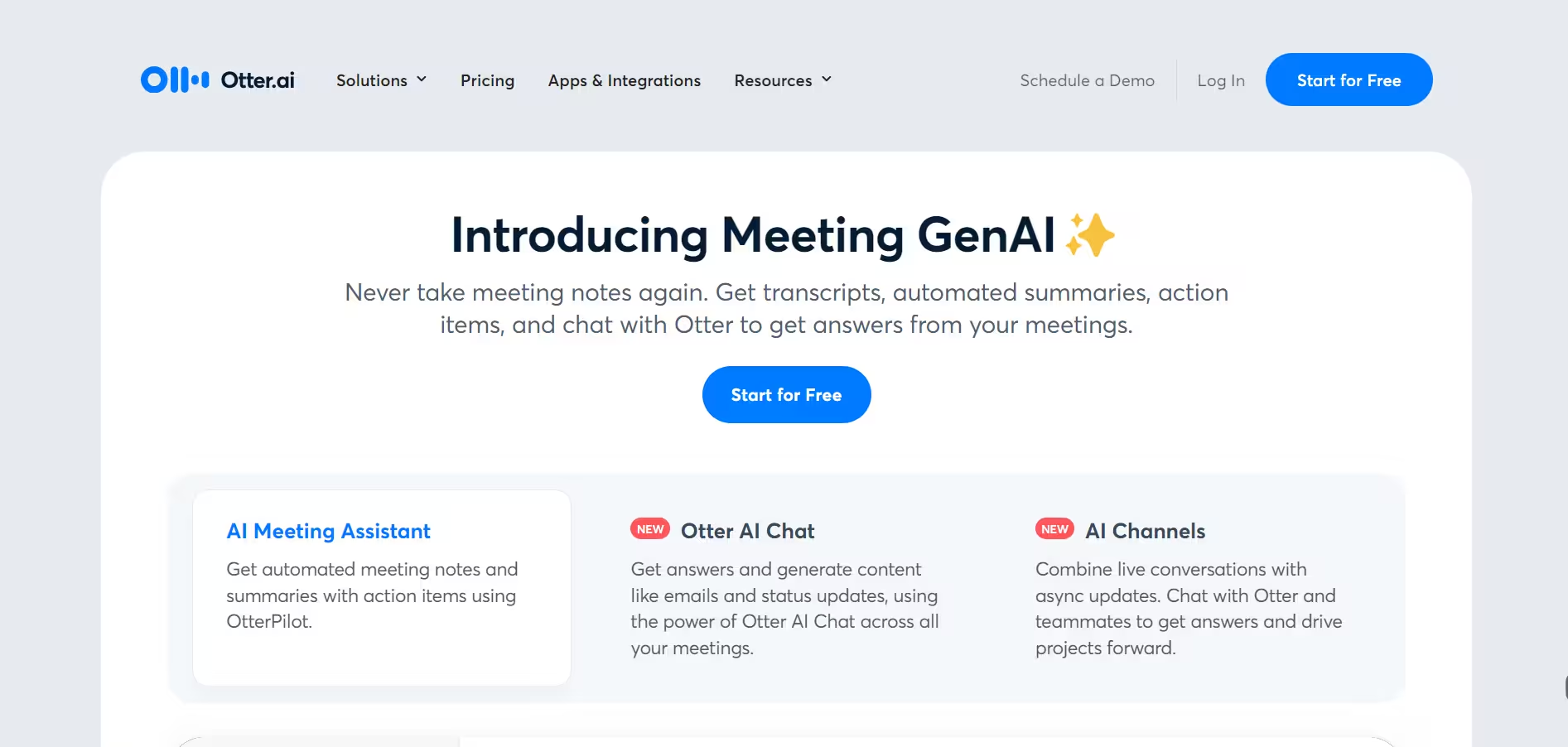
Visit Otter AI's website and sign up for an account:
- For a 7-day business trial: https://otter.ai/signup?code=BUSTRIAL7PMGM
- For a free account: https://otter.ai/signup
Complete the onboarding process, providing necessary information about your role and intended use.
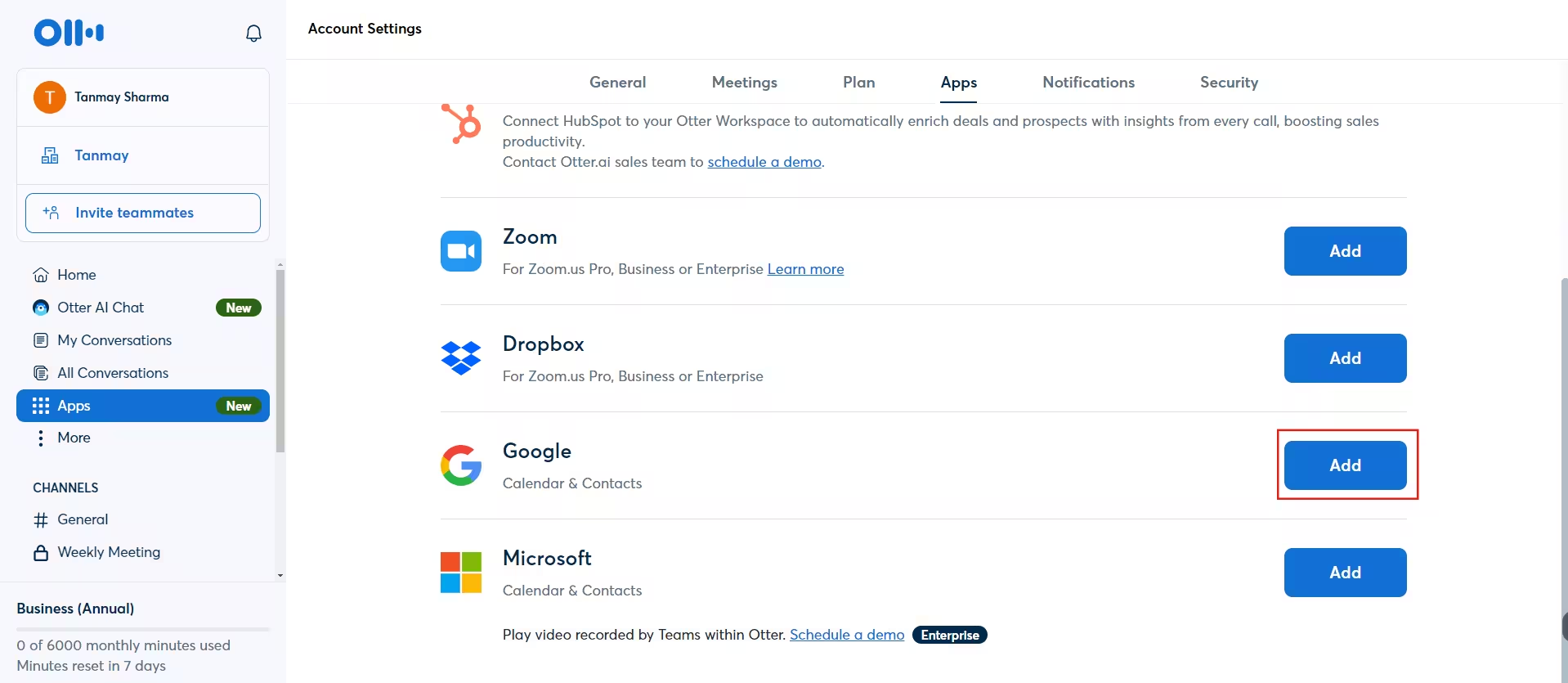
Once logged in, go to https://otter.ai/setting/connected_apps to connect your Google Calendar. This integration allows Otter AI to access your upcoming meetings.
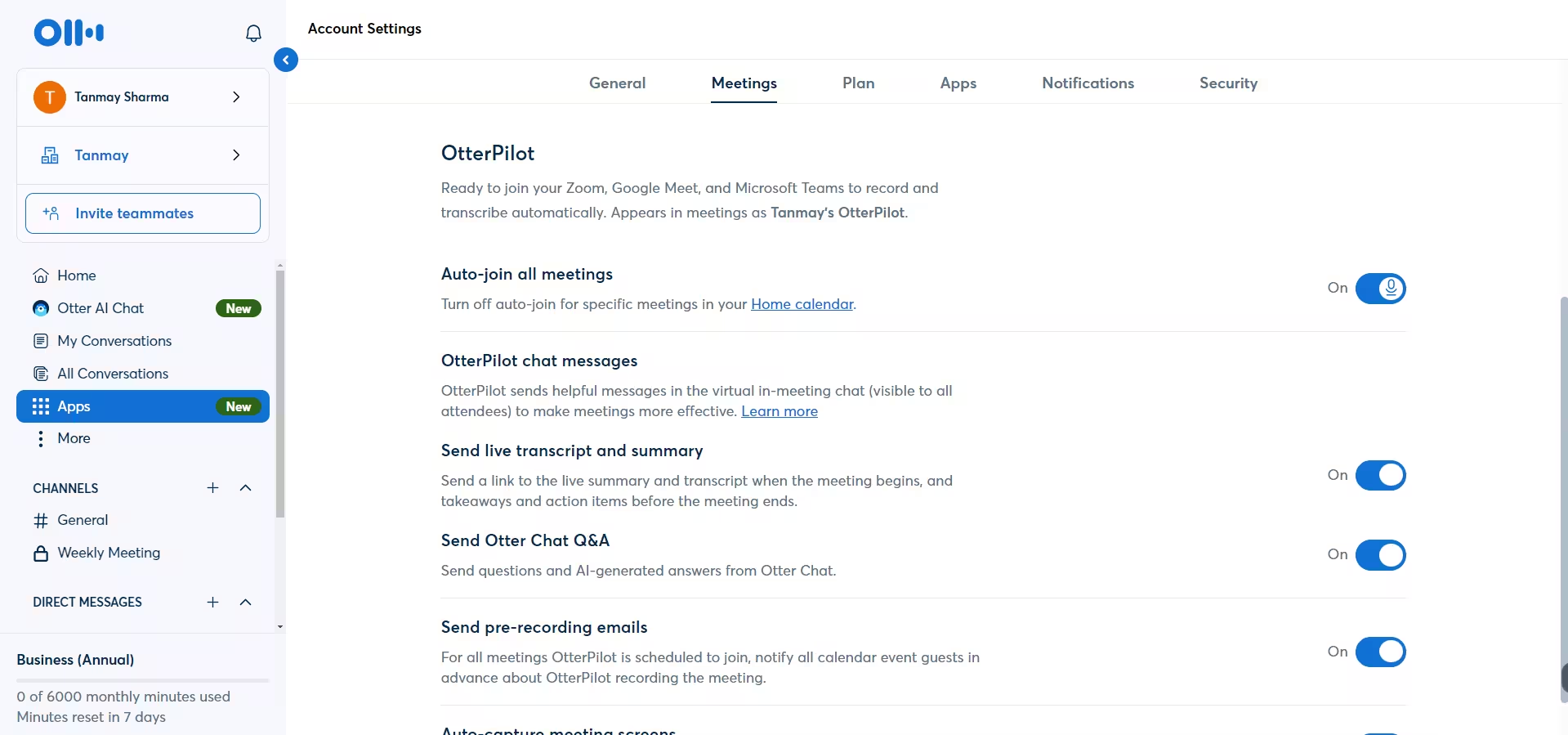
Configure your OtterPilot settings at https://otter.ai/setting/share-notes:
- Toggle "Auto-join all meetings" on or off
- Enable or disable OtterPilot chat messages
- Choose whether to send live transcripts and summaries
- Set preferences for Otter Chat Q&A and pre-recording emails
Step 2: Record and transcribe your meetings
Otter AI offers multiple ways to record and transcribe your meetings:
Automatic recording for calendar events:
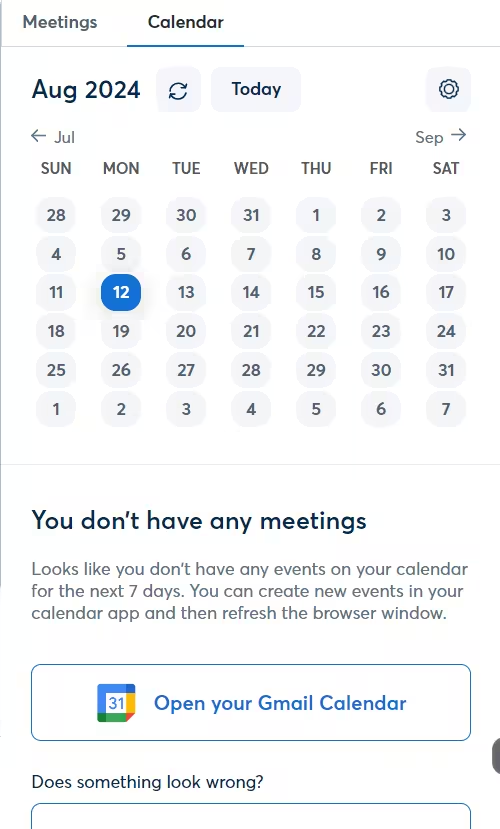
- Once your Google Calendar is connected, OtterPilot will automatically join and record scheduled meetings.
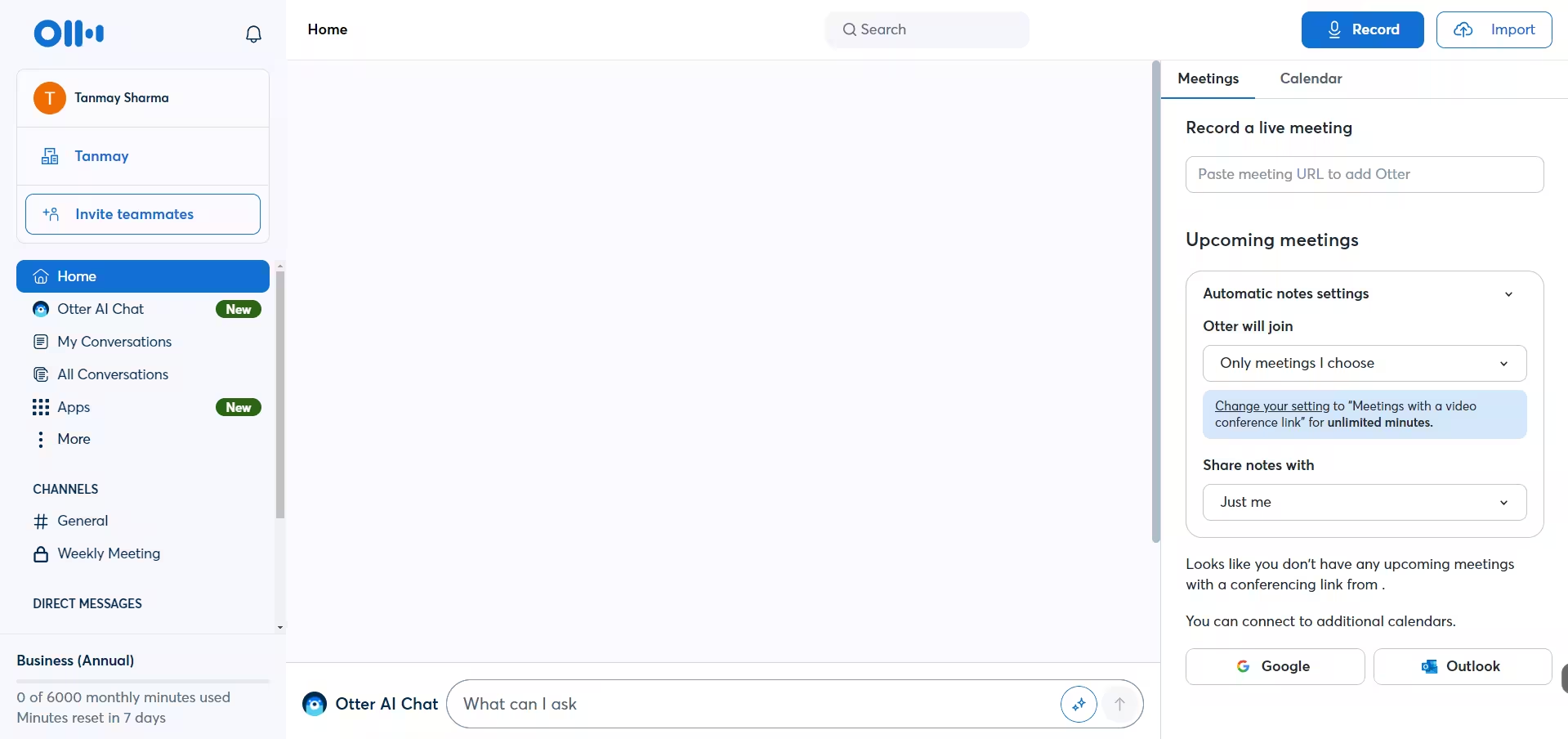
- You'll see upcoming meetings on the right side of your Otter AI homepage.
Manual recording using meeting links:
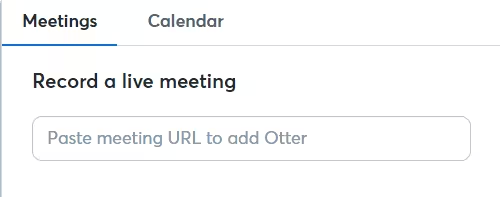
- On the Otter AI homepage, go to the “Meetings” tab in the right corner of the homepage.
- Enter the meeting link, and OtterPilot will join and start recording.
Direct recording for in-person meetings or other conversations:
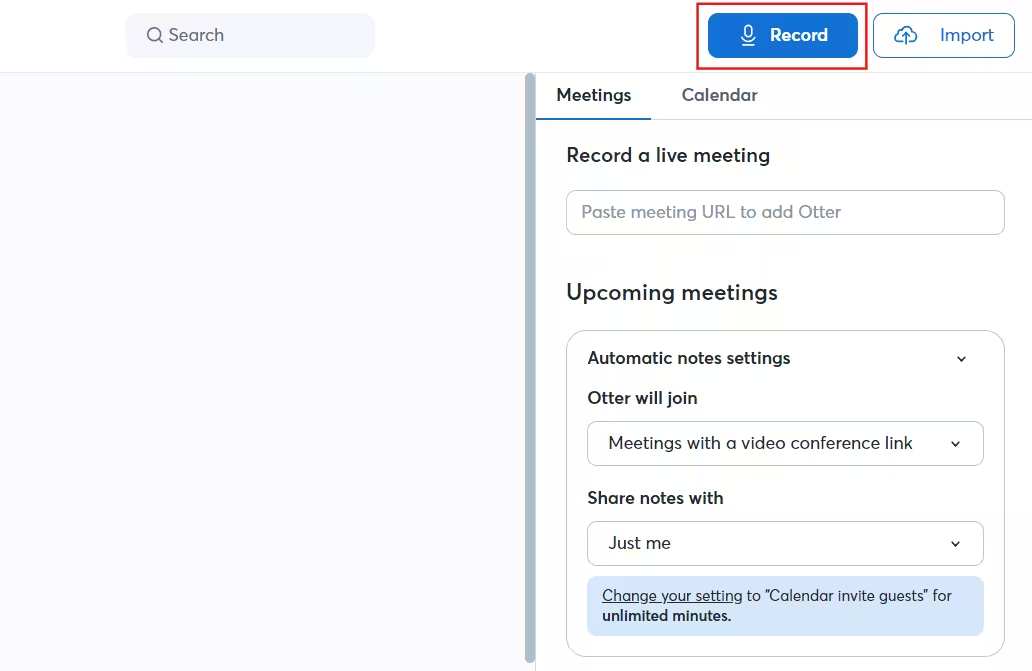
- Click the "Record" button on the Otter AI homepage.
- Grant microphone permissions when prompted.
- Otter AI will transcribe audio from your computer in real time.
Import existing recordings:
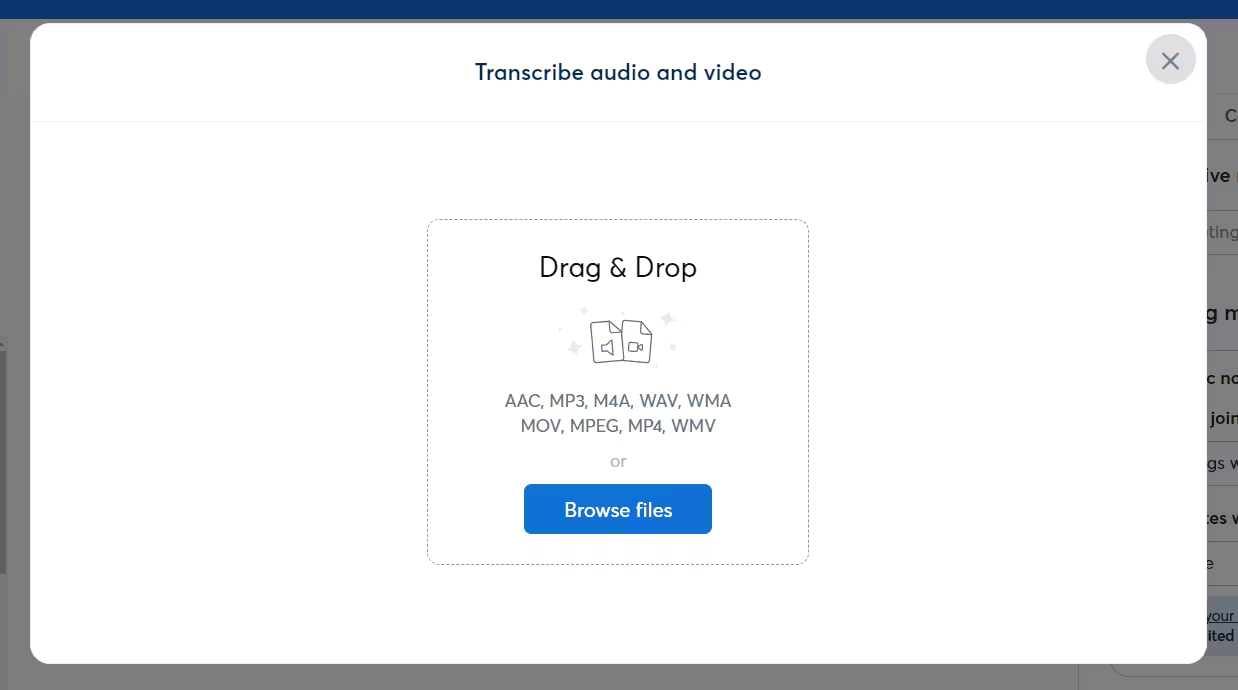
- Click "Import" on the Otter AI homepage.
- Upload audio or video files in supported formats.
Step 3: Review and edit transcripts
After your meeting is recorded, you can review and refine the transcript.
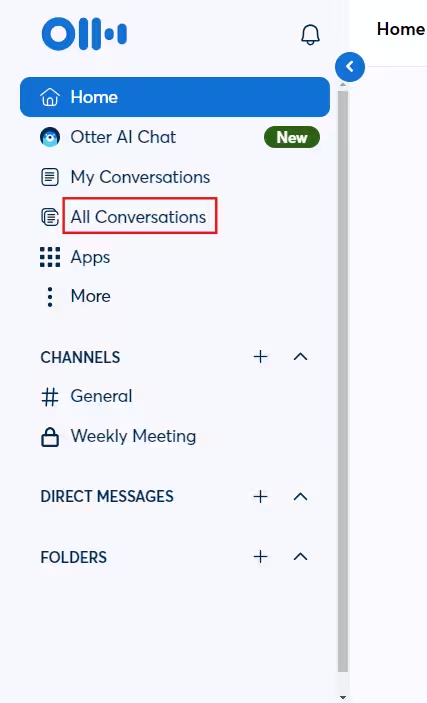
Go to the "All conversations" tab in the left sidebar and select your meeting.
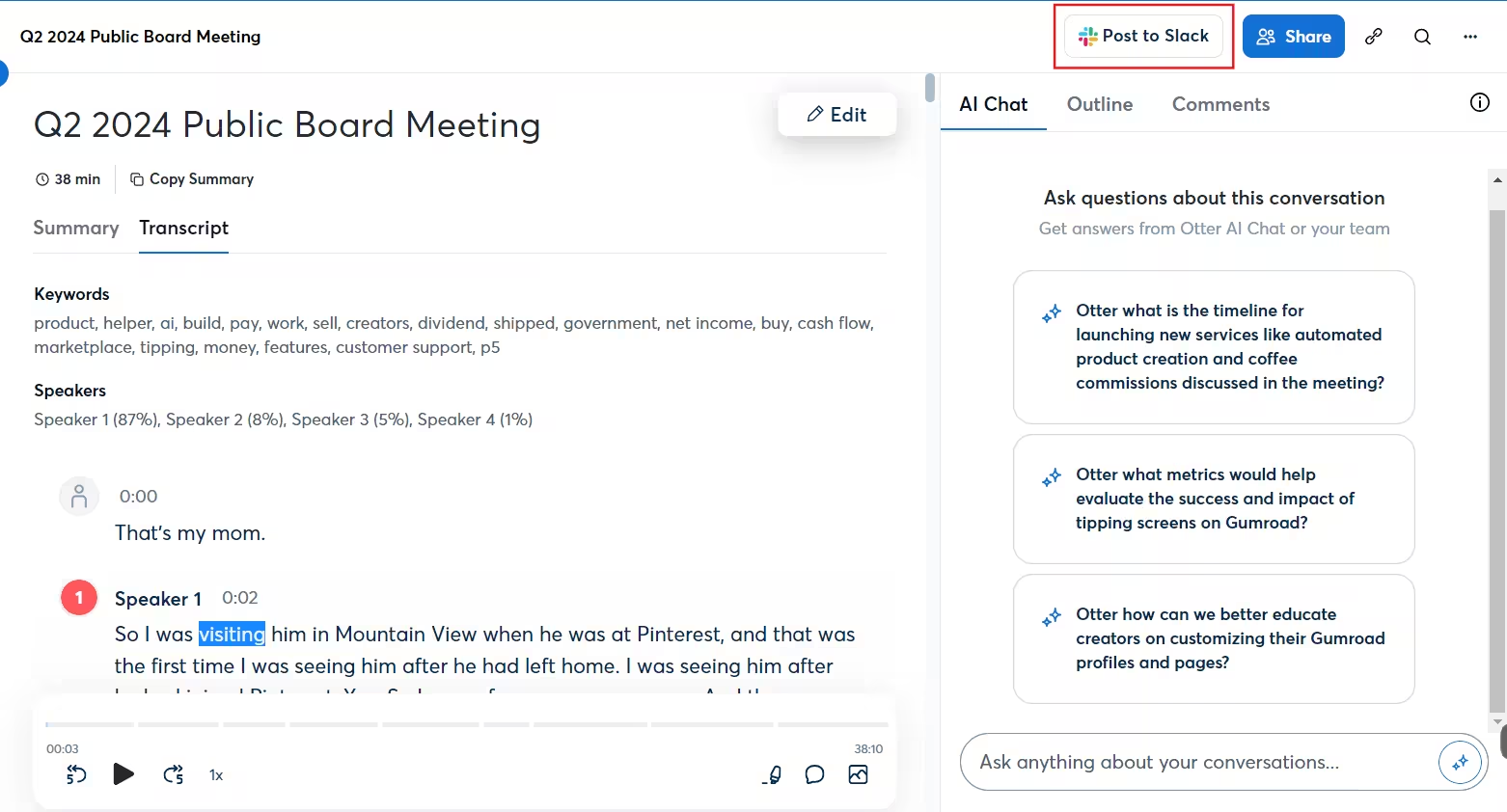
In the main window, you'll see the transcript. You can:
- Edit speaker tags
- Add images
- Highlight important sections
- Add comments for collaboration

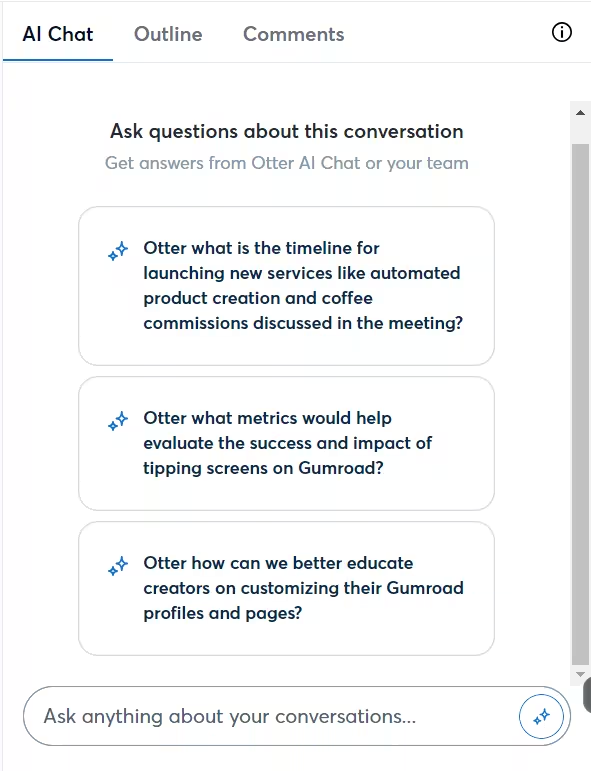
Use the Otter AI chatbot on the right to:
- Ask questions about the meeting content
- Generate summaries
- Extract specific information
Step 4: Set up Slack integration and post summaries
To share meeting summaries with your team on Slack:
In the conversation view, click "Post to Slack" at the top of the page.
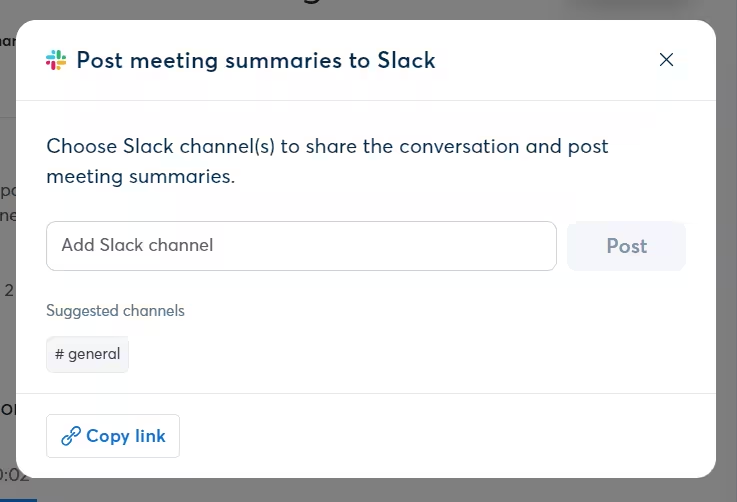
Authorize Otter AI to access your Slack workspace if prompted. Choose the Slack channel where you want to post summaries.
For recurring meetings set up in your calendar, Otter AI can automatically post summaries to Slack, when enabled.
For non-recurring meetings, we need to manually send summaries using the "Post to Slack" button.
Step 5: Leverage Otter Chat for cross-meeting insights
Otter Chat allows you to query information across all your recorded conversations.
Click on "Otter AI Chat" in the left sidebar.
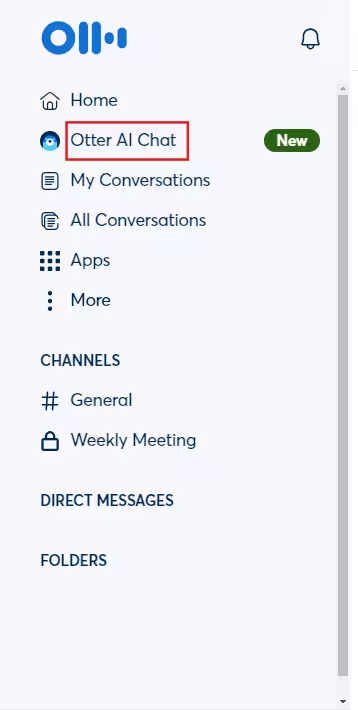
You can use it to ask questions about all your meetings in Otter AI, such as:
- "What was decided about pricing in last week's leadership meeting?"
- "When is our product launch date?"
- "What were Q4 revenue totals from the earnings call?"
Otter AI will provide answers based on your collective meeting notes, discussions, and task lists.
This tutorial was created by Tanmay.