Automate project communication
Set up an automated workflow that will generate, send, and store meeting recaps to all of your stakeholders.
2024-12-19
Welcome to the fifth and final lesson of our Automating project management with AI course!
In this tutorial, we’re going to automate project communication by setting up a workflow that will auto-join our project meetings and generate meeting transcripts, update our project management tool with notes, and send automated communication to various stakeholders across multiple communication channels.
Steps we’ll follow in this tutorial:
- Add the Meeting Notetaker Lindy and refine the workflow
- Add a step to update your project management tool
- Create a test meeting and review your outputs
Tools needed:
Let’s get into it!
Add the Meeting Notetaker Lindy and refine the workflow
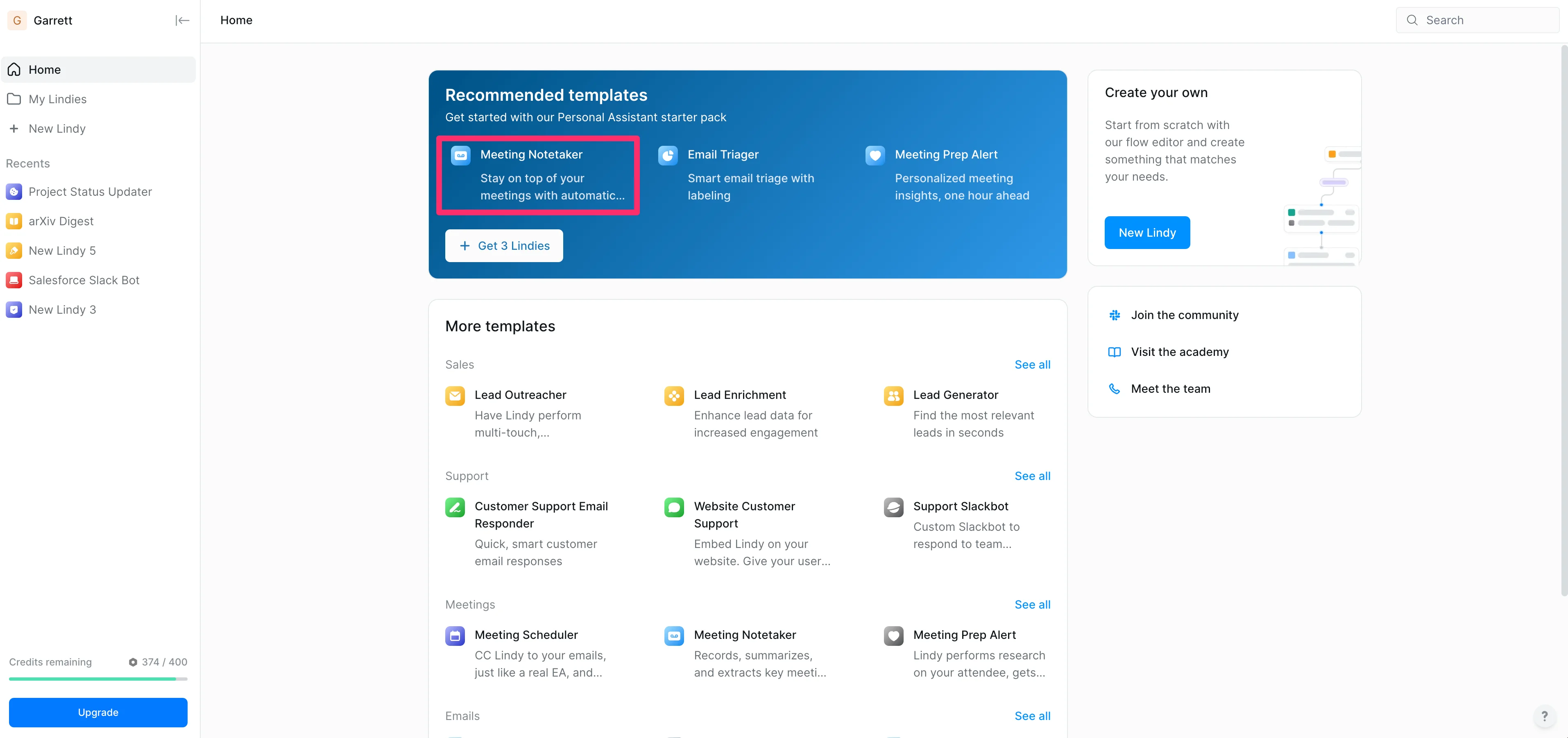
To get started, create or log in to your Lindy account and click on the “Meeting Notetaker” Lindy template. This template will be the basis for a lot of our workflow automation.
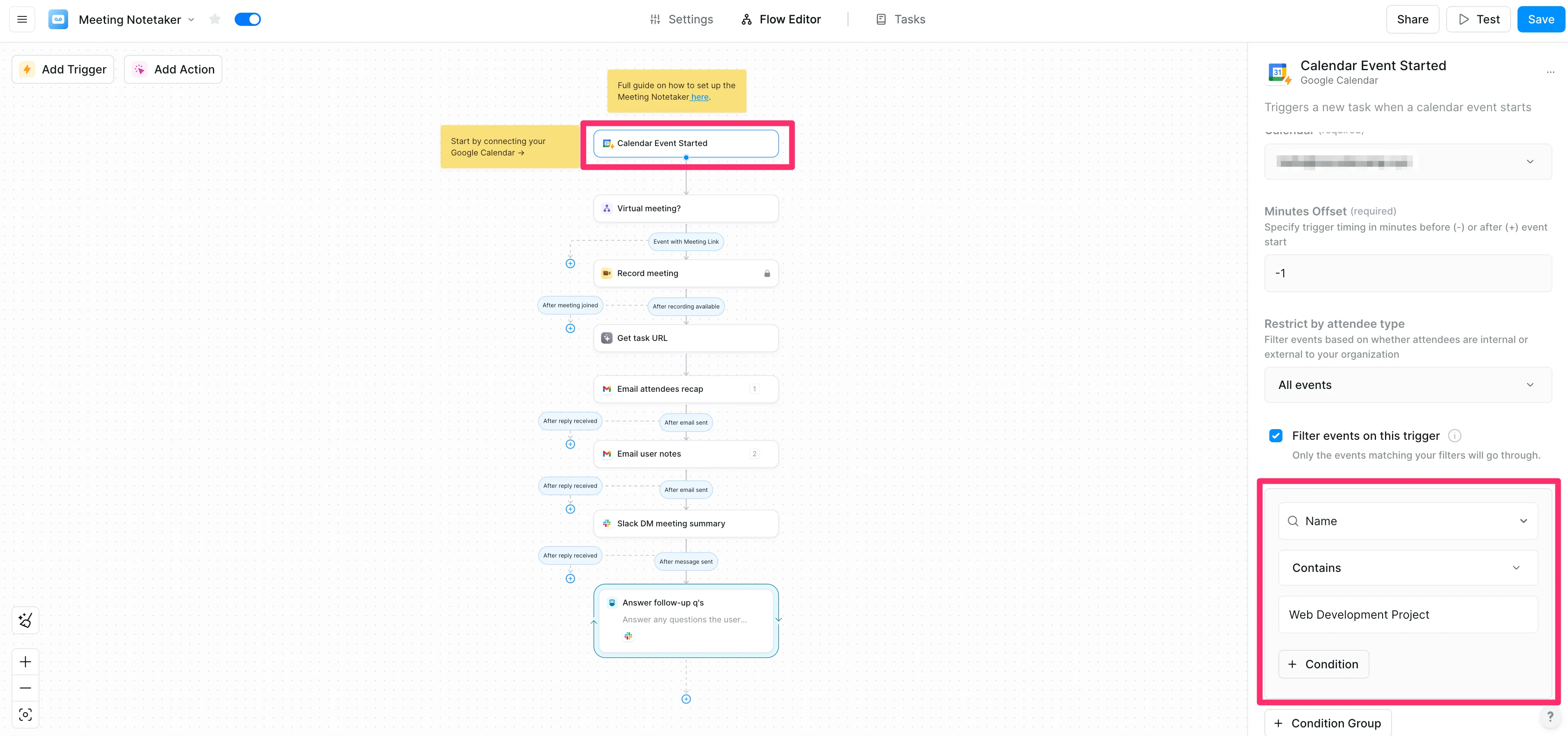
Next, we’ll need to connect our Google Calendar with project meetings to trigger the flow. To do this, click on the “Calendar Event Started” step and connect your Google Calendar.
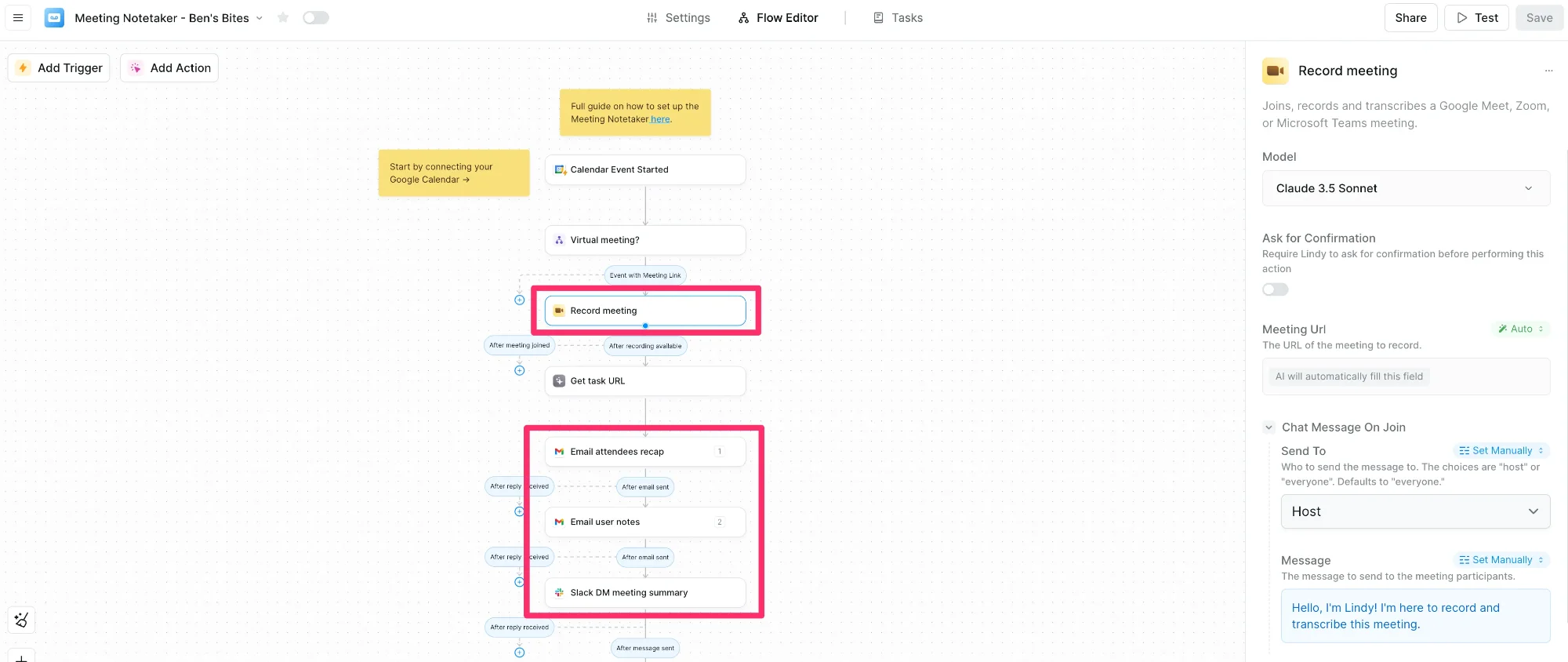
Now you can further cutsomize the workflow. First, you'll need to connect your Gmail and Slack accounts so the system can send automated messages. Then you can customize the other parts of the workflow. You can change things like:
- How the AI writes the meeting summaries
- What name the Lindy recording bot uses
- Other settings that control how your meeting notes are created and shared
Add a step to update your project management tool
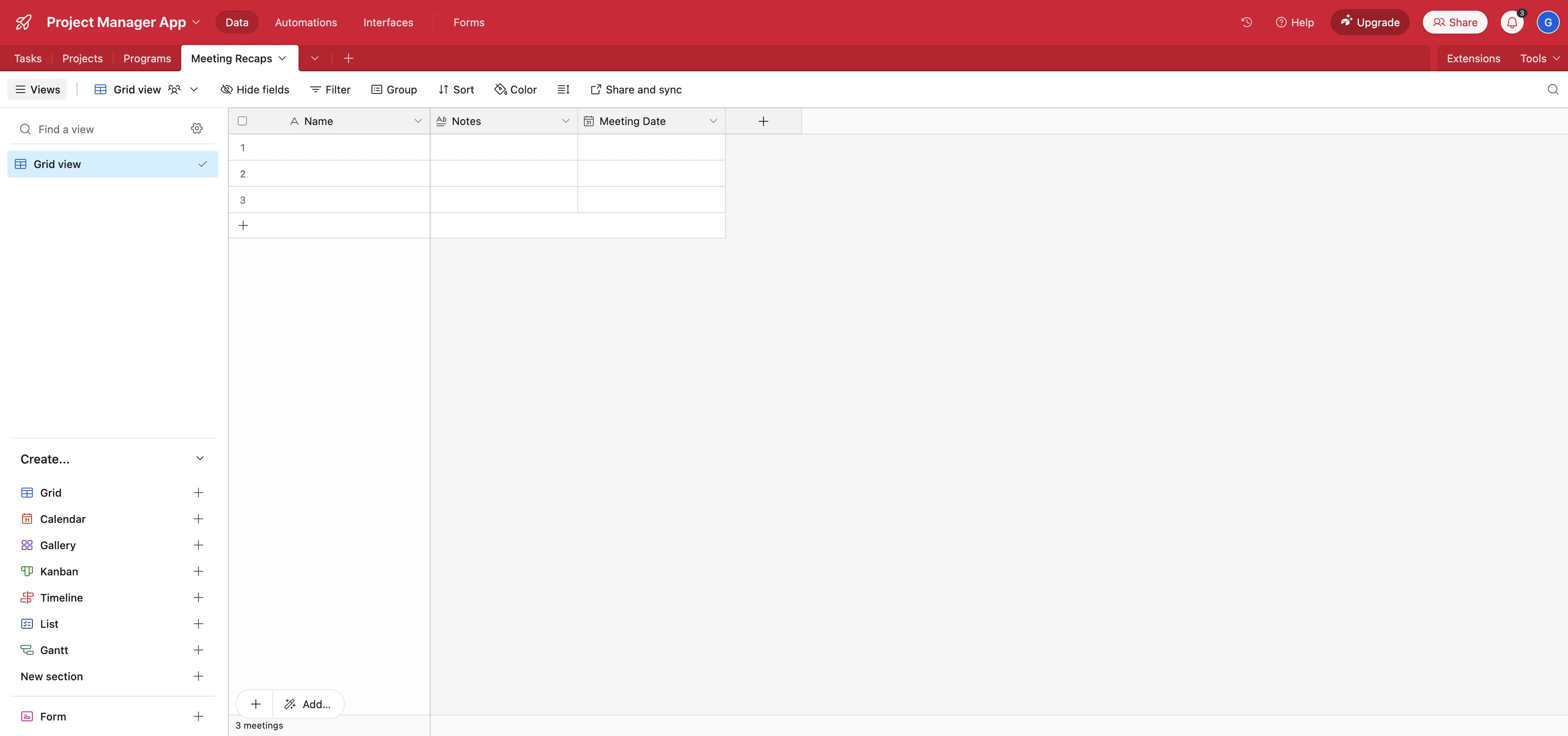
With the foundational flow set up, we can now add a step to post the meeting updates to our project management tool. To do this in Airtable, we’ll create a new table for these notes by clicking the “Add or import” button on the table navigation.
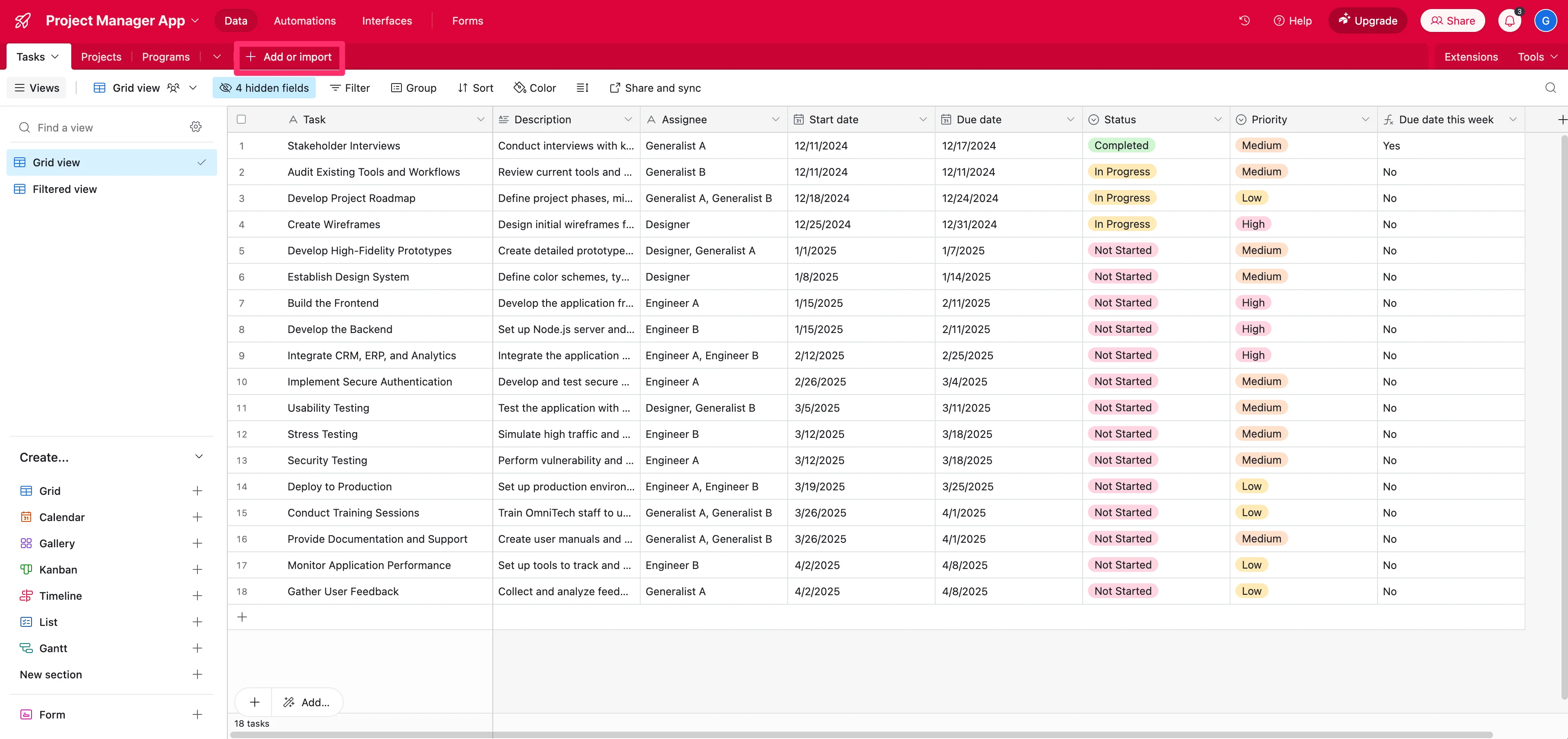
We’ll name it “Meeting Recaps” and add the Name, Notes, and Meeting Date fields.
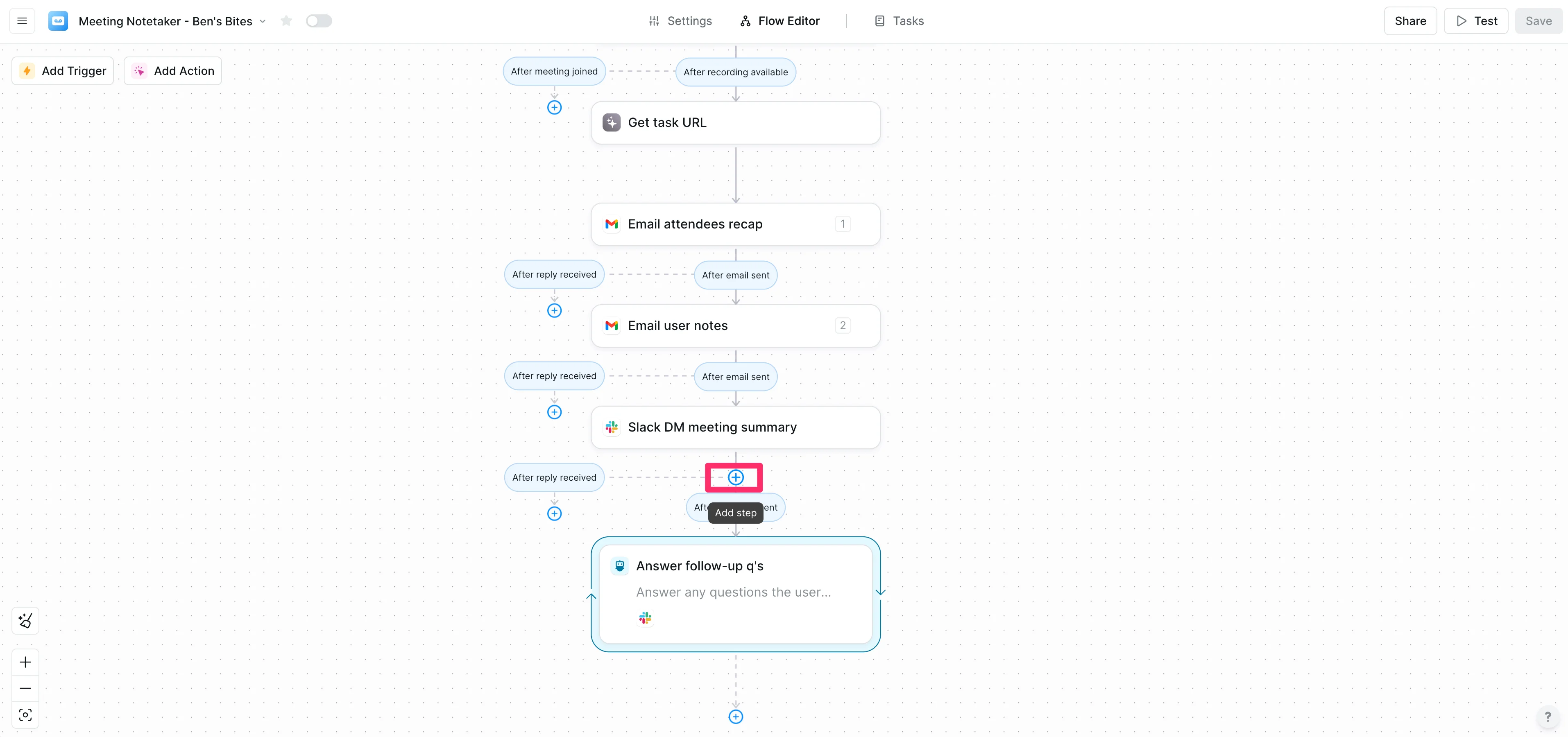
Now, we’ll head back into Lindy to add a step that sends the meeting recaps to Airtable. To do this, click the “+” button below the Slack step.
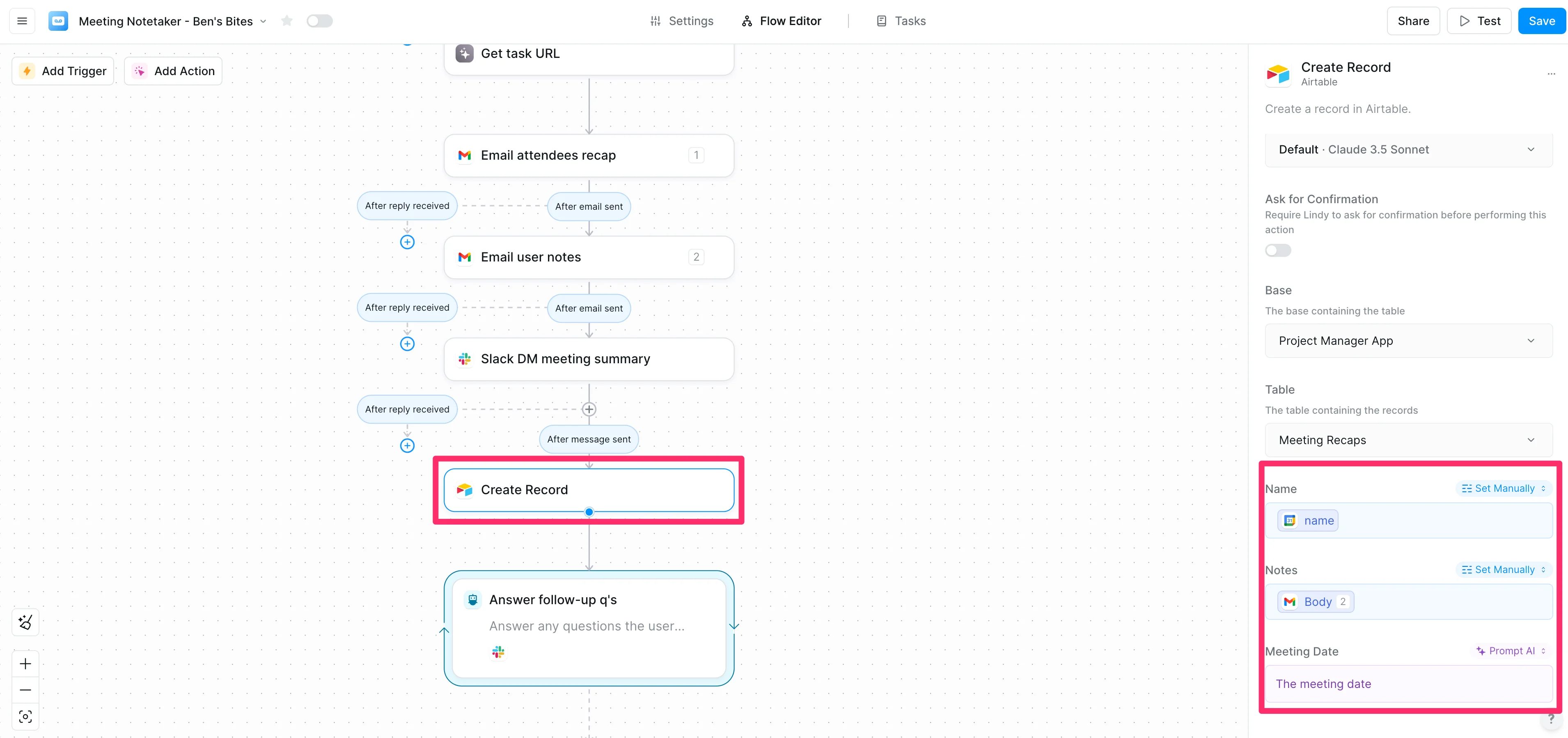
Search and select for the Airtable “Create Record” action. Then, map the data to your Airtable “Meeting Recap” fields from the previous steps. We’re grabbing the Name from the calendar event, the Notes from the email Body, and using an AI prompt to log the Meeting Date.
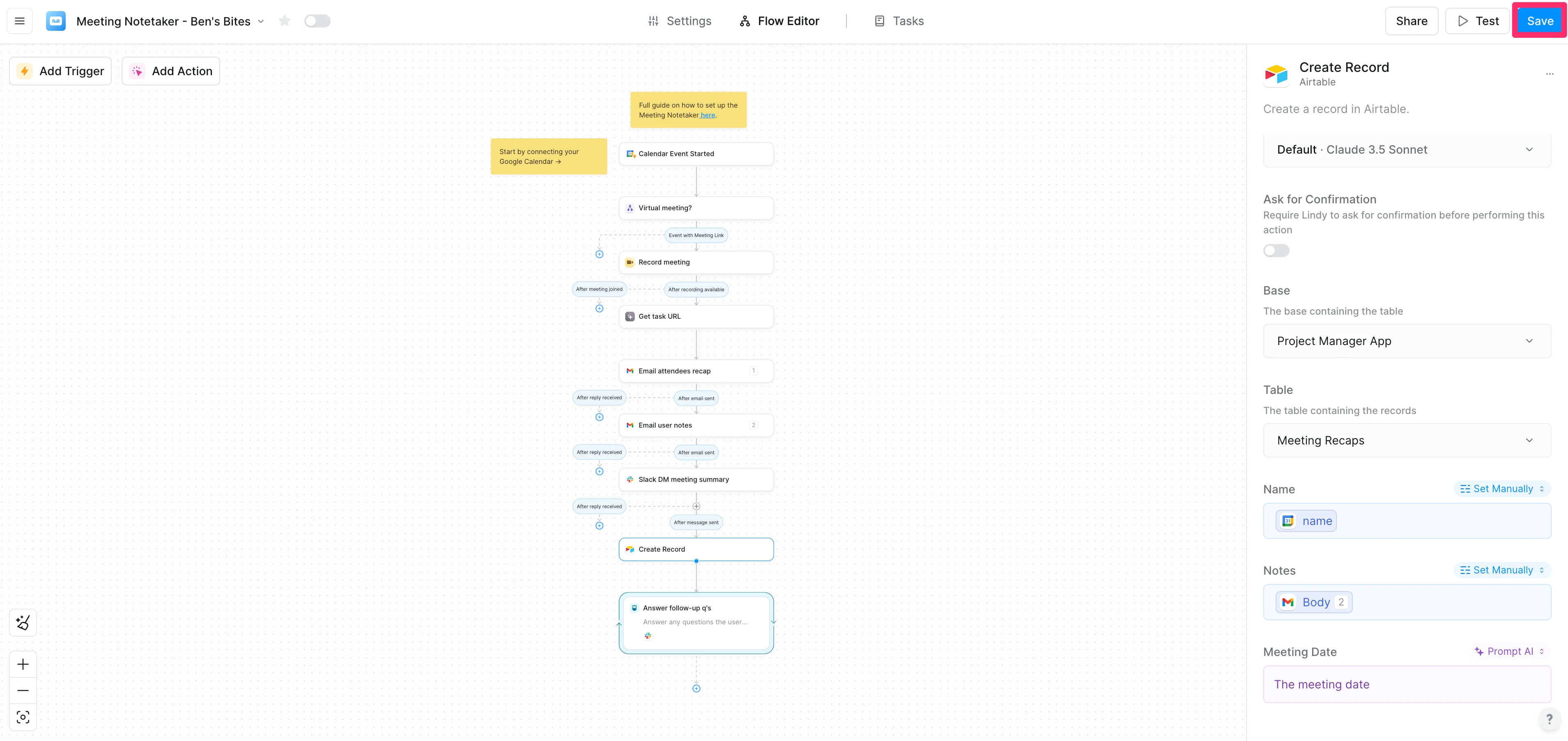
Make sure to click the “Save” button in the top right corner of the page to save your final flow.
Create a test meeting and review the outputs
Now, we can test our automation. To do so, create a fake meeting in your Google Calendar that meets the Lindy flow trigger criteria.
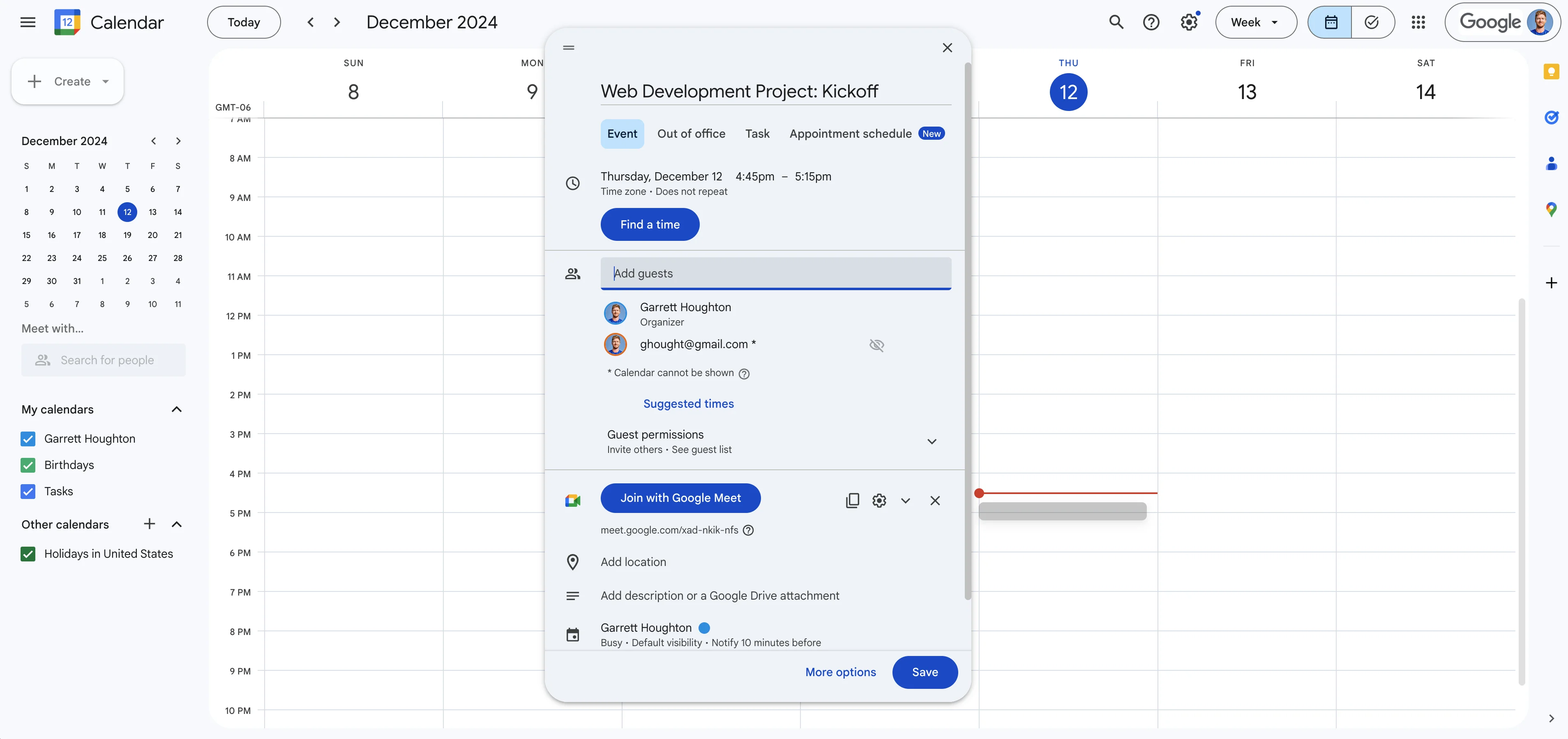
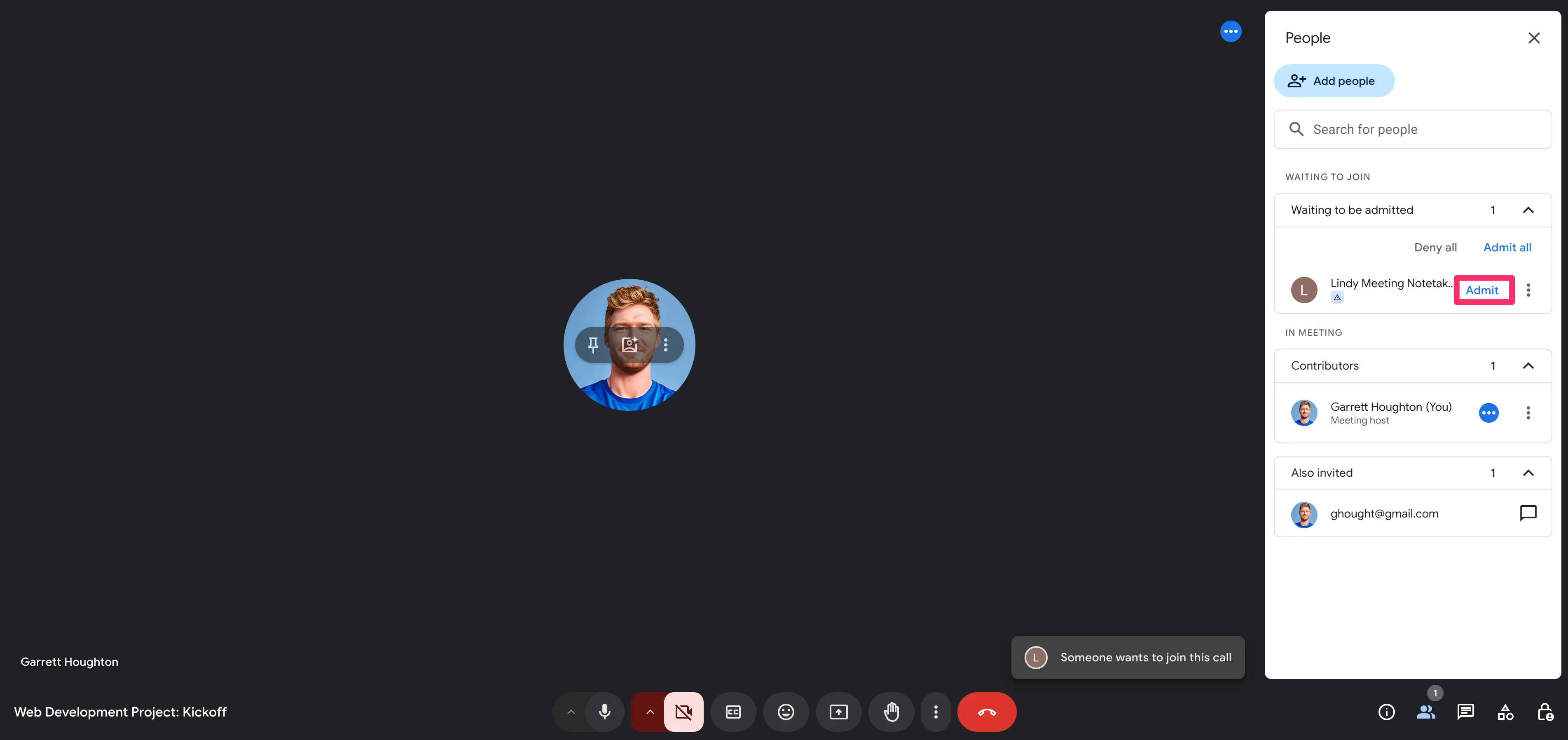
Start your video call and admit your Lindy Meeting Notetaker. Make sure to say a few things to ensure you can generate a transcript and meeting recap.
After the meeting ends, all invitees should get a summary of the meeting.
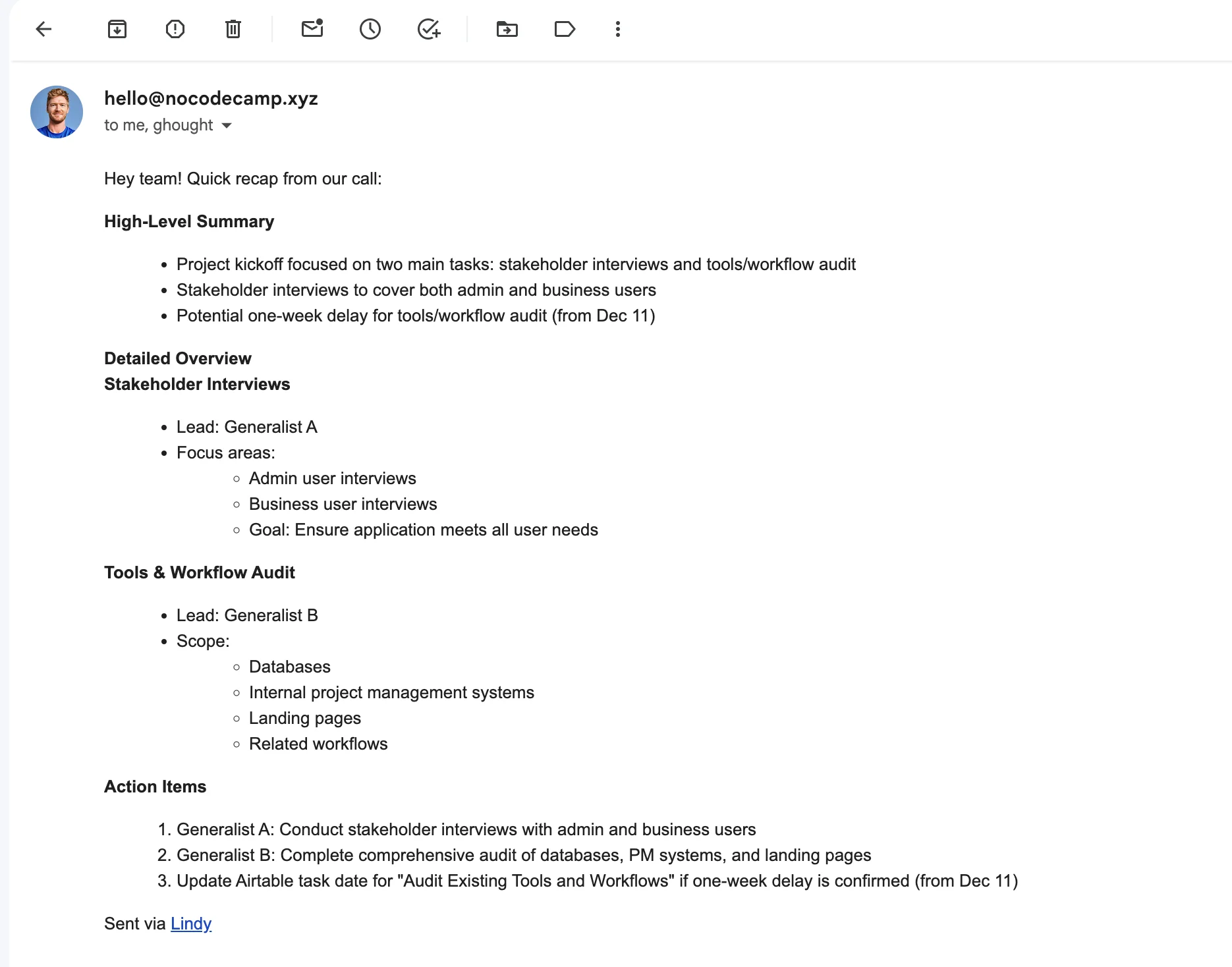
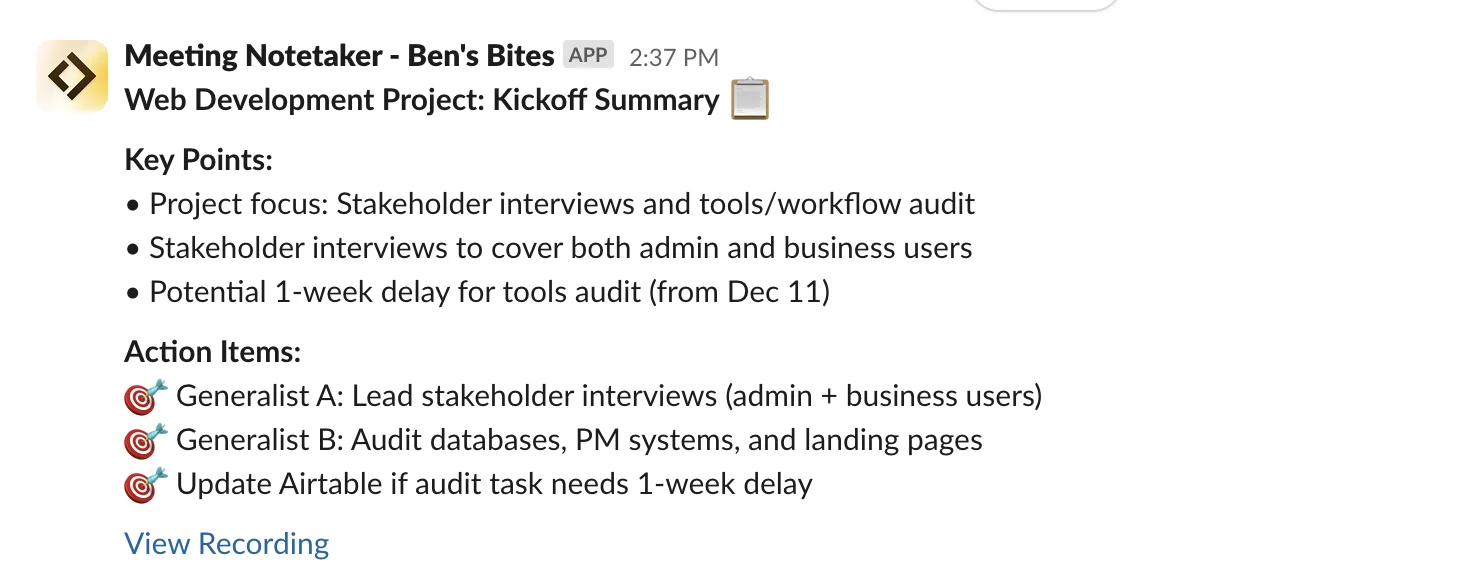
You’ll also get a concise recap emailed and Slacked to you as well.
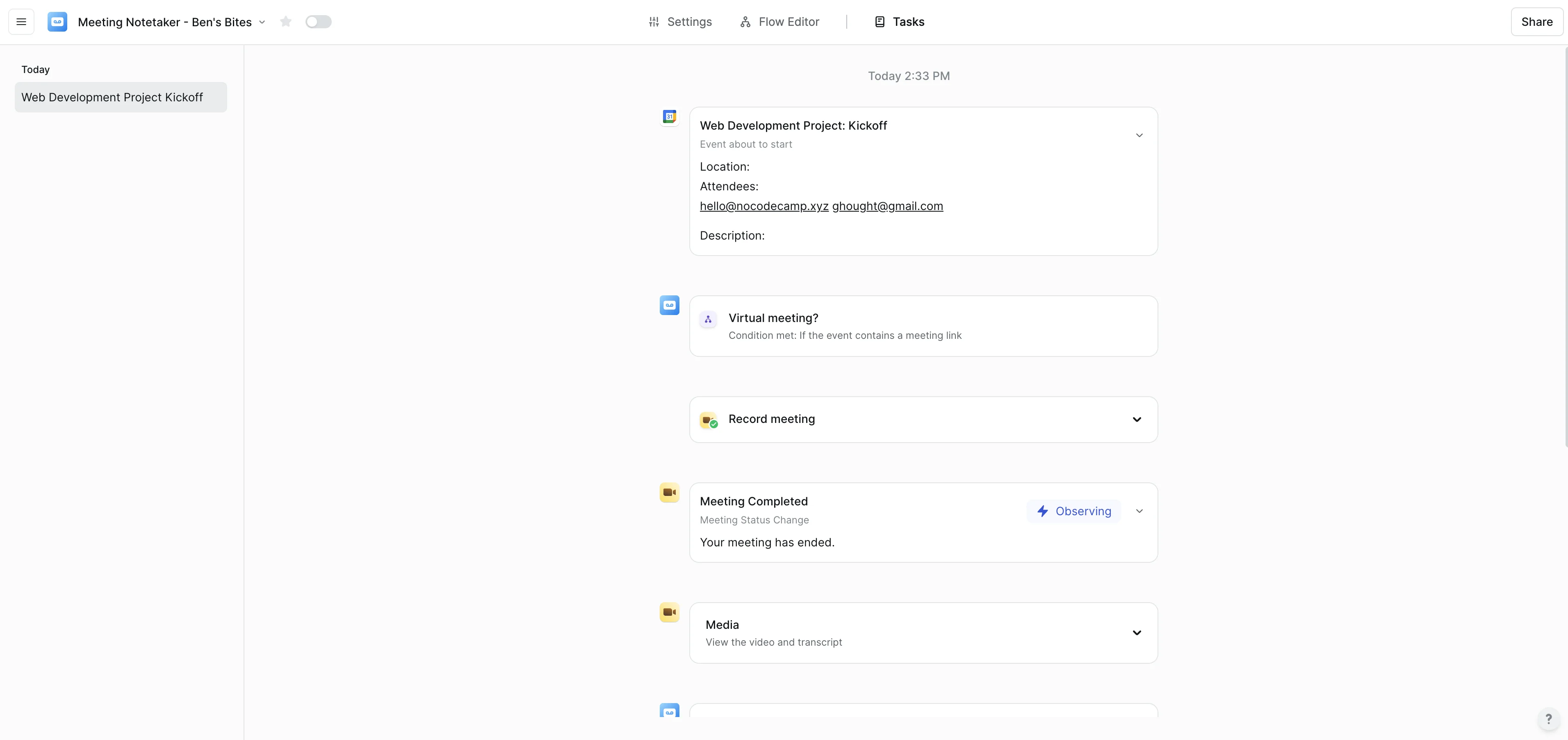
You can hop into the Lindy Task view of the flow to see a step-by-step audit trail of all the actions Lindy took during the automation process. This helps debug and iterate on your workflow.
Finally, you can jump into Airtable (or your project management tool of choice) and see the mapped data pushed to your project.
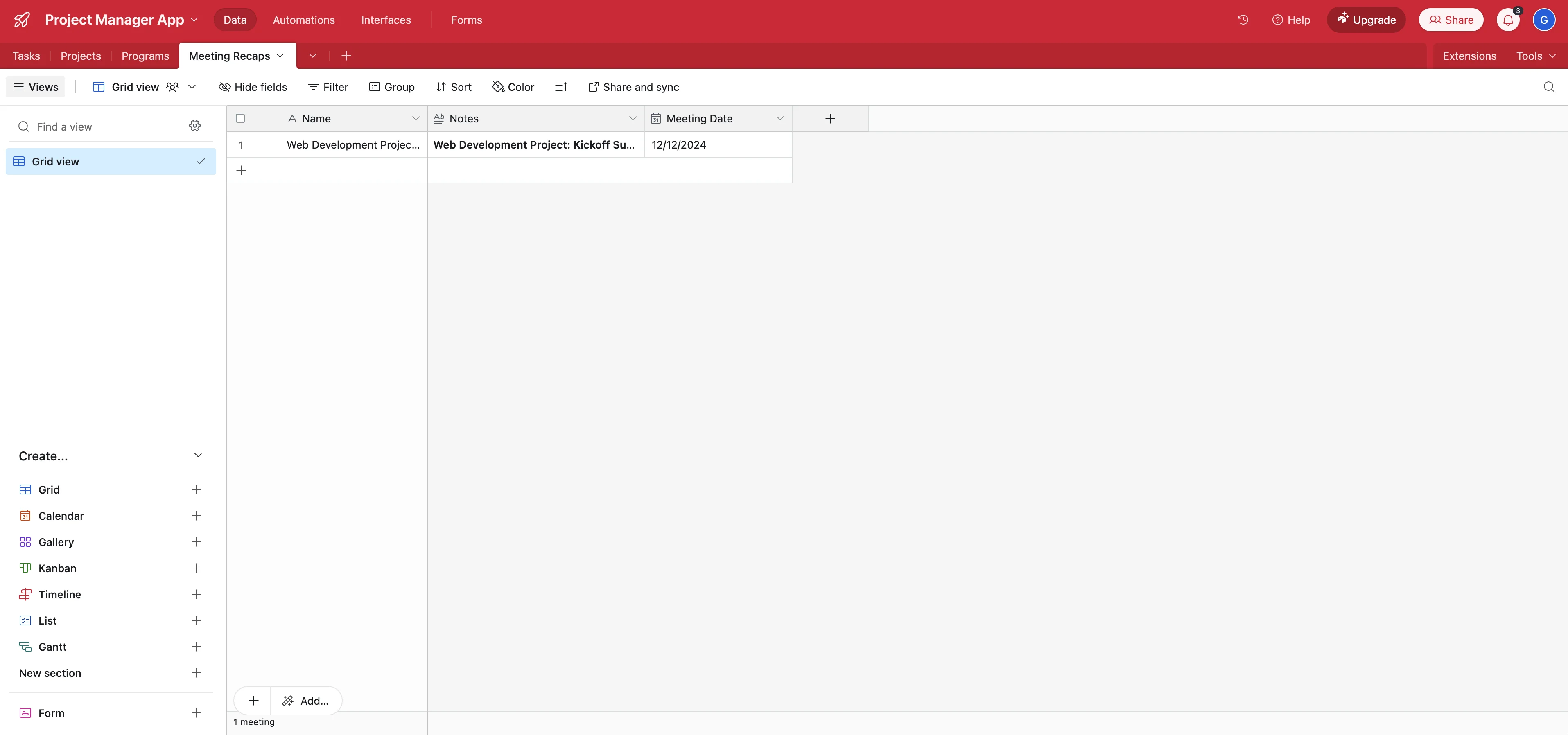
And that’s it! You now have a fully automated system for generating meeting notes, communicating them to project stakeholders, and storing them in your project management app.
Congratulations! If you made it this far, you’ve completed our AI for Project Management course. You’re now ready to streamline projects with AI and save yourself, and all your stakeholders, a lot of time and energy.
This tutorial was created by Garrett.