Automatically respond to Google Business reviews
Use Zapier and AI to automatically reply to new Google reviews, regardless of sentiment.
2024-11-13
As a business, responding to Google reviews, both good and bad, is a way to boost your credibility.
We’re going to use Zapier to automate that process and save you time.
In this tutorial you will learn how to:
- Build a zap automation to trigger when you get new reviews.
- Use OpenAI to categorise review sentiment and create a reply.
- Have Zapier post the reply.
You’ll need:
- Zapier paid account.
- An OpenAI Platform account and at least $10 of credit. Note: this is separate from their ChatGPT app.
Let’s see how it’s done.
Step 1: Build a zap to trigger when you get new reviews
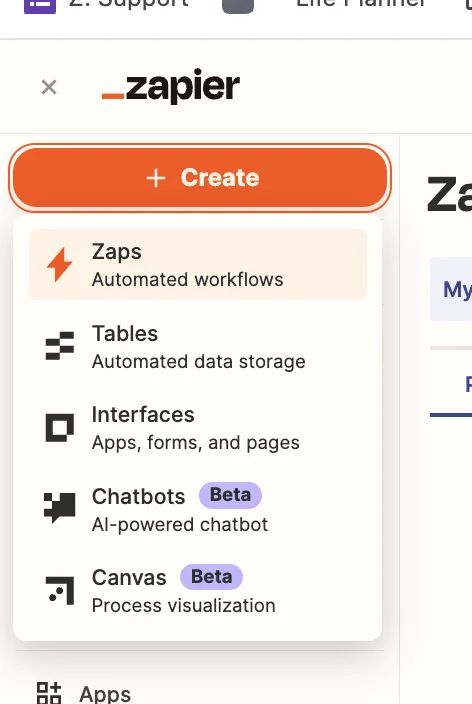
Head over to Zapier, then in the dashboard, in the top left, click the big orange “Create” button and select ‘Zaps’.
Inside the Zap editor, click on the box that says “Trigger” and select/search for ‘Google Business Profile’ as the app. Then select ‘New Review’ as the trigger event. When prompted to connect a Google account. Make sure it’s the same one that your business has been created in.
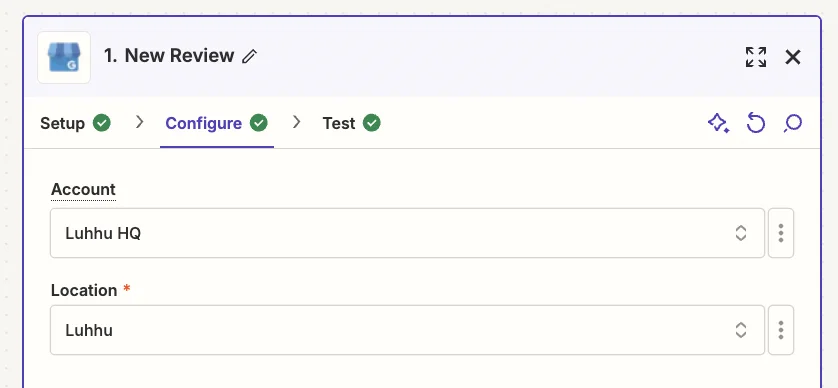
Configure the step as follows.
- Account
Select your Google Business account from the dropdown.
- Location
Select which specific business location you want to monitor reviews for. Each zap can only monitor one location.
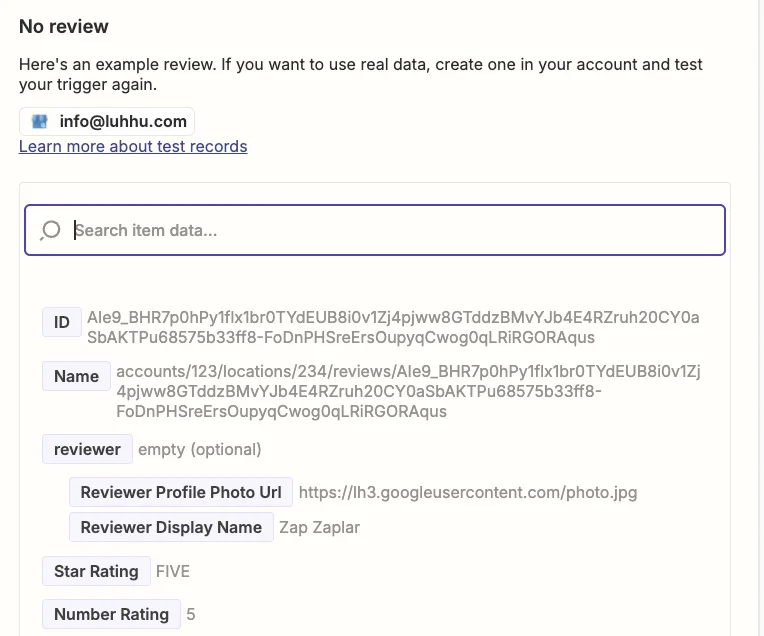
Test the zap step and your most recent reviews will be pulled through. If you don’t have any, Zapier will use a dummy one.
Step 2: Use OpenAI to categorise review sentiment and create a reply
Next, we need to know whether the review received is positive, neutral or negative.
In the zap editor, click the “Action” box. Select "ChatGPt" as the app, and ‘Analyze Text Sentiment’ as the action event.
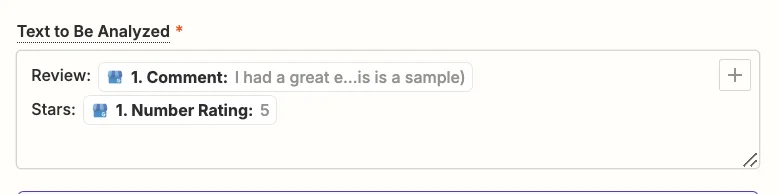
In the “Text to Be Analyzed” field you should map the ‘Comment’ and ‘Number Rating’ values from the trigger step along with the following text.
Review: {{1.Comment}}
Stars: {{1. Number Rating}}
Other fields in the step can be left with their default values.
Test the zap step. As expected, the review gets a “positive” rating. The other options are “neutral” and “negative”.
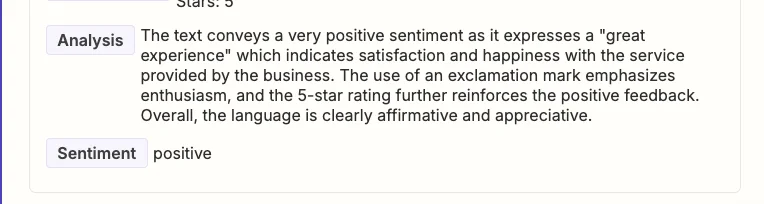
Next, we want ChatGPT to create a reply to the review. But, our system prompt will change depending on the sentiment. We’ll handle this variability via a lookup table in Zapier.
Add a new action step to your zap with ‘Formatter by Zapier’ as the app and ‘Utilities’ as the action event.
Configure the step as follows.
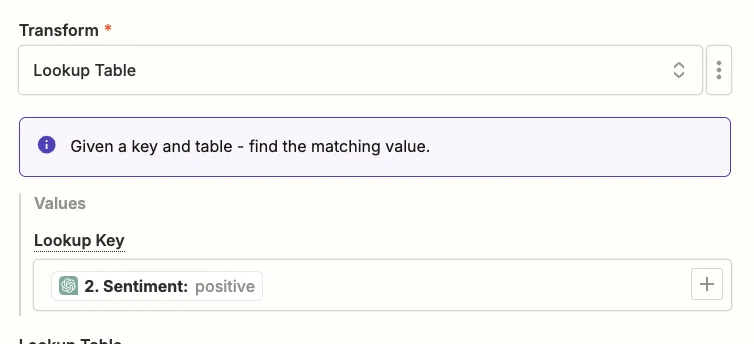
- Transform
Select “Lookup Table”.
- Lookup Key
Map the ‘Sentiment’ value from the ChatGTP step.
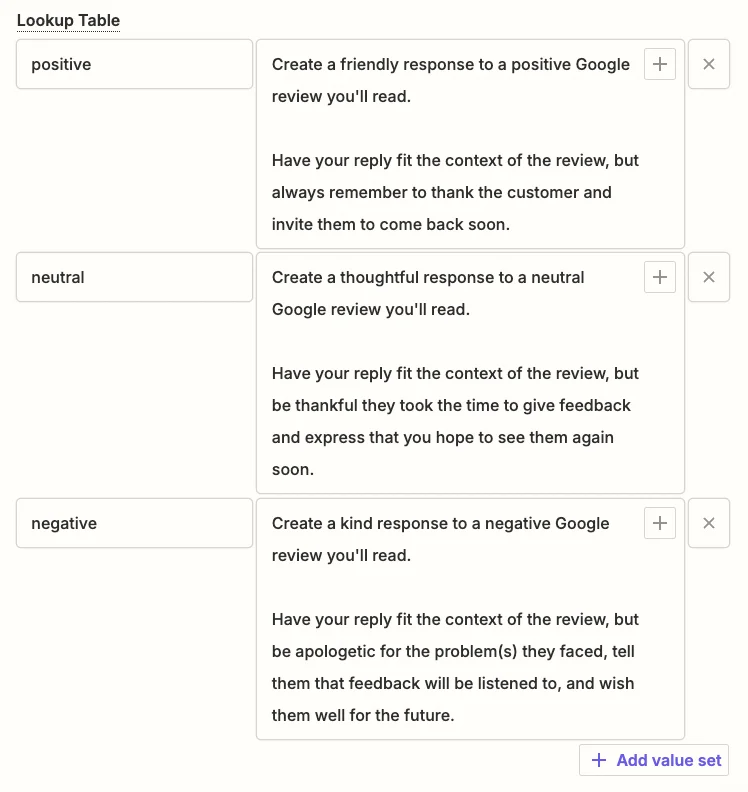
- Lookup Table
Add 3 items to this table. In the left column will be each of the sentiment options, and on the right, the prompt.
Positive
Create a friendly response to a positive Google review you'll read.
Have your reply fit the context of the review, but always remember to thank the customer and invite them to come back soon.
Neutral
Create a thoughtful response to a neutral Google review you'll read.
Have your reply fit the context of the review, but be thankful they took the time to give feedback and express that you hope to see them again soon.
Negative
Create a kind response to a negative Google review you'll read.
Have your reply fit the context of the review, but be apologetic for the problem(s) they faced, tell them that feedback will be listened to, and wish them well for the future.
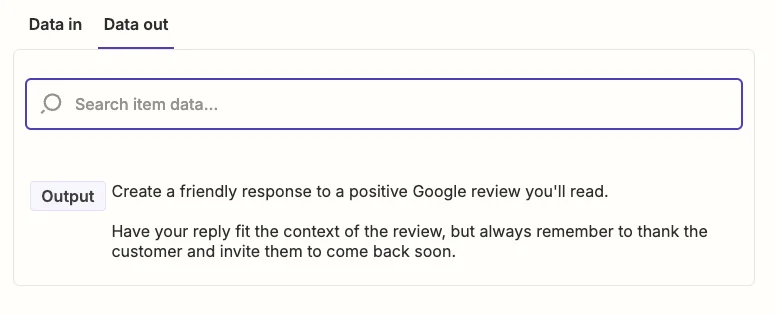
Test the zap step and you’ll see the prompt for positive in the output.
Add a new action step to your zap, with “ChatGPT” as the app and ‘Conversation’ as the action event.
When configuring the step, these are the important fields.
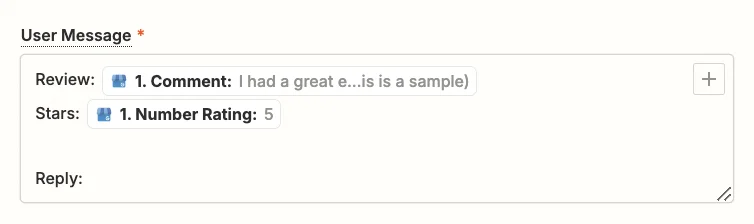
- User message
Map the ‘Comment’ and the ‘Number Rating’ values from the trigger step with the following text.
Review: {{1.Comment}}
Stars: {{1. Number Rating}}
Reply:
- Model
Select the “gpt-4o-mini” model, OpenAI’s cheapest and quickest model.

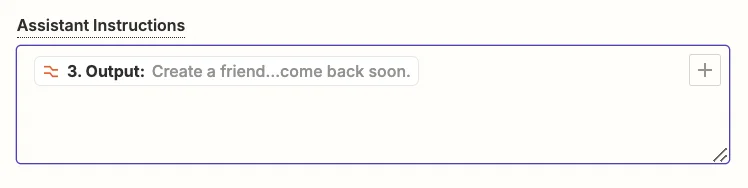
- Assistant InstructionsMap the ‘Output’ value from the formatter step.
- Max Tokens
This sets the maximum output length. Anything about 1,000 should be suitable.
.webp)
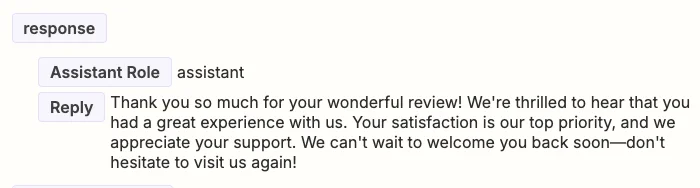
Go ahead and test the step, then scroll down towards the end in the “Data out” tab, you’ll see the reply generated by ChatGPT. Looks good to me!
Step 3: Have Zapier post the reply
Finally, we just need to post the reply to the review.
Add a new action step to your zap with ‘Google Business Profile’ as the app and ‘Create Reply’ as the action event.
Configure the step as follows.
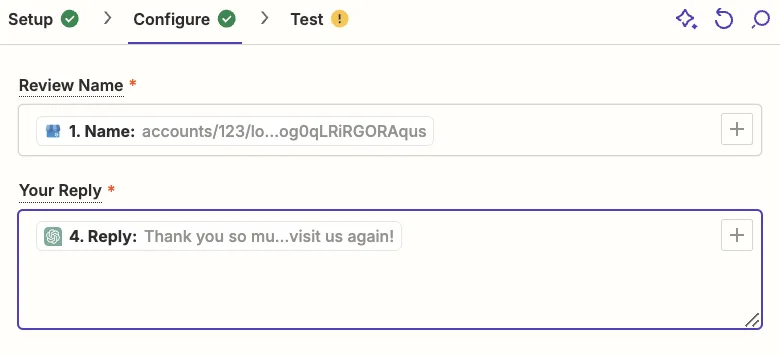
- Review Name
Map the ‘Name’ value from the trigger step.
- Your Reply
Map the ‘Reply’ value from the second ChatGPT step.
Next, if this is a reply to a real review, test the zap step and you’ll see your reply posted.
Obviously, if you used the dummy review created by Zapier, you can’t post the reply, so in that case, click “Skip test” and publish the zap. When it runs live, the zap will work as expected.
This tutorial was created by Andrew.