Automating project management tasks
Develop several automations for task management with AI.
2024-12-19
Welcome to the fourth lesson of our Automating project management with AI course!
In this tutorial, we’re going to add some data automations to our project management system in Airtable by writing formulas with ChatGPT, layering in native Airtable AI data enrichments, and developing multi-step AI workflows to automatically update task dates based on certain criteria. This will take our basic project management system and significantly upgrade it to automate many repetitive tasks.
Steps we’ll follow in this tutorial:
- Auto-categorize tasks based on criteria
- Auto-tag tasks based on task details
- Automate timeline updates
Tools needed:
- Airtable
- ChatGPT
Let’s get into it!
Auto-categorize tasks based on criteria
Now that our project management app is set up, it’d be helpful to add some automation elements to help us manage the project and streamline repetitive action items over time. The first thing we’ll do is auto-categorize tasks if there’s a due date coming up for them. This will help us with project alerts and communication.
To do this, we’ll hop into ChatGPT and have it create an Airtable formula for us to tag records if they have a due date in the next 7 days.
Sample Prompt:
Write an Airtable formula that calculates to "Yes" if field "Due date" is within the next 7 days from NOW() and "No" if not.
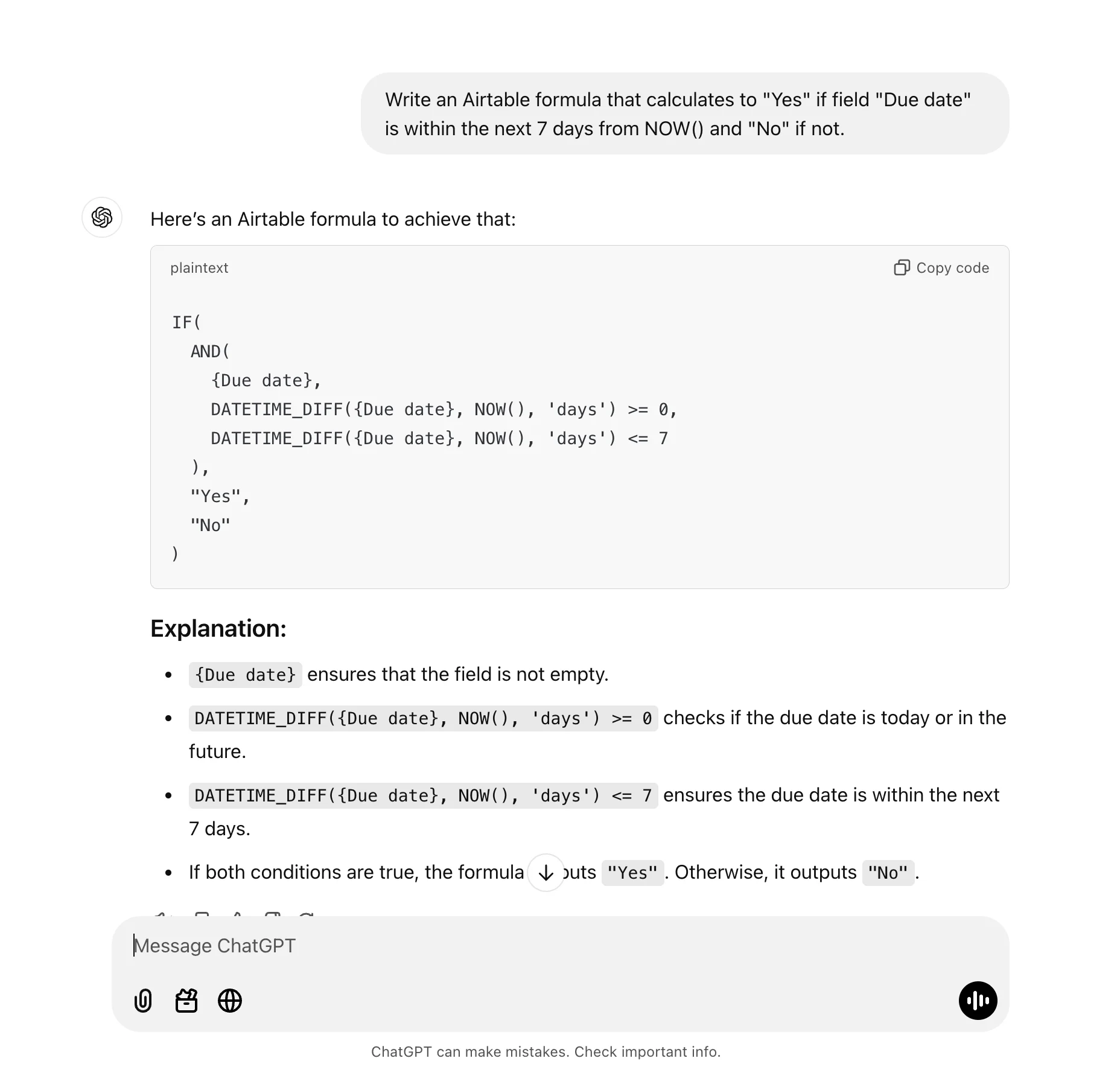
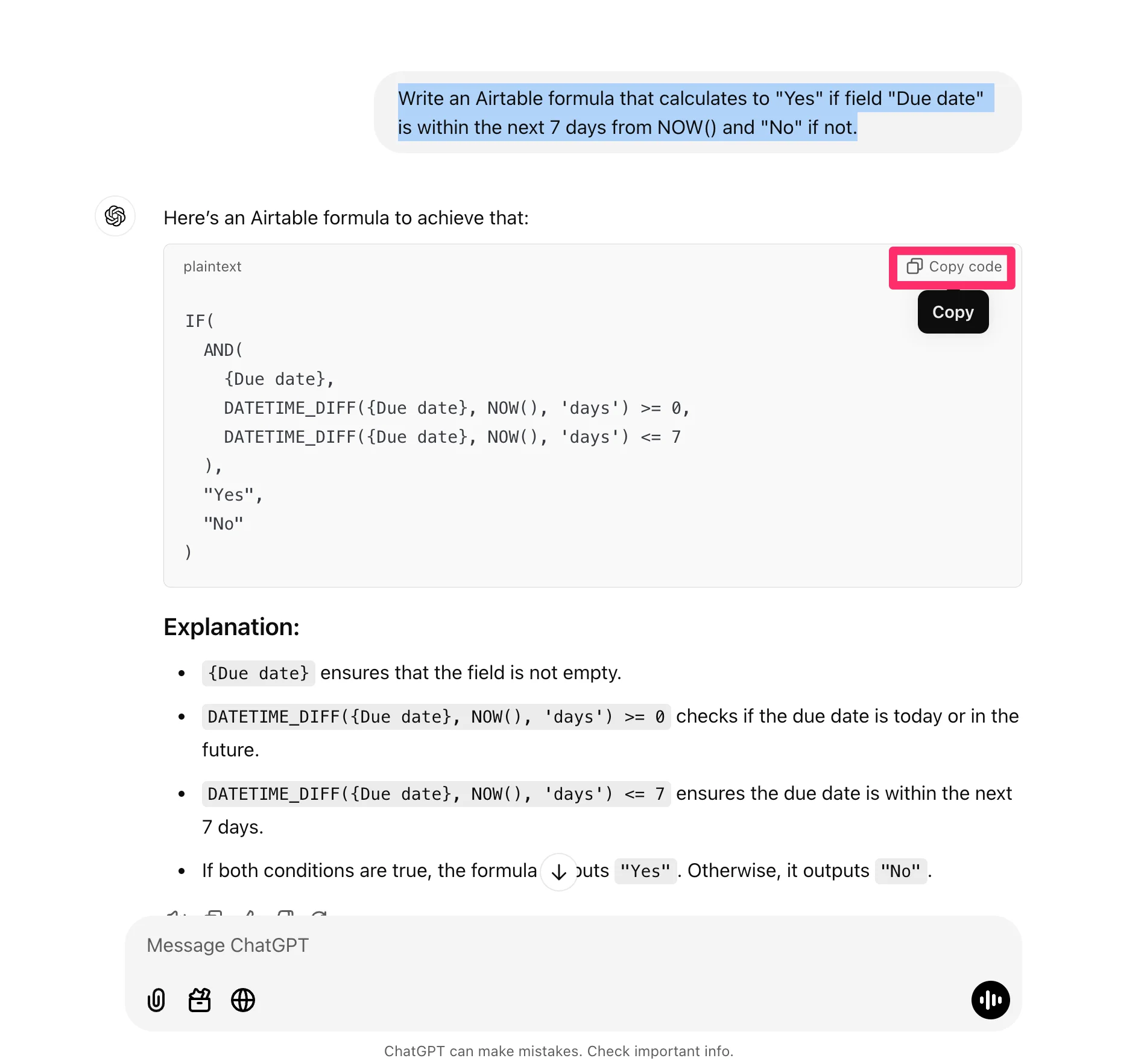
ChatGPT will output the formula, which you can copy by clicking the “Copy code” button in the top right corner of the output.
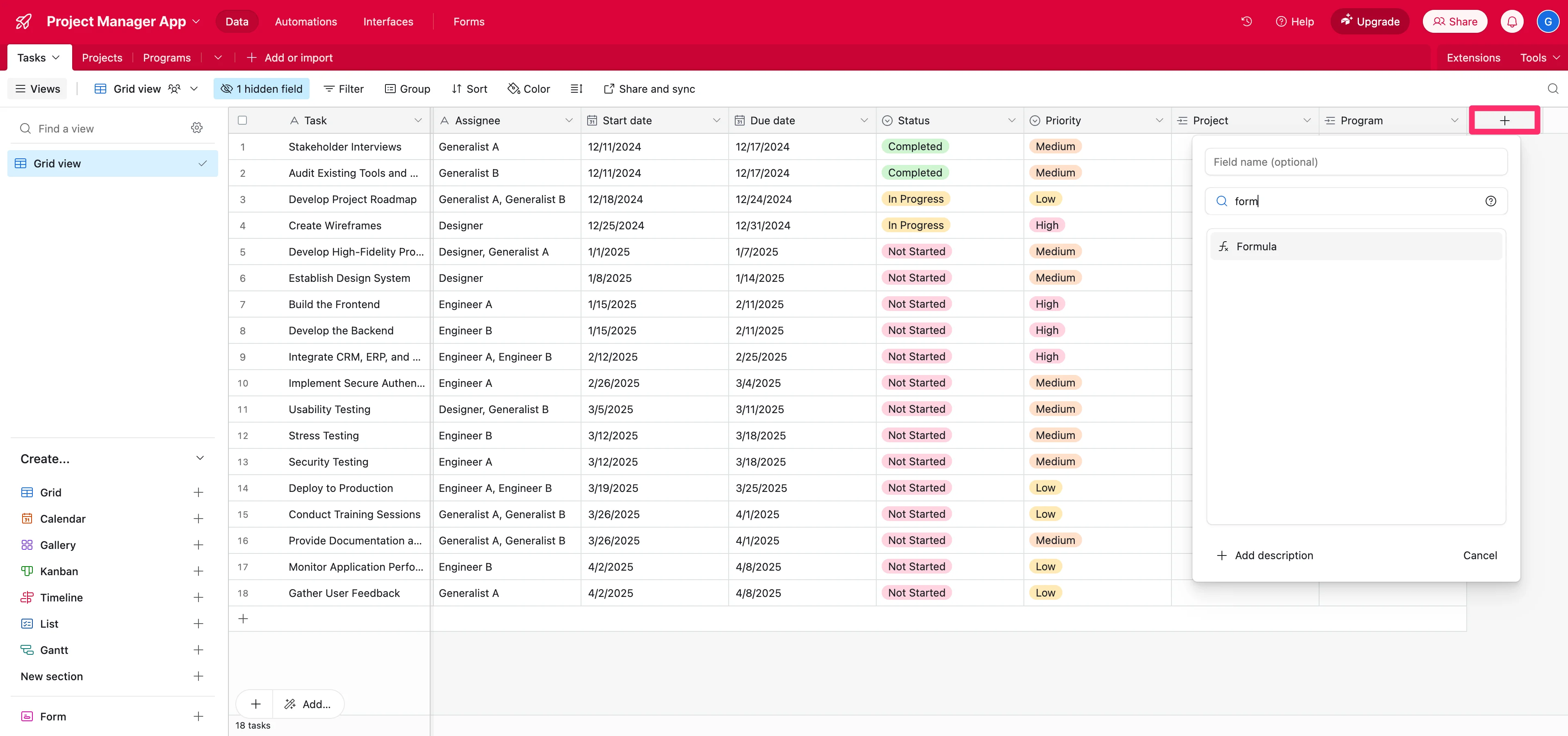
Next, head into the Airtable Base we created in the previous lesson, open your “Tasks” table, and click the “+” button on the column header row to add a new column. Search and select the “Formula” field type.
Then, paste in the formula you copied from ChatGPT.
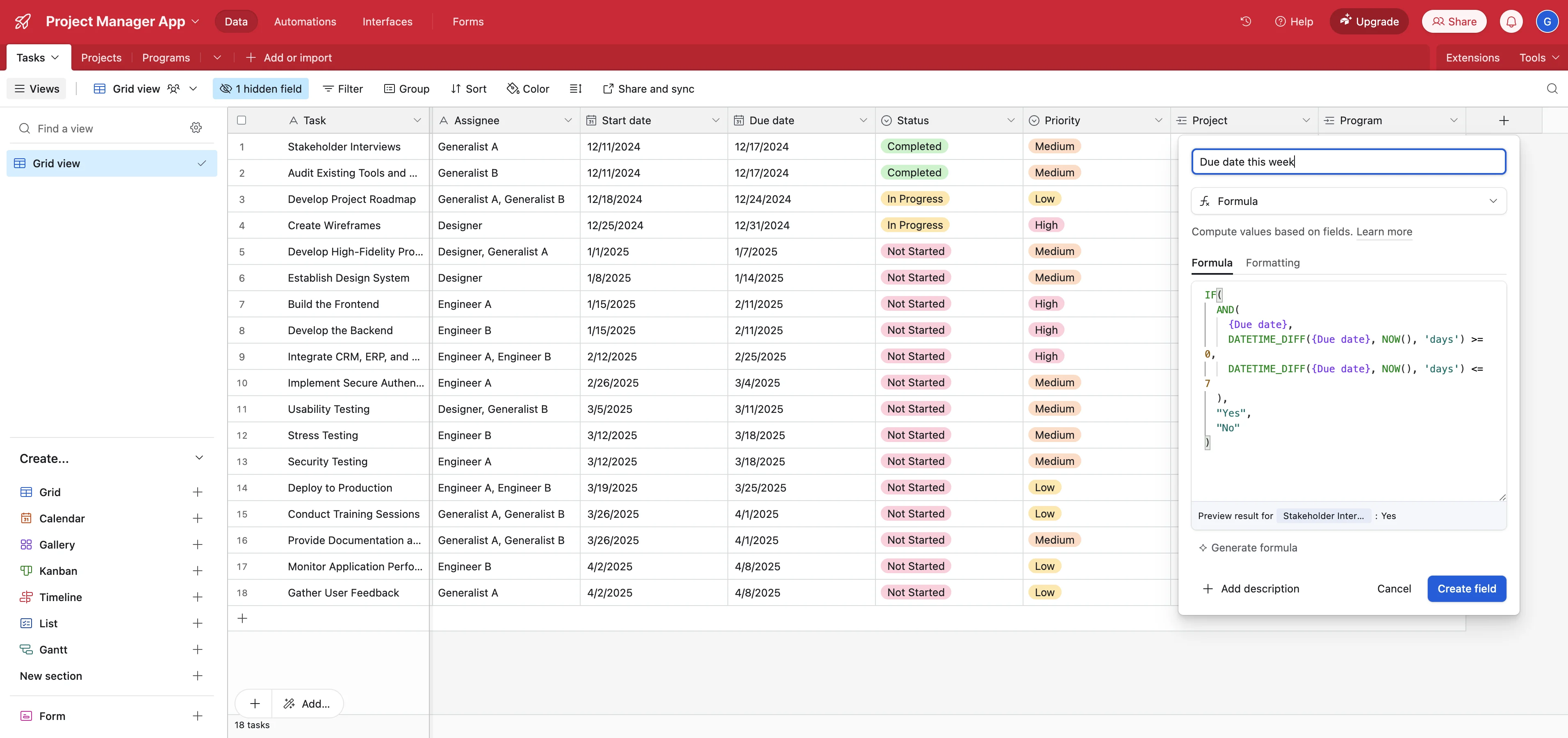
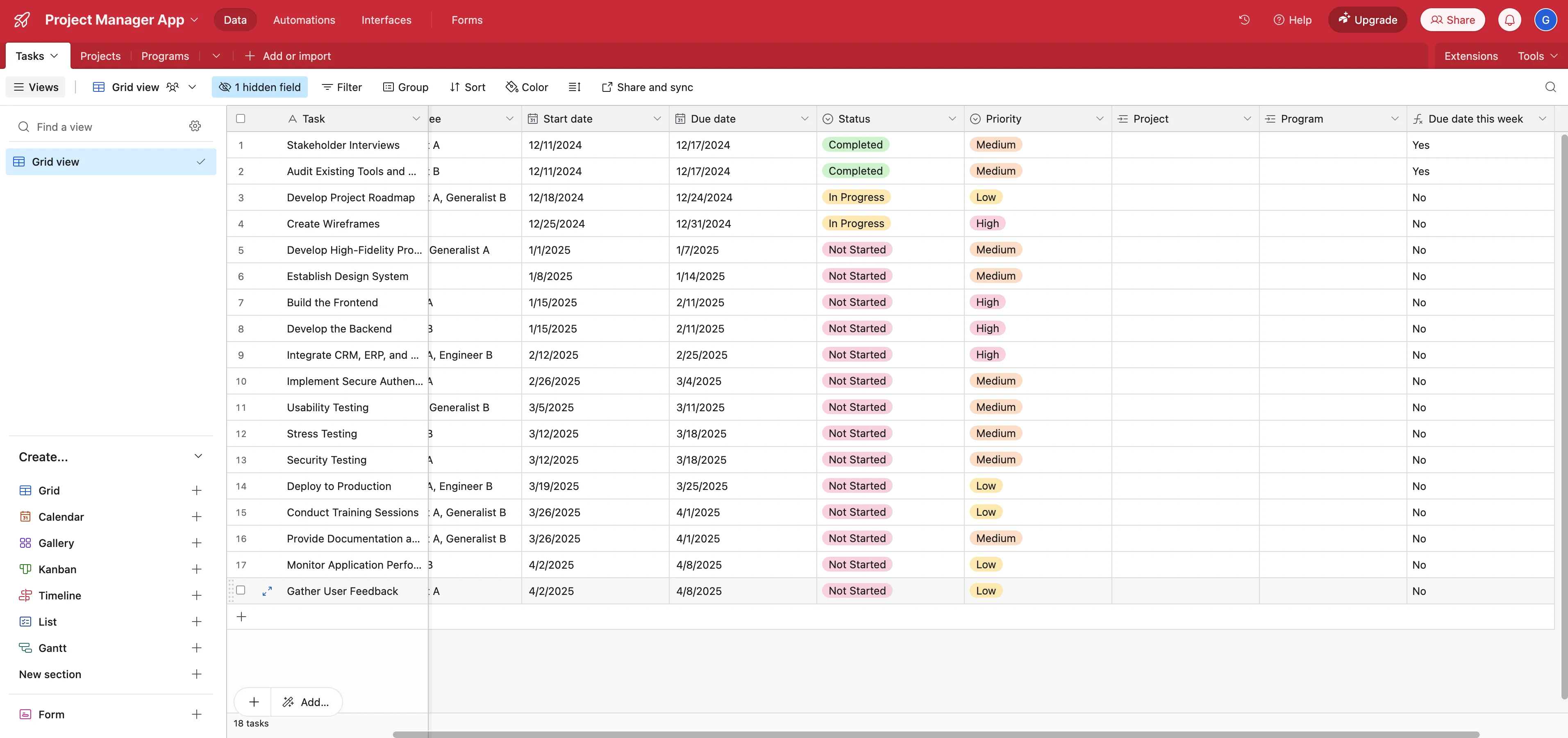
Now, all of your tasks will be auto-categorized with whether they are due in a week or not, based on the Due Date field.
Auto-tag tasks based on task details
Now we’re going to use Airtable’s native AI fields to auto-tag our data based on more ambiguous and complex criteria. To do this, click the “+” button in the column header row and select the “AI” option at the bottom of the pop-up.
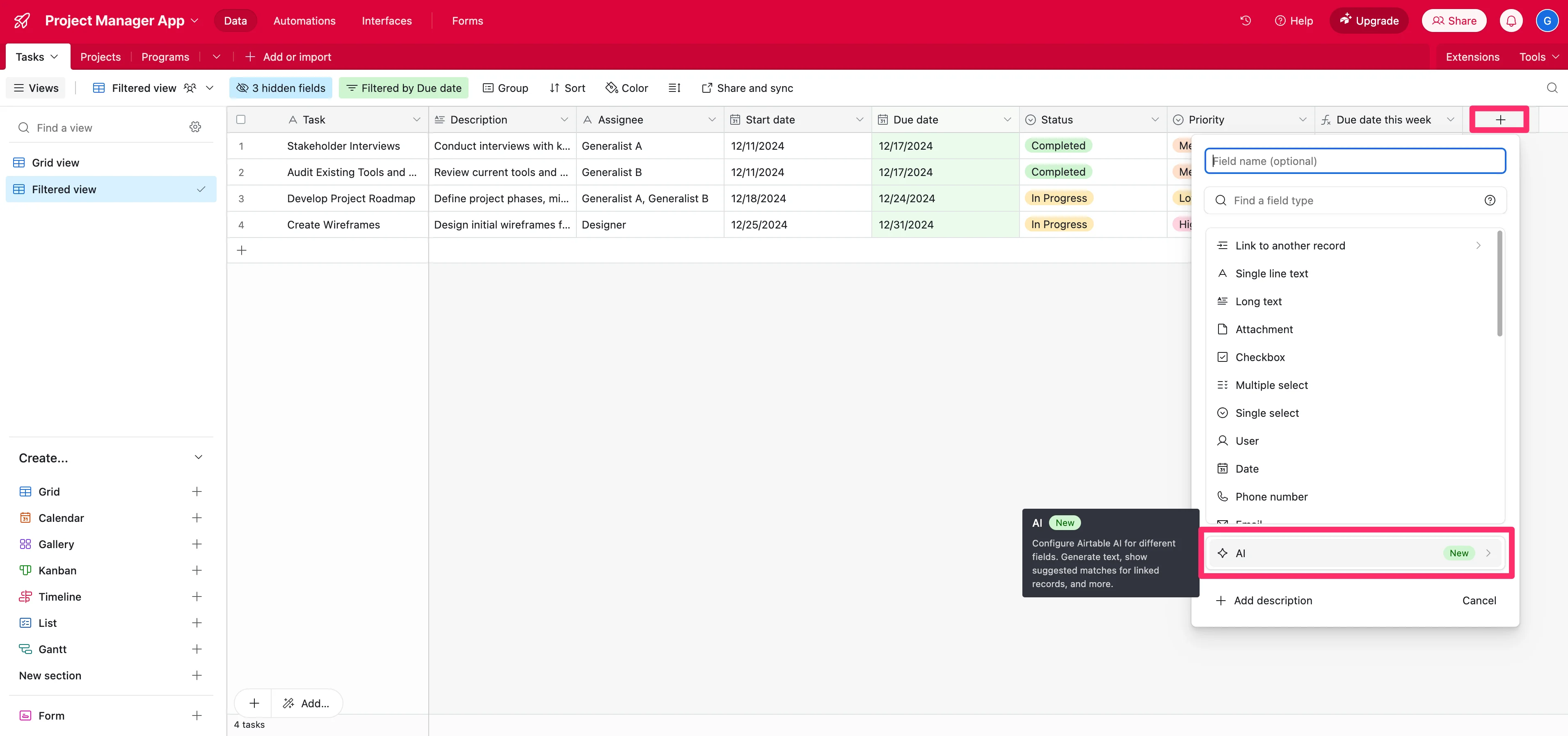
Next, we’ll select the “Categorize records” option from the dropdown.
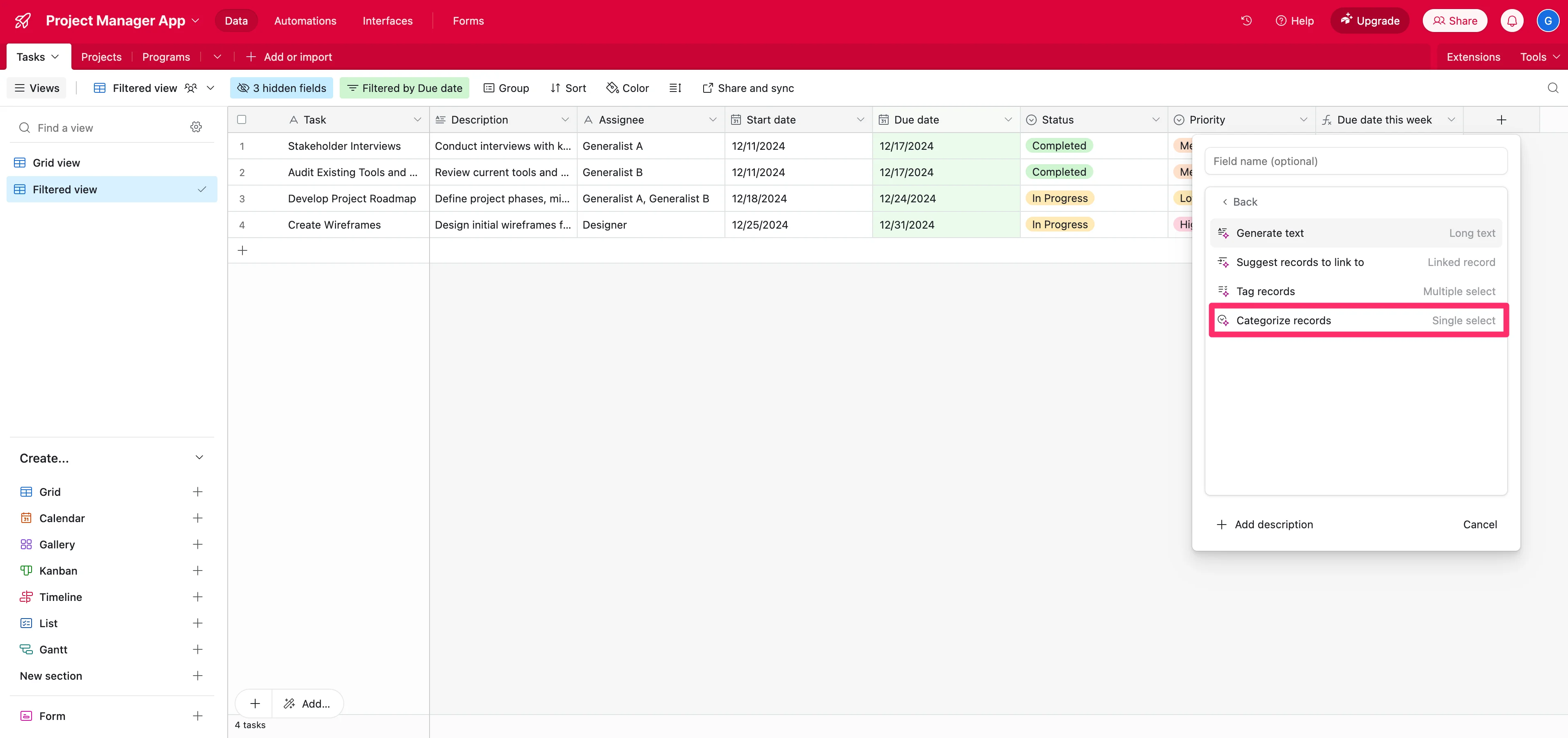
We want to categorize our task data based on the Task Name and Description, so we’ll select those two fields as the inputs for our categorization generation.
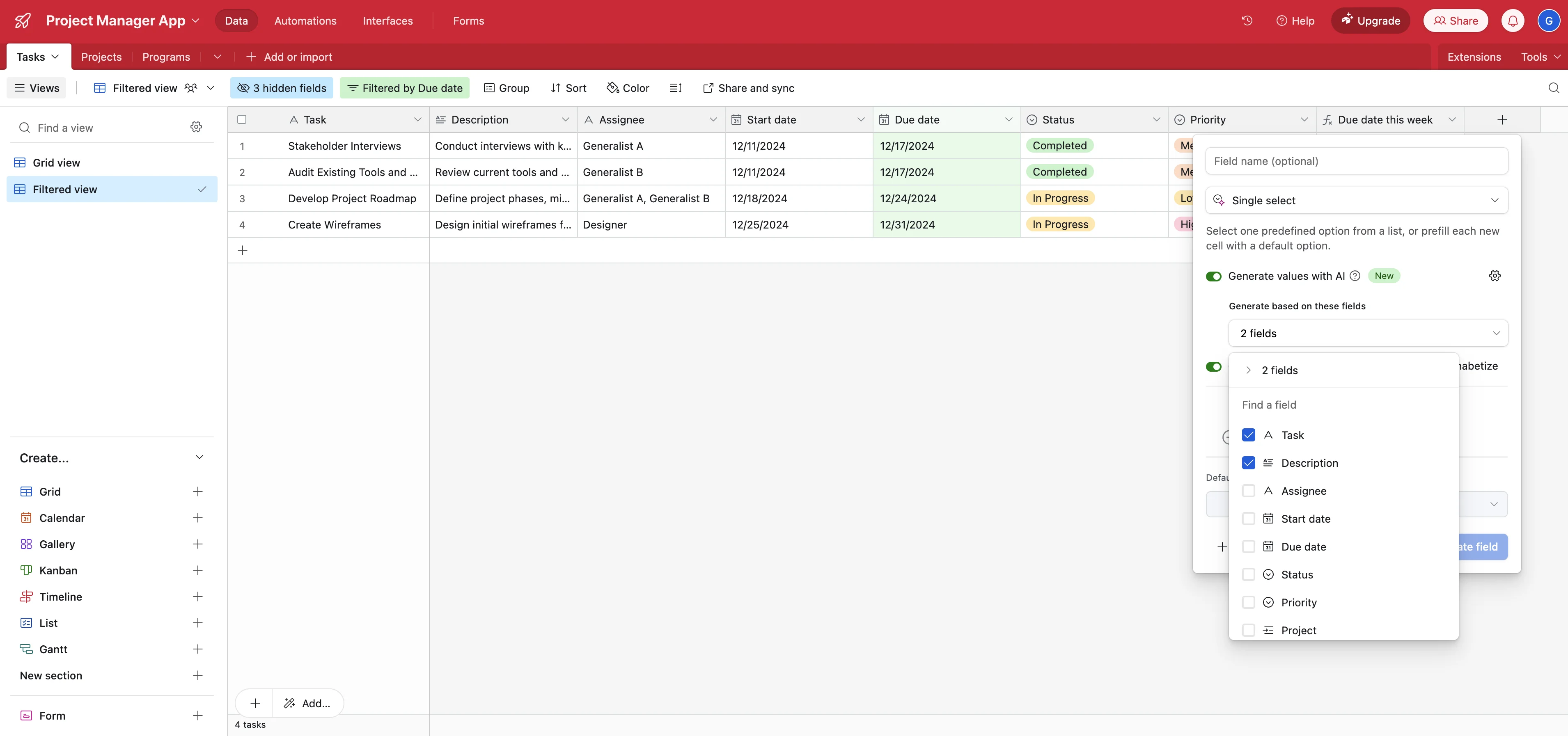
Next, we’ll add our category options. For our data, it will be: Research, Design, Engineering, or Other. This means the AI will read through our Task Name and Descriptions to label our tasks based on the categories we’ve created here.
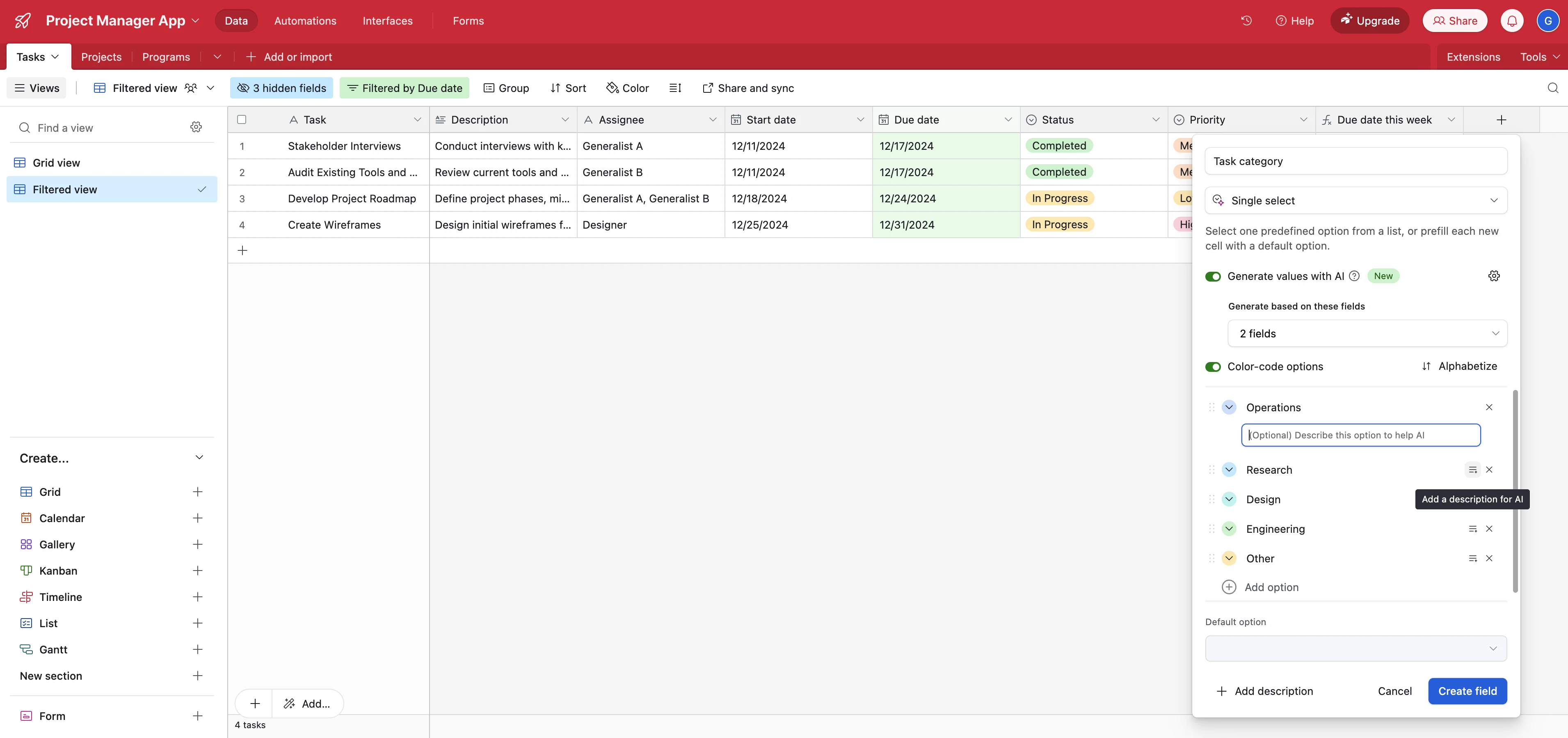
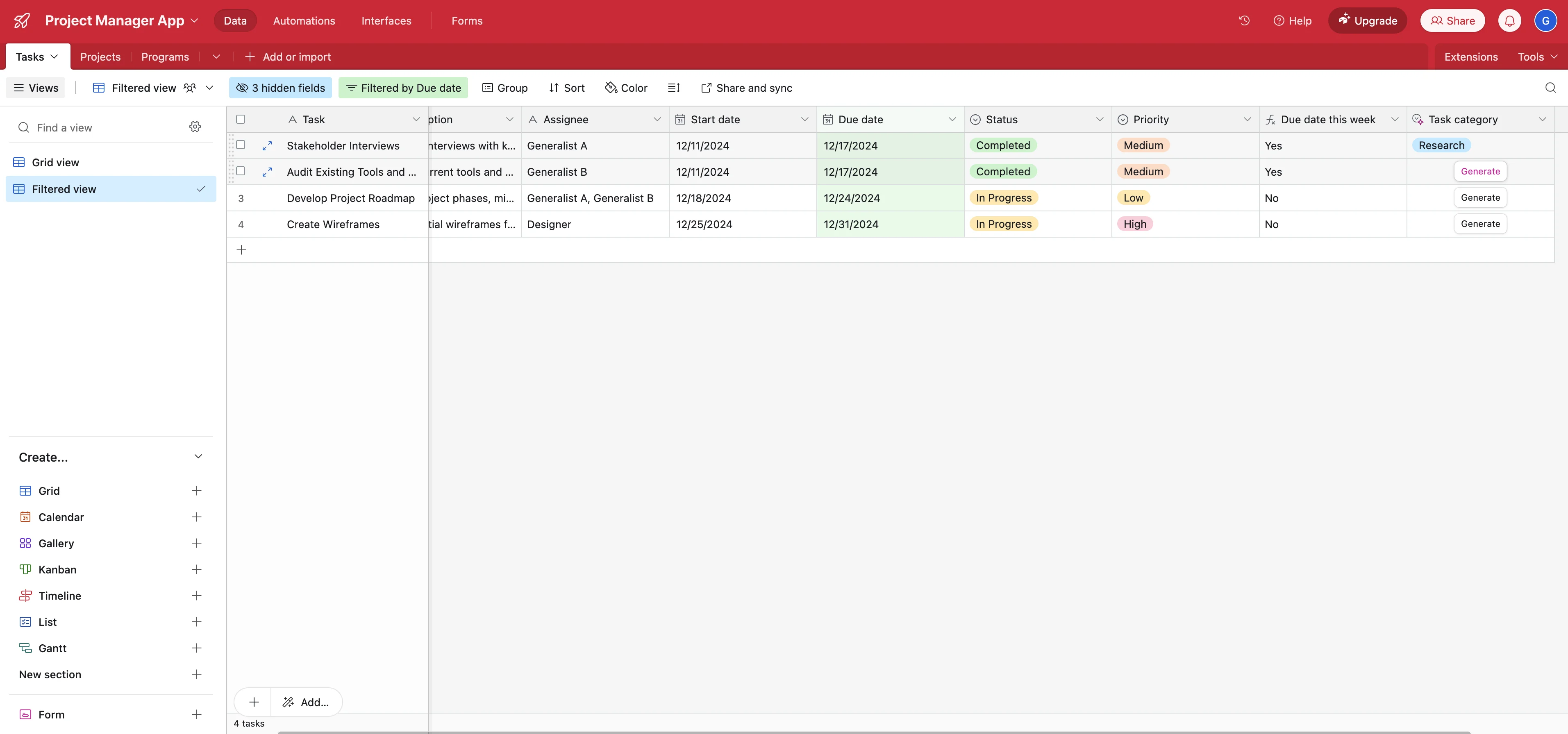
We set our AI field to manually generate, so when we click the “Generate” button for each record, it will now accurately categorize our tasks. We can now use this data for reporting, communications, and other use cases.
Automate timeline updates
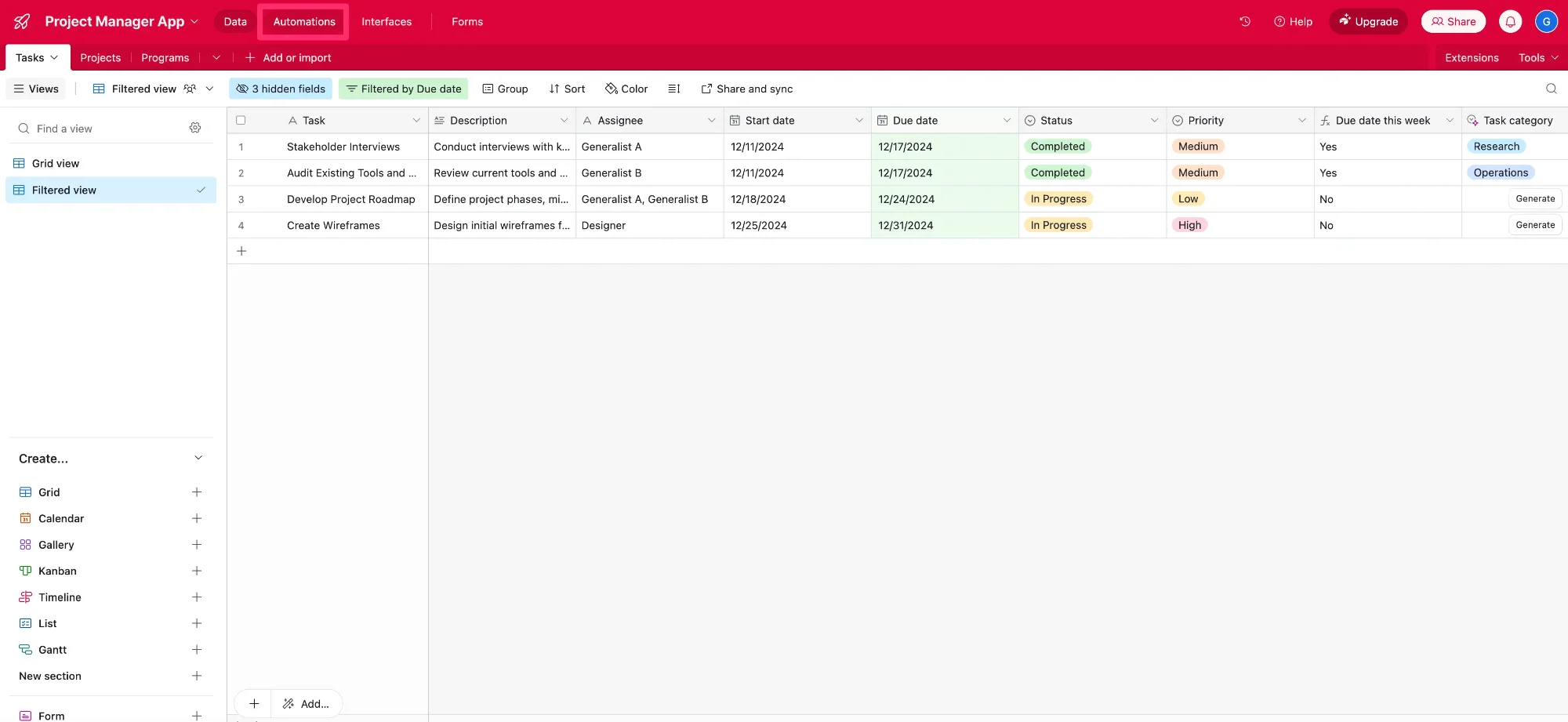
For the final automation of this tutorial, we’re going to automate timeline updates based on due dates for tasks being in the past. To do this, click the “Automations” tab in the top navigation.
Then, click the “Create automation” option in the bottom left corner of the page.
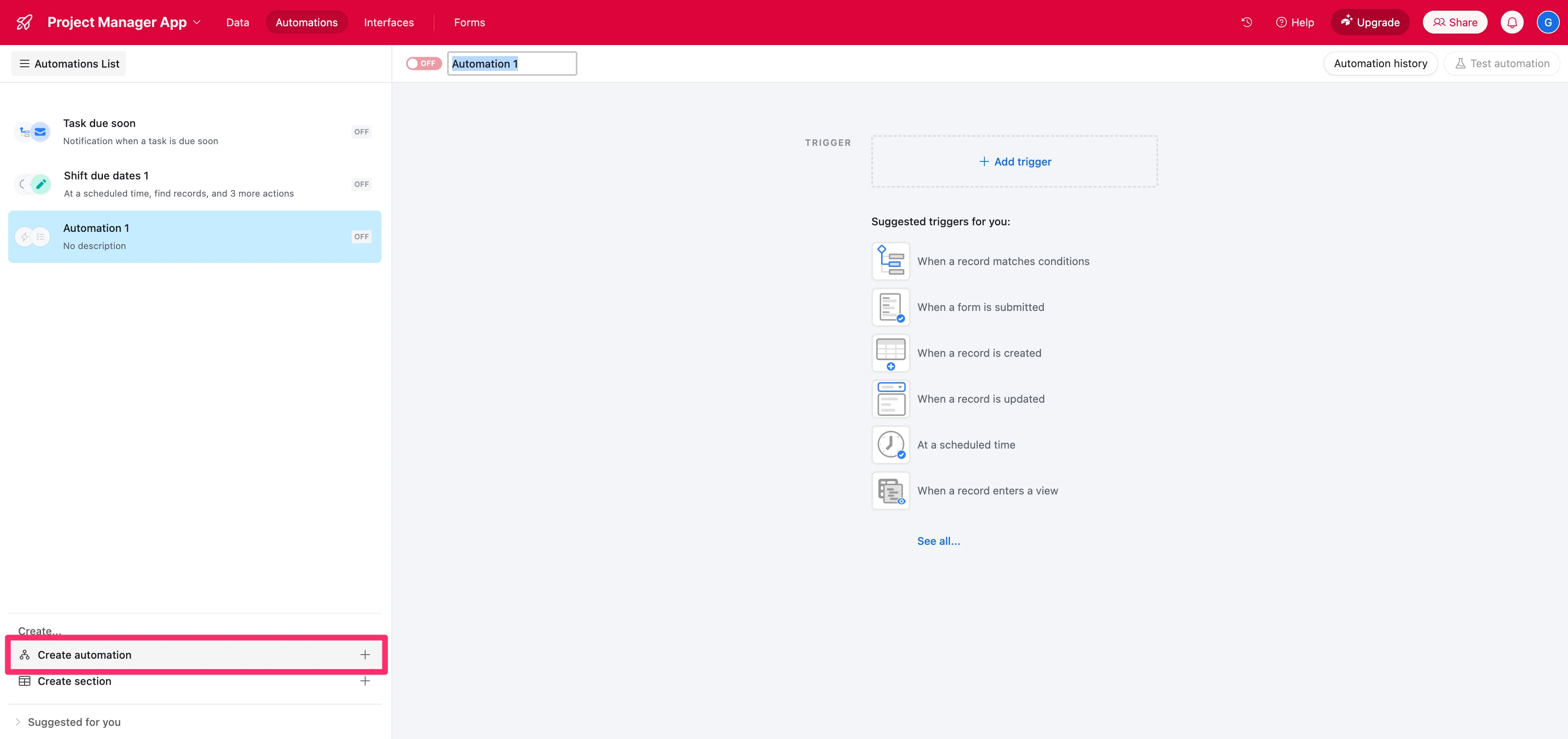
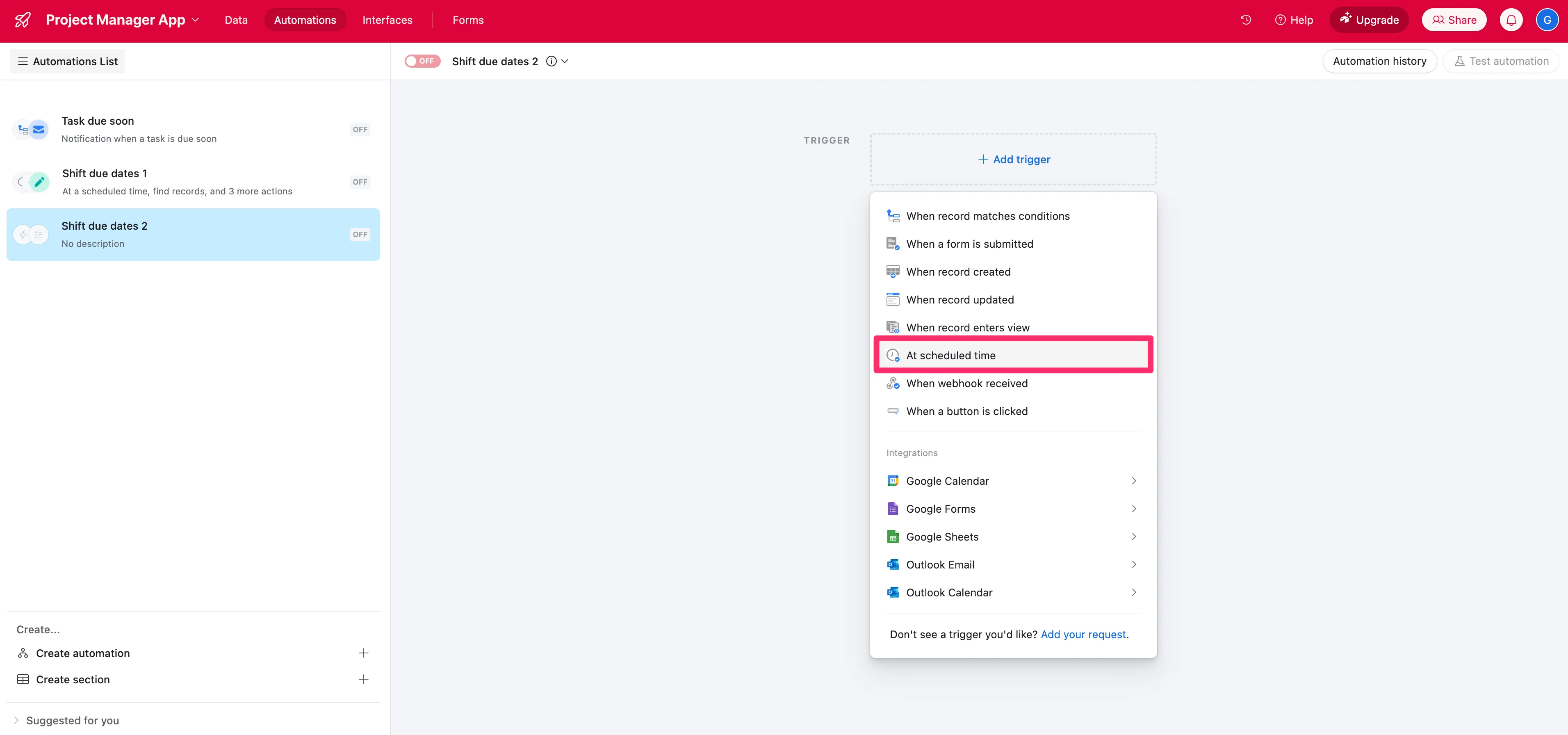
We’ll first need to add a trigger to the automation. To do this, click the “+ Add trigger” box at the top of the page. We’re going to have our update timelines automation run weekly, so we’ll select the “At scheduled time” option in the dropdown.
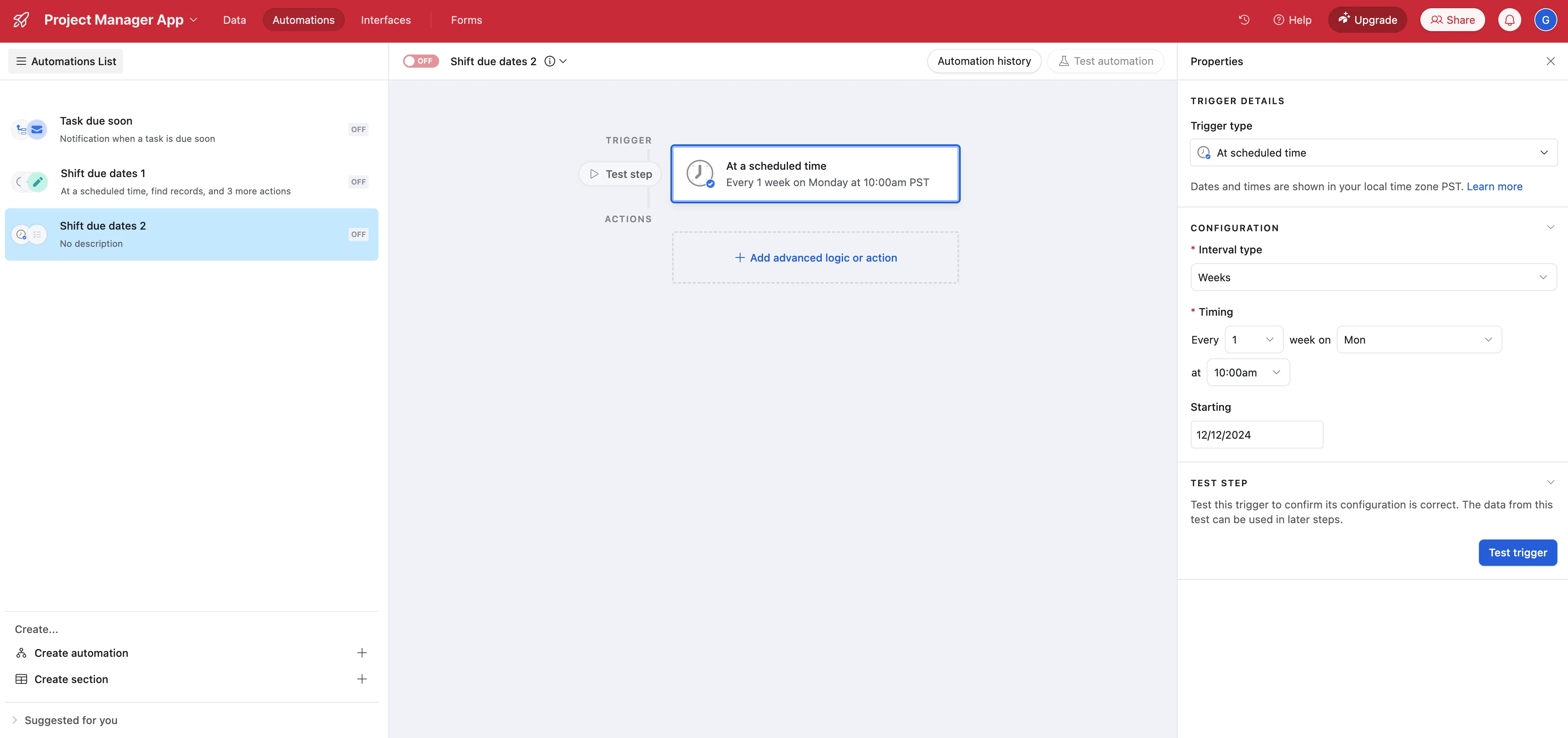
Select the frequency you want your automation to run. We’ll have ours run weekly on Monday mornings.
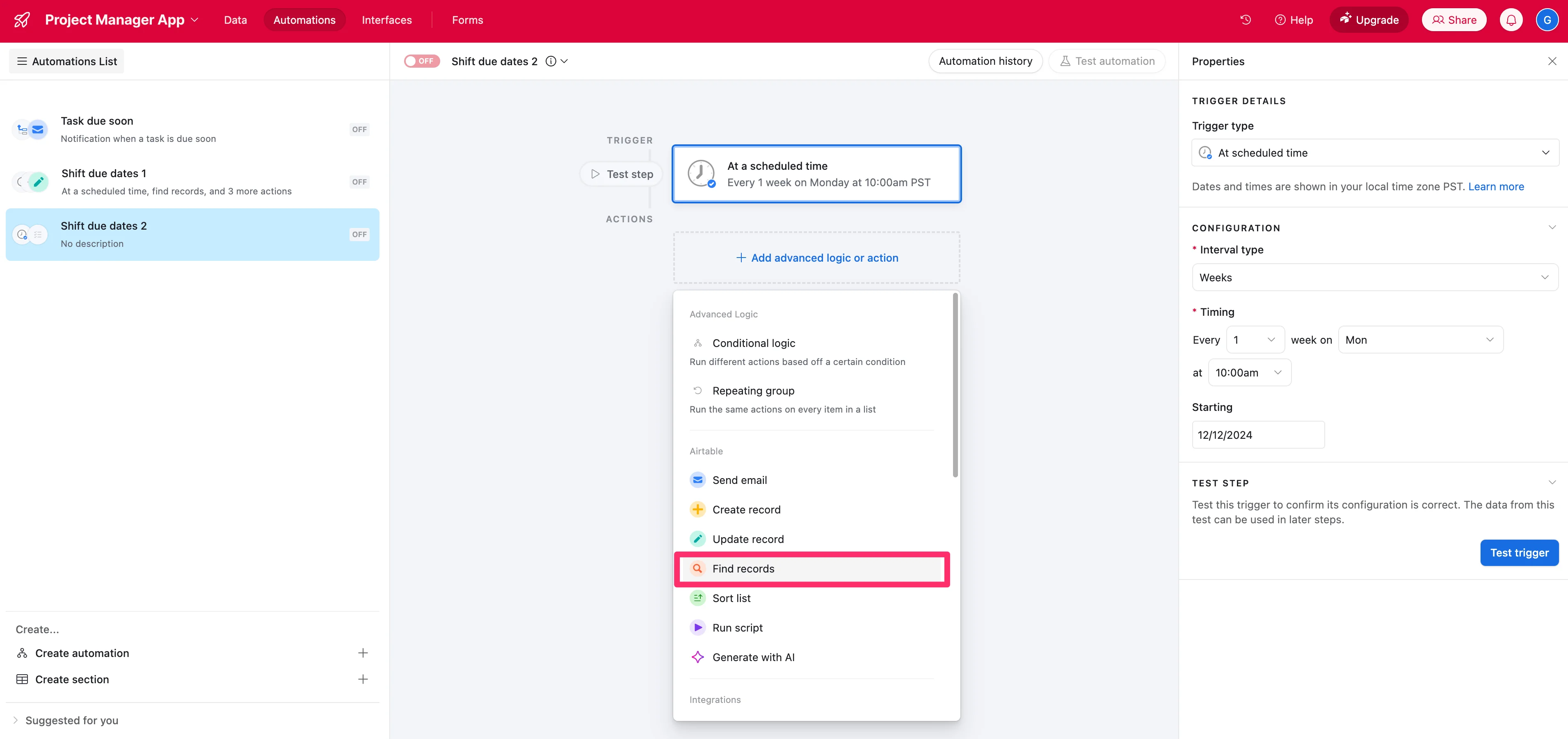
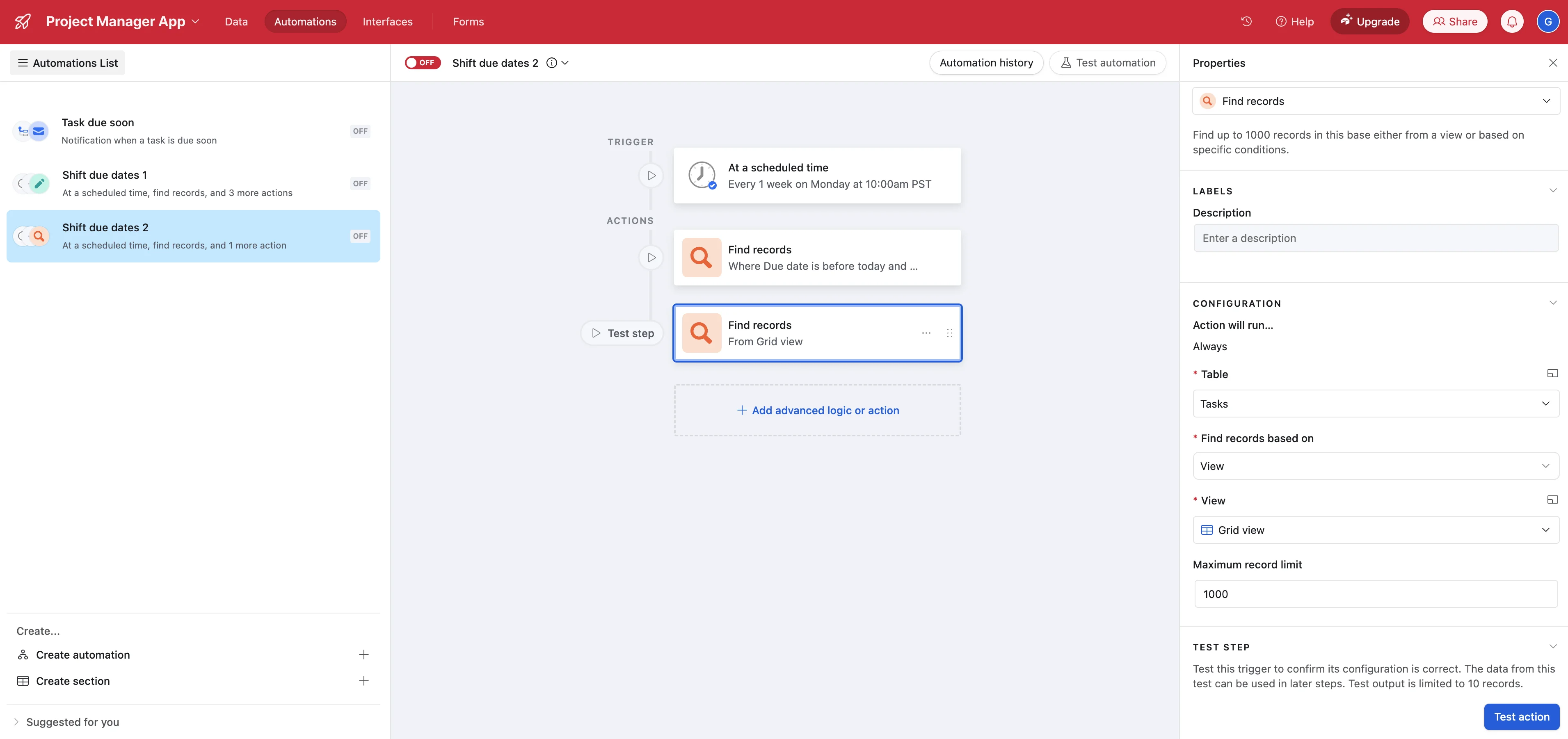
Now, we’ll find the records that have due dates in the past. To do this, click the “Add advanced logic or action” box and select the “Find records” option from the dropdown.
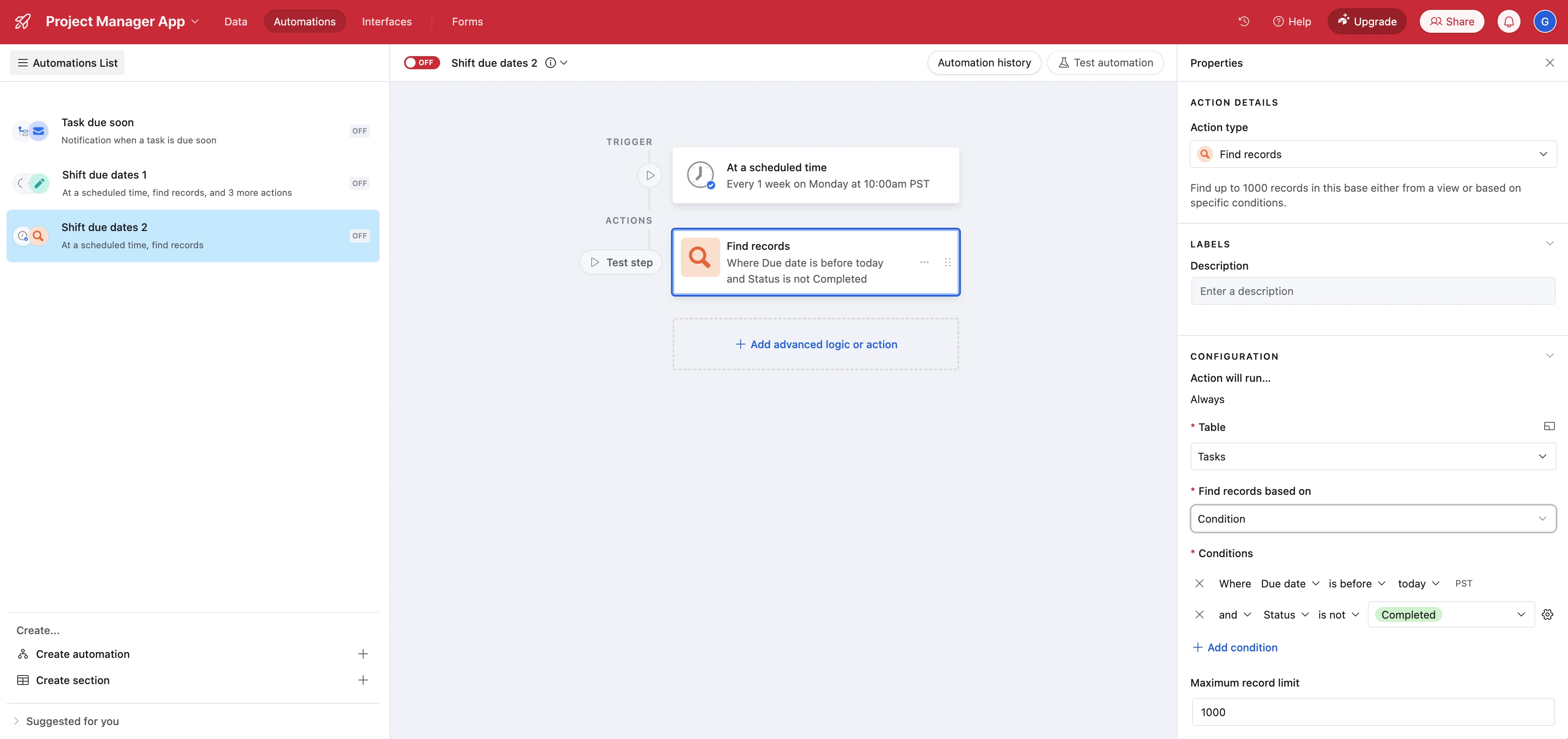
In the right side step editor, set the “Table” to your Tasks table, the “Find records based on…” as a Condition, and then define your criteria. We’re setting our criteria as records with Due Dates in the past and a Status that is not “Completed”.
Next, we want to add another “Find records” step that grabs all of the records in our task table. This will let us provide more context to a future AI step on how we should think about updating the Task Due Date based on all of the other tasks in the project.
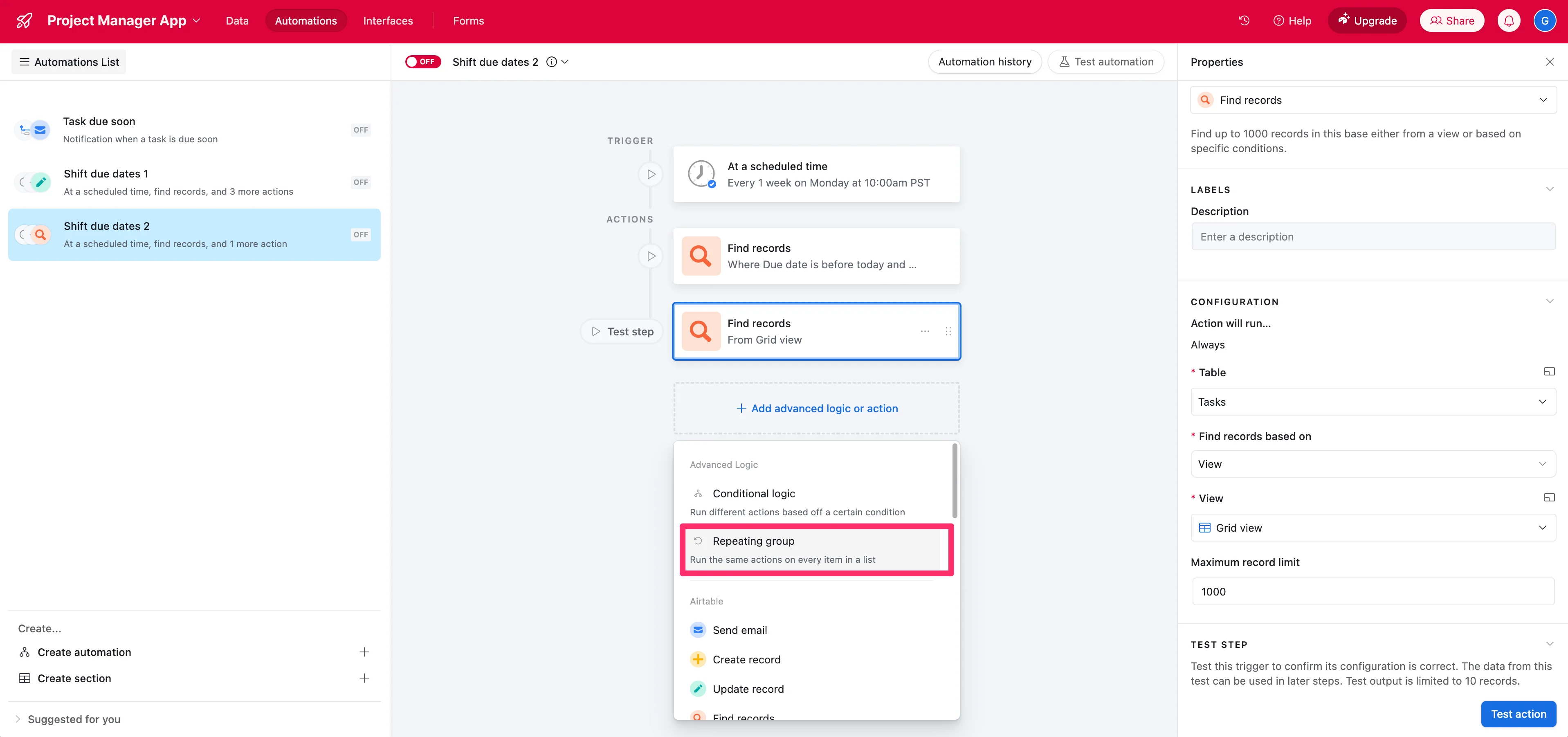
Now, we can create a repeating AI step that updates the Task Due Date. To do this, click the “Add advanced logic or action” box and select the “Repeating group” option.
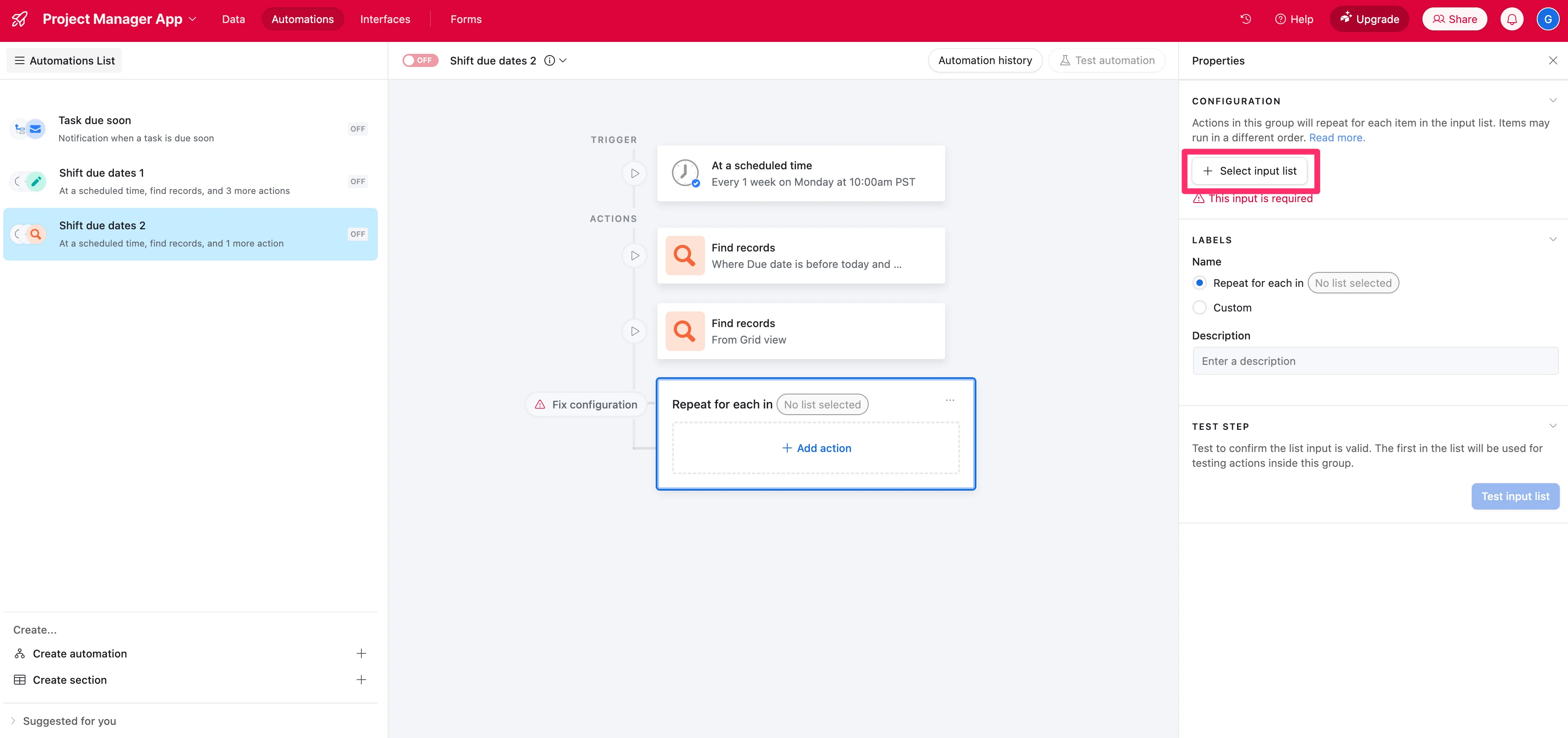
For the input configuration, click the “Select input list” button. This will define what records we’ll loop through in this repeating action.
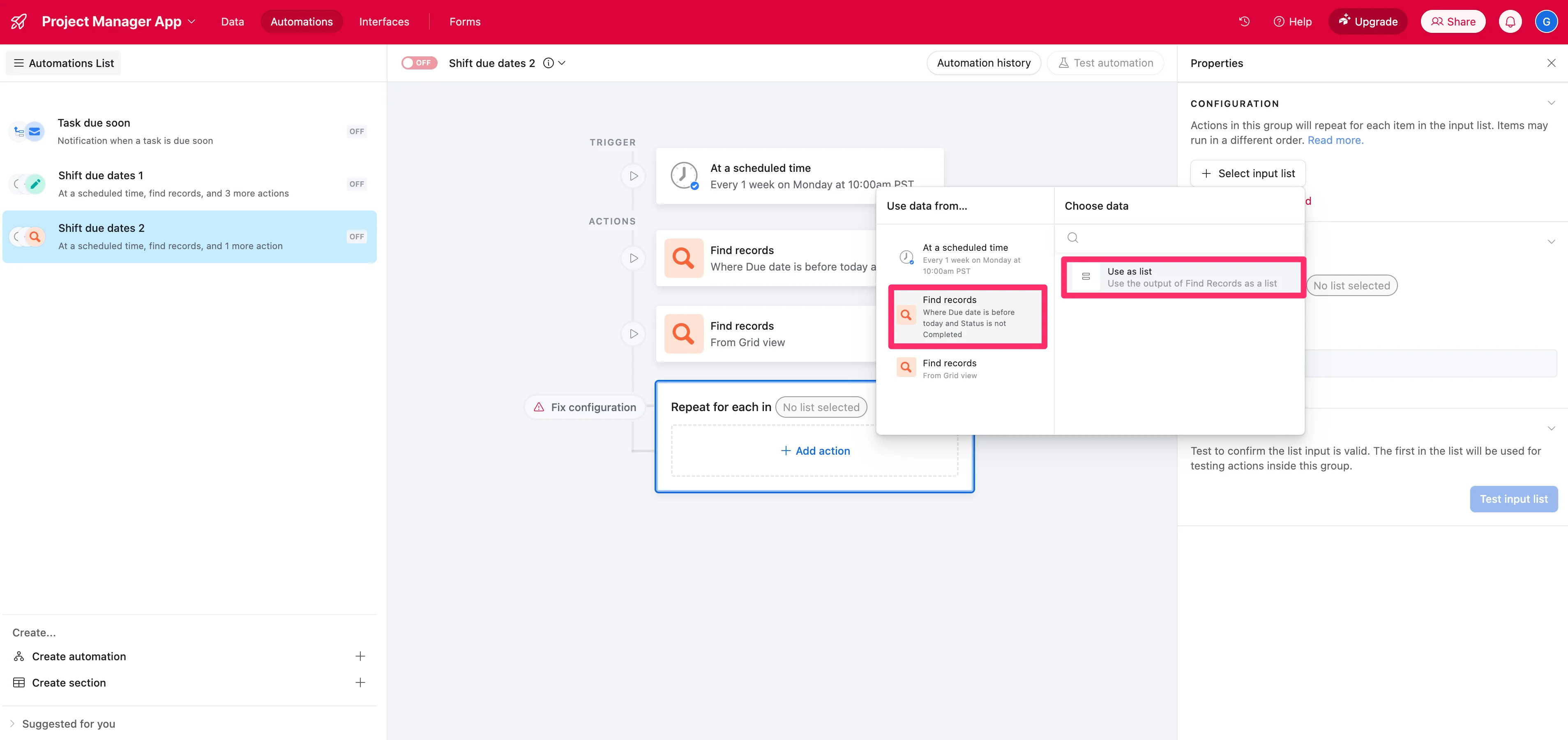
Select the first “Find records” step and the “Use as list” data option. This means we’ll loop through every task record with a Due Date in the past that isn’t in a “Complete” status.
For our first action in the repeating group, select “Generate with AI”.
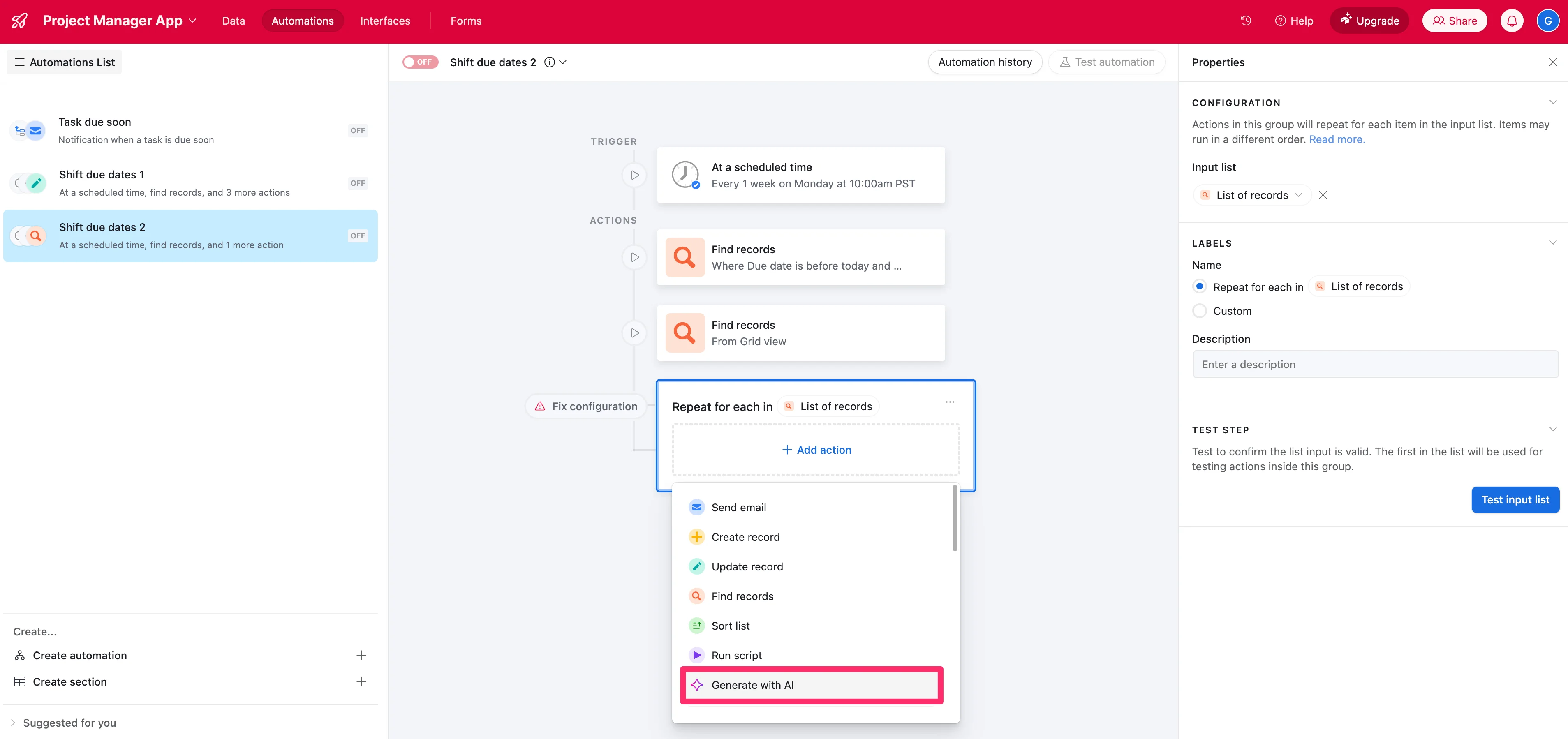
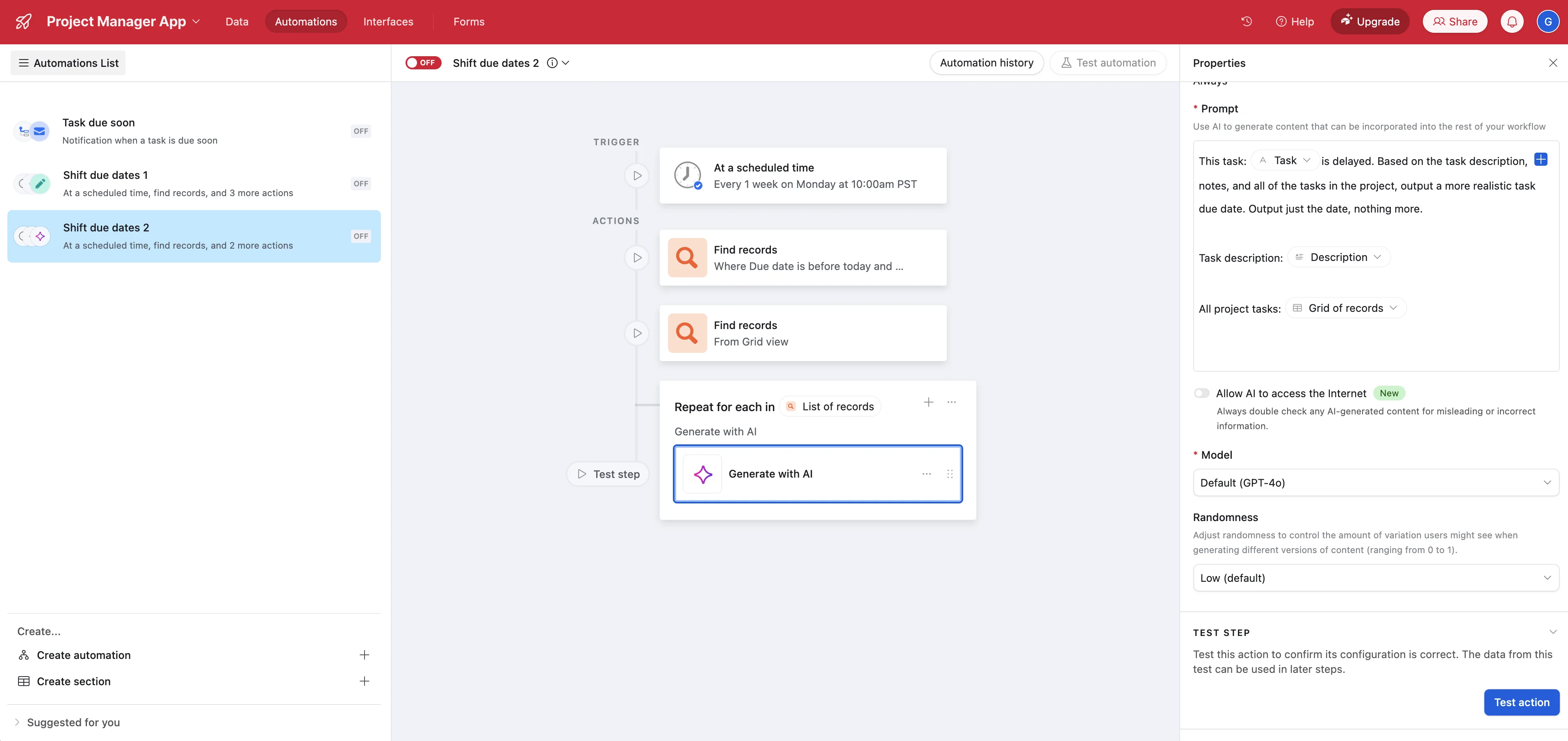
Now, we’ll prompt the AI step with the timeline update directive and additional context from our project to configure the task with a new due date.
Sample Prompt:
This task: [select ‘Task’ from current repeating item] is delayed. Based on the task description, notes, and all of the tasks in the project, output a more realistic task due date. Output just the date, nothing more.Task description: [select ‘Description’ from current repeating item]All project tasks: [select all fields from “Find records from Grid view”]
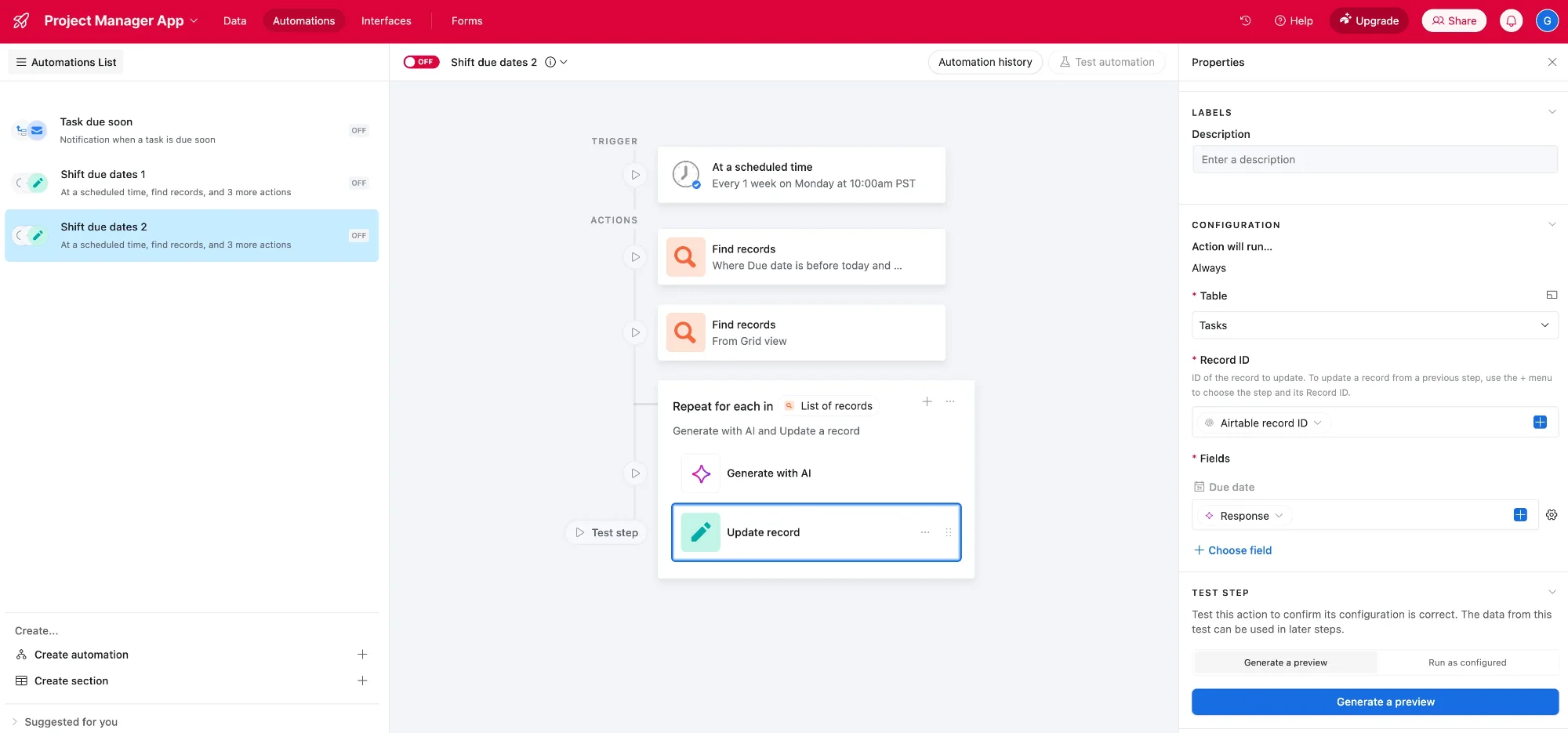
Finally, we’ll add an “Update record” action and set the field to update to “Due date” and the input of the field to be the “Response” from the previous AI action step.
We can now test our new update timelines automation. Find (or update) a record to have a Due Date in the past.
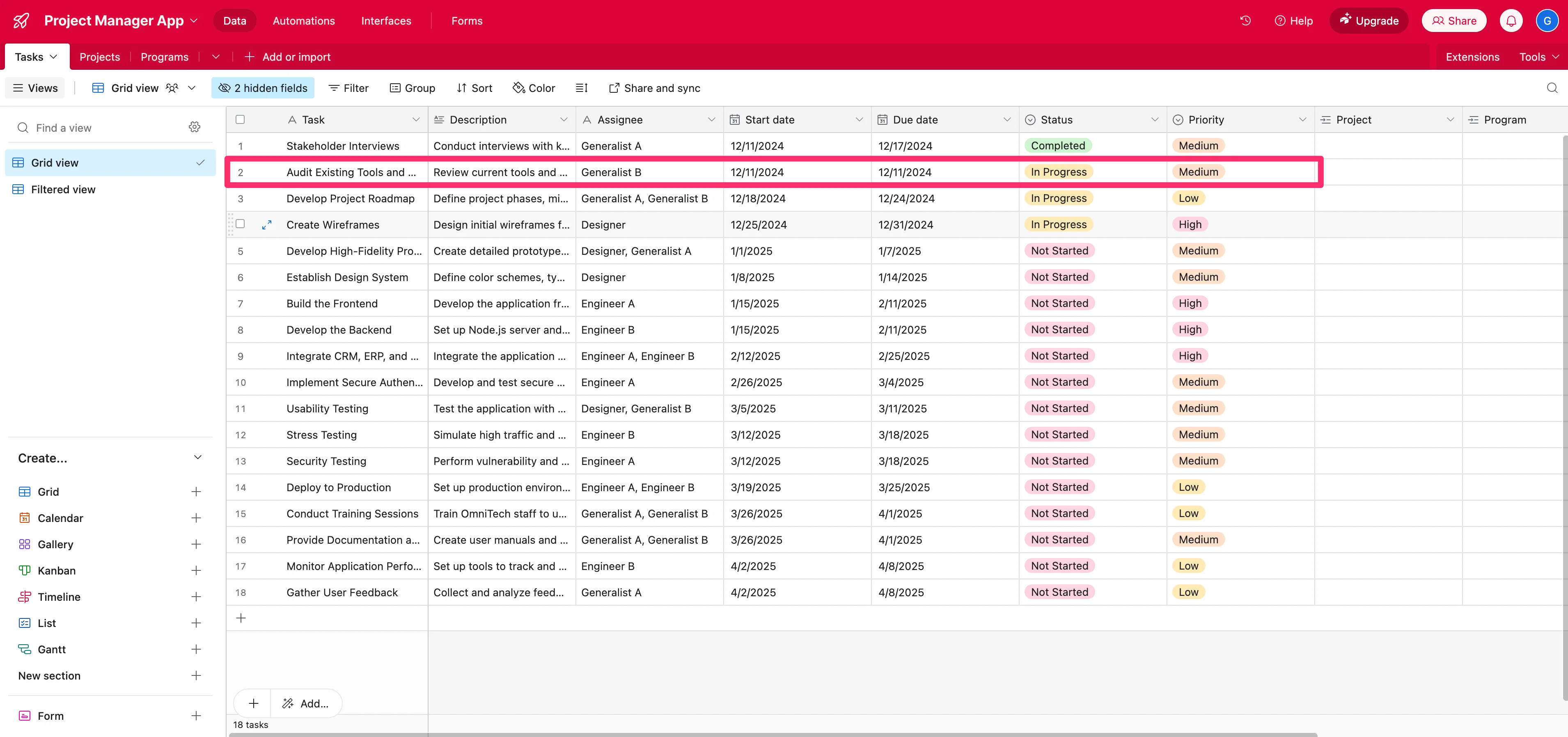
Test each step of the automation and see the new output from the AI step for that record. It should shift the “Due date” of the task to the most reasonable future date within the project.
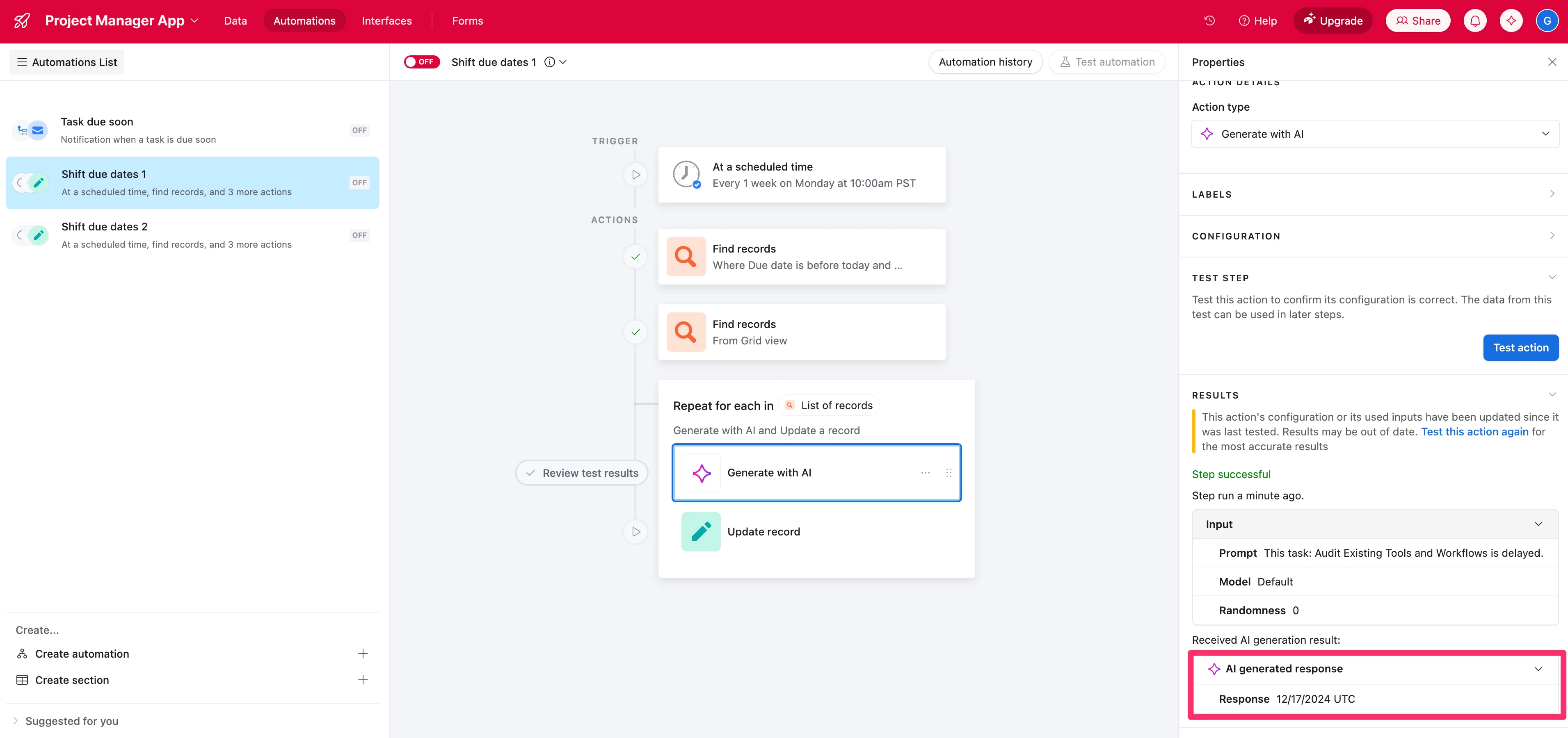
Nice work! You now have a series of automations, powered by AI, for your Airtable project management base. You can use these automation building blocks to create more AI-powered fields and automations for your project.
In the next lesson, we’ll build on what we’ve created here to automate project communication.
This tutorial was created by Garrett.