Automating projects & ops using Notion AI
How to use Notion AI to plan projects, onboard new people, and maintain docs.
2024-11-29
Welcome to the sixth and final lesson of our course on Using Notion AI for business workflows.
This tutorial focuses on using Notion’s AI features for project management and operations. We’ll show you how AI can be used flexibly for managing projects, onboarding new members, and keeping your docs up to date.
In this tutorial, you'll learn how to:
- Build project templates that maintain team consistency
- Automate task distribution based on team expertise
- Create smooth onboarding experiences for new team members
- Develop dynamic FAQs from team discussions
- Keep documentation current with minimal effort
Let's get to it.
Step 1: Design project templates
Let’s use Notion AI to help us craft a template based on existing documents in our Notion workspace.
Open Notion AI from your sidebar and make sure you can access your previous project documentation. This existing content helps it understand your team's approach and maintain consistency.
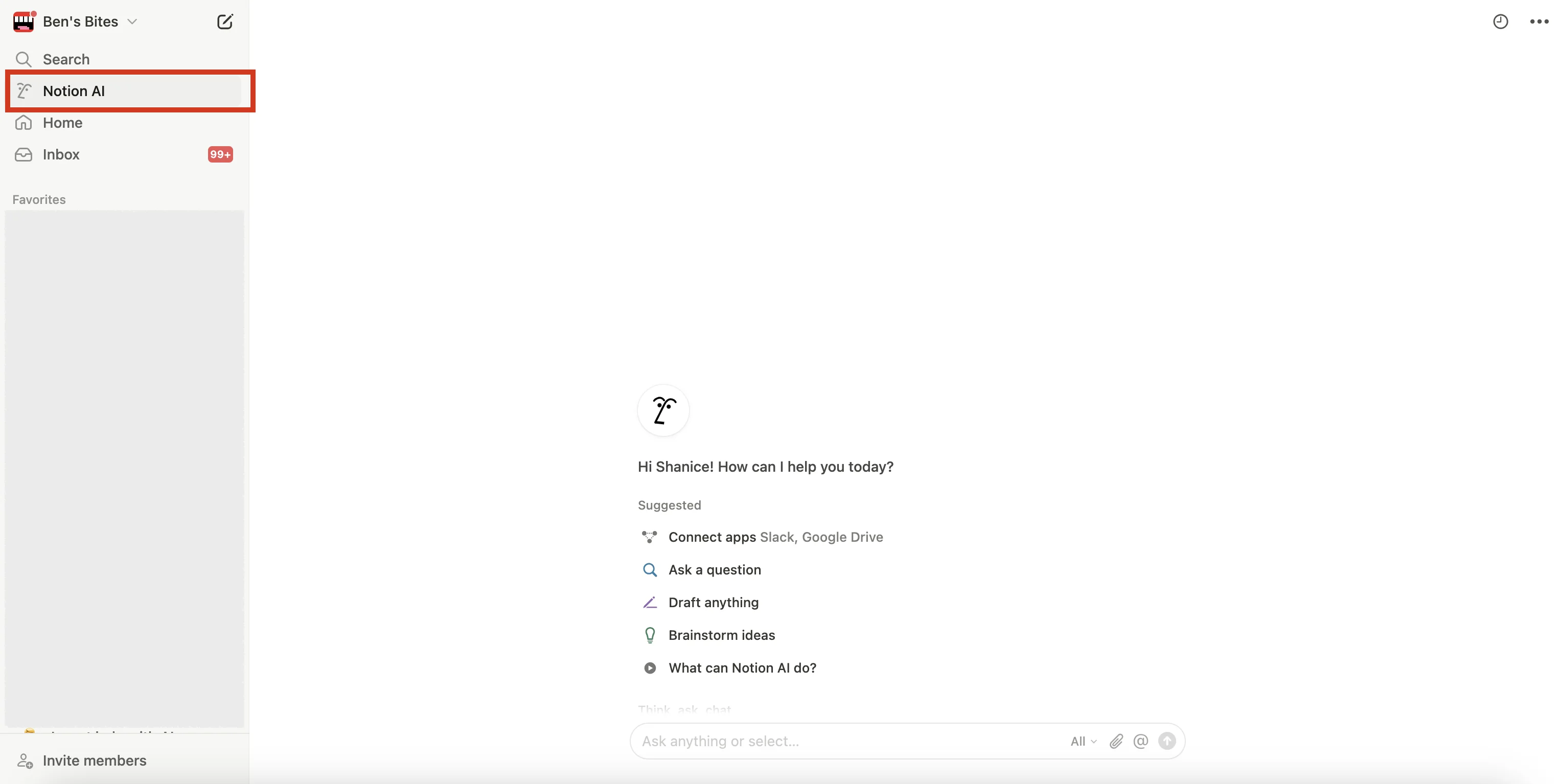
Use this prompt in the chat box:
Create a detailed project plan template that matches our team's style.
Project details:
[Your new project specifics and details here]
Use @[Previous Project Name] as a reference and include sections for project overview, goals, timeline, team resources, and deliverables. Keep the detail level consistent with our usual approach and include our standard project phases and checkpoints.
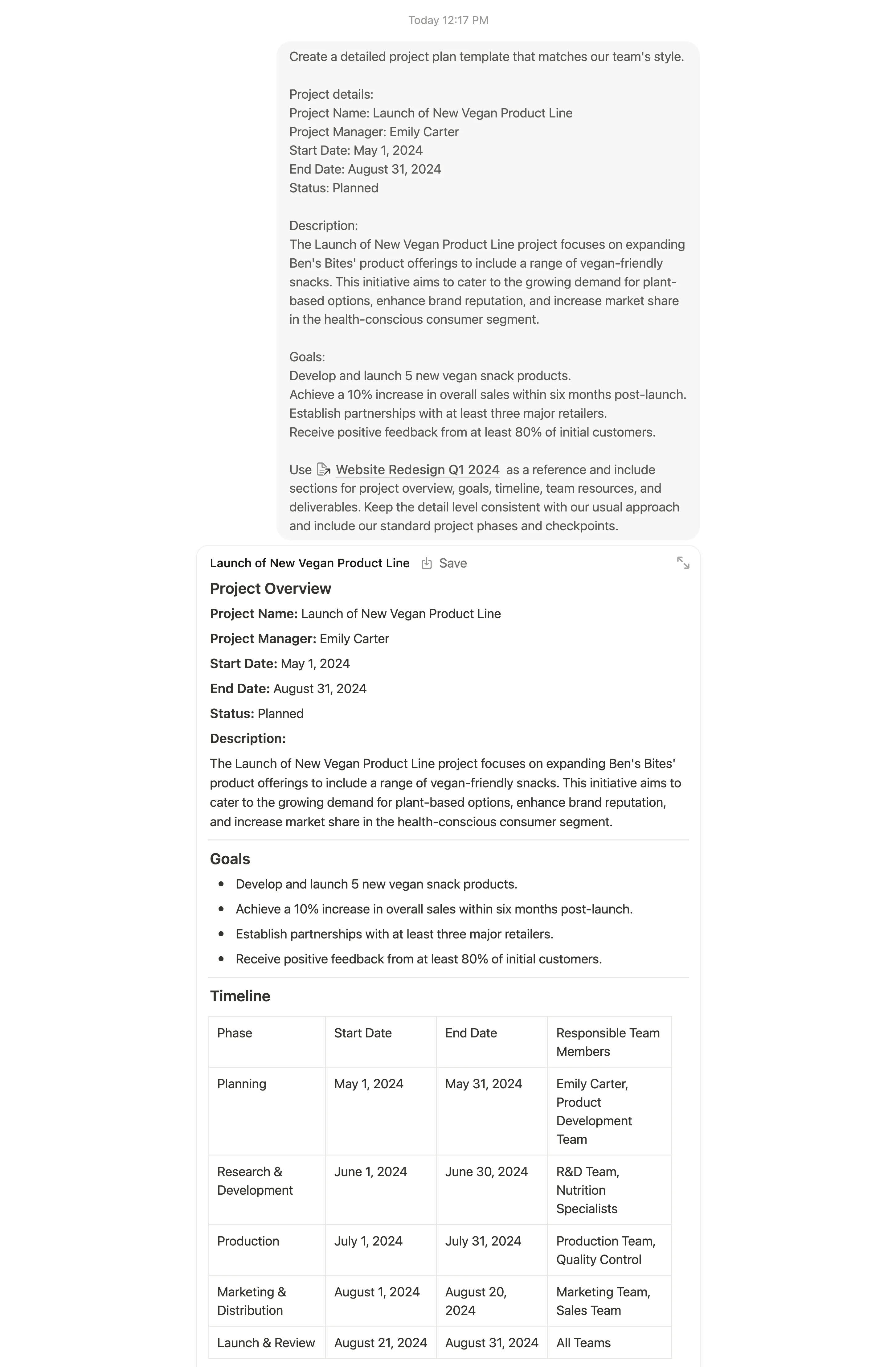
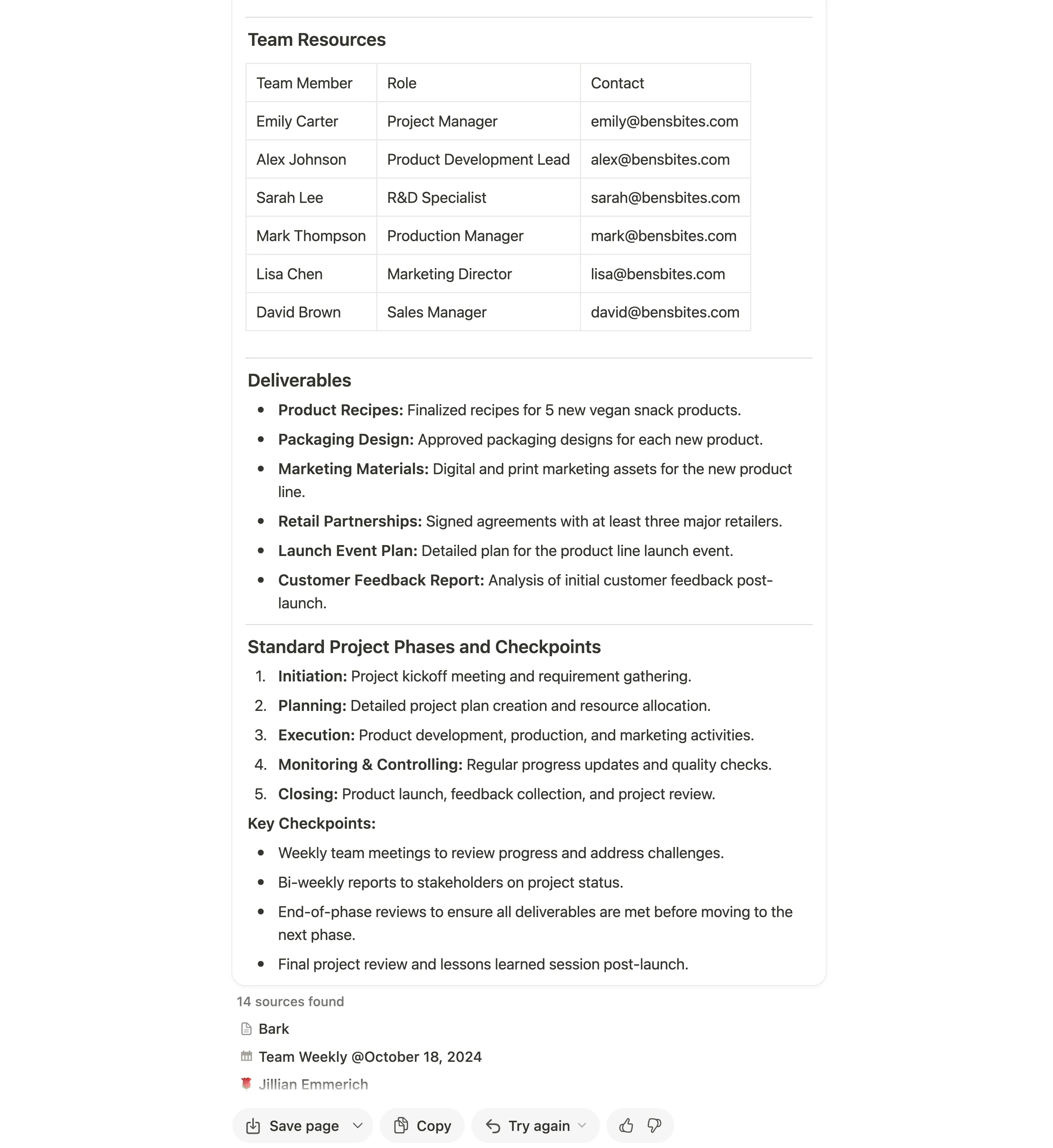
The AI will analyze your previous project structure and recreate it with placeholder sections ready for your new project details. Save the template as a page and edit the document as needed.
Step 2: Allocate tasks from projects
Once your project template is ready, the next priority becomes distributing work effectively. Notion AI examines team member profiles, current assignments, and expertise to recommend balanced task assignments that make sense for your team.
To follow the steps below, you’ll need a database with information about your team, like roles, responsibilities, and ongoing commitments.
Let’s use this prompt in the same chat:
Using our new project plan and the team information from @[Team Database URL], suggest task assignments that match each team member's skills and current capacity. Consider task dependencies and any potential resource constraints. Present the assignments in a table format with clear ownership and timelines.

Notion AI processes this information and creates a balanced distribution of tasks. It considers not just who can do the work, but who has the bandwidth to take it on effectively.
However, take the allocation with a grain of salt, as Notion AI may not be perfect and cannot completely replace manual intervention in this process.
Step 3: Creating personalized onboarding experiences
Another use case and implementation of Notion AI is bringing new team members up to speed efficiently. Notion AI can help you create comprehensive yet personalized onboarding materials that capture your company's specific requirements and culture.
Let’s start a new conversation with Notion AI and use this prompt:
Create a personalized onboarding plan for [New Employee Name] joining as [Role] in [Department]. Include our company information from @[Handbook URL], team structure from @[Team Page URL], and use our @[Your previous onboarding plans] as reference.
Structure this as a 30-60-90 day plan with key meetings, training requirements, and initial assignments. Ensure all compliance elements are covered while maintaining our company's approach.
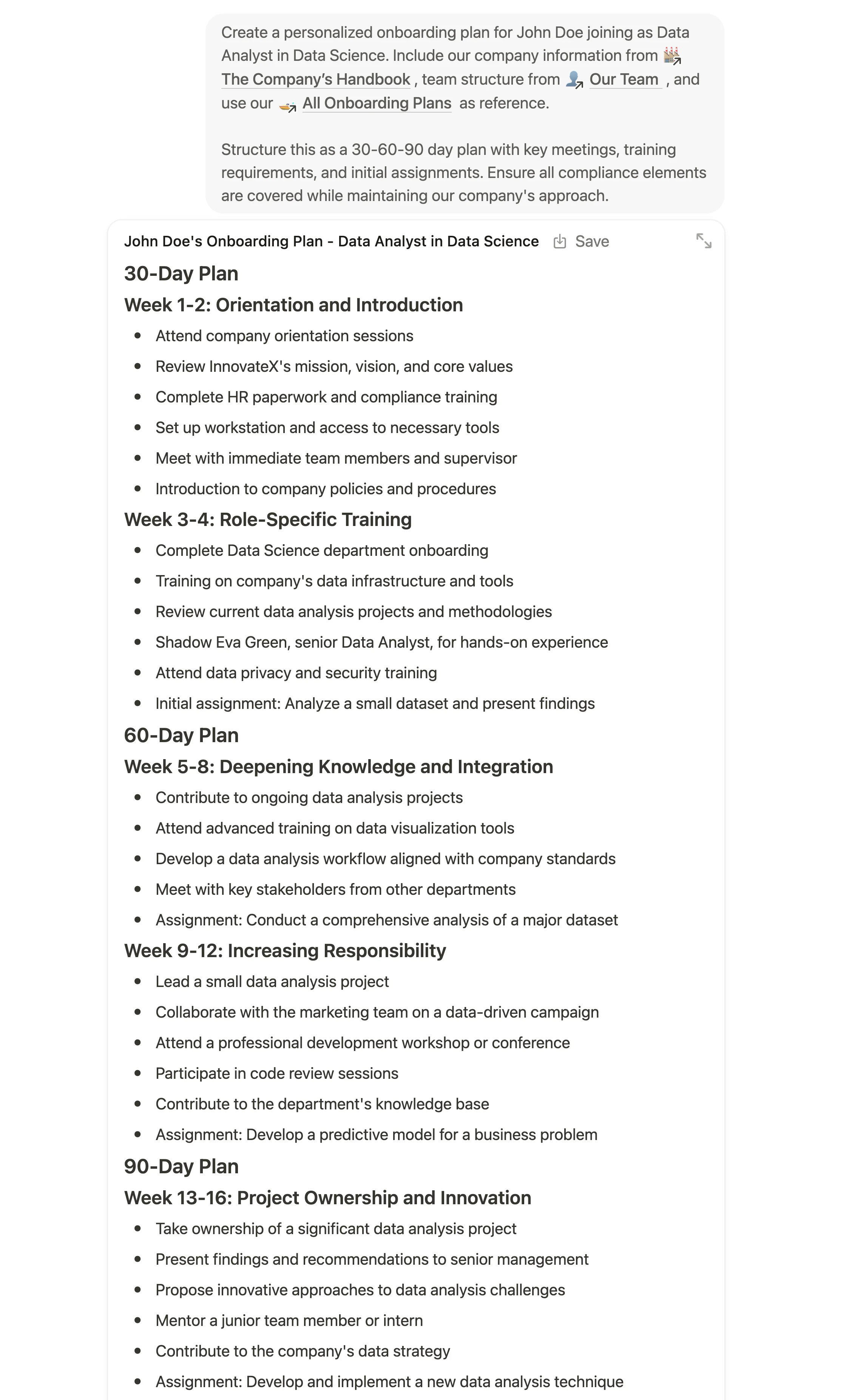
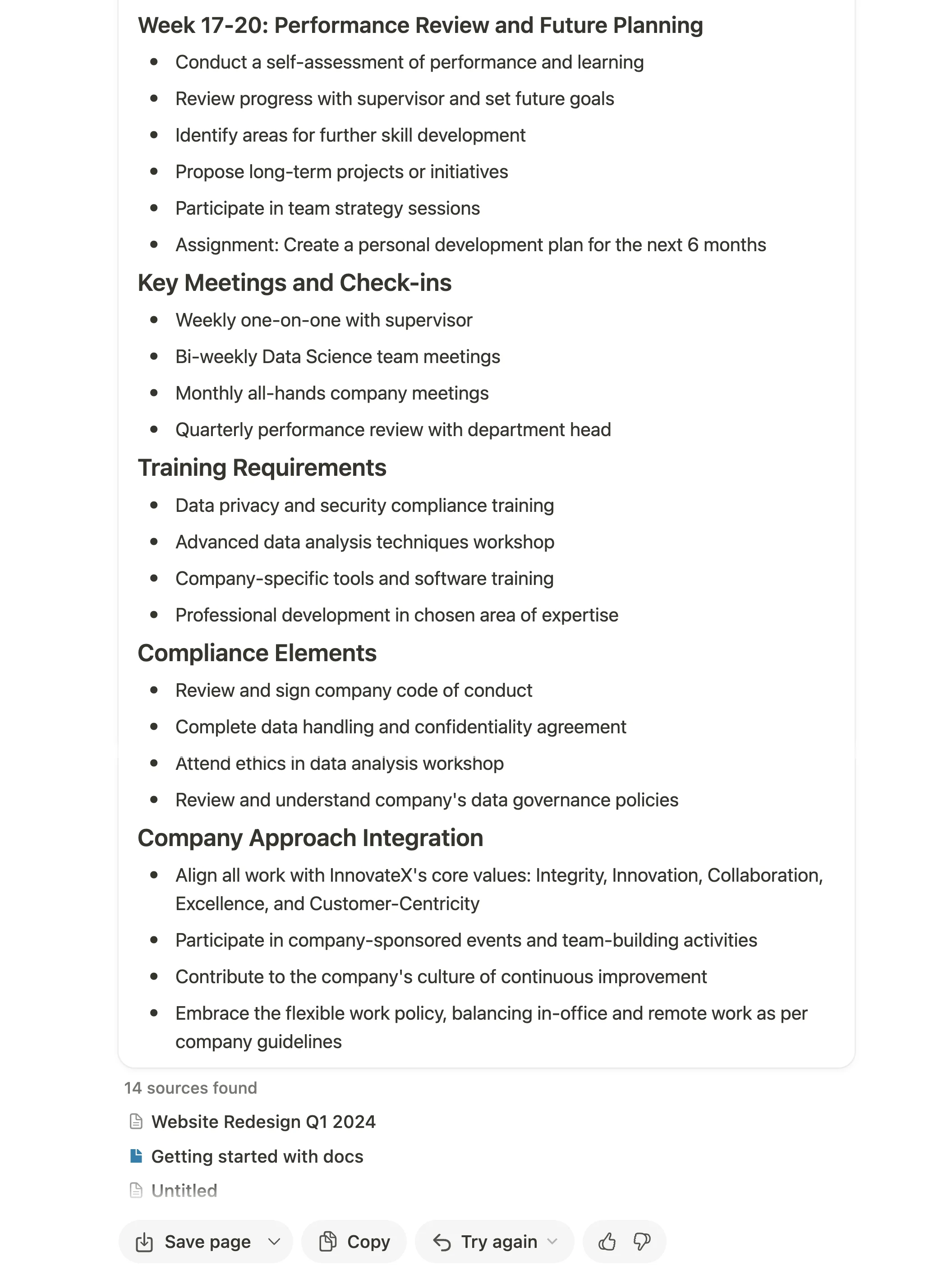
This helps create an onboarding document that guides new team members through their first three months. This structured approach ensures consistent onboarding experiences while allowing for role-specific customization.
Step 4: Build dynamic team FAQs
Repetitive questions can consume valuable team time and resources. Notion AI can help create and maintain a living FAQ document that evolves based on actual team communications and needs.
If you haven’t been following this whole course, you’ll need to connect Notion AI to your Slack workspace to complete the following steps. From the Notion AI chat, click the three dots in the top-right of the screen and follow the steps to connect Slack. For further help, you can find detailed instructions in Tutorial 2, Connect your workspace apps with Notion AI.
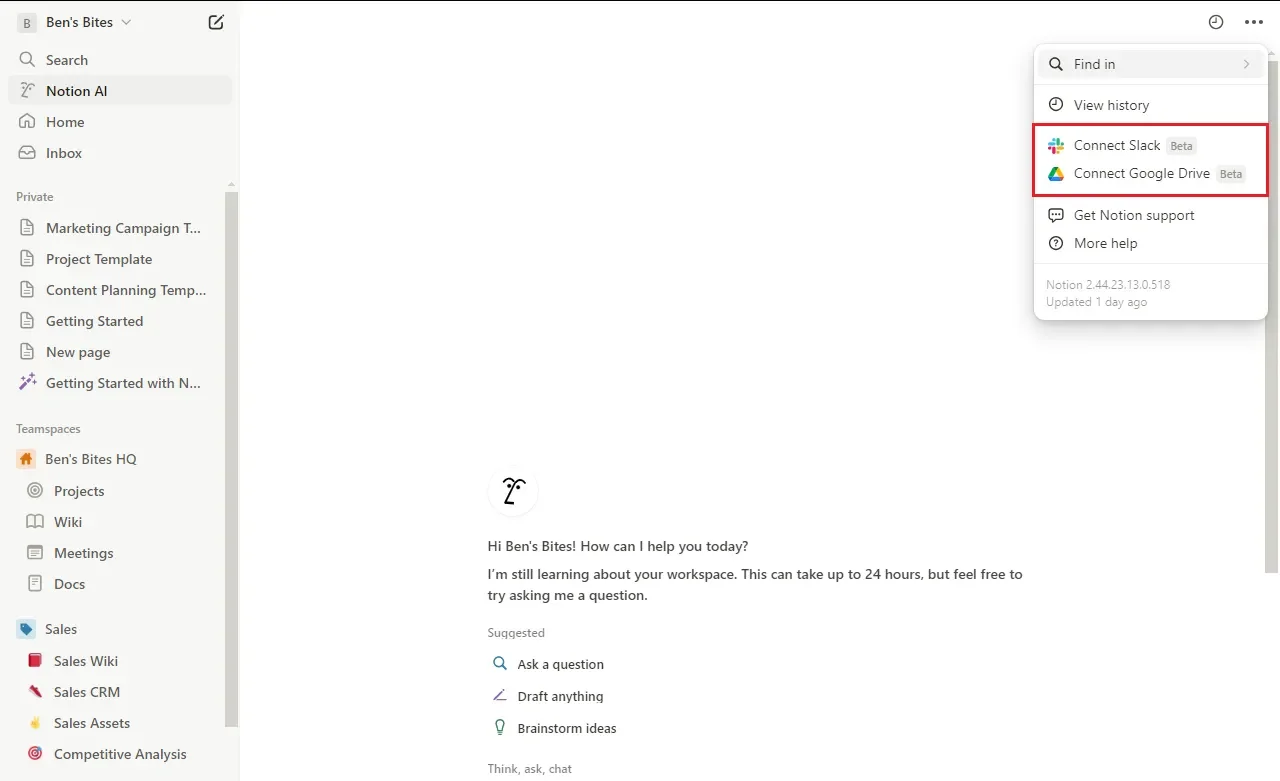
With Slack connected, chat with Notion AI using this prompt:
Review our Slack conversations from the past month in [Channel Names]. Create a comprehensive FAQ document following our format at @[FAQ Page URL]. Group similar questions together, provide clear answers, and link to relevant documentation. Update any information that no longer matches our current processes.
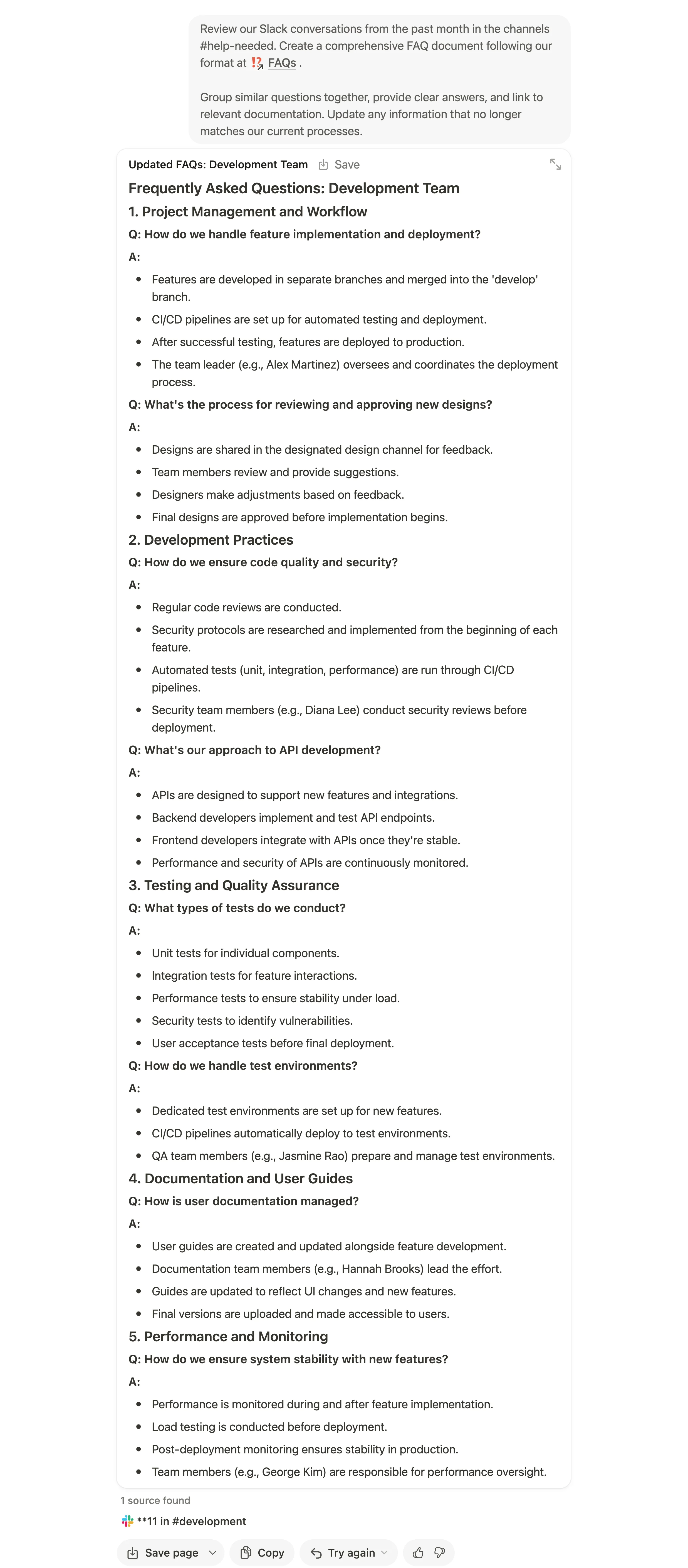
This dynamic approach ensures your FAQ remains relevant and helpful, reducing repetitive questions and saving team time.
Step 5: Maintain living documentation
Finally, let's address a common challenge: keeping documentation up-to-date. Over time, team processes evolve, but documentation often lags behind. This is where Notion AI can be particularly helpful.
Notion AI can analyze your team's recent activities, discussions, and project updates to suggest relevant changes to your documentation. This ensures your docs stay current without requiring constant manual review.
Let’s use this prompt:
Examine our @[Process Document URL] alongside recent team discussions and project database updates in [Your relevant slack channel]. Identify areas that need updating and create a revised version reflecting our current practices. Maintain our existing level of detail and highlight significant changes that require team communication.
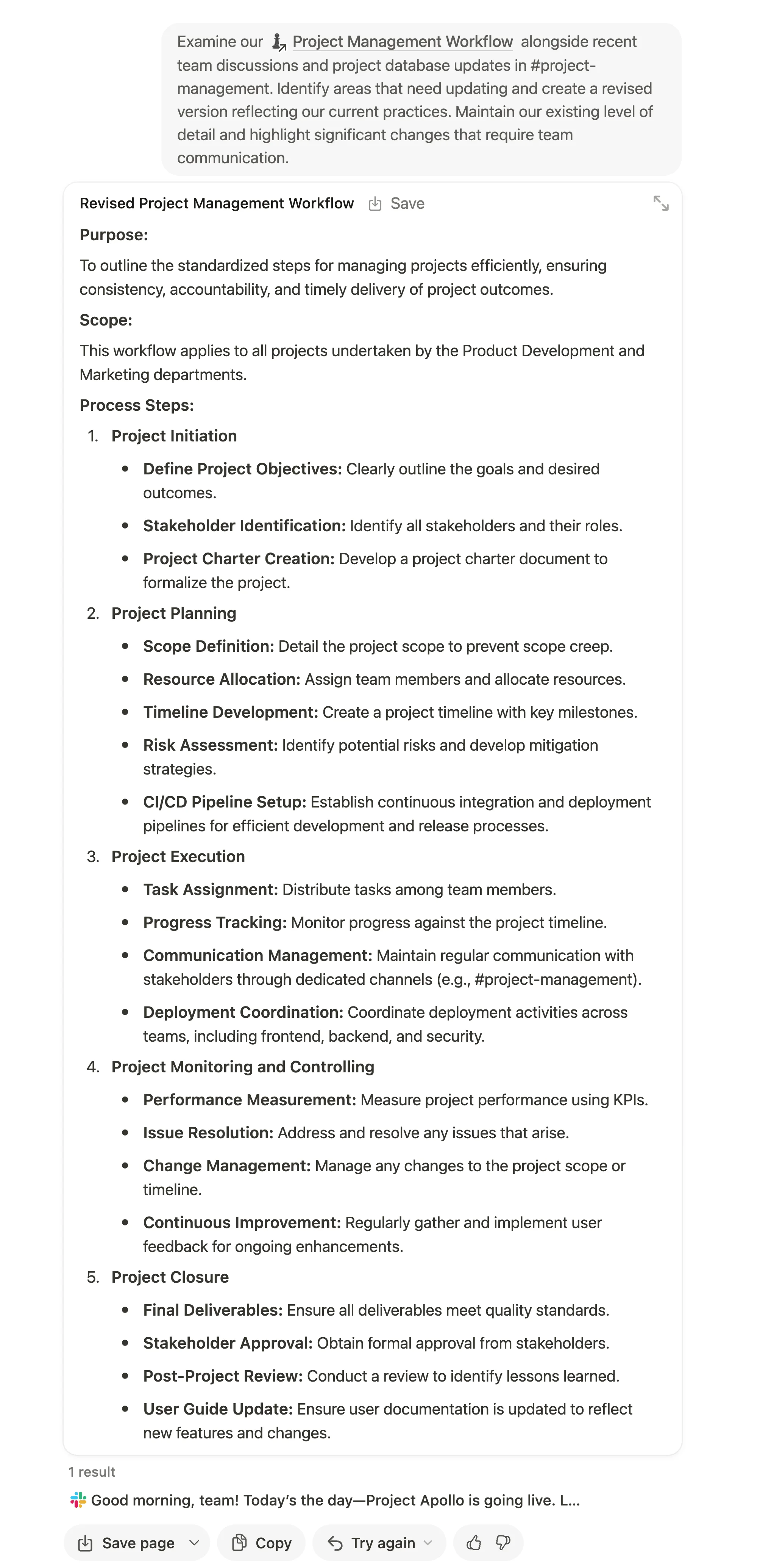
The resulting updates ensure your documentation stays relevant without requiring constant manual review.
By implementing these AI-powered workflows, your team can focus more on meaningful work while maintaining high standards of organization and communication. Regular refinement of these processes helps them evolve with your team's needs, creating an efficient and effective workspace.
And here we are at the end of this course! If you’ve made it this far, you’ve picked up some of the best ways to use Notion AI for your business—whether it’s connecting Slack and Google Drive, building project templates, creating a brand style guide, onboarding guides, and so much more.
Take a little time to explore these features in your Notion workflows and databases to set things up smoothly and bring more automation into your work with AI. And don’t forget to keep an eye on Notion’s latest updates—they’re always adding something new!
This tutorial was created by Tanmay.