Build a case study-generating bot
Use Claude Artifacts and Projects to create a bot that generates custom customer case studies.
2024-11-13
In this tutorial, we’re going to use Claude Artifacts and Projects to create a custom case study-generating chatbot. All we need to do is provide detailed custom instructions and some example case studies, and we can start transforming project details into polished case studies in minutes.
Steps we’ll follow in this tutorial:
- Enable the Artifacts feature
- Create a Claude Project
- Set custom instructions
- Upload example case studies
- Provide project details and request a new case study
Step 1: Enable the Artifacts feature
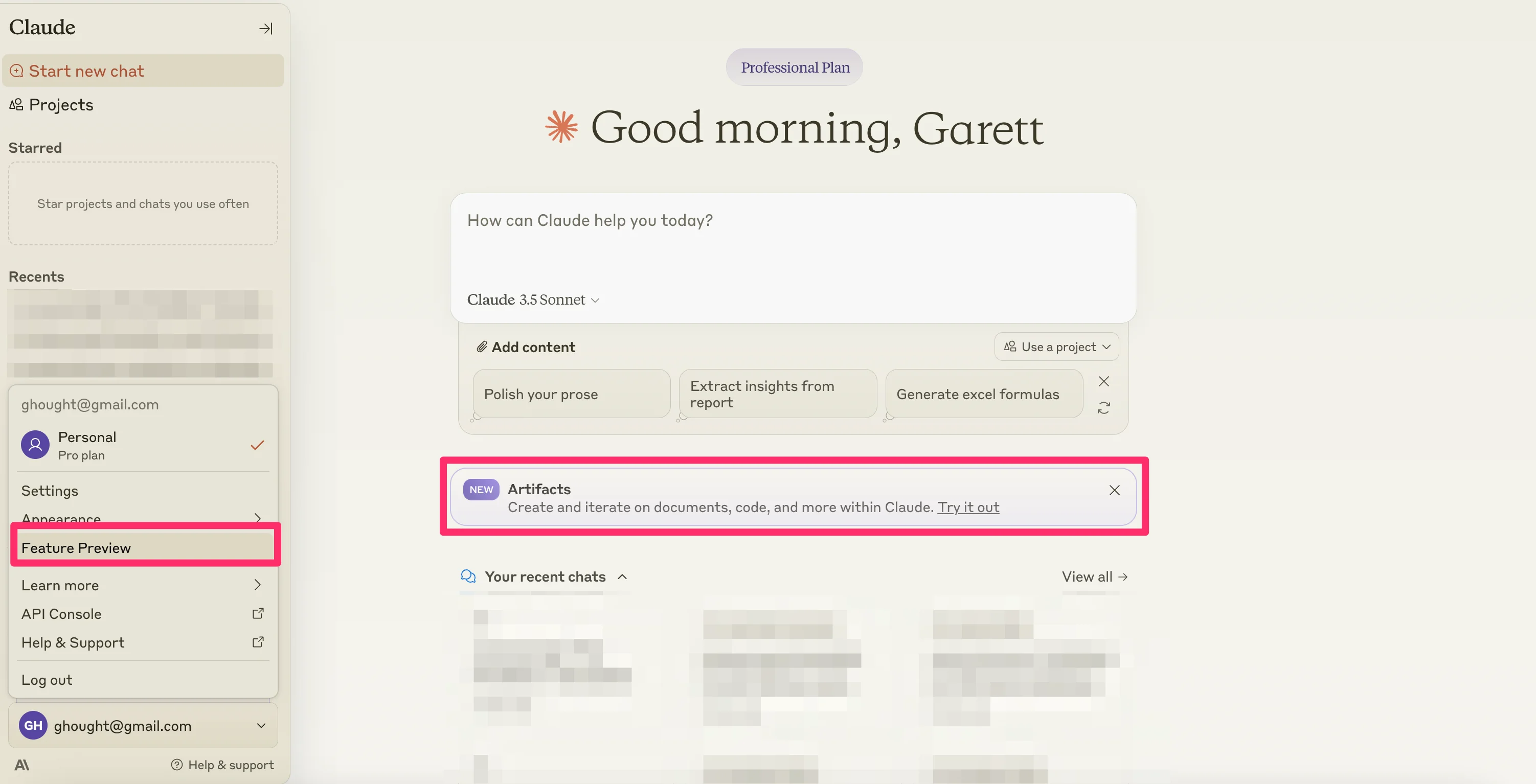
To get started, you need to enable the new Artifacts Feature Preview. To do this, on the Claude homepage, click on the dropdown on your email at the bottom of the left-side navigation and click the “Feature Preview” option. Alternatively, there might be a purple toast on the main page as well, which you can click to access the Artifacts feature preview.
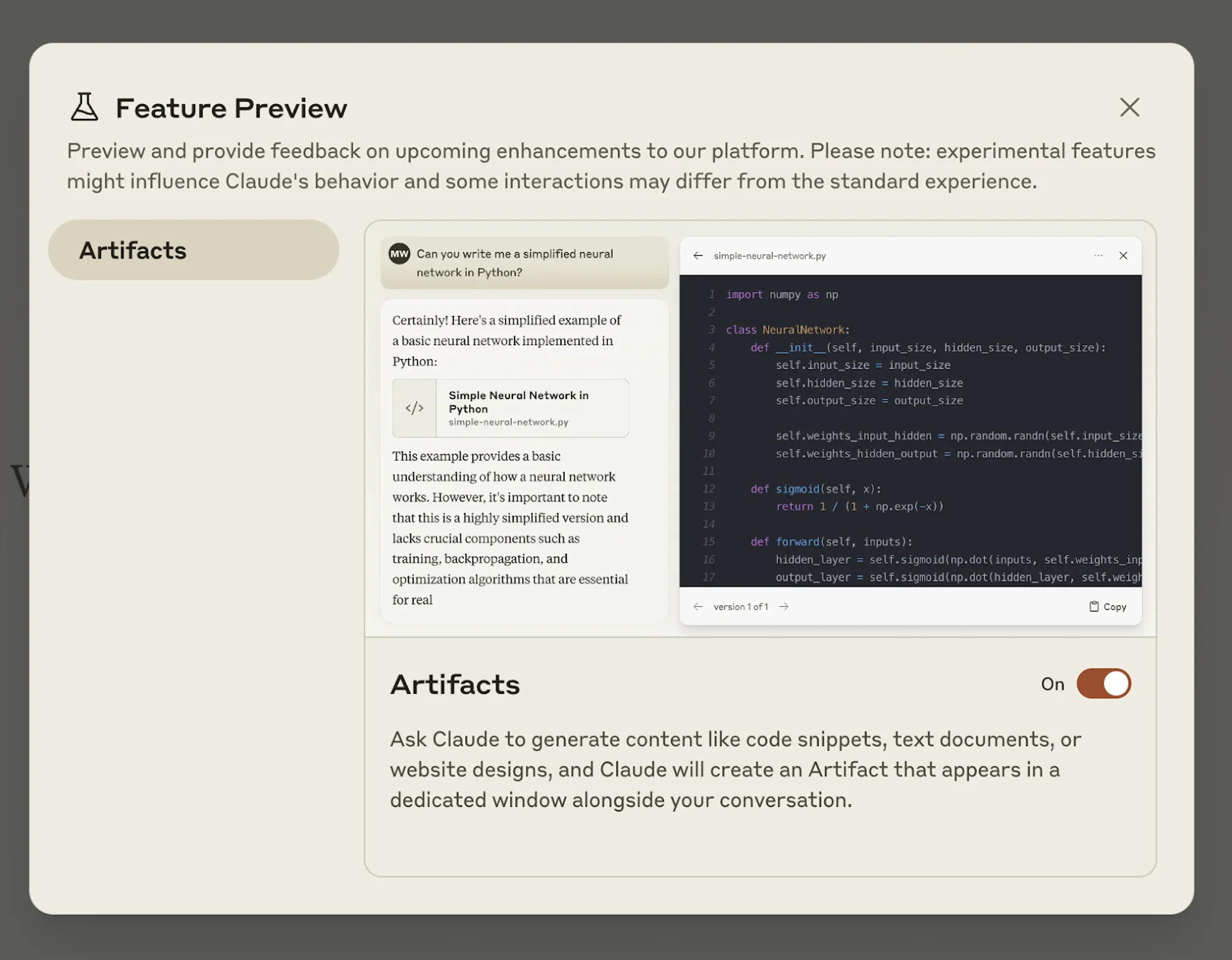
The Feature Preview window will open. Toggle the Artifacts feature “On” to enable the feature. When you enable Artifacts, it will be enabled by default for your future chats.
Step 2: Create a Claude Project
Once Artifacts is enabled, the next thing we need to do is create a Project. To do this, click on the “Projects” tab in the left-side navigation.
.webp)
This will take you to the Claude Projects page. Click the “Create Project” button in the top right corner to create a Project.
.webp)
You will then be asked to give your project a name and description. These are what you’ll see on the Projects page to identify the Project, so it’s helpful to be descriptive and concise with these entries.
.webp)
Step 3: Set custom instructions
Once you’ve created the Project, you’ll be taken to the Project editing page. This is where you can set custom instructions, add Project knowledge, and test the bot. To start, we’re going to add custom instructions. To do this, click the “Set custom instructions” link on the right side of the page.
.webp)
We’re going to add a detailed custom instruction that uses a “Chain-of-Thought” style prompt technique to take uploaded data and transform it into an interactive dashboard.
Custom instructions:
You are tasked with creating a compelling case study based on the provided information about a successful project. The case study should follow the style and format of the case studies in my Project knowledge. Your goal is to craft a narrative that showcases the project's success, highlights the problem-solving process, and demonstrates the impact of the solution.
You will be provided with details on a project.
Using this information, create a case study with the following structure:
1. Title: Create a concise, attention-grabbing title that summarizes the key achievement or solution.
2. Executive Summary: Write a brief overview (2-3 sentences) of the case study, highlighting the problem, solution, and key results.
3. Company Background: Provide relevant information about the company, including its industry, size, and any other pertinent details that set the context for the project.
4. Challenge: Describe the problem or challenge the company faced, including its impact on the business and why it needed to be addressed.
5. Solution: Detail the approach taken to solve the problem, including the strategies, technologies, or methodologies employed.
6. Implementation: Explain how the solution was put into practice, including any notable steps or processes involved.
7. Results and Impact: Highlight the outcomes of the project, using specific metrics and data points to demonstrate its success. Include both quantitative and qualitative results where possible.
8. Key Takeaways: Summarize 2-3 main lessons or insights from the project that could be valuable for other organizations facing similar challenges.
When writing the case study, follow these guidelines:
1. Use a professional, yet engaging tone that is appropriate for a business audience.
2. Include specific details and examples to make the case study more vivid and credible.
3. Use short paragraphs and bullet points where appropriate to improve readability.
4. Incorporate relevant quotes from key stakeholders if available in the provided information.
5. Ensure that the narrative flows logically from the problem to the solution and results.
6. Use active voice and strong verbs to make the writing more dynamic.
7. Proofread for clarity, conciseness, and correct grammar and punctuation.
Present your final case study with each section clearly labeled using appropriate subheadings. The entire case study should be between 500-800 words.
Begin crafting the case study now, using the provided information and following the structure and guidelines outlined above.
.webp)
Step 4: Upload example case studies
With the custom instructions set, we can now add example case studies as product knowledge. These can be uploaded as documents or as text within a text box. To add project knowledge, click on the “Add Content” button in the top right corner of the page.
.webp)
We’ve added three case study examples to the product knowledge for this example. You can see them as documents in the upper right corner of the page when added.
.webp)
Step 5: Provide project details and request a new case study
Now that our Project knowledge has been added, we can test our Claude Project. To do this, we’re going to provide Claude with some bullets on a recent project and have it generate a case study.
Sample prompt:
Generate a case study for the below-completed project.[insert project details]
.webp)
And that’s it! Claude will generate an Artifact with your case study. It’s best if you copy/paste the text from the Artifact preview into a document rather than downloading the content, as it will download as markdown text. You can also ask Claude to edit and iterate the generated case study from the chat window.
This tutorial was created by Garrett.