Build a company research assistant
Create an automated company research AI assistant that will regularly perform Internet research on the target companies you’re tracking.
2024-11-13
We hosted a workshop with Chris Brownridge and he blew our minds with some of his sales-driven, Google Sheets-integrated AI workflows. One of them in particular—a Slack signals bot—we found particularly impressive. It checks a Google Sheet of target companies regularly, finds updates across the web about the companies, and sends these company updates to Slack to keep sales teams up to speed automatically on their key accounts.
We decided to create a step-by-step tutorial of this workflow with one of our favorite AI tools—Lindy. In this tutorial, we’ll build a company research AI assistant in Lindy that searches the Internet for new company updates from a list in Google Sheets and sends these updates to you via Slack—no code required.
In this tutorial, you will learn to:
- Create a scheduled trigger that scans a Google Sheet
- Browse the Internet for company updates
- Update the Google Sheet with recent news
- Send company updates via Slack
- Test the workflow
Tools needed:
- Google Sheets
- Lindy
- Slack
Let’s get into it!
Step 1: Create a scheduled trigger that scans a Google Sheet
To get started, we’ll need a Google Sheet with a list of target companies to track. Head over to Google Sheets and make a company tracker with at least a Company Name, Company Website, Recent News, and Last Updated Date column.

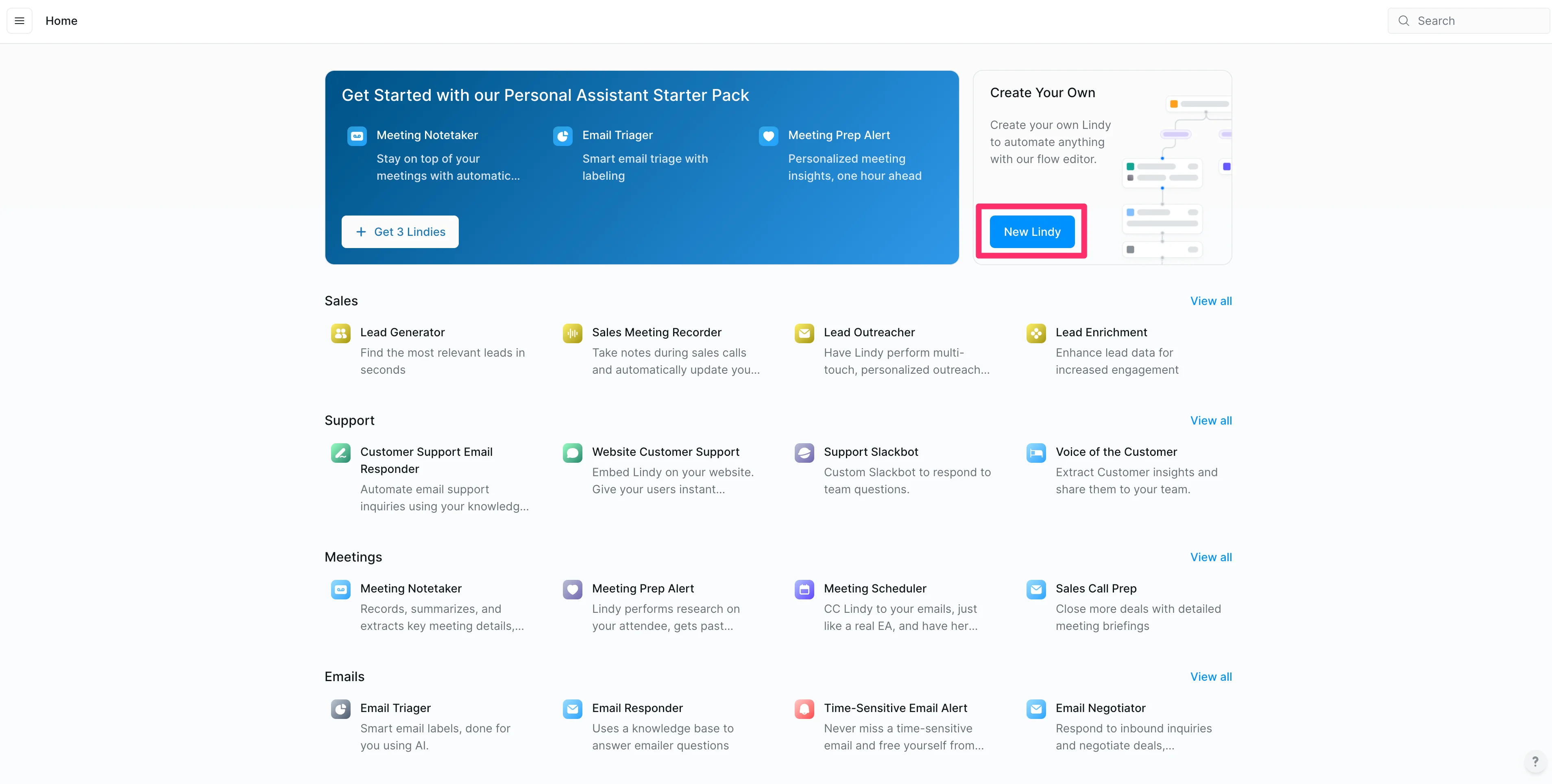
Now, we can head over to Lindy to set up our workflow to regularly scan the Google Sheets to check for recent news on the companies. On the Lindy homepage, click the “New Lindy” button to create a new Lindy.
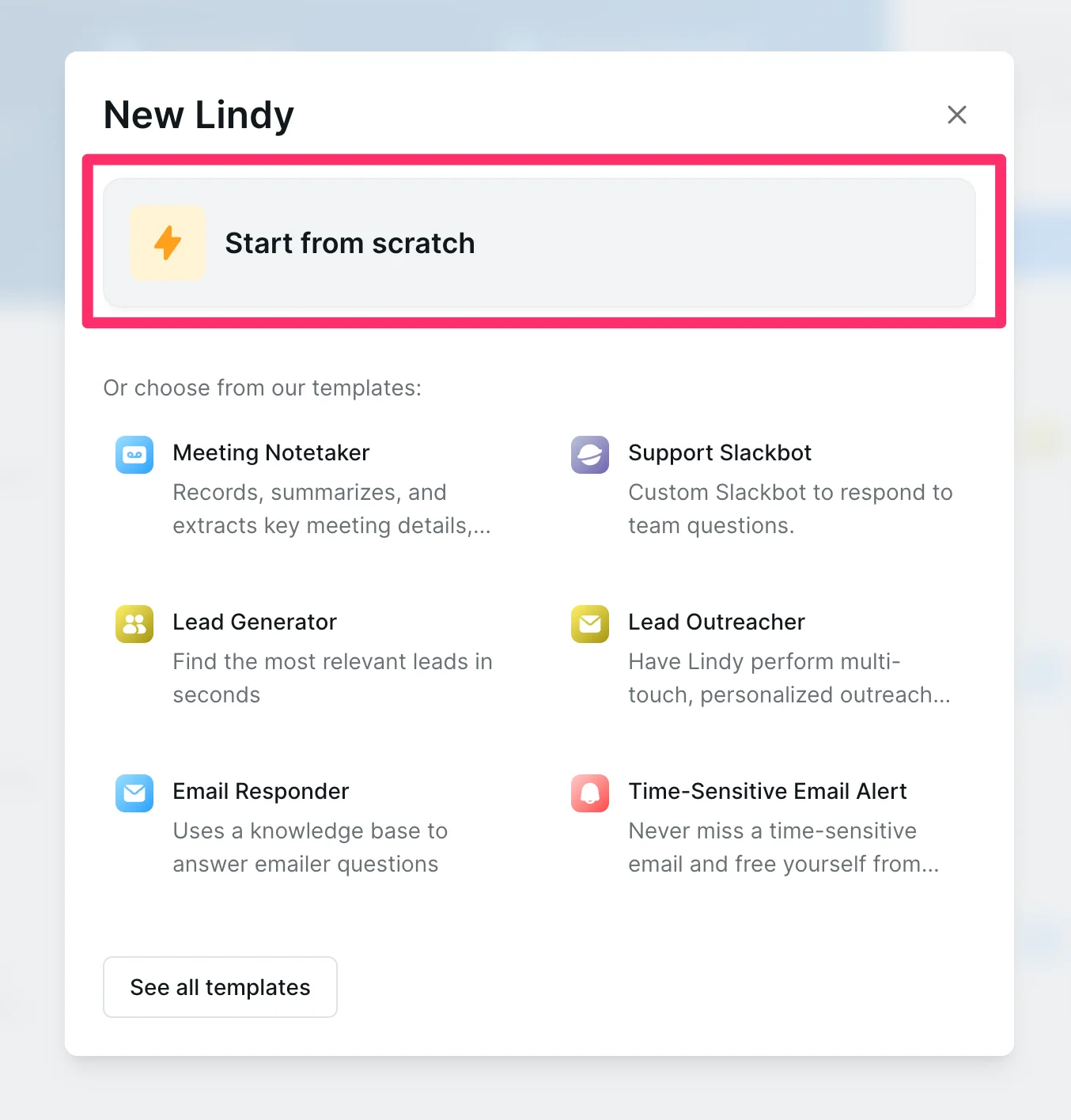
Select the “Start from scratch” option, as we’re going to build our Lindy flow from a blank canvas.
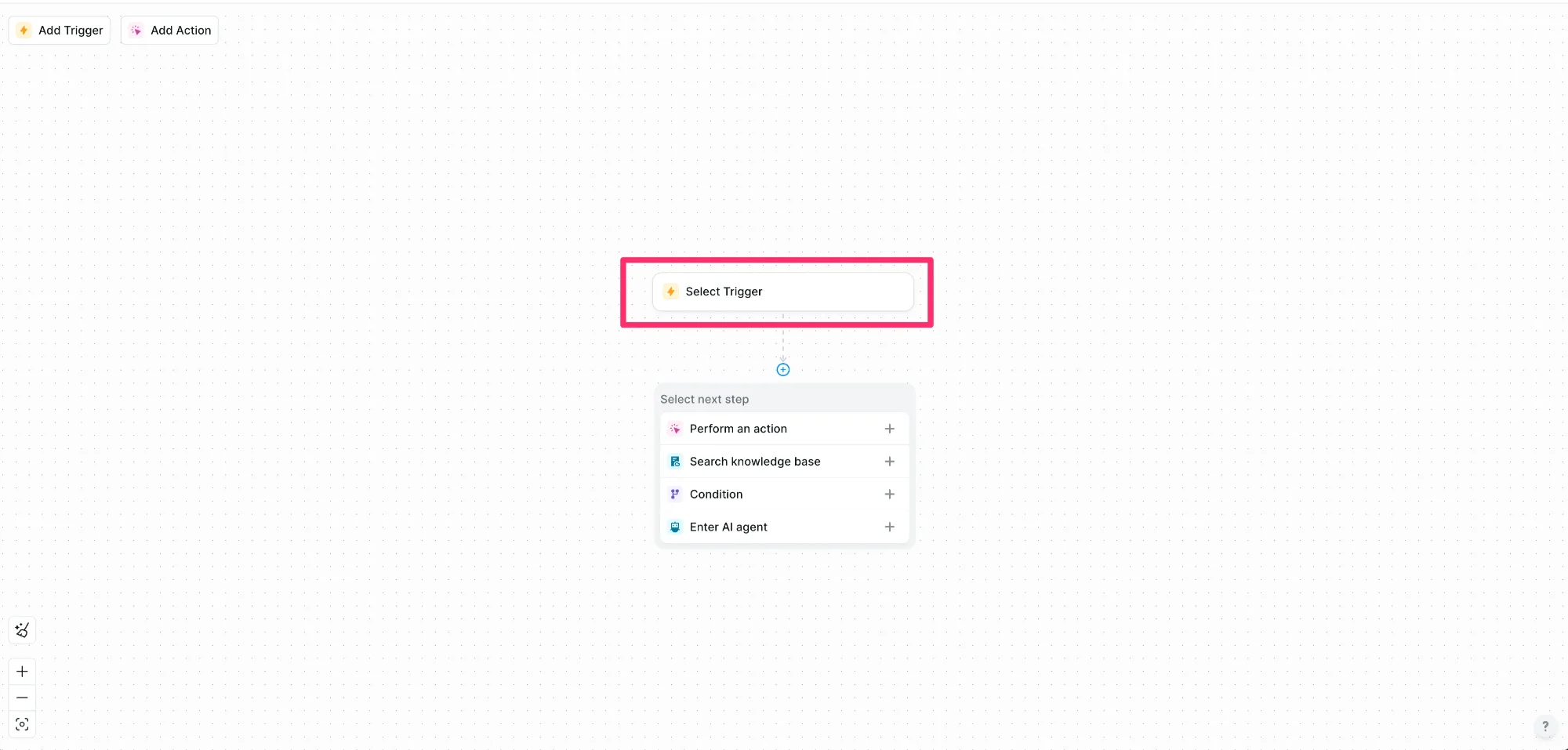
We’ll then be taken to the Lindy Flow editor, where we’ll start by adding a trigger to our workflow. This action will kick off the Lindy automation. To add a trigger, click the “Select Trigger” button in the middle of the screen.
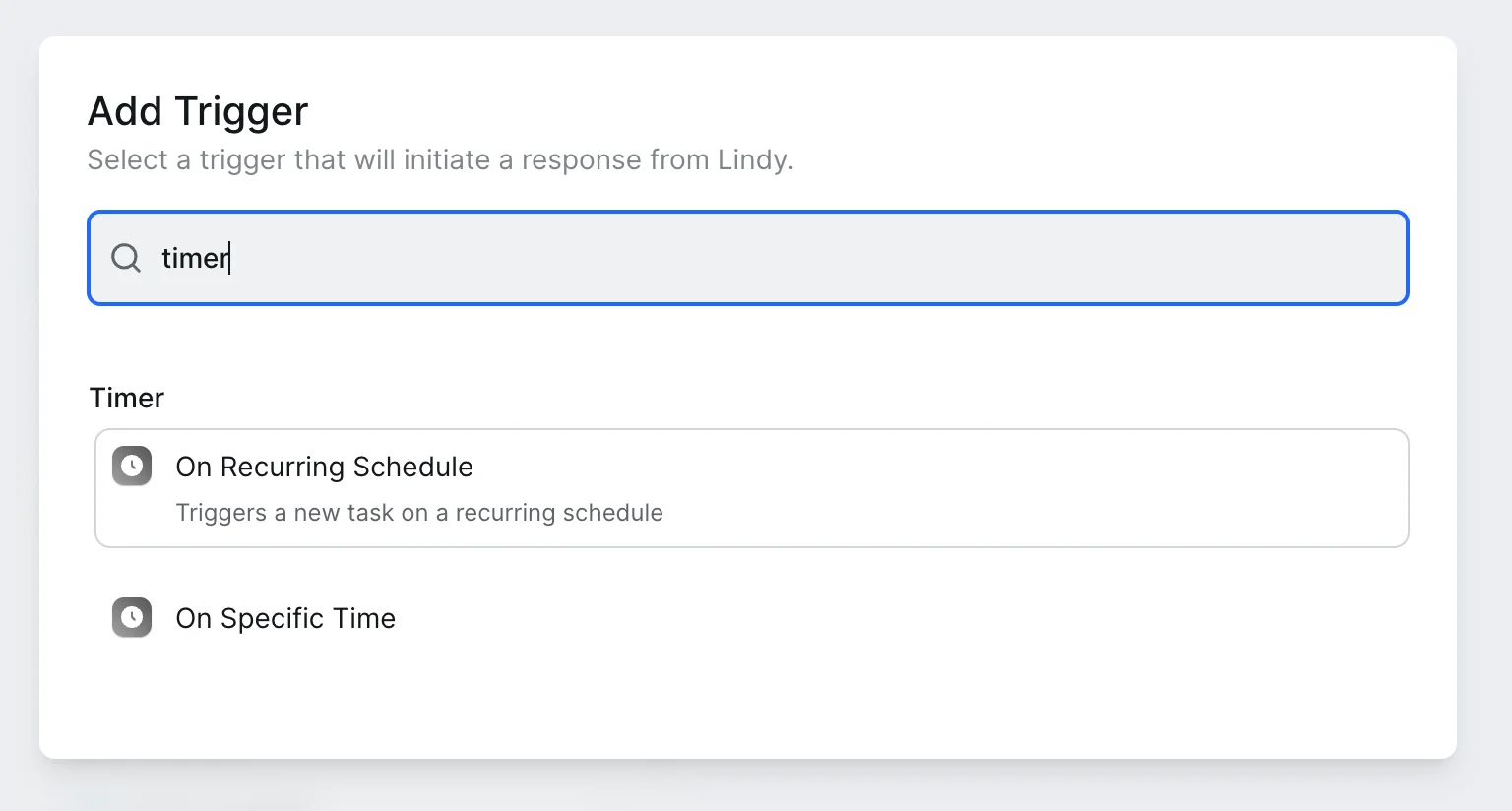
We’re going to trigger our Lindy on a recurring schedule. To do this, search for “Timer” and select the “On Recurring Schedule” trigger.
You can define your schedule in natural language on the right side of the screen. We’re going to set our schedule to “Every Monday at 9:00”.

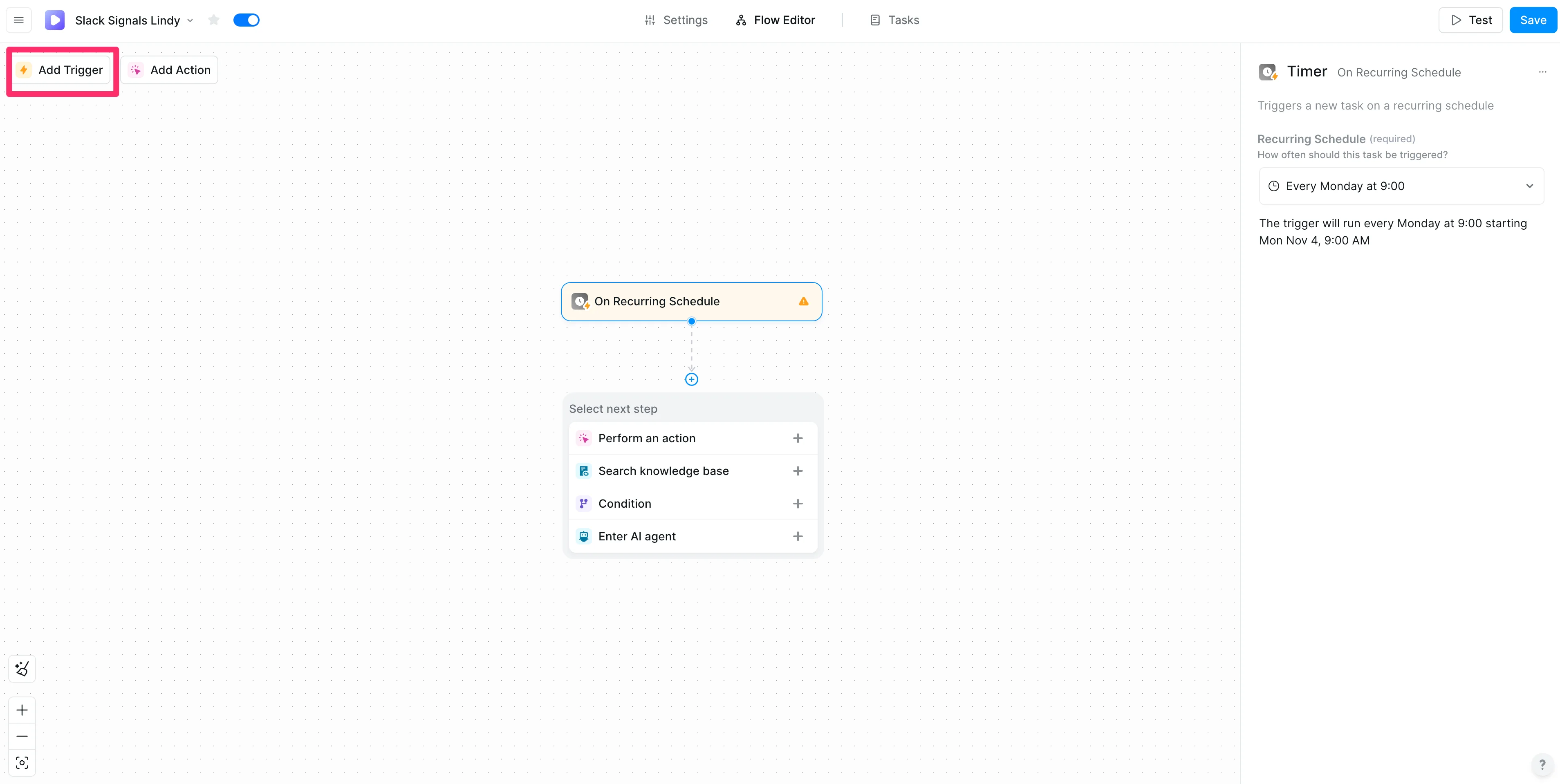
We’re not done adding triggers though. We’re going to add another trigger to this flow that will allow us to trigger it manually within the Lindy app. To do this, click the “Add Trigger” button in the top left corner of the screen.
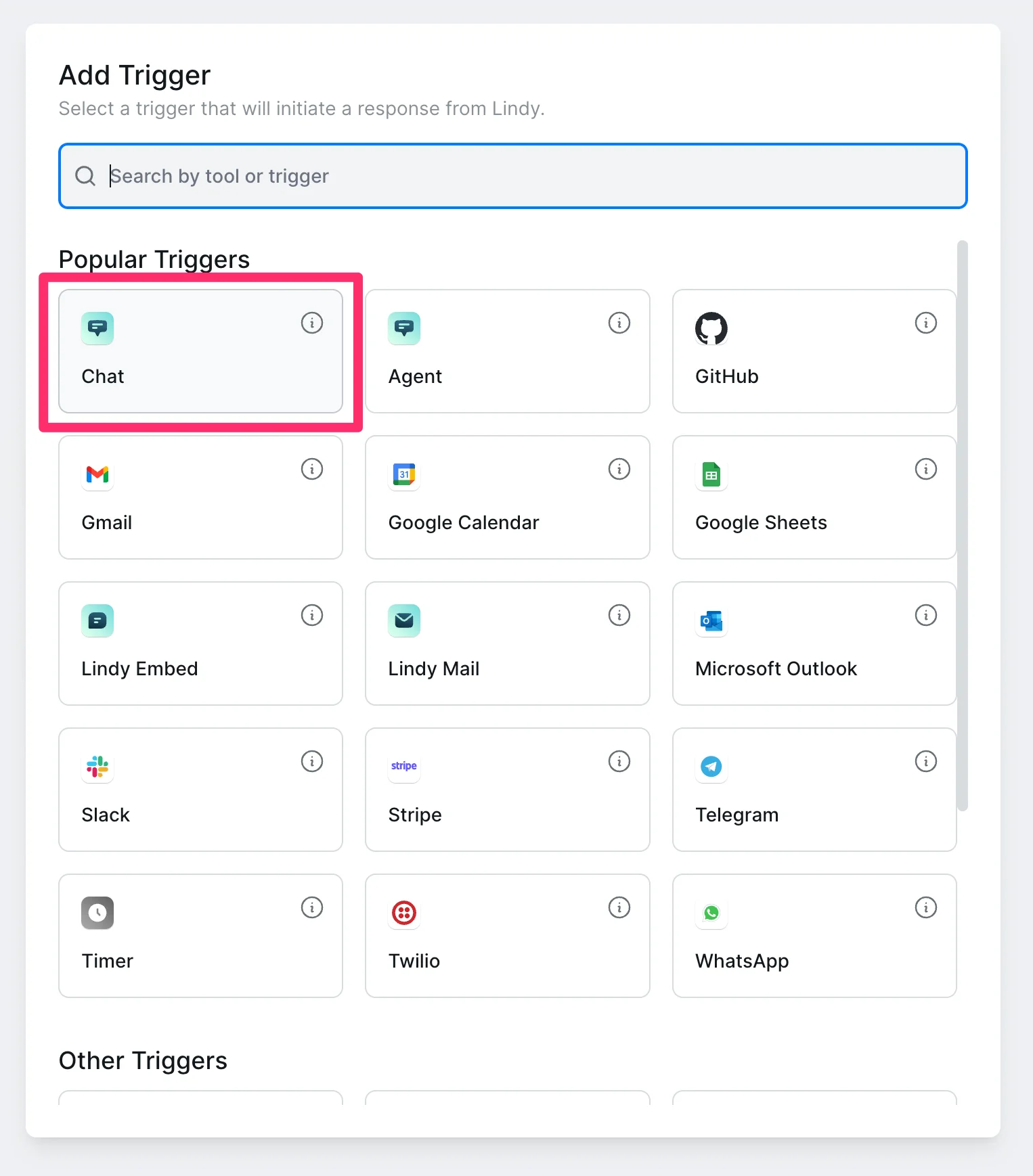
Click the “Chat” option in the “Popular Triggers” section of the resulting pop-up window.
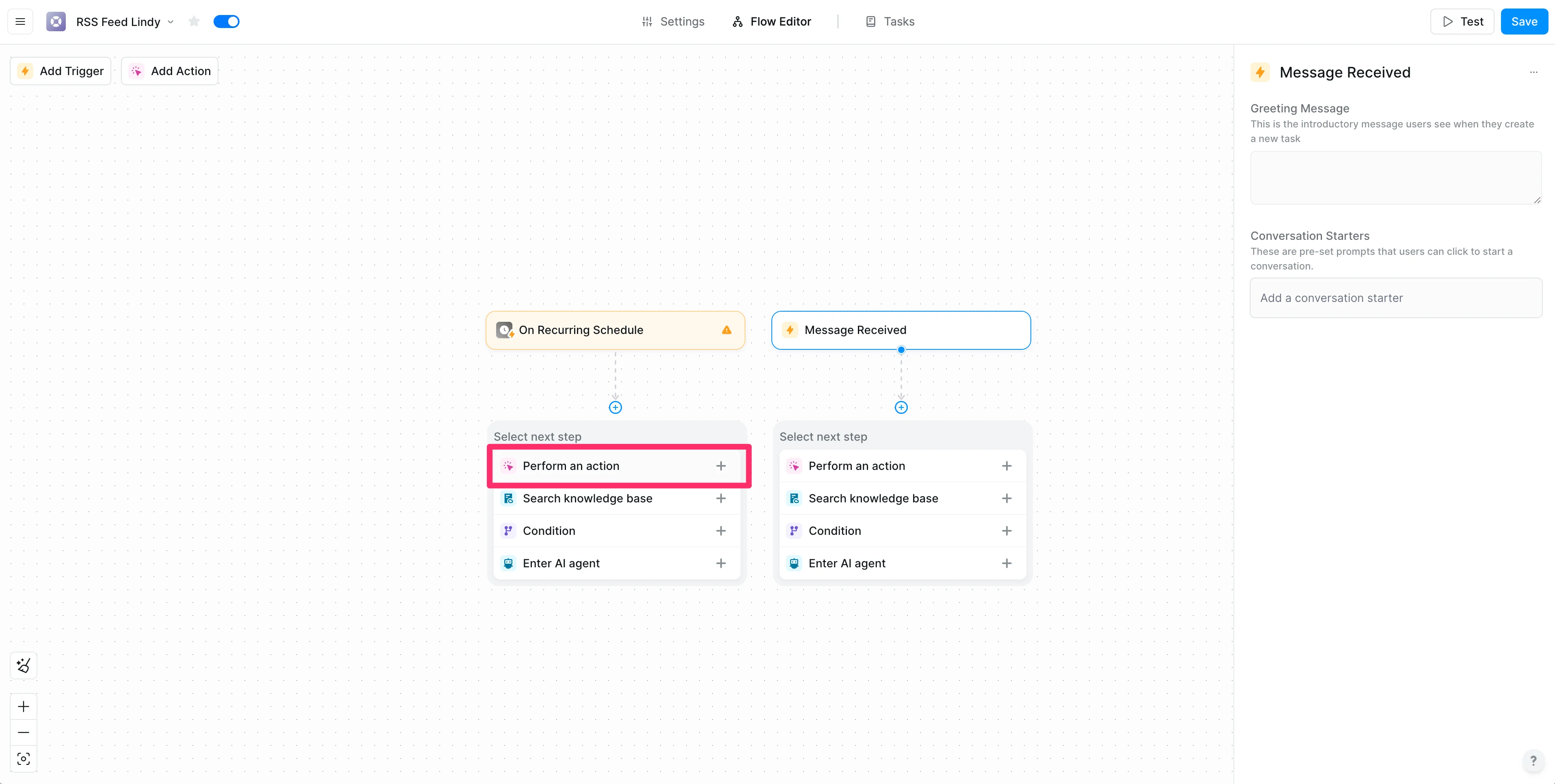
With the two triggers added, we can now add our first action. Under the “On Recurring Schedule” trigger, click the “Perform an action” option.
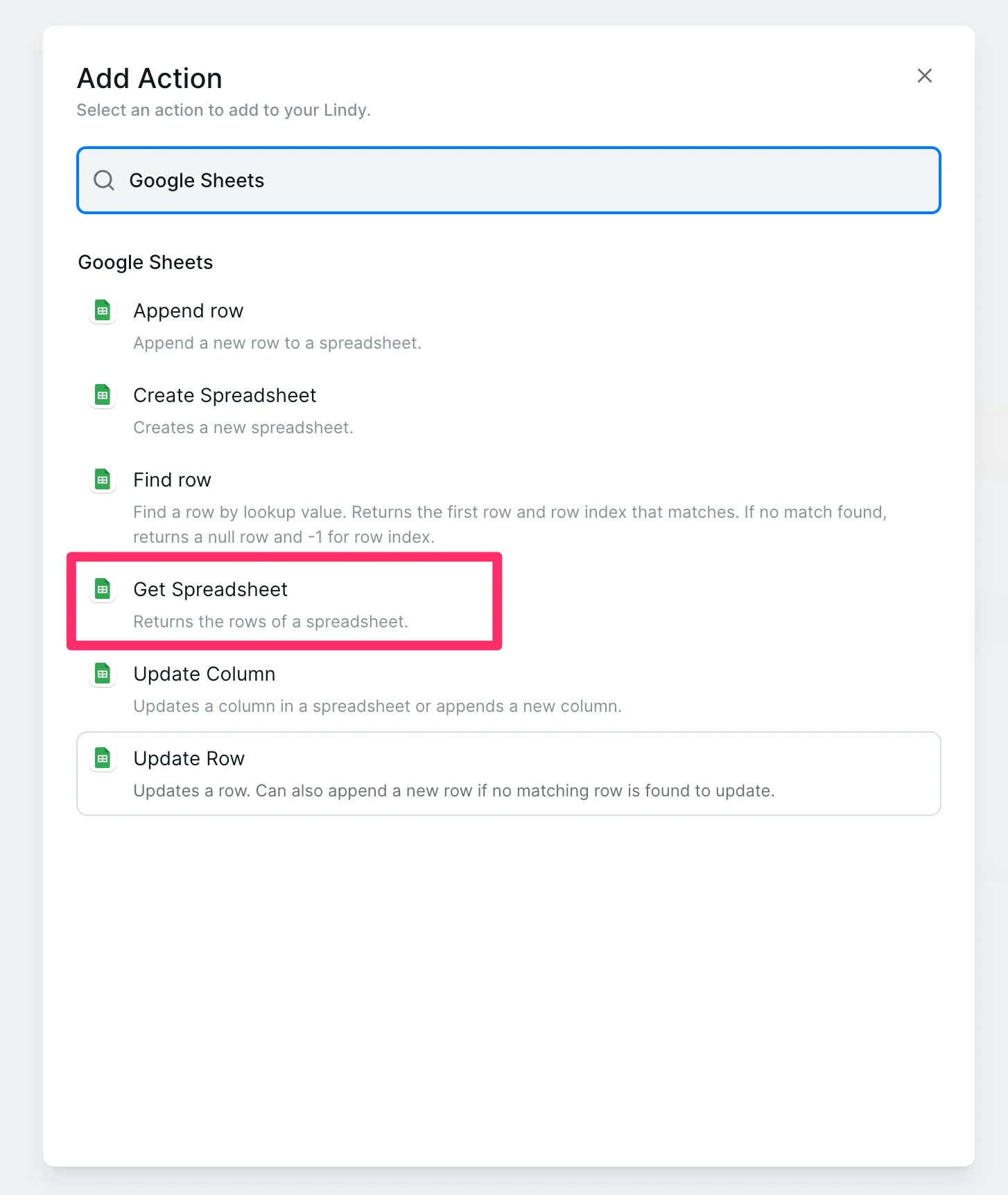
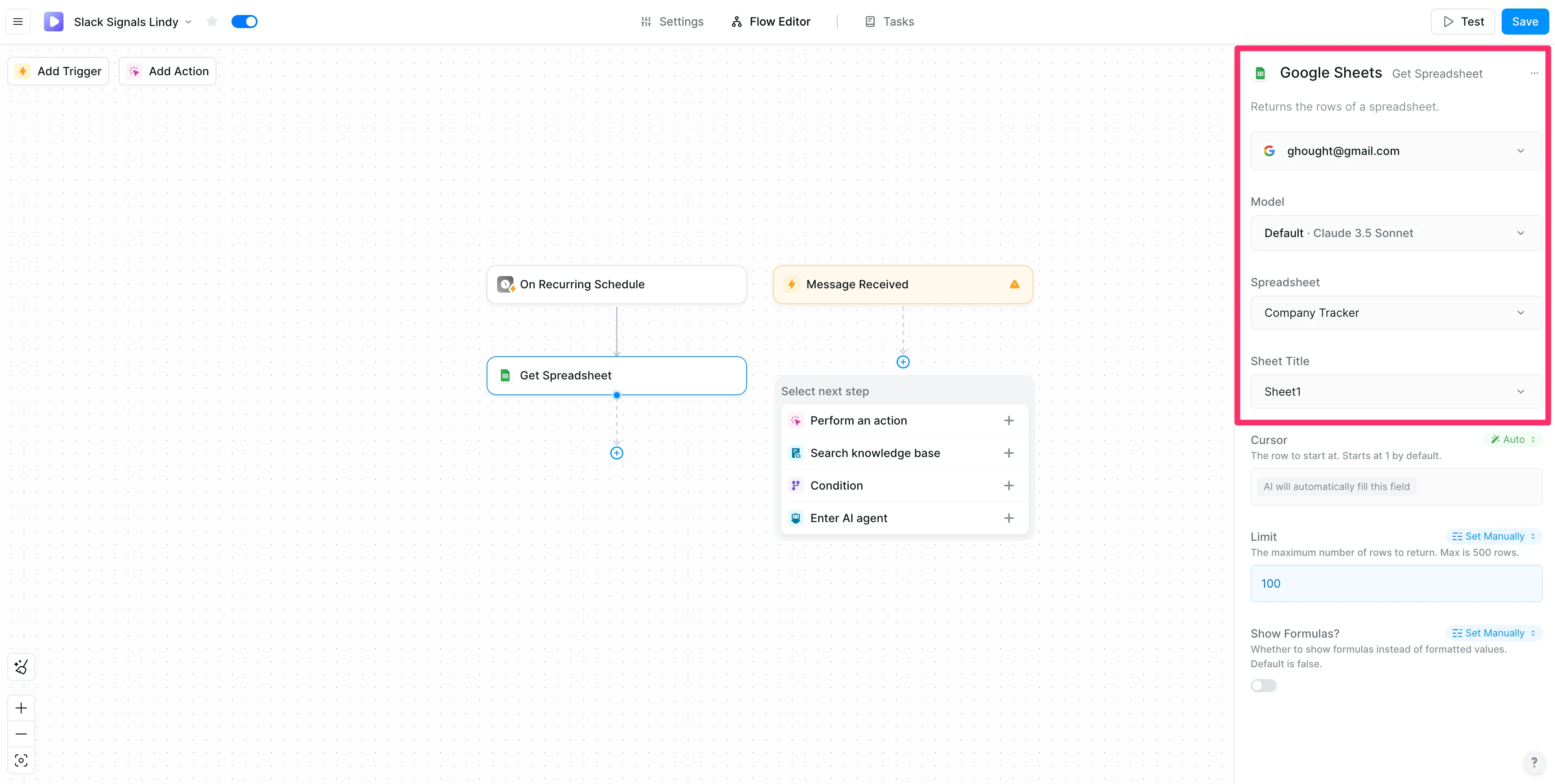
Search for “Google Sheets” and select the “Get Spreadsheet” action.
In the right-side action configuration, authenticate your Google account, select your company Spreadsheet, and finally select the Sheet with your company data. You do not need to adjust any other settings.
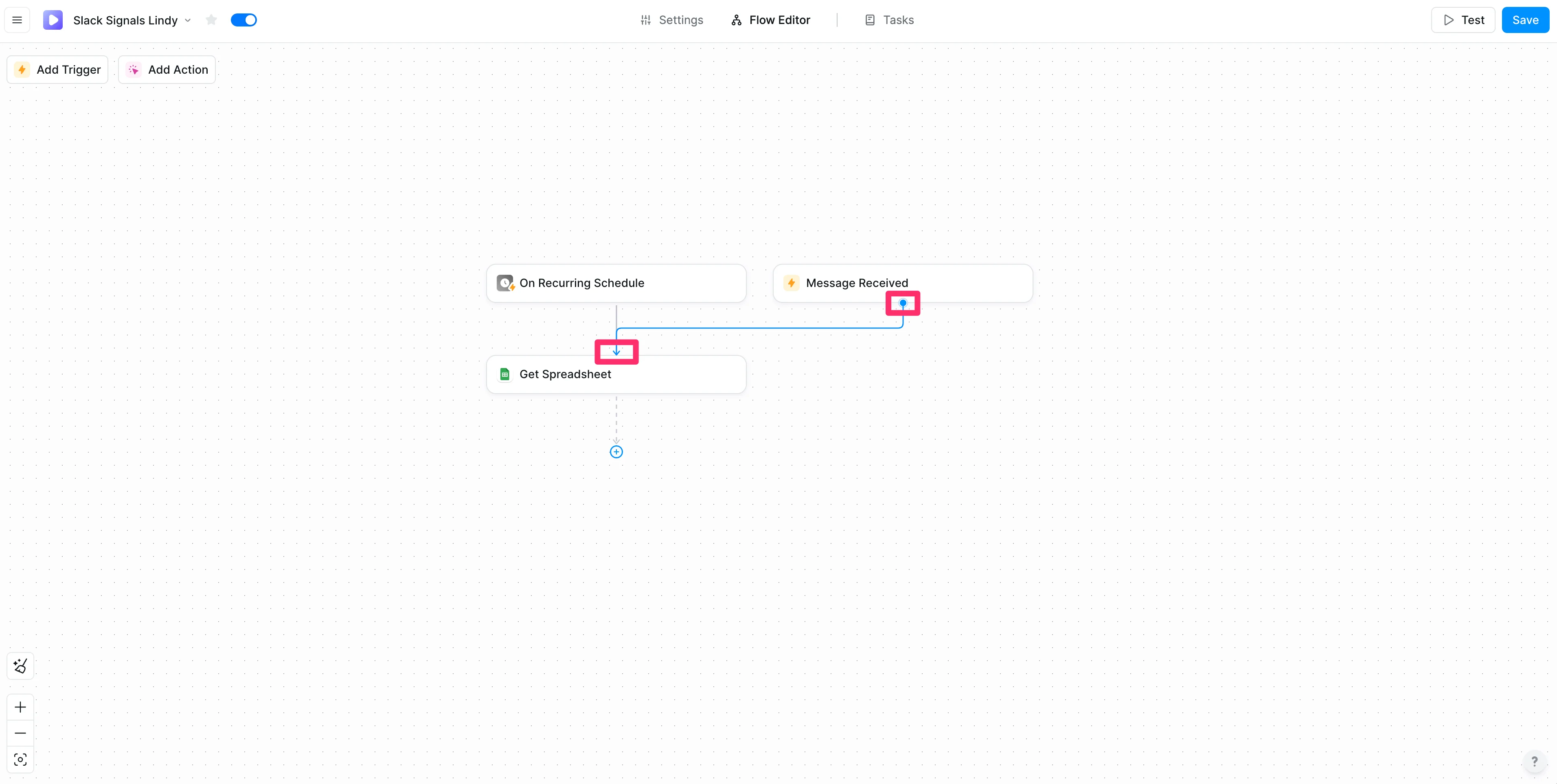
Now that our first action has been added, we need to connect our manual trigger to this action step. To do this, click and drag the arrow from the “Message Received” trigger to the “Get Spreadsheet” step. This will make it so both our automated and manual triggers will flow into this action step.
Step 2: Browses the Internet for company updates
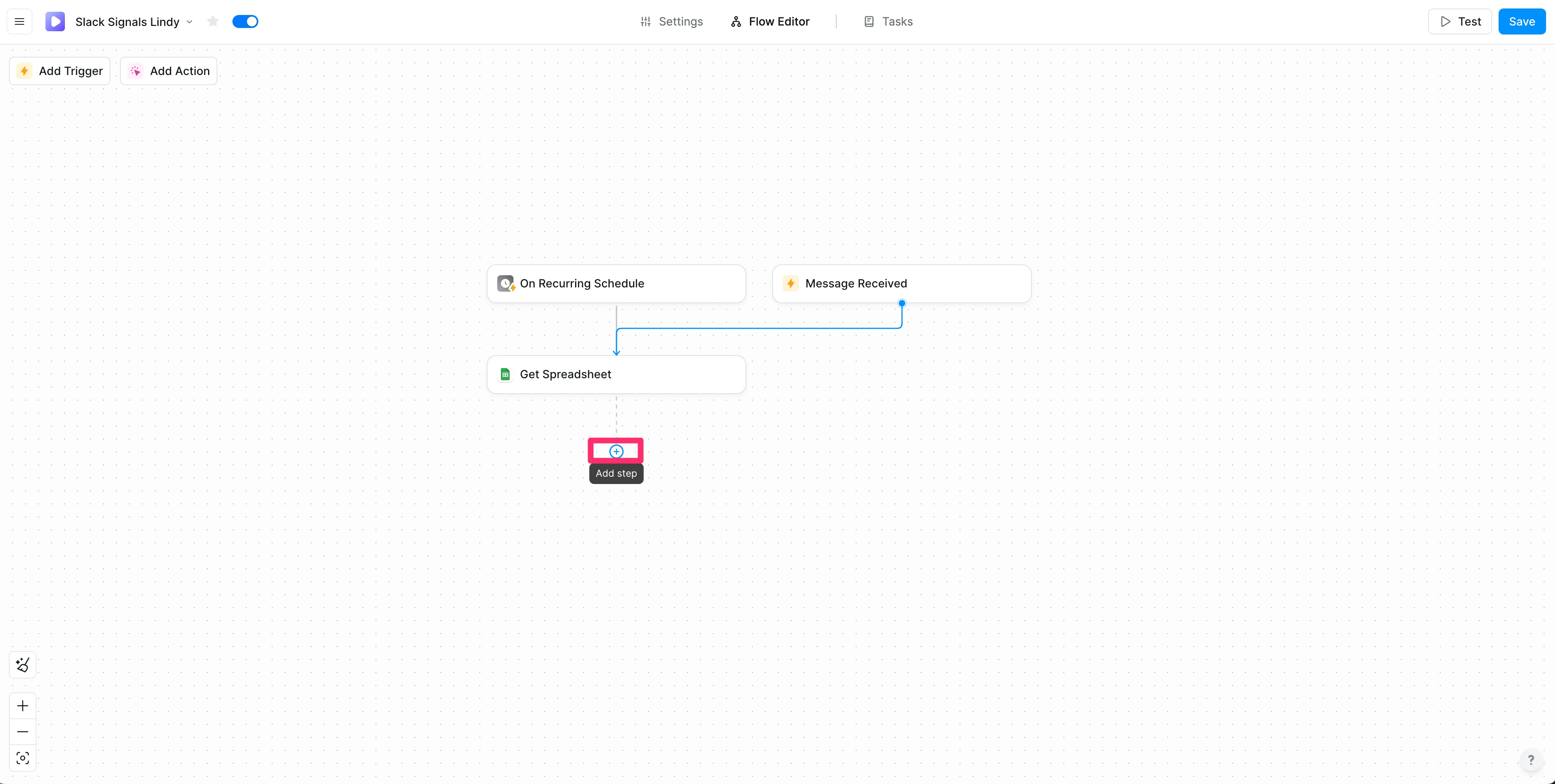
Now that Lindy is regularly checking our company spreadsheet, we can add an Internet research step to find recent news about each of the companies. To do this, click the “Add step” button below the “Get Spreadsheet” step.
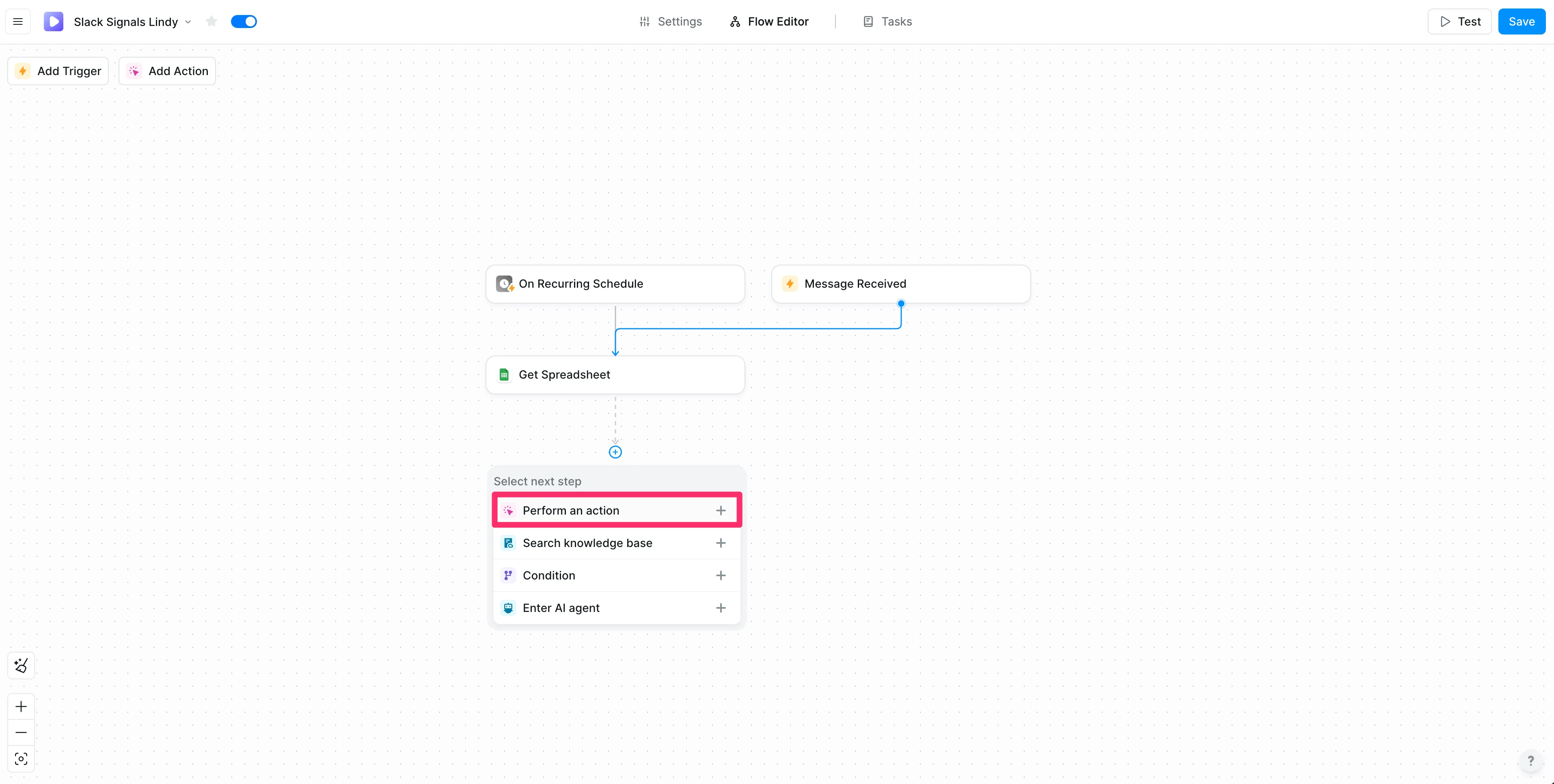
Select the “Perform an action” option.
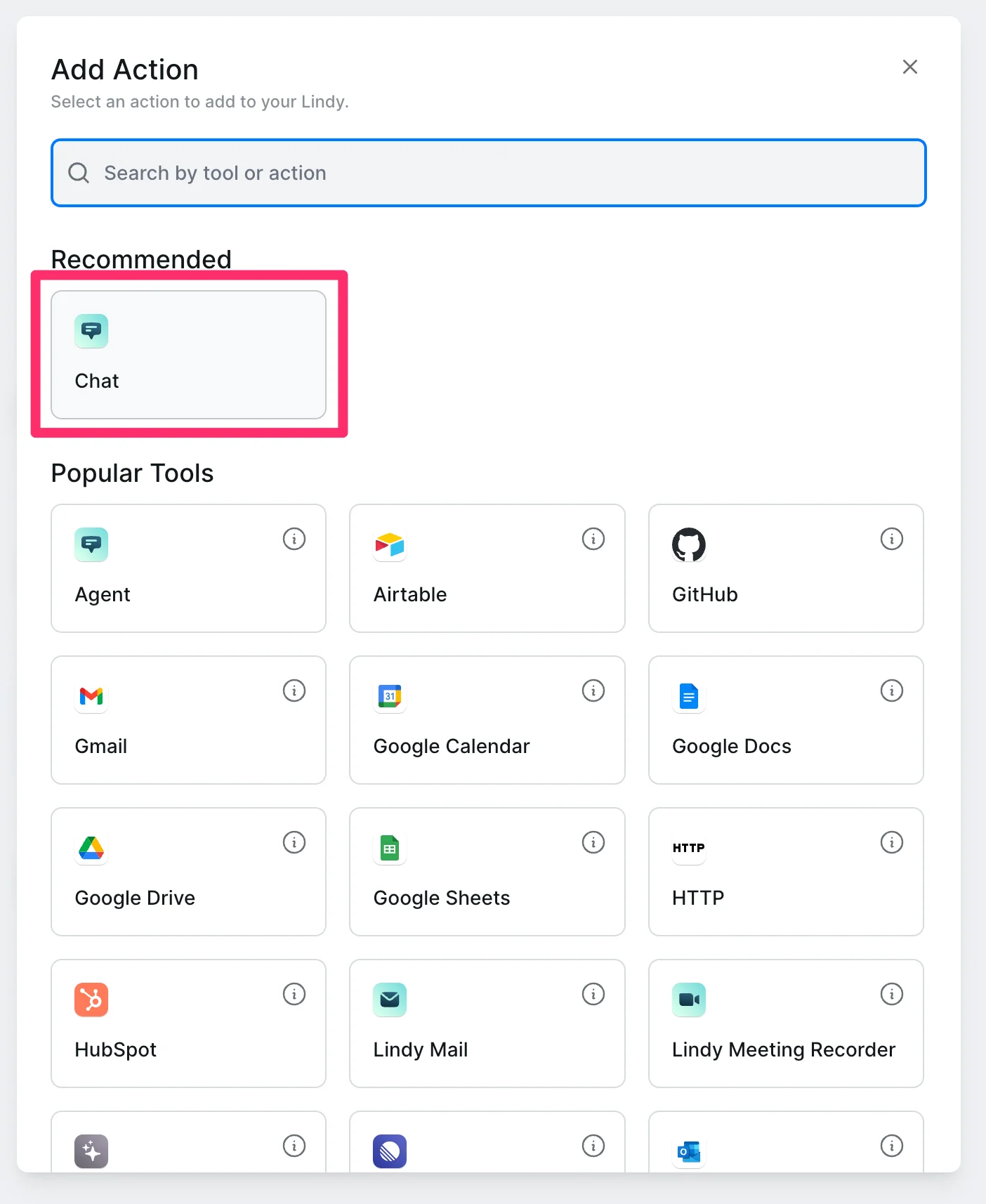
Select the “Chat” action under the “Recommended” action section in the resulting pop-up window.
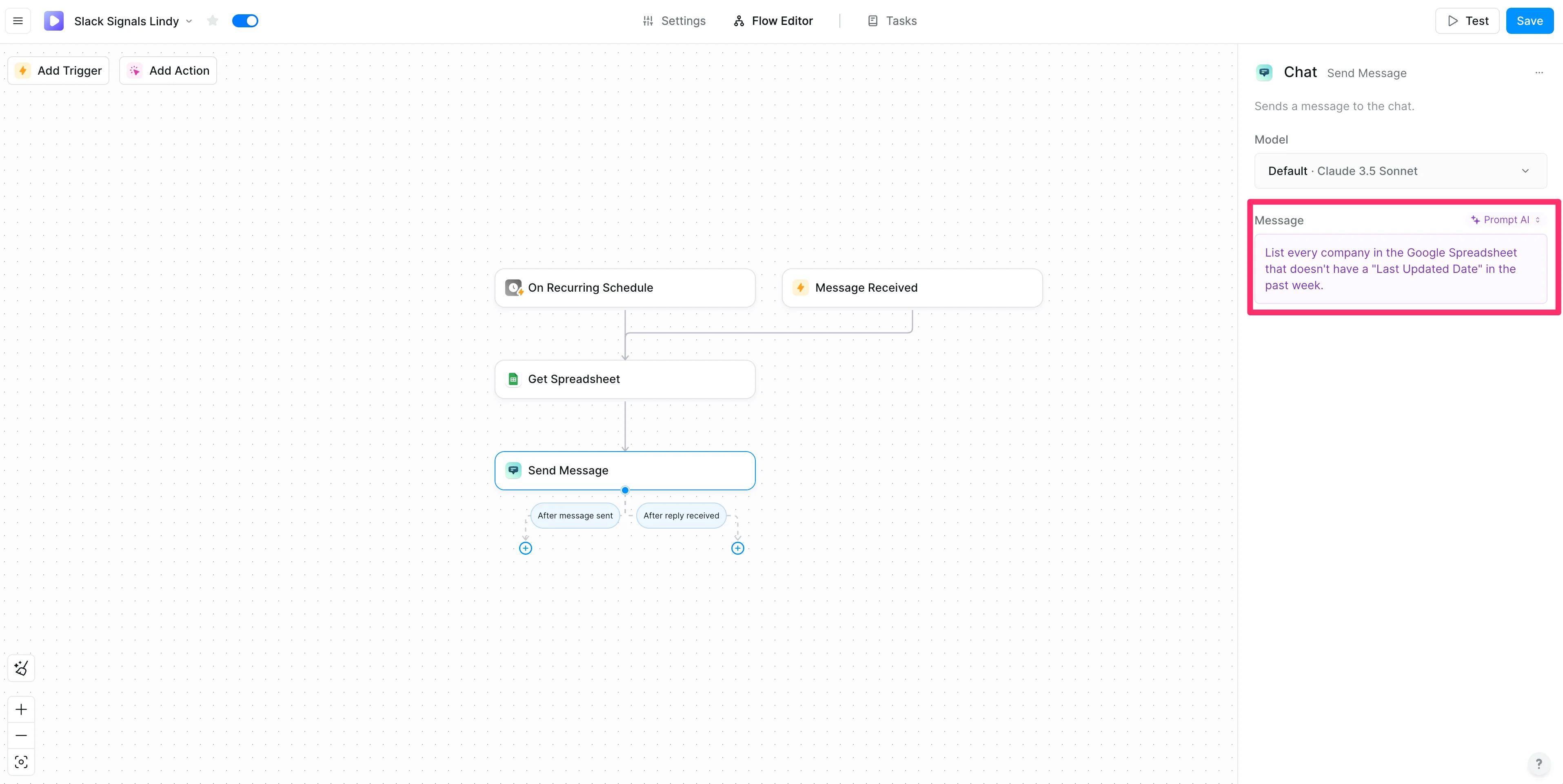
In the “Message” field of this “Send Message” action, we’re going to instruct the AI to list every company from our Google Sheet that doesn’t have a “Last Updated Date” in the past week. This step will ensure we don’t keep updating companies that we already have an update from recently.
Sample Prompt:
List every company in the Google Spreadsheet that doesn't have a "Last Updated Date" in the past week.
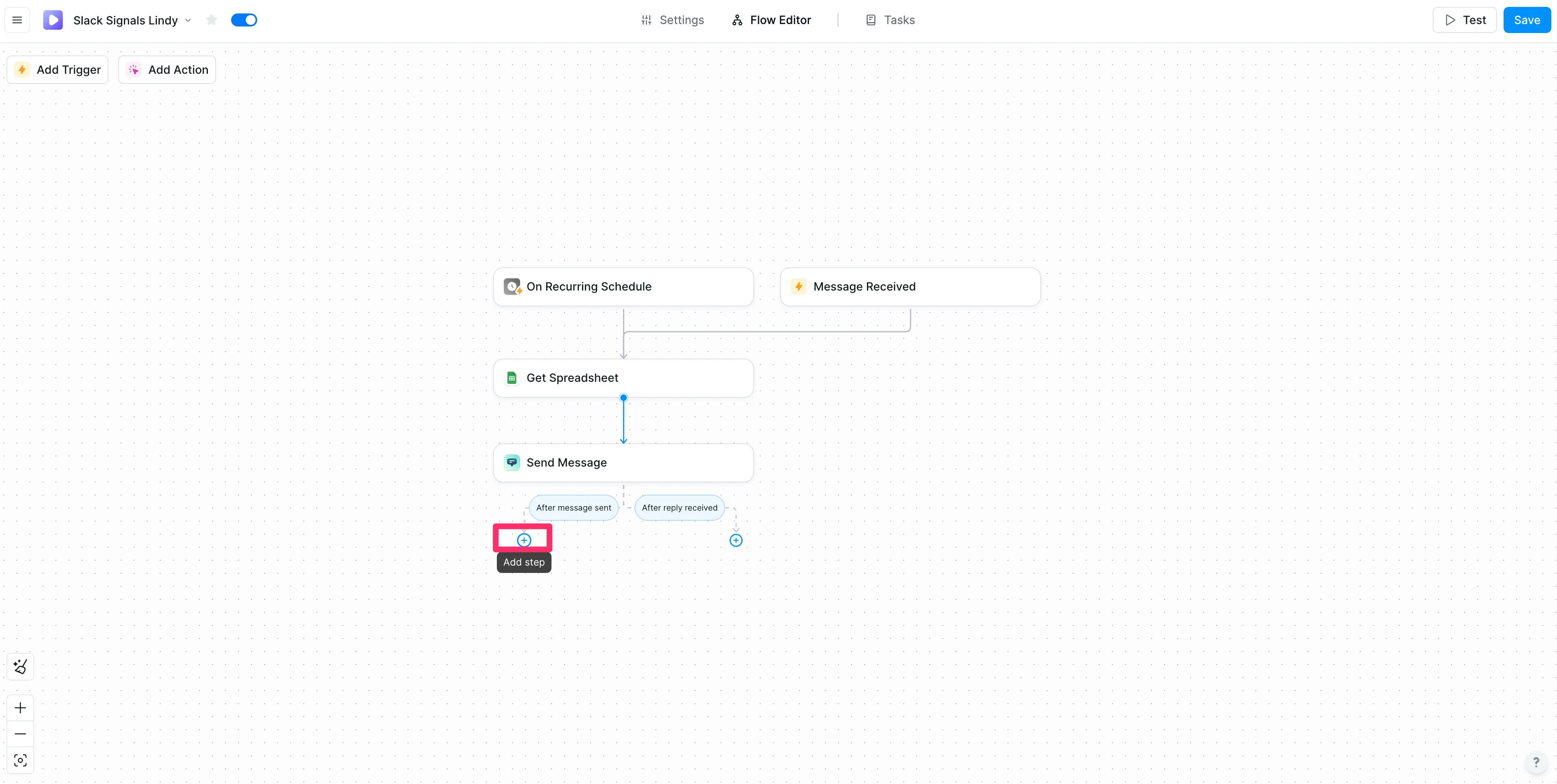
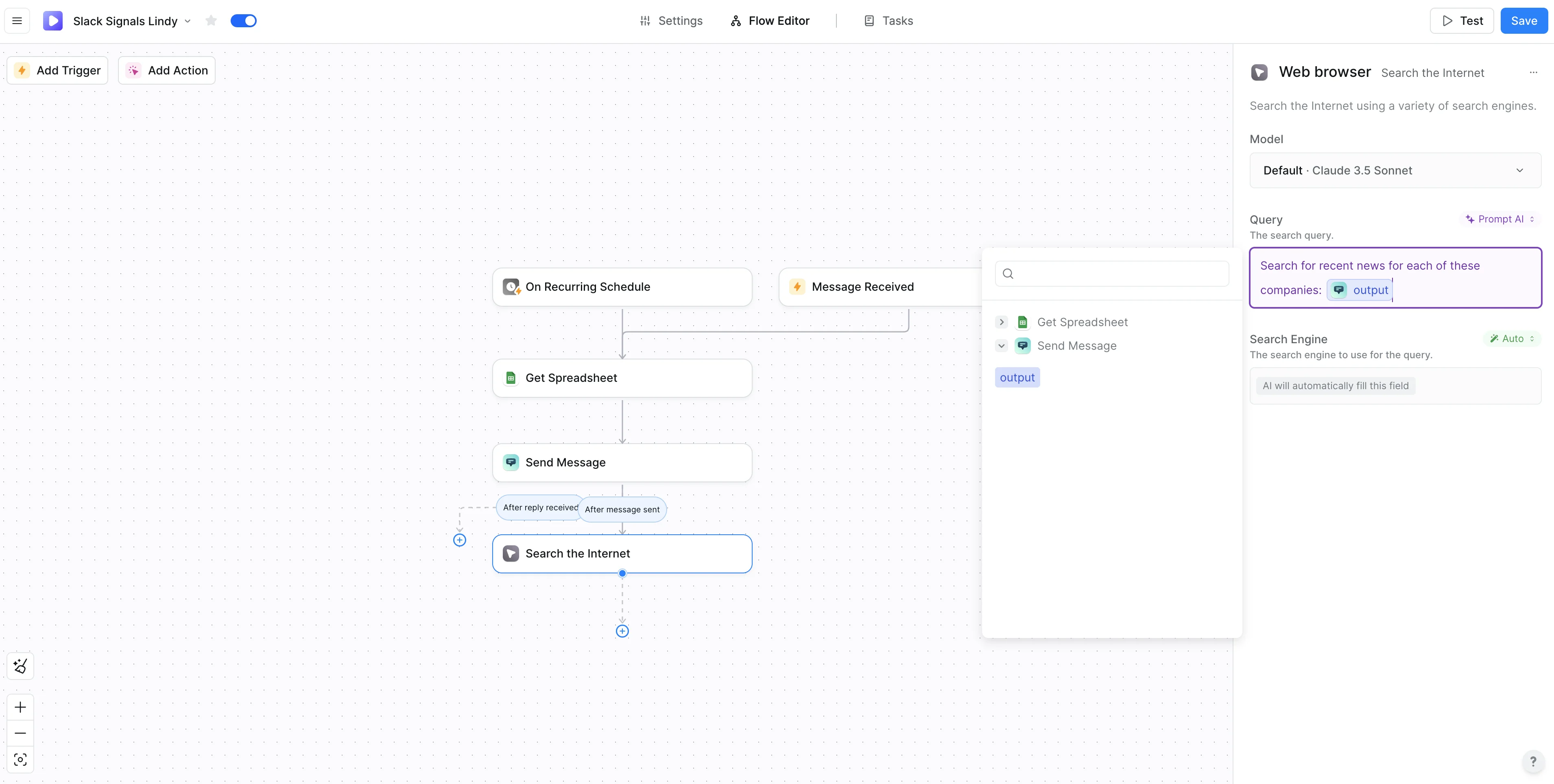
After this “Send Message” step, we’ll add another action for searching the Internet for recent news about each company. To do this, click the “Add step” button under the “After message sent” condition.
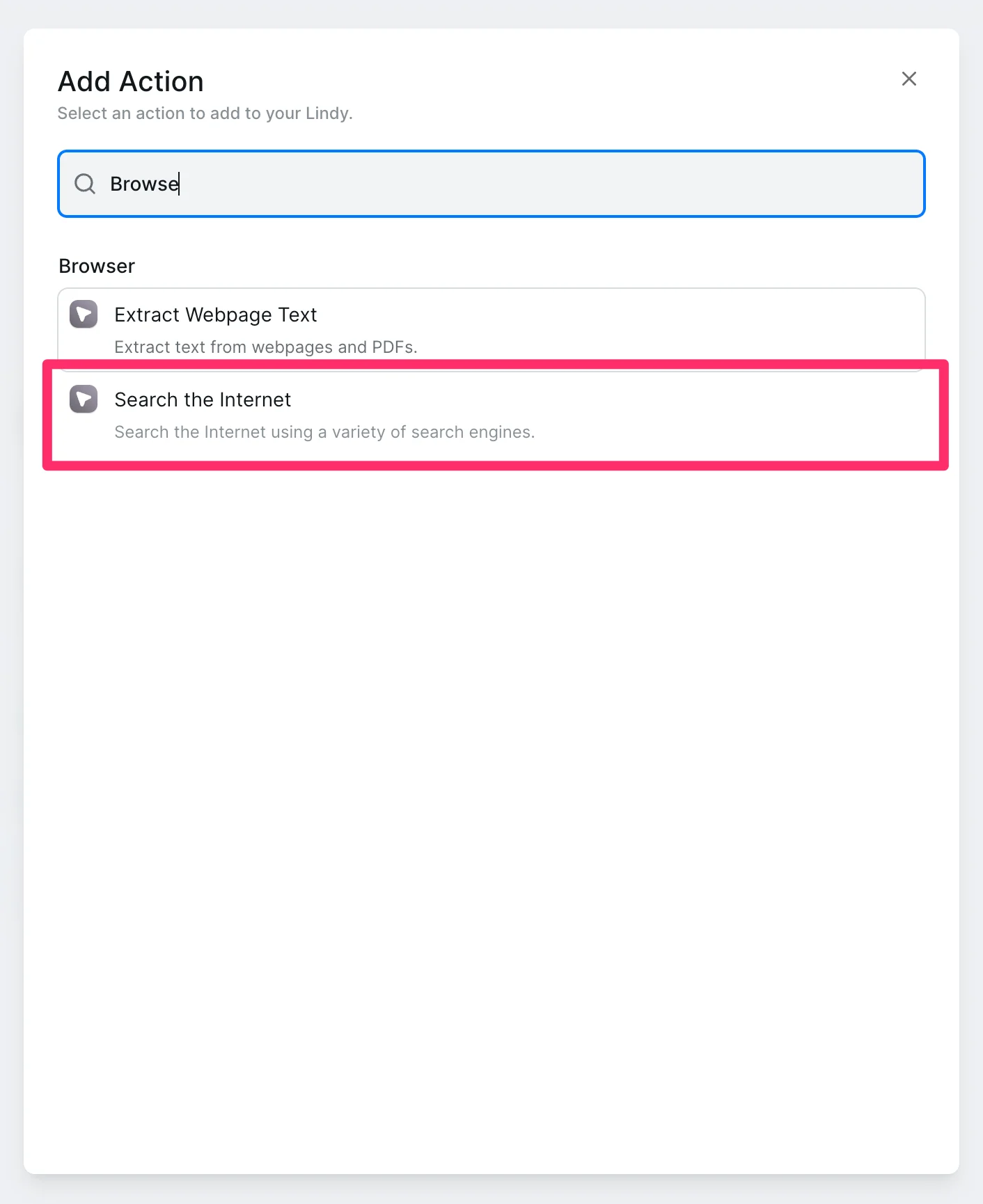
Search for “Browse” and select the “Search the Internet” action.
For our “Query,” we’ll instruct the AI to search for recent news about each company listed in the previous step. Make sure to update the “Query” field mode to “Prompt AI” so you can enter this prompt, and select the “output” variable from the previous step as the list of companies in your prompt.
Sample Prompt:
Search for recent news for each of these companies: [output from ‘Send Message’ step].
Step 3: Update the Google Sheet with recent news
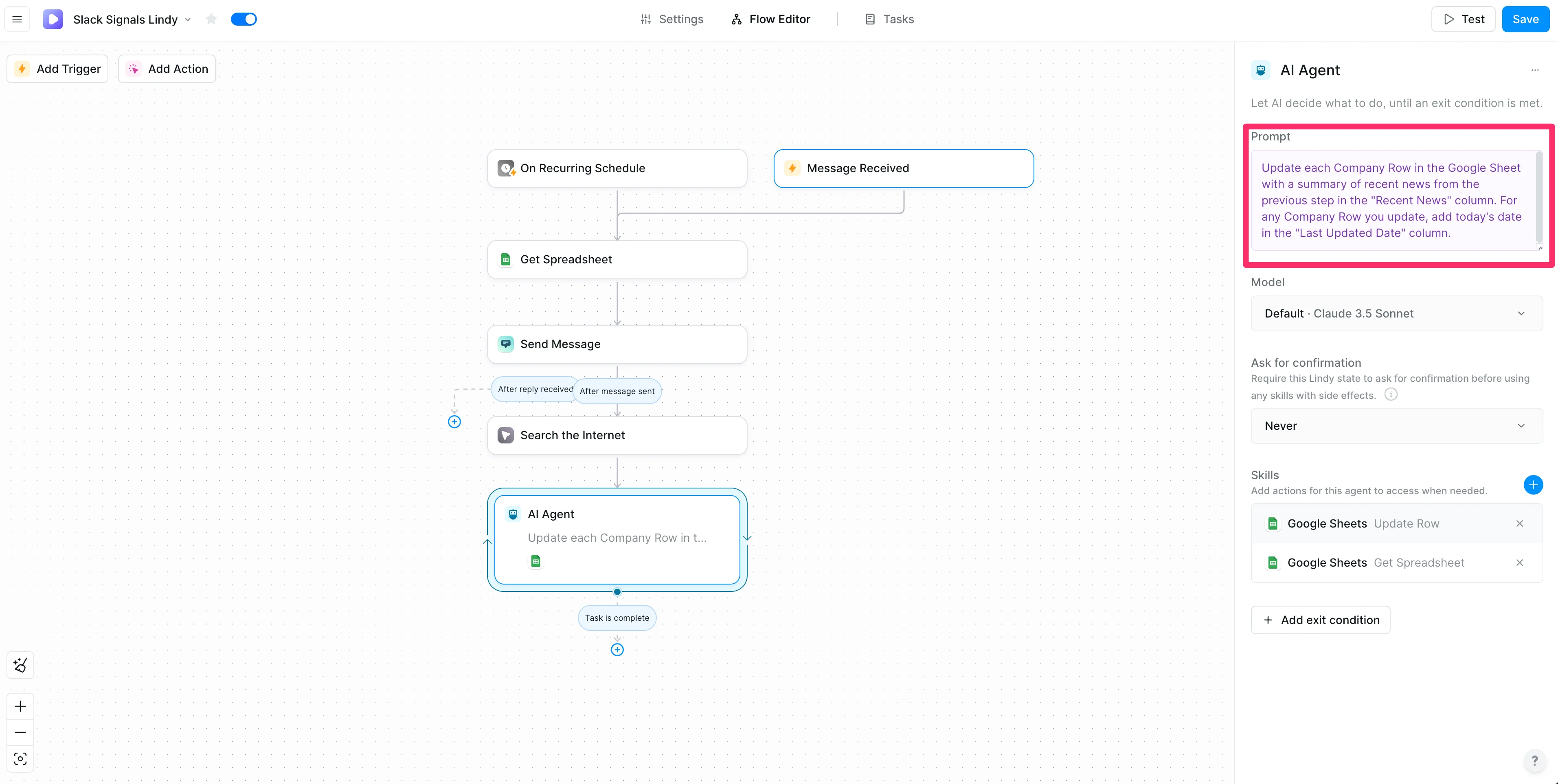
Now that our Internet research step is complete, we can update our Google Sheet with the research. To do this, click the “Add step” button after the “Search the Internet” step and select the “Enter AI agent” option. For the “Prompt,” we’ll instruct the AI agent to update each company row with the recent news as well as time stamp the update in the “Last Updated Date” column.
Sample Prompt:
Update each Company Row in the Google Sheet with a summary of recent news from the previous step in the "Recent News" column. For any Company Row you update, add today's date in the "Last Updated Date" column.
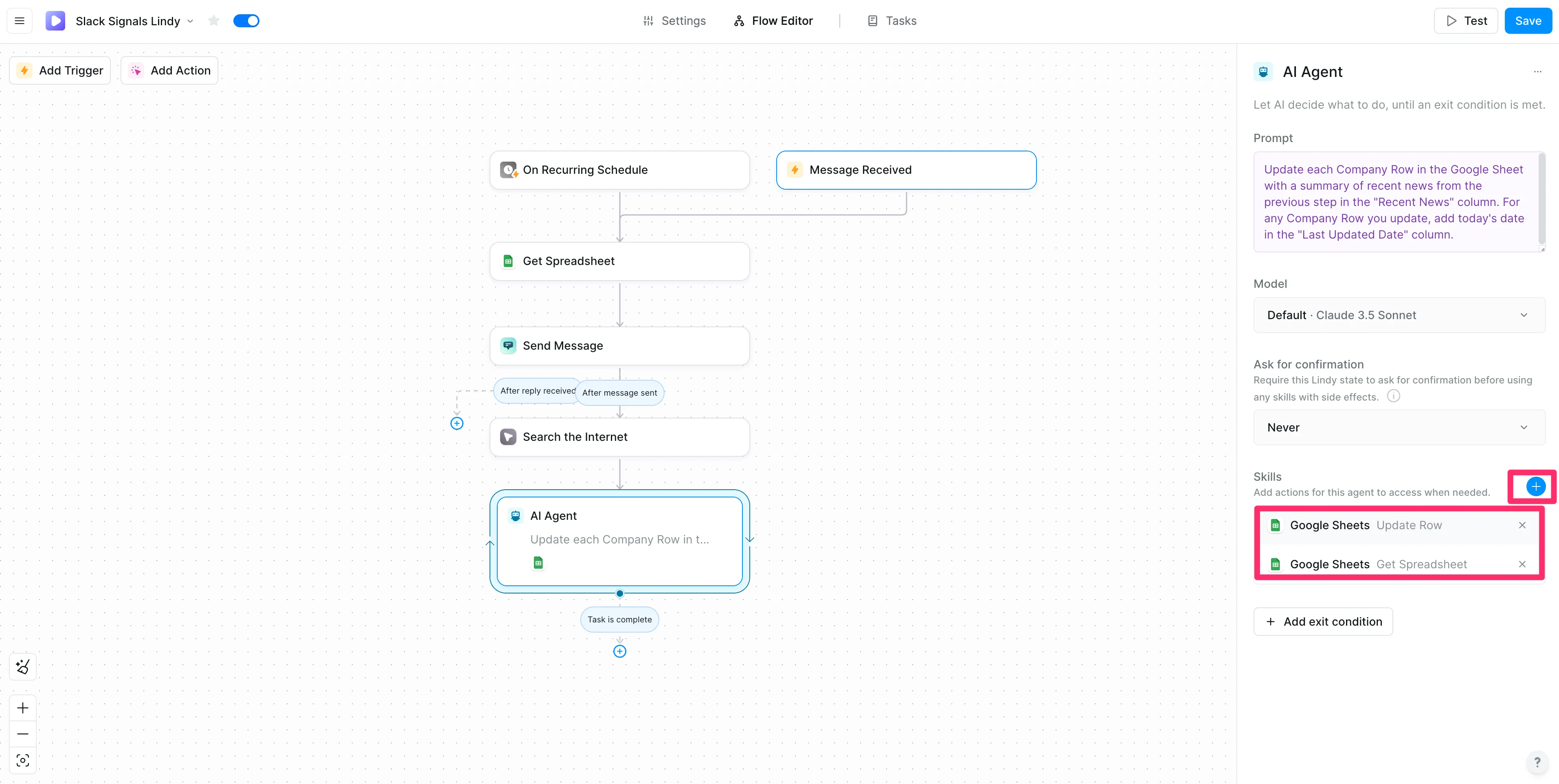
We’ll need to give the AI agent “Skills” so it can update our Google Sheet. To do this, click the “+” button by the “Skills” section in the action editor window and add the Update Row and Get Spreadsheet Skills. These will allow the AI agent to access the spreadsheet and update rows.
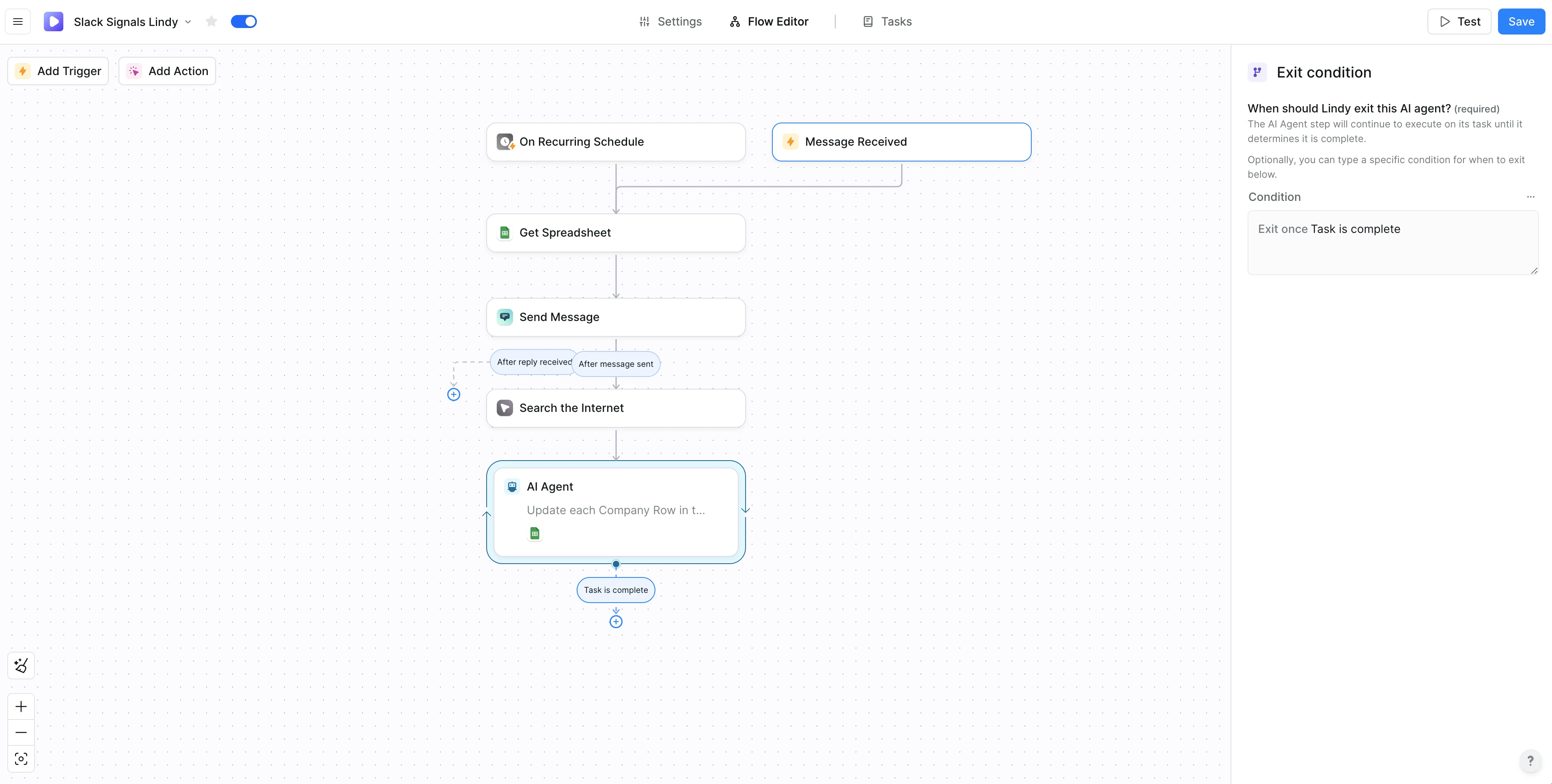
Finally, we’ll need to add an exit condition, letting the AI agent know when it should stop working. To do this, click the “Add exit condition” button.
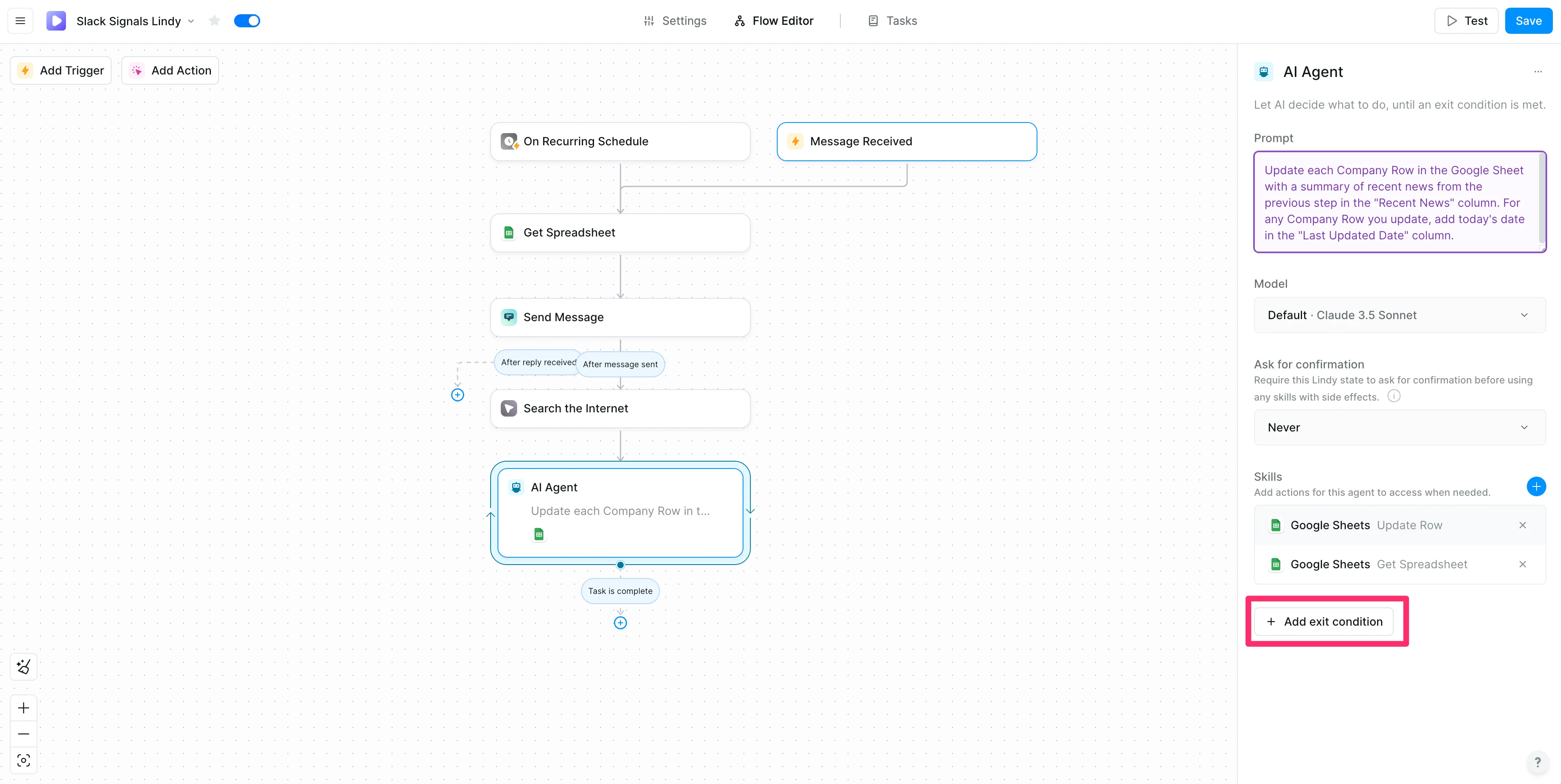
We’ll leave the exit condition to the default option: “Task is complete.”
Step 4: Send updates to Slack
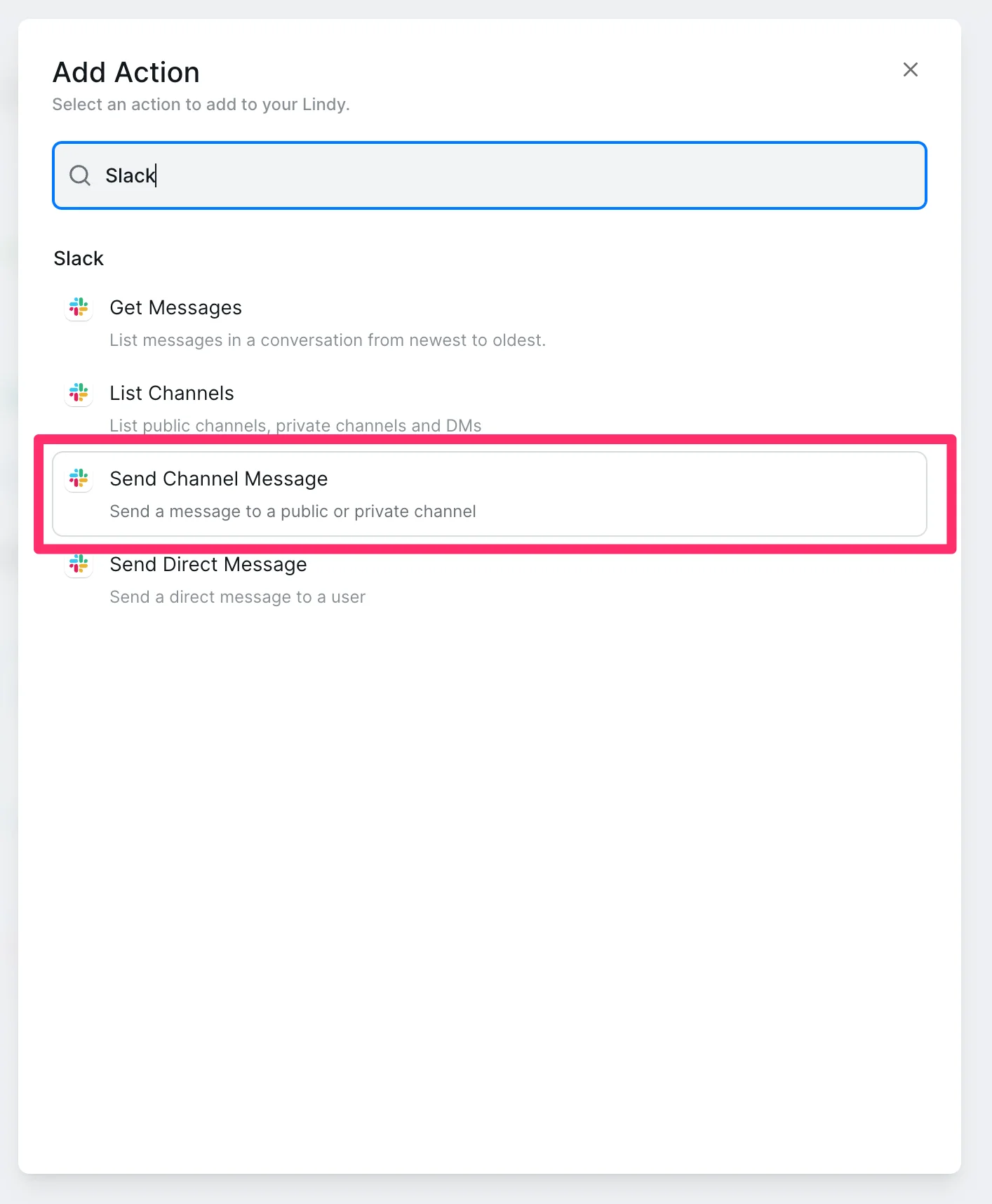
For our last workflow step, we’ll add a Slack Send Channel Message step, so our Lindy pings us in Slack when updates are made. To do this, click the “Add step” button under the AI agent step, search for Slack, and select the “Send Channel Message” action.
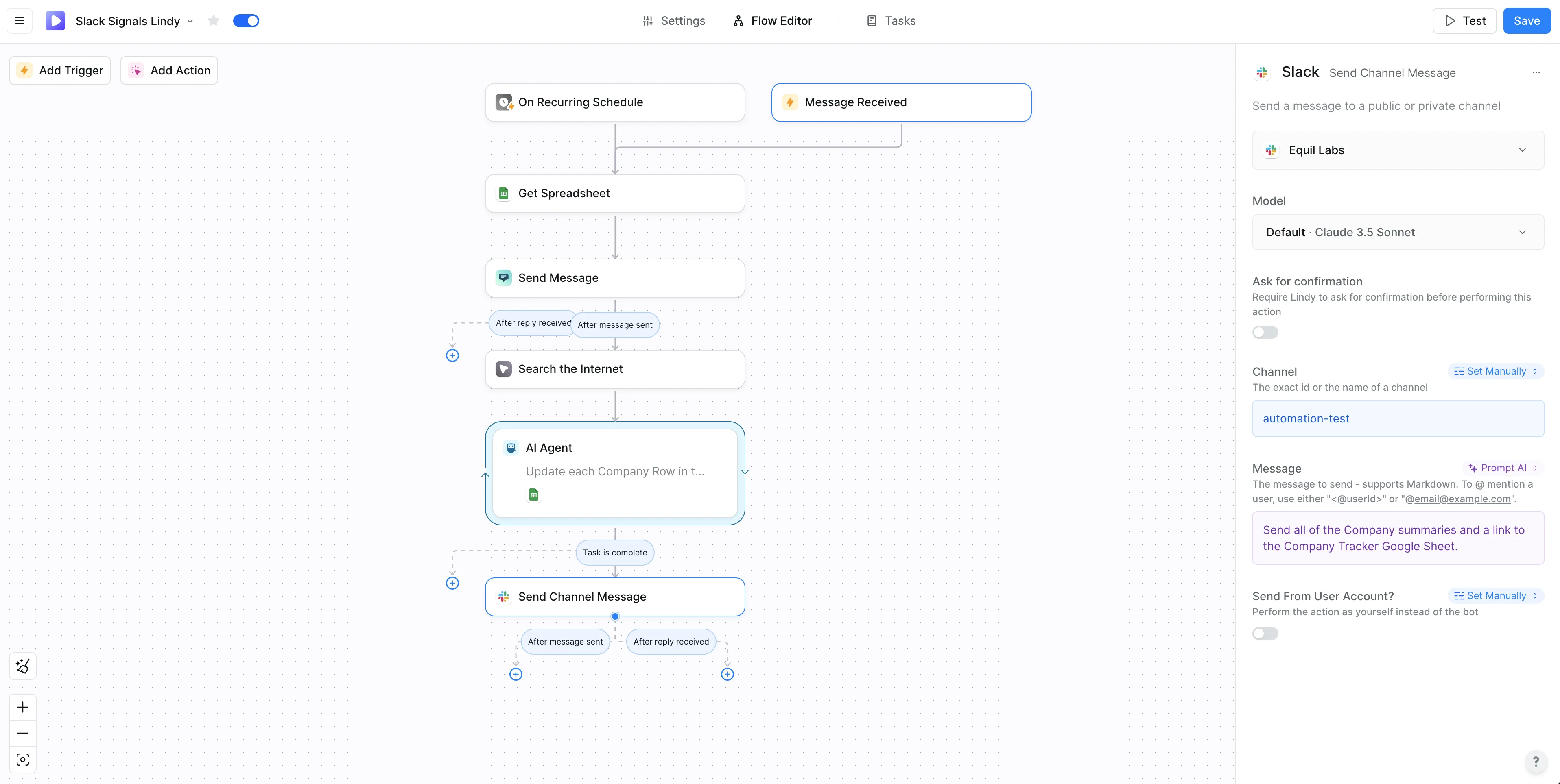
Set the Channel field to “Set Manually” mode, add your desired Slack channel name, and finally, update the “Message” field to Prompt AI mode and add instructions on what to send to you and your team in Slack.
Sample Prompt:
Send all of the Company summaries and a link to the Company Tracker Google Sheet.
Step 5: Test the workflow
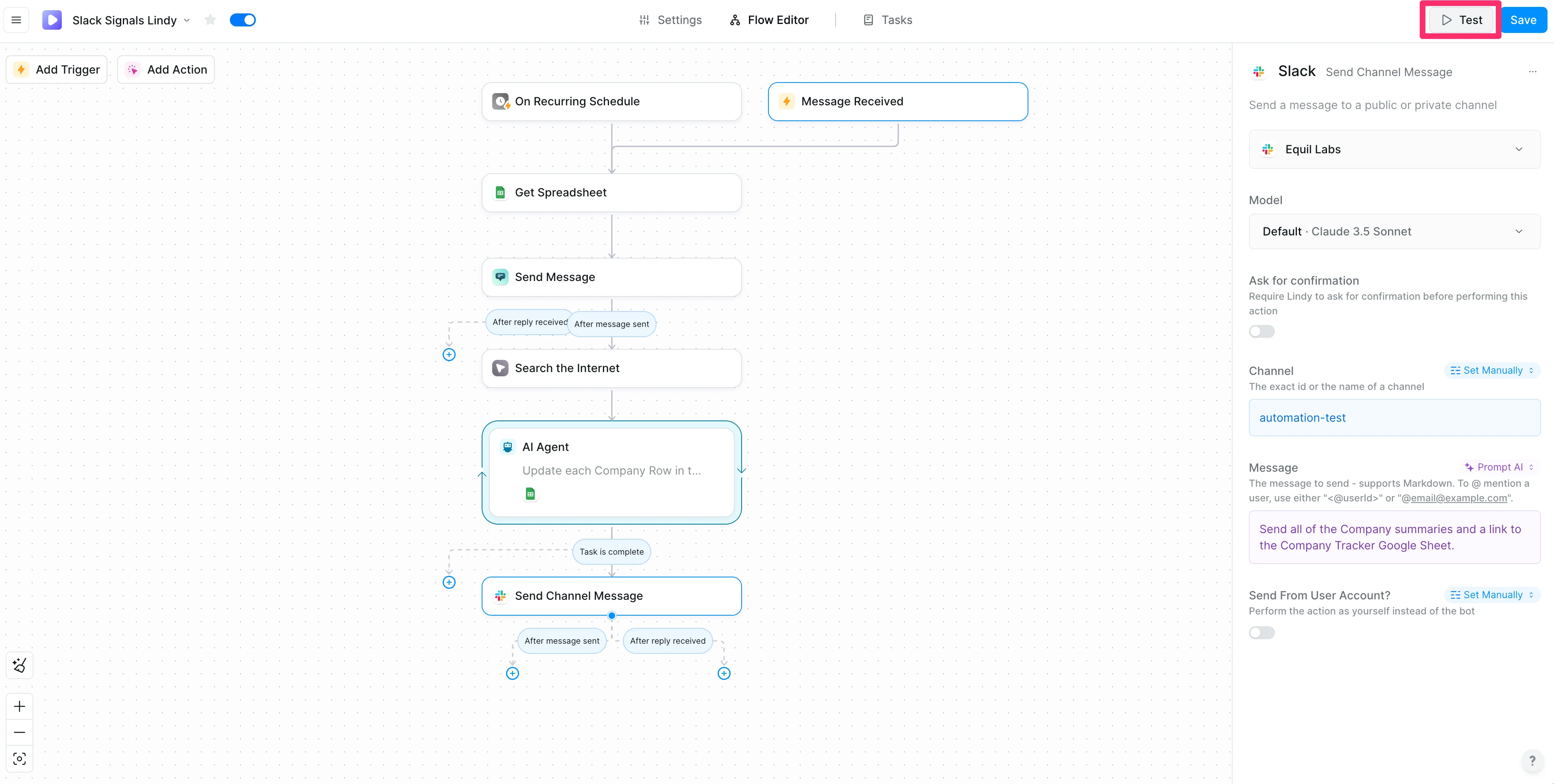
Now we’re ready to test the workflow! Make sure to save your workflow by clicking the “Save” button in the top right corner of the screen. Then, click the “Test” button.
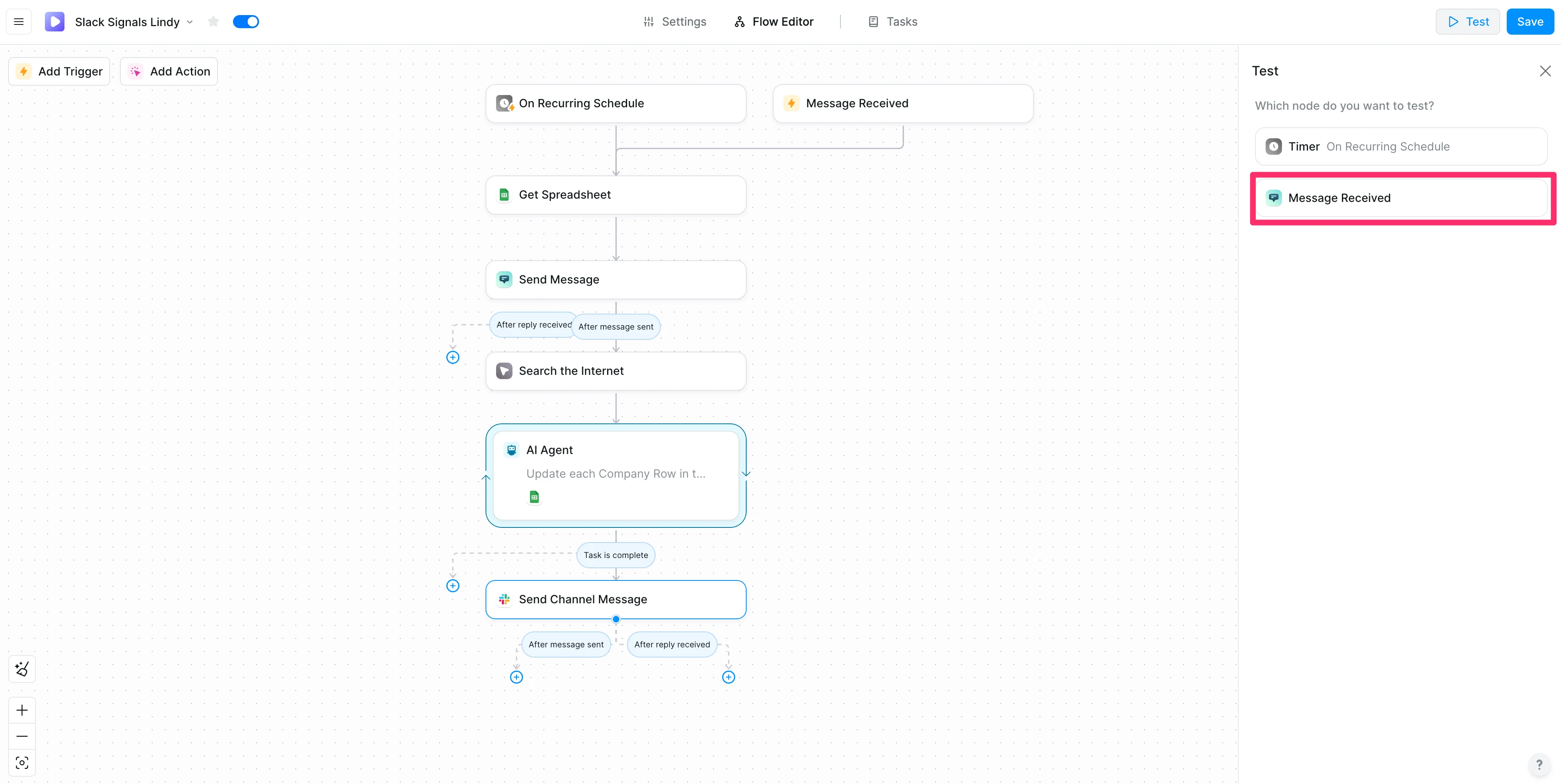
Click the “Message Received” trigger option, which will let us manually trigger the workflow.
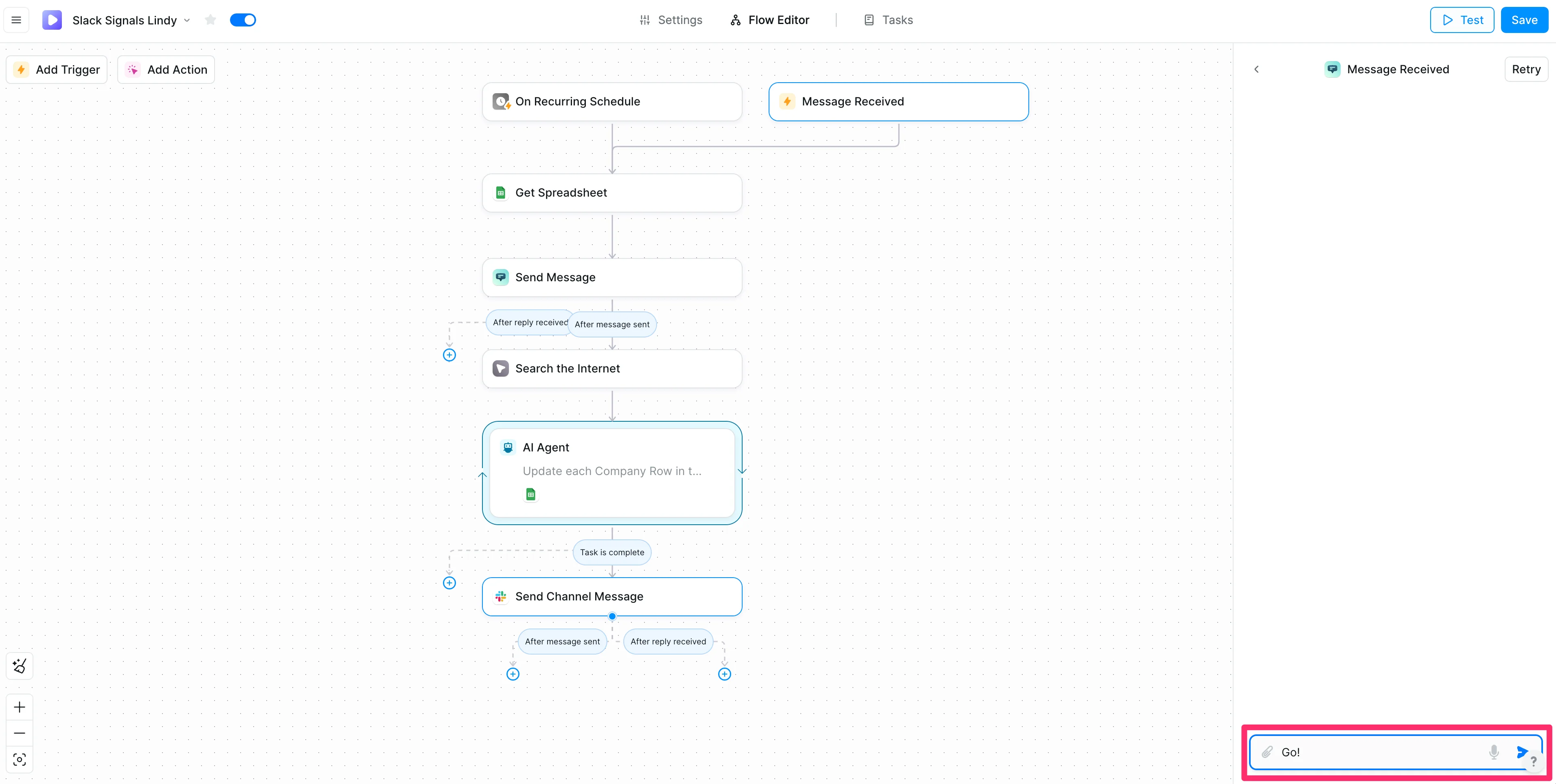
Send any message to trigger the workflow. We’ll write “Go!”
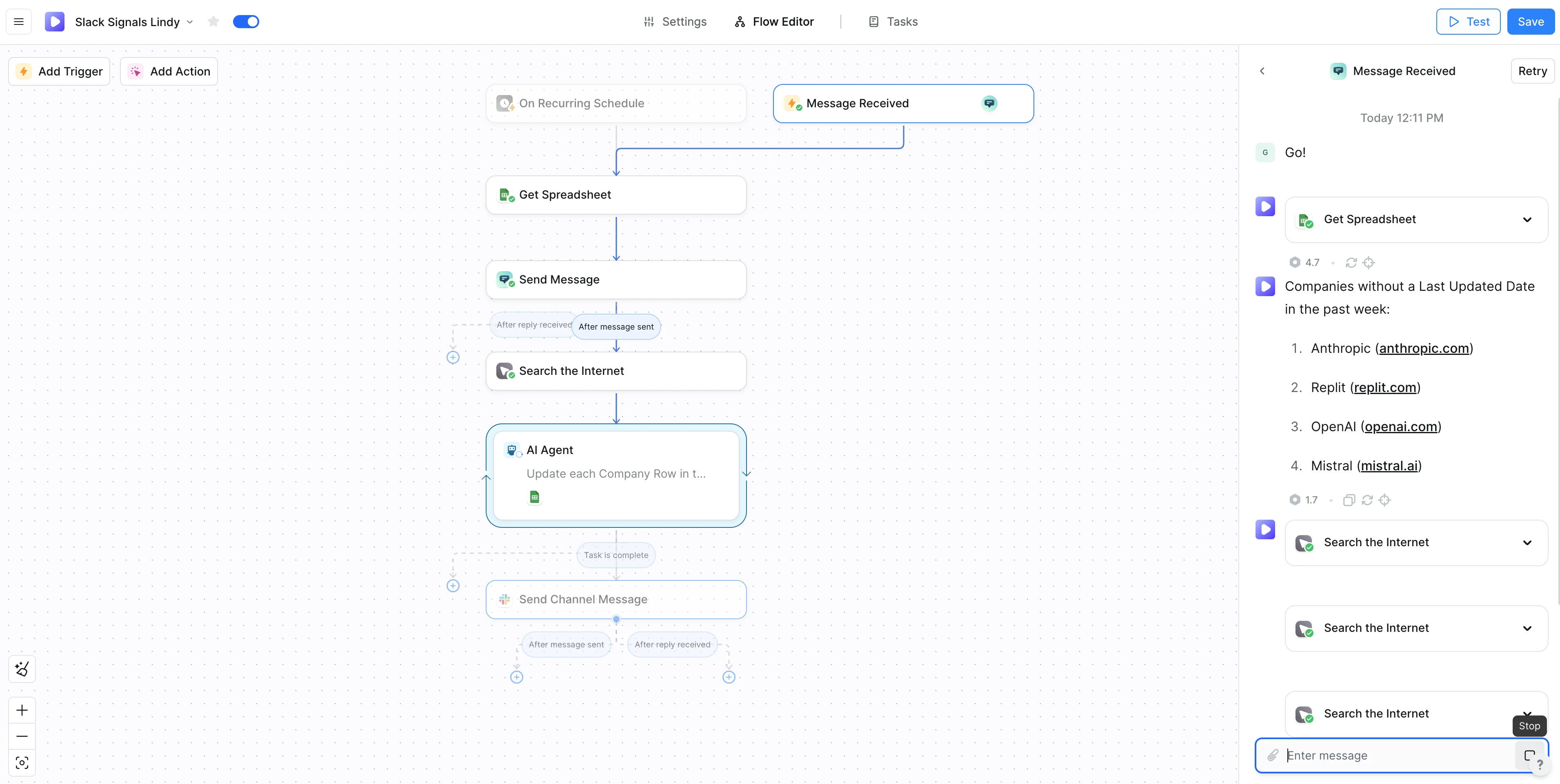
Lindy will move through every step in the workflow, printing out the results in the test window.
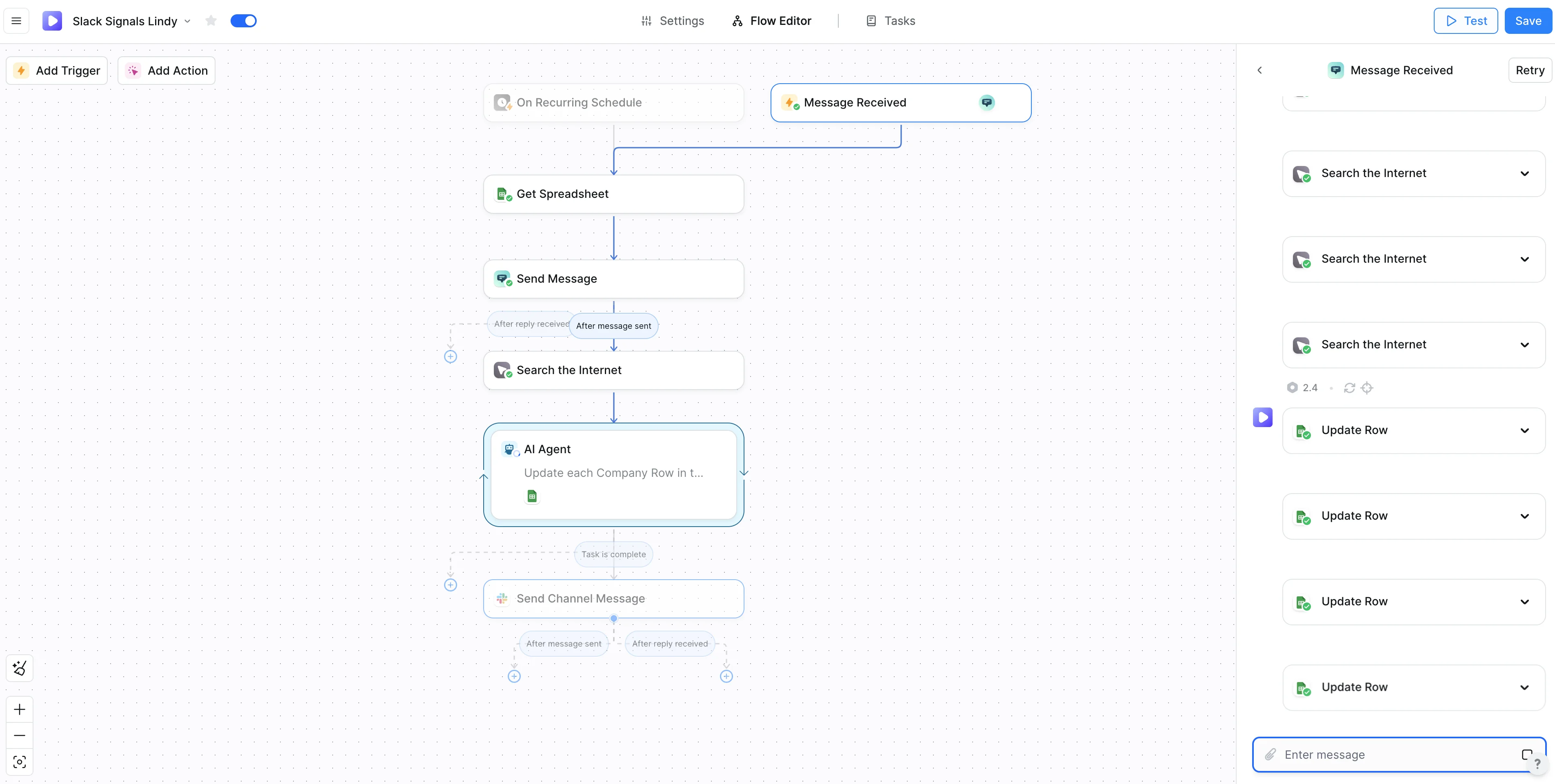
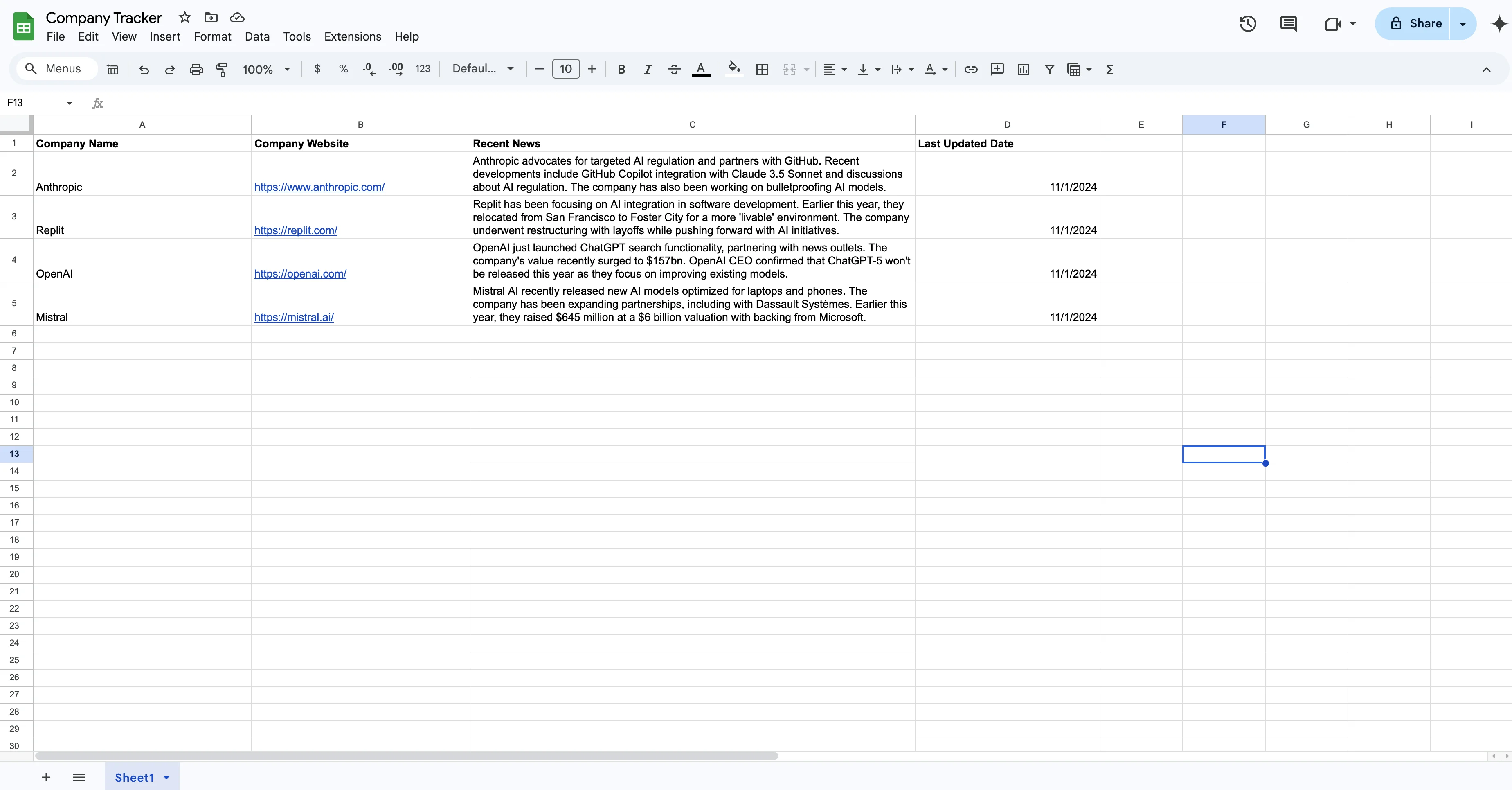
Eventually, Lindy will update all of your relevant Google Sheets rows.
You can jump into your Google Sheet to see the updates.
And finally, Lindy will send you an update to Slack.
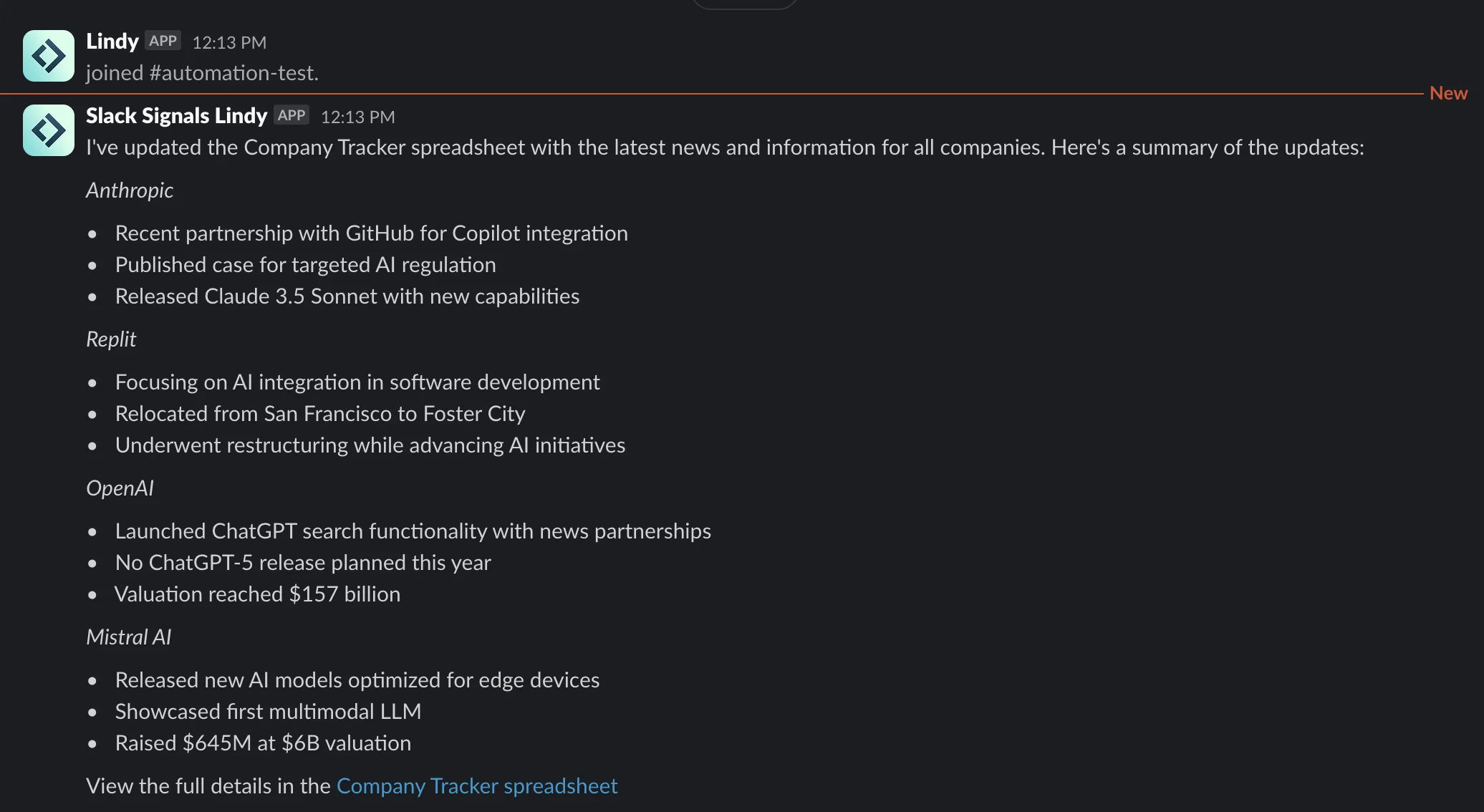
That’s it! You now have an automated company research AI assistant that will regularly perform Internet research on the target companies you’re tracking, update them with recent news in a Google Sheet, and send these updates to you in Slack.
This tutorial was created by Garrett.