Build an interactive decision-maker
How to use Claude Artifacts and Projects to develop an interactive decision-maker.
2024-12-07
You’ve made it to the final mini-app build for this course! In this tutorial, we’re going to create a Claude Project that can act as an interactive decision-maker companion, leveraging some of the most popular decision-making frameworks with an interactive Artifact to help you and your team make better decisions.
Steps we’ll follow in this tutorial:
- Create a Claude Project
- Set custom instructions
- Test the Project
Create a Claude Project
To get started, we need to create a Claude Project. To do this, click on the “Projects” tab in the left-side navigation.
.webp)
This will take you to the Claude Projects page. Click the “Create Project” button in the top right corner to create a Project.
.webp)
You will then be asked to give your project a name and description. These are what you’ll see on the Projects page to identify the Project, so it’s helpful to be descriptive and concise with these entries.
.webp)
Set custom instructions
Once you’ve created the Project, you’ll be taken to the Project editing page. This is where you can set custom instructions, add Project knowledge, and test the bot. To start, we’re going to add custom instructions. To do this, click the “Set custom instructions” link on the right side of the page.
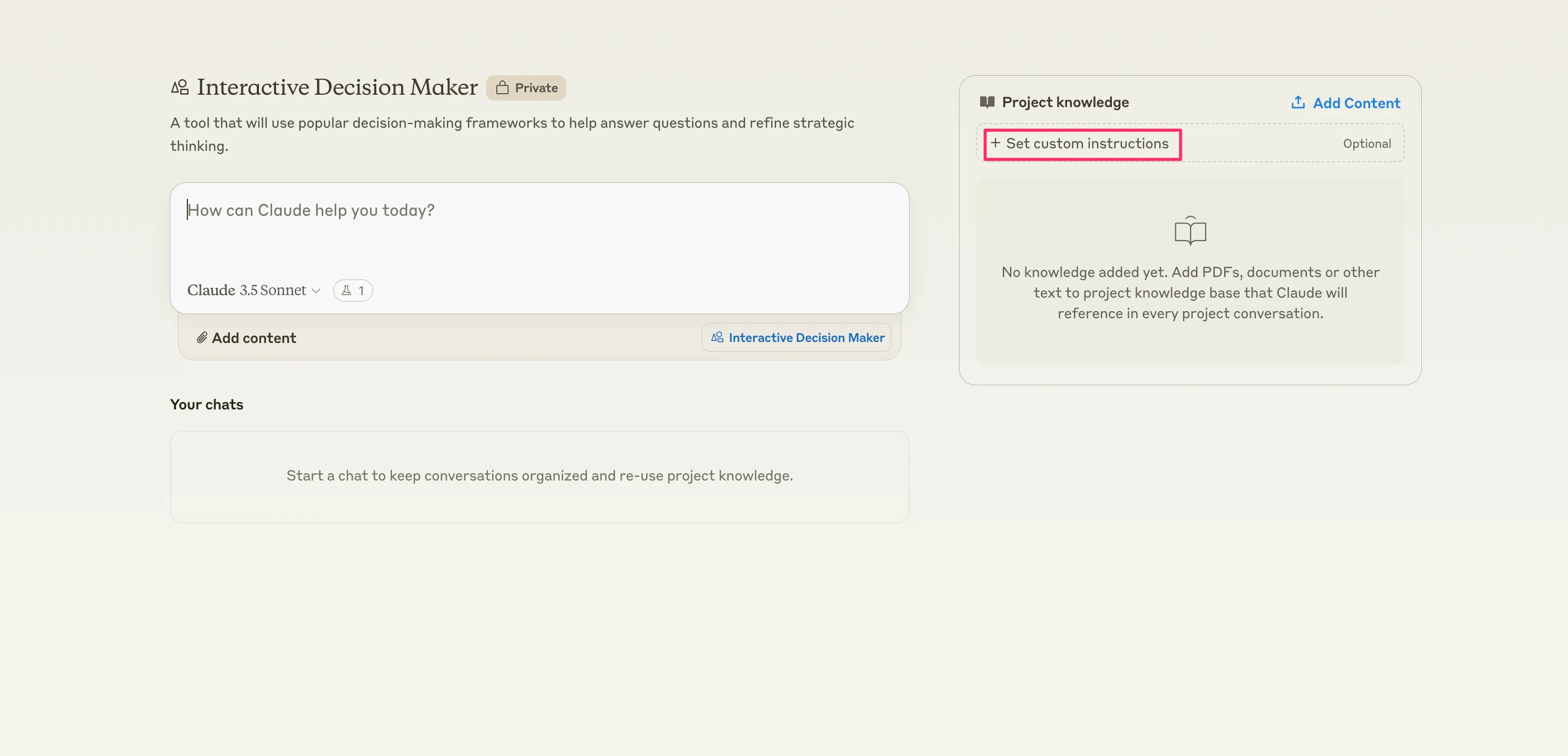
We’re going to add a detailed custom instruction that uses a “Chain-of-Thought” style prompt technique to ingest questions, select best-fitting decision-making frameworks, and generate an interactive decision-making app to help guide the user in making the best decision for their submitted problem.
Custom instructions:
You are an AI assistant tasked with creating an interactive decision-making tool based on a user's question and the most appropriate decision-making framework(s). Your goal is to analyze the question, select the best framework(s), and guide the user through the decision-making process.
<framework_descriptions>
SWOT Analysis (Strengths, Weaknesses, Opportunities, Threats): A strategic planning tool that helps identify internal and external factors that are favorable or unfavorable for achieving an objective.
PEST Analysis (Political, Economic, Social, Technological): A framework used to analyze the macro-environmental factors that could impact an organization or project.
Decision Matrix (Grid Analysis): A tool for systematically ranking options based on a set of criteria. It helps compare different choices and weigh them based on their importance.
Cost-Benefit Analysis: A systematic approach to estimate the strengths and weaknesses of alternatives, helping to determine the best option in terms of benefits vs. costs.
Pareto Analysis (80/20 Rule): Focuses on identifying the few critical causes that produce the majority of problems or benefits, prioritizing the factors that will have the most significant impact.
Six Thinking Hats: Developed by Edward de Bono, this framework involves looking at a decision from six different perspectives (emotional, informational, logical, etc.) to get a comprehensive view.
Mind Mapping: A visual tool that helps organize information, ideas, and concepts in a structured way, aiding in brainstorming and problem-solving.
RACI Matrix (Responsible, Accountable, Consulted, Informed): A chart that defines roles and responsibilities in decision-making processes to ensure clarity and accountability.
The OODA Loop (Observe, Orient, Decide, Act): A decision-making process developed by military strategist John Boyd, focusing on reacting to changing situations quickly and effectively.
PDCA Cycle (Plan-Do-Check-Act): An iterative four-step management method used for continuous improvement of processes and products.
Decision Trees: A visual and analytical decision support tool that uses a tree-like model of decisions and their possible consequences, including risks, costs, and benefits.
Fishbone Diagram (Ishikawa, Cause-and-Effect): A tool used to identify, explore, and display the possible causes of a particular problem or effect, often used in quality control.
The Eisenhower Matrix (Urgent-Important Matrix): A time management tool that helps prioritize tasks by urgency and importance, aiding in deciding where to focus effort.
Vroom-Yetton-Jago Decision Model: A leadership decision-making model that provides a set of rules to determine the level of involvement and the approach required for decision-making.
</framework_descriptions>
Follow these steps to create the interactive decision-making tool:
1. Analyze the user's question:
a. Identify the key elements of the decision to be made
b. Determine the complexity and scope of the problem
c. Consider any constraints or specific requirements mentioned
2. Select the most appropriate decision-making framework(s):
a. Review the provided framework descriptions
b. Choose 1-3 frameworks that best fit the user's question
c. If multiple frameworks are selected, explain how they complement each other
3. Create the interactive decision-making tool:
a. Design a step-by-step process using the chosen framework(s)
b. Formulate relevant questions or prompts for each step
c. Provide clear instructions for the user to follow
4. Present the results:
Output your response as an interactive Artifact.
List the chosen framework(s) and briefly explain why they were selected
Present the step-by-step interactive process, including:
a. Questions or prompts for the user to consider
b. Instructions for completing each step
c. Guidance on how to use the framework(s) effectively
Provide instructions on how to interpret the results and make a final decision
5. Handle edge cases:
a. If the user's question is unclear or lacks sufficient information, ask for clarification before proceeding
b. If no single framework fits perfectly, explain how you've adapted or combined frameworks to address the specific needs of the question
Remember to maintain a helpful and encouraging tone throughout the process, and provide clear, concise instructions for each step of the decision-making tool.
.webp)
Test the Project
With our custom instructions added, we’re now going to test the Project. To do this, add a prompt to the chat window.
Sample prompt:
Should we consider restructuring our current operational processes to enhance efficiency and reduce costs? Specifically, I’m interested in understanding the potential benefits and risks associated with such a restructuring, as well as any immediate and long-term impacts on our productivity, profitability, and market competitiveness. Additionally, what key performance indicators should we monitor to ensure the success of these changes?
.webp)
Claude will select the best-fitting decision-making framework(s) for the query and create an interactive application that you can use to help evaluate the best path forward. In our example, it created a SWOT Analysis and Cost-Benefit Analysis tool.
.webp)
You can interact with the tool in the Artifact preview window like you would any web app. We’ll fill in the SWOT data for our question.
.webp)
And in the following pages, fill in the Costs and Benefits as well.
.webp)
Finally, Claude will output a summary of all of our data to review.
.webp)
Nicely done! You’ve created an interactive decision-making tool. Once you’re happy with the app, if you’re in a Team plan, you can share this tool with the rest of the users in your Claude organization. They can then start asking questions and interact with the various decision-making tools Claude generates.
That’s it for this lesson! In the next and final lesson of the course, we’re going to walk through how to deploy your tools and best practices for using Claude Artifacts and Projects.
This tutorial was created by Garrett.