Chat with your Notion documents using AI
Learn how to analyze and chat with your Notion workspace documents using built-in AI.
2024-12-12
Welcome to the fourth lesson of our course on Using Notion AI for business workflows.
Notion AI now lets you analyze PDFs and documents right inside your workspace. This is a useful feature for anyone who needs to process, compare, or extract insights from multiple documents.
While you could connect Notion AI to Google Drive, this new feature works differently – you can upload PDFs directly to Notion and anaylze them from there, even if they're not stored in connected services.
To showcase the power of this feature, we'll analyze vendor proposals for an AI call center automation project. Imagine you've sent out an RFP (Request for Proposal) and received several proposals from different contractors. Instead of manually comparing each proposal against your requirements, we'll use Notion AI to do the heavy lifting and create a structured comparison that makes decision-making much easier.
In this tutorial, you'll learn how to:
- Turn complex PDFs into structured, actionable information in Notion
- Compare multiple proposals against specific requirements
- Create organized databases from PDF analysis results
- Extract insights for better decisions
You'll need:
- A Notion account with Notion AI-enabled
- PDF documents to analyze (we'll use RFP proposals as our example)
Let's get to it.
Step 1: Set up your analysis workspace
Let's start by creating a space to organize our analysis. Open up Notion and create a new page. Give it a clear, descriptive name like "Proposal Analysis - AI-Powered Call Centre setup".
Now, we need to add our project requirements to this page. These requirements are crucial because they'll serve as the criteria against which Notion AI will analyze each proposal.
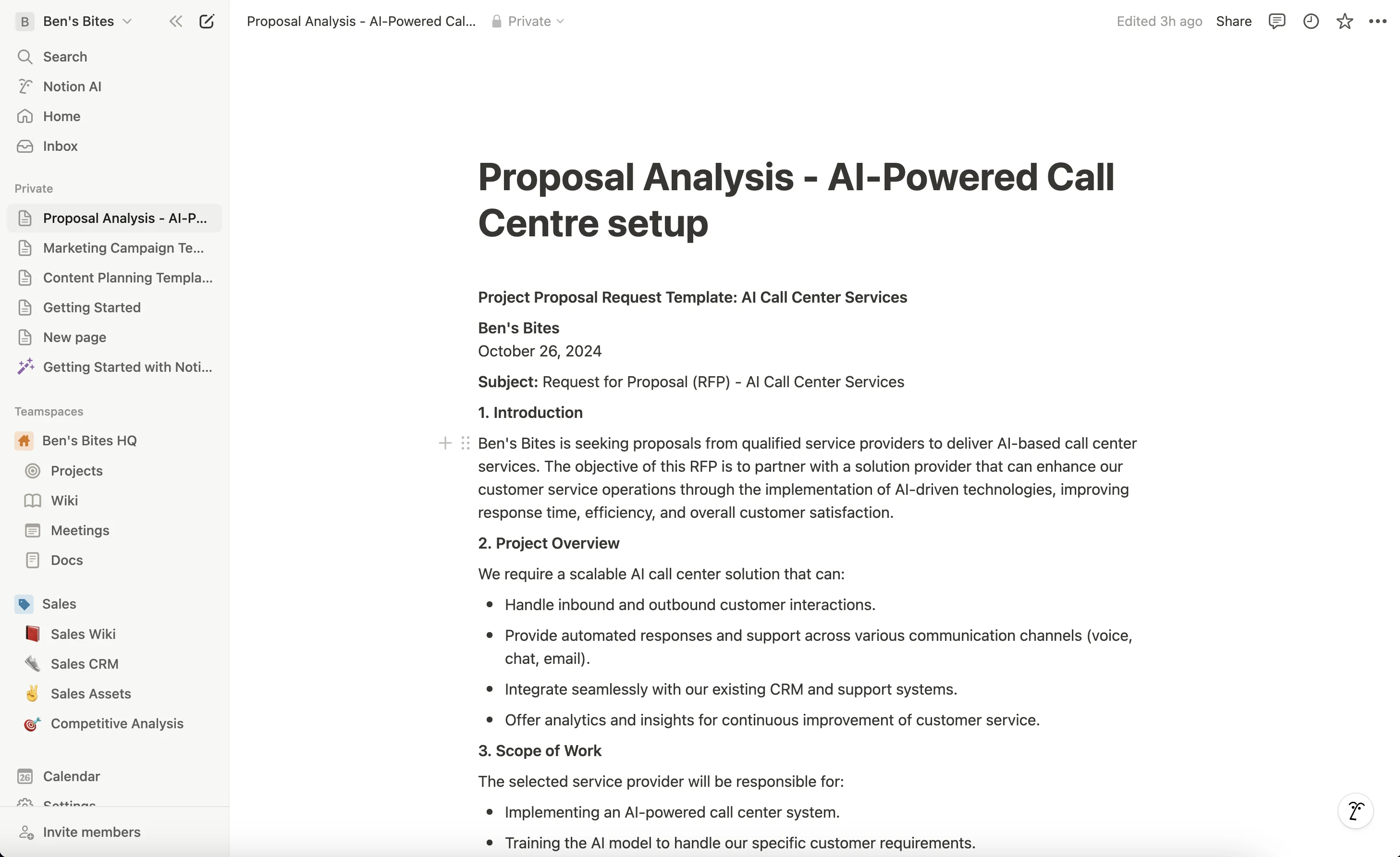
Write out your requirements in plain text – things like budget expectations, scope of work, timeline, and any specific technical requirements. Don't worry about formatting at this stage; we're just getting the information down.
Step 2: Getting started with document analysis
Now comes the fun part – letting Notion AI analyze our first proposal. There are two ways to do this, and let’s explore both because they each have their uses.
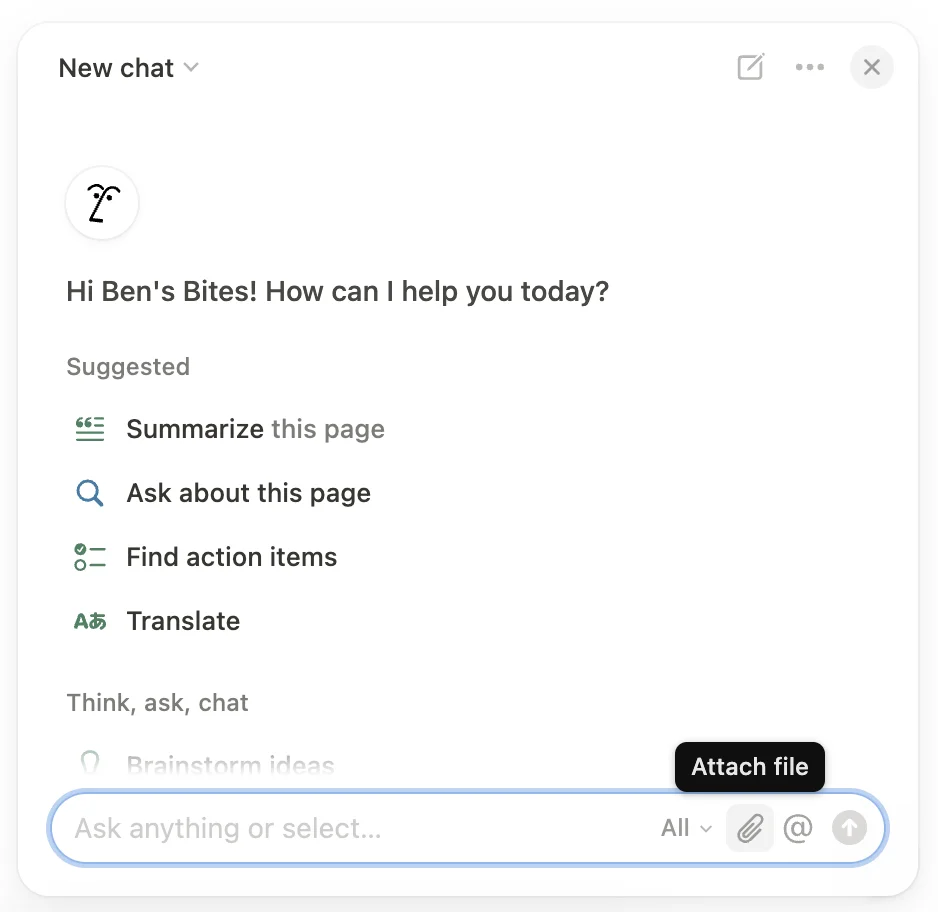
The first method is through the Notion AI chat. Click the Notion AI icon in the bottom right corner of your screen to open the chat window. Here, you have two options to work with your RFPs: if you've already created them as pages in your workspace, simply type @ and mention those pages directly in the chat.
Within the chat you can also click the paperclip icon (📎) to upload your proposal PDFs as attachments. This flexibility lets you analyze documents whether they're already in your workspace or still on your local drive.
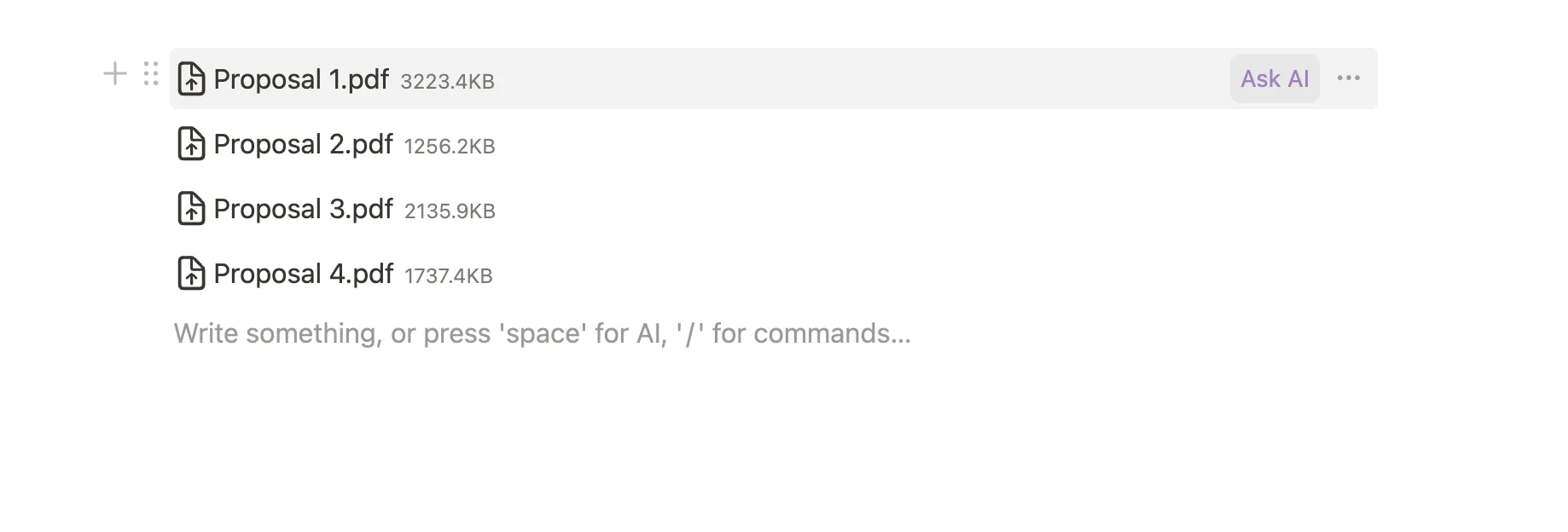
The second method is even quicker if you've already uploaded your documents to the page. Just hover over any PDF file until you see an "Ask AI" option from the menu.
Step 3: Extract and structure information
Now, we need to tell Notion AI exactly what we want to learn from these proposals. Being specific in our prompt gets us the best results. Here's where we'll get Notion AI to analyze our documents and create structured comparisons.
Let’s use this prompt:
Analyze this proposal document against our project requirements and create a detailed comparison table. Include the following columns:
1. Requirement Criteria (from our project specs)
2. Proposed Solution
3. Cost/Timeline
4. Additional Services/Notes
For each requirement, extract the relevant information from the proposal and highlight any areas where the proposal exceeds or falls short of our requirements.
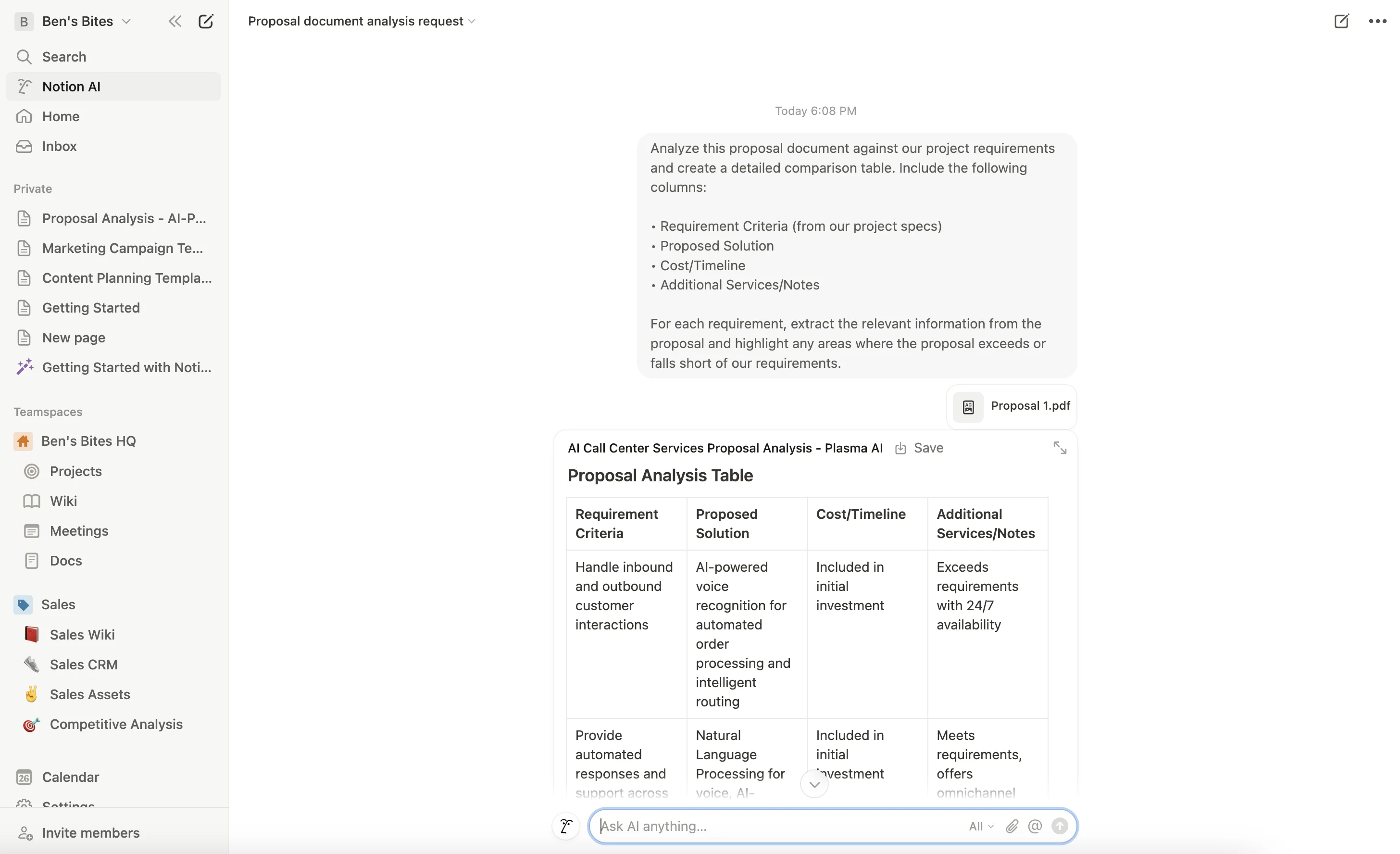
Watch as Notion AI processes the document and creates a structured table. Take a moment to review the table – Notion AI is smart, but it's always good to verify the information it extracts in the beginning.
Step 4: Build your comparison table
Now that we've analyzed our first proposal, we need to do the same for all others. Repeat the process for each proposal document. If multi-document uploads are enabled at the time you are following this tutorial, you can do that in a single prompt.
Once you’ve analyzed all your proposals, we’ll create a master comparison table consolidating all the proposal details in a single table.
Use this prompt to create the comparison table:
Based on all the proposal analyses we've done, create one comprehensive comparison table. I'd like to see all vendors side by side with their offerings for each of our key requirements.
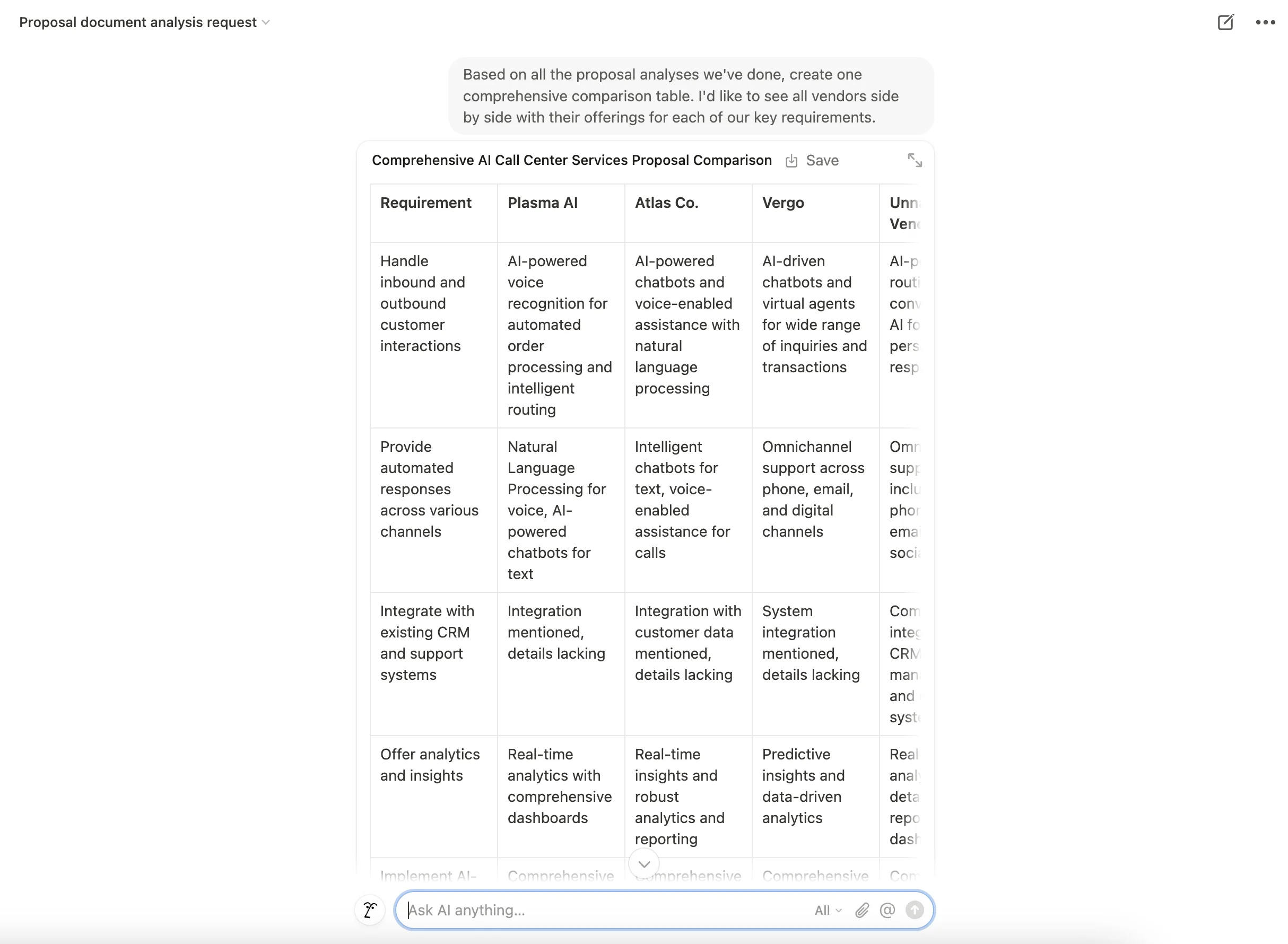
This overview makes it easy to spot differences between proposals. You can see at a glance which vendor offers the best value, who has the shortest timeline, or which includes extra services that others don't.
Click “Save” on the top ribbon to save this entire table on a new page.
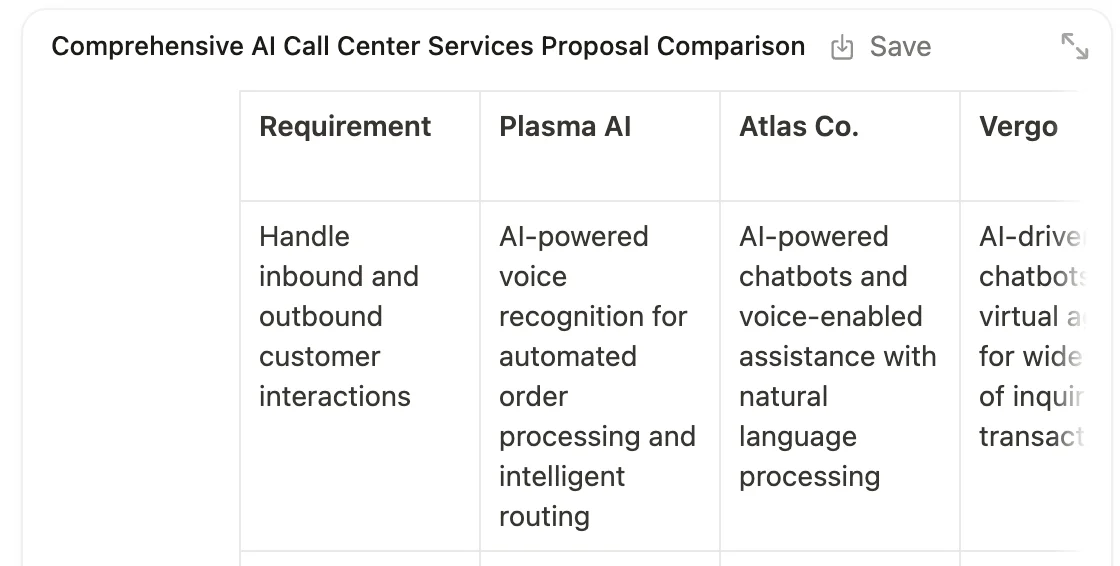
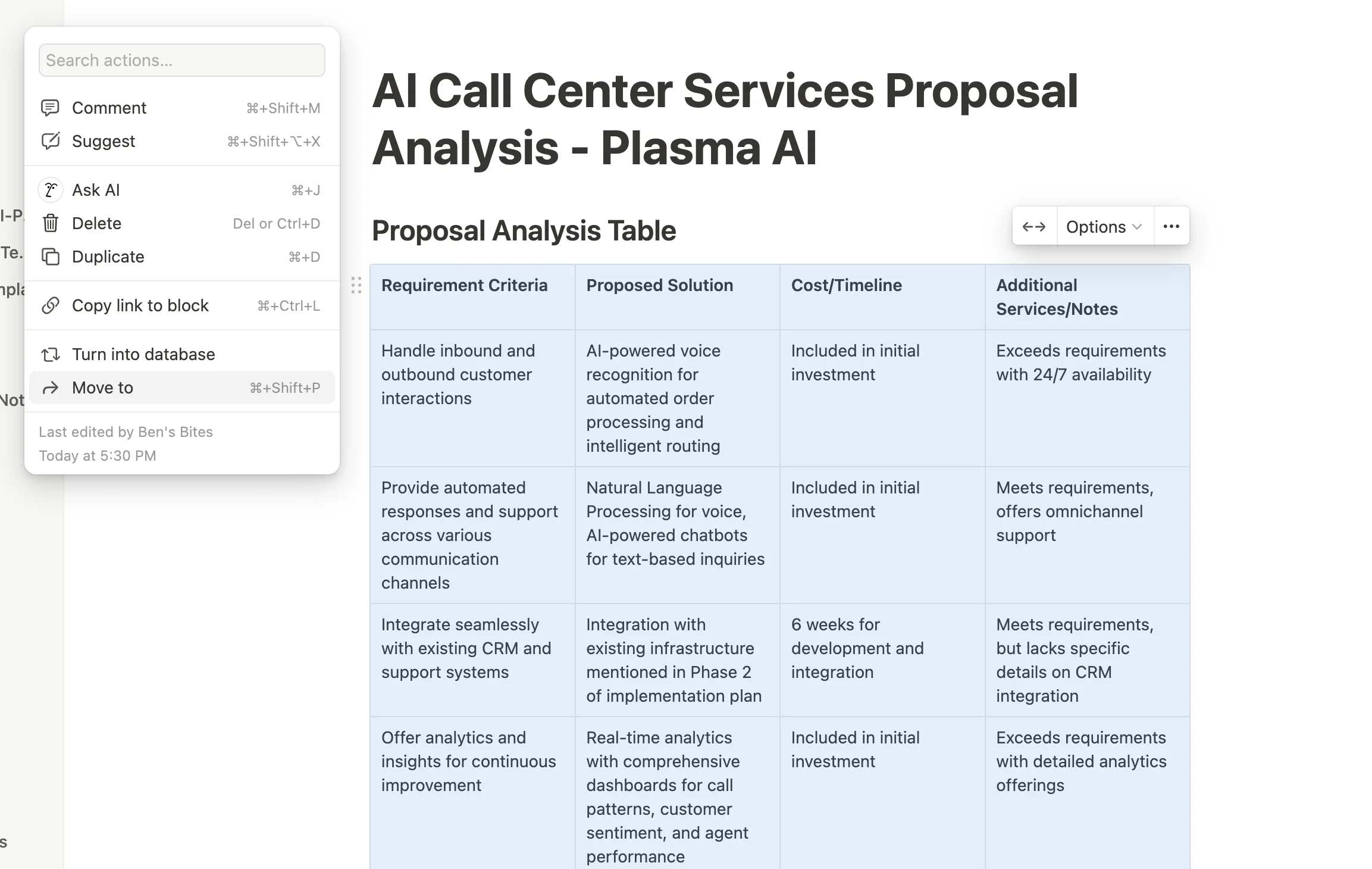
Now that we have our comparison table, we can ask Notion AI to help us make sense of the data. Here are some follow-up questions to get started:
Which vendor's proposal best matches our requirements while staying within our budget? Explain your reasoning.
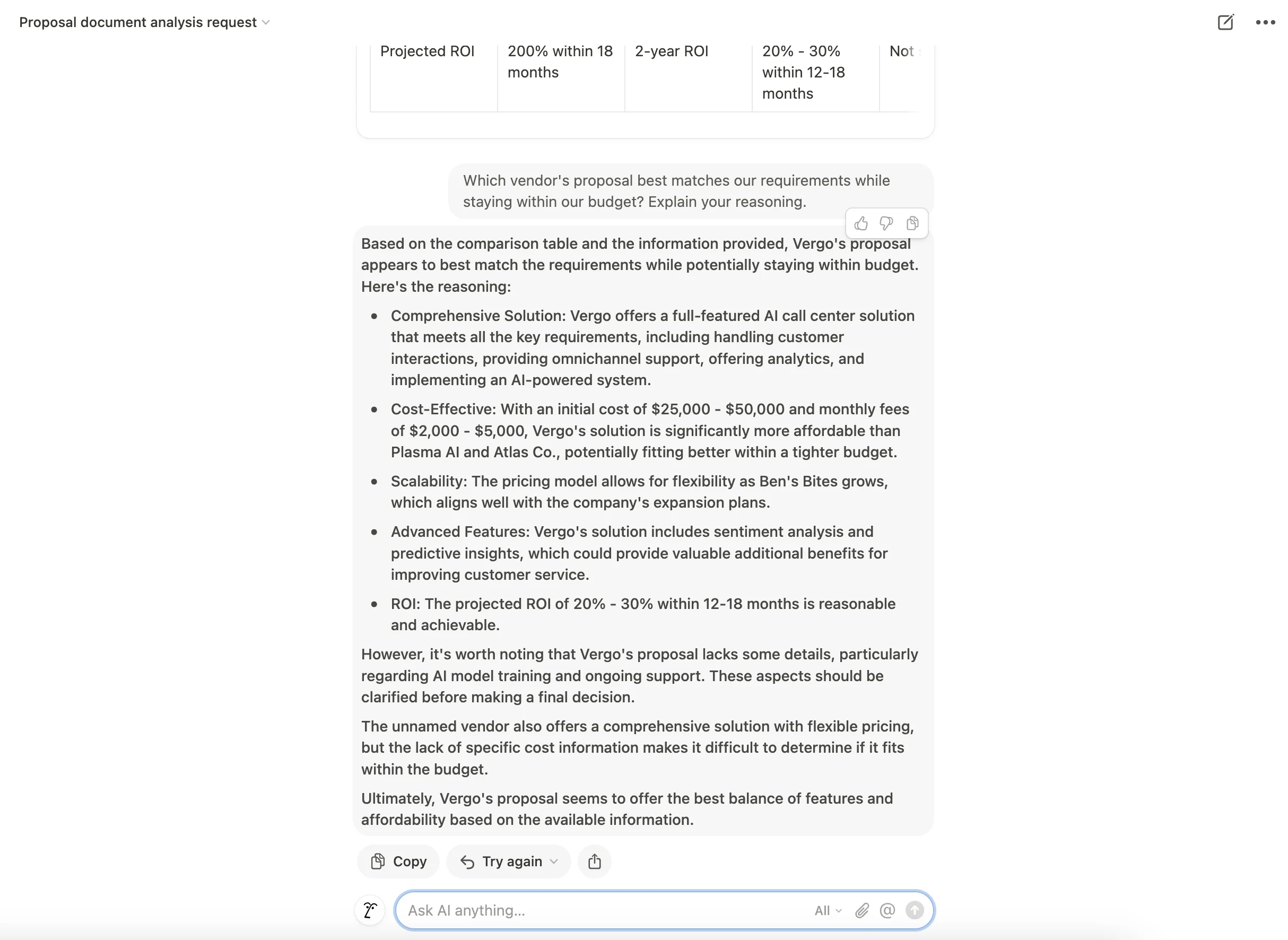
Or, try this:
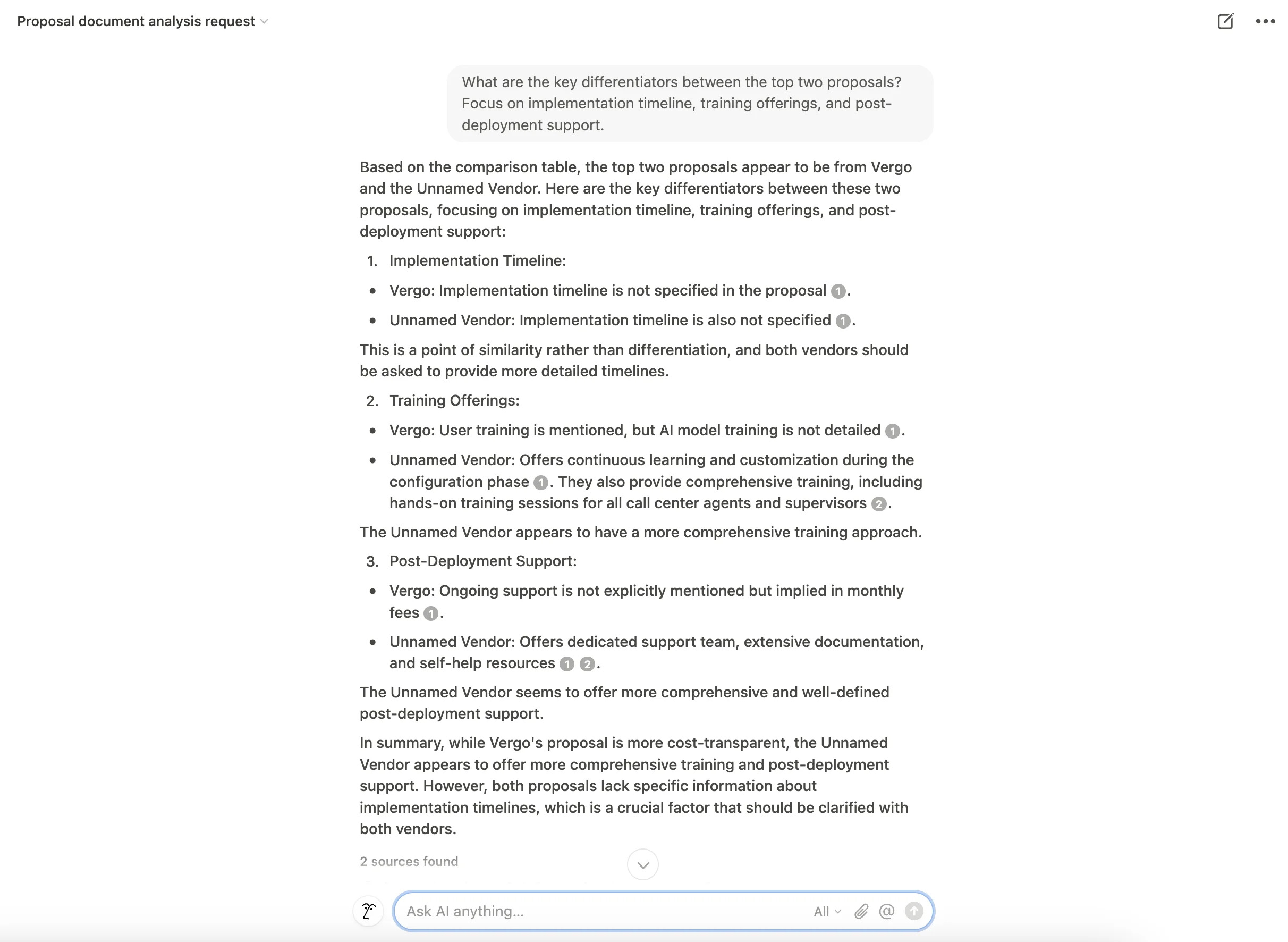
What are the key differentiators between the top two proposals? Focus on implementation timeline, training offerings, and post-deployment support.
This feature’s real power goes way beyond RFP analysis. You can use it to analyze research papers for literature reviews, compare legal documents, and process student assignments.
This is one way to use Notion AI's document analysis capabilities. Feel free to experiment and adapt this workflow to whatever you're working on.
In the next tutorial, we’ll explore how AI-powered properties in Notion databases can enable automation and support various business use cases.
This tutorial was created by Tanmay.