Connect your workspace apps with Notion AI
Learn how to integrate and use Slack and Google Drive with your Notion AI workspace.
2024-12-12
Welcome to the second lesson of our course on Using Notion AI for business workflows.
Notion AI's latest update has transformed how we retrieve and consolidate information across connected apps. Notion can now search and return information from connected apps like Slack and Google Drive—helpful for businesses dealing with scattered information across multiple platforms.
In this tutorial, you'll learn:
- How to set up Notion AI connections
- A step-by-step process for creating automated project update reports
- Techniques for effective AI-powered information retrieval
- Tips for refining and customizing AI-generated content
You'll need:
- A Notion account with an active Notion AI add-on subscription
- Admin access to your Slack and Google Workspace
Let's dive in!
Examples of Notion AI's information retrieval capabilities
Let's explore some ways Notion AI can retrieve information:
- As a project manager, you can compile weekly updates from multiple sources into a cohesive report without manual data gathering. Notion can pull relevant information from Slack channels, Google Drive documents, and your Notion workspace to create comprehensive project summaries.
- Support teams can use Notion AI to analyze tickets across platforms, identify common issues, and automatically generate action items for product improvements.
There are tons of other ways you can find Notion AI useful for your internal workflows as you use it more. In this tutorial, we're going to focus on setting up a project update workflow. This will demonstrate Notion AI's information retrieval capabilities and provide you with a practical tool for your project management.
Step 1: Setting up Slack and Google Drive connections
Now, let's set up your Notion AI connections with Slack and Google Drive. This process is a bit different from the standard Notion integrations you might be familiar with. If you've already integrated Slack or Google Drive with Notion under the integrations menu in settings, note that this is a separate connection specifically for Notion AI.
Begin by connecting to Slack. Click "Notion AI" in your sidebar to open the Notion AI chat window. Look for the three dots icon in the top right corner. Click it, and you'll see options to connect your Google Drive and Slack accounts.
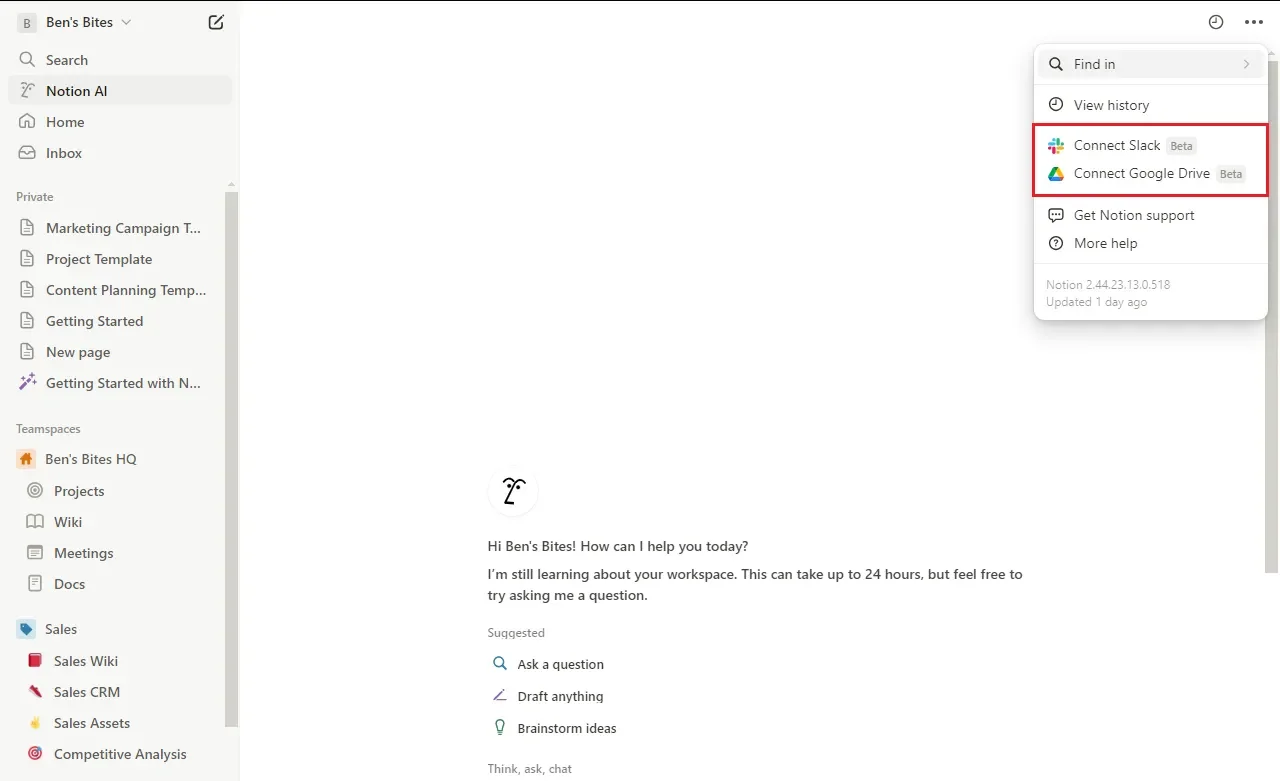
Before continuing, let's go over the requirements for connecting Slack to Notion AI:
- You must be subscribed to the Notion AI add-on. This is a paid feature, so ensure you have an active subscription before proceeding.
- You must be a Notion workspace owner and a Slack workspace admin (or an approved Slack member).
We'll start by connecting your Slack workspace. Click "Connect Slack" and sign in to the workspace where you have admin privileges, as Notion AI needs to add itself as a bot in your workspace.

If you're a Slack workspace admin, you'll now be able to choose which Slack workspace and channels to connect. You can select all public channels or specific ones, and include future public channels.
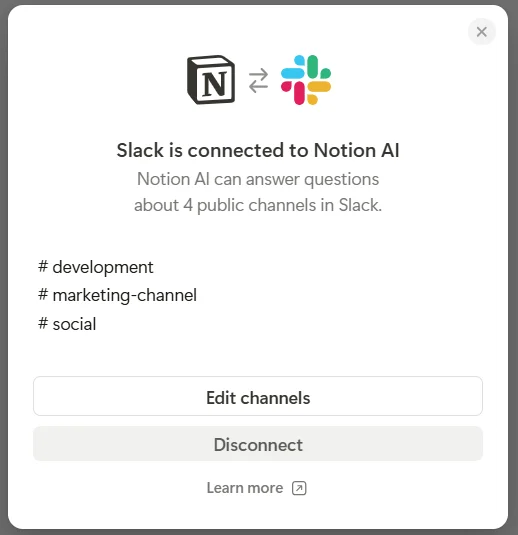
It's important to note that this won't include public channels containing external users (like Slack Connect channels), and you won't be able to connect any private channels or direct messages.
If you're not a Slack workspace admin, don't worry. You can still request this integration. Your Slack workspace admin or approved Slack members will be notified, and once your request is approved, you can choose the Slack channels you want to connect. Just make sure you're requesting the integration for the correct Notion workspace! Syncing Slack messages with Notion may take some time.
Great! You've successfully connected Slack to Notion AI. Now, let's move on to connecting Google Drive.
To connect Google Drive to Notion AI, go back to the Notion AI chat window and click on the three dots again. This time, select "Connect Google Drive."
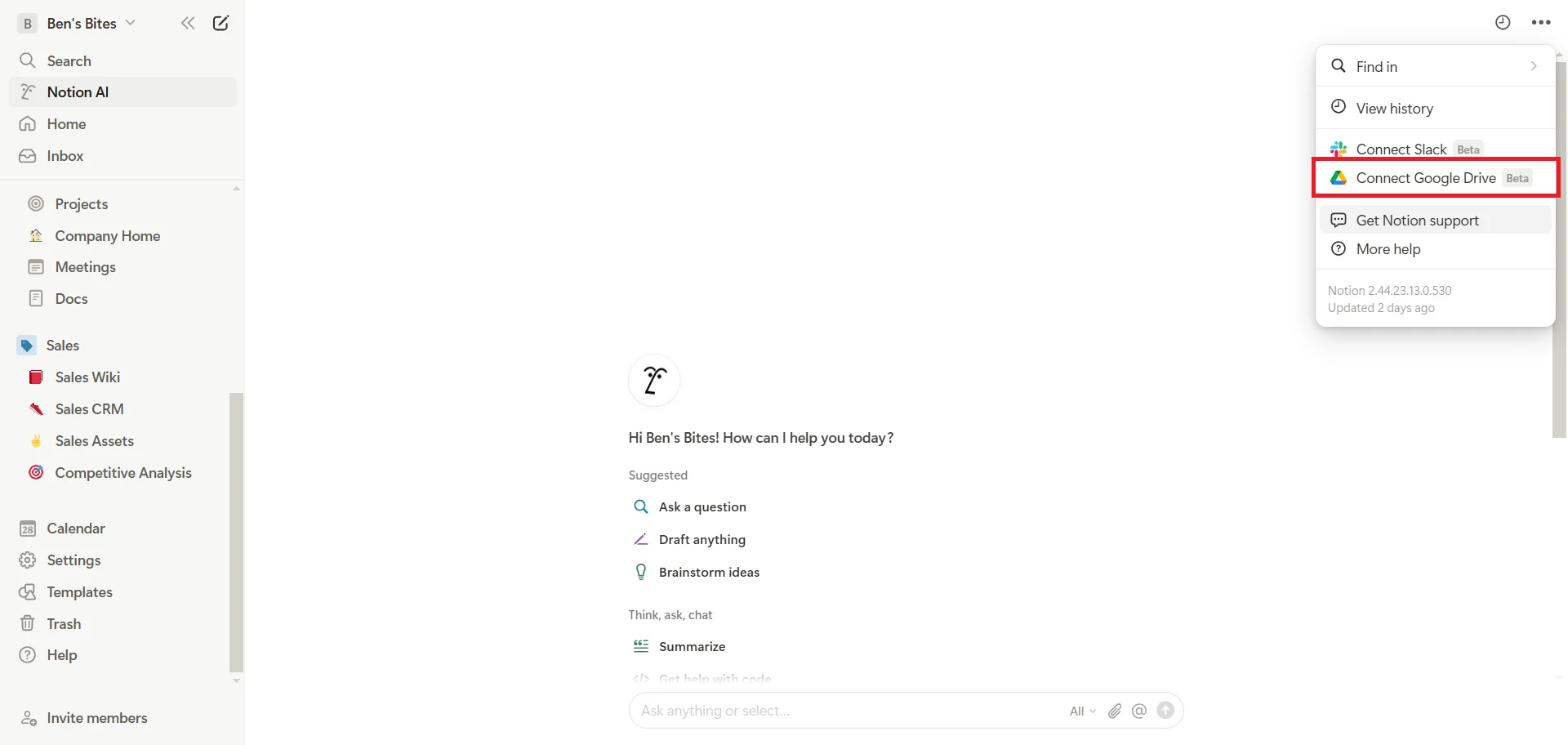
Here are the requirements for connecting Google Drive to Notion AI:
- You need to be on a Google Workspace plan.
- You must be a Google Drive admin.
The Notion AI connector for Google Drive supports Google Docs, Sheets, and Slides, giving you access to a wide range of document types.
When you're setting up the connection in Google Workspace, you'll see an option to "Admin install."
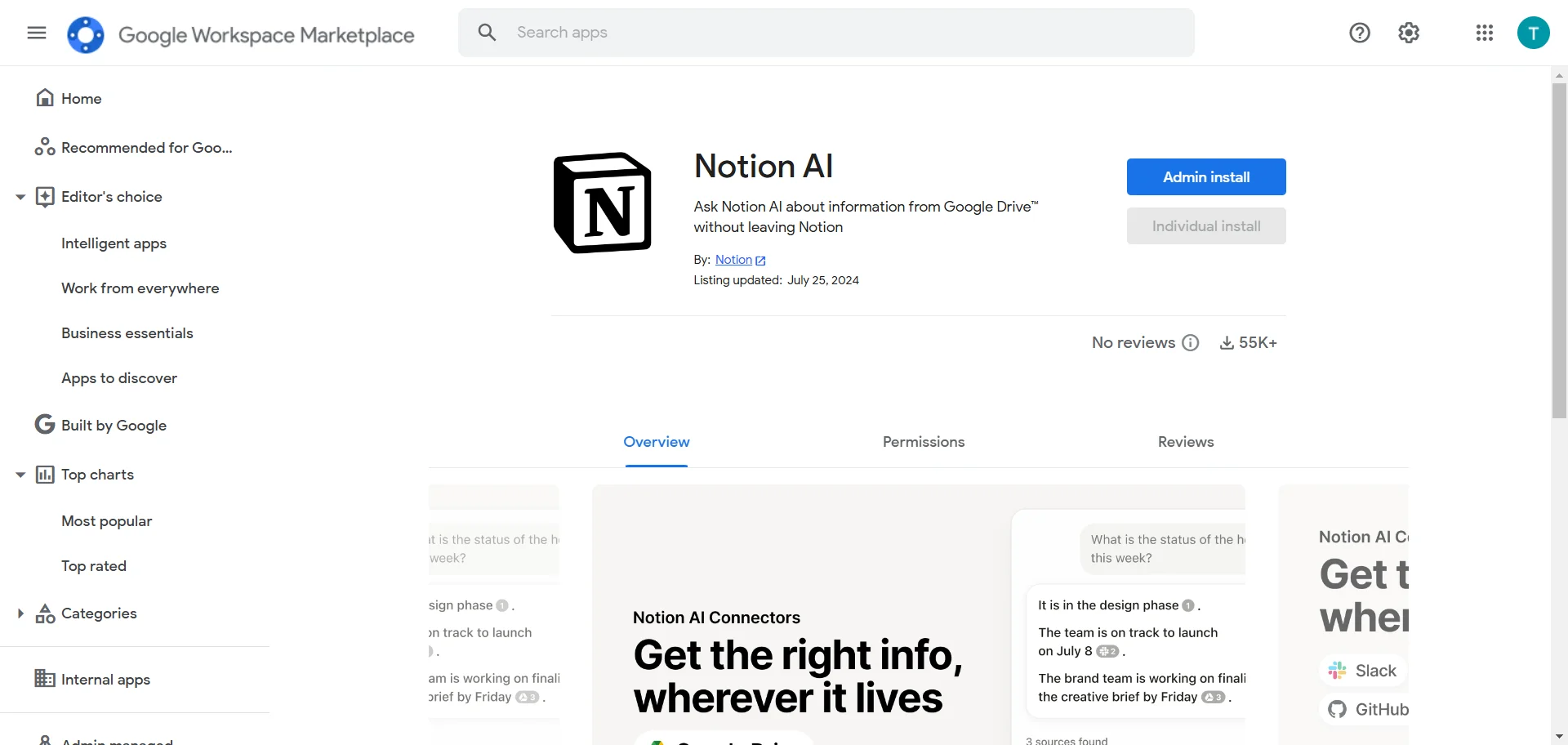
Click on this and select "All users in their organization." We recommend this setting because any groups that aren't selected won't be able to use the Notion AI connector feature for Google Drive, and files owned by them won't be available via Notion AI.
Once the installation is complete, return to Notion. You'll see a confirmation screen. Simply click "Confirm connection" to finalize the process.
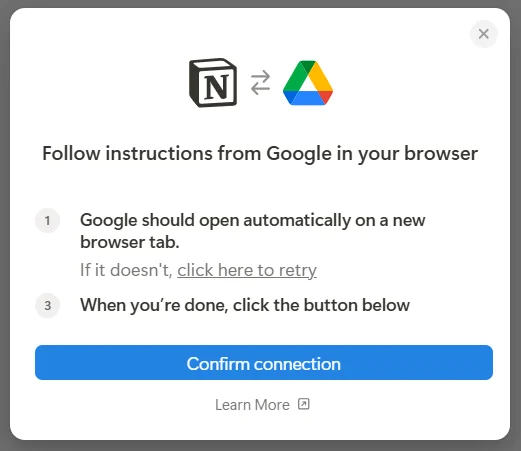
The connection can take up to 36 hours to complete. Don't worry if you don't see your Google Drive content immediately - it will appear once the connection is established.
You can manage your Google Drive connection at any time by opening Notion AI at the bottom of your screen and clicking on the three dots, then "Connect Google Drive" and "Settings."
Now that we have our connections set up, we're ready to start using Notion AI to streamline our workflow.
Step 2: Create a weekly project update report
Now that we've connected Slack and Google Drive to Notion AI, let's put these integrations to work by creating a project update workflow. This process will show you how to use Notion AI to compile information from multiple sources into a coherent, actionable report.
Create a new page in Notion and name it "Weekly Project Updates". This can be your central hub for AI-generated project reports for the future.
Now let's use Notion AI to gather updates from Google Drive. Click the Notion AI icon in the bottom right corner to open up the chatbot.
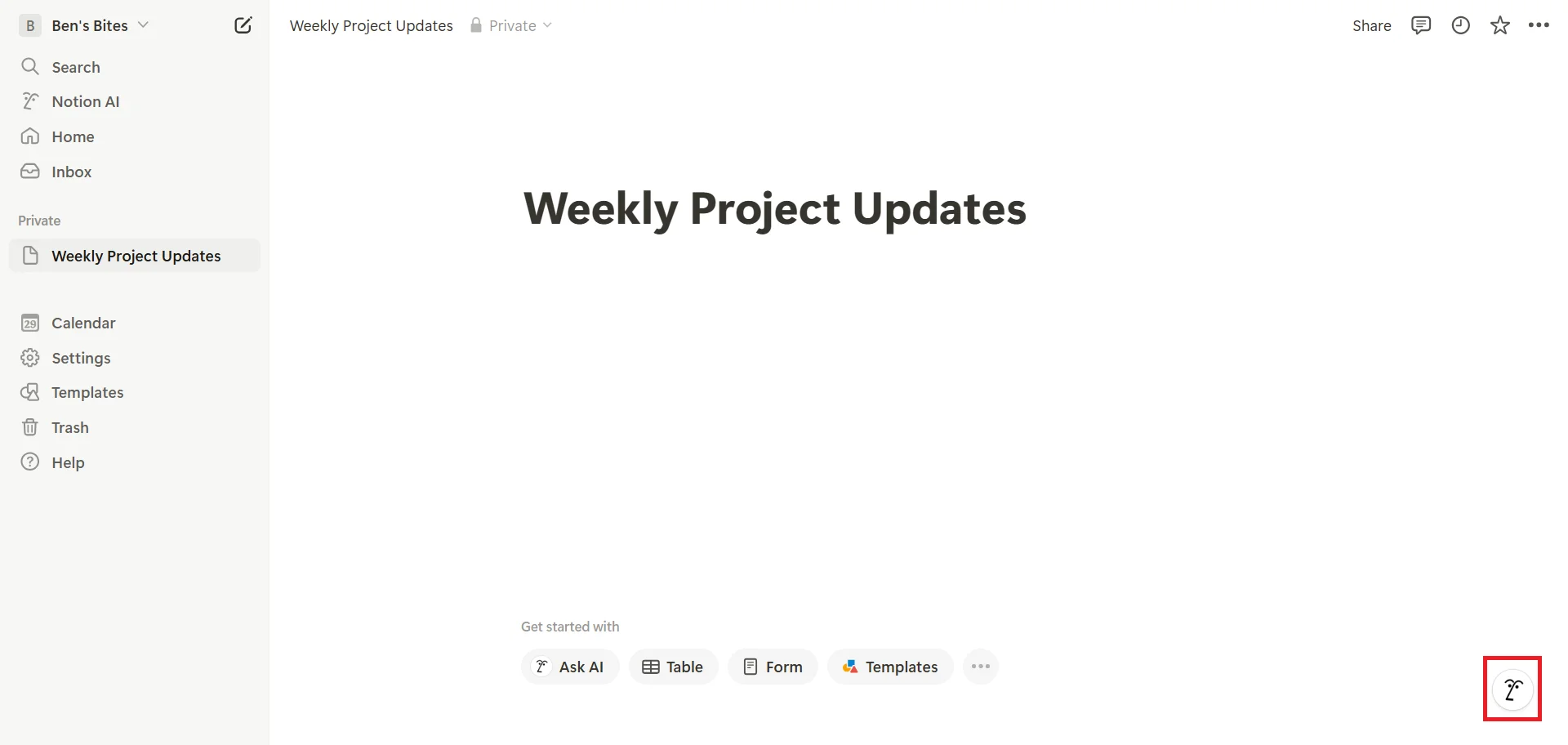
Let’s use this prompt to ask Notion AI to compile our project update:
Compile a weekly report on 'Project Apollo' using updates from the Google Drive folder 'Project Apollo Docs'. Structure the report as follows:
1. Project Overview
2. Blockers
3. Upcoming Milestones
Summarize essential information and format the report professionally for management presentation.
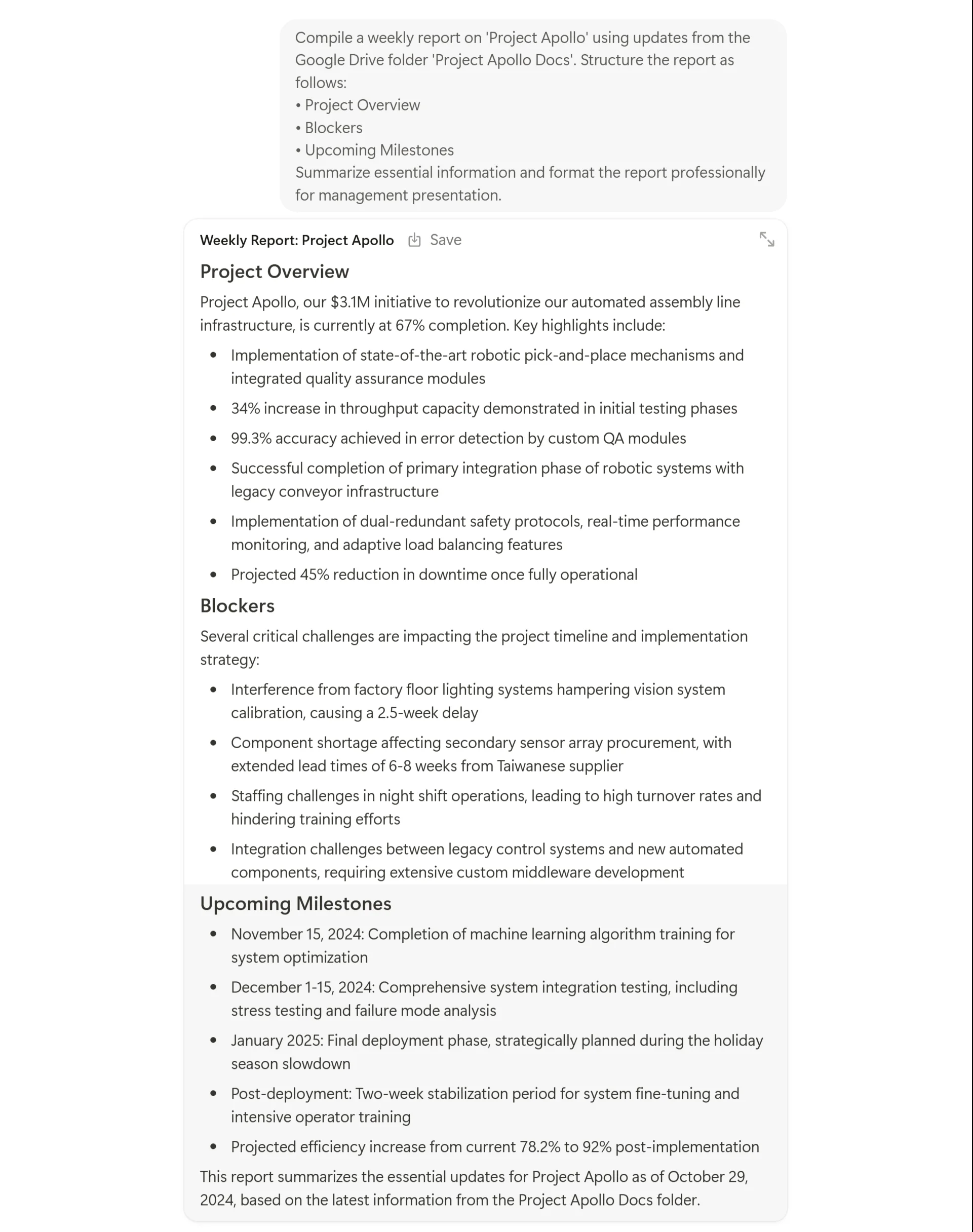
Notion AI will generate a structured report based on the information from your connected Google Drive folder.
If you want to include more data sources to get the update, you can do that too. Within the Notion AI interface, you can select additional Notion pages or databases where your team collaborates on different projects. You can manually include these particular pages, or even your entire Notion workspace, to get a more comprehensive update.
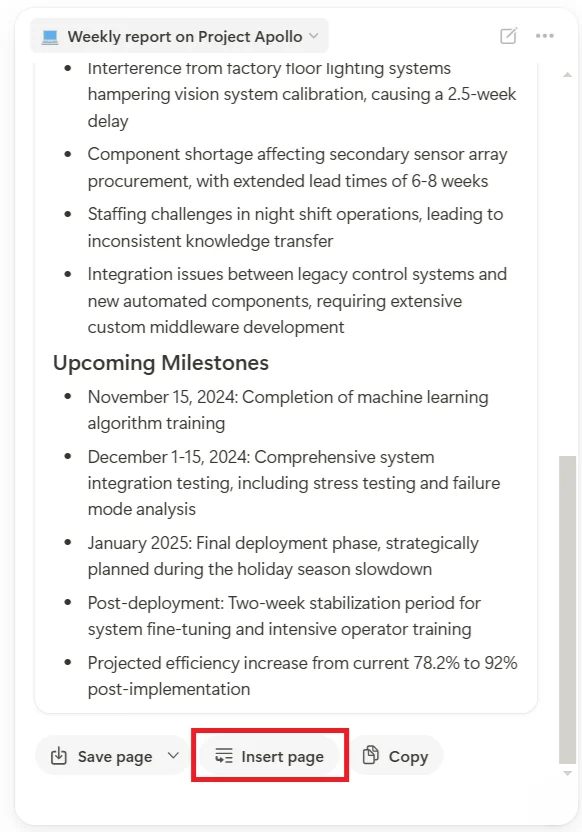
Once the report is generated, take a moment to review it. Remember, while Notion AI is powerful, it's not infallible. Always double-check the information it provides, especially for critical business reports and decisions. Click on "Insert page" to add it as a separate page in our Weekly updates page.
Step 3: Editing the project update report
To edit or update specific sections of the generated report, simply highlight the section or text you want to modify, and you'll see an "Ask AI" option appear. Click on this, and you can provide additional instructions or ask questions to refine that particular section.
To showcase this, let's add a new section to our report for risk assessment. This will show how we can edit and chat with Notion AI to make amendments to our already generated report. Here's a prompt you can use:
Prompt example:
Add a section titled 'Risk Assessment' to the report and provide an analysis of potential risks that could impact the 'Project Apollo' timeline. Identify any unresolved blockers or delays from the updates retrieved and suggest risk mitigation strategies. Highlight the critical tasks that require immediate attention to avoid delays.
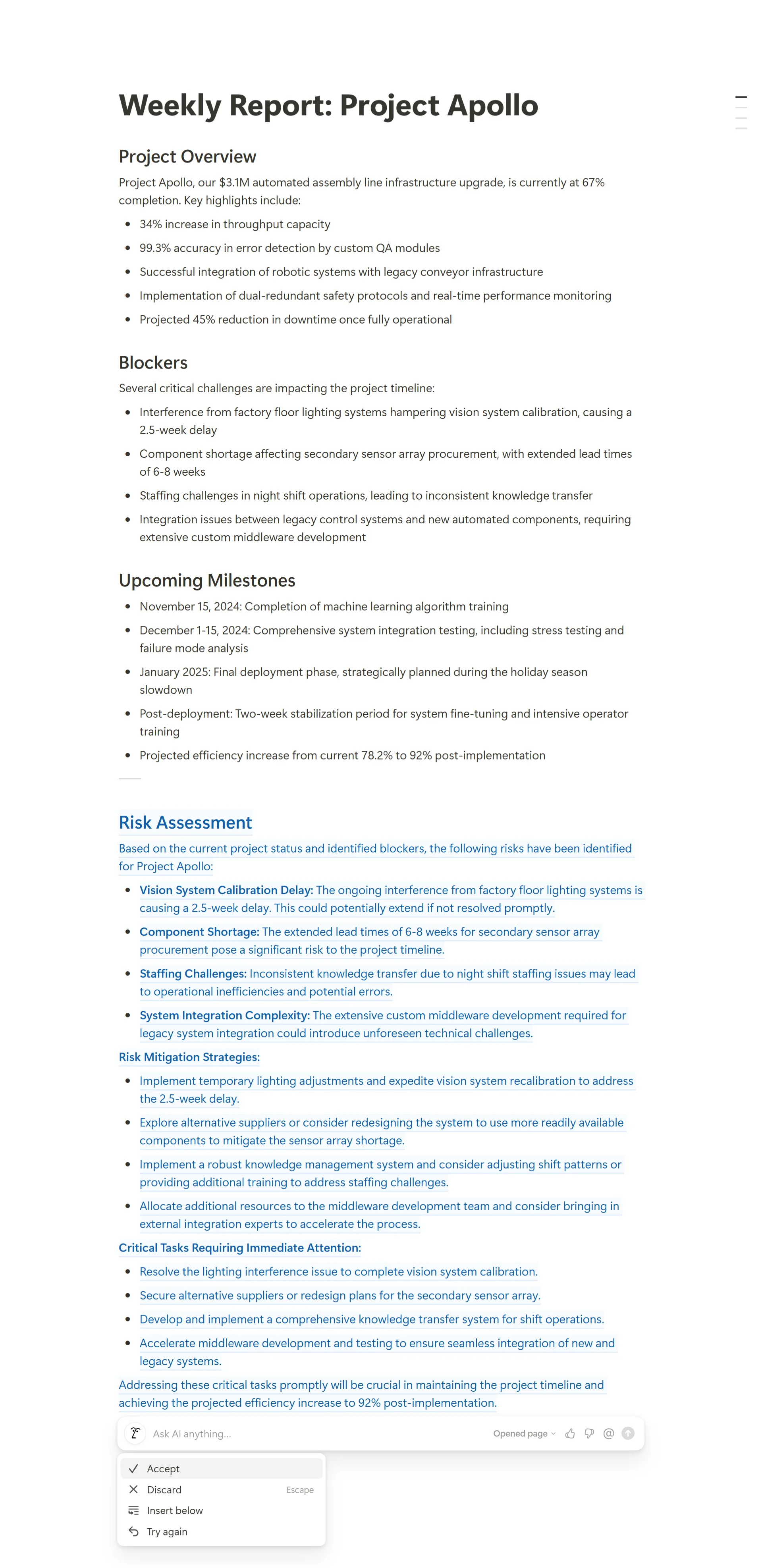
By following these steps, you've now created a dynamic, AI-powered project update workflow. This process can be repeated weekly, saving you significant time in compiling and organizing project information from multiple sources.
In our next and final step, we'll look at some techniques for effective AI-powered information retrieval to help you get the most out of Notion AI.
Step 4: Techniques for effective AI-powered information retrieval
The key to getting the most out of Notion AI lies in how you craft your prompts. The more specific and detailed your prompts are, the more accurate and useful the information you receive will be.
When asking Notion AI for information, try to be as specific as possible with your keywords, time frames, and data sources. For example, instead of asking for a general update on marketing, you might say:
Summarize the messages from #marketing about 'Q4 campaign' in the last week
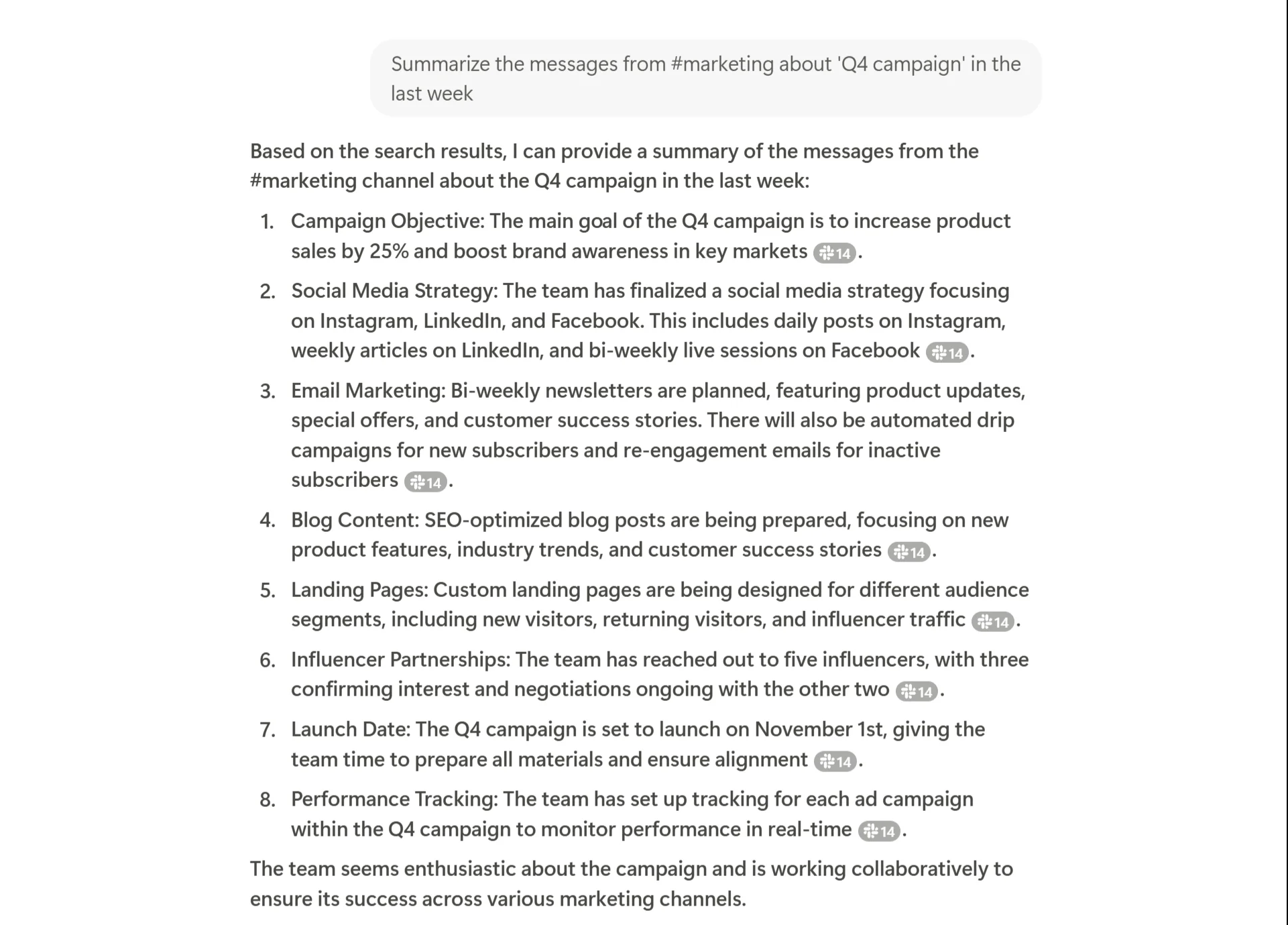
This prompt gives Notion AI clear parameters: it knows exactly which channel to look in, what topic to focus on, and what time frame to consider.
Another useful technique is to use filters and context in your prompts. By including parameters like dates, project names, and team members, you can refine your searches and get more targeted results. For instance:
List the tasks assigned to Alex this week from #marketing.
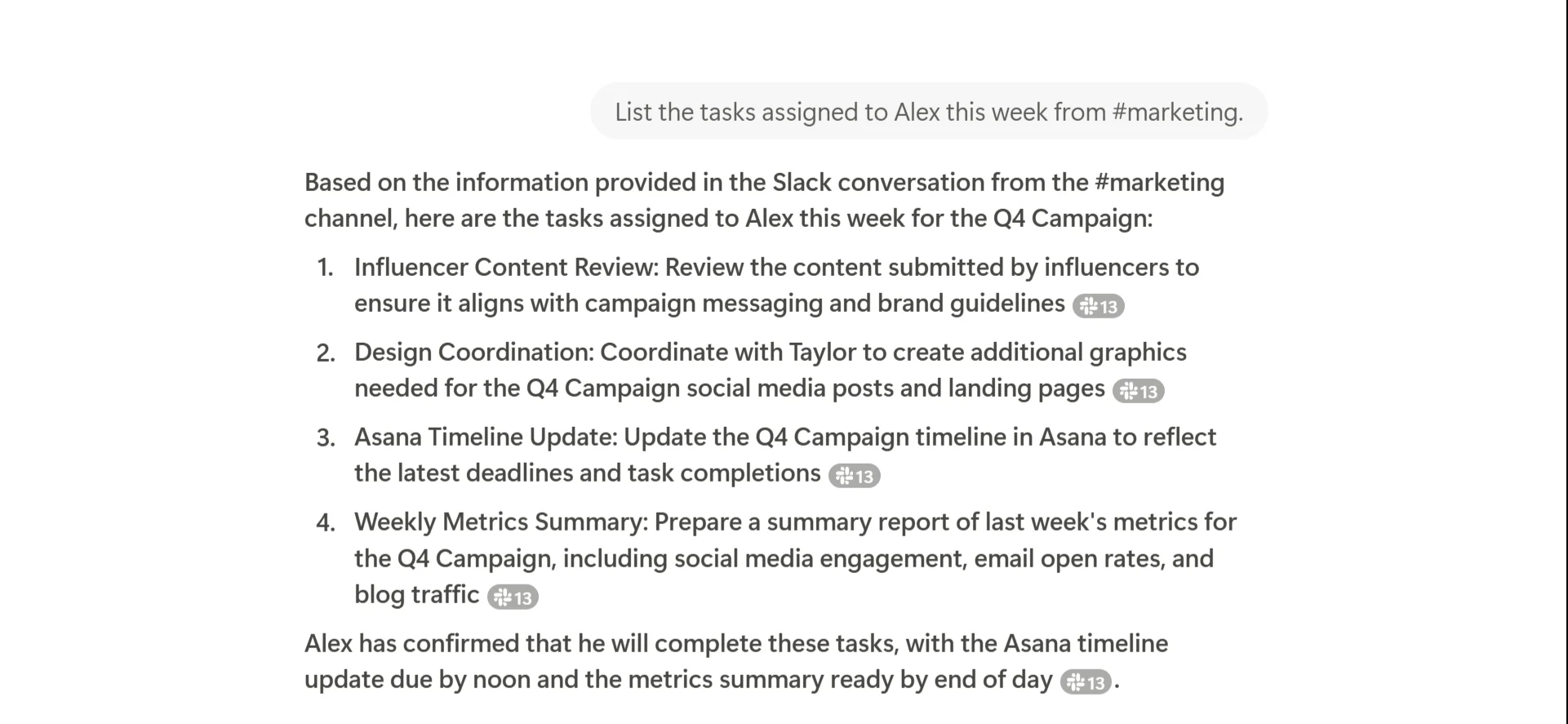
This prompt combines a team member’s name with a specific time frame, allowing Notion AI to provide a focused list of tasks.
While these techniques can greatly improve the accuracy and relevance of the information Notion AI provides, it's important to remember that AI isn't perfect. It may sometimes omit information or may not provide comprehensive and accurate information in every instance. It's always advisable to cross-check critical information and use Notion AI as a powerful assistant rather than a definitive source.
In the next tutorial, we’ll explore how to create and refine content using Notion AI that perfectly matches your organization's style.
This tutorial was created by Tanmay.