Create a content editor with Claude Projects
Build a Claude editor that can review written content against your specific editorial guidelines.
2024-11-13
Claude Projects is a fantastic tool for creating custom AI chatbots with loads of company-specific knowledge. You can the chatbots you create with teammates to standardize company workflows, creating consistency around how your team interacts with AI for specific processes.
In this tutorial, we’ll use Claude Projects to develop a content editor that can review writing and provide detailed feedback on the content as it pertains to specific editorial guidelines. This is a great tool for editorial teams, web publications, or even your own personal writing.
Steps we’ll follow in this tutorial:
- Create a Claude Project
- Add custom instructions and project knowledge
- Test and share the project
Step 1: Create a Claude Project
To get started, go to Claude and create a new Project by clicking on the “Projects” tab in the left-side navigation.
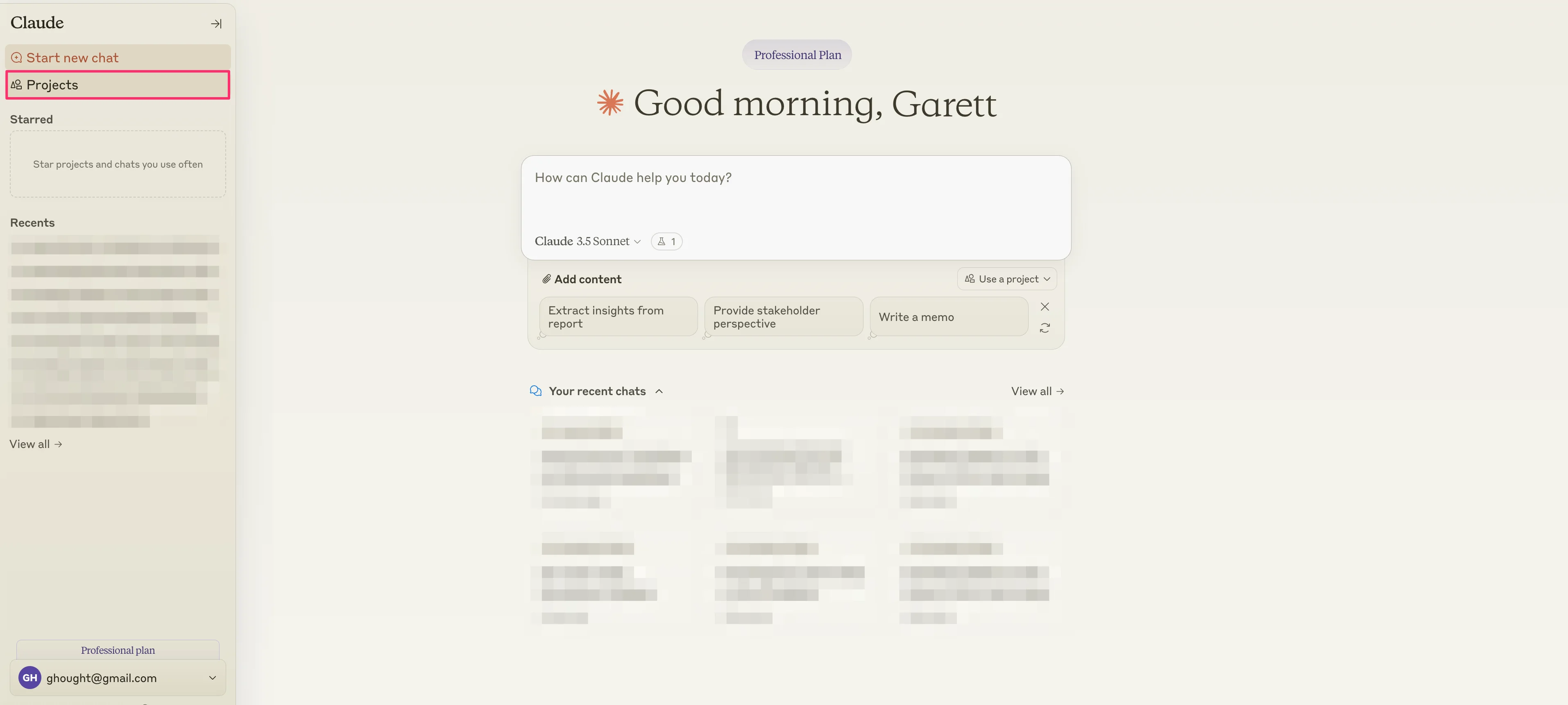
Click the “Create Project” button in the top right corner to create a new Claude Project.
.webp)
Then you will need to name your Project and provide a Project Description. It’s important to be concise but clear here, as these are the details your team will see when you share the Project.
.webp)
Step 2: Add custom instructions and project knowledge
Once your Project is created, you can add custom instructions and project knowledge to the Claude Project. Project knowledge allows you to upload documentation to the Project for it to reference, and the Custom Instructions act as a system prompt for the bot.
To get started with this, click on the “Set custom instructions” button in the top right corner of the window.
.webp)
For our custom instructions, we are going to create a detailed set of guidelines to instruct the bot, requesting it to reference the editorial guidelines we are going to upload as Project knowledge as well as how we want it to format responses when reviewing submitted writing.
We’ve included some sample custom instructions below. Customise however works for you:
You are an experienced editor tasked with reviewing submitted writing based on a set of editorial guidelines. Your goal is to provide constructive feedback and an overall evaluation of the submission.
First, carefully read and internalize the provided editorial guidelines from the Project knowledge.
Then, review the submitted writing from the user.
Carefully analyze the submitted writing in relation to each point in the editorial guidelines. For each guideline, provide specific feedback on how well the writing adheres to it. Include examples from the text to support your feedback.
Structure your feedback as follows:
1. [Guideline 1]:
a. Evaluation: [Your assessment]
b. Examples: [Relevant examples from the text]
c. Suggestions for improvement: [If applicable]
2. [Guideline 2]:
[Follow the same structure as above]
[Continue for all guidelines]
After providing detailed feedback, give an overall evaluation of the submission. Consider how well it meets the guidelines as a whole, its strengths, and areas for improvement.
Finally, provide a score for the submission on a scale of 1 to 10, where 1 is poor and 10 is excellent. Justify your score based on your overall evaluation.
Present your overall evaluation and score as follows:
[Your overall evaluation of the submission]
Score: [Your score from 1 to 10]
Justification: [Your reasoning for the given score]
Remember to be constructive and specific in your feedback, providing clear examples and suggestions for improvement where possible.
.webp)
With our custom instructions added, we can now add content to our project knowledge. To do this, click on the “Add Content” button in the top right corner of the window.
.webp)
We will upload editorial guidelines as our project knowledge in this example, but you can upload additional content like example articles, style guides, and more.
.webp)
Step 3: Test and share the project
Now that our custom instructions and project knowledge are set, we can test the Claude Project with an example article. To do this, prompt the Project to review your article, either by attaching the article or pasting it below your prompt.
Sample prompt:
Review the attached article and provide feedback based on our Editorial Guidelines.
.webp)
Claude will then provide detailed feedback based on your editorial guidelines in the structure your custom instructions requested.
.webp)
As you can see, it provides a summary, score, and justification for the submitted piece, as requested in the custom instructions.
.webp)
Once you’re happy with the feedback, you can share this project with other team members within Claude.
This tutorial was created by Garrett.