Create a custom AI image generator site
Build and customize your own AI image generator site in minutes using WebSim AI.
2024-11-27
WebSim AI is an AI tool that allows you to create websites or app prototypes in literally seconds. In a previous tutorial, we covered the basics and learned how to create simple web applications.
Now let’s dive deeper and explore the platform's advanced capabilities that enable you to build more sophisticated, AI-powered tools.
WebSim AI is much more than just a webpage creator. It offers powerful features that can transform it into an application development platform. Through this tutorial, we'll explore these advanced capabilities by creating a custom AI image generator site. It will showcase how WebSim AI can handle complex AI integrations, real-time data processing, and user interactions.
In this tutorial, you will learn how to:
- Design a custom AI image generation website
- Implement image generation capabilities
- Add style customization options
- Ensure reliable image generation
You'll need:
- A WebSim AI account (free plan is sufficient)
- Understanding of basic WebSim AI concepts
Let’s dive in!
Advanced abilities inside WebSim
Before we build our AI image generator, let's understand the key capabilities that make more complex applications possible in WebSim AI. These built-in features handle the heavy lifting of advanced functionality, letting us focus on building our application.
- Multiplayer sync
WebSim AI allows real-time data synchronization between multiple users. This enables collaborative features and live updates, making it perfect for building interactive applications where users can work together or see changes in real time.
- Language model integration:
Direct access to language models lets you generate content dynamically within your applications. This integration opens up possibilities for creating AI-powered writing tools, content generators, and smart automation systems.
- Built-in database functionality:
Store and query data efficiently with WebSim AI's integrated database system. This eliminates the need for external database setups and simplifies data management within your applications.
- WebSim metadata API:
You can access comprehensive user data, track engagement metrics, and monitor application performance through the metadata API. This feature provides valuable insights into how users interact with your applications.
- Automatic image generation:
Handle missing or failed images intelligently with automatic AI-powered image generation. This ensures a seamless user experience even when dealing with dynamic or user-generated content.
Now let’s get back to building our custom AI image generator!
Step 1: Enable advanced capabilities
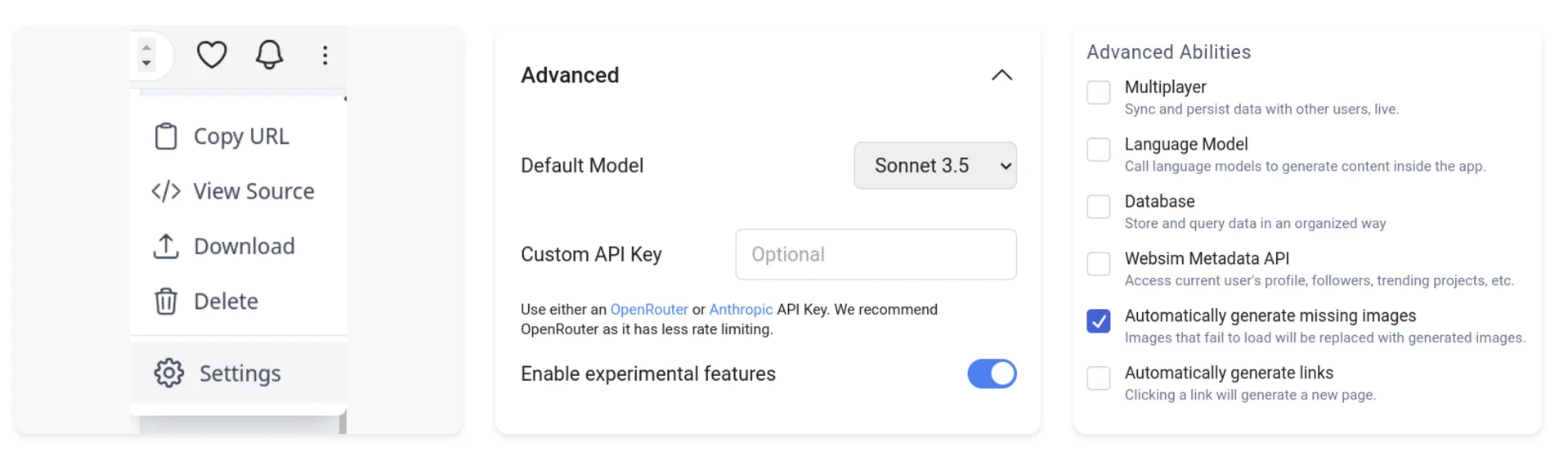
First, we need to properly configure WebSim AI to utilize its advanced features. The image generation functionality requires specific settings to be enabled.
Navigate to your WebSim AI dashboard and create a new project. In the chat interface, find the settings gear icon in the top right corner. Under "Advanced Settings," enable "Automatically generate missing images" to connect with the image generation backend.
Step 2: Create the hero section
Let's create an engaging landing page that introduces users to our image generator. We'll use WebSim AI's styling capabilities to create a professional and appealing interface.
Prompt WebSim AI with:
Create a visually striking hero section for our AI image generator. Include a headline "Imagine it, Create it", a brief description highlighting the free image generation capability, and a "Start Generating" button. Use a dark theme with black, grey, and red accents. Configure the button to smoothly scroll to the generator section.

Step 3: Implement image generation capabilities
Now we'll create the core of our application - the image generation interface. WebSim AI provides a guide for implementing its Flux Schnell image generation system, which ensures reliable image creation and proper API integration. We'll use this guide to create our image generator.
Prompt WebSim AI with:
Create an image generation interface with:
1. A style dropdown (options: Artistic, Photorealistic, Abstract)
2. A text input for image description
3. A generate button
Flux Schnell Image Generation Guide for WebSim:
Important Implementation Details:
1. Image Generation Process:
- Initialsrcwill be set to the prompt text
- Firstsrcchange: URL will update to party.websim.ai API endpoint
- Finalsrcchange: URL will update toreplicate.deliveryendpoint (final generated image)
2. Implementation Requirements:
- Create image with unique ID format:flux-image-[timestamp]-[counter]- Set initial
srcto prompt text
- UseMutationObserverto tracksrcattribute changes
- Monitor for successful image load after finalsrcchange
- Handle loading states with CSS transitions
- Implement retry logic for fetch failures (3 attempts with 3s cooldown)
Example Implementation
Debug Notes:
- Watch for twosrcchanges:
1.[party.websim.ai/api/v1/sites/](http://party.websim.ai/api/v1/sites/)...(processing)
2.replicate.delivery/...(final image)
- Final success only whenreplicate.deliveryURL loads
- Keep unique IDs to track multiple image generations
- If fetch fails, retry up to 3 times with 3s cooldown between attempts
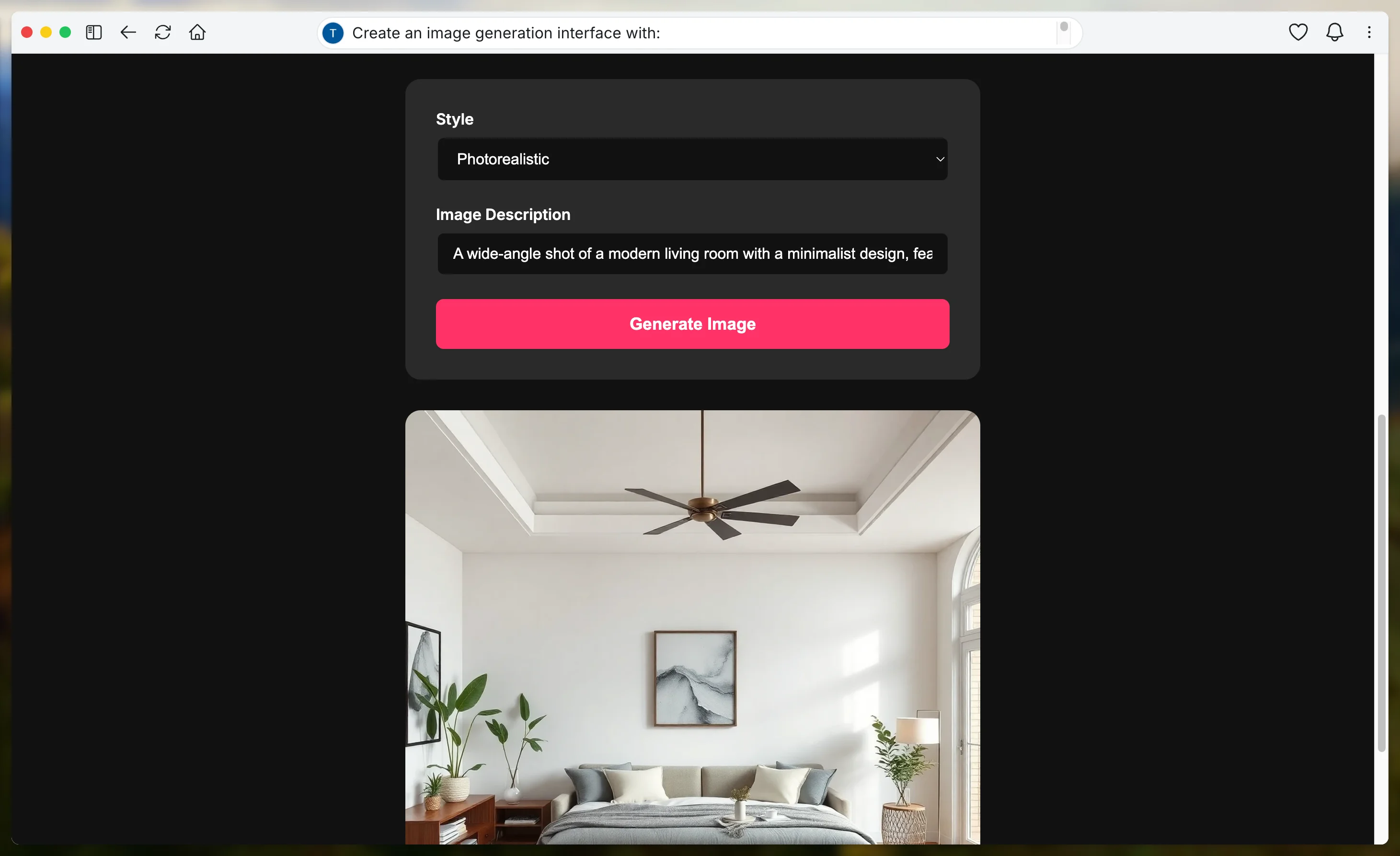
The implementation will create a robust image generation system that handles the entire process from user input to final image delivery. The Flux Schnell system manages the complex backend interactions while providing a smooth user experience.
Step 4: Add customization options
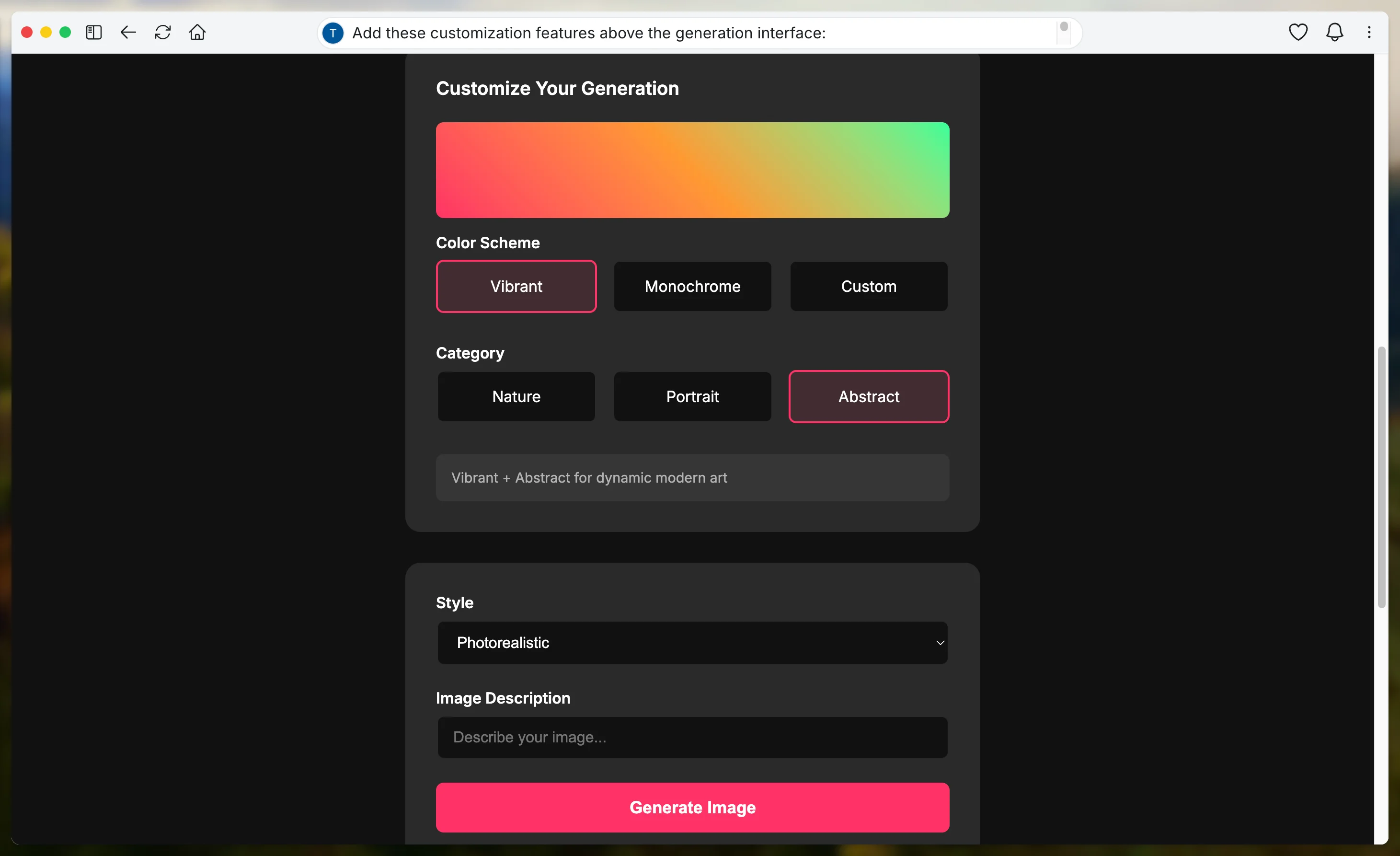
With the basic generation working, let's add more control options for users. These options will help users create exactly the kind of images they're looking for.
Prompt WebSim AI with:
Add these customization features above the generation interface:
1. Color scheme options (Vibrant, Monochrome, Custom)
2. Category selection (Nature, Portrait, Abstract)
Integrate each option directly with the image generation process:
- Append selections to the base prompt
- Update visual preview based on choices
- Show recommended combinations
Step 5: Testing our image generator
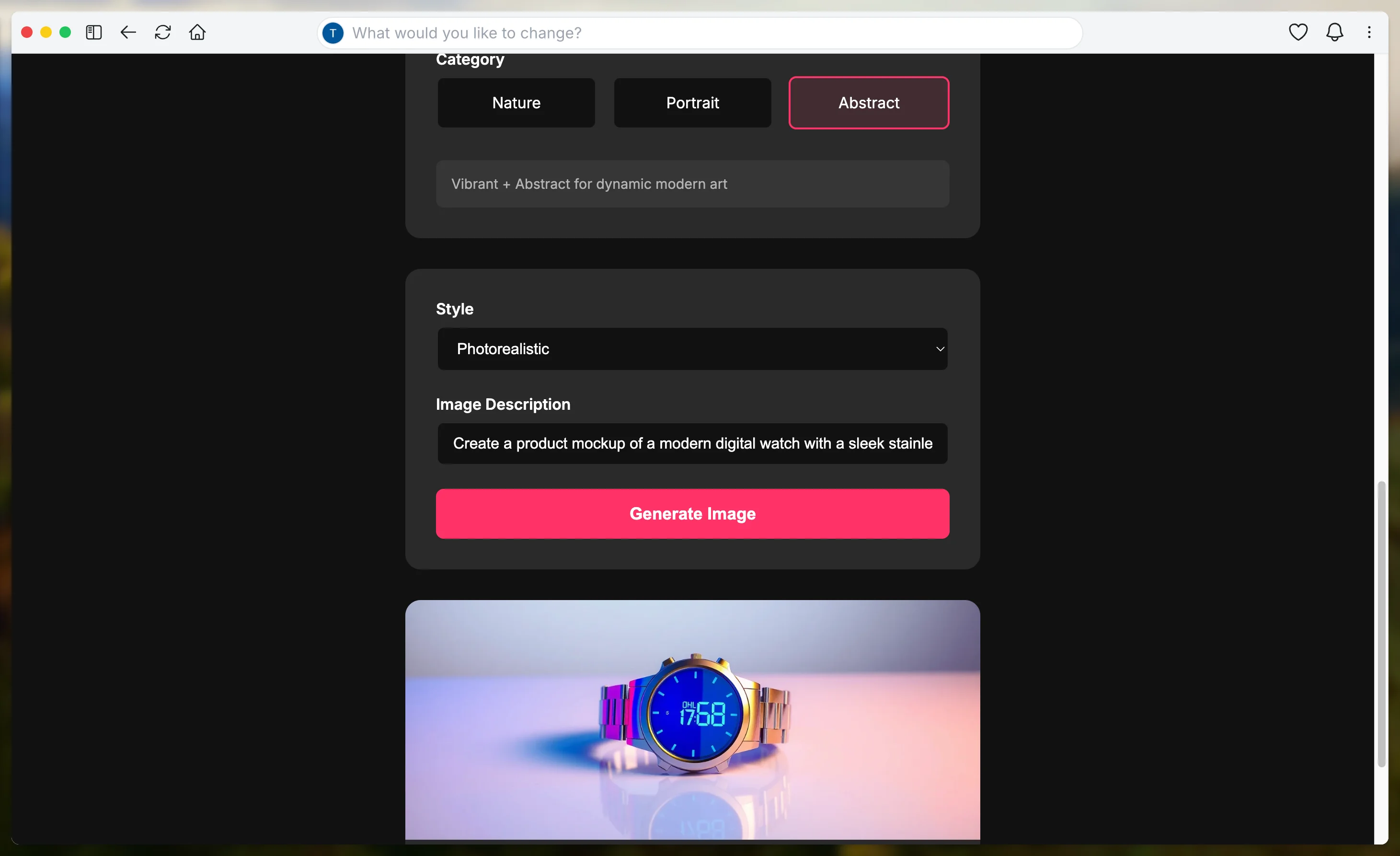
Let's test our implementation with a carefully crafted prompt that will use the full capabilities of our generator:
A product mockup of a modern digital watch with a sleek stainless steel body and a glowing blue LED display. Place it on a clean white background with subtle reflections and soft professional lighting for a high-definition presentation.
Troubleshooting and optimization
When working with advanced features in WebSim AI, you might encounter certain challenges. Here's how to address common scenarios:
- If images aren't generating properly, verify that advanced capabilities are enabled in your settings. Sometimes, simply asking WebSim AI to regenerate the implementation using the Flux guide can resolve generation issues.
- For inconsistent results, review your prompt formatting and ensure style parameters are being properly combined with user inputs. WebSim AI can often correct its own implementation if you explain the specific issues you're encountering.
Customization possibilities
Your image generator can be further enhanced to match specific needs. Consider these customization approaches:
- For brand integration, modify the color scheme and add your logo and brand elements to the interface. You can customize style options to align with your brand's aesthetic.
- To enhance functionality, consider adding custom image size presets, implementing saved favorites for frequent users, or creating preset prompts for commonly requested image types.
- The user experience can be improved by adding a gallery of recently generated images, implementing prompt suggestions based on user selections, or creating custom style combinations for specific use cases.
And that’s it! We've explored WebSim AI's advanced capabilities by creating a sophisticated image generator. This project showcases how features like API integration, real-time updates, and complex user interactions can be implemented using WebSim AI.
The techniques and approaches we've covered can be applied to create various other AI-powered applications. Whether you're building collaborative tools, content generators, or interactive web applications, WebSim AI's advanced capabilities provide the foundation for development.
This tutorial was created by Tanmay.