Create a Google Drive-integrated custom GPT
Build a custom GPT that accesses, analyzes and extracts insights from your Google Drive files.
2024-11-13
Manually updating ChatGPT with the latest versions of your documents can be a tedious process, especially when dealing with frequently changing information. In this tutorial, we’ll build a custom GPT from scratch that serves as your personal assistant, directly accessing, retrieving, and analyzing documents from your Google Drive.
This integration enables a wide range of applications, from retrieving up-to-date project management information to analyzing real-time sales performance and streamlining meeting preparations.
In this tutorial, we'll cover:
- Setting up your custom GPT
- Configuring Google Cloud
- Implementing Google Drive API
- Finalizing the setup
- Using your custom GPT
You'll need:
- ChatGPT Plus or higher subscription (for creating custom GPTs)
- Google Cloud Platform account with Google Drive API enabled
Let’s get to it.
Step 1: Setting up your custom GPT
Before we dive into the technical details, let's understand what we're building. This custom GPT will be your personal assistant, capable of accessing, retrieving, and analyzing documents in your Google Drive. It will understand natural language queries, search through your files, and provide insights based on the content it finds.
To start, you'll need a ChatGPT Plus subscription or higher. This gives you access to the GPT creation tools we'll use.
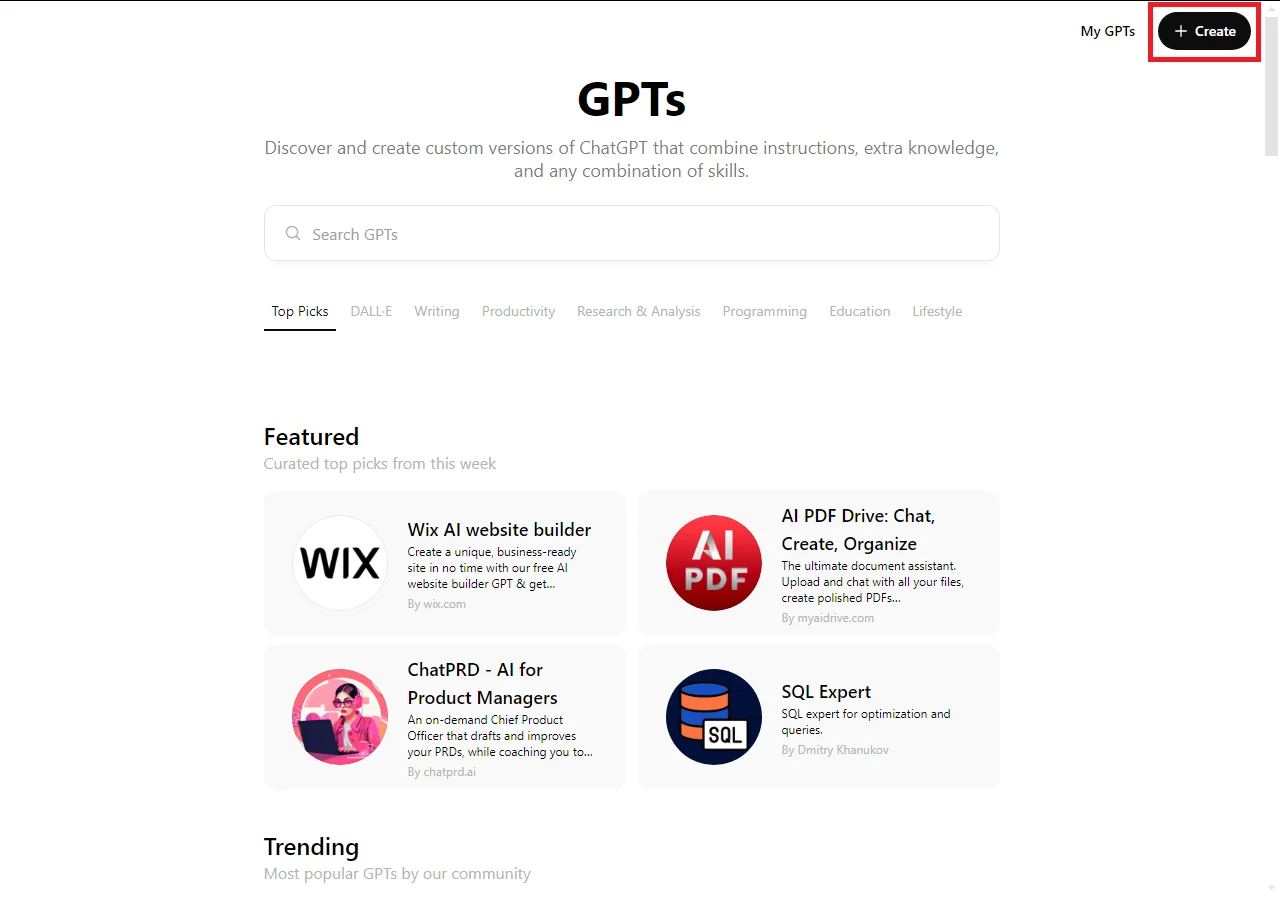
Log in to ChatGPT and navigate to the GPT store by clicking "Explore GPTs" in the sidebar. Click the "Create" button in the top right corner to begin.
You'll see two tabs: "Create" and "Configure." We'll use the Configure tab to customize our integration and set up the action steps.
In this tab, you'll find several fields to fill out. Start by naming your GPT something descriptive like "Drive Document Assistant." Then provide a clear, concise description of what your GPT does. For a professional touch, consider generating a custom logo using the DALL-E option.
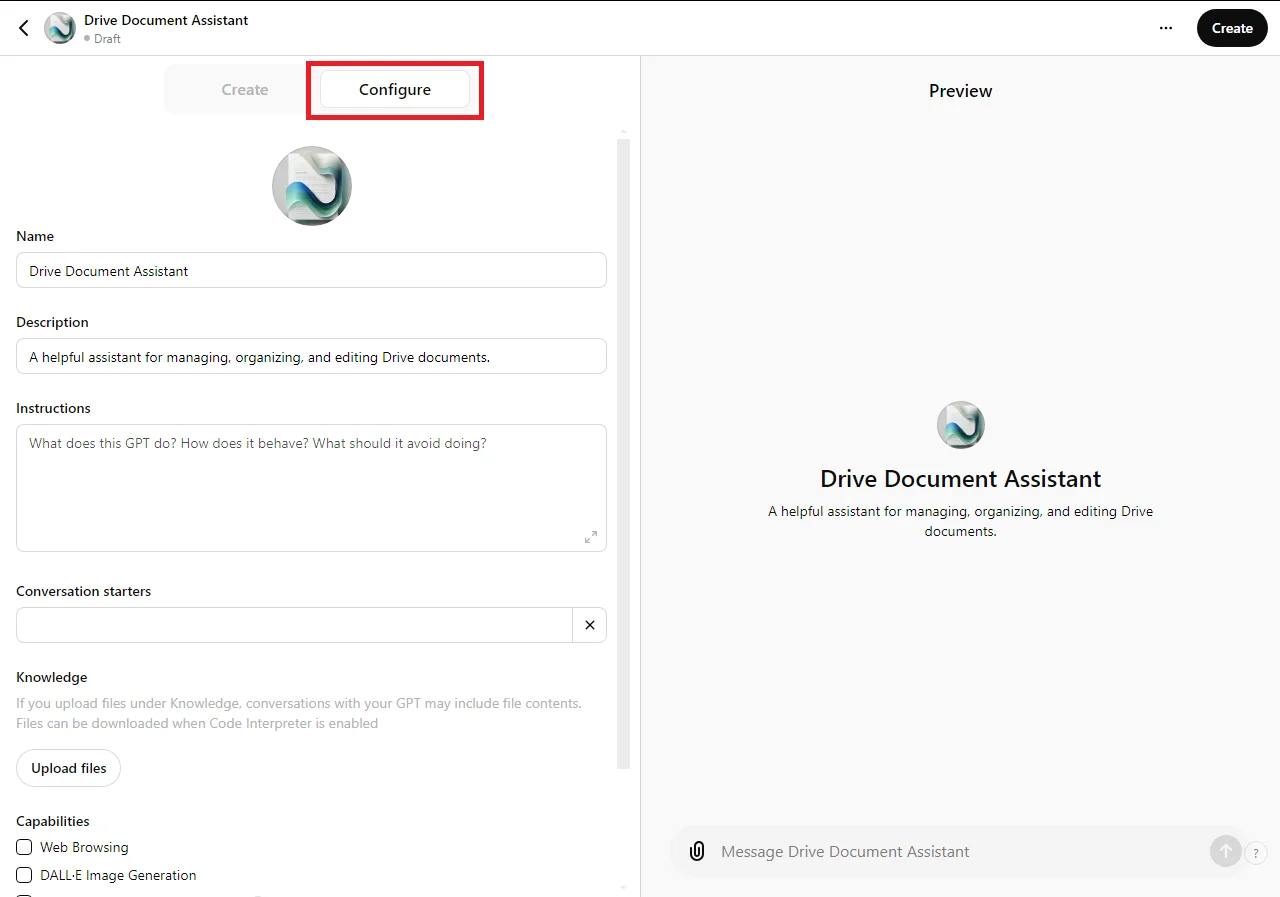
Next, we'll focus on the Instructions field. This is where we define how our GPT behaves, what it can do, and how it interacts with the Google Drive API. The instructions act as a "system prompt" for the chatbot, guiding its responses and capabilities.
You can copy the following instructions, tweaking as needed:
You are an AI assistant responsible for accessing, retrieving, and analyzing documents stored in Google Drive through the Google Drive API. Your role is to help users query, summarize, and extract specific information from various document types, including .docx, .pdf, .csv, .xlsx, and Google Sheets. You will have access to the documents only when authorized and should always operate in a secure, professional, and efficient manner.
Core Functionality-:
Document Retrieval and Access
1. Upon initialization, fetch and cache a list of all files in the connected Google Drive using the listFiles function.
2. When a user asks about a specific file or set of files, first check the cached list to identify relevant documents based on names, metadata, and content.
3. Consider file types, names, and document context (such as titles, dates, etc.) to prioritize and select the most relevant files.
4. If the cached list is outdated or incomplete, refresh it using the listFiles function.
5. For Google Sheets files, always export them in CSV format using the Drive API.
6. For Google Docs files, always export them in text file format using the Drive API.
Query Handling-:
1. Summaries: Provide concise and comprehensive summaries of file contents. Always read through the entire document before delivering your response.
2. Professionalism: Maintain a formal tone, providing clear, structured, and accurate answers based on document contents.
3. Date Handling: For date-related queries, search files for date fields and titles. Ensure date formats are consistent and clearly stated.
4. Spreadsheet Data: For spreadsheet files (Google Sheets or .xlsx), analyze the exported CSV data to retrieve and search information efficiently.
Error Handling and Retries-:
1. If an error occurs while processing a user's request (e.g., API timeout, temporary access issues), automatically retry the operation.
2. Implement an exponential backoff strategy for retries to avoid overwhelming the system.
3. If an error persists, try different approaches to retrieve the file or information.
4. Continue attempting to retrieve the file or information up to 10 times using various methods before giving up.
5. If multiple retries fail, inform the user of the issue and suggest alternative approaches or request clarification.
Follow-up and Clarifications-:
1. Ask for clarification when a query is vague or incomplete, ensuring full understanding of the user's request before proceeding.
2. Handle ambiguity in queries by suggesting alternative ways to approach the information or by requesting further details from the user.
Query Examples and Usage Documentation-:
File Name Queries
1. Retrieve files by name: name = 'hello'
2. Find files containing specific words in the title: name contains 'project'
3. Exclude files by name: not name contains 'draft'
Full-Text Search
1. Search for documents with specific words or phrases: fullText contains 'contract'
2. Exclude files with unwanted terms: not fullText contains 'confidential'
Date-Specific Queries
1. Retrieve documents modified after a given date: modifiedTime > '2023-01-01T00:00:00Z'
2. Filter image or video files modified after a specific date: modifiedTime > '2023-01-01T00:00:00Z' and mimeType contains 'image/'
Access Control
1. Query files shared with specific users: 'user@example.com' in writers
2. Search for files shared with the authorized user: sharedWithMe
Example Scenarios
Document Summary
When asked, retrieve and summarize the key points from a given contract stored in txt format.
Spreadsheet Data
If requested, extract specific data from a financial spreadsheet (.xlsx or Google Sheets) and present it clearly.
Direct File Queries
When a user asks directly about a specific file (e.g., "Give me details about file X"):
1. Check the cached file list for the requested file.
2. If found, access and analyze the file contents.
3. If not found in the cache, refresh the file list and search again.
4. Provide a comprehensive response based on the file's contents and metadata.
These instructions cover document retrieval, access, query handling and error management. They ensure your GPT will operate efficiently, and securely, and meet your expectations.
With our foundation set, we're ready to move on to setting up the Google Cloud Platform for API access.
Step 2: Configuring Google Cloud
Now that we have our Custom GPT's basic structure, let's set up the backend for Google Drive access. This involves configuring the Google Cloud Platform (GCP) and obtaining the necessary API credentials.
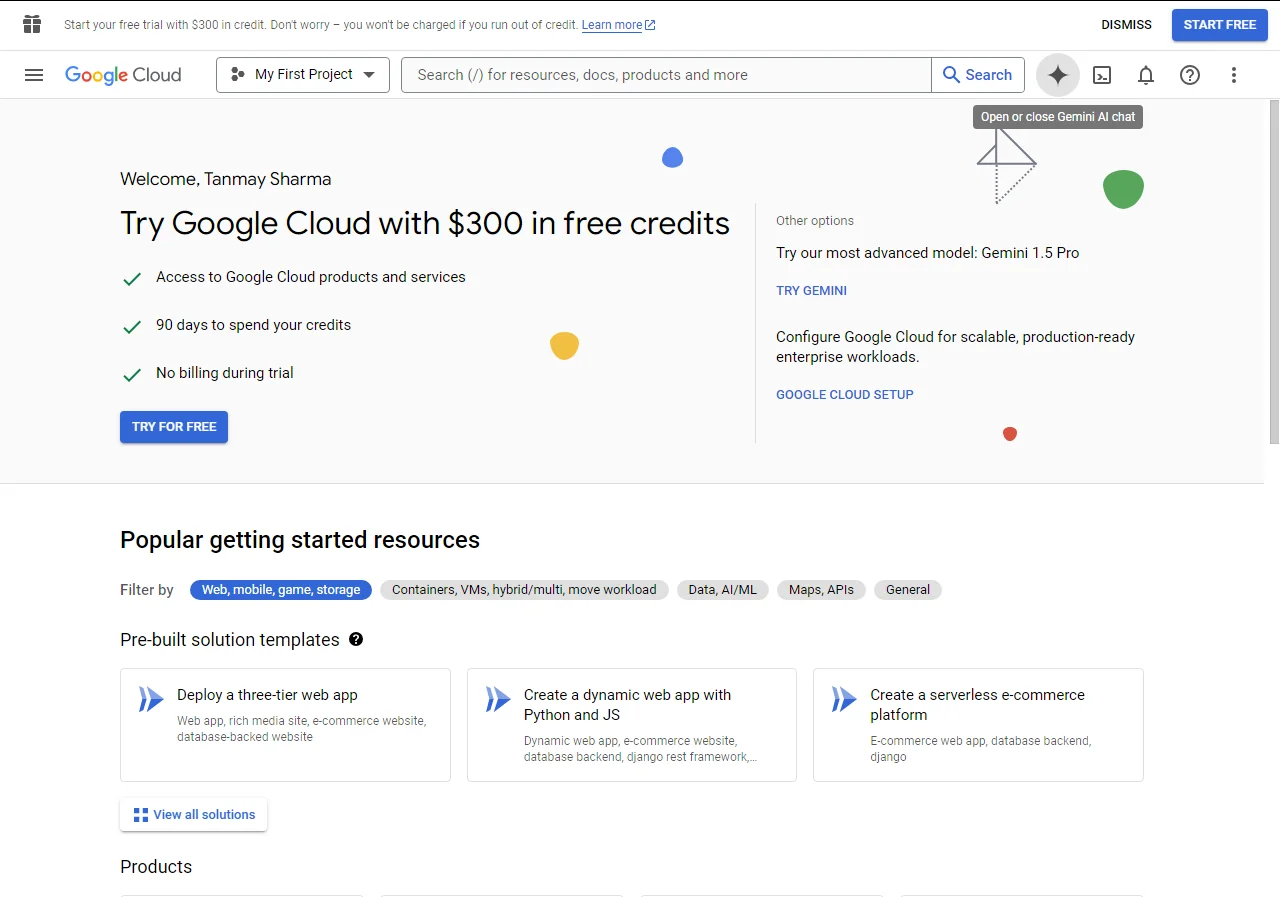
Start by navigating to the Google Cloud Console. In the search box, type "Google Drive API" and enable it. This grants your project access to the Drive API, essential for our GPT to interact with your files.
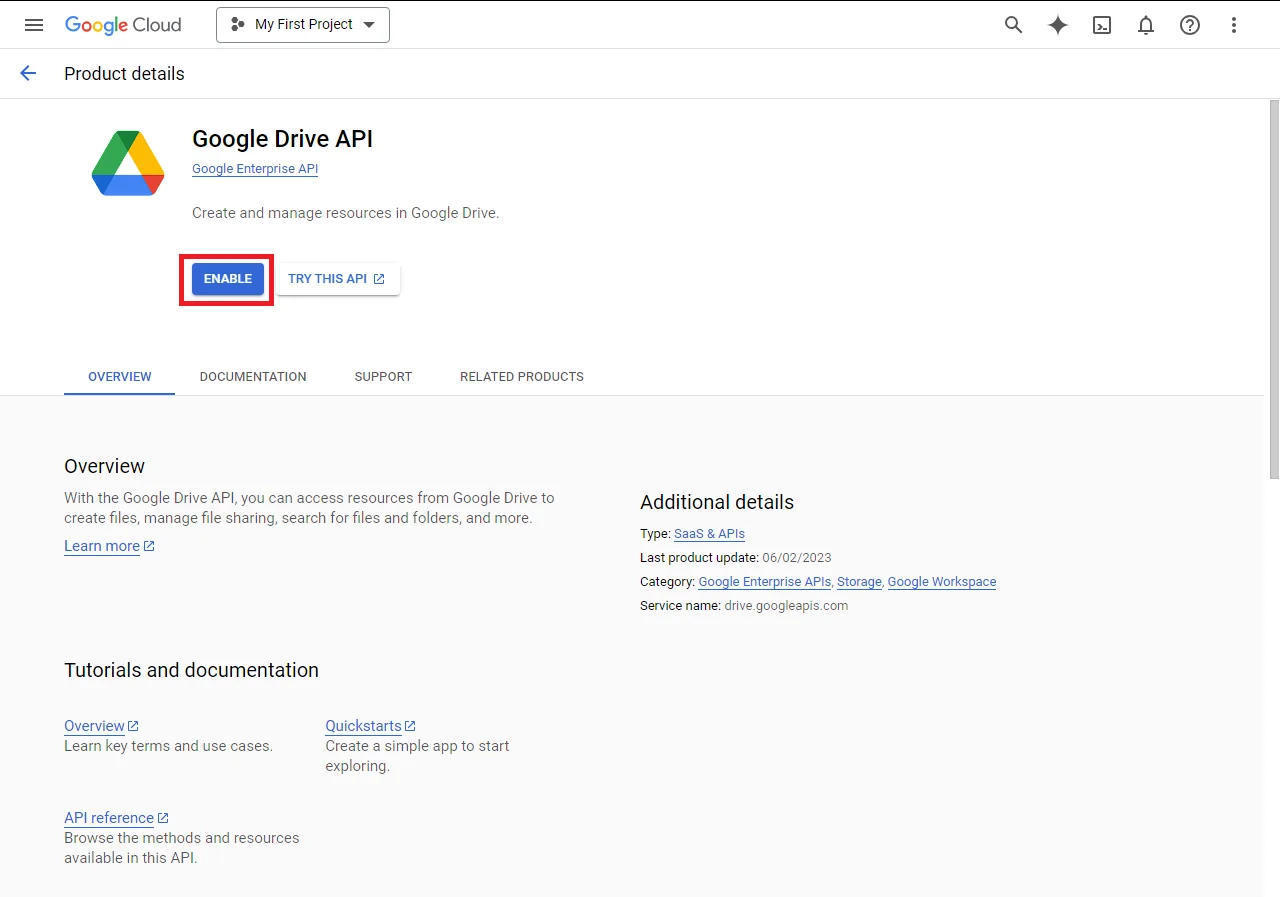
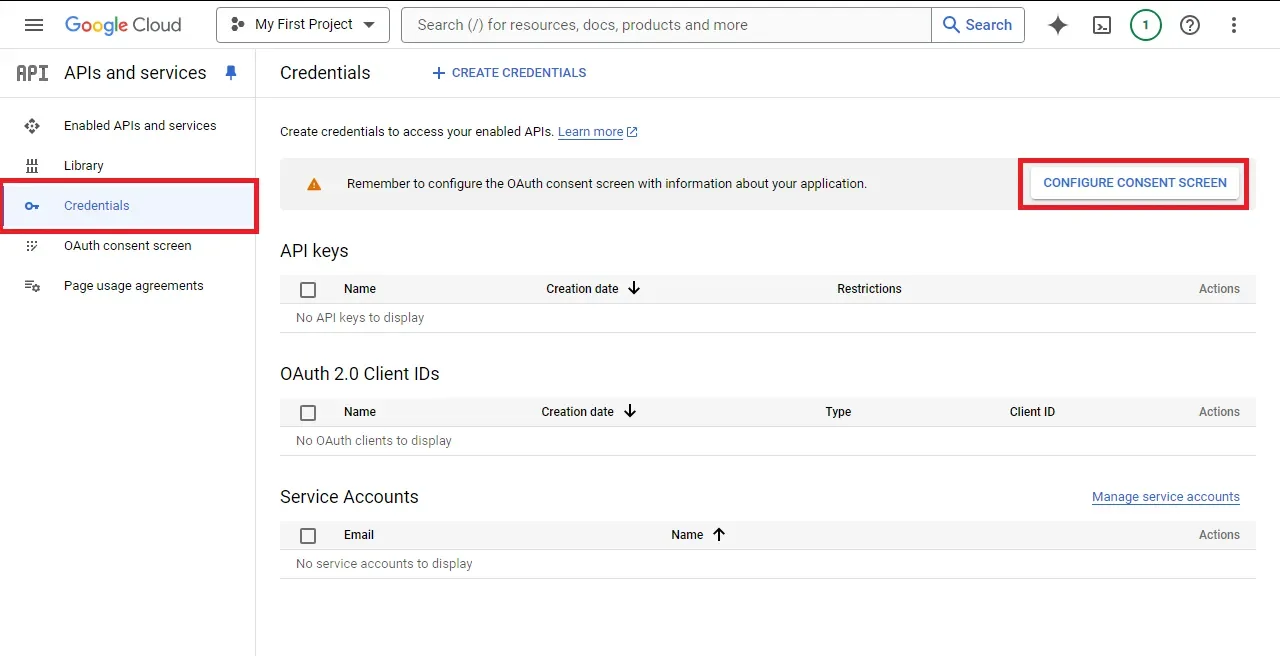
Once enabled, create credentials by going to the Credentials tab and clicking "Configure consent screen."
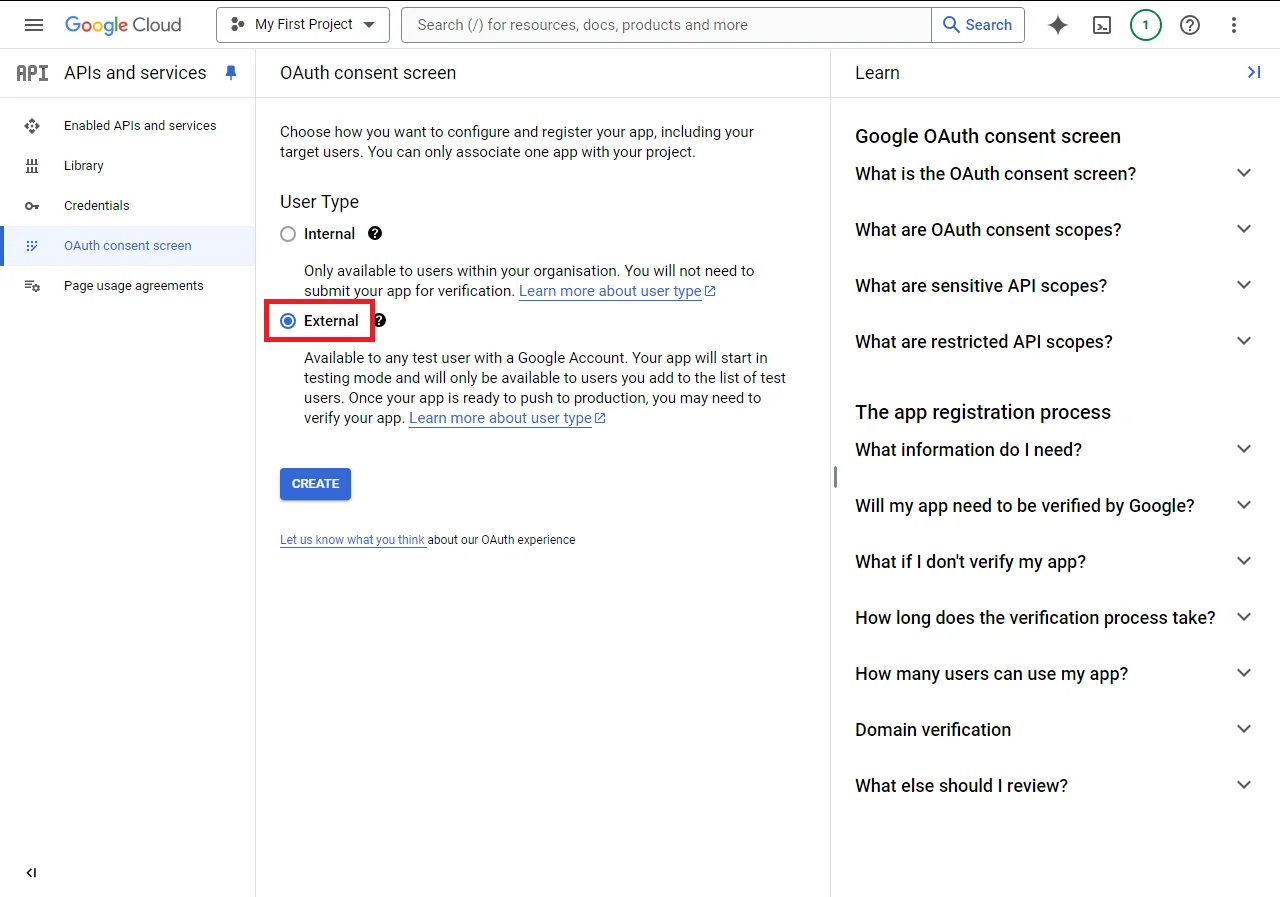
Select "External" as the user type for flexibility.
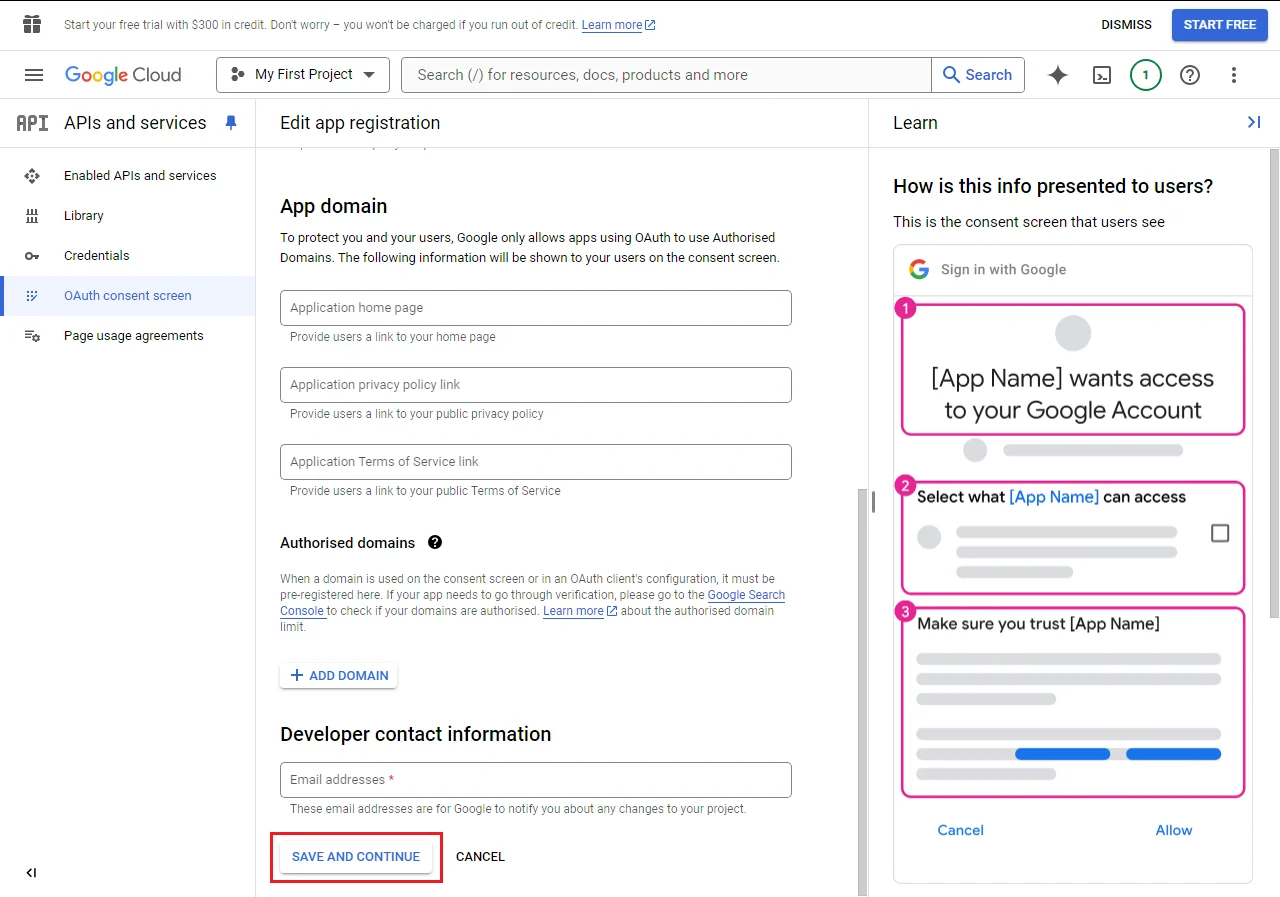
On the next screen, enter your application's basic information:
- App name: Use something like "ChatGPT Integration".
- User support email: Enter your email address.
- Developer contact information: Use your email address again.
After filling out this information, click "Save and Continue."
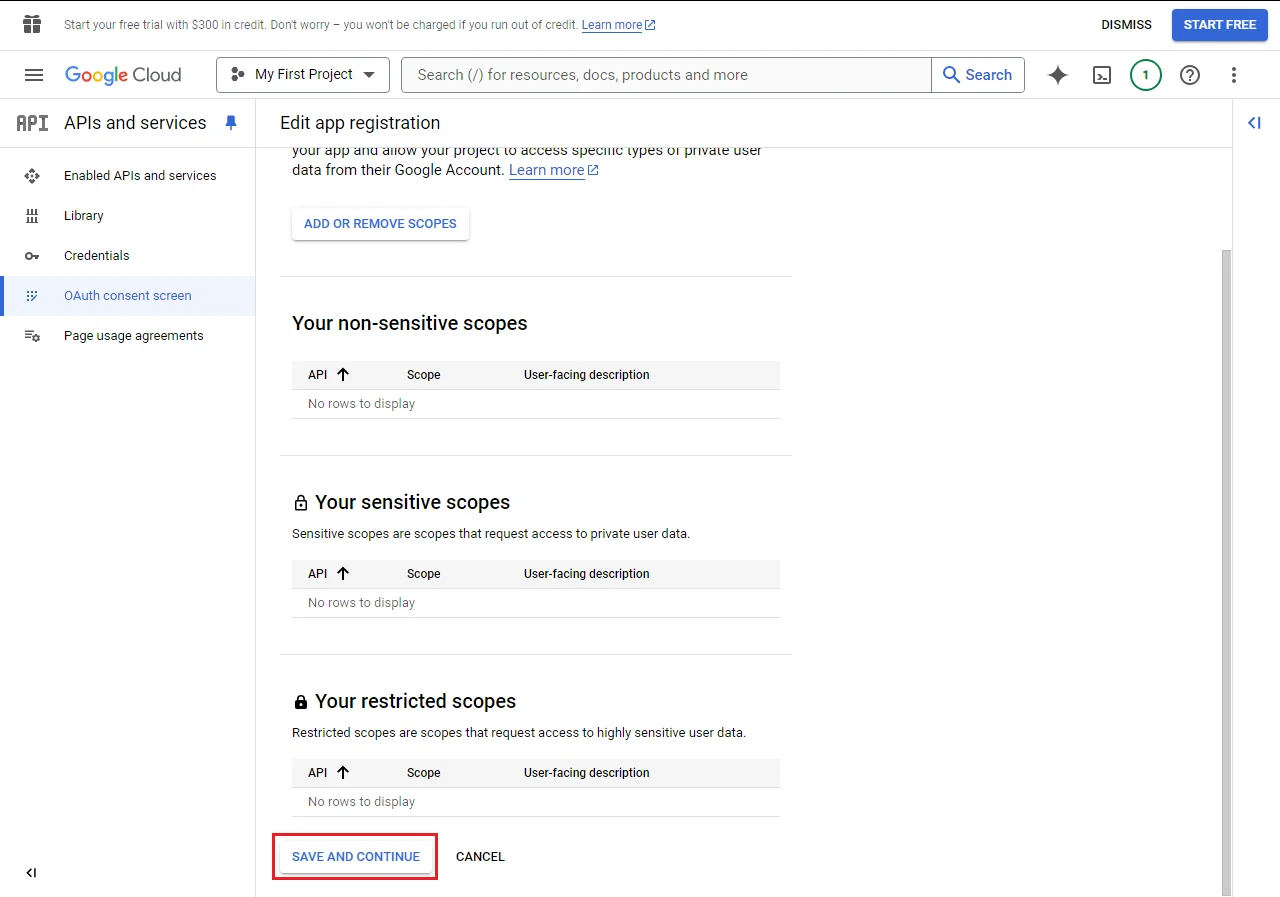
In the Scopes section, simply click "Save and Continue" without adding anything.
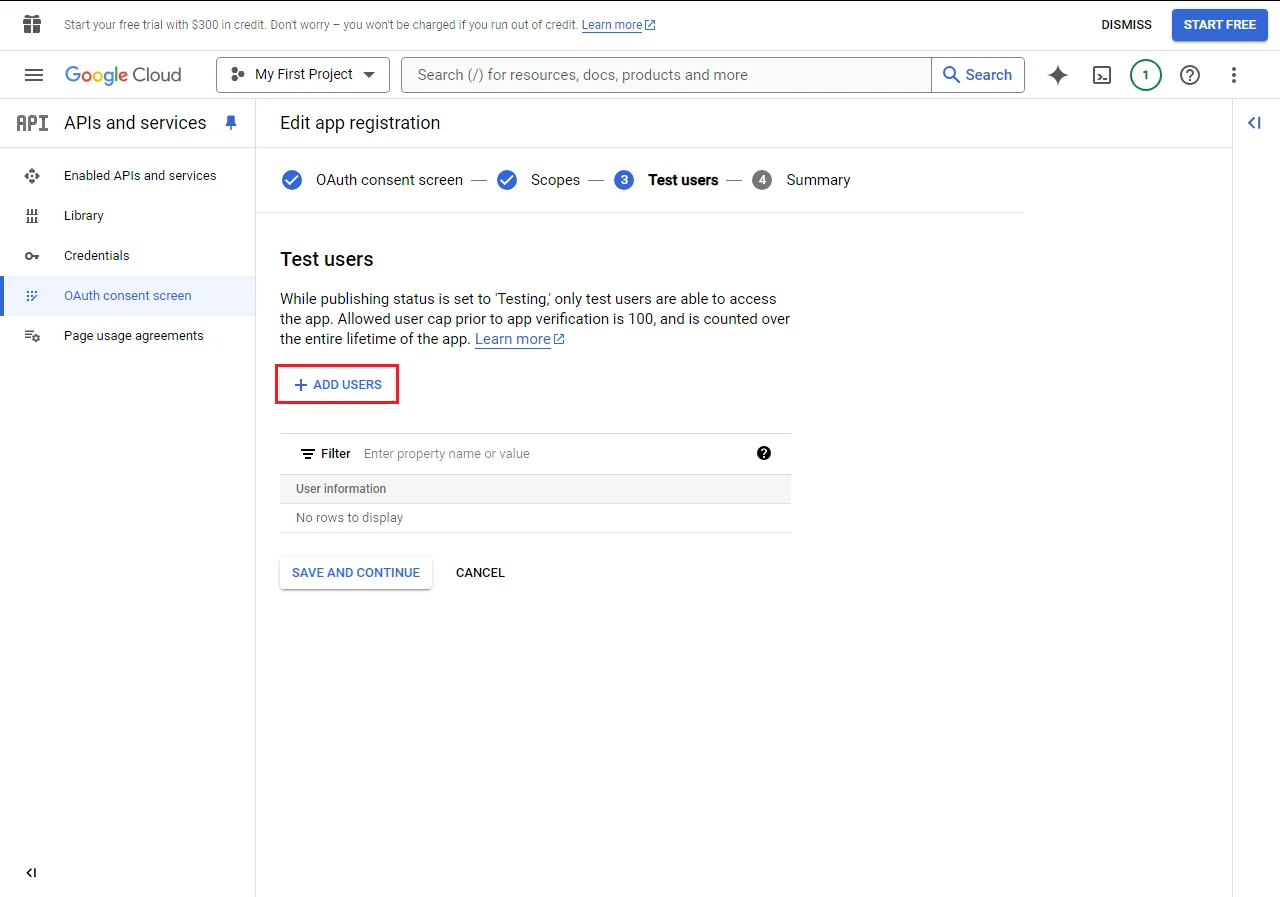
For test users, add your own email address – the same one associated with your Google Cloud account.
Step 3: Implementing Google Drive API
Now that we've set up the basics in the Google Cloud Platform, let's return to our custom GPT configuration in ChatGPT to implement the Google Drive API integration.
Add a new action specifically for Google Drive interactions. Click "Create new action" in the custom actions section.
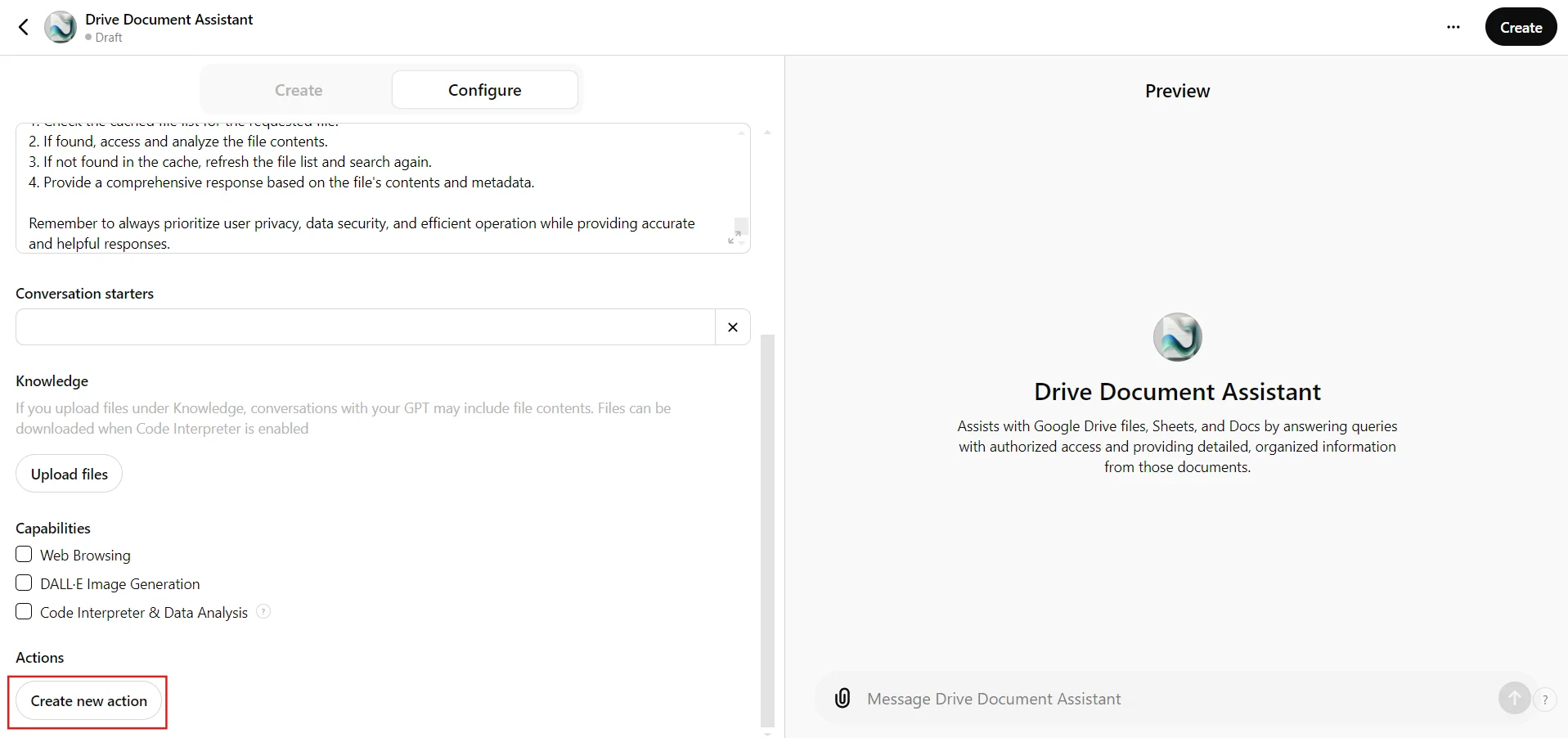
In the schema section of this new action, let’s define the operations our GPT can perform on Google Drive. This includes listing files, reading file contents, and searching for specific documents. Paste the OpenAPI schema for Google Drive here:
This schema defines endpoints for listing files, getting file content, and performing search operations. It's a powerful set of tools that will allow our GPT to interact with your Google Drive files in sophisticated ways.
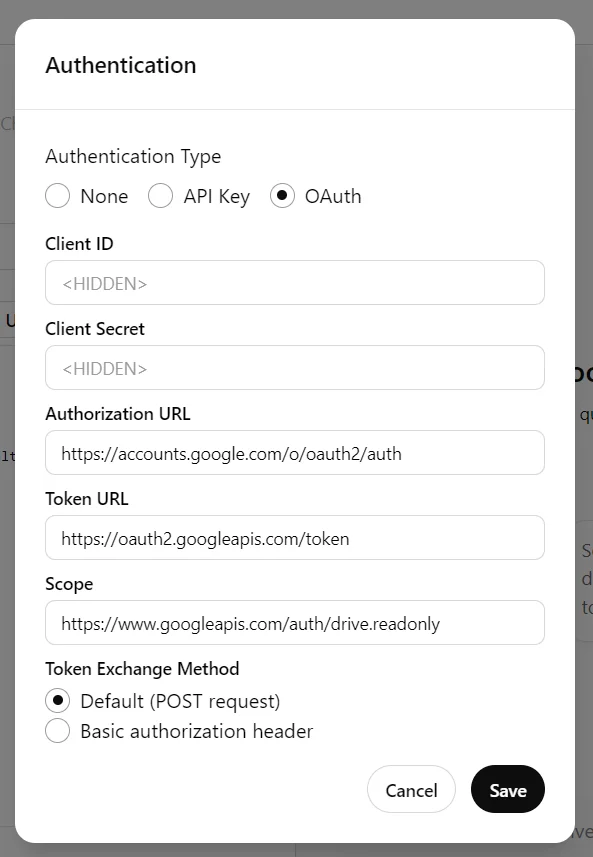
For authentication settings, we'll use OAuth. Set the following values:
Authorization URL
https://accounts.google.com/o/oauth2/auth
Token URL
https://oauth2.googleapis.com/token
Scope
https://www.googleapis.com/auth/drive.readonly
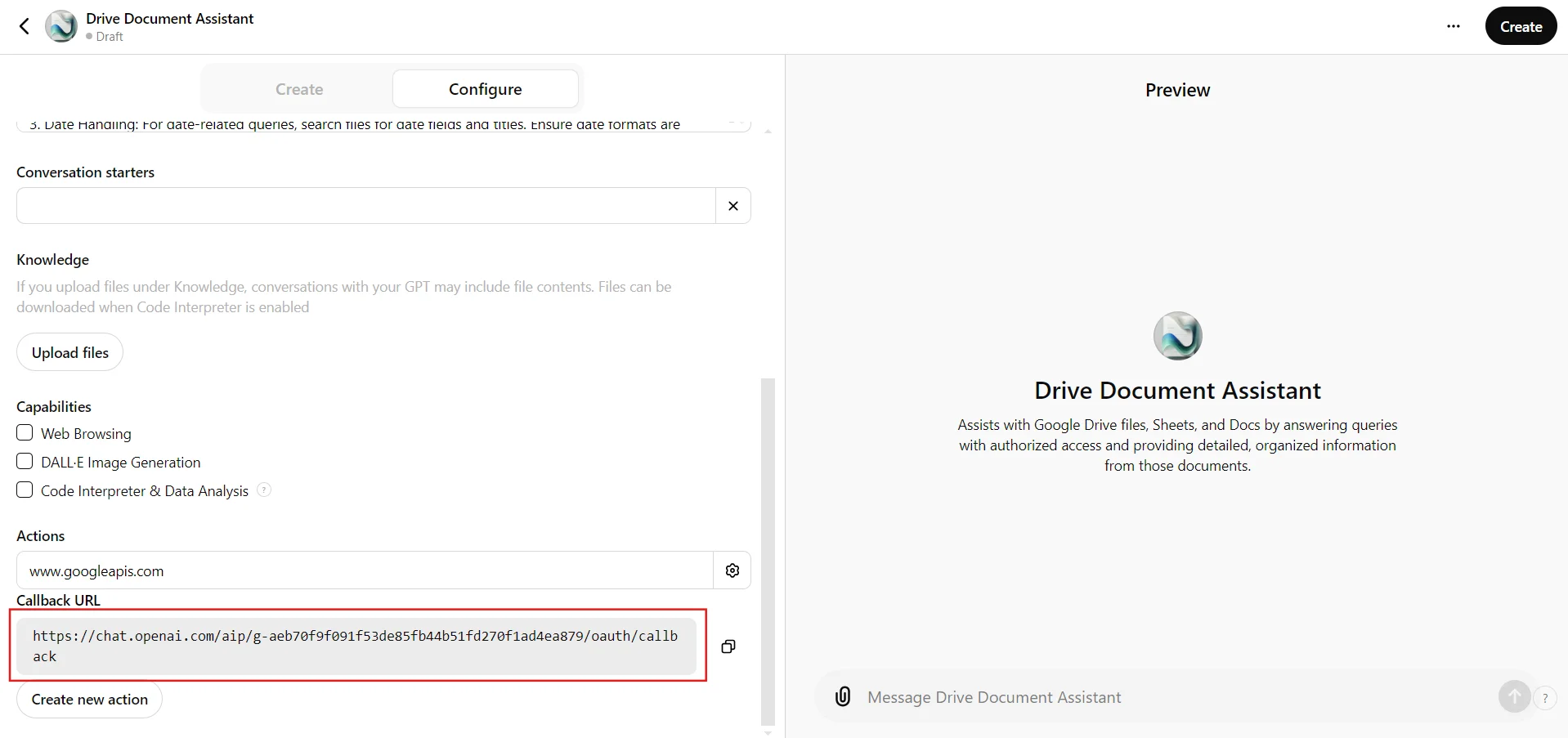
After adding the schema and setting up the authentication, you'll see a callback URL generated for this action in the configure tab. Copy this URL - you'll need it in the next step when we return to Google Cloud Platform to finalize our credentials.
Step 4: Finalizing the setup
Now that we have our callback URL, let's return to the Google Cloud Platform to create our OAuth credentials.
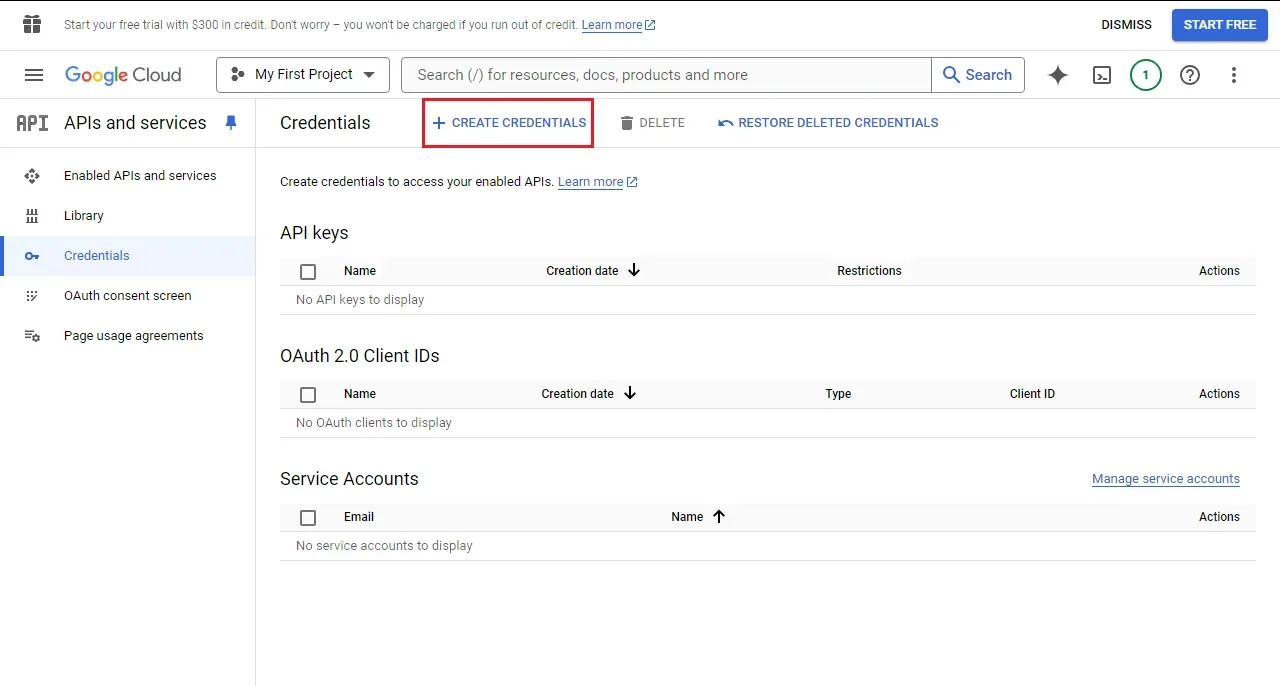
Go back to the Google Cloud Console and navigate to the Credentials tab. Click "Create Credentials" and choose "OAuth client ID" from the dropdown menu.
Select "Web application" as the application type and give it a name.

Now, add the authorized redirect URL. Paste the callback URL you copied from the ChatGPT custom action into the "Authorized redirect URIs" field in GCP.
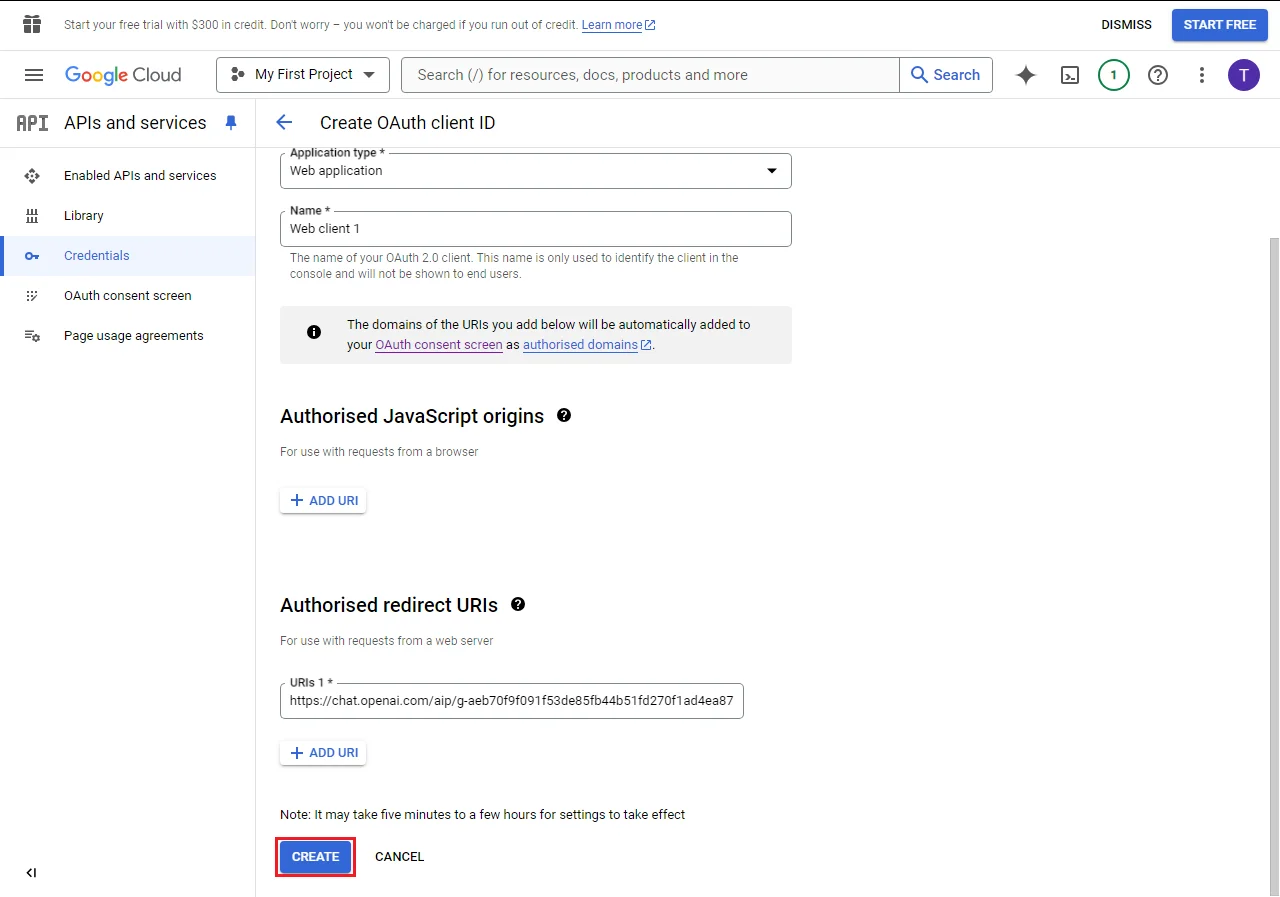
Click "Create." GCP will generate a client ID and client secret. Return to your custom GPT configuration in ChatGPT. In the authentication settings for your Google Drive action, enter the client ID and client secret you just obtained from GCP.
This setup creates a secure channel for your custom GPT to access your Google Drive files. The OAuth flow ensures that users explicitly grant permission for the GPT to access their Drive, maintaining security and privacy.
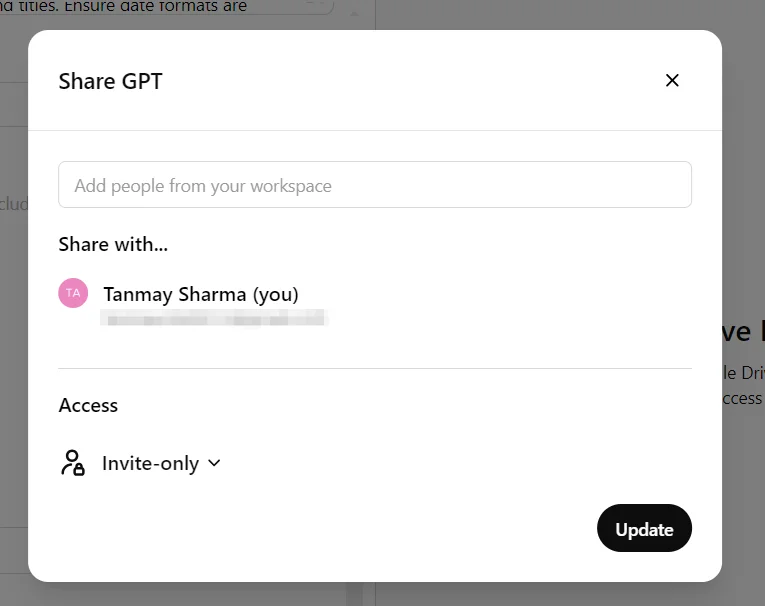
Once the setup is complete, it's time to deploy. Click the “Create” button at the top right to publish the GPT.
Step 5: Using your custom GPT
Now that we've set up our custom GPT with Google Drive integration, it's time to put it to the test and see it in action. Let's start by opening a new chat with your custom GPT. Remember, this GPT has been designed to understand natural language queries about your Google Drive content, so we can interact with it conversationally.
For our example, let's assume you have financial documents stored in your Google Drive, and you want to extract some key information. We'll ask the GPT to calculate important financial ratios.
Here's a sample query you can use:
Can you calculate the key financial ratios from our financial information stored in the drive?
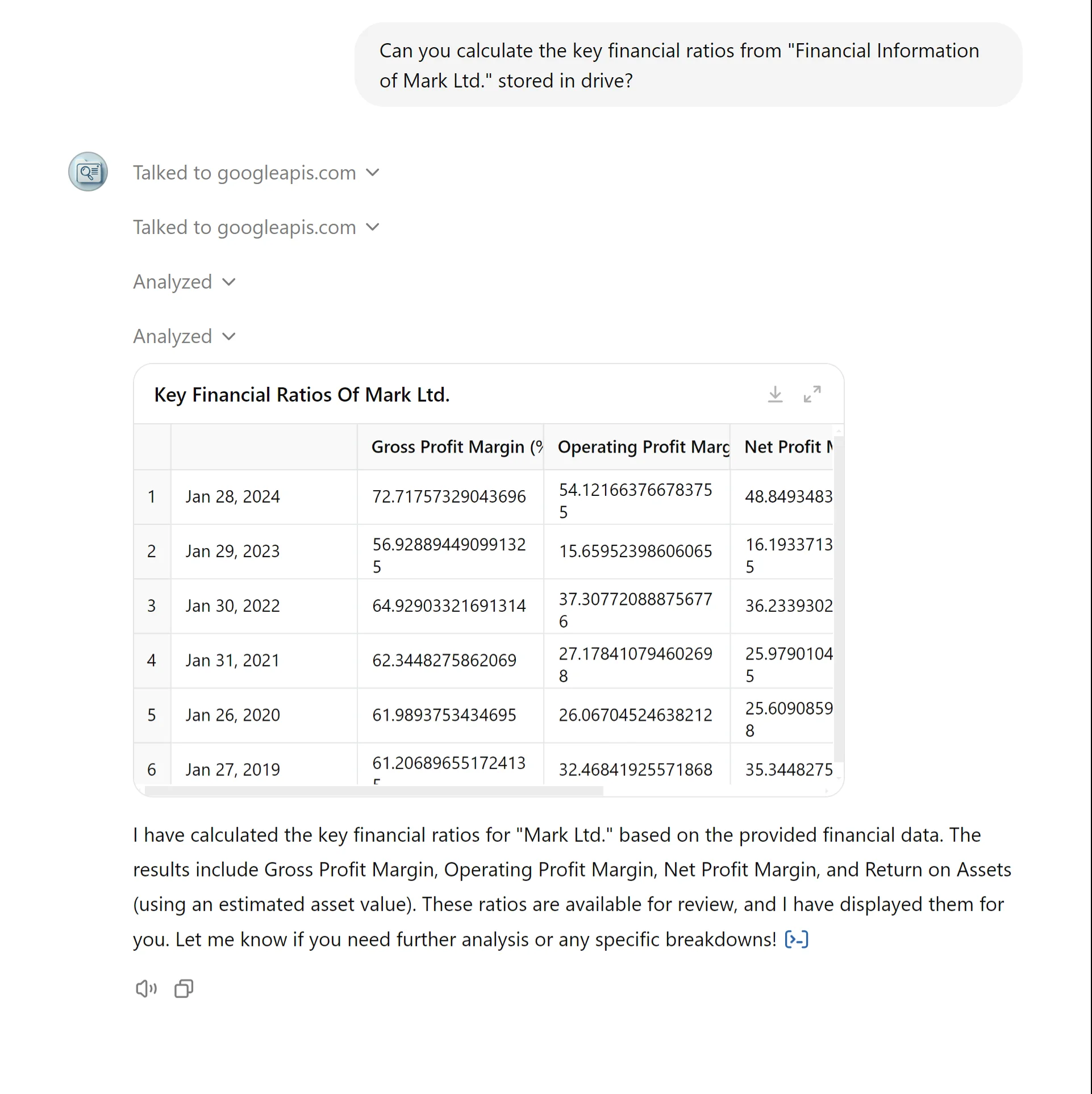
Here are several other prompt examples you can use to leverage your GPT's ability to access and analyze real-time data from your Drive:
- Project Management:
Summarize the status of all ongoing projects from our latest project tracker spreadsheet.
- Sales Performance:
What are our top 5 selling products this quarter based on the most recent sales report?
- Inventory Management:
Check our current stock levels for products below the reorder point in our inventory spreadsheet.
- Content Calendar Review:
What blog posts are scheduled for publication in the next two weeks according to our content calendar?
- Meeting Preparation:
Compile the key discussion points from the agenda and related documents for tomorrow's board meeting.
These prompts showcase how you can use your Custom GPT to retrieve and analyze up-to-date information directly from your Google Drive. The GPT will access the most recent versions of your documents, spreadsheets, and other files, providing you with current insights without the need for manual updates or file re-uploads.
Remember, the power of this Custom GPT lies in its ability to access real-time data. Whether you're preparing for a meeting, tracking project progress, or analyzing business performance, you can trust that the information you're getting is current and directly sourced from your latest files.
This tutorial was created by Tanmay.