Create a pitch deck from your company website URL
With just your company website URL, you can use Gamma to generate a pitch deck.
2024-11-13
Gamma is taking the presentation creation process and supercharging it with AI. Gone are the days of painstakingly spending hours transforming your ideas into visual slide presentations. Instead of creating presentations from scratch, you can feed Gamma a document, a Google Drive folder, text, or a website URL to generate a bespoke presentation of your content.
And even more, Gamma has a myriad of AI-editing tools once your presentation is generated, including slide design regeneration, image generation, text condensing, and more.
In this tutorial, we’re going to walk through creating a pitch deck for a company using just a company website URL. You read that right, we’ll give Gamma a link to our company website, provide it with a simple prompt, and watch it generate a pitch deck for our company.
Steps we’ll follow in this tutorial:
- Provide your company website URL to Gamma
- Customize the presentation generation prompt
- Select a theme and edit your slide designs
- Visualize data with charts, diagrams, and tables
- Export and share your presentation
Step 1: Provide your company website URL to Gamma
To start, navigate to Gamma and create a free account. You’ll get 500 AI credits with a free account. For reference, it took us 50 AI credits to generate and edit our pitch deck for this tutorial.

Once your account is created, you’ll land on a dashboard page where you can create presentations. You can create presentations from an AI-first workflow, manually from scratch, or from imported slides. Click the “Create New” button in purple to use the AI-first presentation creation workflow.

There are a few options for where you can start with Gamma’s AI-first workflow. If you want to create a pitch deck from your company’s website, click on the “Import file or URL” option on the resulting window. You can also generate a slide presentation from a one-line prompt, import a file, or paste in text to generate the presentation.

Once you click on the “Import file or URL” option, you’ll be taken to another page where you’re able to upload a file, import documents or slides from Google Drive, or import content from a URL. We’ll be choosing the last option to import from a URL.

When you click on the “Import from URL” option, a pop-up window will appear where you can drop in your company’s website URL.

Then you can define what format you want the output to be. For this tutorial, we’re going to create a presentation, but you can also create a website design or a document. Click Continue to go to the next step.

Step 2: Customize the presentation generation prompt
Now that you’ve defined the high-level parameters of your input content and output format, we can dial in a few additional parameters on the “Prompt editor” screen. You should see your website text content has been indexed and ingested by Gamma and presented in the center card of the page.
In the left side card, we can provide a bit more context to Gamma on what to create via their text content prompt generator. We’ll specify that we want our presentation to be a pitch deck. To do this, click the Generate button on the left side of the page.

A few text boxes will appear, including a “Write for…” text box and a “Tone” text box. We’ll update the “Write for…” text box first with our audience and presentation angle prompt. For our tutorial, we’ll request a pitch deck for venture capitalists.
Sample prompt:
Pitch deck for venture capitalists in the [insert industry] industry. We're looking to raise money for our company. Tailor the slides for why a venture capitalist should invest in our company.

We’ll leave the “Tone” text box to the default, which is set to “Informative, authoritative, accessible.” Once you’ve updated your prompts, click the Continue button to go to the final step of the pre-generation process.
Step 3: Select a theme and customize the design
Once you’ve clicked Continue, you’ll be asked to pick a theme. You can select from a wide variety of pre-made theme designs. We’re going to go with the Flamingo theme for our pitch deck. Once you’ve decided, click the Generate button to generate your presentation.
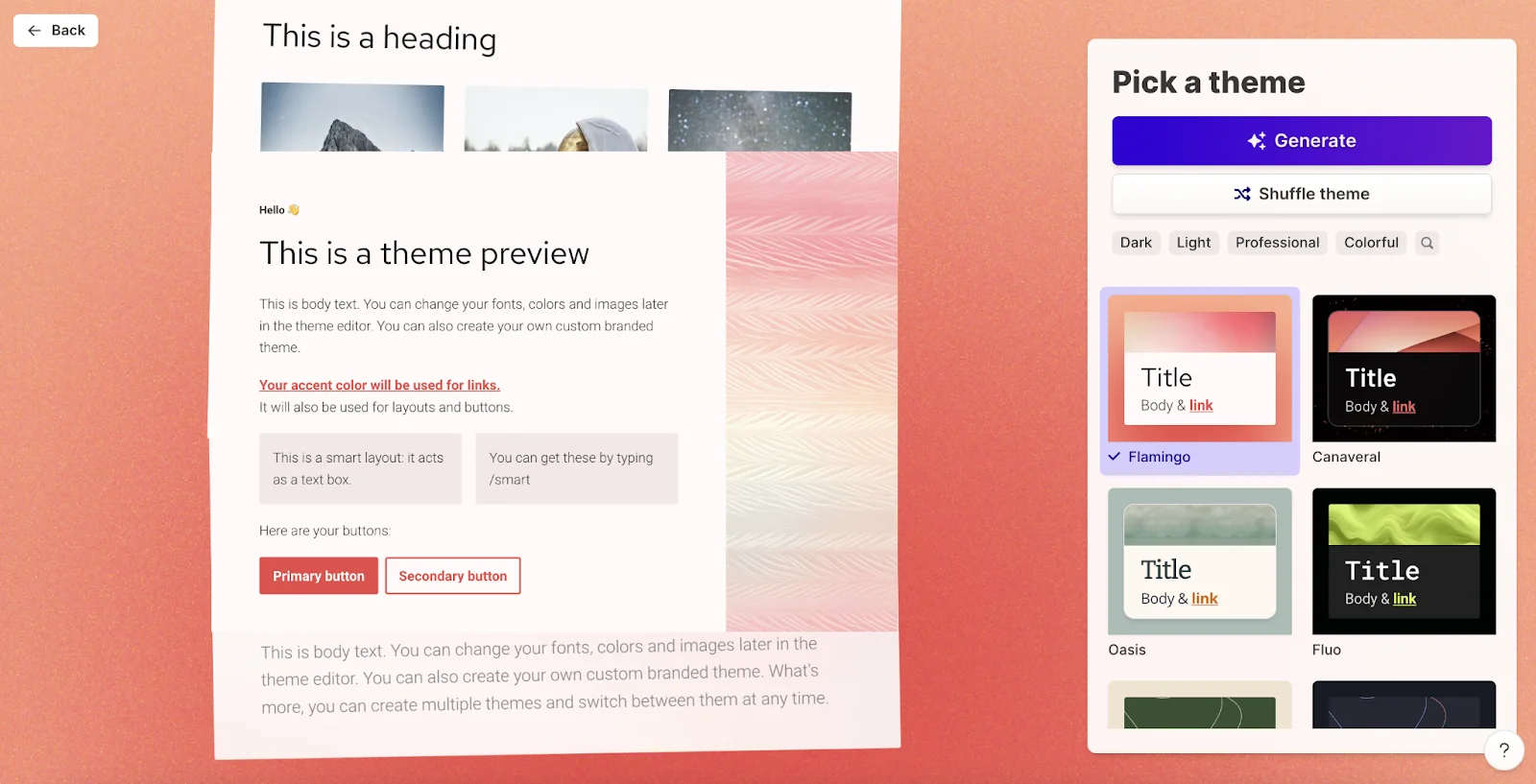
It will take 1-2 minutes for your presentation to be generated, depending on the number of cards. Once your presentation is generated, you’ll land on a presentation editor screen. This is where you can review the presentation content and make updates to the slide design, text content, and images.

To start, we’ll update the image on our first card. We’ll update the AI-generated image to the Ben’s Bites logo. To do this, click on the image and click the Edit button at the bottom of the screen.

This will open a side window where you can select from many options of media, including uploading an image, web search, Unsplash images, Giphy GIFs, and re-generating an AI image. We’ll go with the web search option.

We’ll search for the Ben’s Bites logo and click on the first option.

With the logo added, we’ll auto-resize it via the “Image Fitting” button at the bottom of the screen. This will fit the image to its container and provide a matching colored background.

Make sure to scroll through the rest of your presentation to make similar updates to images and text to ensure accuracy throughout your presentation.
Step 4: Visualize data with charts, diagrams, and tables
With our content in a good place, we can update charts, diagrams, and tables with AI in our presentation. If you had any data-focused slides, Gamma should’ve generated the slides in a structured manner. In our example, it took our user metrics and structured the data in a table format. We can update this data visualization by clicking the Stars icon in the top left corner of the slide. We’ll select the “Try a different layout” option to change the layout.

And voila! Our user metrics slide was updated from a table to big numbers.

Step 5: Export and share your presentation
Once you’ve edited your presentation to your liking, you can share it in multiple ways, including a share link, presenting it directly from the Gamma web app, or even downloading it into local formats like PDFs and PowerPoints. To share your presentation, click the Share button in the top navigation bar.

A pop-up will appear with many share options. Clicking on the Export tab will allow you to export your presentation as a PDF or PowerPoint.

The Share tab will let you share the public link for a web view.

And that’s it! If you’ve made it this far, you’ve created a pitch deck presentation from your company’s website URL. Good luck with your pitch!
This tutorial was created by Garrett.