Create a presentation slide deck with Canva’s Magic Studio
Whip up custom presentation decks using ChatGPT for copy and Canva’s AI for design.
2024-11-13
Whether you’re presenting a new project to your team or pitching a business idea to investors, powerful visuals will always help capture attention and persuade your audience.
Presentations are a tried and trusted way to display such visuals, but we’re not all talented designers. Nor do we all have the time to build effective presentations from scratch.
Luckily, Canva’s AI-powered Magic Studio and ChatGPT can help you develop beautiful presentation templates in just a few minutes.
Let’s see how it’s done.
Step 1: Create your slide deck
In Canva, go to Magic Studio on the left side menu. There, you’ll find Magic Design for presentations.
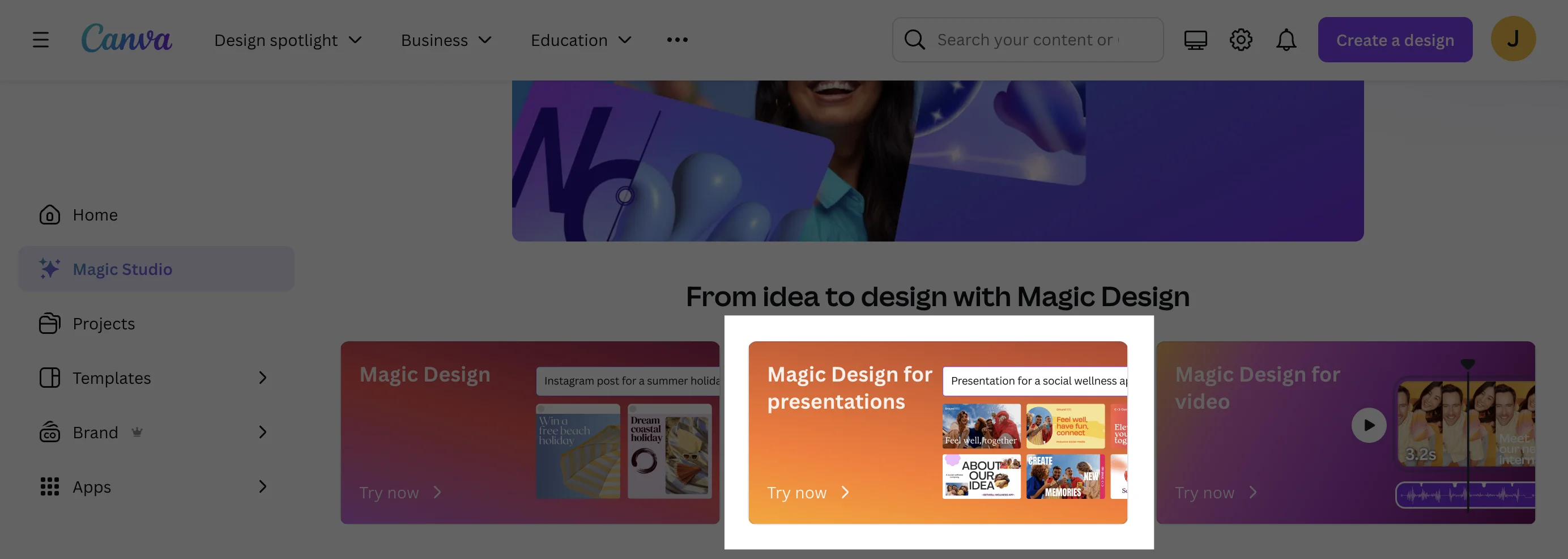
When you click, Canva will generate a new presentation project for you. In place of the slides, it will share a 3-step process which we’ll expand on in this tutorial.
In the top left corner, enter a simple prompt to create your presentation. Unlike ChatGPT or Claude which specialize in text-based generation, Canva offers a higher-level structure.
Some prompts you could use in Canva include:
Presentation for a project retro meeting
Outline for a product strategy presentation
Outline for a performance marketing review session
For this tutorial, we’ll use:
An outline for a 4 stage project plan
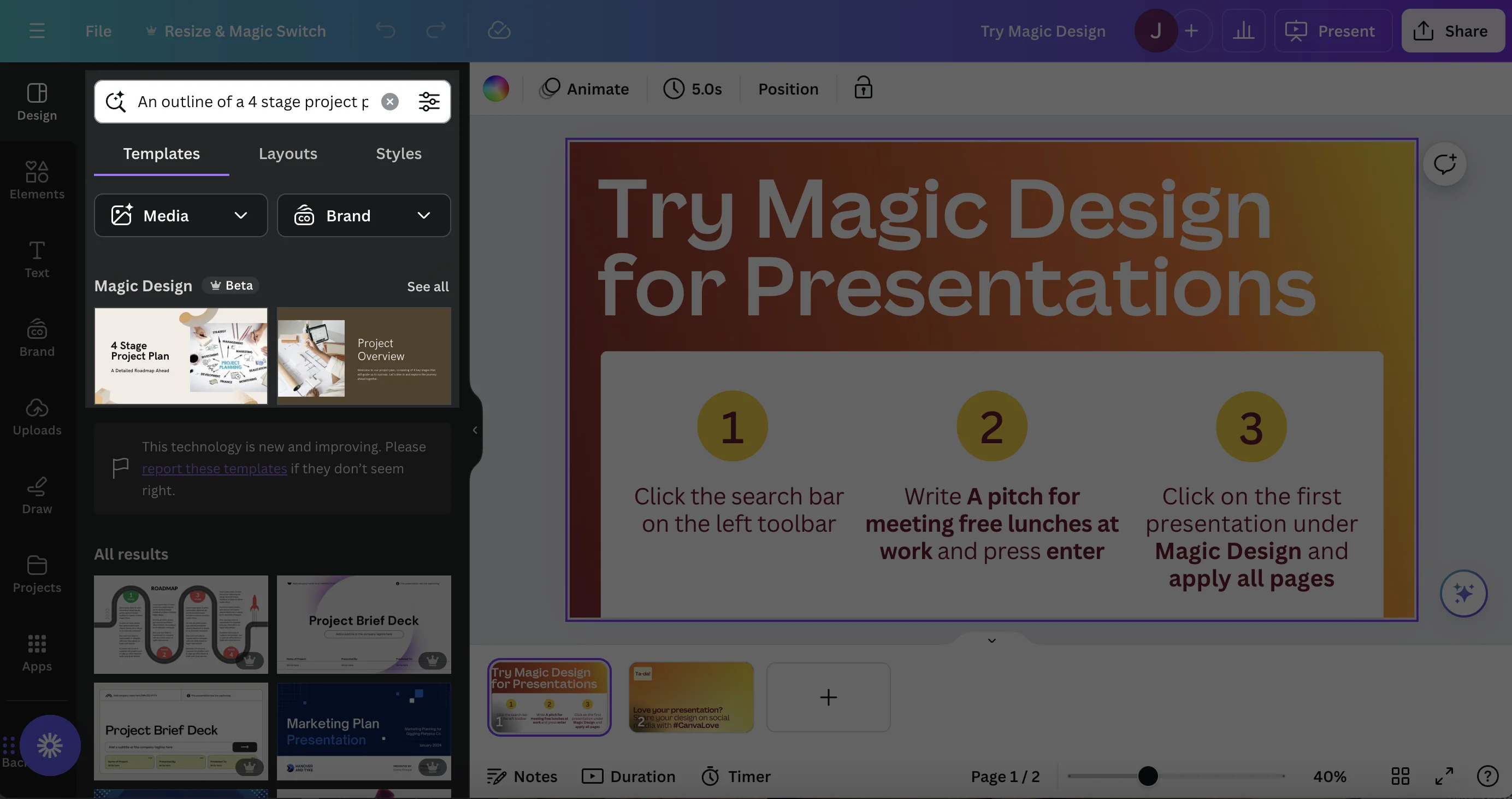
Immediately beneath the search bar, you’ll be presented with a few options for your slide deck. Click See all to browse more options. Click on the thumbnail of the design you like. You’ll be presented with all the slide templates it has generated for each page. Click Apply all 7 pages.
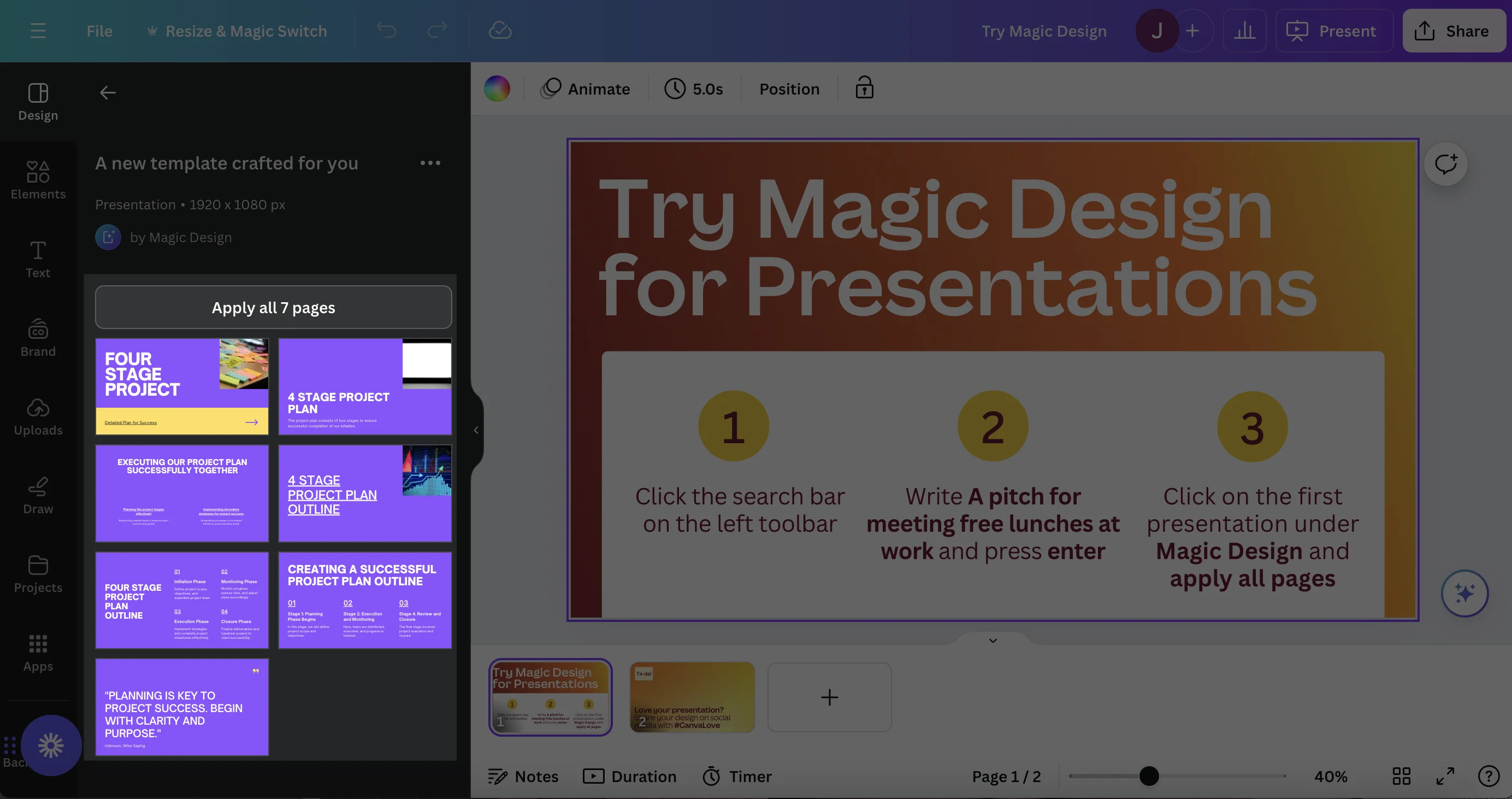
Your slide deck template has now been generated.
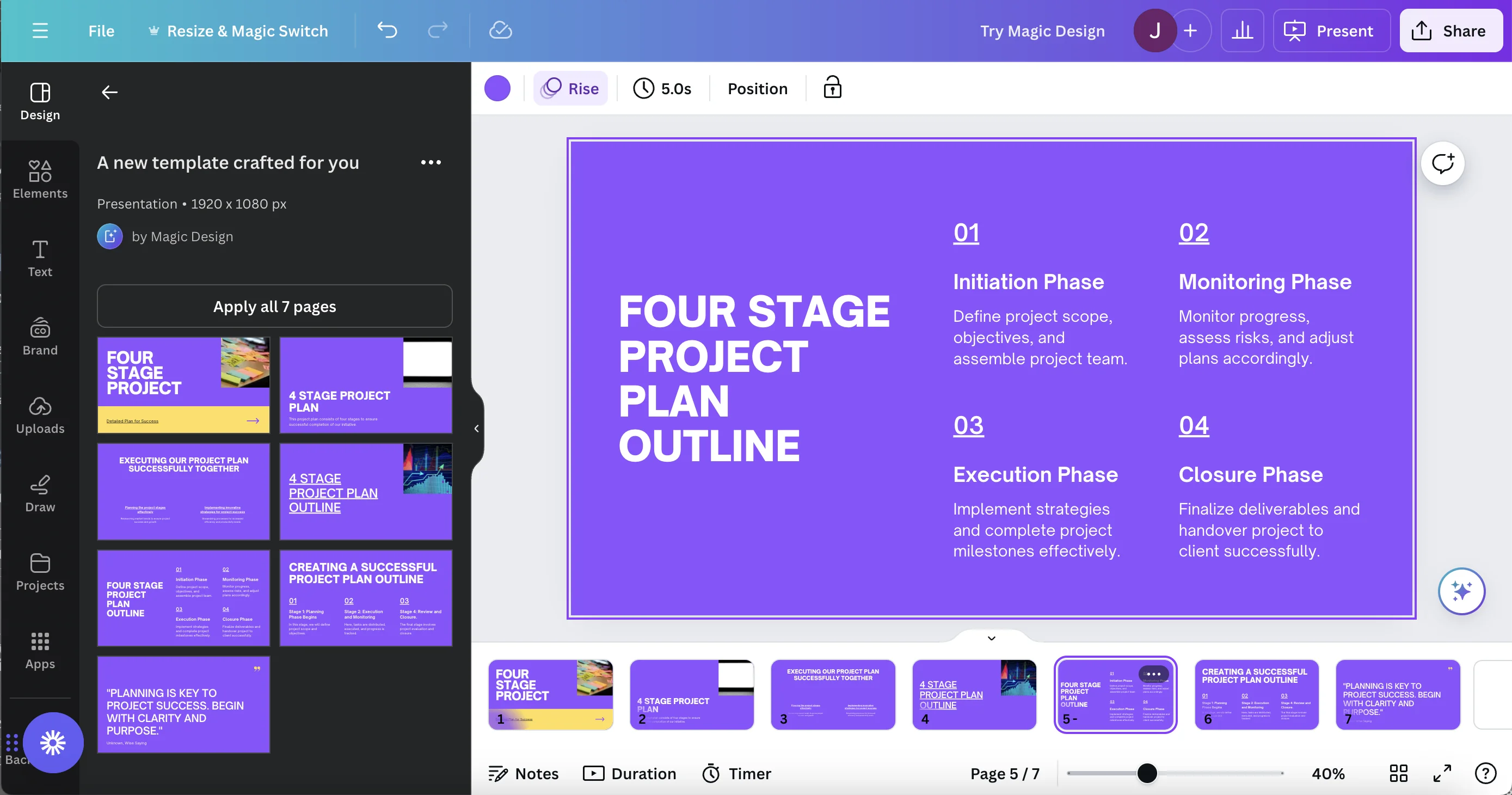
Step 2: Tweak design and copy
Canva excels at generating beautifully designed assets in a short amount of time. Now our generic template need to be customized. This is where ChatGPT comes in.
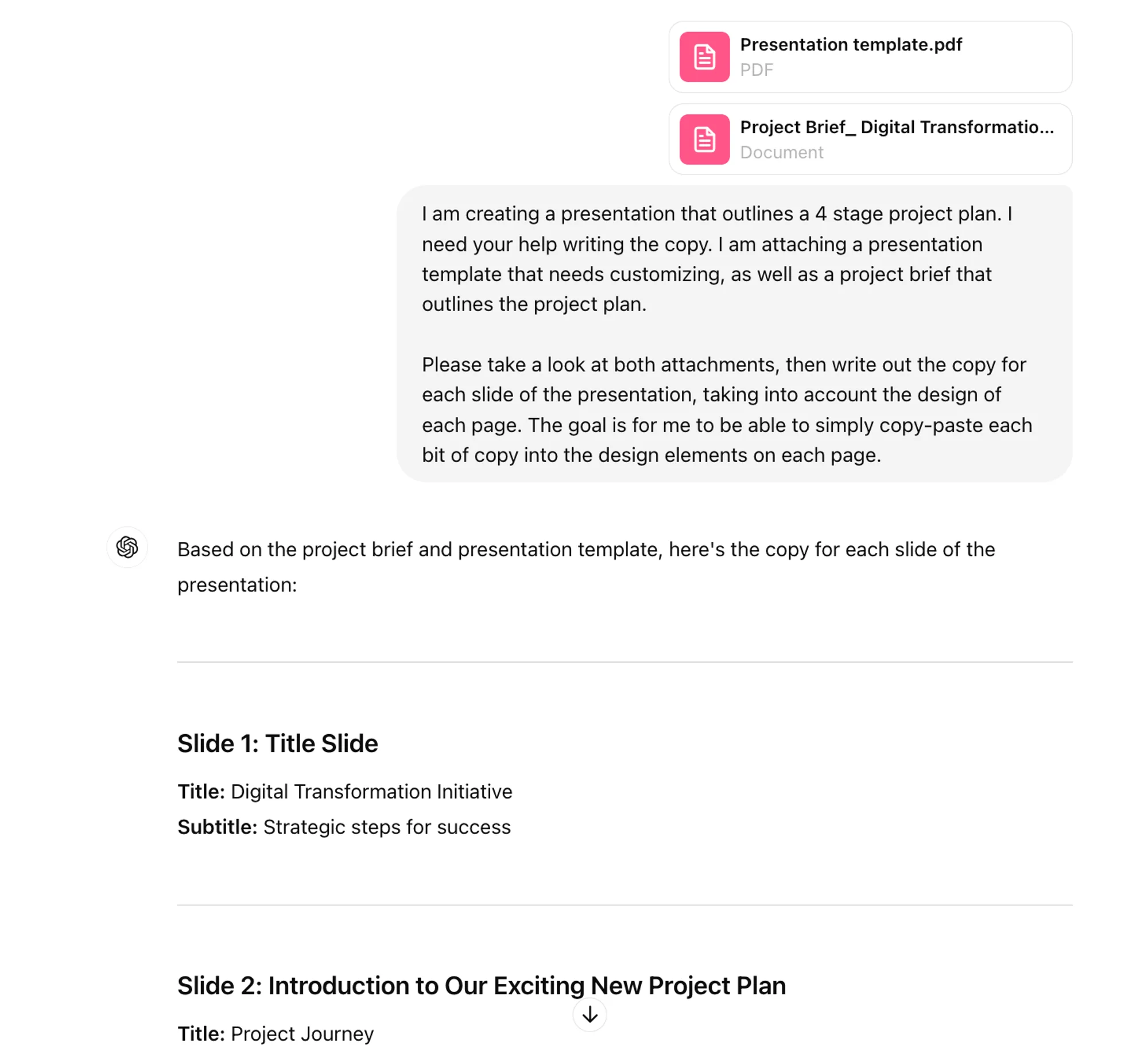
Before using ChatGPT, download the template you just created in Canva as a PDF. Then head over to ChatGPT and enter the following prompt, along with the PDF as an attachment and any additional details about the content of your presentation (in our case, a project brief):
I am creating a presentation that outlines [overview of your presentation]. I need your help writing the copy. I am attaching a presentation template that needs customizing, as well as [details of your presentation, for context].
Please take a look at both attachments, then write out the copy for each slide of the presentation, taking into account the design of each page. The goal is for me to be able to simply copy-paste each bit of copy into the design elements on each page.
.webp)
In our case, ChatGPT went ahead and suggested copy for 13 pages instead of 7 - but this is useful as it gives us inspiration for what further slides we could add in Canva.
Copy the text ChatGPT generates for you and paste it into your design in Canva. You can also use Canva’s Magic Write to edit and improve existing copy. Highlight words and you’ll see Magic Write appear.
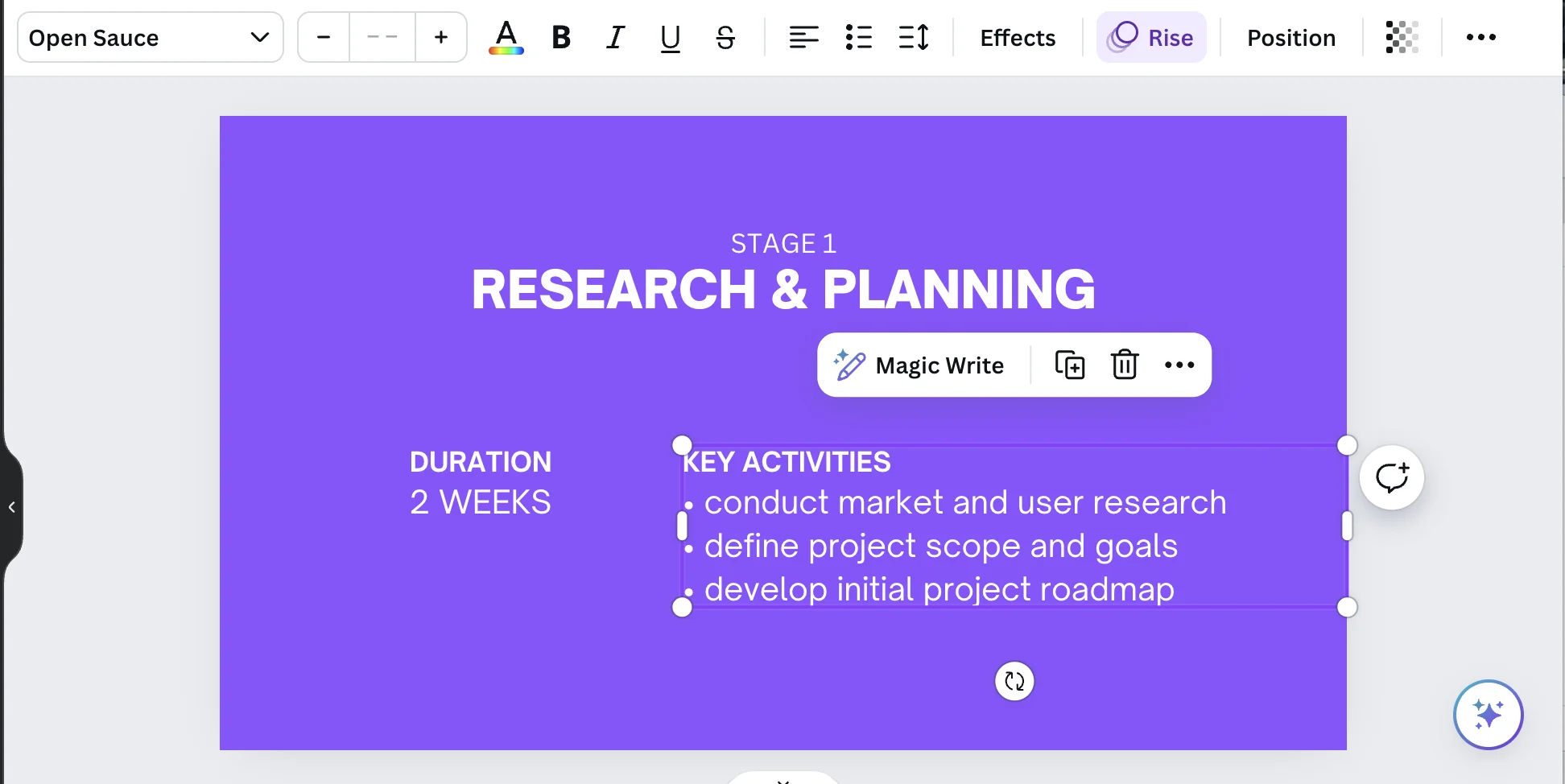
When you click Magic Write, you’ll be presented with options to alter the voice and tone of the copy.
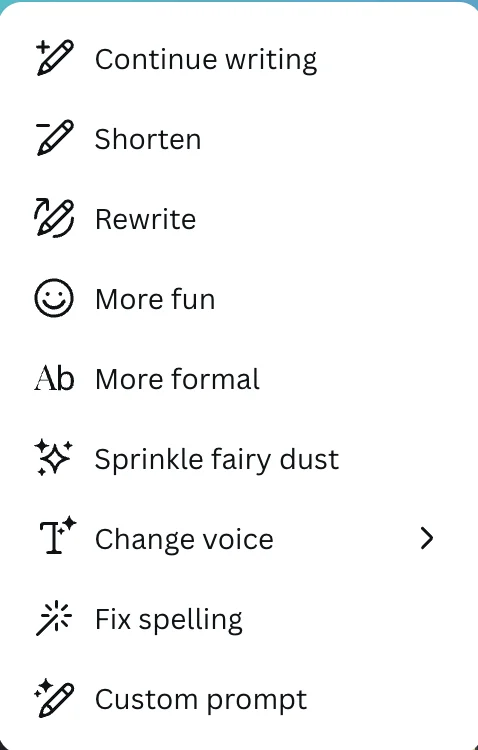
Some edits are clear while others might require some experimenting. For example, when you highlight “Define project scope, objectives, and assemble project team” and click Sprinkle fairy dust, you get: “Envision the project's scope and goals, then gather the team for the grand endeavor.”
Your brand and tone will dictate what edits make sense but remember to use Magic Write to help you improve your presentation, from titles to footnotes.
Step 3: Finalize and export
Once you’re done designing your presentation, go to Share in the top right corner. When you click Download, you’ll see file type options.
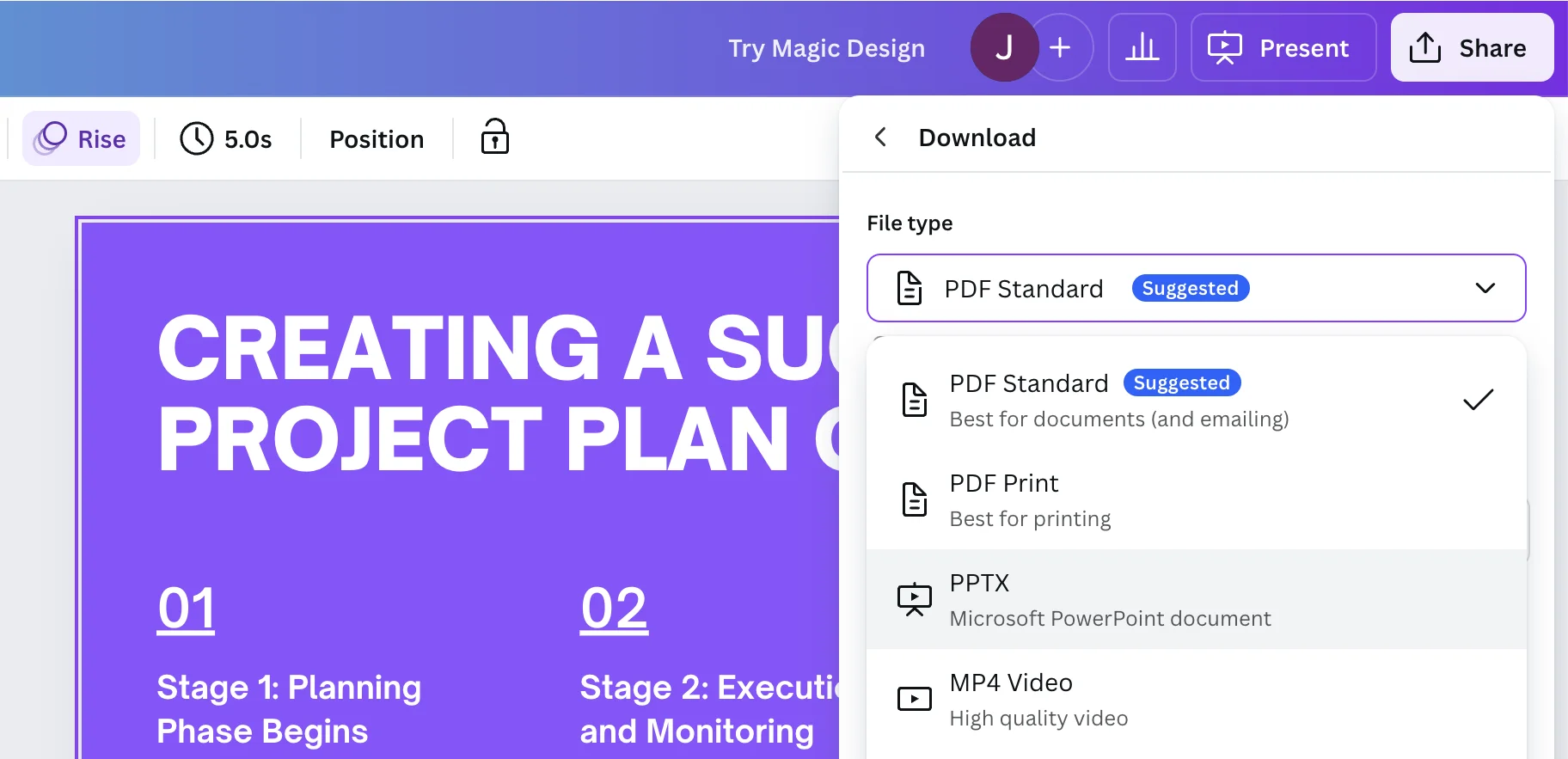
PDF will almost always be suggested by notice you can export your presentation as a Microsoft PowerPoint deck. This can be helpful where organizations use Microsoft as their primary work tool.
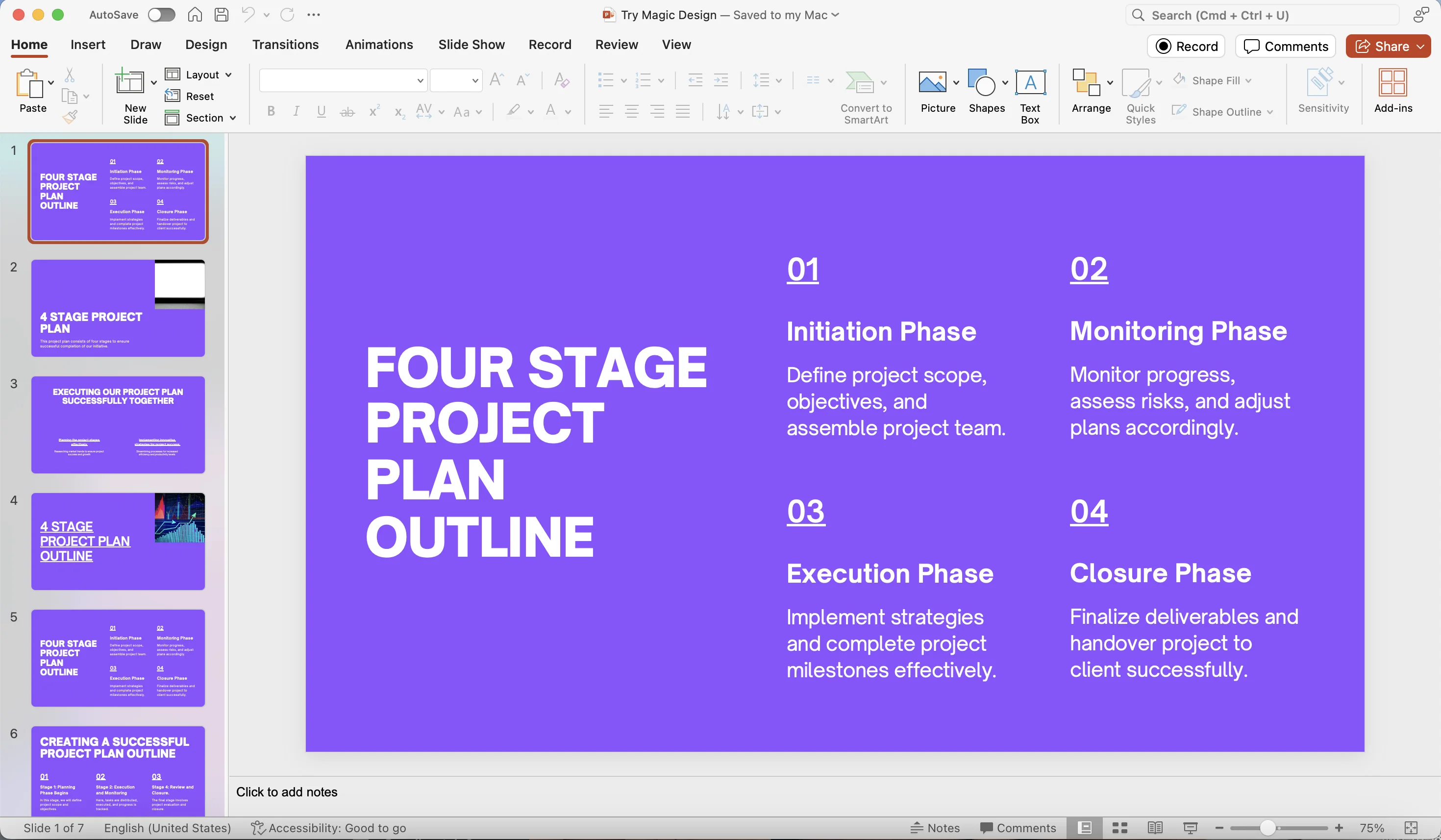
There you have it! You can generate a custom slide deck, add in your copy, and be presentation-ready in 10 minutes with Canva’s AI-powered Magic Studio.
This tutorial was created by Jonah.