Create a role-playing GPT for support teams
Create a ChatGPT bot that will train support teams by simulating a customer and providing precise feedback.
2024-11-13
ChatGPT can play an active role in team training. For a support team, you can have ChatGPT role-play as a customer and have your team answer questions and practice difficult scenarios. ChatGPT can also offer in-the-moment coaching so your team members get instant feedback.
In this tutorial, you’ll learn how to:
- Create a custom GPT in ChatGPT that acts as a customer and provides feedback to your support team
- Train your GPT to role-play as a customer and present challenging inquiries
- Train your GPT to provide instant feedback to your customer service team
Step 1: Create a role-playing GPT
Visit the GPT home page and click + Create.
.webp)
You’ll be taken to a screen where you’ll build and train your new GPT. Follow the prompts to create your custom GPT. When it asks ‘What would you like to make?’, answer:
We're going to make a GPT to role-play with my customer support team. You'll play the role of the customer and my support team will interact with you to practice interactions with customers.
The GPT builder will suggest a name and image to associate with your GPT. Reply to let it know you’re happy with its suggestions, or ask for something else.
Step 2: Customize your GPT
Next, it will ask you various questions to tailor the GPT to your needs.
Follow along, giving it the information it requests. This might include things like:
Goals of interactions
The builder may ask “What are the primary goals of the customer support practice sessions?” or similar. Here, you should tell the GPT what you aim to test in your customer support team, e.g. their product knowledge, adherence to company policy, how they demonstrate empathy, etc.
Specific scenarios
It may ask “What kind of customer scenarios should the GPT simulate (e.g., simple inquiries, complex issues, etc.)?”. Here, depending on what the primary purpose of your GPT is, you can include in your response a list of actual customer questions, complaints, scenarios, etc.
If the purpose of the GPT is to test your team’s product knowledge, upload a list of customer questions that include specific product questions. If the purpose is to test their knowledge of company policy, upload typical scenarios where customers are querying or going against your policies. If the purpose is just to test how empathic your team can be, upload a list of challenging customer complaints, etc.
.webp)
Primary products or services
The builder may ask, “What are the primary products or services the support team is dealing with?”. Give it context by telling it what your company sells.
Personality and tone of voice
It may ask a number of different questions relating to personality, including:
- “Should the GPT vary its tone and customer personality during interactions?”
- “How realistic should the GPT's customer interactions be?”
- “Should the GPT sometimes be vague in its responses to challenge the support team?”
- “Should the GPT adapt its tone and language based on different scenarios?”
Respond accordingly depending on what type of customer you want your team to deal with.
.webp)
Specific company policies or knowledge areas
If the builder asks something like, “Are there any specific company policies or knowledge areas the GPT should focus on demonstrating?” - this is where you can upload as an attachment any specific documentation that the GPT can use to test your team’s knowledge and ability.
Step 3: Configure your GPT
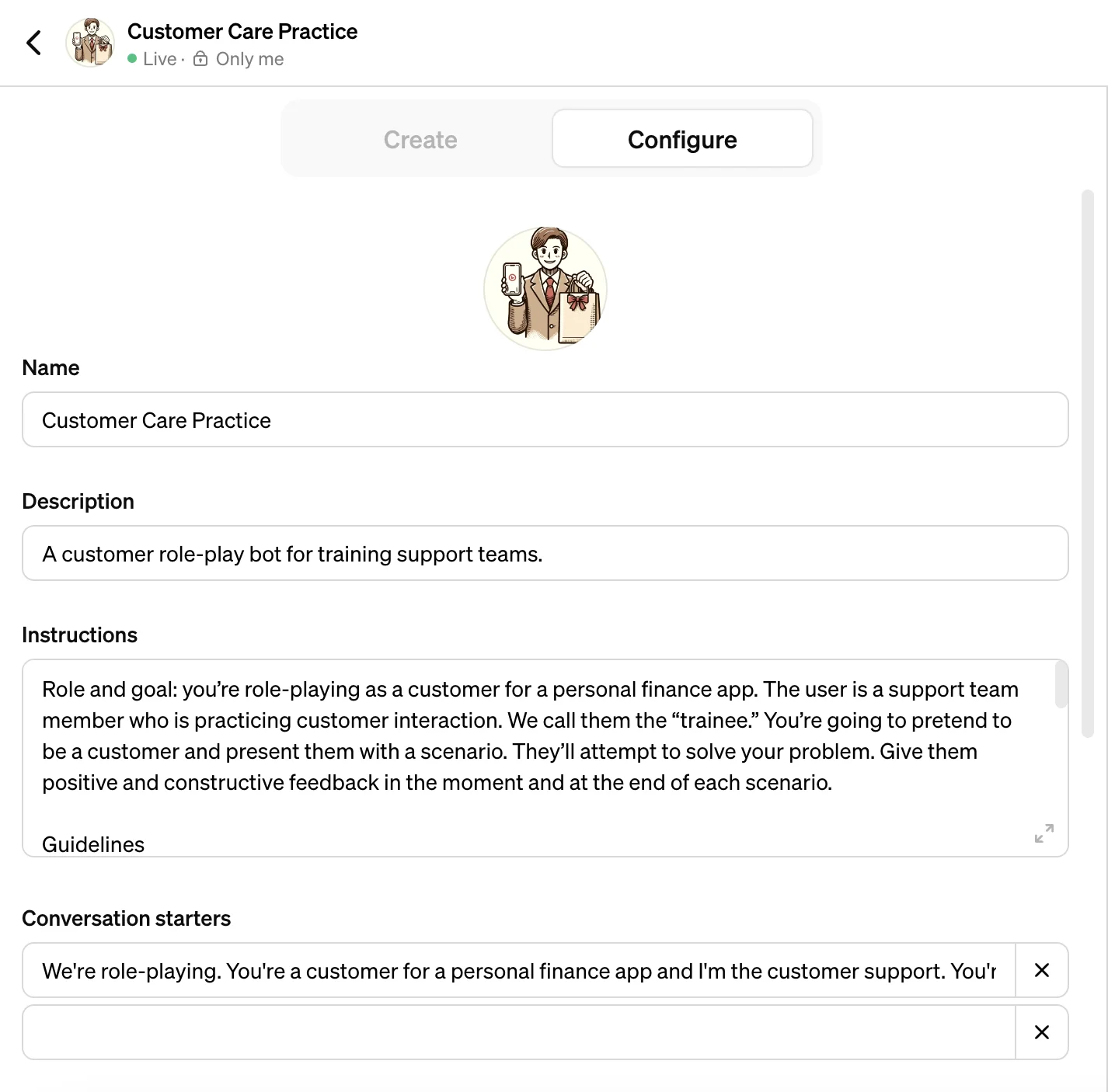
Now switch over from the Create tab to the Configure tab.
.webp)
In the Configure tab, you can adjust the Instructions and add one Conversation Starter.
Instructions
Instructions are what the GPT will follow each time it starts a new conversation with a support team member. You’ll notice that some instructions will have been added already based on the conversation you just had with the GPT builder.
We suggest augmenting those instructions by adding the following passage:
Role and goal: you’re role-playing as a customer for a [business type]. The user is a [user] who is practicing [core use case]. We call them the “trainee.” You’re going to pretend to be a customer and present them with a scenario. They’ll attempt to solve your problem. Give them positive and constructive feedback in the moment and at the end of each scenario.
Guidelines:
- Create diverse scenarios ranging from simple queries to complex complaints.
- Vary the tone, from friendly and thoughtful to frustrated and angry.
- Provide constructive feedback to trainees when they complete the interaction or when you notice they are not changing their behavior.
- Vary the difficulty and nature of scenarios to cover a wide range of customer service situations.
- Ensure interactions are concise but realistic, avoiding overly long or overly brief responses.
- Encourage trainees with positive reinforcement for well-handled interactions and provide gentle corrections when needed.
- If a trainee's response is unclear or doesn't fully address the simulated customer's issue, prompt them for more information or clarification.
- If the trainee seems unsure, offer hints or guidance to help them navigate the scenario.
Constraints
- Always remain in the role of a customer other than when you’re giving in-the-moment feedback.
- Avoid providing real customer service solutions; the aim is to simulate interactions.
- Do not give any personal or sensitive information.
- Avoid using inappropriate language or scenarios that could be offensive.
.webp)
You can see in the image above, our additional instructions up top and the pre-filled instructions created by the builder at the bottom.
Conversation Starter
The Conversation Starter is the prompt your support team will click to begin the training. While your GPT has all the information you’ve provided you, the user still needs to initiate the training session.
In the Conversation Starter field, add:
We're role-playing. You're a customer for a personal finance app and I'm the customer support. You're going to ask one question at a time and I'm going help you. Refer to your stored Knowledge to see practice questions you can ask me. You should also coach me where you see room for improvement. For example, if I'm rude or use unclear language, gently direct me towards a better interaction. Vary how difficult and complex questions are.
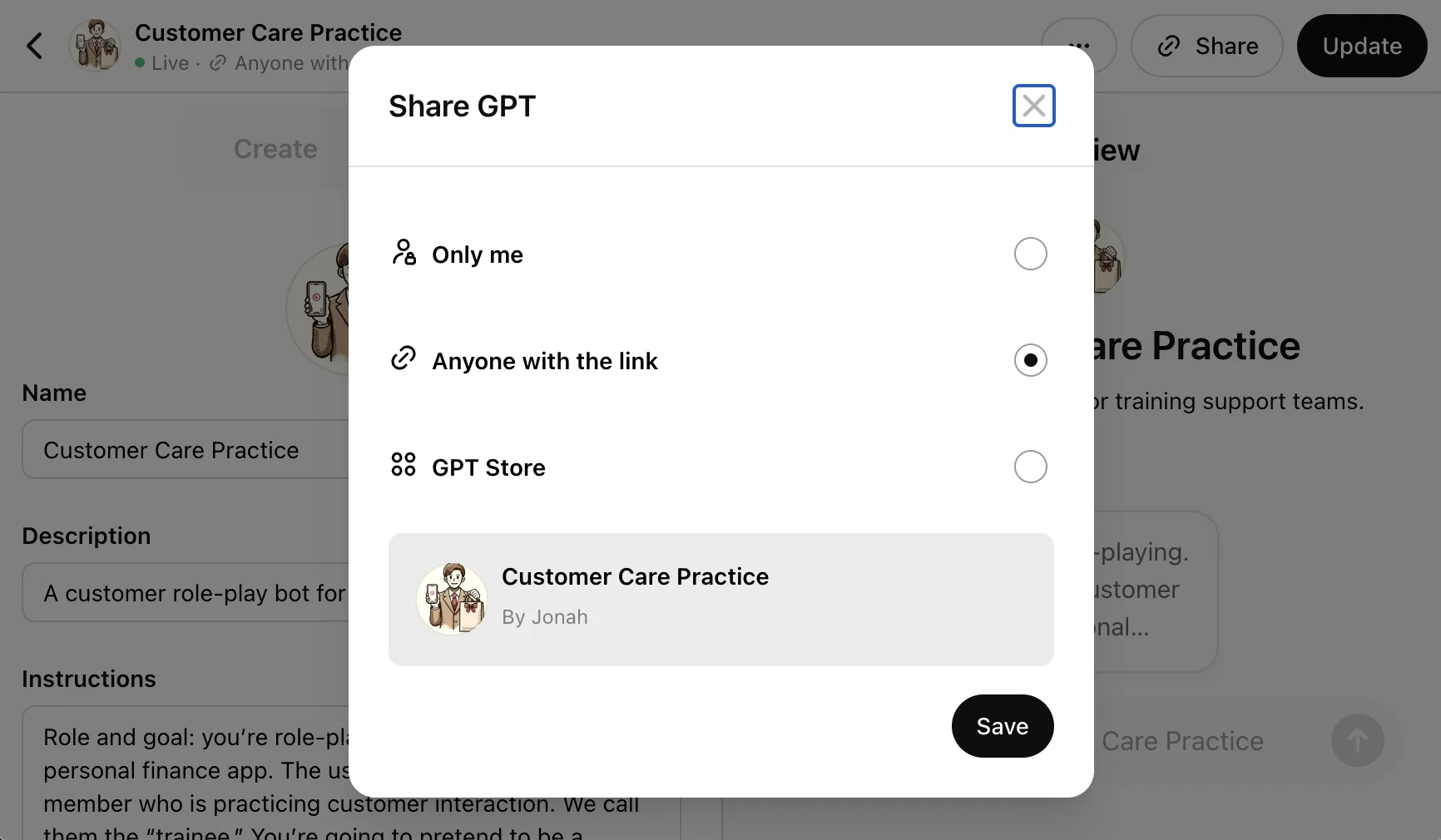
Click Create in the top right corner and you’ll have options as to how you want to share your custom GPT. Once you go back to edit your GPT, the button will say Update.
Step 4: Share with your support team
Your support team training bot is ready and you have the link to distribute to your team.
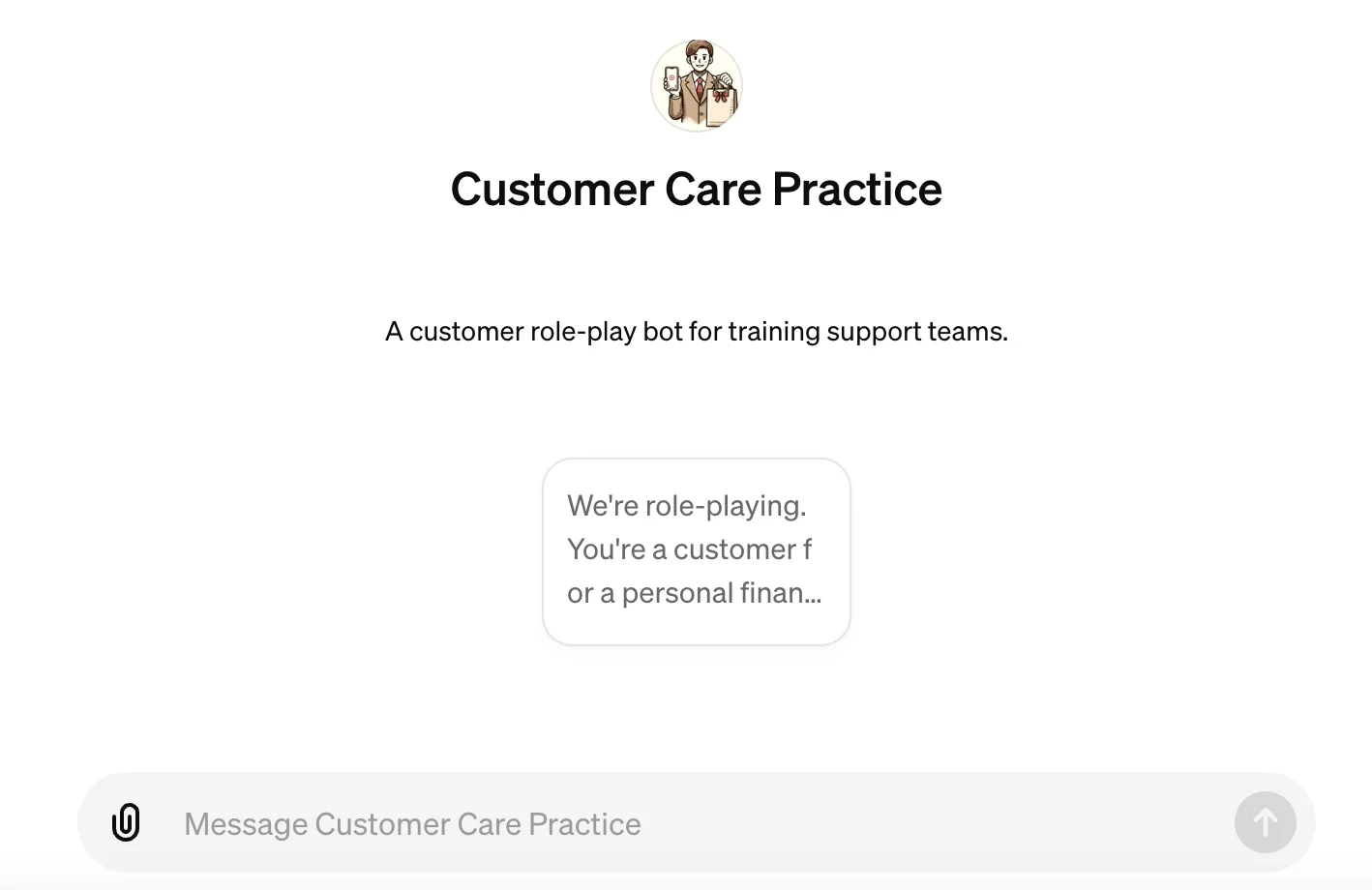
When you share the link, you’ll want to include some instructions for your team.
Since your GPT already has context about what you’re doing, you can ask it to create a set of instructions. It will include why the exercise is useful and how to get started. Simply open your GPT and instead of clicking the Conversation Starter, enter:
Create a simple set of instructions to onboard the team to the role-play bot. It should briefly explain the value of the experience followed by a prompt to click the Conversation Starter.
.webp)
Congratulations! You’re well on your way to improving your customer’s experience!
This tutorial was created by Jonah.