Create FAQ content from blog posts and guides
Use AI to automatically repurpose your existing content into FAQs.
2024-12-20
Frequently Asked Questions (FAQs) are a powerful tool for improving SEO and enhancing your customers' understanding of your product. Writing them from scratch is time-consuming, but now AI offers a quick and efficient solution to generate FAQs from your existing content.
In this tutorial, you'll learn how to leverage AI and Zapier to automatically create FAQ sections from your blog posts and guides. This process not only saves time but also ensures your FAQs are consistently aligned with your content, providing added value to both your readers and search engines.
Steps we’ll follow:
- Extract content from a Google Doc using Zapier
- Utilize OpenAI to generate relevant questions and answers from your content
- Append the new FAQ content back to your original document or create a separate FAQ post
By the end of this tutorial, you'll have a streamlined system for creating SEO-friendly FAQ content that complements your existing blog posts and guides, all with minimal manual effort.
You’ll need:
- A Google Docs account and a blog post
- Zapier paid account
- An OpenAI Platform account and at least $10 of credit. Note: this is separate from their ChatGPT app
Let’s dive in.
Step 1: Extract content from a Google Doc using Zapier
For this tutorial, we’re going to assume you write your blog posts in Google Docs, but this process could easily be adapted for Notion, Webflow, Airtable or any number of tools - so long as they have a Zapier integration.
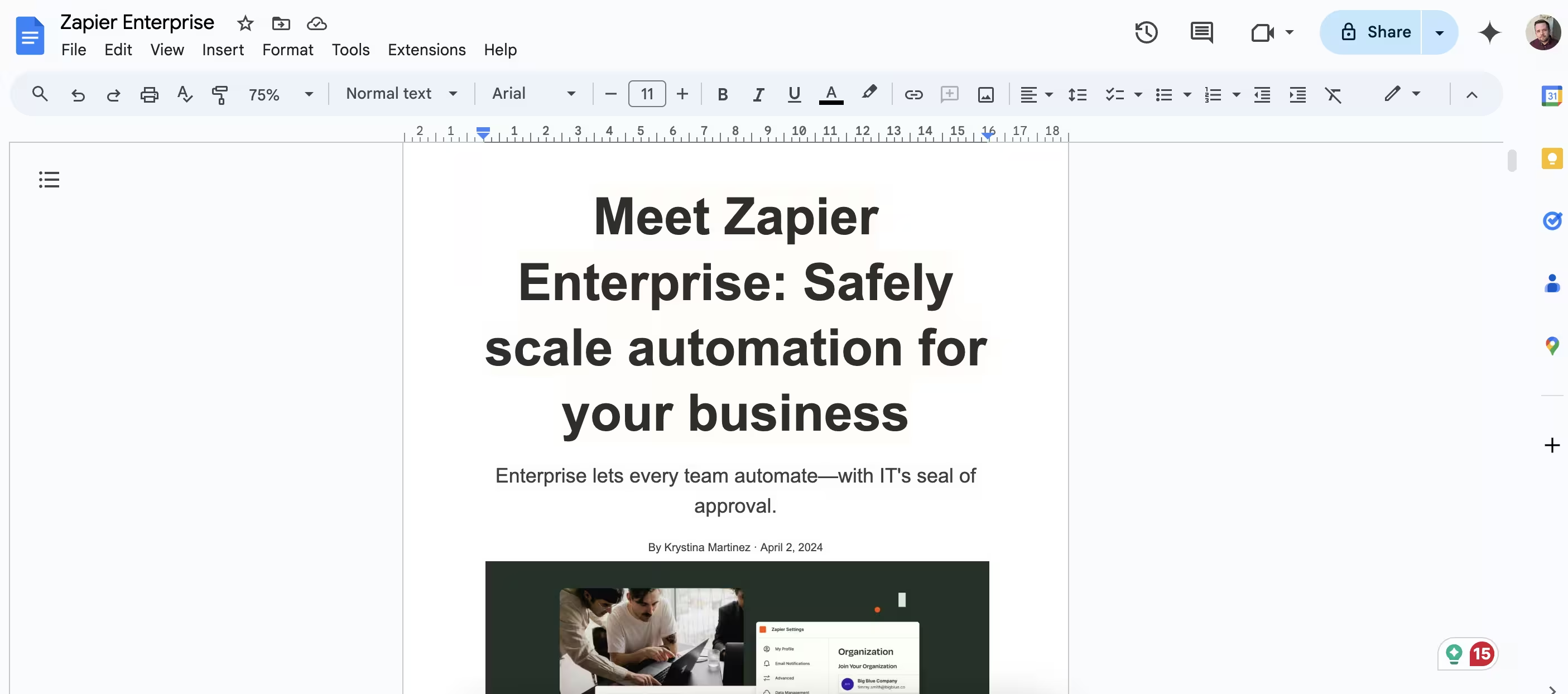
To test with, I found a post on the Zapier blog announcing their new enterprise plan and copied it into a new Google Doc I created.
Go to Zapier, then in the dashboard, in the top left, click the big orange “Create” button and select ‘Zaps’.

Inside the Zap editor, click on the box that says “Trigger” and select/search for ‘Google Docs’ as the app. Then select ‘New Document’ as the event.
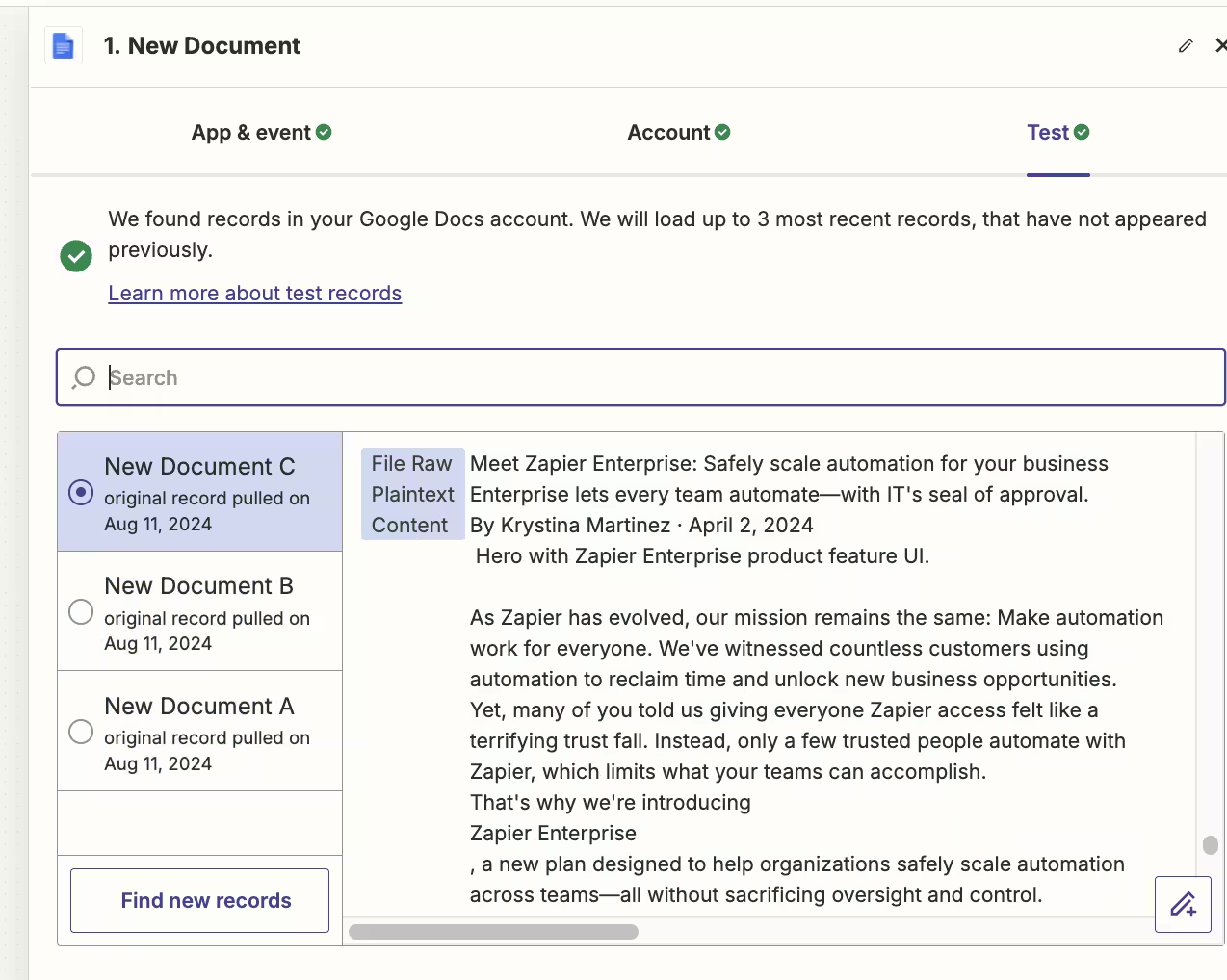
Test the zap step and you’ll see data from the Google Doc extracted into Zapier, including the plain text content of the blog post.
Step 2: Use OpenAI to generate questions and answers from the content
Next, we’re going to use OpenAI to generate the FAQ content using the blog post text.
In the zap editor, click the “Action” box. Select "ChatGPT" as the app, and ‘Conversation’ as the event.
When configuring the step, these are the important fields.
- User message
Here we should map the 'File Raw Plaintext Content’ value from the trigger step.

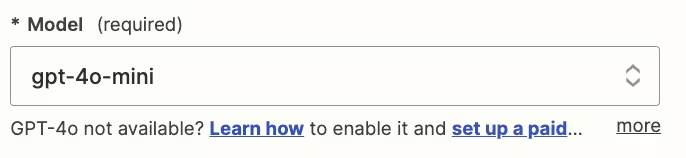
- Model
Select the “gpt-4o-mini” model, OpenAI’s cheapest and quickest model.
- Assistant Instructions
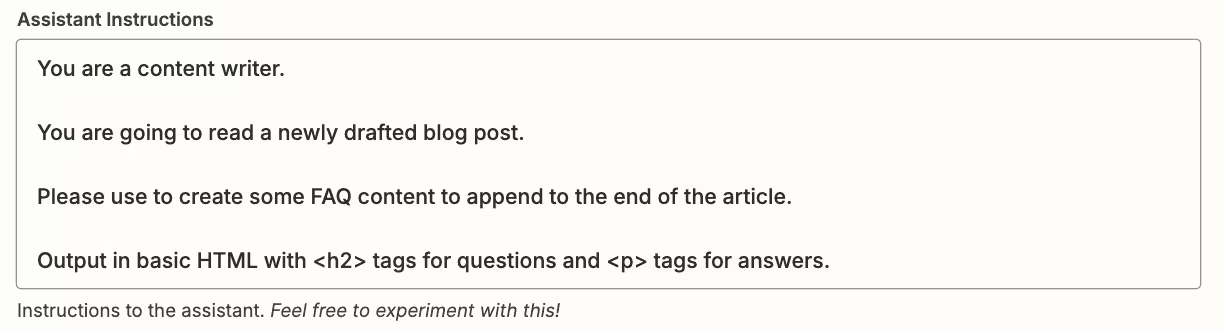
You can experiment here to get exactly what you want, but this prompt should work well.
We can stylise the content in Google Docs using HMTL, so we’ll ask the AI to output in that format.
You are a content writer.
You are going to read a newly drafted blog post.
Please use this to create some FAQ content to append to the end of the article.
Output in basic HTML with <h2> tags for questions and <p> tags for answers.
- Max Tokens
This sets the maximum output length. Anything around 2,000 should be suitable.

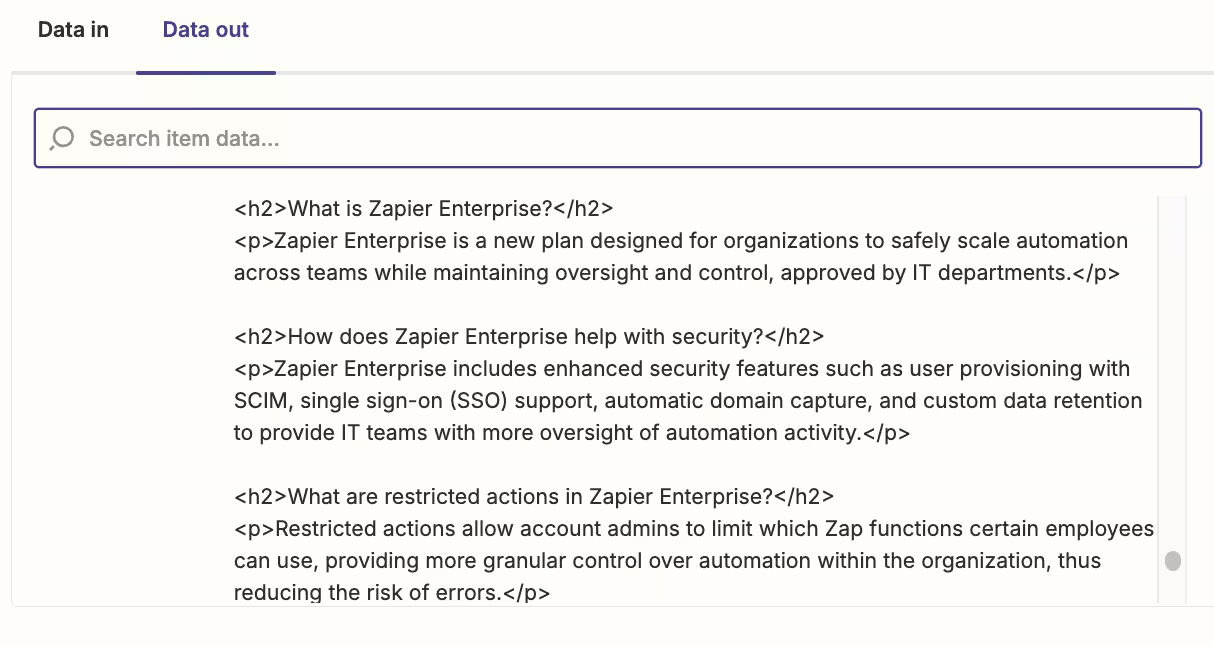
Go ahead and test the step, then scroll down towards the end in the “Data out” tab, you’ll see the questions and answers generated by ChatGPT.
Step 3: Append the new FAQ content back to the Google Doc
Now we have our new FAQ content, we need to update our Google Doc with it.
Add a new action step to your zap with ‘Google Docs’ as the app and ‘Append Text to Document’ as the event.

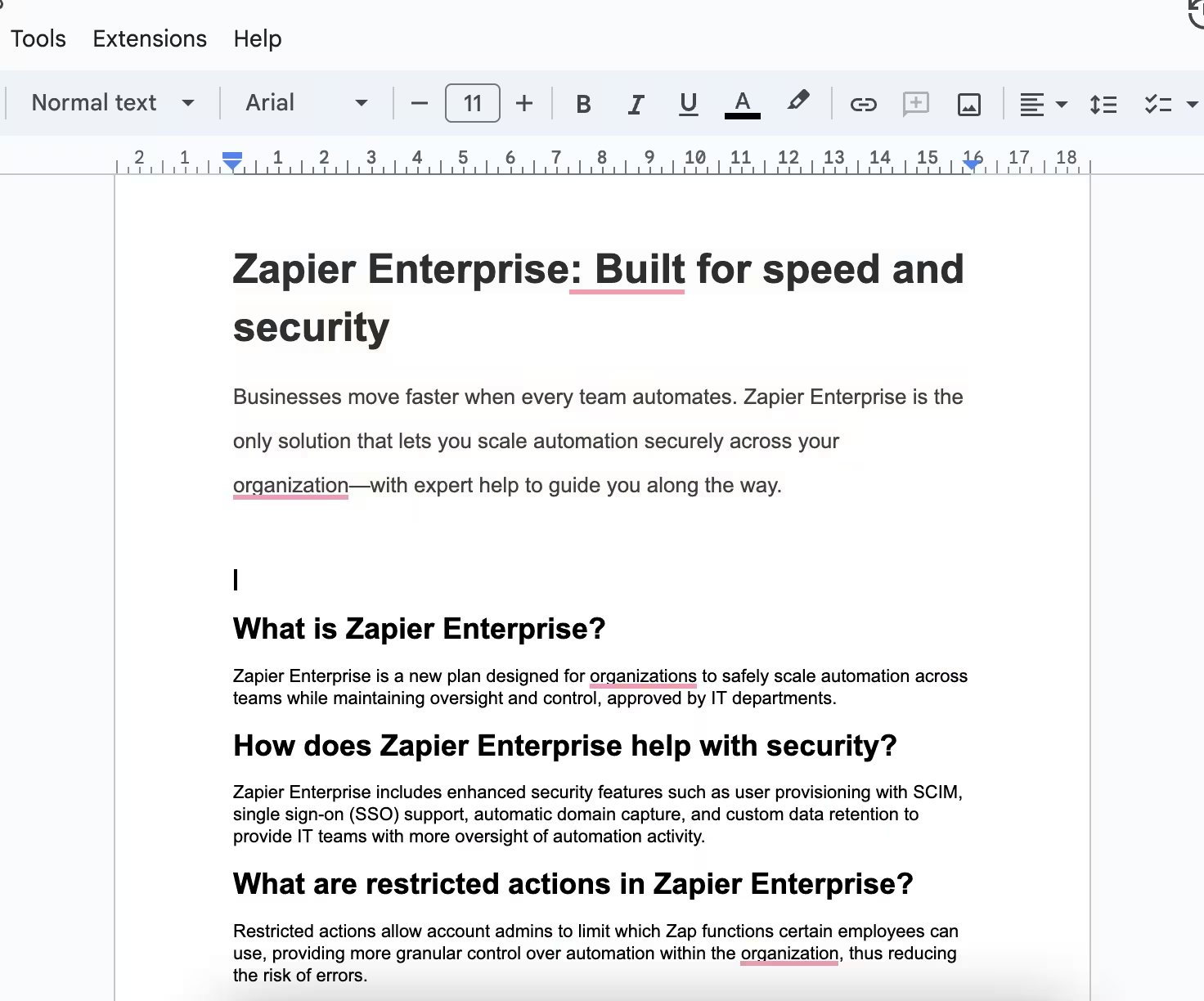
Test the zap step, and scroll to the end of your Google Doc. You’ll see the new FAQ content ready to go.
Bonus: Create a separate post for the FAQ content
If instead of appending, you want to create a separate post for the FAQ content, then follow these steps. Switch the event for the final Google Doc step to ‘Create Document from Text’.
The step’s fields should be set as follows:
- Document Name
Give your new Google Doc a name. I used “Zapier Enterprise FAQ”.
- Document Content
Here you should map the ‘Reply’ value from the ChatGPT step.

Stepping back, you might also consider changing your ChatGPT prompt to ask for an introduction before the questions and answers.
This tutorial was created by Andrew.