Create social media assets with Canva’s Magic Studio
Generate and edit posts and stories with ChatGPT and Canva using just a few prompts.
2024-11-13
Canva is a powerful design tool that helps you spin up creative in just a few minutes. With social media as a critical element of any marketing strategy, Canva can help you design and prepare assets that capture your audience’s attention.
In this tutorial, you will learn how to:
- Generate social media posts and stories
- Optimize posts for different platforms
- Edit and refine posts with Canva’s tools
Step 1: Generate social post ideas
Using prompts to create posts
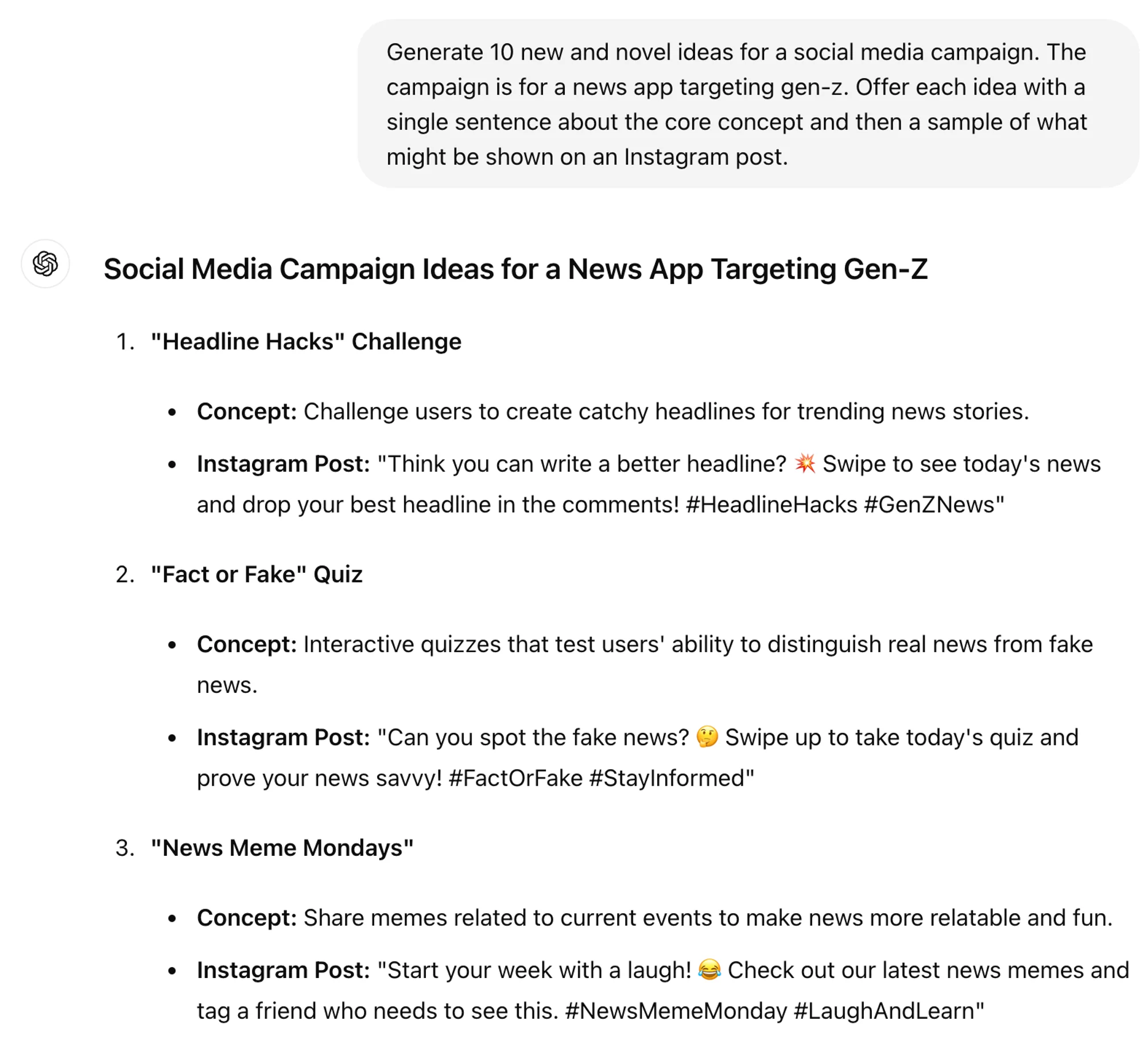
Use ChatGPT or Claude to generate some ideas for your social media campaign.
Here’s an example prompt:
Generate 10 new and novel ideas for a social media campaign. The campaign is for a [product/service] targeting [target audience]. Offer each idea with a single sentence about the core concept and then a sample of what might be shown on an Instagram post.
.webp)
.webp)
Let’s go with [your selection]. Generate 5 example questions. The prompt should be for the reader to [action you want the reader to take]. Include an image that goes with each question. Do not use hashtags.
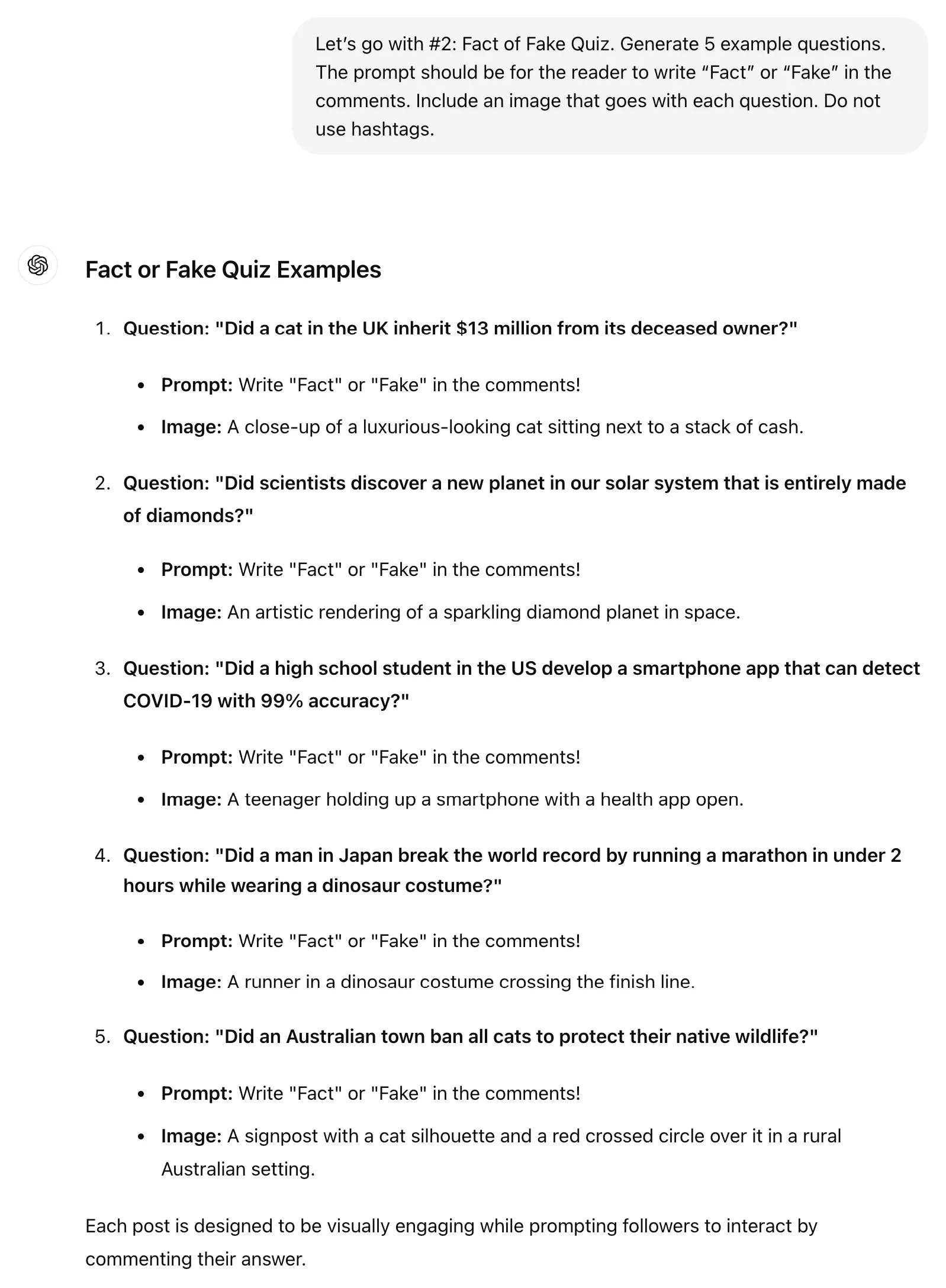
For your first post, select one of the prompt and image options you want to create with Canva. Ask ChatGPT to generate the image which you’ll save for later.
Generate the image for question 1.
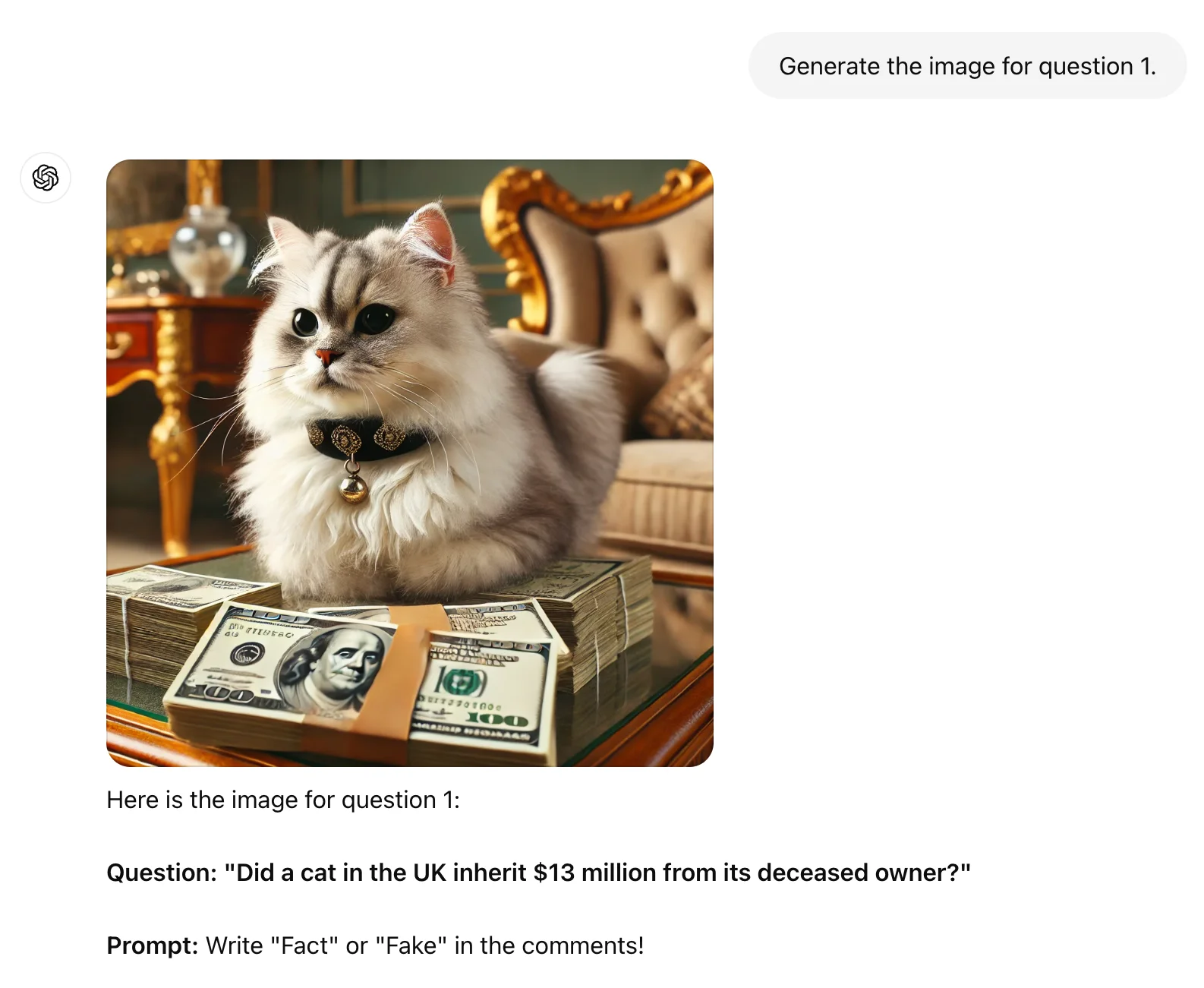
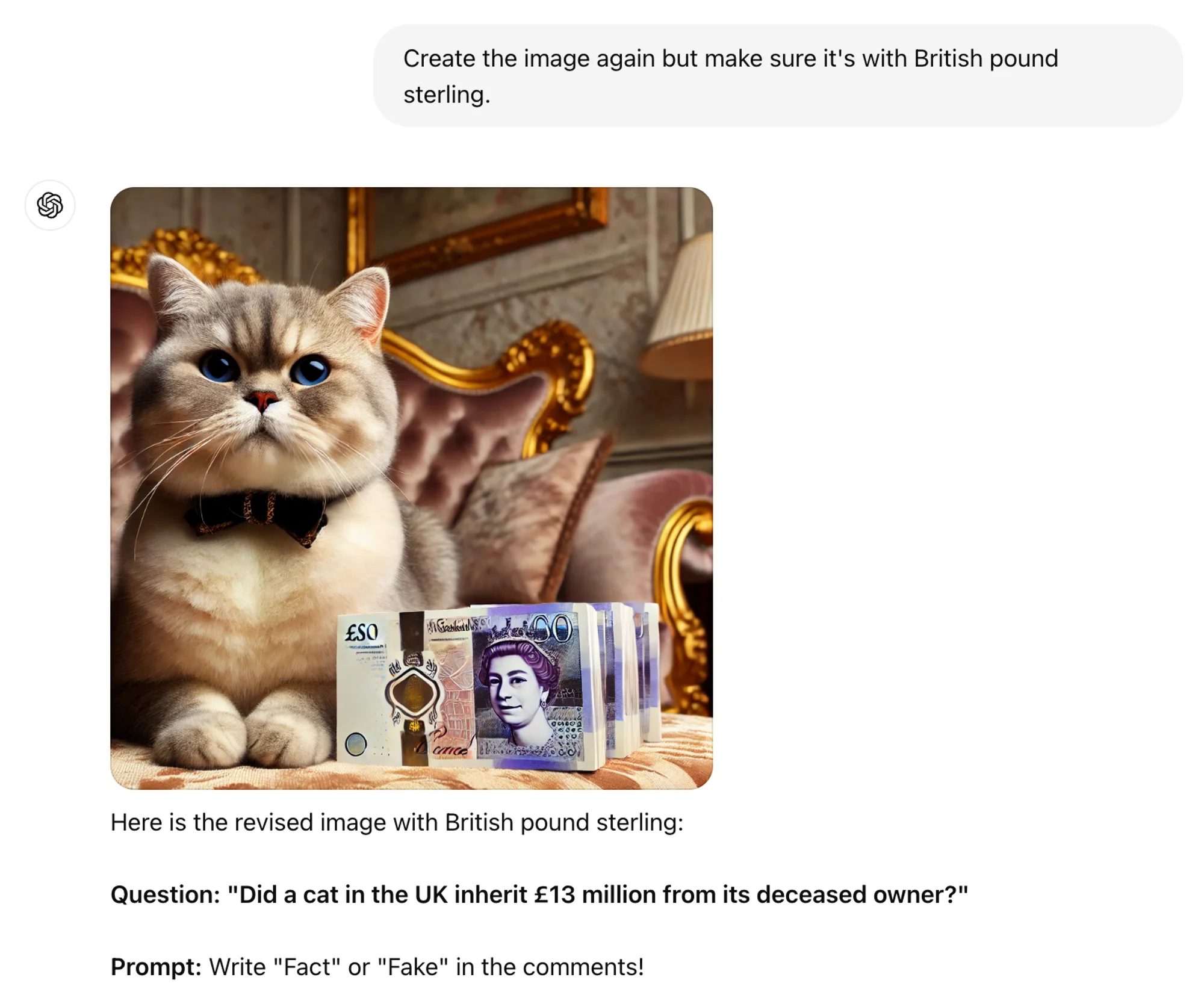
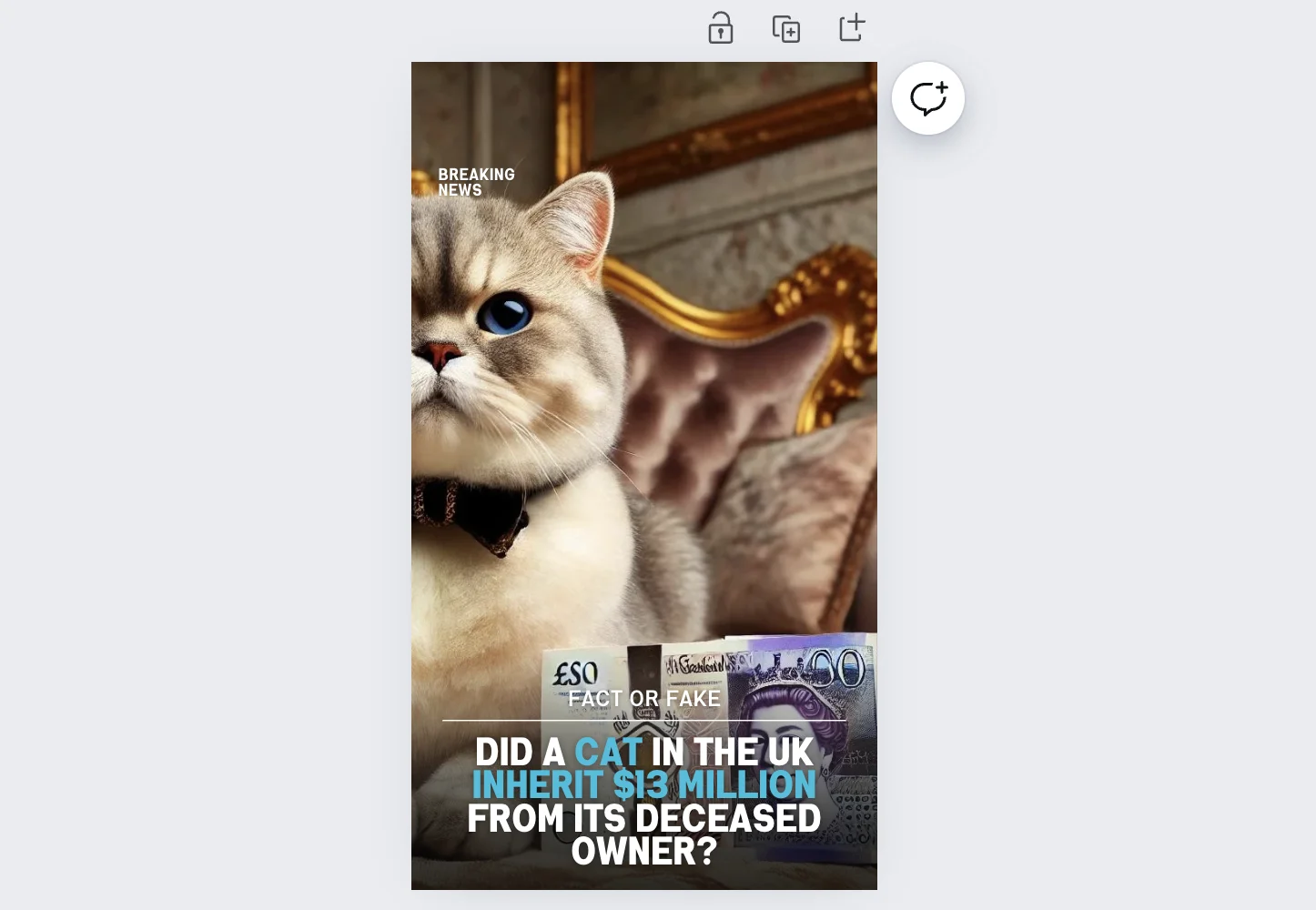
In this example, a cat image is generated sitting on American dollars. Depending on how precise you want to be, you can correct ChatGPT. In this case, we’ll ask it to create the image using a currency that aligns with the headline.
Step 2: Select templates
On the home page of Canva, start by selecting Social media and browse the posts to find one that speaks to you.
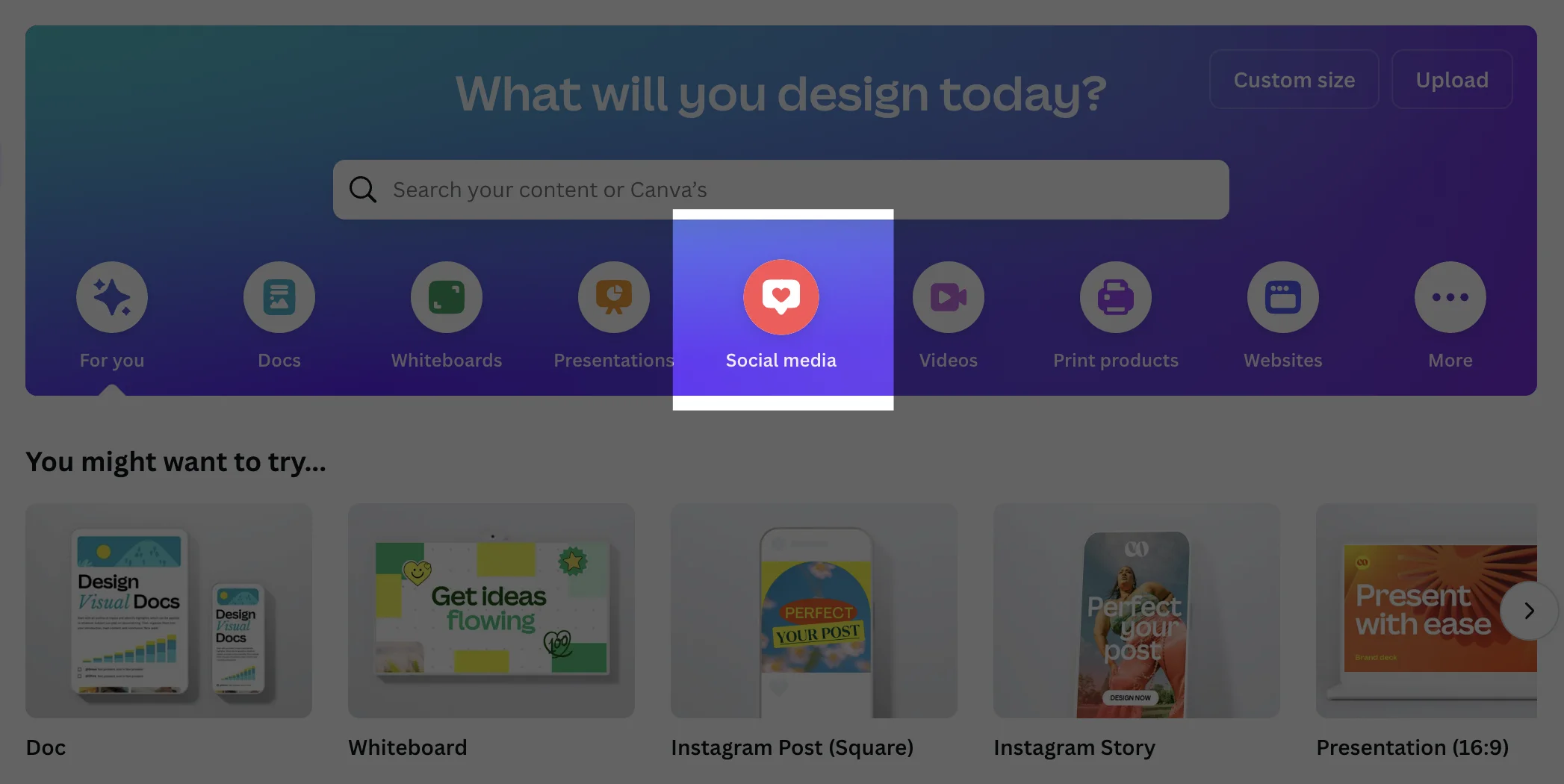
For this tutorial, we selected the Instagram post format. On the left panel, you can scroll through templates. Depending on your post strategy, the template might need a lot of text on it, or none at all. Find one that works for you.
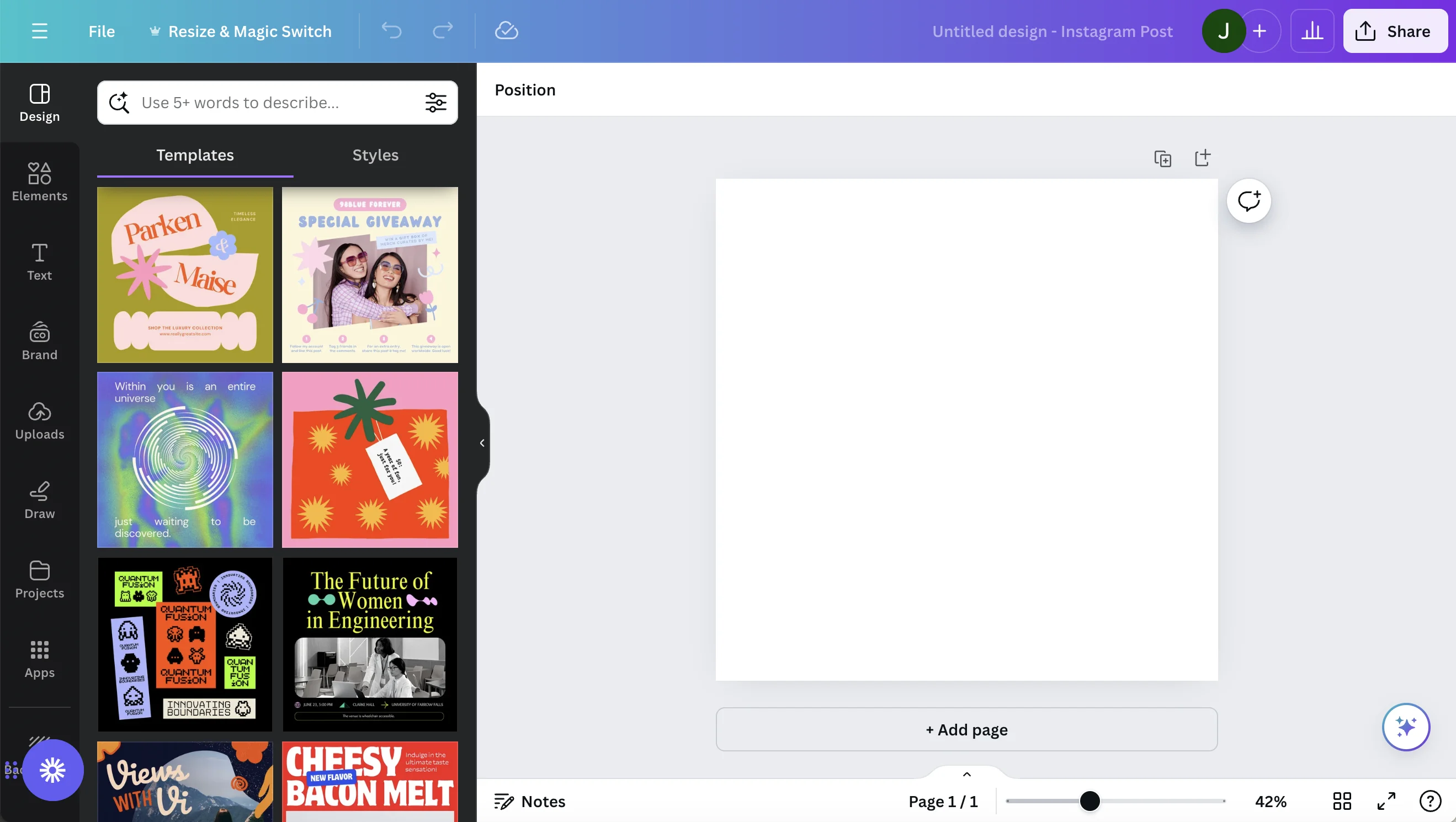
Since this example is a news quiz, searching “news” helped narrow potential templates.
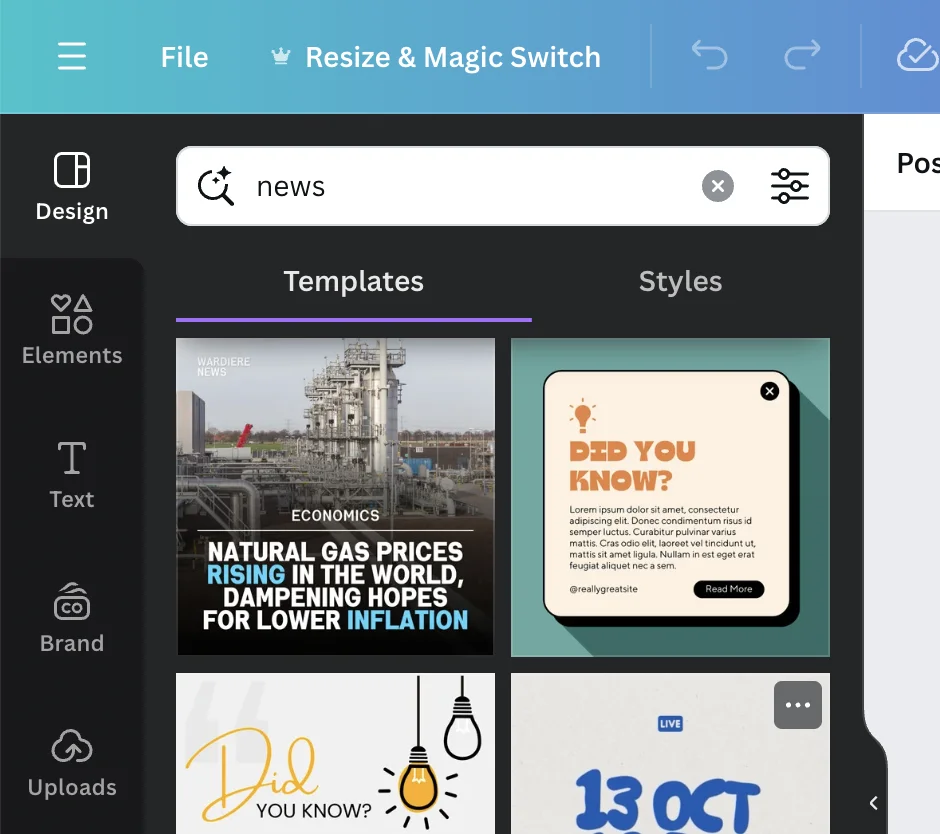
Once you select the template, you’ll start incorporating your text and image into the template. Start by uploading the image into Canva. Then click and drag it over top of the template. Canva will replace the existing template image with your template.
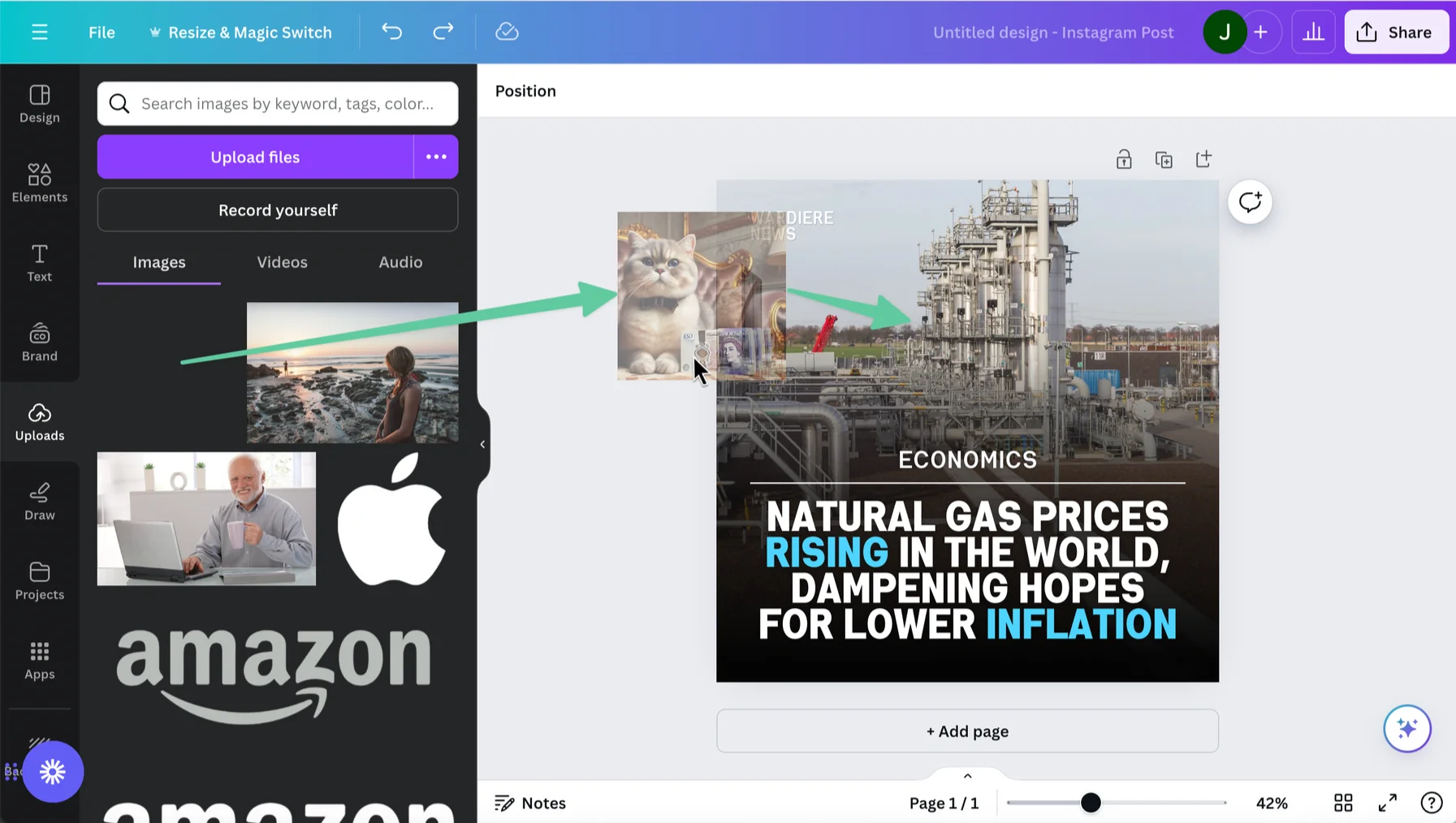
From there, you’ll add the text ChatGPT suggested.
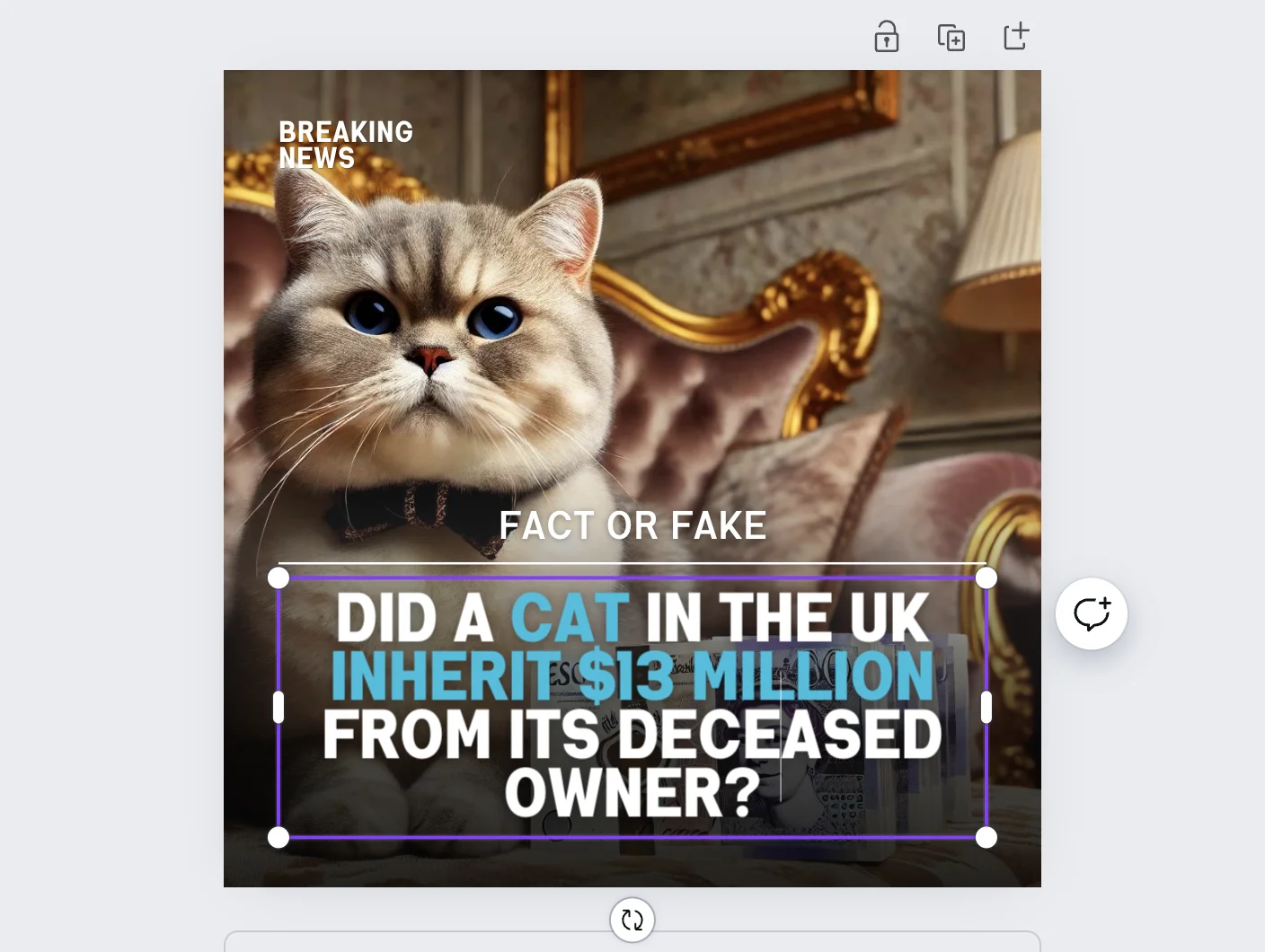
Now that you have your original post created. You can use Canva’s AI tools to automatically resize for other platforms, saving you hours of repetitive work.
Step 3: Optimize for different formats with Canva’s AI
In the top left corner, find Resize & Magic Switch.
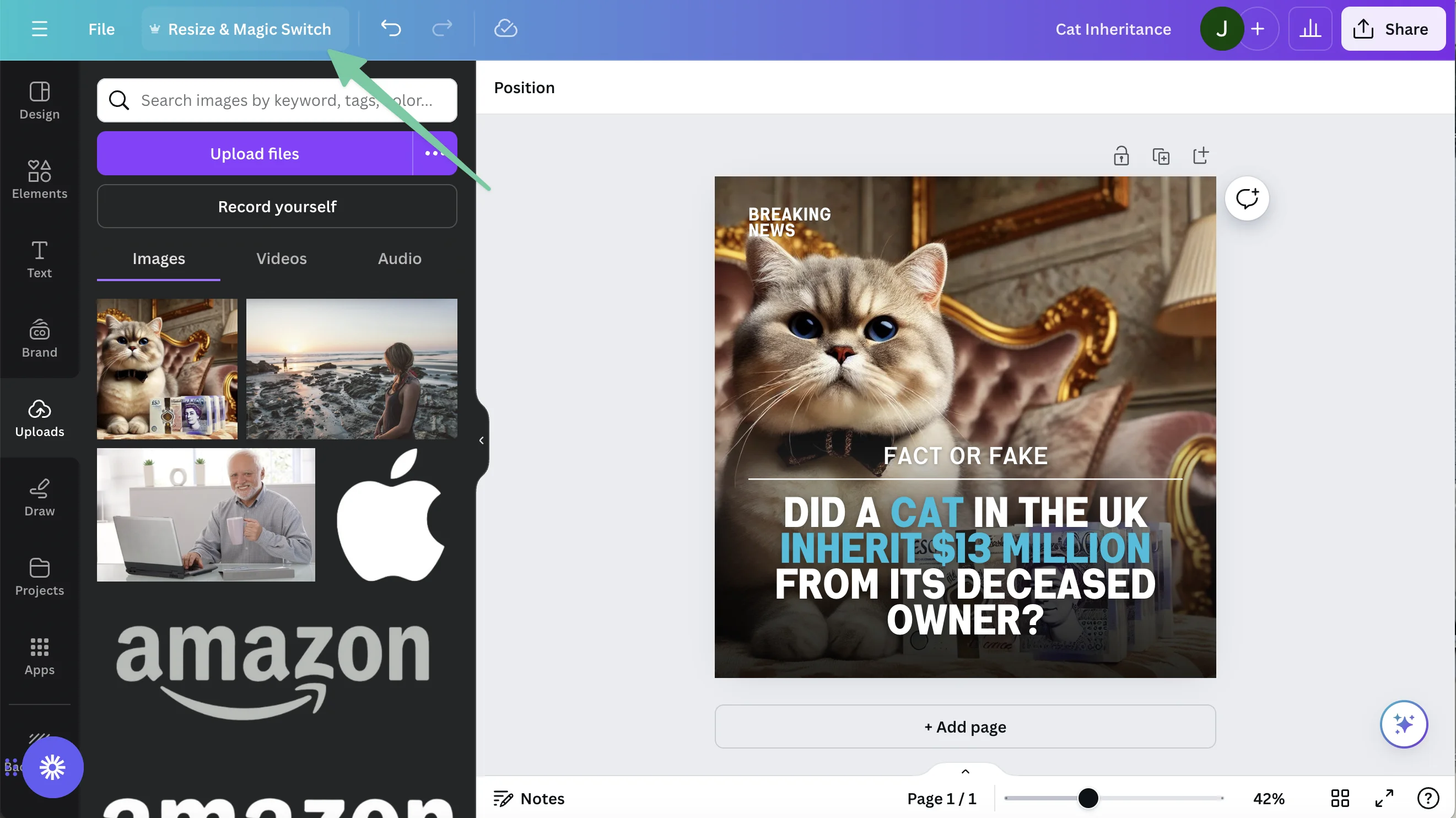
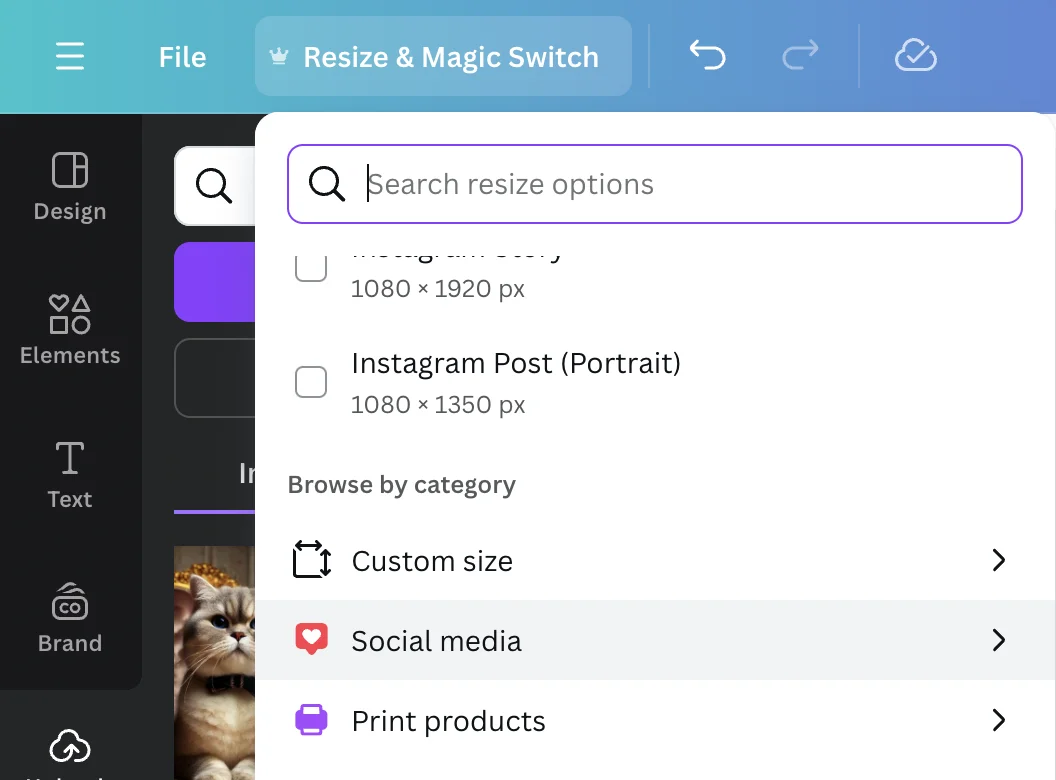
You’ll have some options on how to resize and adjust your content.
For this example, we’ll reformat our post for a few other social media platforms.
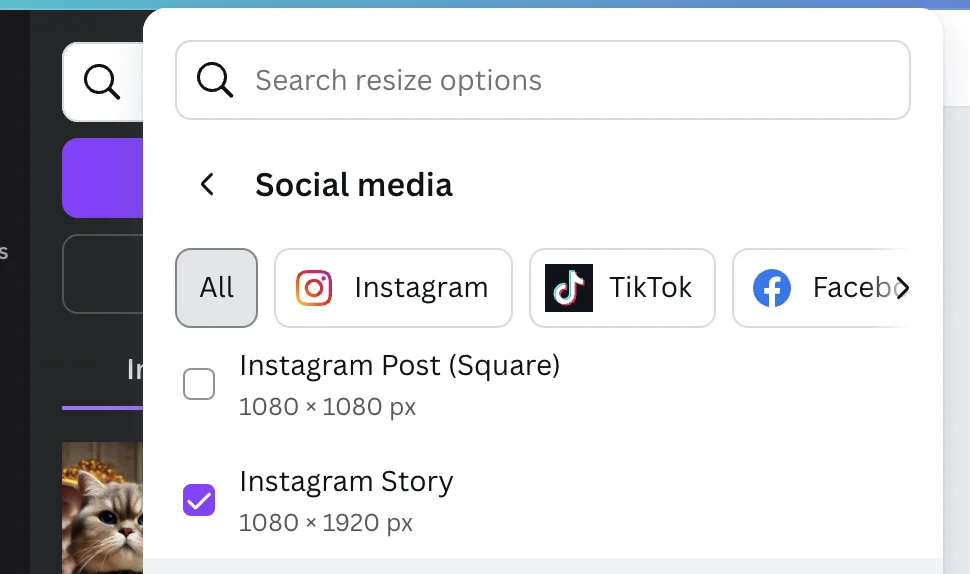
Select the formats you want to turn your post into. For this example, we’ll transform it into an Instagram Story.
In just a few seconds, you have new assets ready to post!
Congratulations! Using Canva’s easy design tools and it’s AI reformatting features, you can generate social assets across multiple platforms, without relying on a designer.
This tutorial was created by Jonah.