Create TikTok and Instagram reels from videos
Quickly turn video footage into reels for TikTok and Instagram using Canva’s AI.
2024-11-13
TikTok and Instagram Reels have taken over the social media landscape. Short, snappy videos have captured millions of eyeballs and billions of hours of watch time.
If you have video content, Canva’s AI-powered Magic Studio can help you quickly repurpose it into reels for social media, helping you get a share of those eyeballs. In this tutorial, you’ll learn how to use Canva’s to edit your videos, overlay text, and add music in a matter of seconds.
In this tutorial, you will learn how to:
- Upload your video footage
- Prompt Canva to create reels from your footage
- Edit and finalize reels for posting
Today’s tutorial is about using Canva to edit and enhance your raw footage. We won’t be generating video from scratch but we will be adding snappy edits.
Step 1: Upload your video footage into Magic Studio
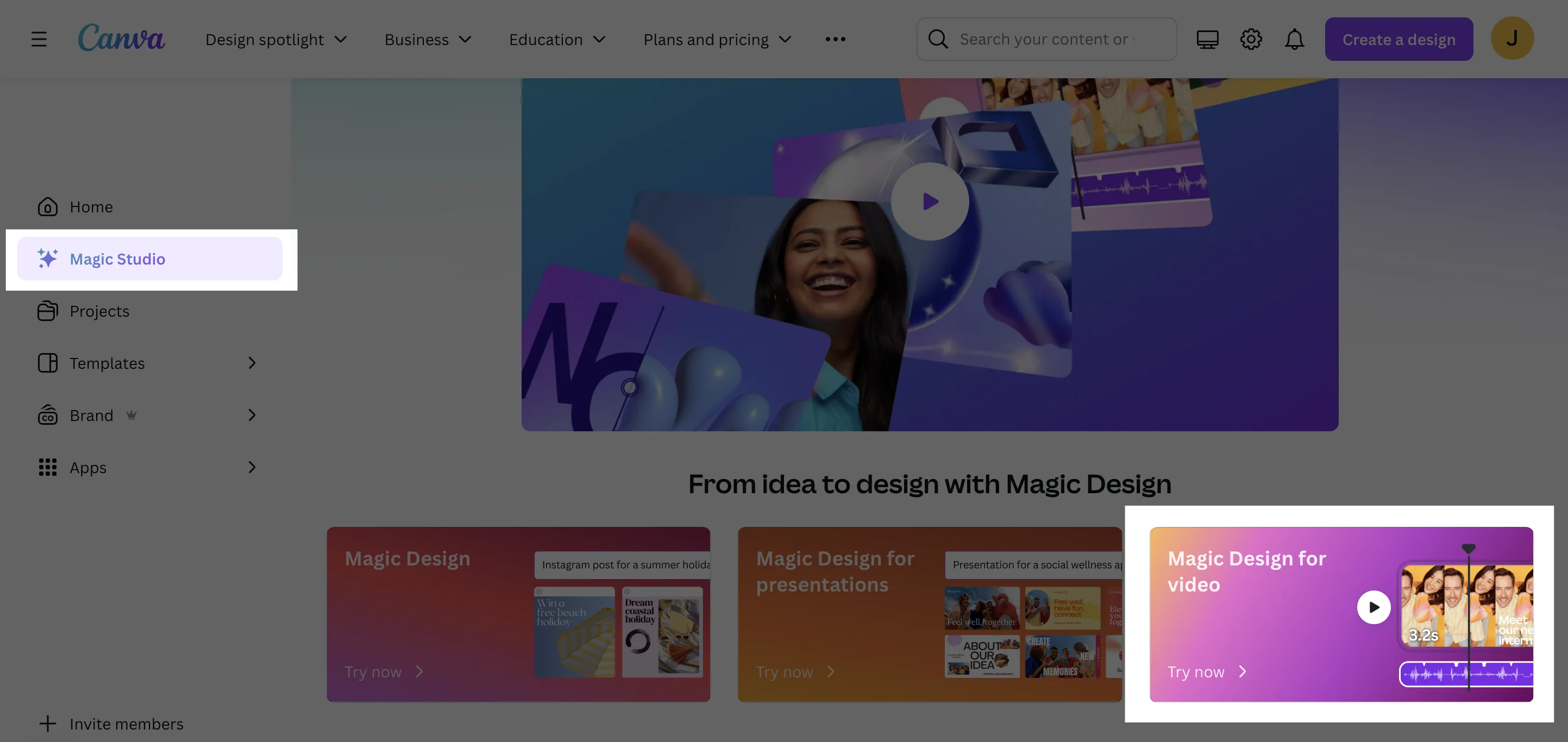
In Canva, find Magic Studio in the left menu. On the page, you’ll find Magic Design for video. Click there and a modal will appear prompting you to upload your video assets.
For this example, we’ll show off a model of sunglasses using some lifestyle videos from a recent video shoot. Your videos can be professionally shot, or done on your phone. The magic of reels comes from great editing and an upbeat soundtrack.
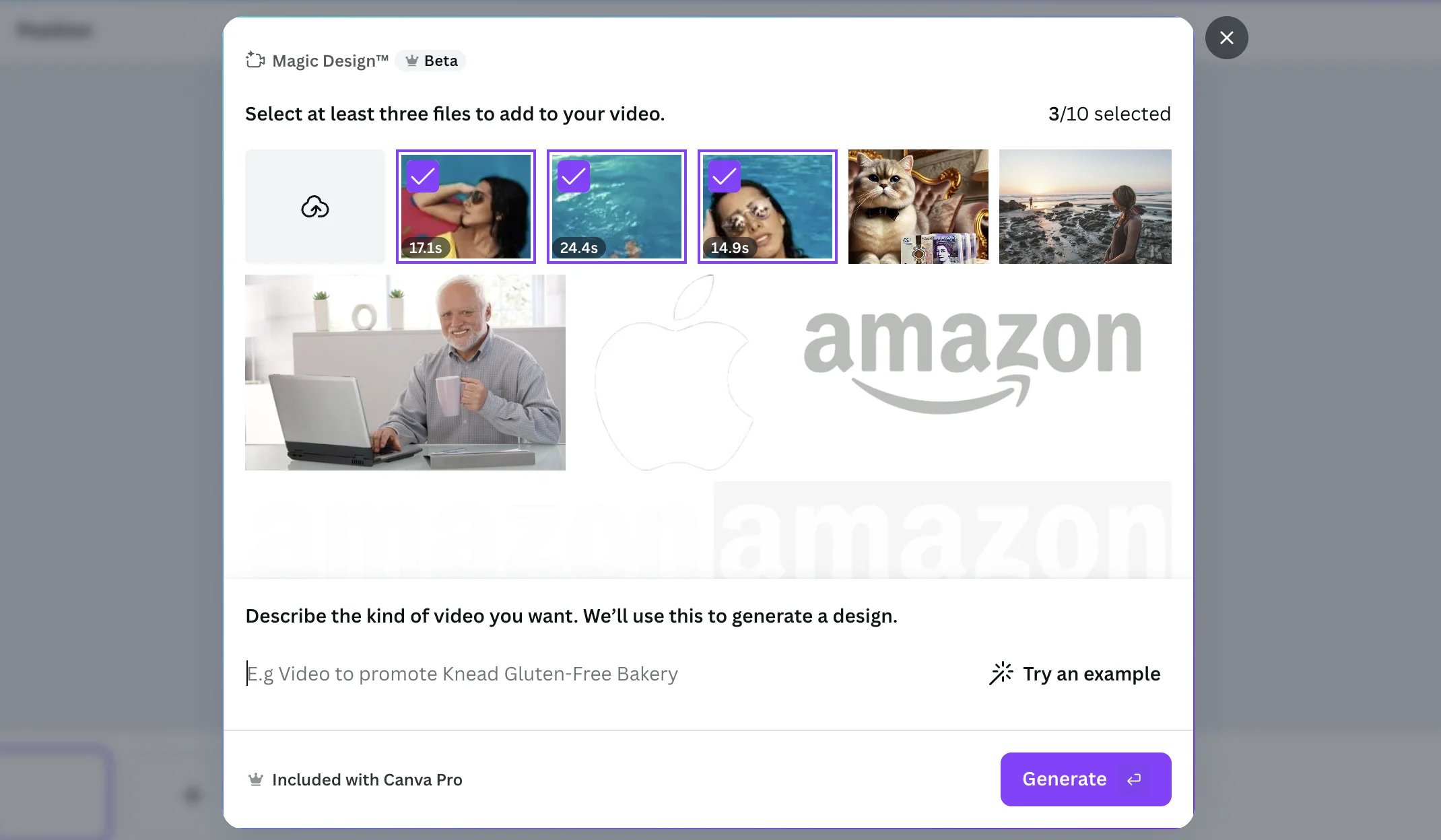
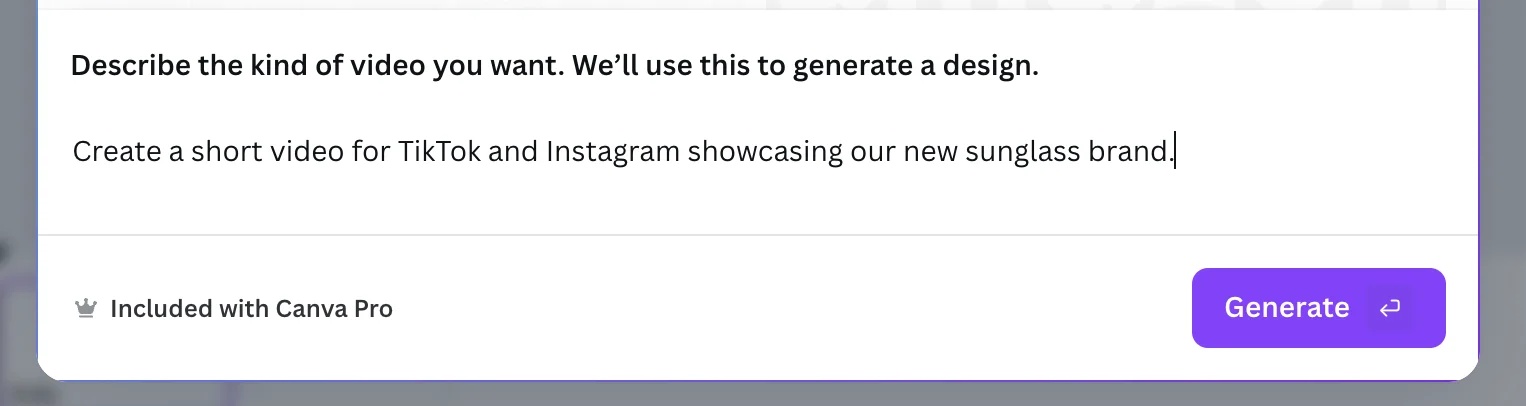
Once you’ve selected your videos, give Canva some high-level instructions.
Create a short video for TikTok and Instagram showcasing our new sunglass brand.
After a few seconds, you’ll be shown a new video project incorporating your uploaded videos.
Step 2: Edit your video
Canva’s AI will cut each video clip down to a shorter length, add transitions, overlay text, and music.
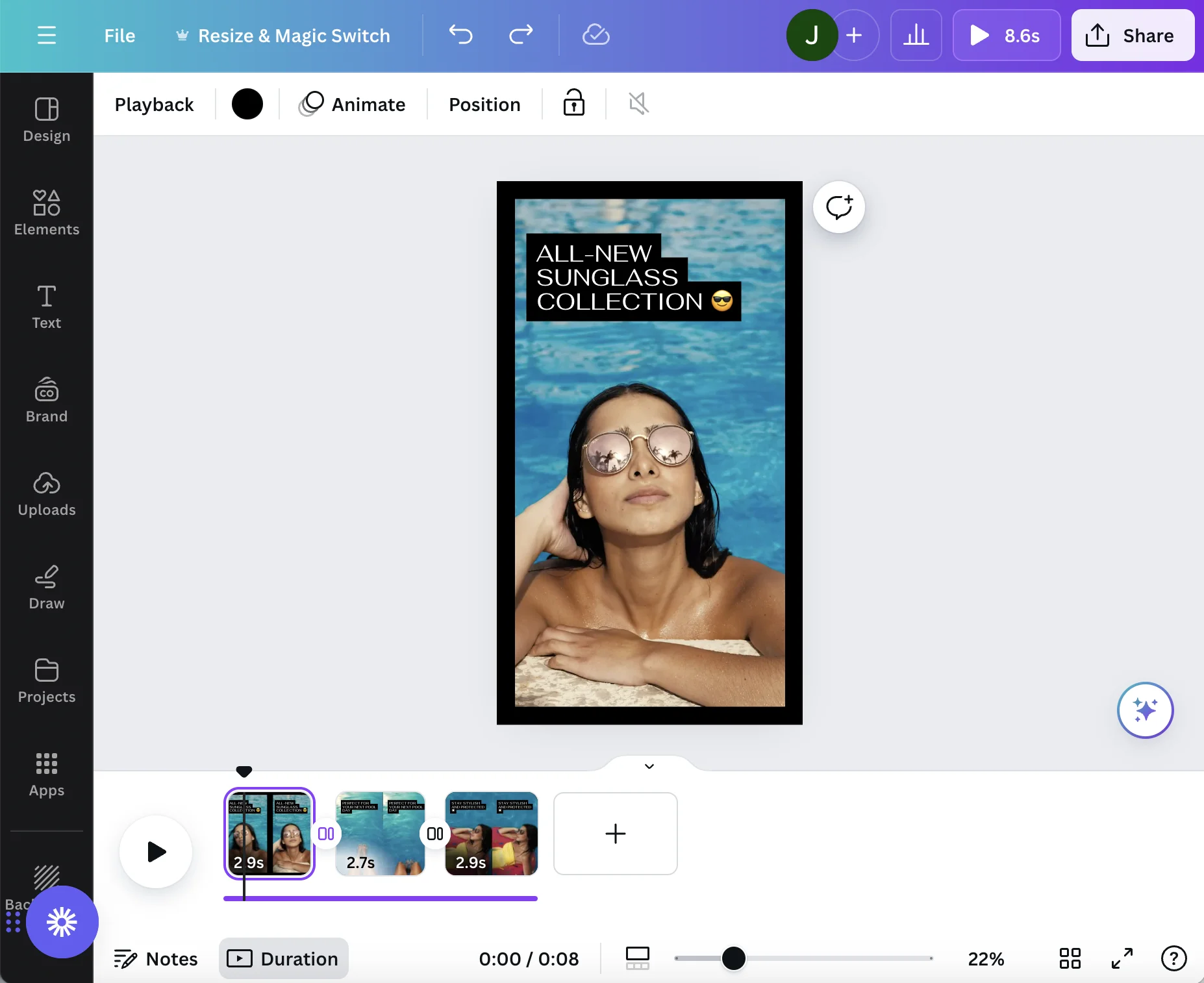
Simple click on the clip along the bottom of the screen to review it. You can click on the text move it around or edit the copy.
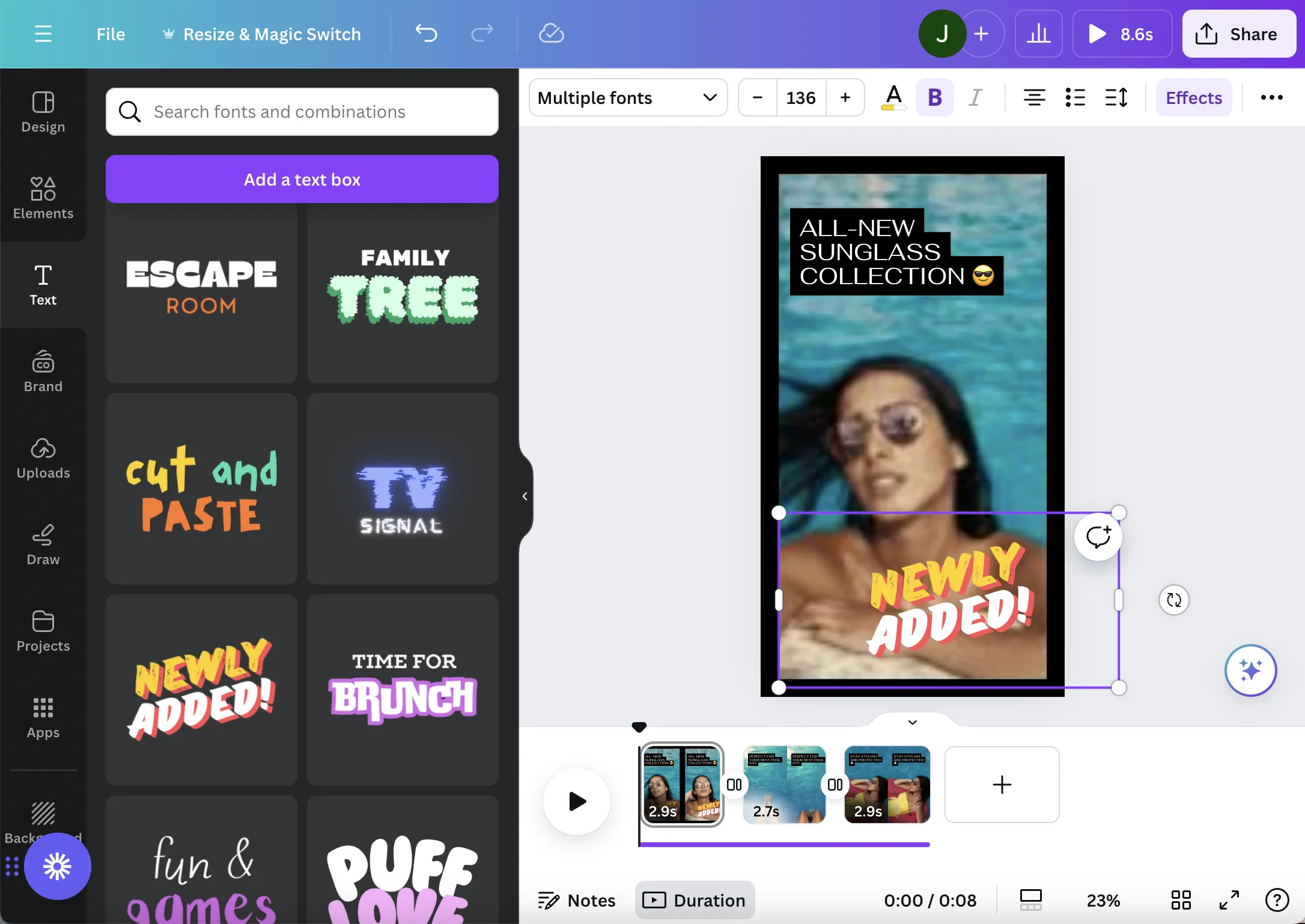
You might also want to add more text. With the first clip highlighted, we’ll go to the Text menu and scroll through to see any text styles we can add. For this example, we’ll include “Newly Added” since we’re marketing a new sunglass style.
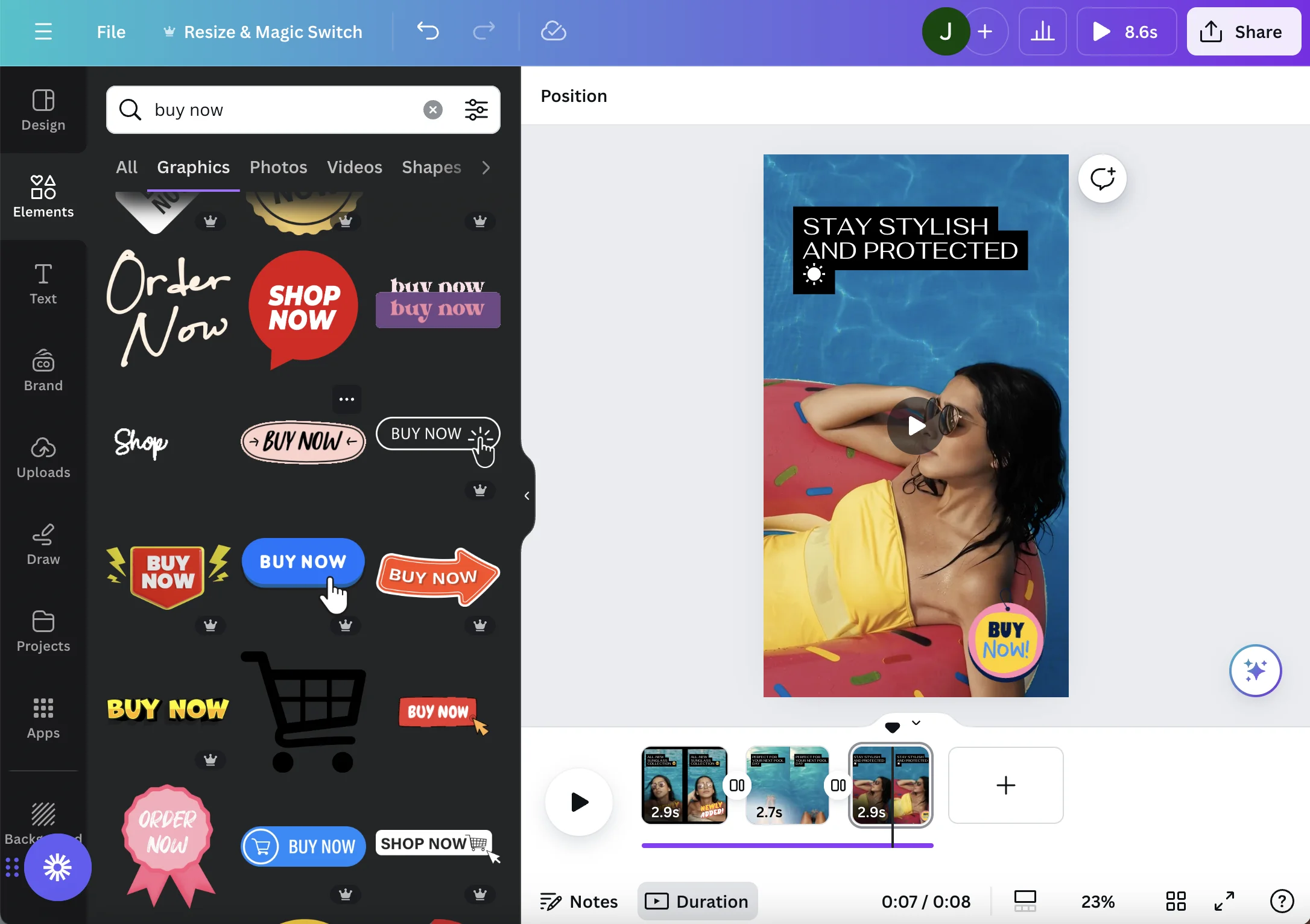
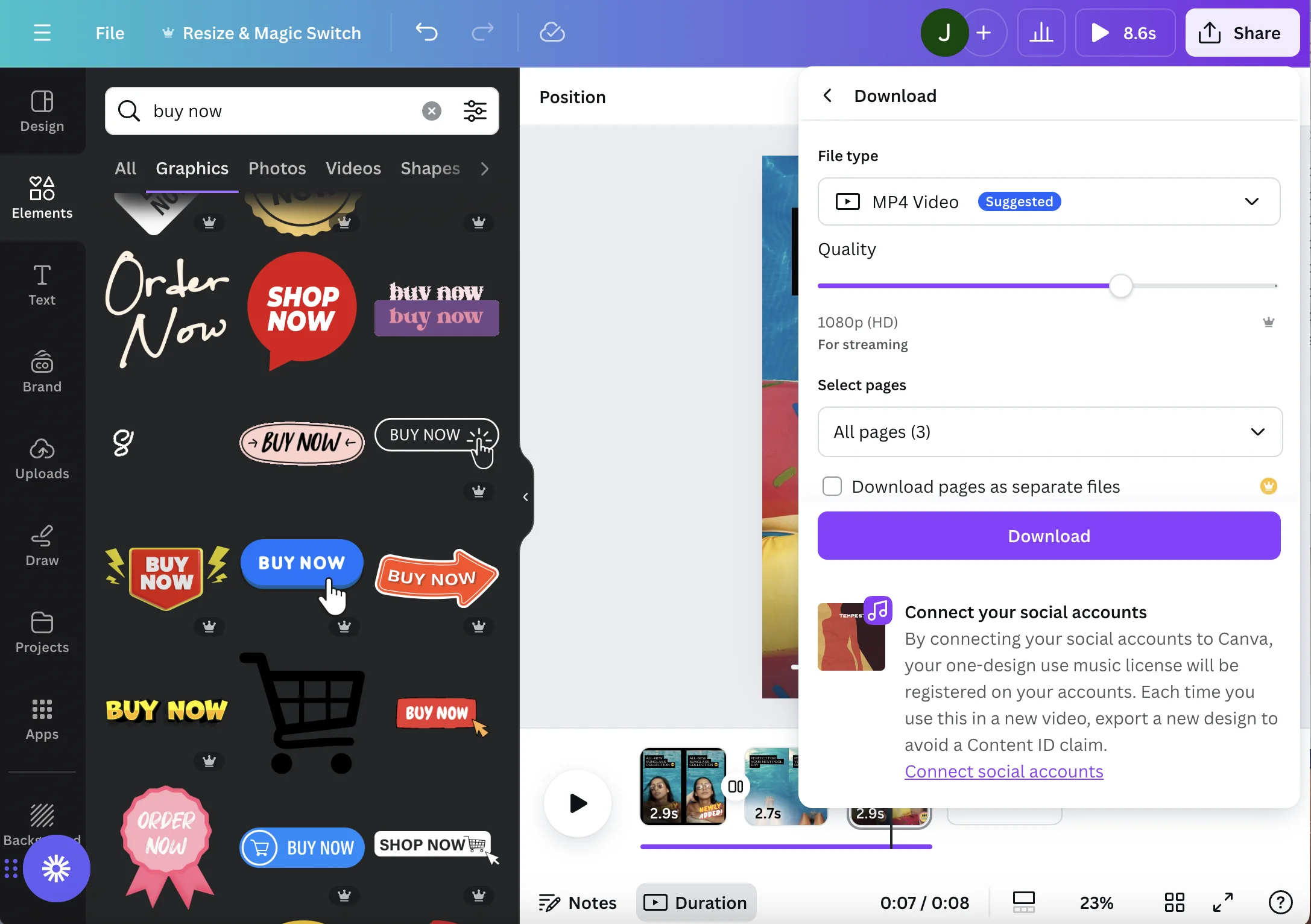
On the last video clip, we’ll incorporate a call-to-action. In the Elements section, search Buy Now to find a graphic or text prompting the user to take action.
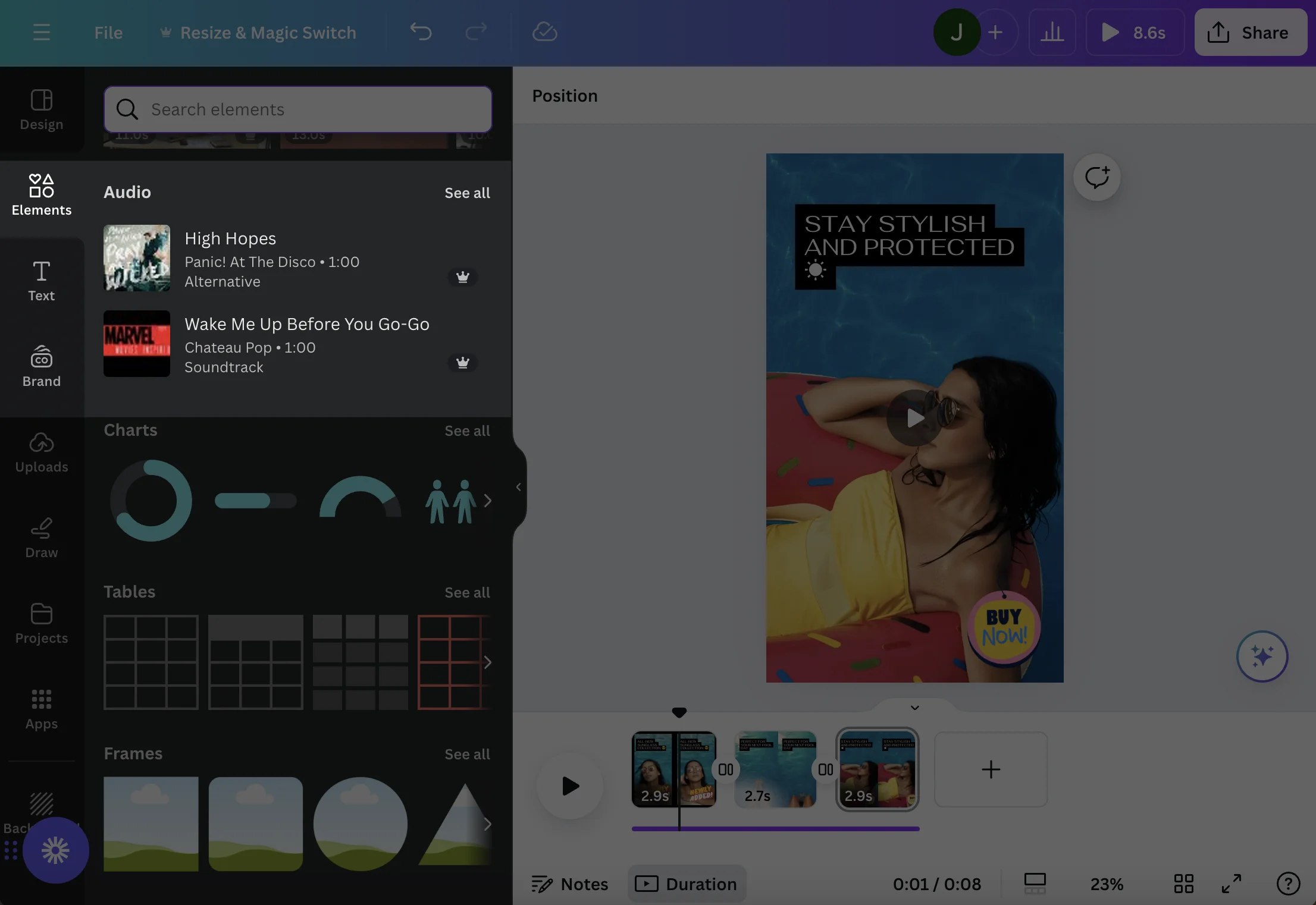
Lastly, you can edit the sound track. Go to the Elements menu and scroll down to find Audio. Click into See all and find a soundtrack that fits your video.
You can also choose to export a silent video from Canva and use the soundtracks available in TikTok and Instagram Reels.
Step 3: Export and share your video
Finally, it’s time to export your video and share it on your social accounts. In the top right corner, click Share. Click Download in the menu.
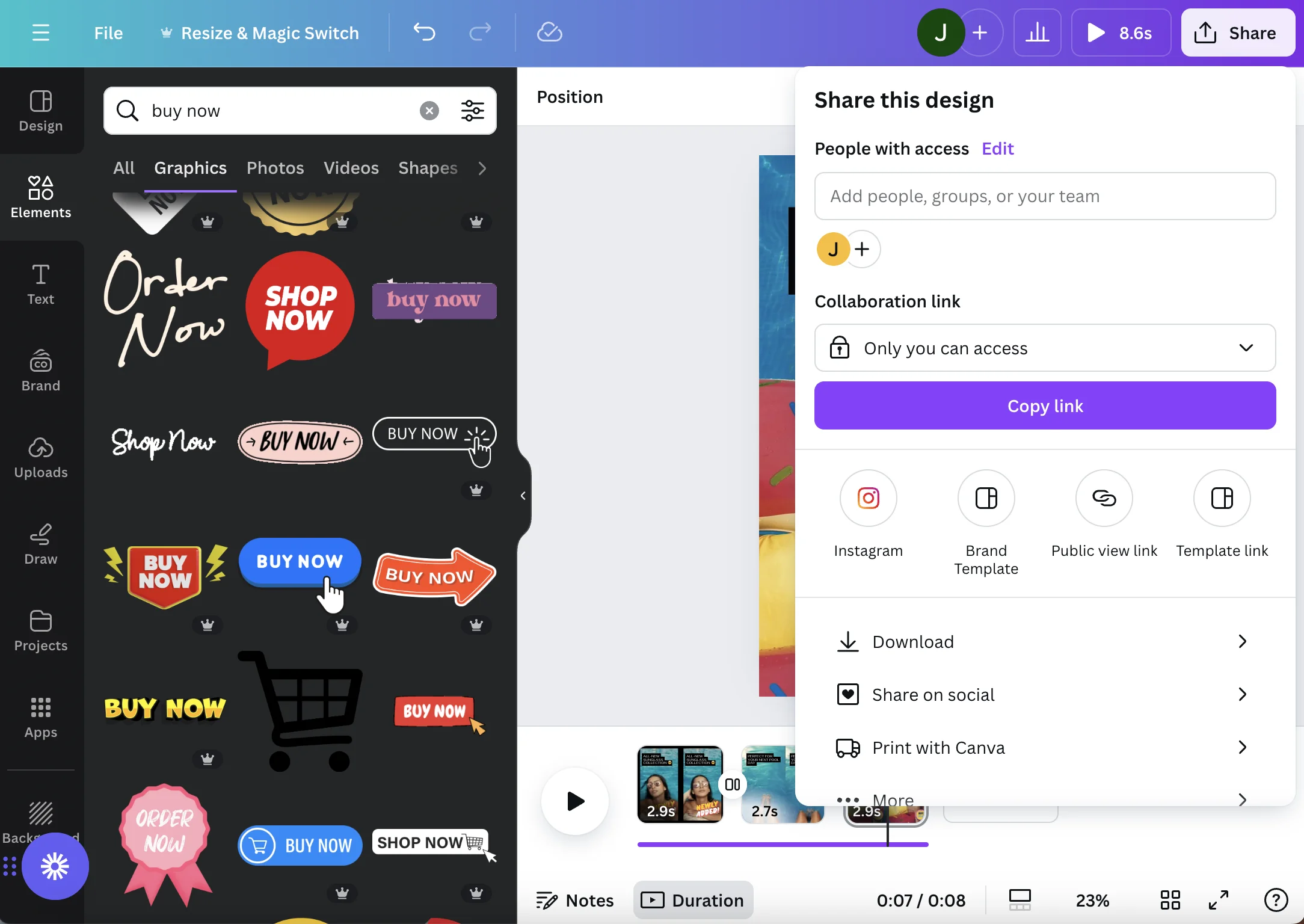
Make sure the video is set to export to MP4 Video and click Download.
Final video, from upload to exported in about 2 minutes.
Remember, you can continue to add video clips, graphic elements, and text. This tutorial demonstrates how Canva’s AI Magic Studio can help you take TikTok/Reel creation down from about 30 minutes of editing to 2 minutes. Good luck!
This tutorial was created by Jonah.