Create voiceover narration and a soundtrack for a short film
How to use AI to create audio for a short film, including voiceover narration and a soundtrack.
2024-12-06
This is the 4th tutorial of our course, How to create an AI-generated short film.
Bringing your short film to life involves more than just visuals; the right audio can make your story truly immersive. In this tutorial, we'll show you how to transform your Claude-generated dialogue into professional voiceovers and create a compelling soundtrack.
We'll start by using ElevenLabs to generate voiceovers for your script, ensuring each scene has high-quality narration. Then, we'll move on to crafting a dynamic soundtrack with Suno, an AI music generator. By the end of this tutorial, you'll have all the audio components needed to complement your film's visuals.
Steps we’ll follow in this tutorial:
- Transform dialogue into voiceovers
- Generate the soundtrack
Transform dialogue into voiceovers
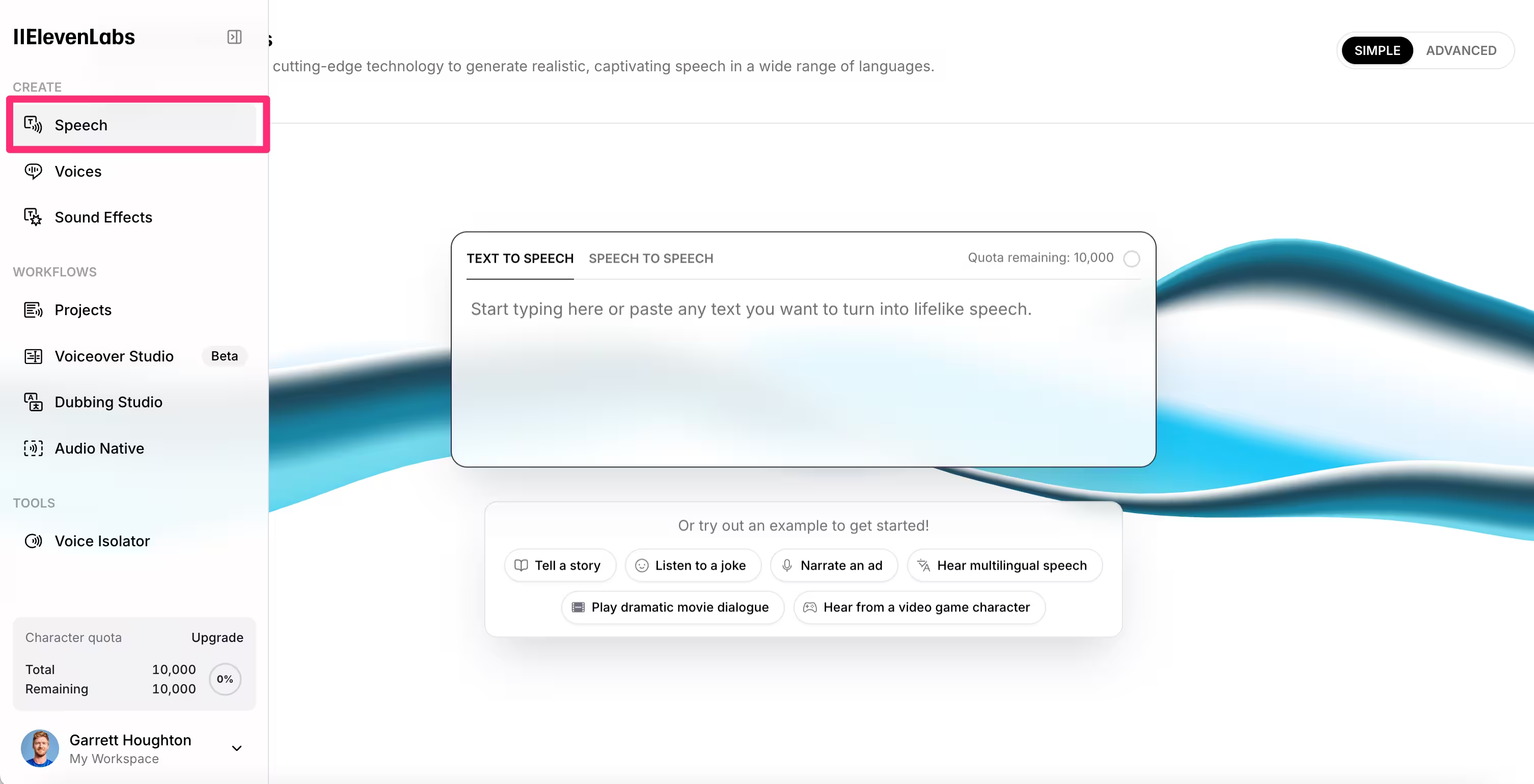
To create the voiceover for our short film, we’ll use ElevenLabs. Create a free account to get started and navigate to the “Speech” tab in the left-side navigation.
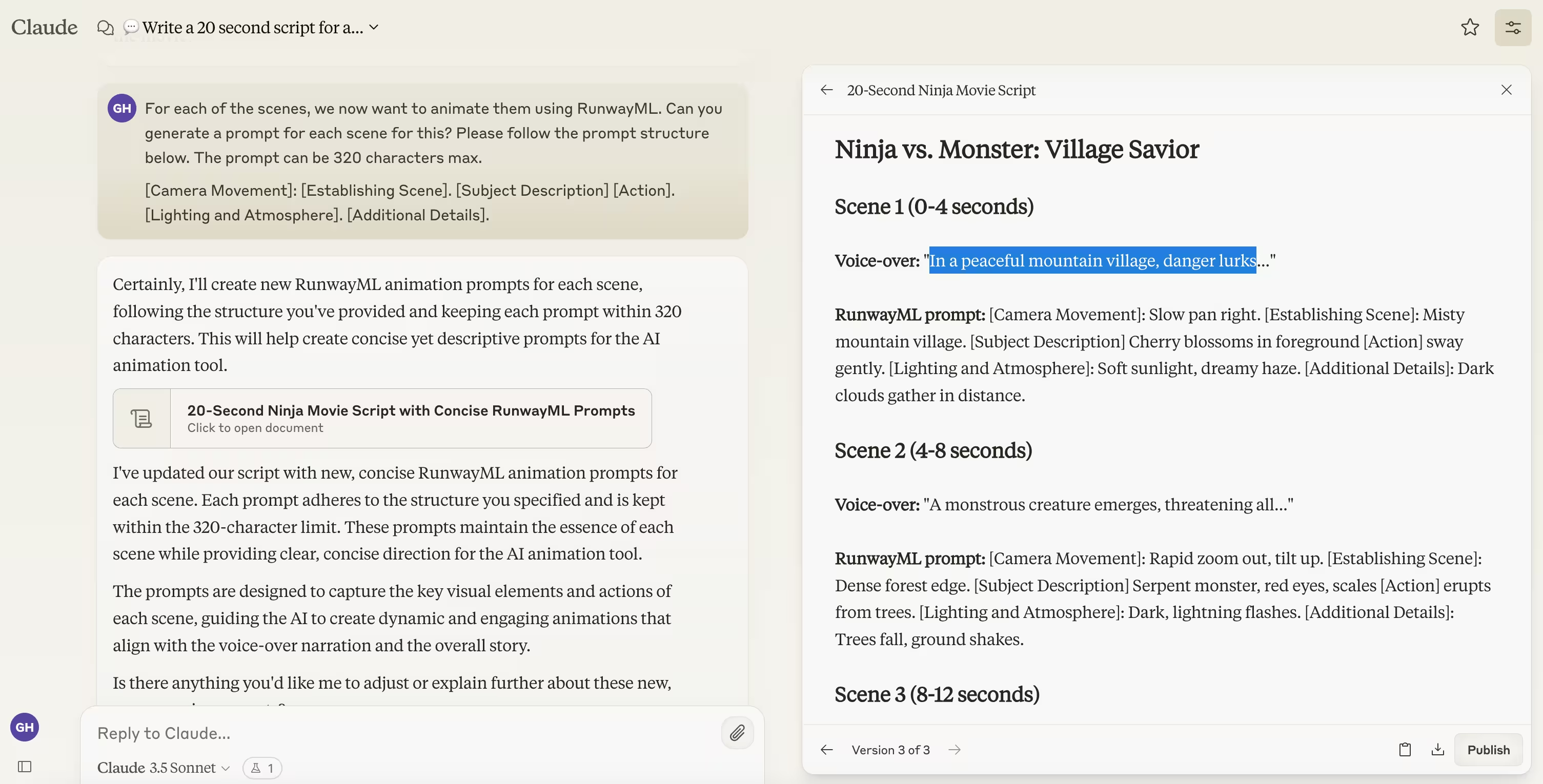
Go back to Claude and copy the voiceover text for your first scene.
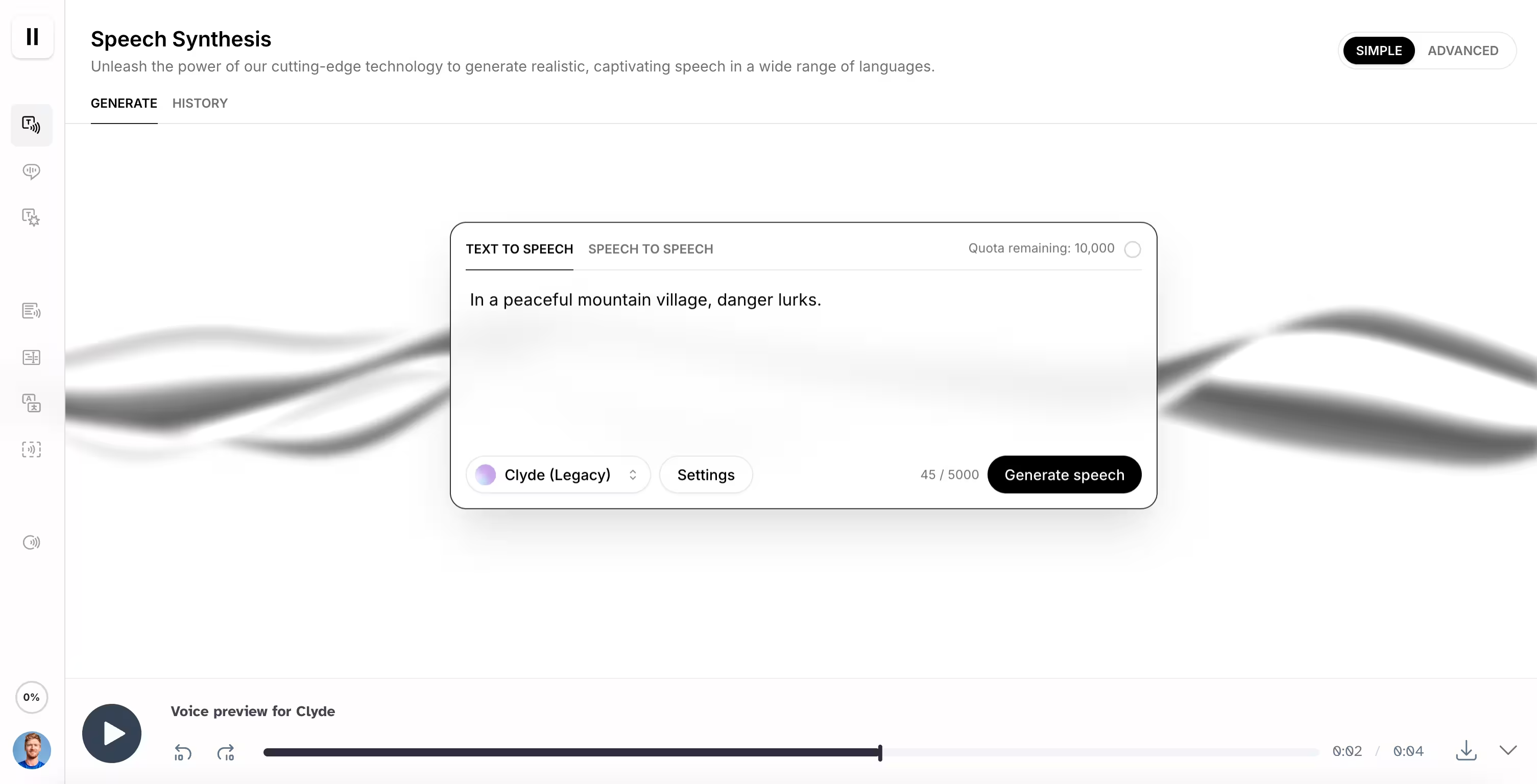
Then, paste it in the “Text-To-Speech” text box in ElevenLabs.
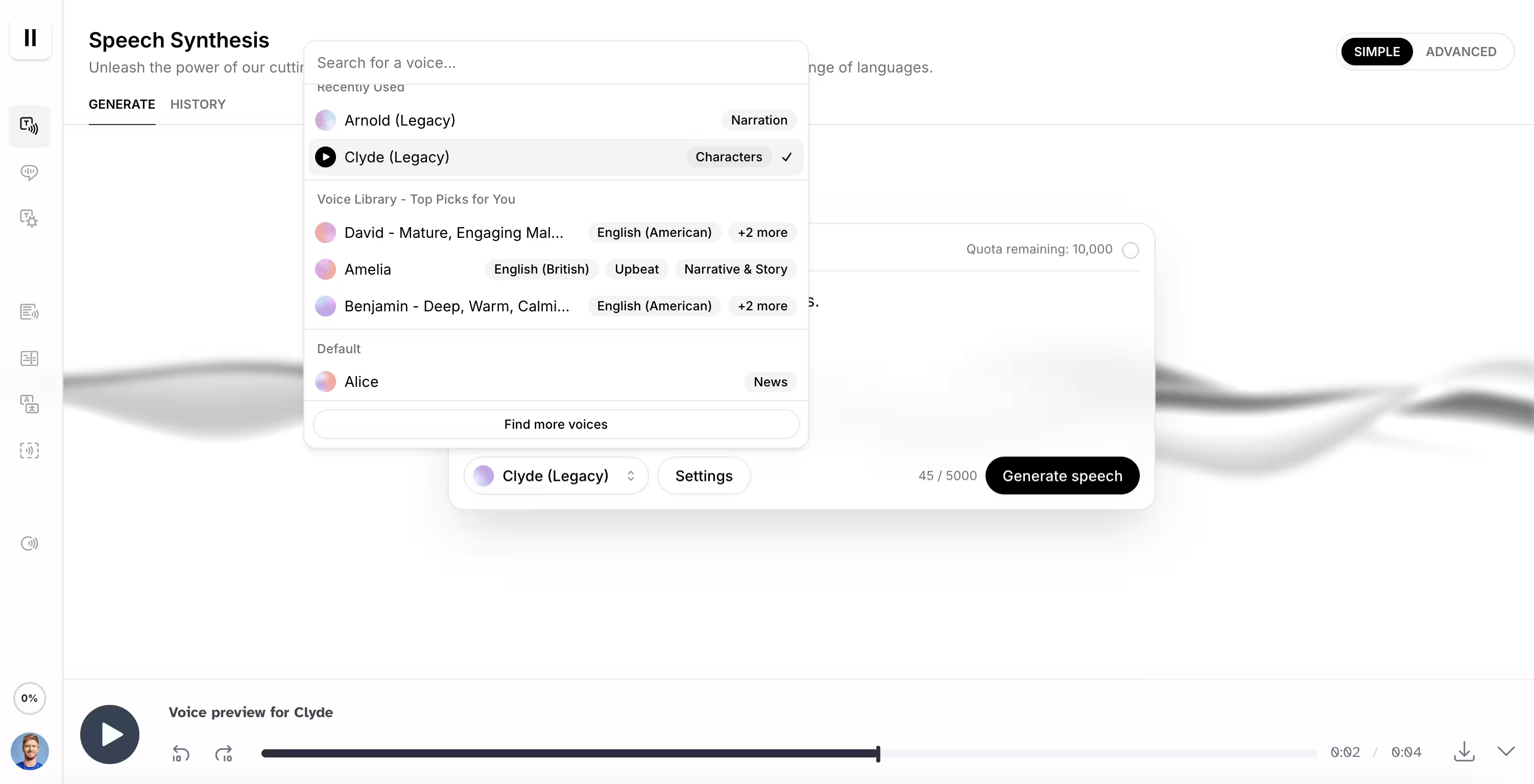
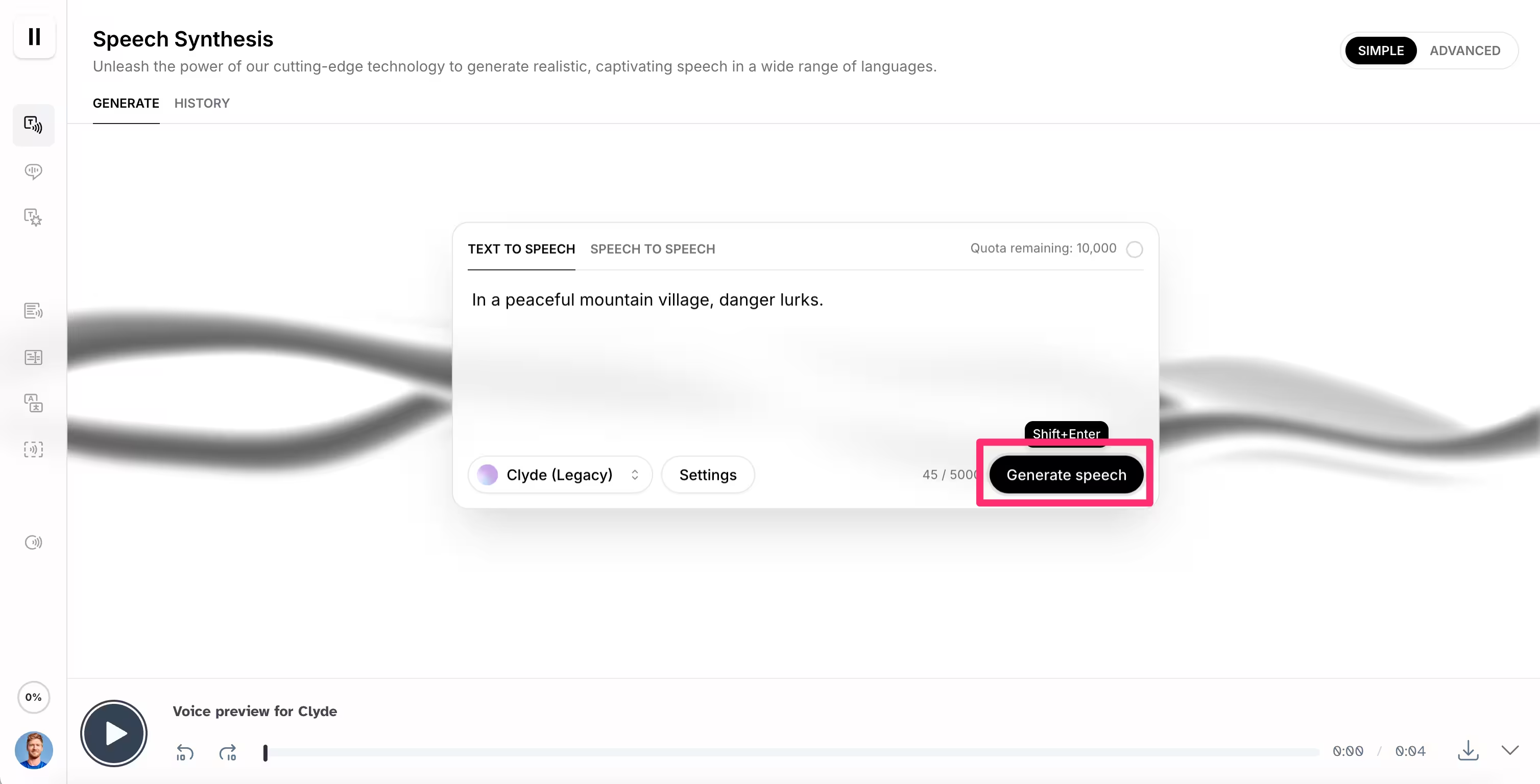
Click on the name in the bottom left corner of the text-to-speech box. This is where you can select the voice for your narration. You can hover over names and click the play button to hear a sample of the voice. When you’ve found a voice fitting for your film, select it. We’re going with the Clyde voice.
Then, click the “Generate Speech” button to generate an audio file of your scene text in that voice.
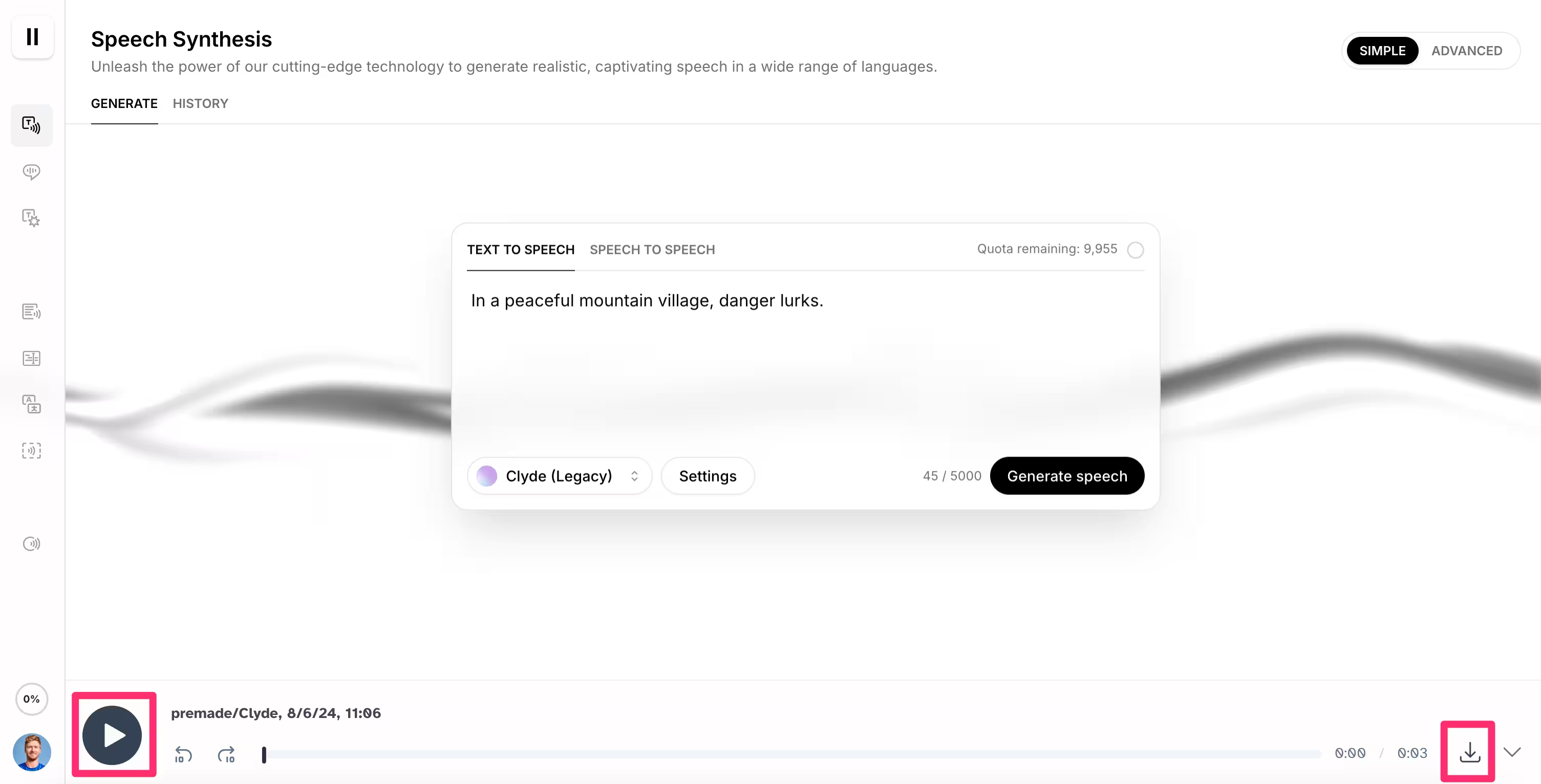
Click the play button in the bottom left corner to listen to the playback, and if you’re happy with the result, click the download icon in the bottom right corner to download the audio file.
Repeat this process for all of your dialogue to generate the narration for each of your film’s scenes.
Generate the soundtrack
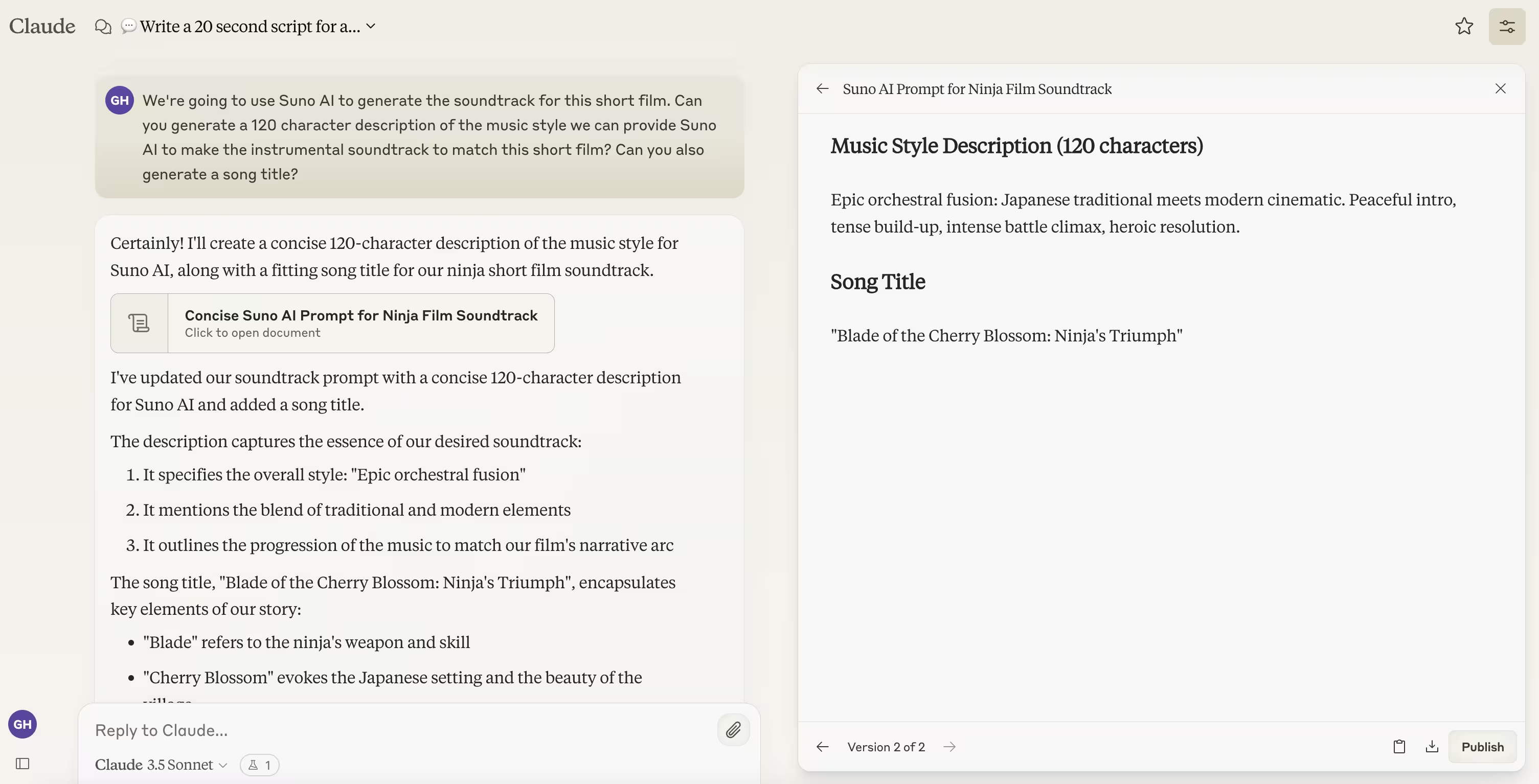
Now that we have our voiceover files, we can generate the soundtrack for our film. We’re going to use the AI music generator Suno for this, but before working with that tool, we’ll partner with Claude to have it create all the metadata we need for Suno for the soundtrack generation.
Sample prompt:
We're going to use Suno AI to generate the soundtrack for this short film. Can you generate a 120-character description of the music style we can provide Suno AI to make the instrumental soundtrack to match this short film? Can you also generate a song title?
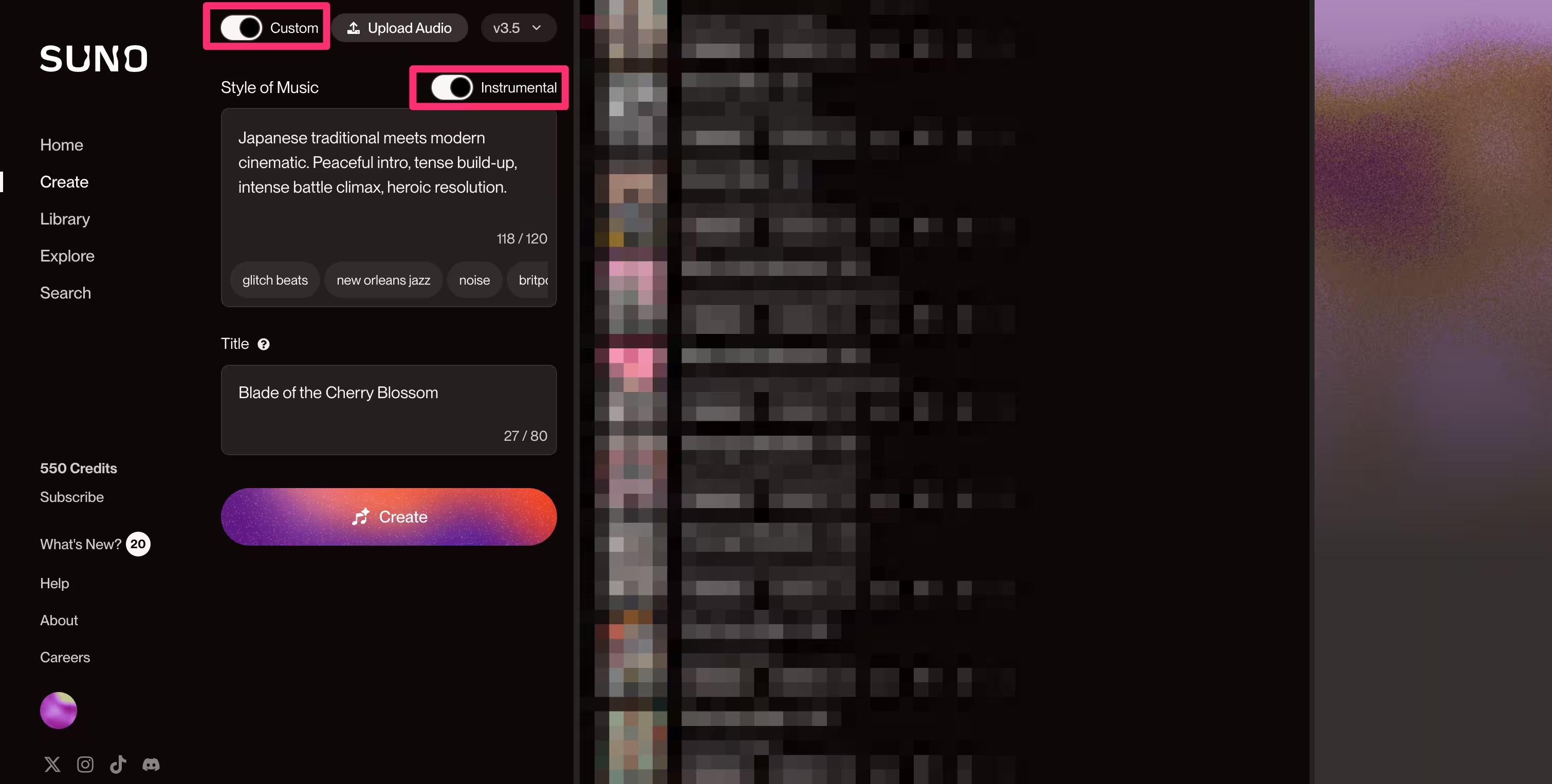
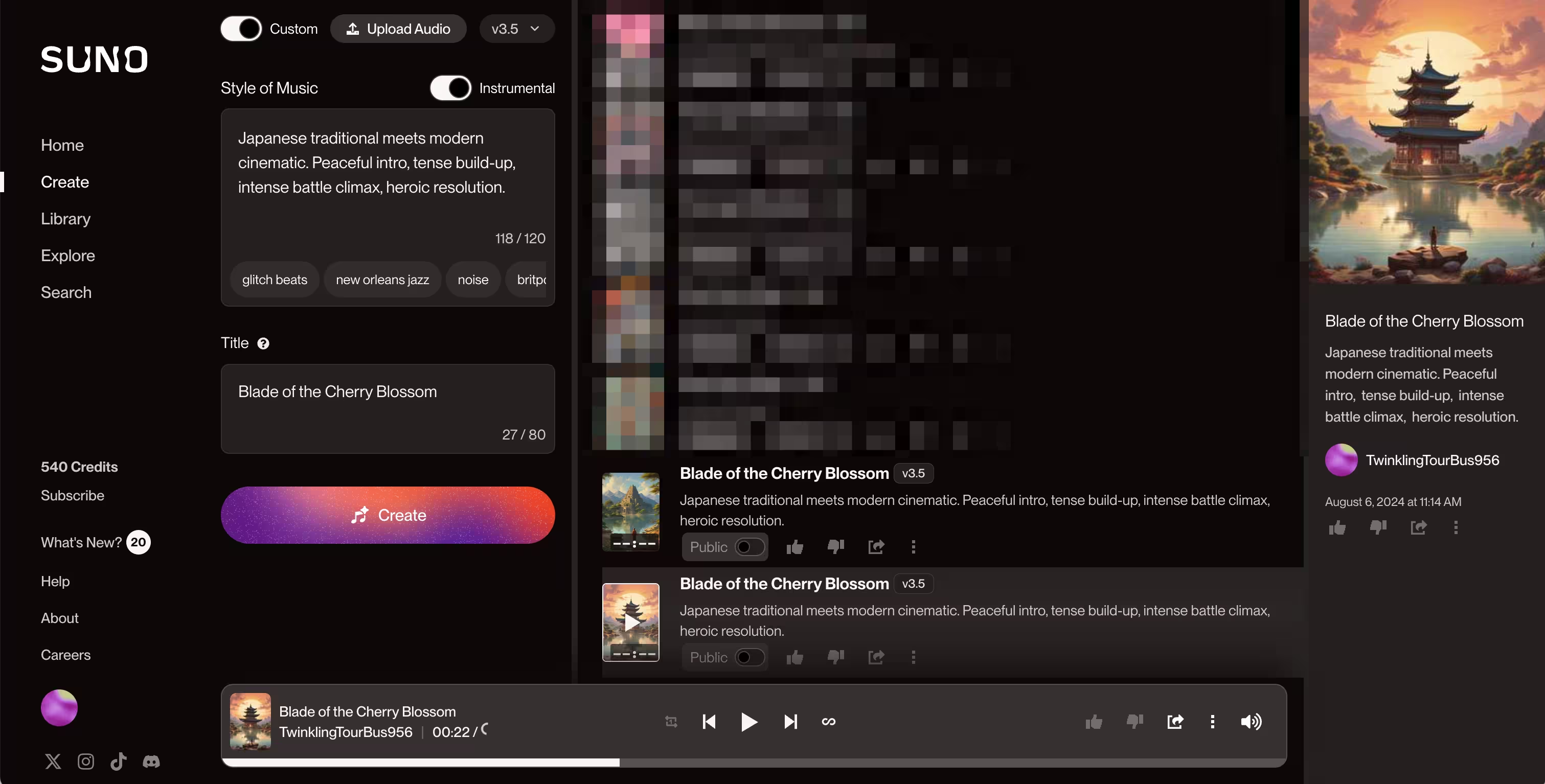
Now, we can head over to the Suno website to generate our soundtrack. To start, create a free account and click the “Create” tab in the left-side navigation. Enable the “Custom” setting and enable the “Instrumental” setting at the top of the page, which will prevent lyrics from being generated with our soundtrack. Then, we’ll drop the Claude-generated prompt into the “Style of Music” text box and add the song title Claude generated in the “Title” text box. Then, we’ll click the “Create” button.
Suno will generate two versions of the soundtrack. You can click on each to listen to them.
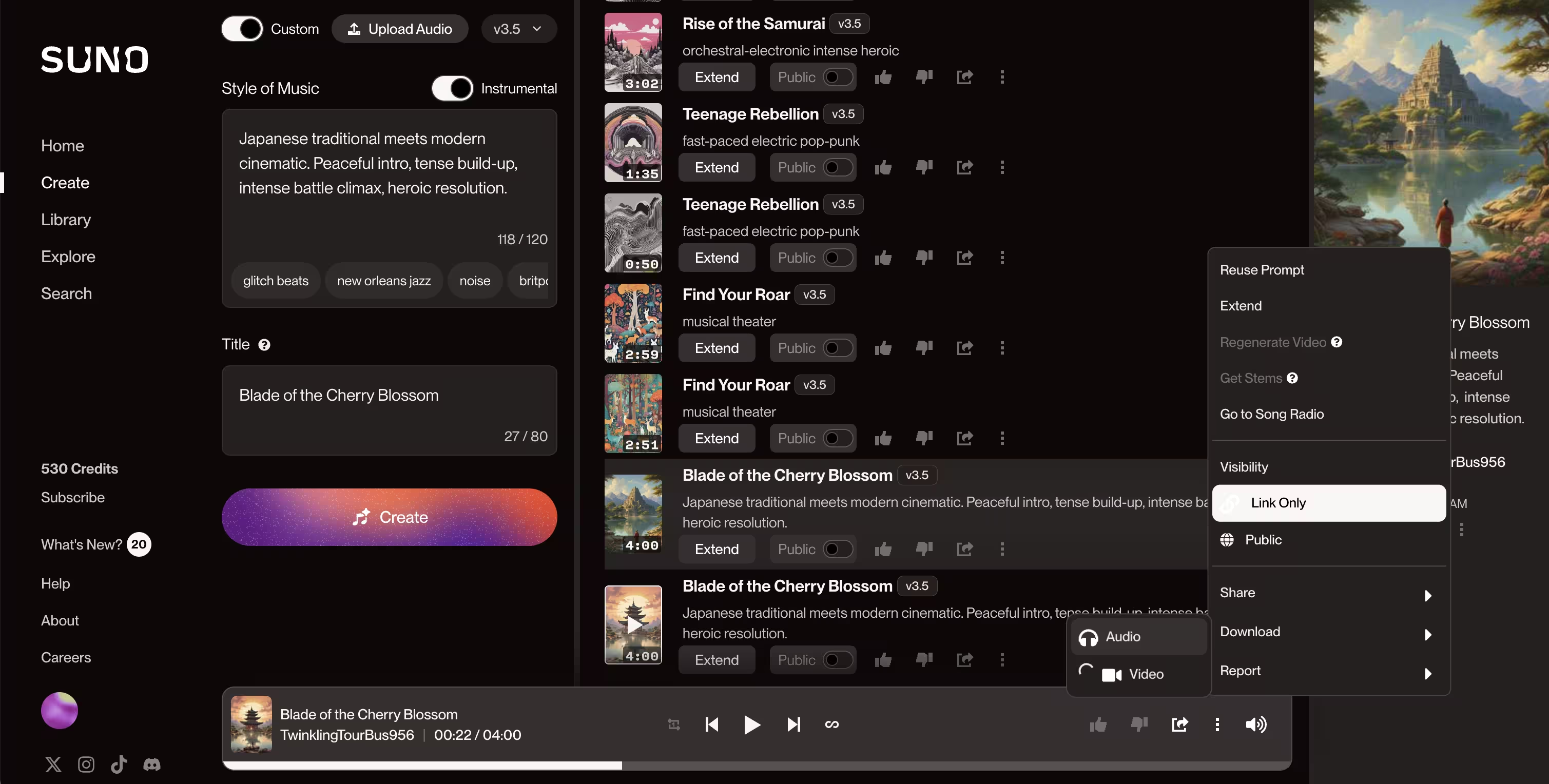
Select the one you want as the soundtrack for your film, click the three dots icon on the bottom player, and navigate to the Download > Audio option to download the audio file.
Now that we have all of our audio files for our short film, we can head to the final tutorial of the course to compile everything into a complete video with Descript.
This tutorial was created by Garrett.