Create walkthrough video scripts from help documents
Use AI to turn help documents on your website into scripts for video walkthroughs in multiple languages.
2024-11-13
Many people are visual learners - if you have a product, creating video guides for your technical docs is a great way to help users understand your product.
But turning a written guide into a great script for a visual walkthrough isn’t easy. And it’s certainly not quick. So we’re going to show how to use AI to do it for you.
As a bonus, we’re also going to use AI to quickly create versions of the script in other languages - something that is very complex to do without AI.
In this tutorial you will learn how to:
- Create an AI prompt that will produce a great walkthrough video script.
- Use further prompting to edit the script to perfection.
- Use AI to translate our script into Spanish.
You’ll need:
- A ChatGPT account
Let’s see how it’s done.
Step 1: Create an AI prompt that will produce a great script
For this tutorial, I found this “Zaps quick start guide” article from the Zapier website.
We need first to turn it into a PDF document.
On Chrome you can do that via File > Print > Destination > “Save as PDF”.
I’m going to use ChatGPT in this tutorial, but you can use Claude or Gemini as well.
Open the ChatGPT app. You can use the following prompt, or modify it as needed:
You are an extremely talented video producer.
Please read the attached PDF which contains a written walkthrough guide for automation tool Zapier.
Then, please create a single-narrator script for a web video guide we're going to create later.
You should include both the narrated script and annotations of what should be shown on screen in your output.
Keep it concise, and plan for an audience that is a beginner at using Zapier.
Then click the paperclip icon in the bottom left, click “Upload from computer”, then select the PDF you created before.
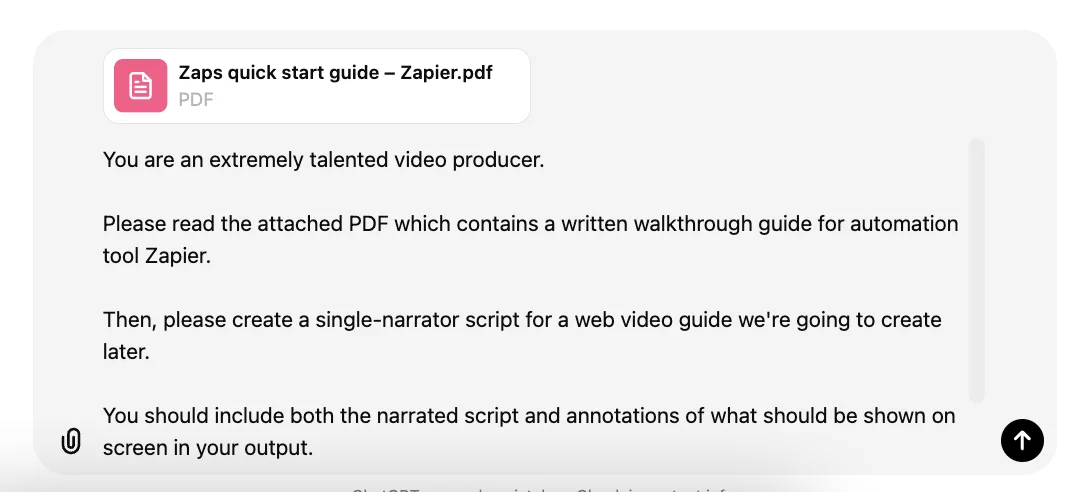
Once the file is attached and uploaded, click the arrow button in the bottom right.
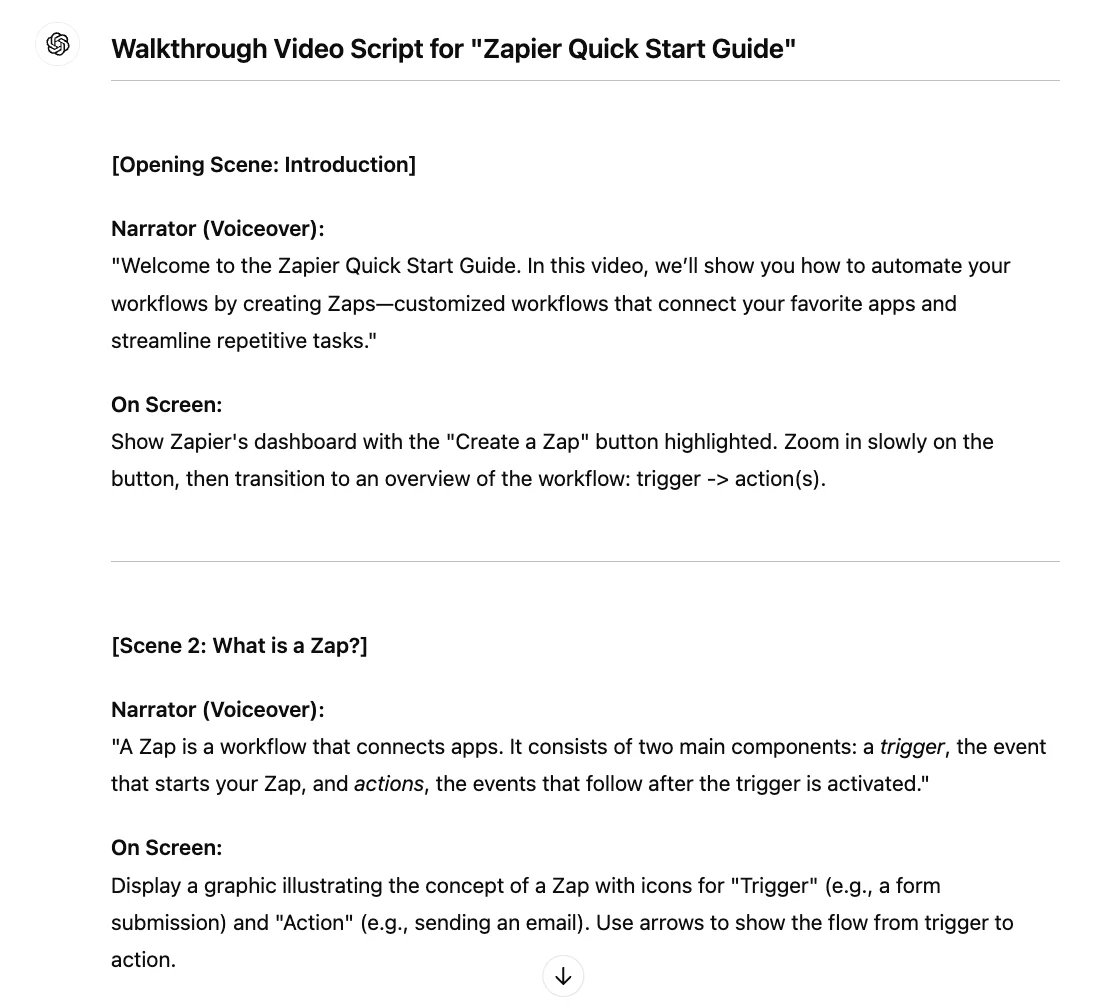
Wait a few seconds and a script will start to unfold on screen.
Read it through and see if you like what it produced. In my case, it looks great and you can tell from what’s written that the AI has read and understood the PDF.
Step 2: Use further prompting to edit the script to perfection
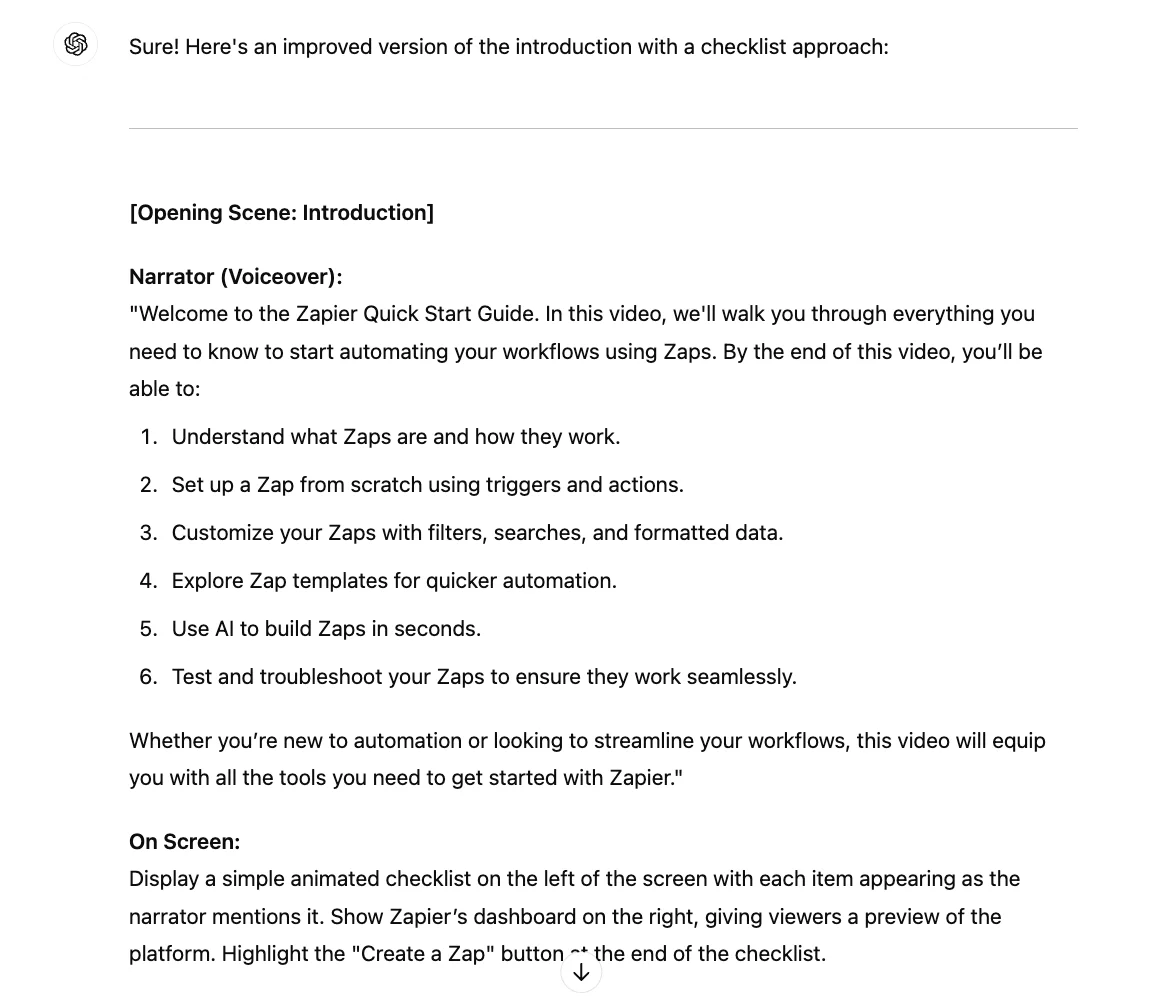
Let’s say we wanted to improve the introduction section - we can do that with a follow-up prompt.
I want to improve viewer retention and one way to do this is to have a ‘checklist’ created in the opening section so viewers know what to stick around for.
Prompt:
Let's improve the introduction a bit.
Please have the narrator run through a checklist of sorts, so viewers know what they will get from watching the video.

Click the arrow again, wait a few seconds, and the new opening scene is ready.
Step 3: Use AI to translate our script into Spanish
One thing that AI is great at is translation. While never perfect compared to paying a native, qualified translator, using AI is cheaper (or essentially free in this case) and the output from AI tends to be more human than Google Translate and DeepL.
We’re going to imagine that we’ve got a large South American Spanish-speaking audience for our product and want to create a version of our video to cater to them.
Use this prompt:
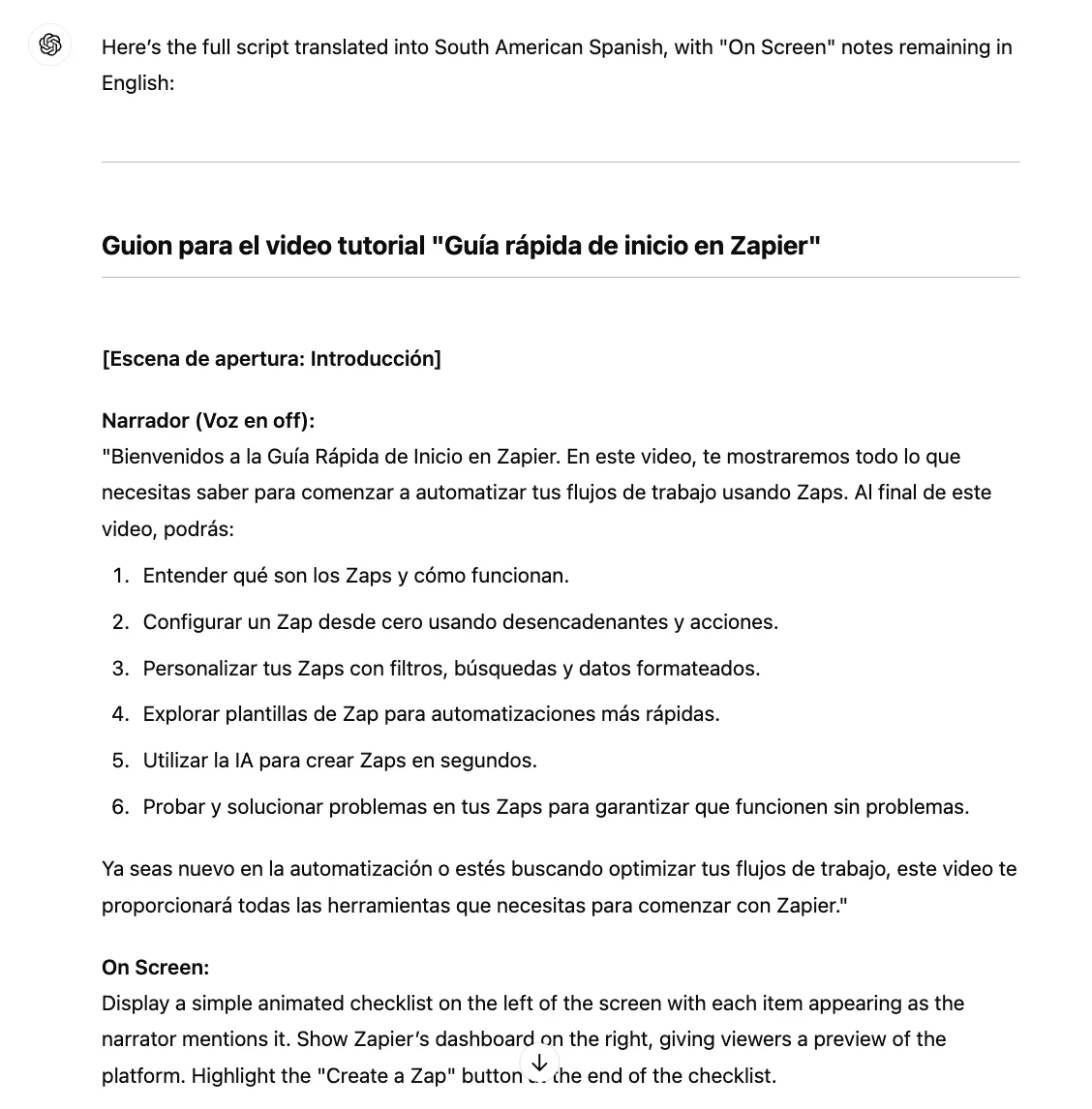
Please translate the full script into South American Spanish.
The "On Screen" notes should remain in English

Again, wait a few seconds and the translated script will appear.
As requested, just the spoken part of the script has been translated.
This tutorial was created by Andrew.