Create your professional digital voice clone with ElevenLabs
Produce professional voiceovers and audio content effortlessly with ElevenLabs' advanced AI.
2024-11-13
Creating a high-quality voice clone can really level-up your digital content creation game. With ElevenLabs' advanced AI technology, you can develop a hyper-realistic digital replica of your voice, simplifying the production of professional voiceovers and audio content. This tutorial will walk you through the process of creating a Professional Voice Clone (PVC).
In this tutorial, you will learn how to:
- Prepare high-quality voice samples for optimal cloning results
- Enhance your audio recordings using Adobe Podcast AI
- Set up your ElevenLabs account and subscribe to the appropriate plan
- Upload your voice samples and initiate the professional voice cloning process
- Verify your voice and monitor the training progress
- Use your new digital voice clone effectively
Understanding voice cloning options
Before we dive into the process, it's important to understand the difference between Instant Voice Cloning (IVC) and Professional Voice Cloning (PVC) in ElevenLabs:
- Instant voice cloning (IVC): This feature allows you to clone voices with very short samples almost instantly. It's available on the Starter plan ($5/month) and is suitable for quick, basic voice cloning needs.
- Professional voice cloning (PVC): This advanced option trains a hyper-realistic model of your voice using a large set of voice data. The result is a voice clone that's nearly indistinguishable from the original. PVC requires the Creator plan ($22/month) and takes longer to process (approximately 3-6 hours for English, 4-8 hours for non-English voices).
For this tutorial, we'll focus on creating a Professional Voice Clone for the best possible results.
Let's begin the journey to create your professional digital voice clone!
Step 1: Prepare high-quality voice samples
The foundation of a great voice clone is high-quality audio samples. ElevenLabs' AI will replicate everything it hears in your recordings, including any imperfections or background noise. Follow these guidelines to ensure the best possible results:
- Recording equipment: Use a high-quality microphone if possible. An XLR mic connected to a dedicated audio interface is ideal, but a good USB microphone can also work well.
- Recording environment: Choose a quiet room with minimal echo. If possible, use acoustic treatments or create a makeshift recording booth using thick blankets or quilts to dampen reflections.
- Microphone technique: Position yourself about two fists away from the microphone. Use a pop filter to minimize plosives (harsh "p" and "b" sounds).
- Audio content: Record at least 30 minutes of clear speech, with 3 hours being optimal for the best results. Ensure you're the only speaker in the recordings.
- Speaking style: Maintain a consistent tone, pace, and emotion throughout your recordings. The AI will replicate the style you use, so choose a versatile speaking style that suits your needs.
- Audio quality: Aim for a consistent volume level between -23dB and -18dB RMS, with a true peak of -3dB. Avoid clipping or distortion.
- Content variety: Include a range of words, phrases, and sentence structures to give the AI a comprehensive understanding of your voice.
Step 2: Enhance your audio with Adobe Podcast AI
If you don't have access to professional recording equipment, you can use Adobe's Podcast AI to clean up and enhance your audio recordings. Here's how:
Head to Adobe Podcast and sign up or log in with an Adobe account.
.webp)
Click on "Choose files" and upload your audio recordings.
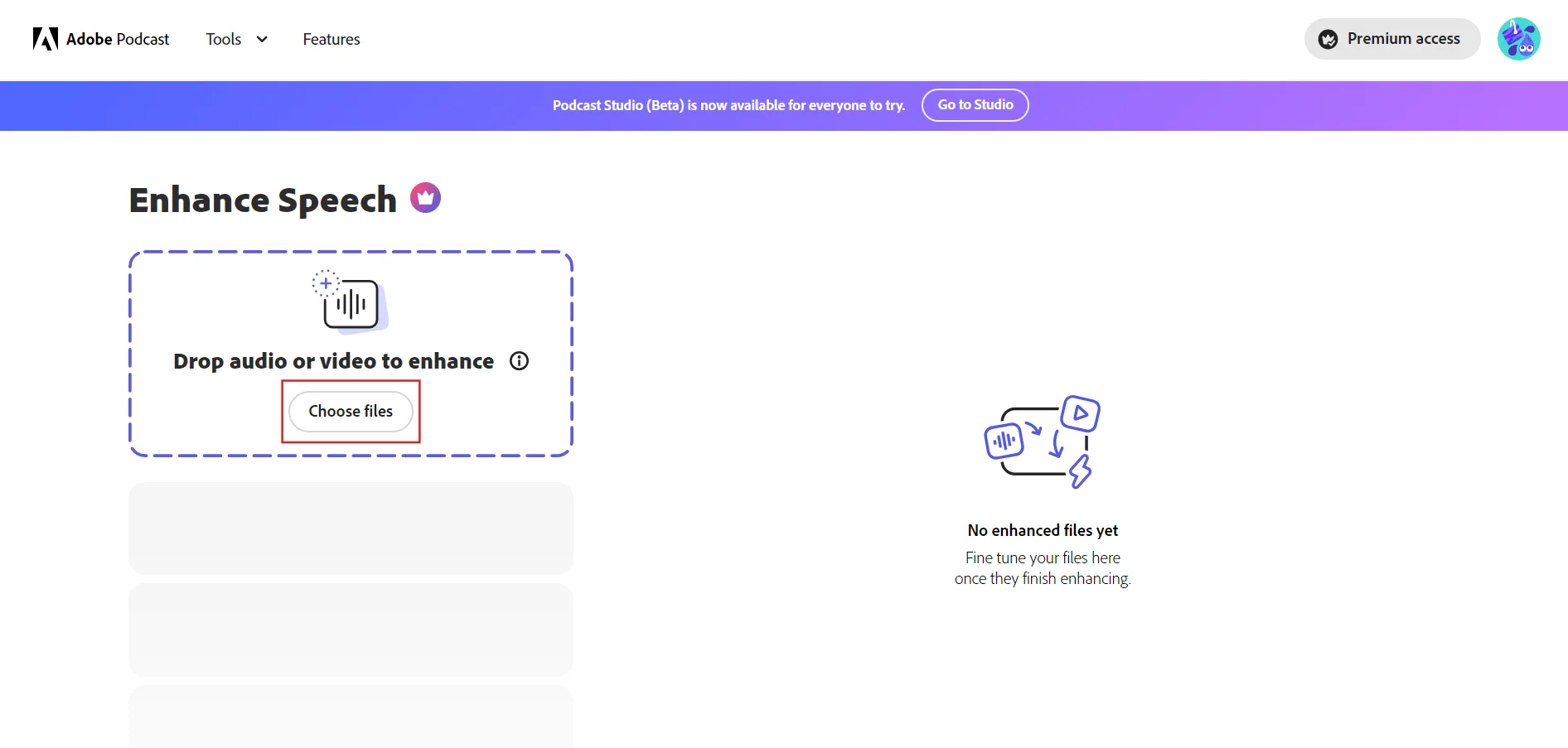
Wait for the AI to process and enhance your audio. This may take a few minutes depending on the length of your recordings. When done, review the enhanced audio to ensure it meets your quality standards. Download the enhanced audio files.
Step 3: Initiate the professional voice cloning process
To access professional voice cloning, you'll need to subscribe to ElevenLabs' Creator plan.
.webp)
Now it's time to start the cloning process. Go to https://elevenlabs.io/app/voice-lab.
.webp)
Look for the "Add voice" button (usually represented by a "+" icon) and click on it. In the popup window, scroll down and select "Professional Voice Cloning”.
.webp)
You'll be taken to a page with detailed instructions. Read them carefully, as they contain important information about the cloning process.
.webp)
Check the box at the bottom of the page to confirm that you've read and understood the instructions. Click "Start" to begin the voice creation process.
On the voice creation page:
- Choose a name for your voice clone
- Select the language spoken in your samples from the dropdown menu
- Upload your audio samples (remember, if you have multiple files, it's recommended to split them into 30-minute chunks for easier uploading)
- Add labels and a description to help you organize your voice clones
.webp)
Double-check all the information and uploaded files. When you're ready, click "Create Professional Voice" to start the upload process.
Step 4: Verify your voice
After uploading your samples, you'll need to verify your voice to ensure it's really you. You'll be presented with a screen containing scrambled text.
.webp)
Read the text aloud, trying to match the tone and style of your uploaded samples as closely as possible. Then, follow the on-screen instructions to complete the verification process.
Step 5: Using your new digital voice clone
Congratulations on creating your professional voice clone! Now, let's put it to use.
Navigate to the Speech Synthesis page by going to https://elevenlabs.io/app/speech-synthesis. You'll see a text box for input and various controls for voice selection and settings.
.webp)
Look for the "Voice" dropdown menu near the top of the page. Click to expand it, and you should see your newly created voice model listed. Select your voice from the list.
.webp)
In the large text box, type or paste the text you want to convert to speech.
If you want to adjust advanced settings, click on the "Settings" bar to reveal additional options. Here, you can fine-tune various parameters to achieve your desired output.
.webp)
Fine-tuning parameters:
- In the Model Selection, you can choose from options like Eleven Multilingual v2 (best for lifelike, emotionally rich content in 29 languages), Eleven Turbo v2.5 (high-quality, low-latency model in 32 languages, ideal for developers), and others.
- Adjust the Stability slider to control the consistency of the voice.
- Use the Similarity slider to affect how closely the output matches your original voice.
- The Style Exaggeration slider can be used to amplify the stylistic elements of your voice.
- Speaker Boost is an option that can help enhance the clarity and prominence of the voice in the generated audio.
Once you're satisfied with your text and settings, click the "Generate" button. Wait a few seconds while ElevenLabs processes your request.
Play the generated audio using the playback controls that appear. If you're not completely satisfied, try adjusting the text or settings and generate again.
Experiment with different models and settings to find the perfect combination for your needs. Remember that different types of content may benefit from different settings.
This tutorial was created by Tanmay.