Customizing ChatGPT
Learn how to customise your ChatGPT experience with Custom GPTs, Memory, Custom Instructions, and more.
2024-11-29
Welcome to part seven of this free course Learn how to use ChatGPT.
Now that you have a solid understanding of how to prompt ChatGPT across many different problem areas and modalities, we’re going to jump into how you can customize your ChatGPT experience, tailoring its responses based on repetitive tasks you do, your conversation history, and more.
In this lesson, you’ll learn how to:
- Leverage ChatGPT account custom instructions
- Manage ChatGPT’s memory
- Create custom GPTs
Let’s get into it!
Using custom instructions and memory
You can set custom instructions for ChatGPT at an account level that define how ChatGPT interacts with you regardless of the task at hand.
Think of it as setting up a global standard operating procedure (SOP) with ChatGPT. You can define the tone, structure of responses, things it should avoid or focus on, and more within custom instructions. This feature helps ensure that responses from ChatGPT are aligned with your preferences, without needing to provide the same context in every thread.
To add custom instructions, from any version of the app, click your initials (typically in the top-right corner of ChatGPT) then click ‘Customize ChatGPT’.
.webp)
There are two fields to configure in the pop-up window:
1. What would you like ChatGPT to know about you to provide better responses?
This is where you can give ChatGPT context about who you are and what you’re working on. How nuanced you go here will depend on your role and why you’re using ChatGPT.
Examples the OpenAI team provides for customising this section include:
- How do you want to be addressed?
- Should ChatGPT have opinions on topics or remain neutral?
For example, you could instruct ChatGPT that you’re a technology writer and that you are looking for neutral, unbiased commentary on all topics discussed.
Sample Custom Instructions:
Understand the User's Role: Recognise that the user is a technology writer seeking neutral and unbiased commentary on various topics.
Provide Objective Information: Offer clear, factual, and balanced responses without personal opinions or biases. Present multiple perspectives when applicable to ensure a well-rounded understanding of the topic.
Ensure Relevance: Tailor responses to align with the interests of a technology writer. Stay focused on the technological aspects and implications of the discussed topics.
By setting these details, ChatGPT will tailor its responses to suit your role, offering suggestions that are more aligned with your situation, workflows, and objectives.
2. How would you like ChatGPT to respond?
This field allows you to customise the tone, format, and style of ChatGPT’s responses.
Examples that the OpenAI team provides for customising this section include:
- How formal or casual should ChatGPT be?
- How long or short should responses generally be?
Working with the previous technology writer's example, we could add the below instructions to this section of the customisation settings.
Sample Custom Instructions:
Maintain Professional Tone: Use formal and professional language suitable for a technology-focused audience. Avoid slang, colloquialisms, or overly casual expressions.
Focus on Clarity and Precision: Explain complex technological concepts in an accessible and understandable manner. Use appropriate technical terminology when necessary, providing definitions or explanations if needed.
Encourage Critical Thinking: Present information that allows the user to form their own conclusions. Highlight key considerations, benefits, and drawbacks related to the topic.
Beyond tone, you might also consider using this section to use ChatGPT as a collaborative partner. If you know you tend to fall into the same bad habits, for example, instruct ChatGPT to challenge you on those or help you avoid them.
.webp)
Managing ChatGPT’s memory
ChatGPT memory is an incredibly powerful feature. And in many ways, it’s like an automated, 2.0 version of custom instructions. So what does it do? As ChatGPT responds and interacts with you, it will add to its memory bank.
This memory will allow ChatGPT to reference context from past conversations when you prompt it with related queries. For instance, if you’re preparing for a job interview and ChatGPT has memories of your past interview performance, it can recall these chats to tailor its responses to your new interview queries.
ChatGPT will automatically add relevant chats to its memory or you can explicitly prompt it to add something to memory, using a phrase like: “Remember that I just bought a puppy.”
As you’re chatting with ChatGPT you will see it flag ‘Memory updated’ within your chat when it’s created a new memory. Hover over this and you’ll see the option to ‘Manage memories’.
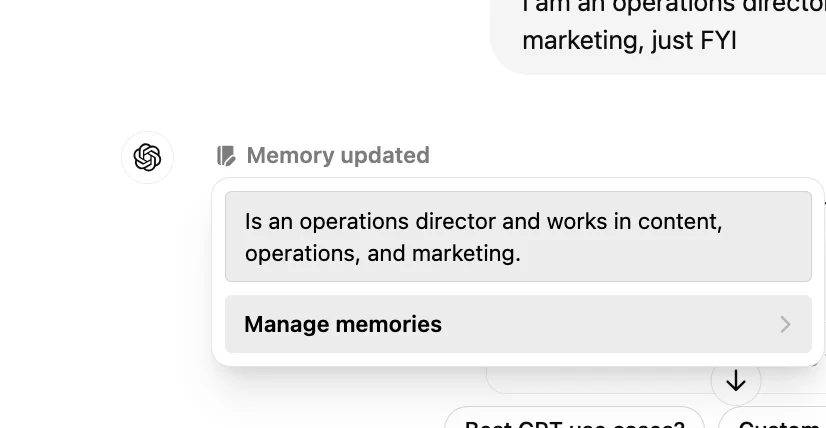
When you click this flag, the memory bank will open. This will list all of the memories ChatGPT has stored. You can delete any individual memories here, or clear ChatGPT’s entire memory (not recommended!).
.webp)
You can also click your initials in the top-right corner, click Settings > Personalization, and manage the memories from there. In this window, you can enable or disable the Memory feature too.

You can manage memories from the mobile app too. Click your icon/initials in the bottom left corner, then click ‘Personalization’. Select ‘Manage memory’ and you can edit the memories or clear the entire bank as above.
.webp)
Creating Custom GPTs
Now that you know about custom instructions and memory, we can dive into creating custom GPTs.
You can think of a custom GPT as a distinct instantiation of ChatGPT with a specific set of custom instructions, knowledge, and skills. With a custom GPT, you teach the model once, and from then on, it knows exactly what to do.
It’s a bit like onboarding a new employee. You wouldn’t want to hire a new project manager every time you had a new project. Instead, it’d be far easier to describe the new project to an existing project manager who knows your business.
This is exactly what custom GPTs all you to develop!
A custom GPT allows you to create, for example, one project manager that you use every time for new projects. By uploading context-setting knowledge and documents previously, the GPT will draw from these every time you interact with it.
Here’s an example of a newsletter writing GPT:
.webp)
The main components of setting up a custom GPT are:
- Instructions: Think of these like the custom instructions for the specific GPT. This is where you should give the GPT its role, how it should behave, and general guardrails like you were instructing a new employee.
- Knowledge: This is where you can upload files of documentation for the GPT to reference, this could include PDFs, CSVs of data, and more.
- Capabilities: These are the advanced tools that the GPT can use, including web browsing, image generation, and data analysis.
.webp)
Remember, building a custom GPT is not a one-off task. Once you start using it, you’ll discover areas where it can improve. Make sure to regularly tweak its instructions based on feedback and upload new knowledge to have it continue to meet your evolving needs.
That’s it! Now you have a solid understanding of how to customise your ChatGPT experience. In our final tutorial of the course, we’ll review some quick tips and tricks for using ChatGPT to round out your knowledge of this powerful tool.