Develop interactive learning games
Learn how to create a simple, interactive student learning game with Replit’s AI Agent.
2024-12-05
Welcome to the sixth and final lesson in our AI for Educators course!
In this lesson, you’ll learn how to develop a simple, interactive learning game based on your lesson plan content or other course materials. This is a more advanced tutorial than the others in this course, as it does involve working in a programming environment, but you do not need to know how to code or download any special software to complete this tutorial.
Instead, we’ll be using Replit’s AI Agent to code the entire application for us, so we can focus on the game mechanics.
Steps we’ll follow in this tutorial:
- Prompt Replit Agent with a game request
- Review and troubleshoot game mechanics
- Deploy and share your game
Tools needed:
Let’s get started!
Prompt Replit Agent with a game request
To get started, you’ll need to create a paid Replit Core account ($25/mo) to get access to the AI Agent feature we’ll be using in this course. The AI Agent feature allows you to send natural language prompts via chat and the AI Agent will code your entire app.

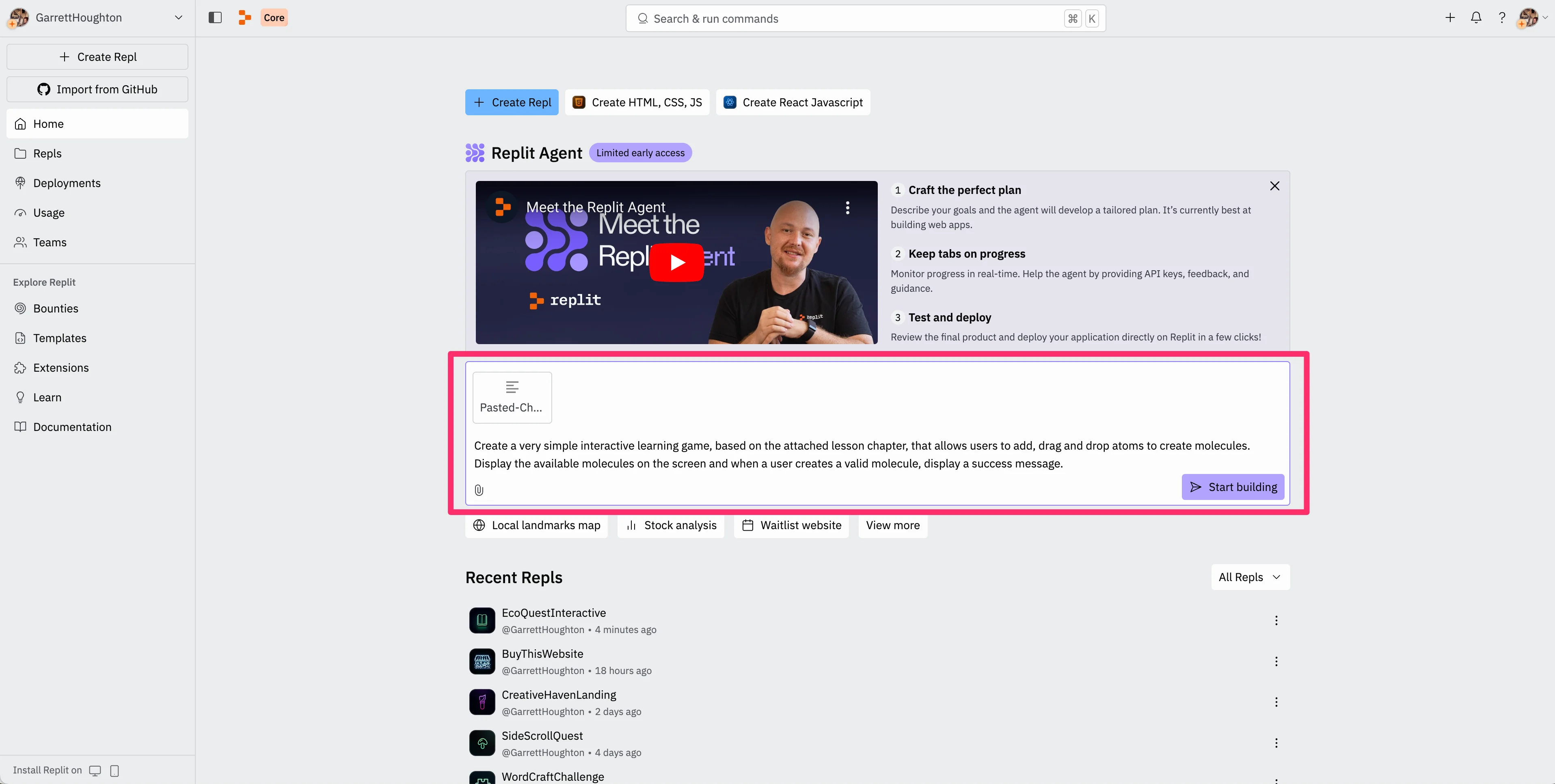
Once you have your account created, the first thing we’re going to do is prompt the AI agent with our game request and attach our course or lesson materials. You can access this in the middle of the home page of Replit. Click the “Start building” button when you’ve completed your prompt.
Sample Prompt:
Create a very simple interactive learning game, based on the attached lesson chapter, that allows users to [insert game description]. Display [insert simple game mechanics].
[attach lesson plan or course materials]
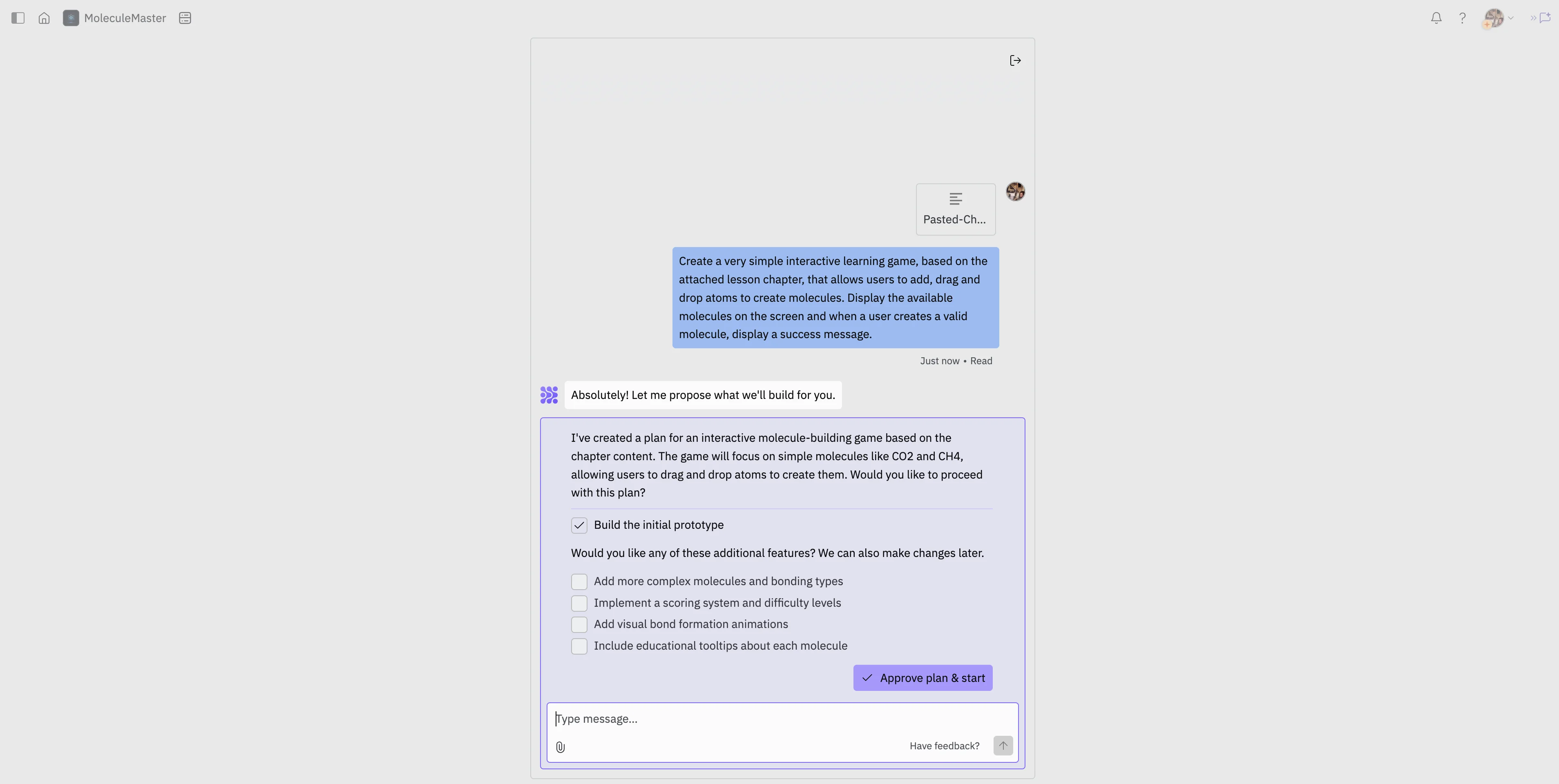
You’ll land on a chat page where the Replit AI Agent will break down your requests into a core initial prototype and additional feature options. You can select additional features for the Replit AI Agent to include in its initial build of the game, but we recommend you don’t check any of these additional boxes to start. It’ll make the v1 build much easier. Click the “Approve plan & start” button to move to the next step.
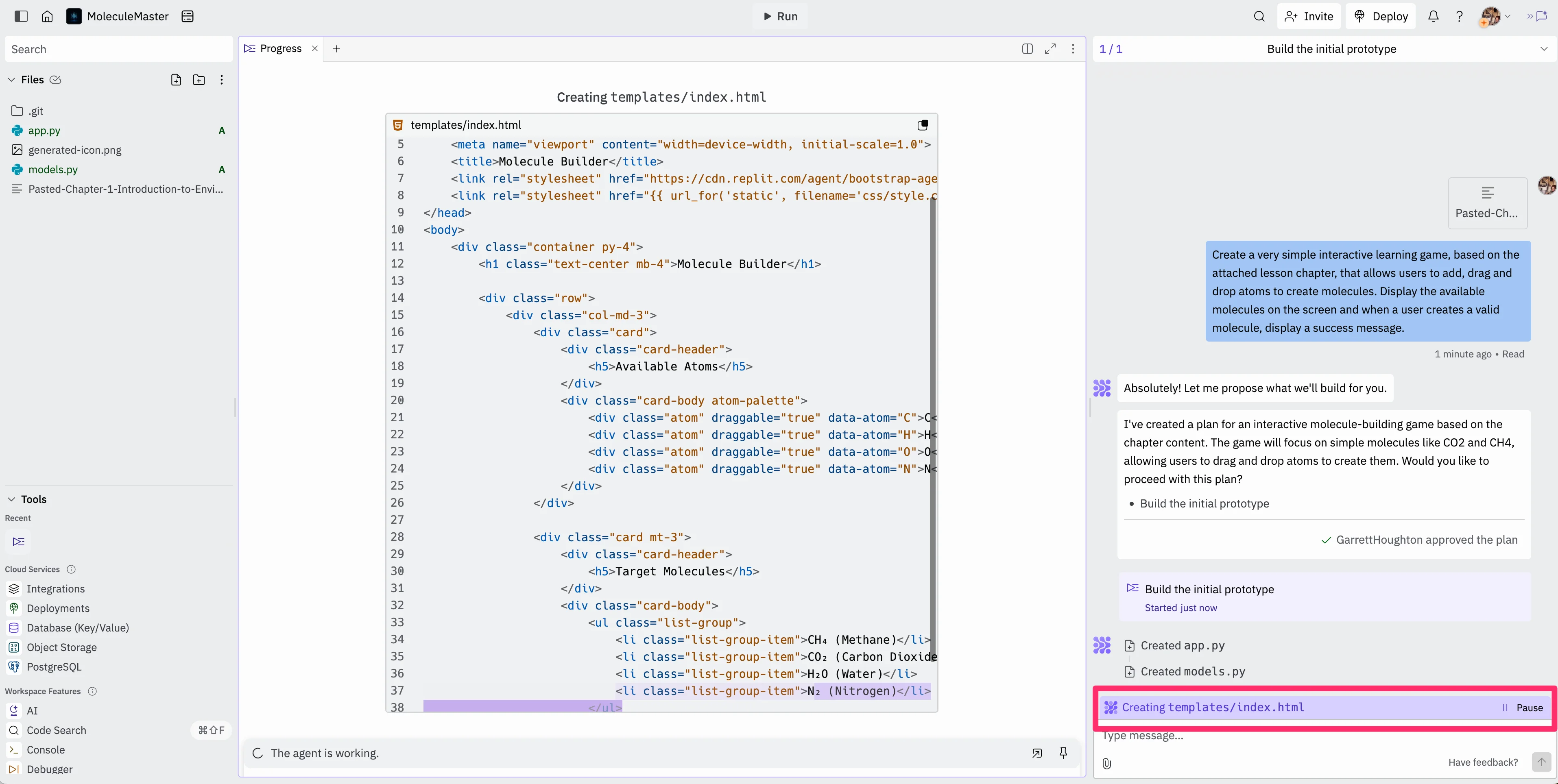
You’ll then land on the main workspace where we’ll develop and deploy our game. The left side of the screen will be your files, the middle of the screen is where you’ll preview, test, and deploy your application, and the right side of the screen is where you’ll chat with the Replit AI Agent. As the initial build process happens, you’ll see updates in the purple bar at the bottom of the chat window. The initial build can take several minutes.
Review and troubleshoot game mechanics
Eventually, the build will complete and you’ll get a preview of your game in the middle window. Additionally, the Replit AI Agent will provide you with some testing pointers.
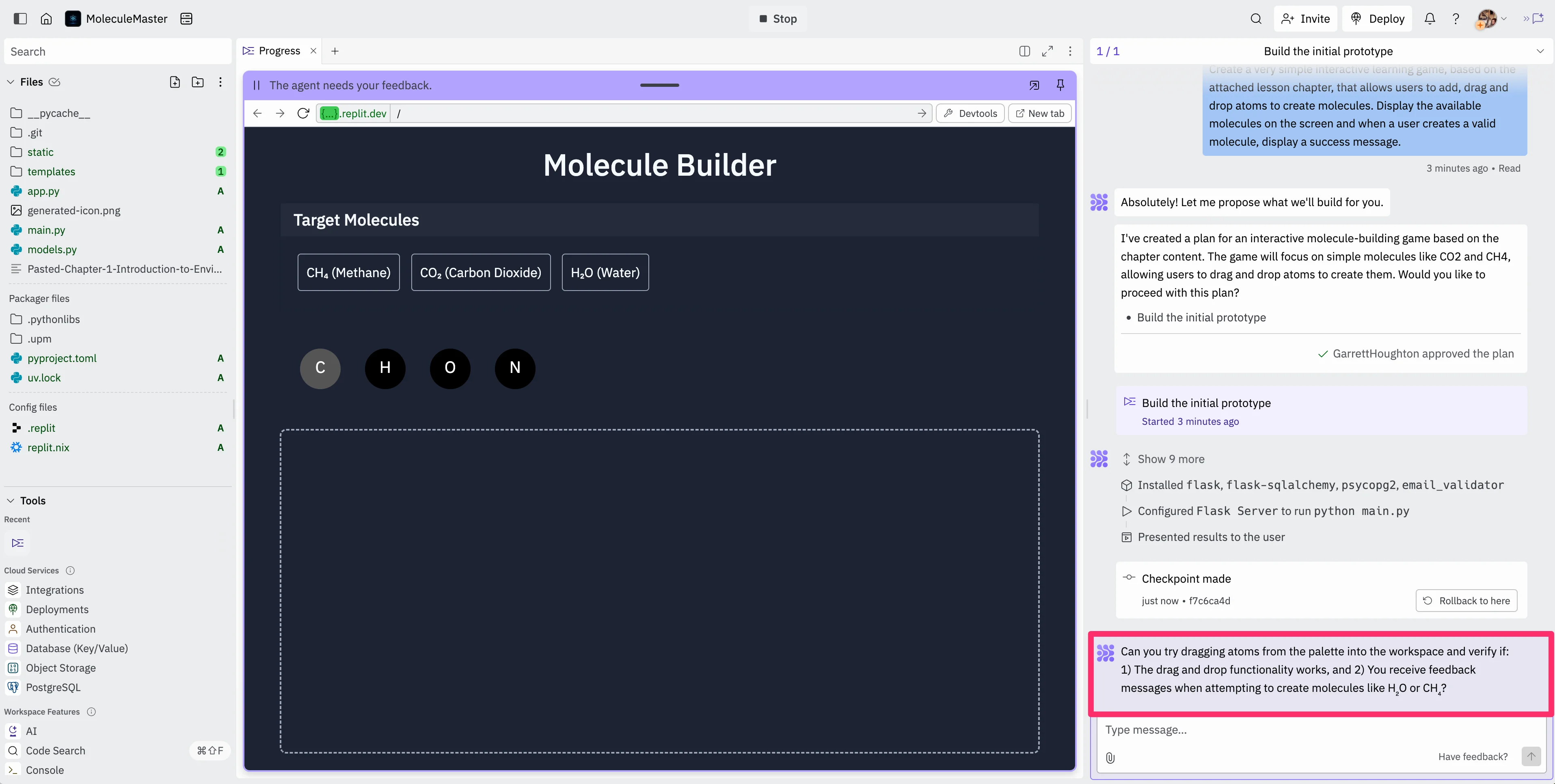
Test your game in the middle window and provide your feedback back to the Replit AI Agent in the chat window.
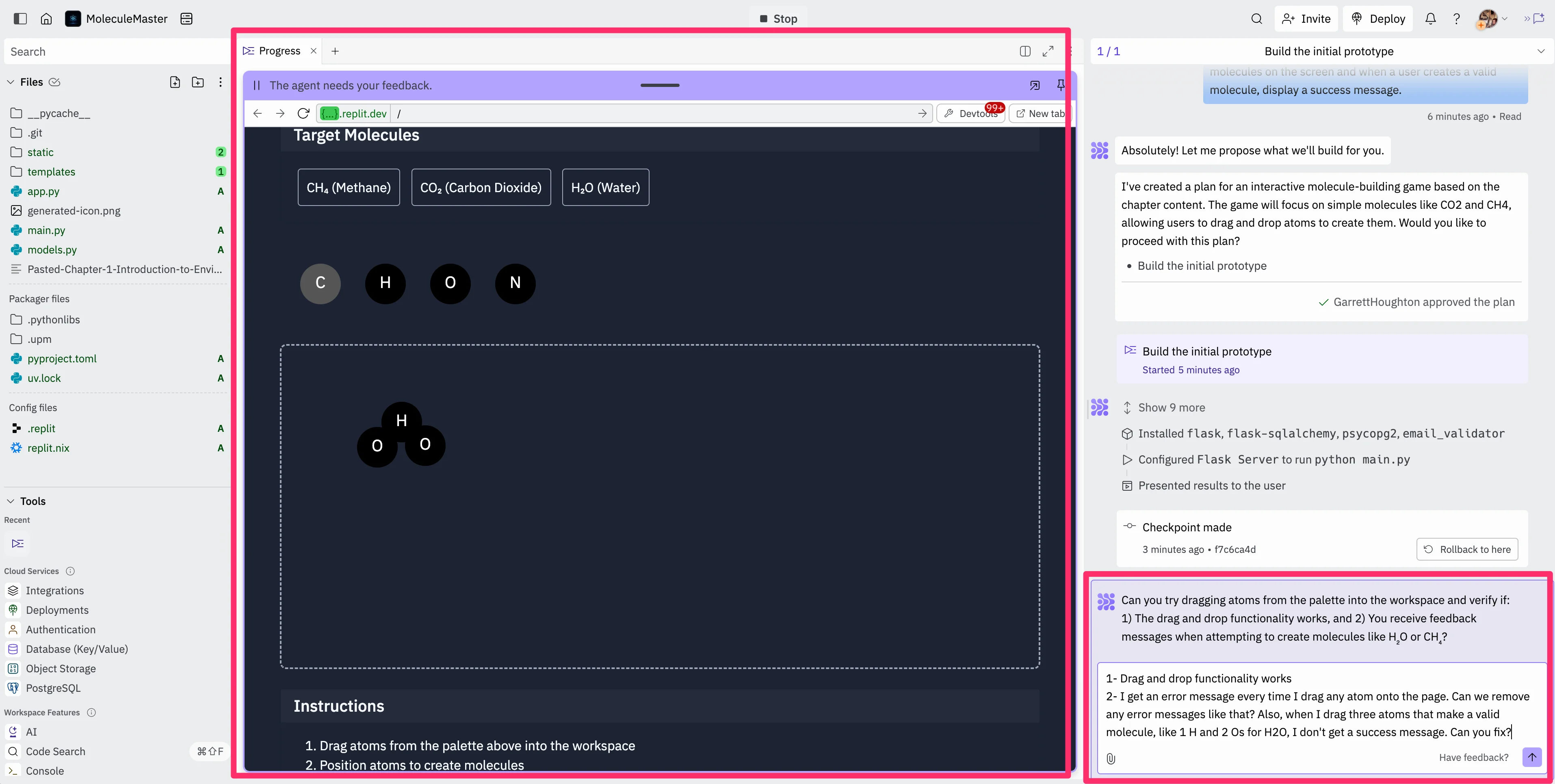
You’ll need to go back and forth with Replit’s AI Agent for several rounds, providing feedback as you test the application’s gameplay. Eventually, you’ll get to a place where everything is working as expected and you’ll get a completion message from the AI Agent.
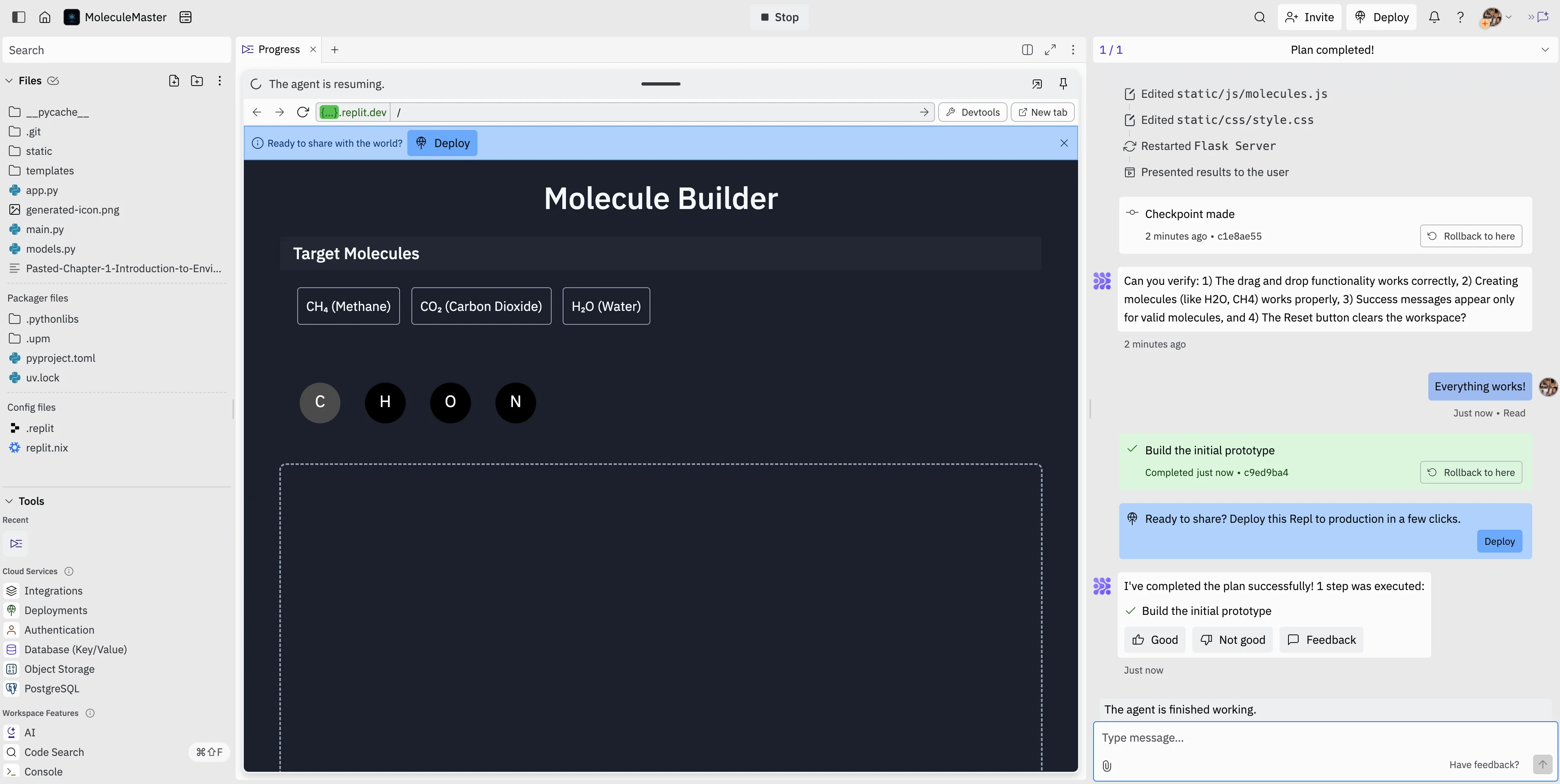
Deploy and share your game
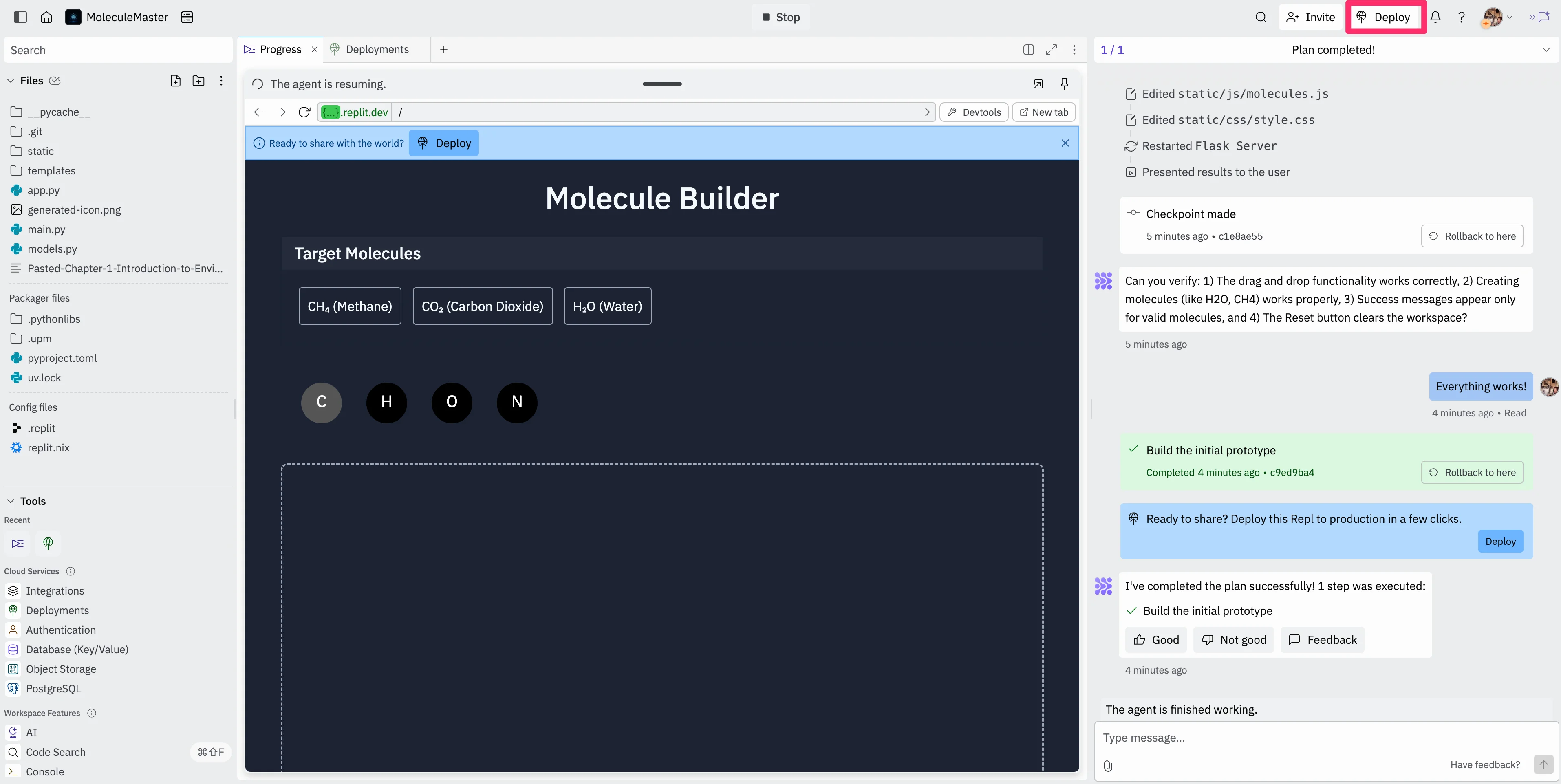
Once the v1 version of your interactive learning game is complete, you can now deploy the game, which means Replit will host the game on a live URL, so you can share it with your students and users. To do this, click the “Deploy” button in the top right corner of the screen.
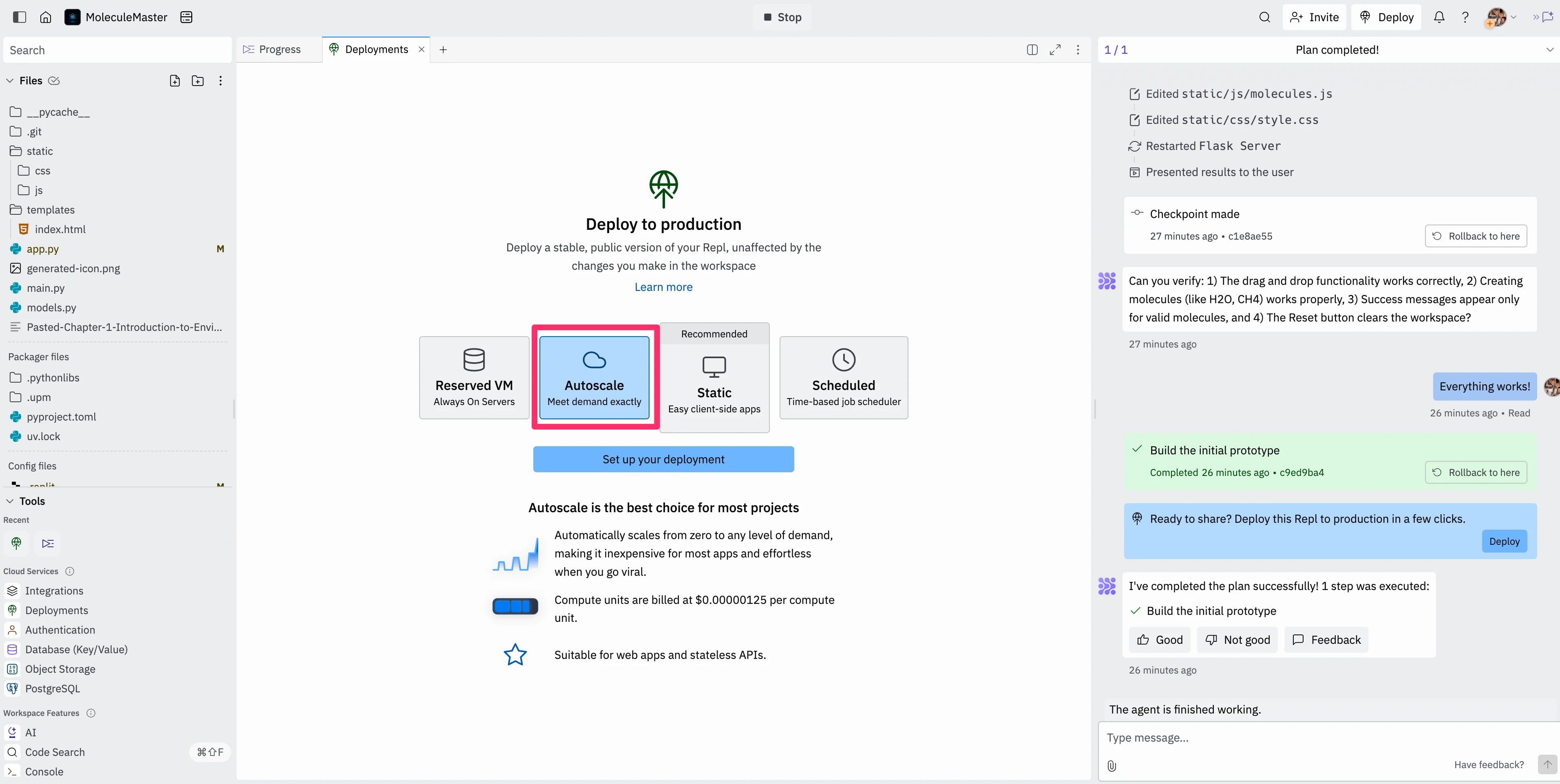
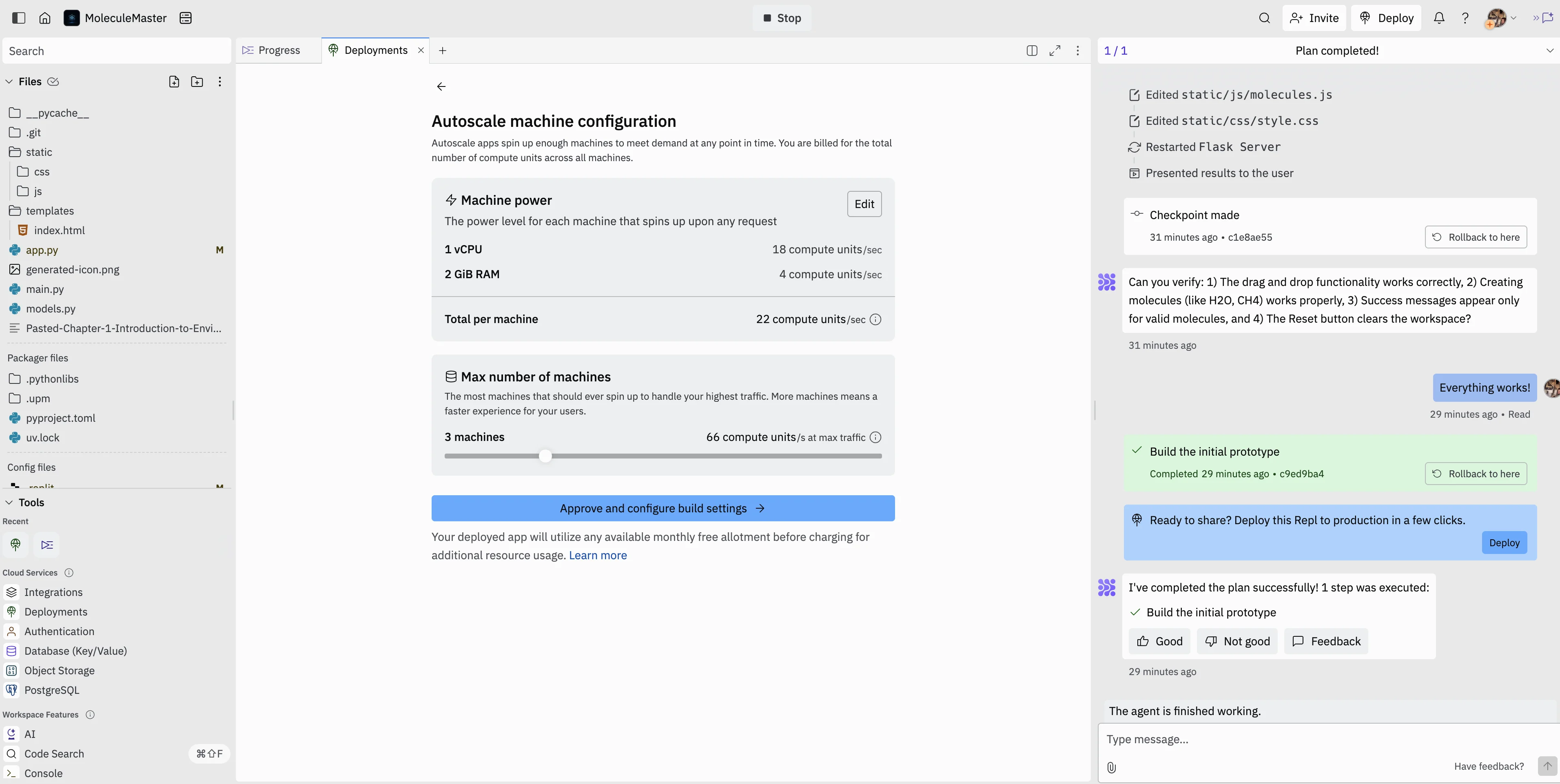
You’ll be presented with many options to deploy your app. Most likely, the Replit AI Agent created a Flask app for your game, so you’ll need to select the “Autoscale” option. You can read more about Autoscale on Replit here.
Then, you’ll need to configure your autoscale machines. We followed the configuration from Replit’s documentation for Flask apps.
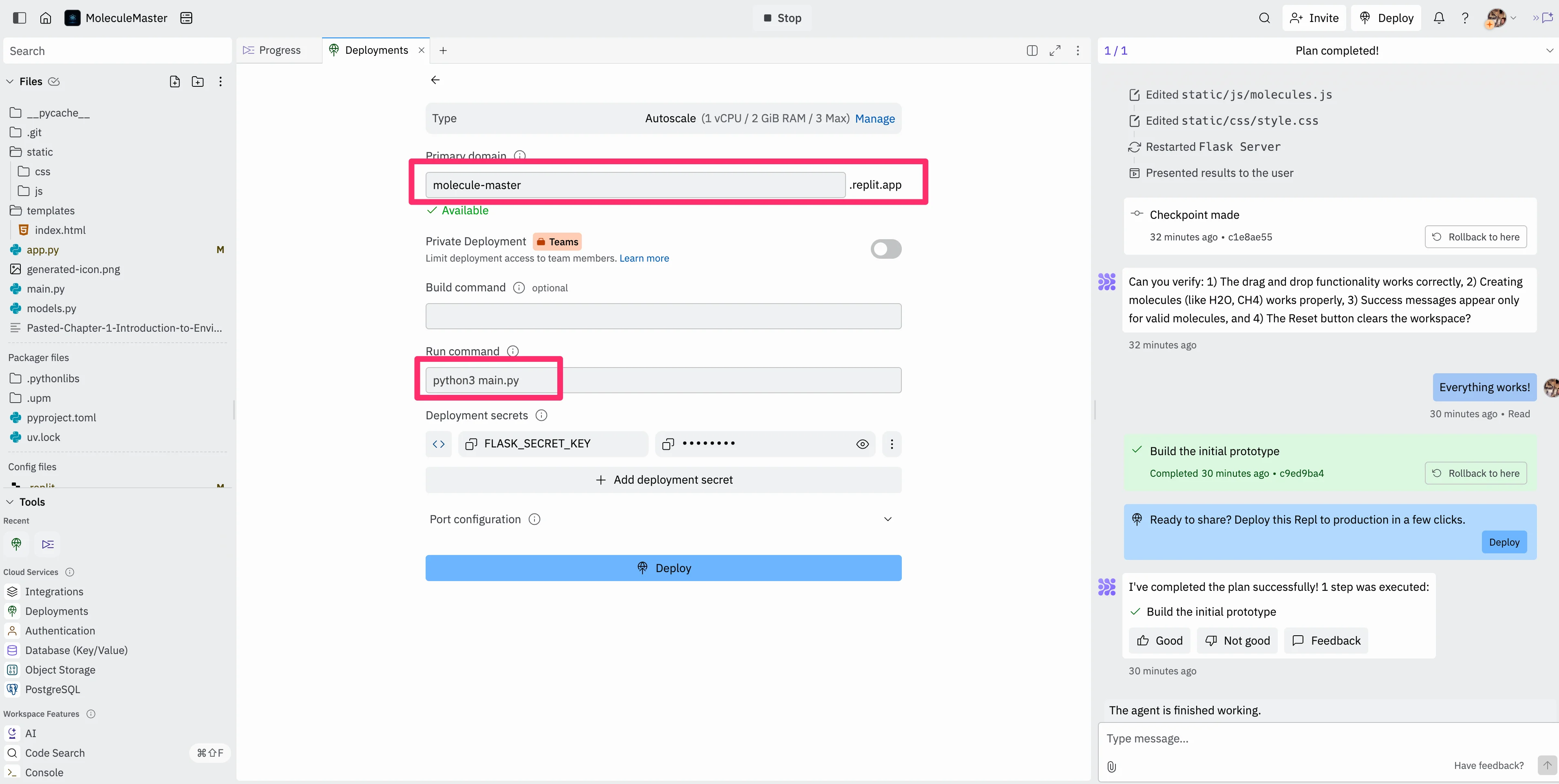
Finally, you can set your primary domain and add your run command. As our game was a Flask app (which, chances are, yours will be too), you can set the run command to “python3.main.py”. Then, click the “Deploy” button.
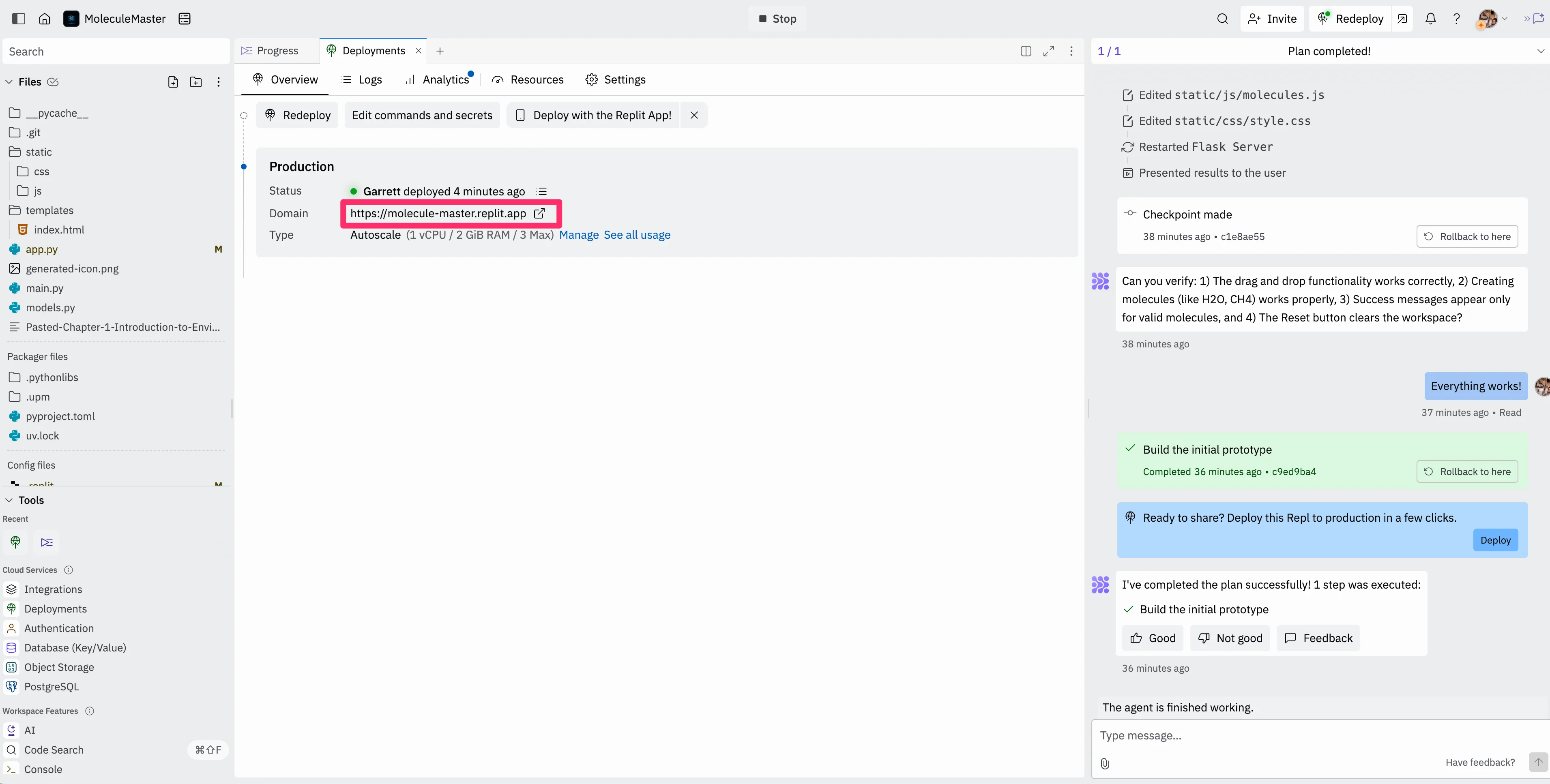
It’ll take several minutes for your app to deploy. When it’s complete, you can click on the domain to check out the production application.
Your app should be live, you can play it on this URL, and share it with your users and students.
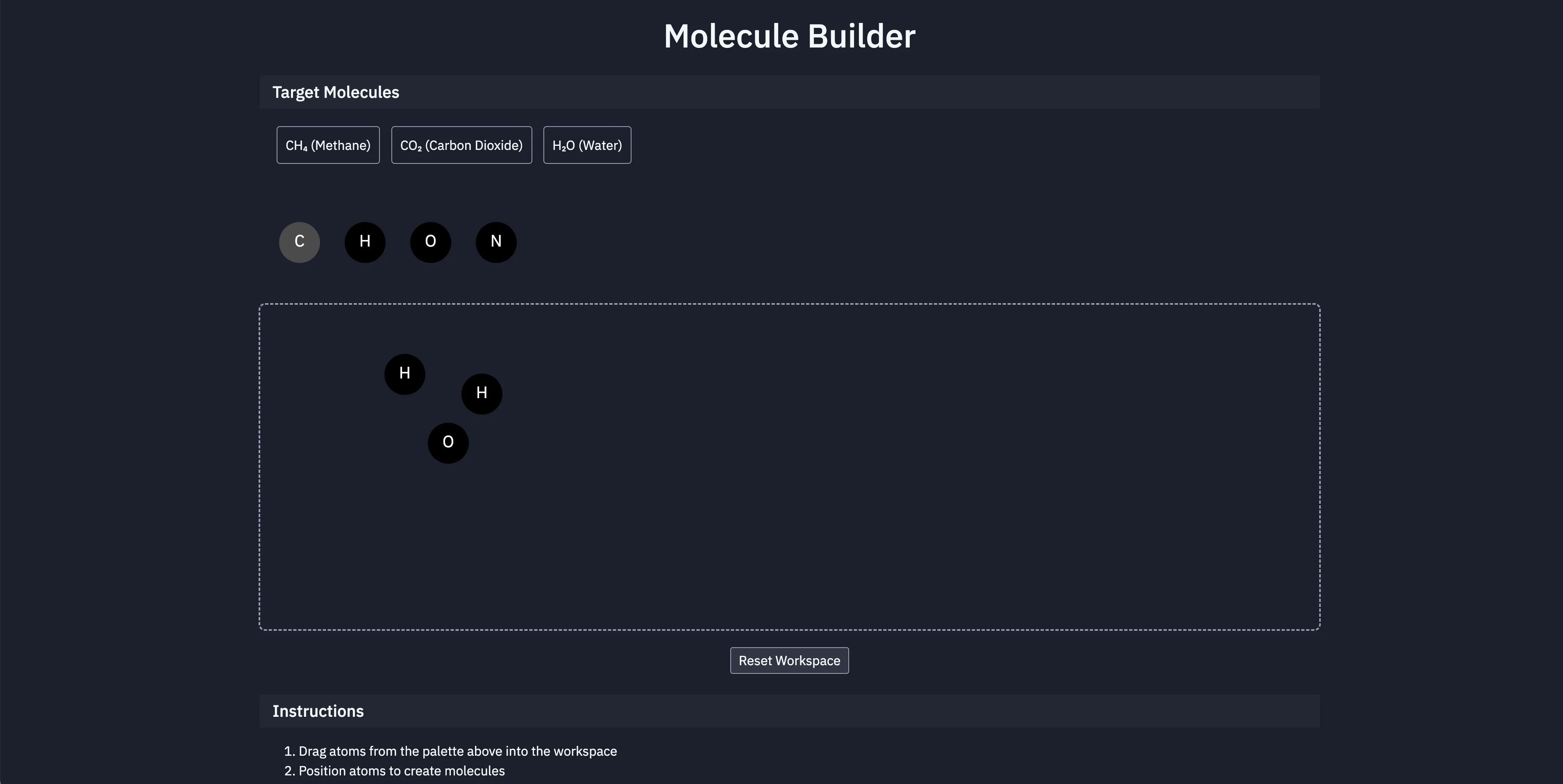
And that’s it! If you’ve made it this far and persevered with testing and revising your game with Replit’s AI Agent, then you have a live, interactive learning web game that you can share with your students. You can keep working with the Replit AI Agent to make updates to your game and then re-deploy them to your live site.
Congratulations on completing the entire AI for Educators course!
This tutorial was created by Garrett.