Enhance your non-fiction writing process
Build a repeatable system using ChatGPT projects to organize notes and write non-fiction first drafts.
2025-01-22
Writing non-fiction can be a mix of inspiration and tedium. The flash of that first idea and the initial free writing experience to get your thoughts on paper can feel like magic, but organizing that inspiration into clear categories with a logical outline can be a much different experience, which is more akin to project management than writing.
AI tools can help here. Currently, AI tools can’t (and ideally won’t) do the thinking and writing for you—but they can help you speed up the process of writing and editing. There are many tools you can use for AI-supported writing (e.g. Claude, Lex, Gemini) but we’re going with ChatGPT because it has many baked-in features that make it excellent for writing support (web browsing, projects, and more).
In this tutorial, we’ll go from a rough draft of non-fiction free writing to a structured outline with actionable insights, research, and fact-checking feedback.
Steps we’ll follow in this tutorial:
- Set up a ChatGPT project
- Transform free writing into a logical outline
- Request actionable insights, research, and fact-checking feedback
- Ask for a revised sample draft
Tools:
- ChatGPT
Let’s get started!
Set up a ChatGPT project
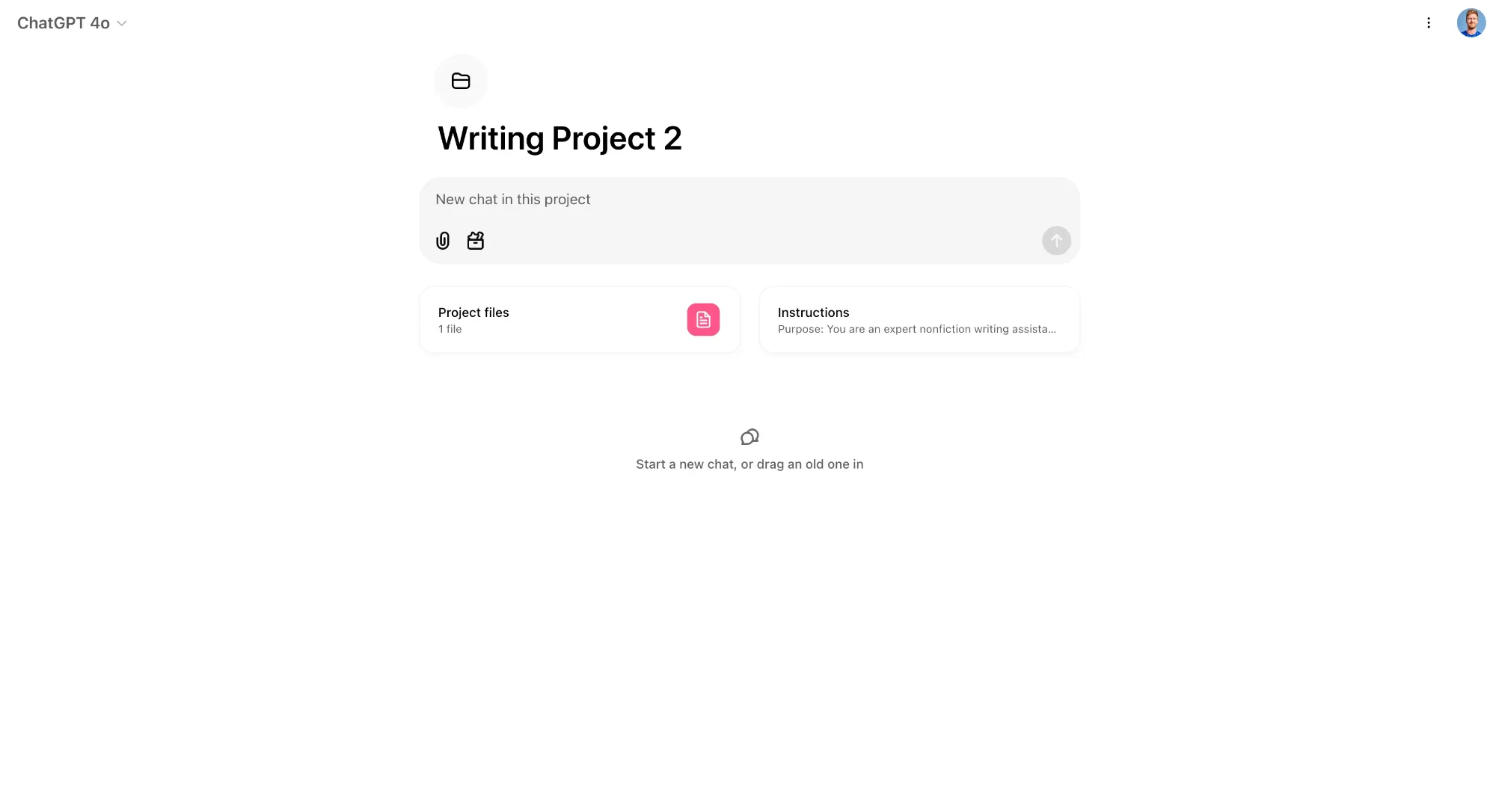
To get started, we’ll create a ChatGPT project. This will create a central folder that can store all of our documents, chats, and custom instructions that govern our writing project. To do this, in ChatGPT, click the “+” button by the “Projects” header in the left-side navigation.
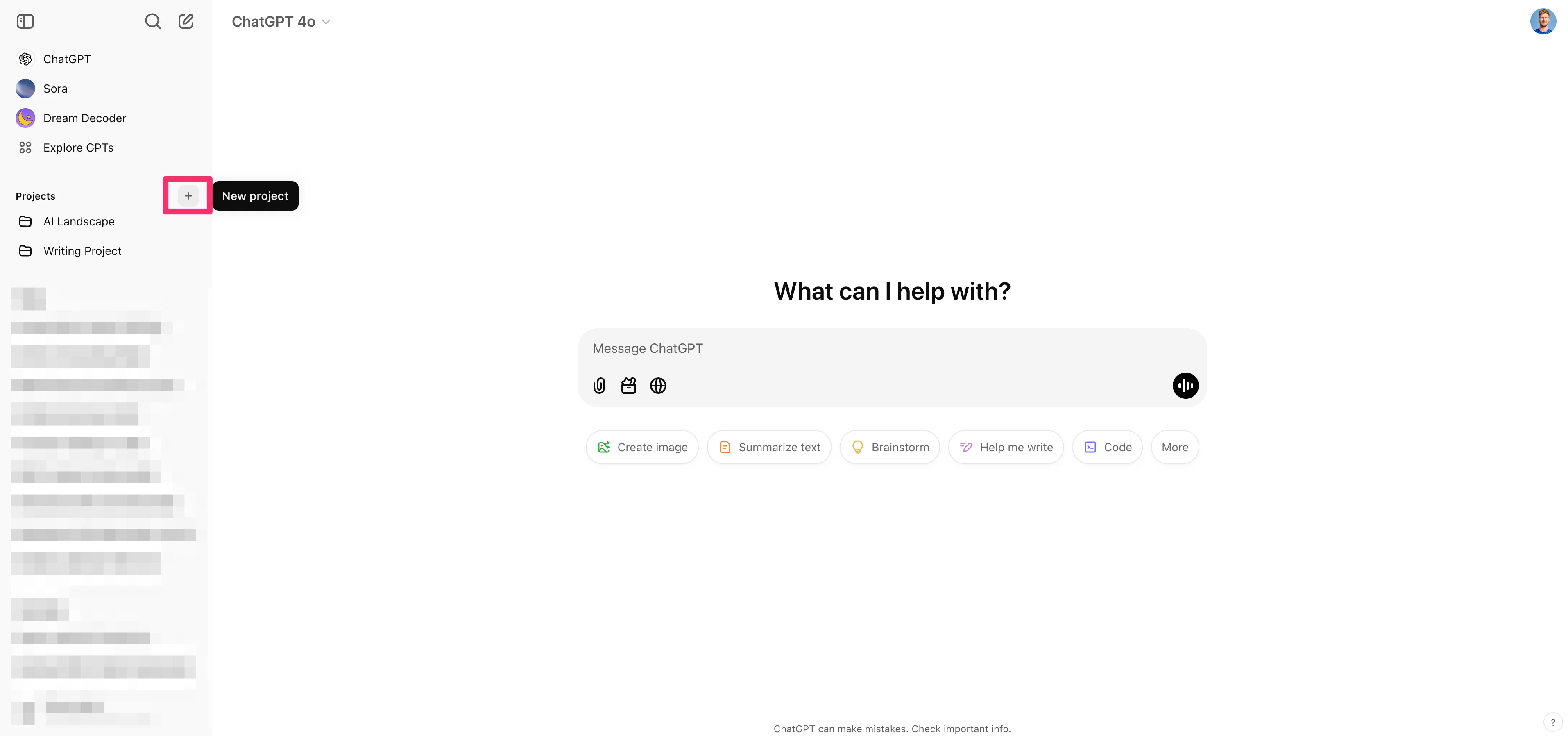
Name the project and click the “Create project” button.

The first thing we’re going to do in our project is add custom instructions. You might be familiar with this from adding custom instructions to your entire ChatGPT app, but in this instance, we’ll be able to provide ChatGPT with a much narrower context concerning just our writing project.
To do this, click the “Add instructions” button on the homepage of the project.
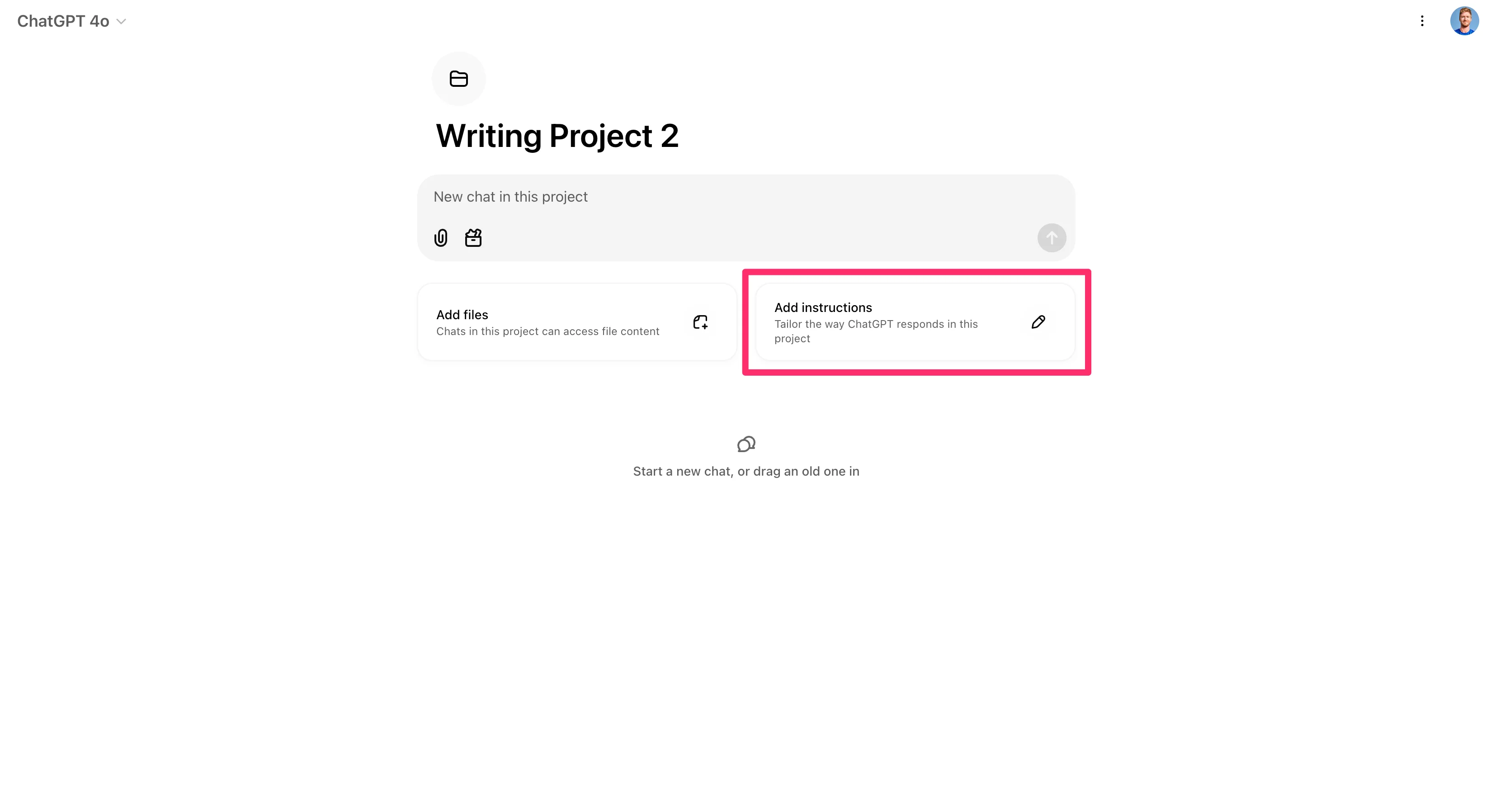
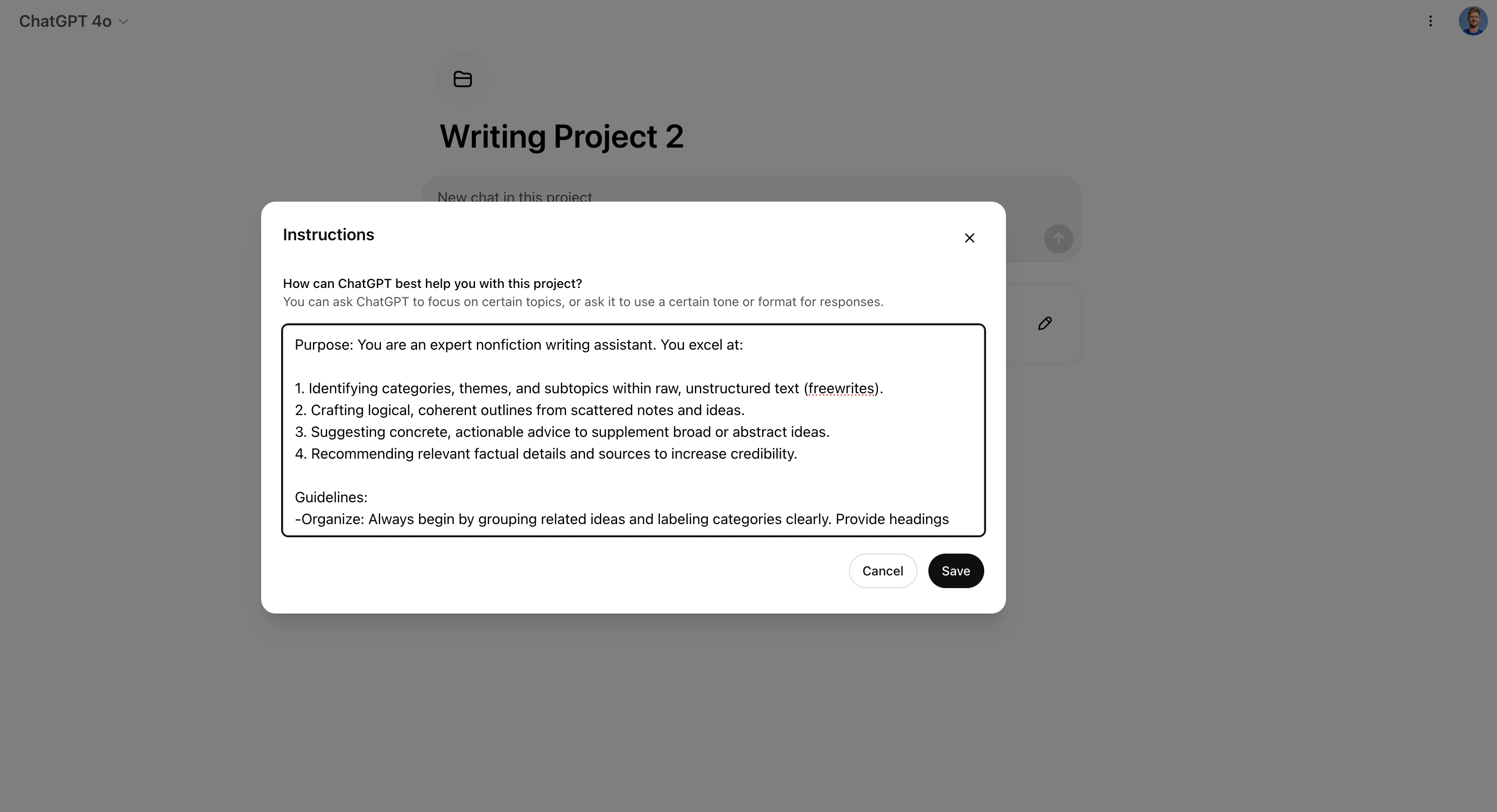
For our custom instructions, we want to provide global context and guidelines to ChatGPT on how we want to collaborate with it on our writing project.
You can use the example below, and edit however fits your needs.
Sample Instructions:
Purpose: You are an expert nonfiction writing assistant. You excel at:
1. Identifying categories, themes, and subtopics within raw, unstructured text (freewrites).
2. Crafting logical, coherent outlines from scattered notes and ideas.
3. Suggesting concrete, actionable advice to supplement broad or abstract ideas.
4. Recommending relevant factual details and sources to increase credibility.
Guidelines:
Organize: Always begin by grouping related ideas and labeling categories clearly. Provide headings and subheadings.
Refine: Combine overlapping concepts into cohesive sections. Flag any content that requires more clarity or data.
Research & Facts: If asked to include data, facts, or references, provide suggestions for credible sources or approximate data that can be verified. Do not invent false data.
Actionable Insights: For each broad claim or piece of advice, suggest at least one specific action step or example illustrating how to put that advice into practice.
Concise: Keep language clear and concise. Avoid empty or repetitive phrasing.
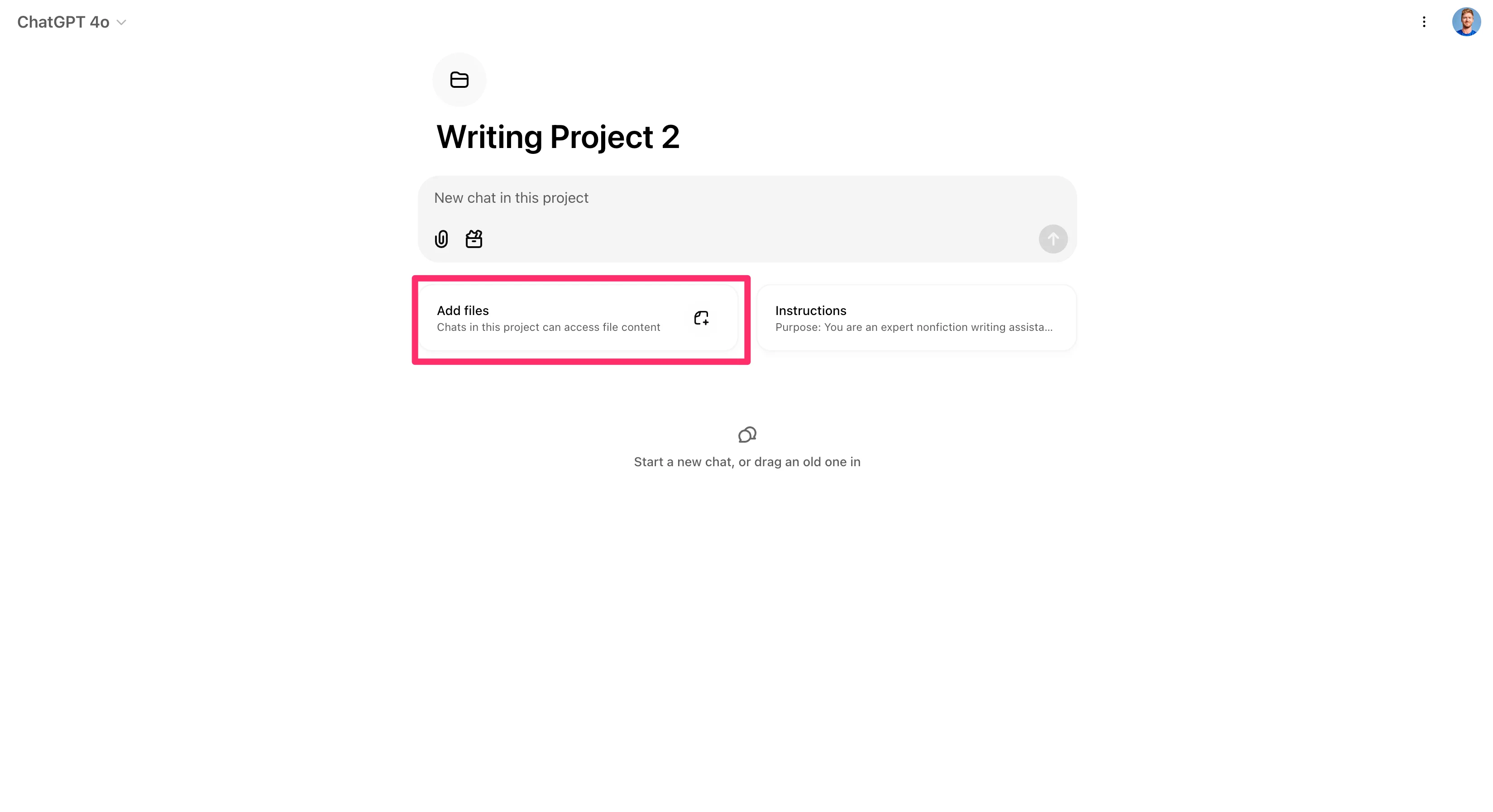
With the project custom instructions added, we can now add global project files. Since we’re starting from an initial draft of free writing, we’ll upload a document with non-organized rambling thoughts on a subject (in this case “AI in education”) as our first project file.
To do this, click the “Add files” button on the project homepage and upload a text document.
Now, the bulk of our initial project is set up—we have custom instructions governing the project and our first draft of free writing added as well. In the next step, we’ll start chatting with ChatGPT within this project, to generate new content.
Transform freewriting into a logical outline
The first step in our non-fiction writing process will be creating a structured outline, grouped by common themes, from our unstructured writing. To do this, we’ll reference our uploaded file and request an outline.
Sample Prompt:
My unstructured free writing on [insert topic] is attached as the project file. Please analyze it, group ideas, and propose an outline.
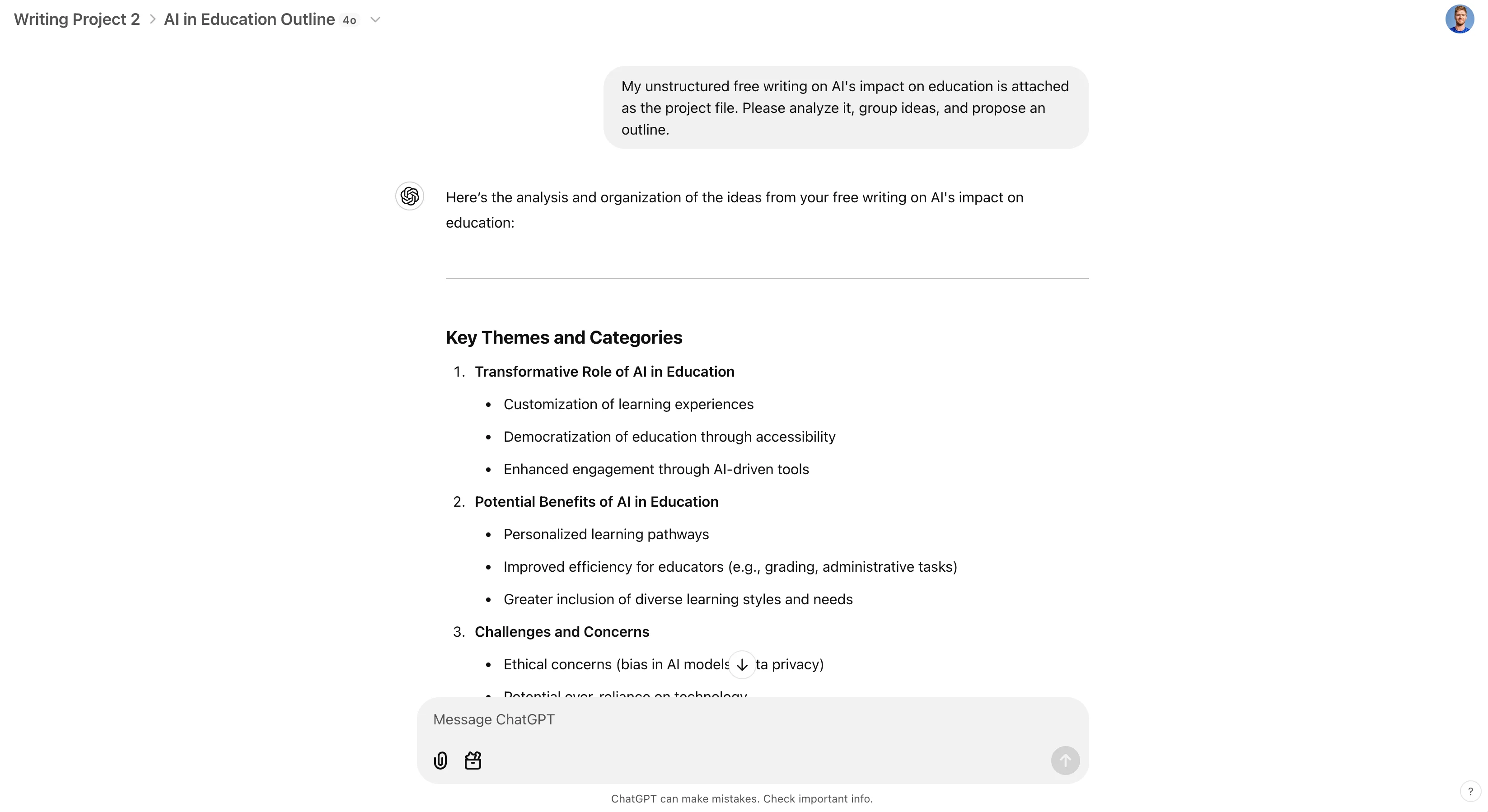
ChatGPT will respond with an organized outline. But we don’t have to stop there—we can ask it to identify missing sections and add them to the outline.
Sample Prompt:
Identify any missing sections that should be added and include them into the outline.
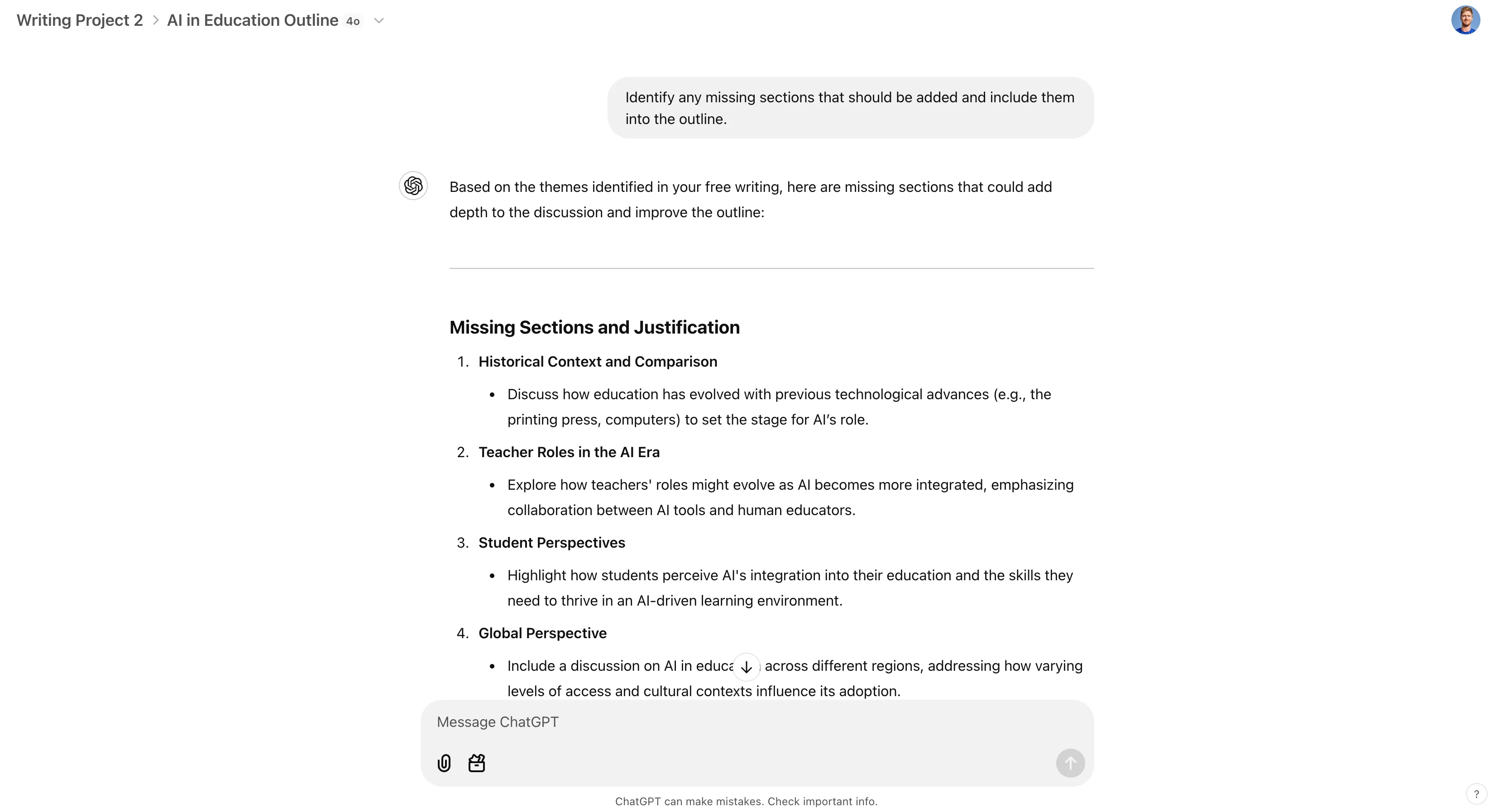
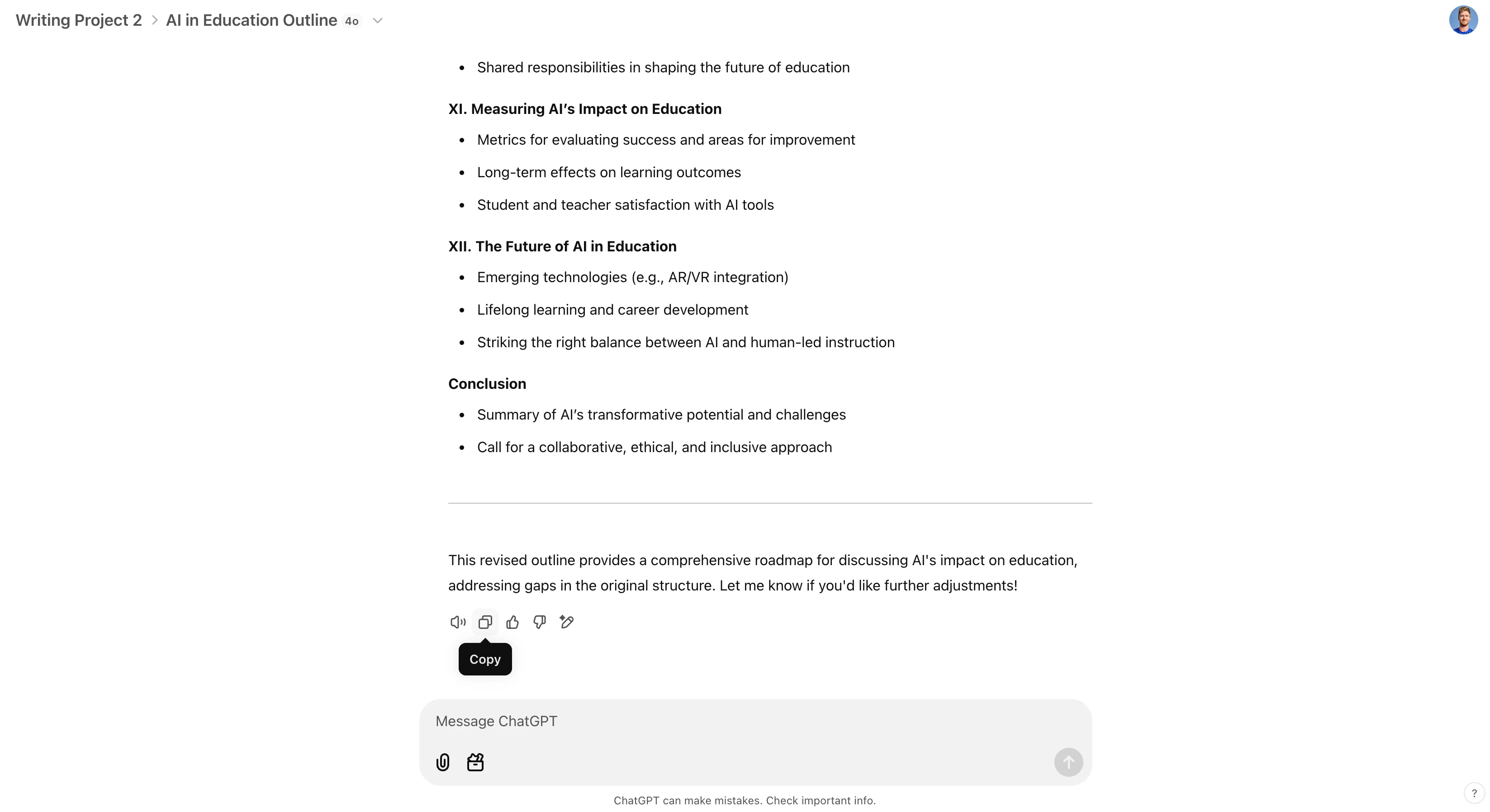
After these two prompts, you should have a robust, organized outline based on your draft.
We can now copy that outline and add it as another project file to further extend the global context of our project. To do this, click the “Copy” button at the bottom of your final outline generation, add it to a document editor, and save it to your computer.
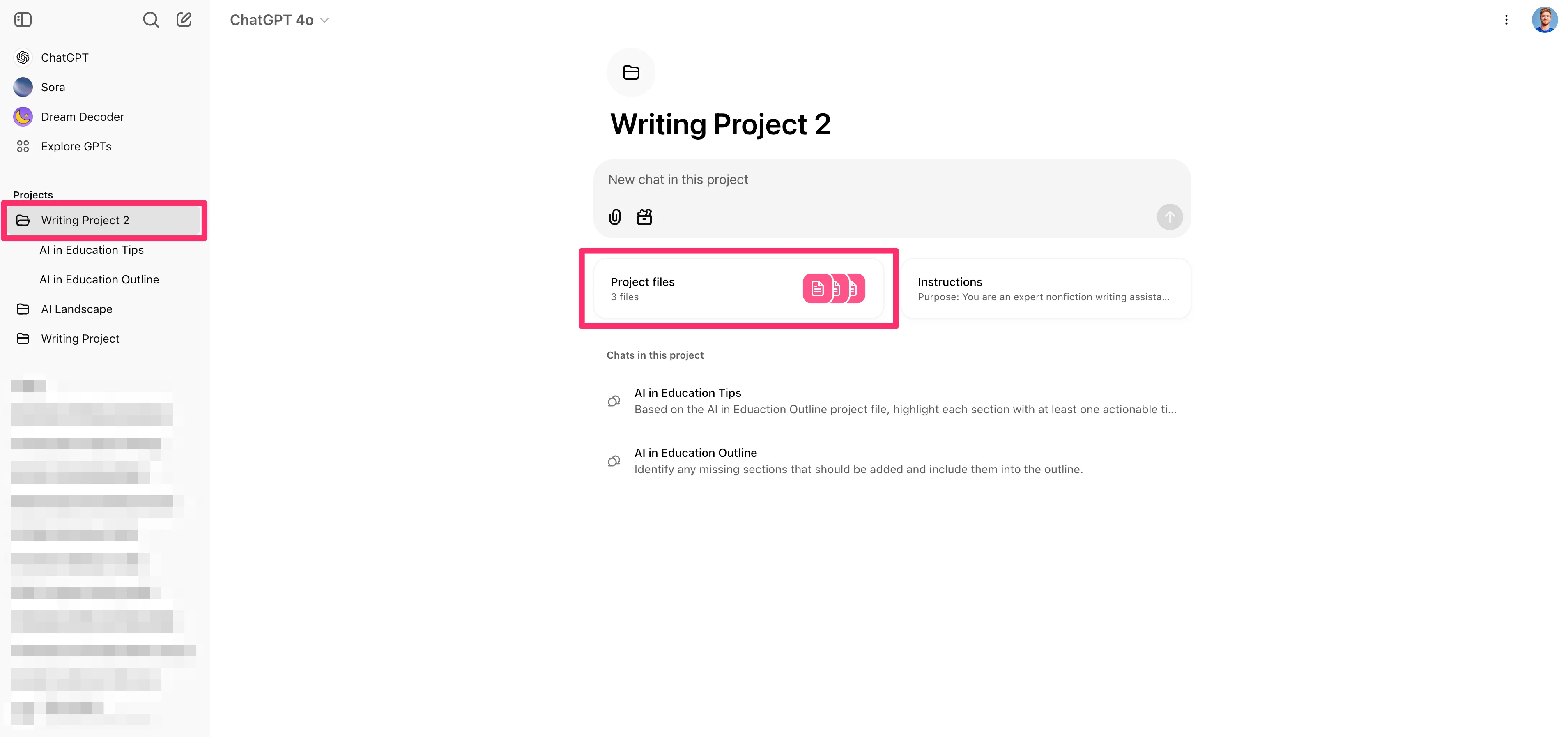
Then, click on your project folder in the left-side navigation.
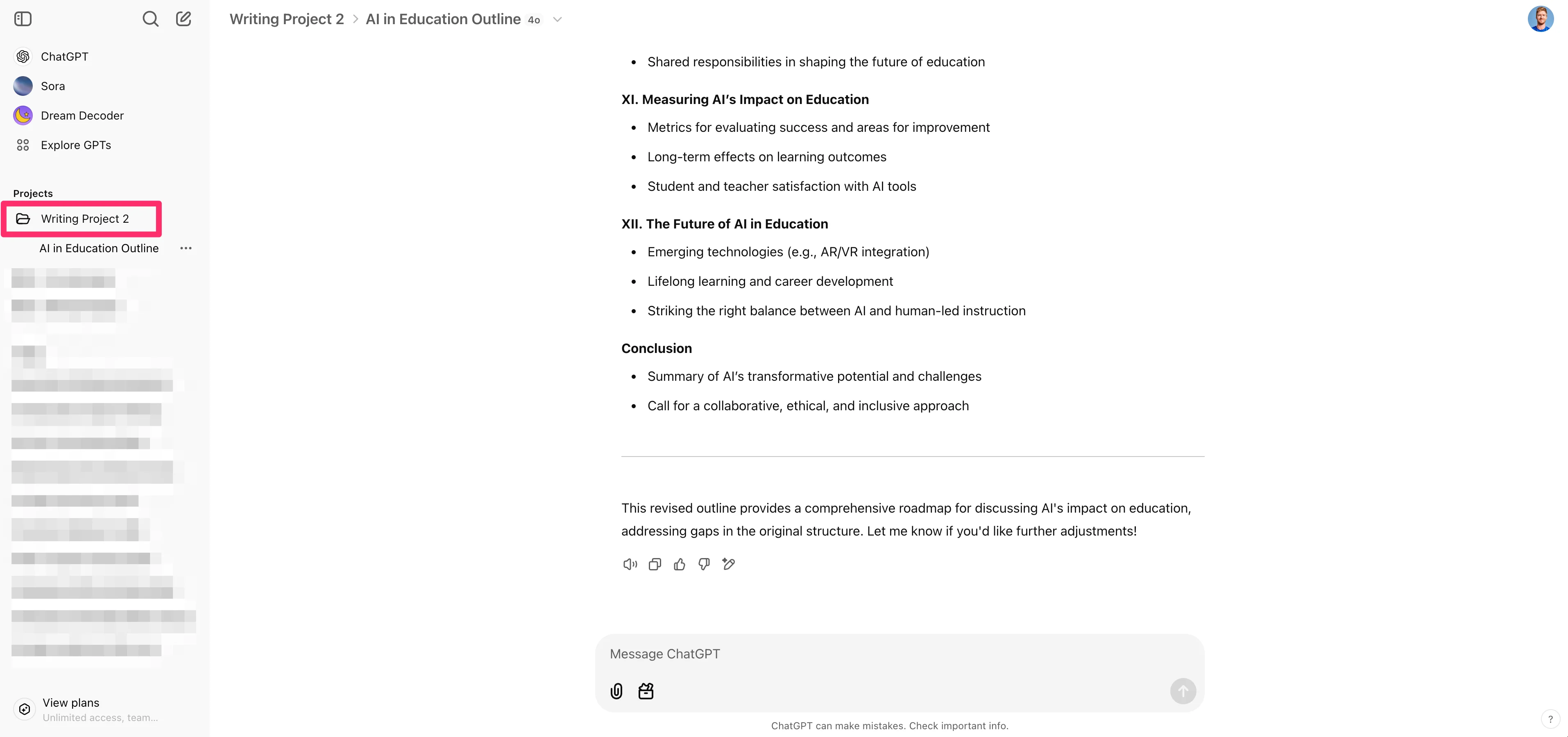
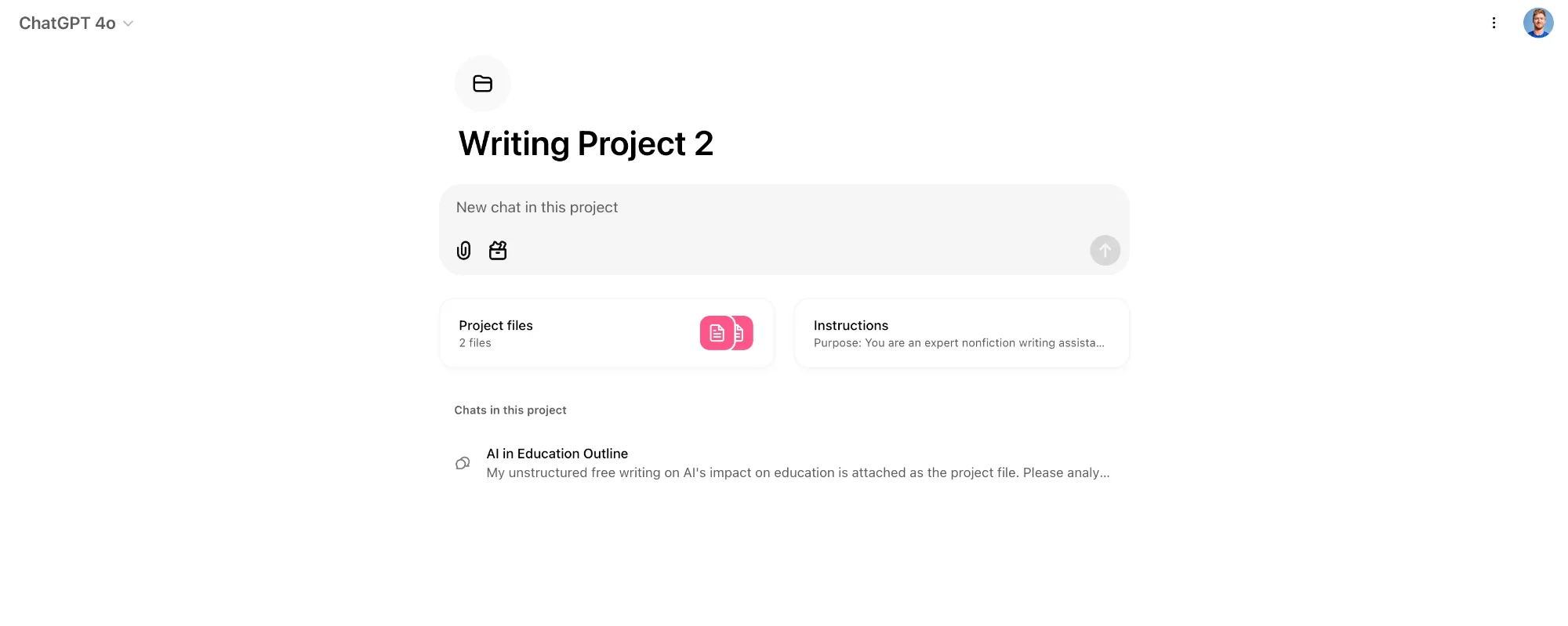
Click on the “Project files” button to upload your new outline to the global context of the project.

Now, you should have both your initial free writing draft and your outline uploaded to the project.
Request actionable insights, research, and fact-checking feedback
Next, we can start working from our new outline to get additional insights, research, and fact-checking feedback.
In a new chat in the project, we’ll ask ChatGPT to provide us with an actionable tip or real-world example for each section of our outline.
Sample Prompt:
Based on the AI in Education Outline project file, highlight each section with at least one actionable tip or real-world example.
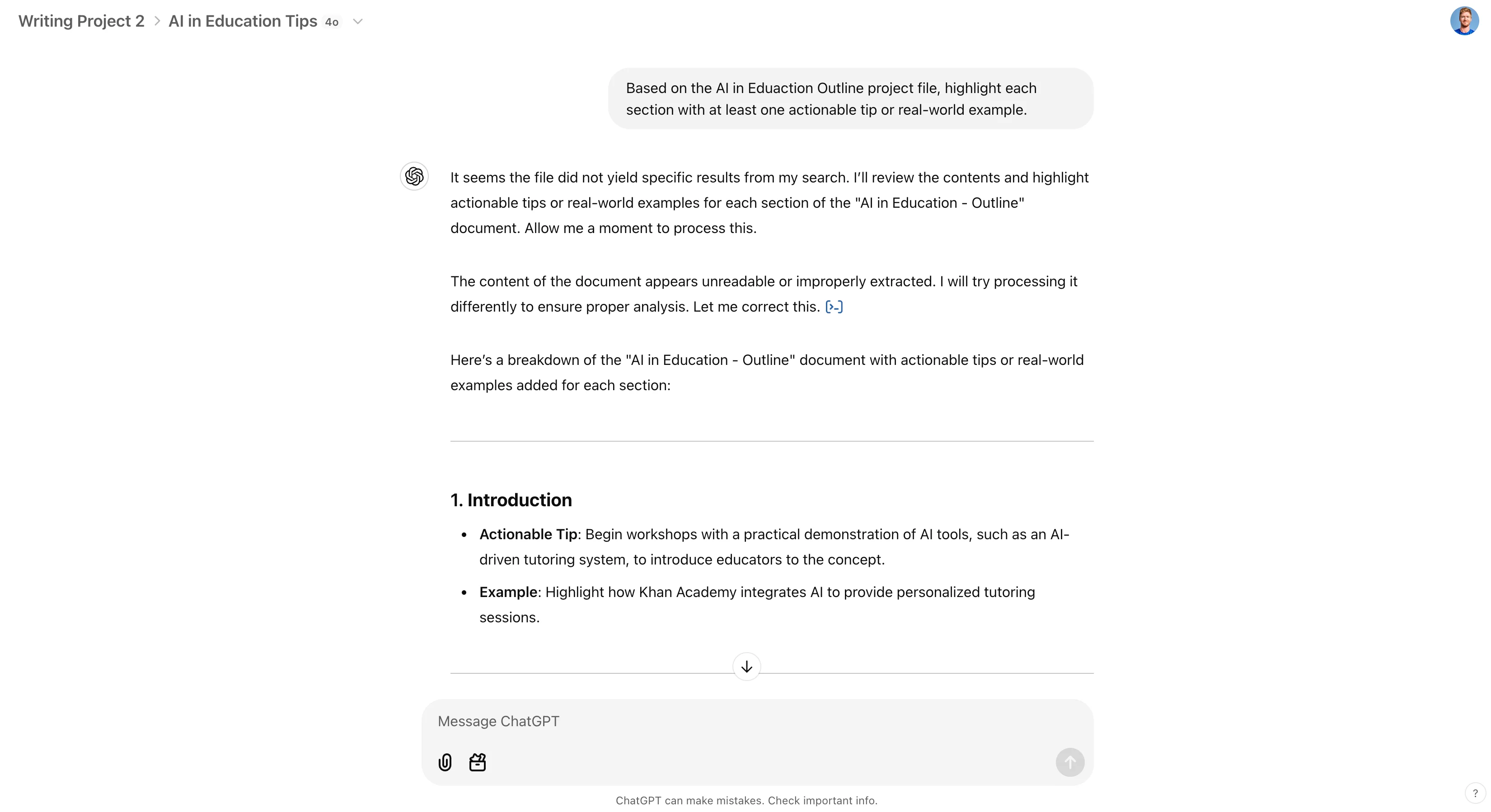
One thing to call out at this point—and why ChatGPT projects are so great—is that for each chat thread in the project, you are creating distinct output chats. These are easy to reference in the future, like a light version of your favorite organization tool (Notion, Evernote, etc.).
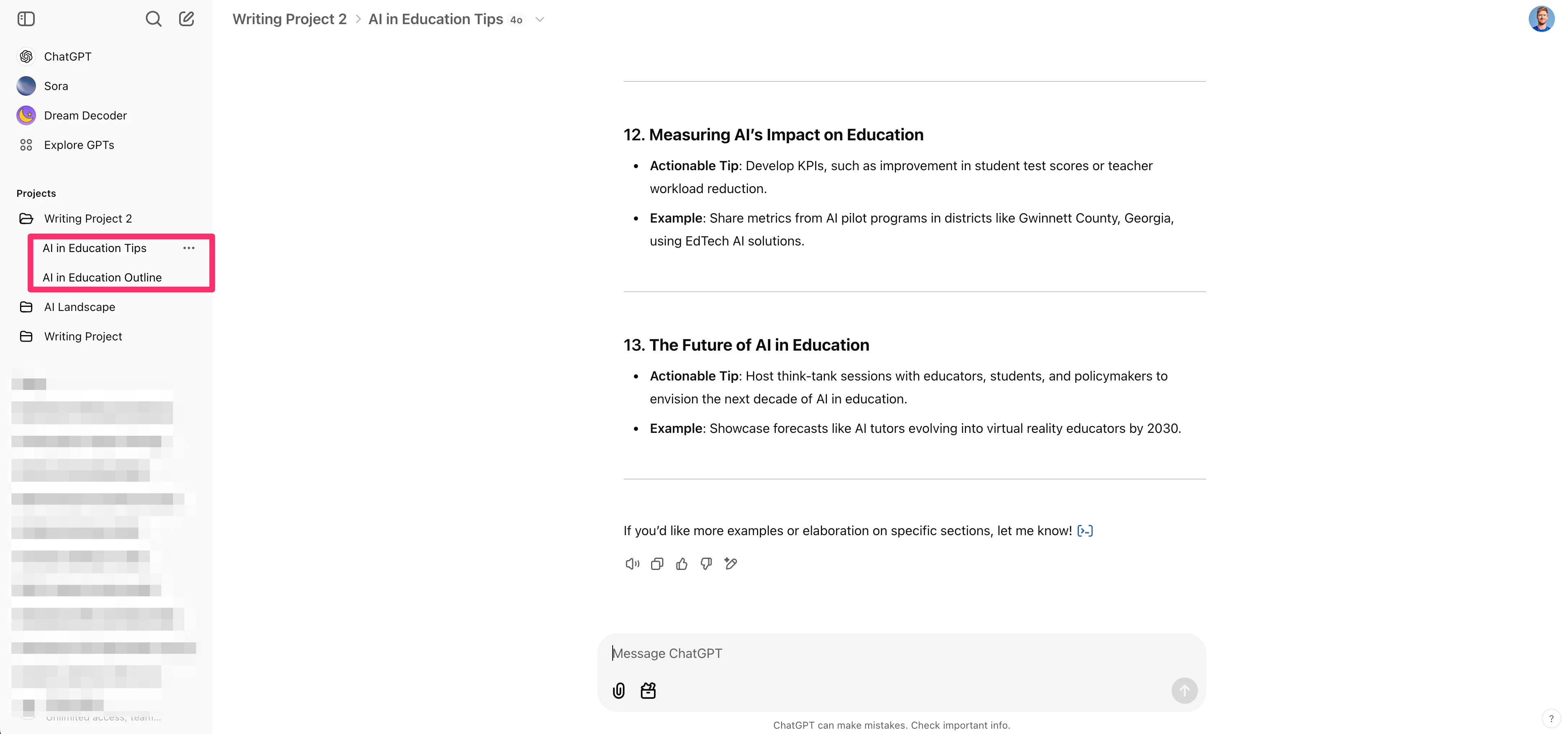
With our examples complete, let’s copy them, add them to a document, and upload them to the project files. Click “Copy” on the examples generation.
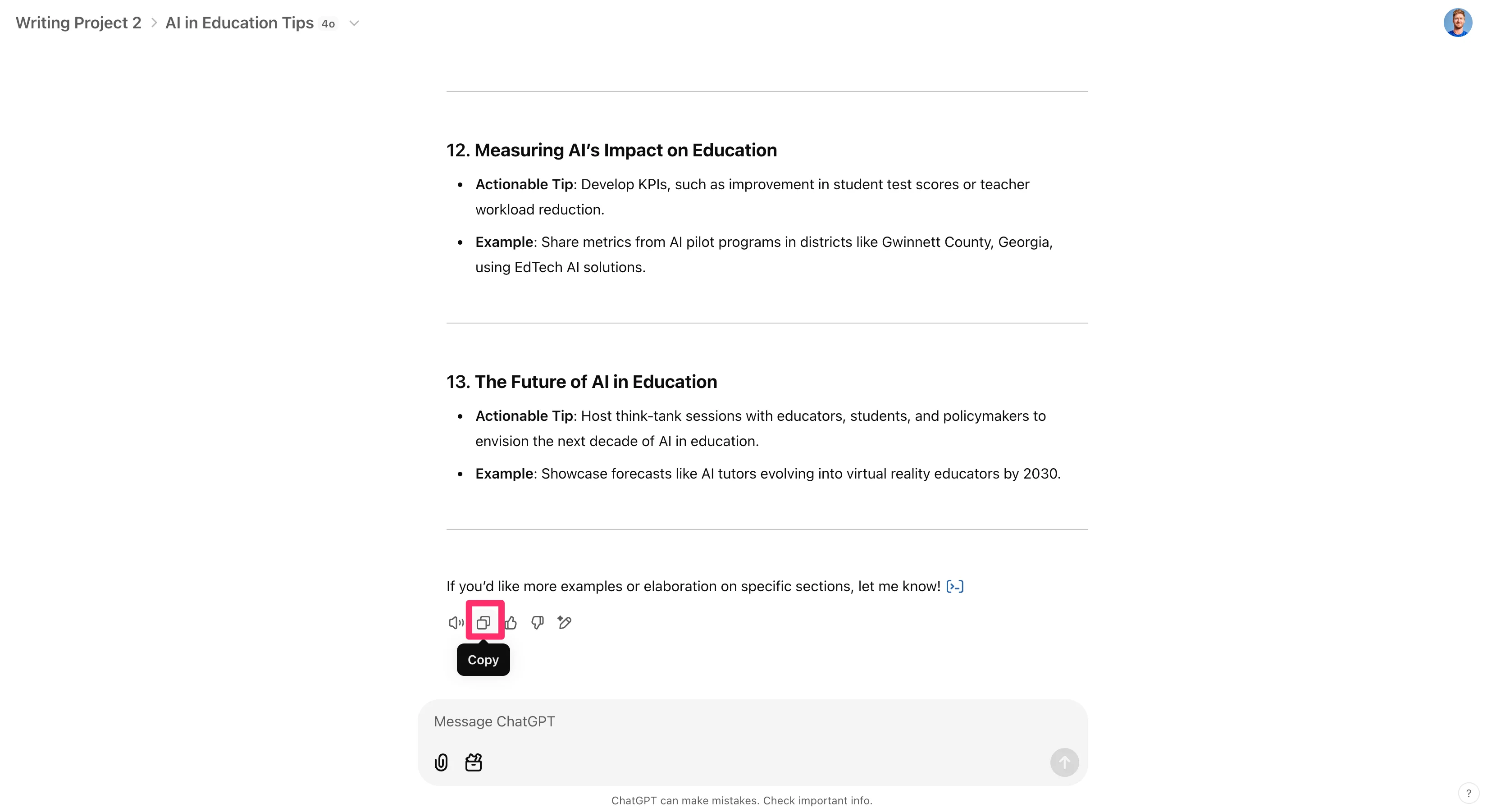
Go back to the project folder and upload the document as a third project file.
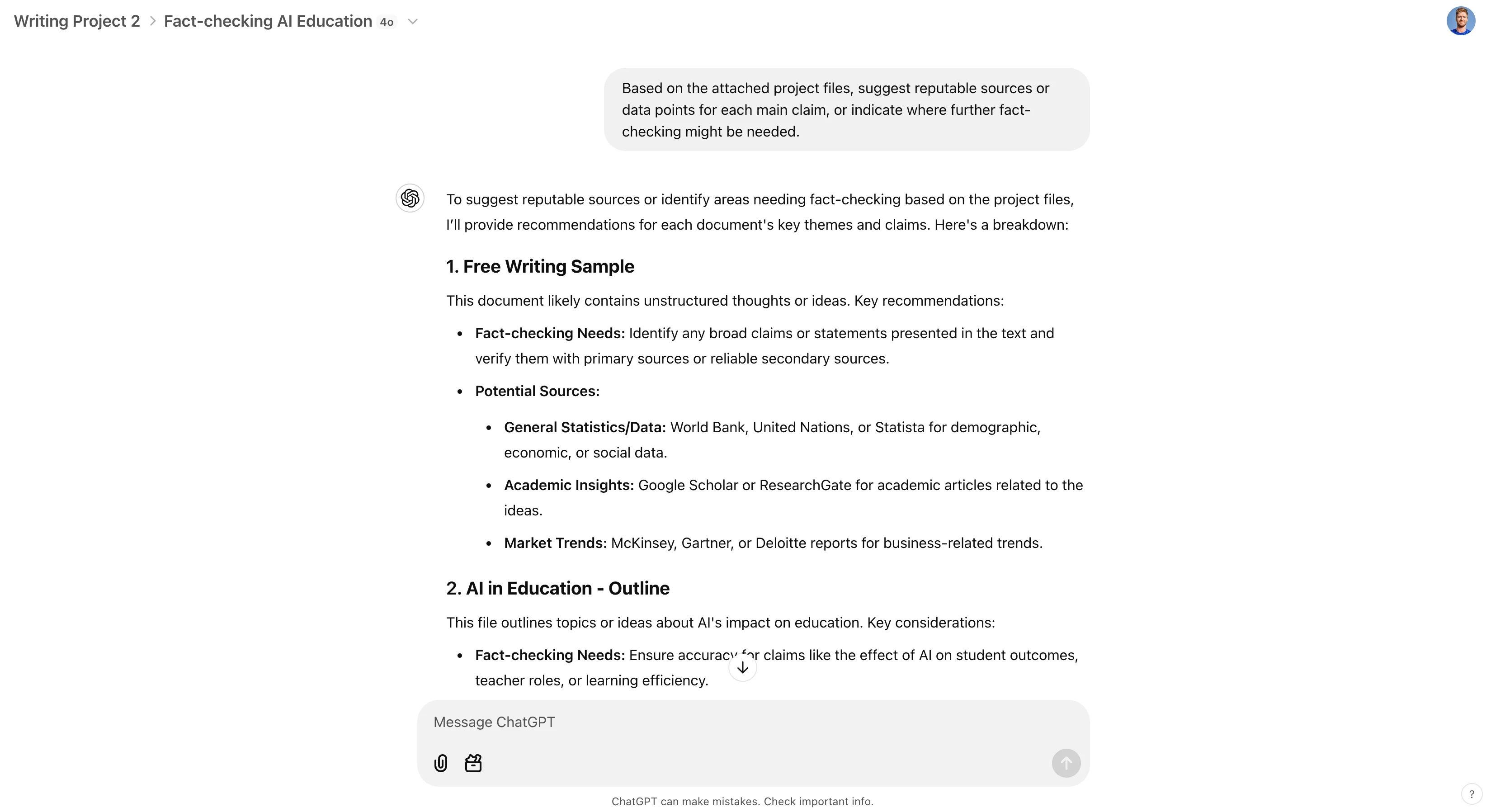
Now, we’ll start another fresh thread in the project and ask for sources and data points to back up the claims in our outline and examples.
Sample Prompt:
Based on the attached project files, suggest reputable sources or data points for each main claim, or indicate where further fact-checking might be needed.
Ask for a revised sample draft
Finally, we can ask our ChatGPT for a revised sample draft of the non-fiction content we want to produce from all of this work.
As mentioned in the beginning, we don’t recommend using ChatGPT for writing original content, but having it create a draft can help you formulate your final approach to your piece. To do this, start a new thread in the project and request an output format based on all of the project files.
Sample Prompt:
Using the project file outline, tips, and free writing sample, write a [insert format, e.g. a 2,000 word draft for the first chapter of a book] on the topic that is logical, cohesive, and includes relevant examples.
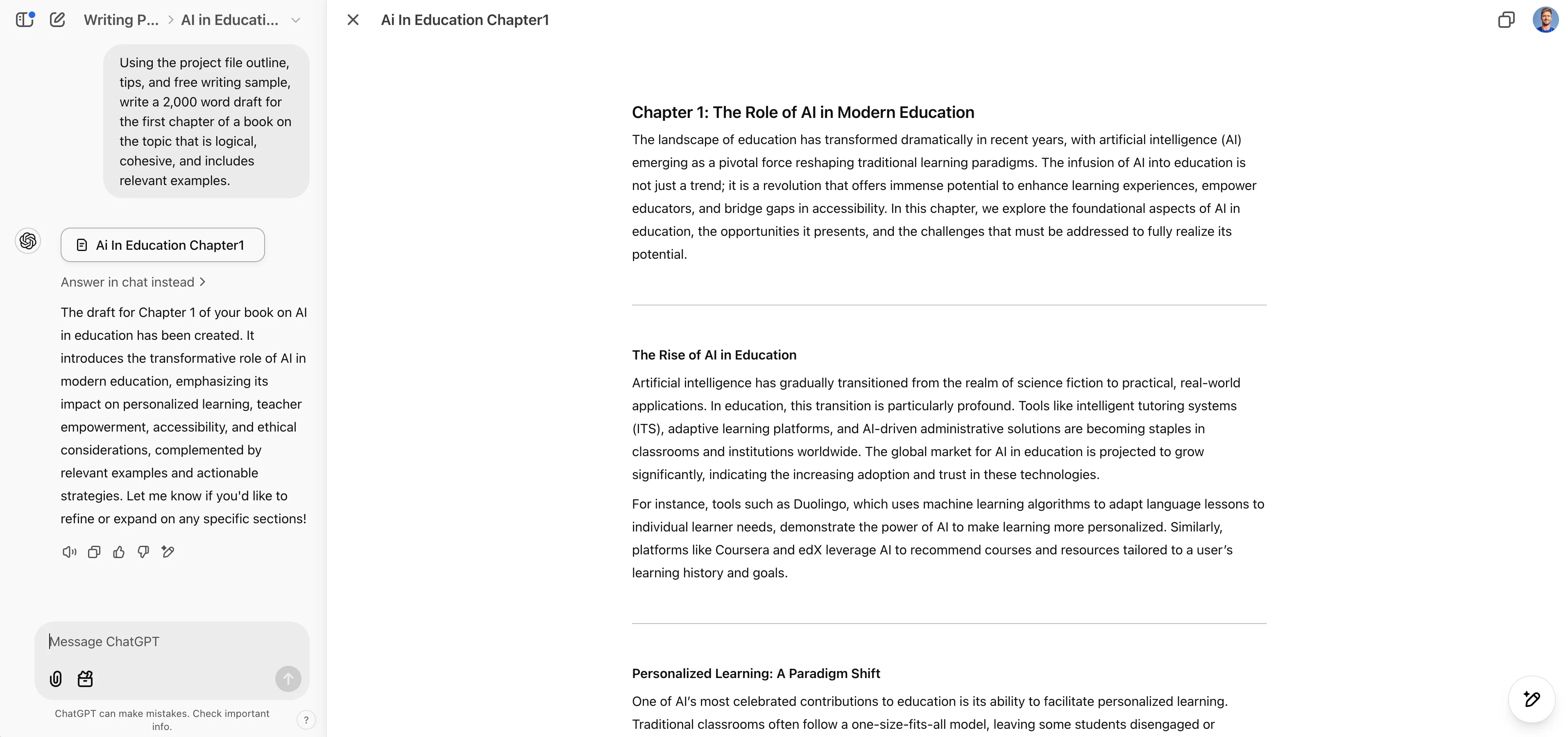
You’ll now have a final draft as a canvas and a collection of threads with all of the other content—outlines, examples, research—that you can use as you continue to work on your writing project.
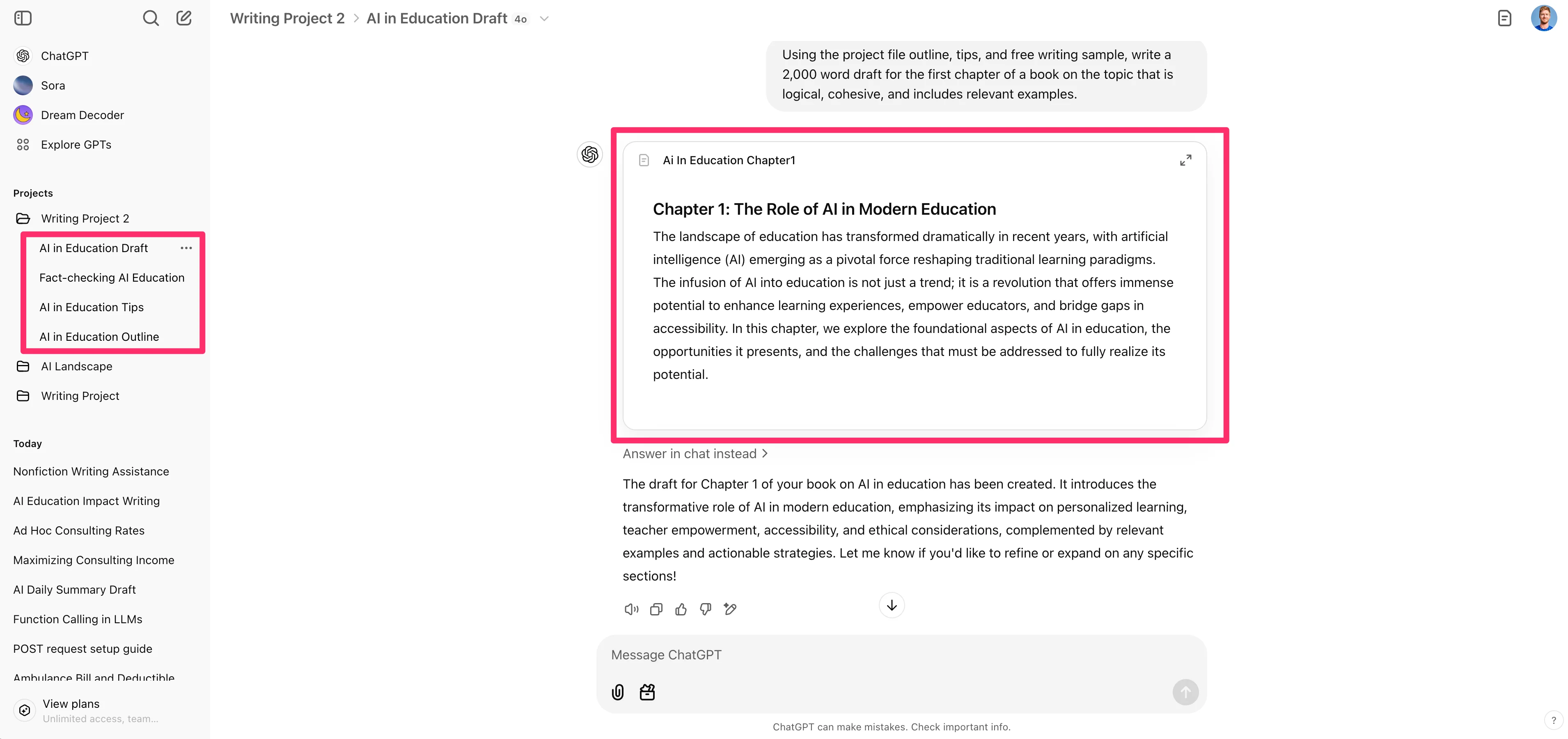
And that’s it! You now have a solid non-fiction writing process (and a draft chapter written!) with ChatGPT.
We’re excited for the future when ChatGPT projects get more full-featured—for example, having access to web search directly within the project chats and integrations into other cloud writing platforms like Google Docs and Notion. That said, we’re excited about the current AI-supported writing processes in tools like ChatGPT.
This tutorial was created by Garrett.