Enriching lead data using Clay
Use Clay to enhance your prospect data and create detailed profiles for effective personalization.
2024-12-20
Welcome to the third tutorial in our Building an AI-powered sales funnel course!
The previous tutorial saw us extracting targeted leads using Apollo. Now, the next crucial step in building an AI-powered sales funnel is enriching that data. This will make your outreach more personalized and more likely to capture your leads’ attention.
Clay is a powerful AI-based enrichment tool that can help you discover detailed information about both companies and the people who work there. In this tutorial, we'll walk through how to import your prospect data into Clay, enrich it with valuable additional information, and prepare it for personalized outreach campaigns.
You'll need:
- Clay account
- Apollo CSV export from the previous tutorial (or any CSV with company data)
- HubSpot account (or another CRM)
In this tutorial, you'll learn how to:
- Import and prepare company data in Clay
- Find and enrich contact information
- Add valuable context through multiple data enrichment layers
- Export enriched data to your CRM for outreach
Let's dive in!
Step 1: Import company data into Clay
First, we'll set up our workbook in Clay and import our initial company data. Navigate to Clay and log in to your account.

On the dashboard, click the "Create" button and select "Create a new workbook."
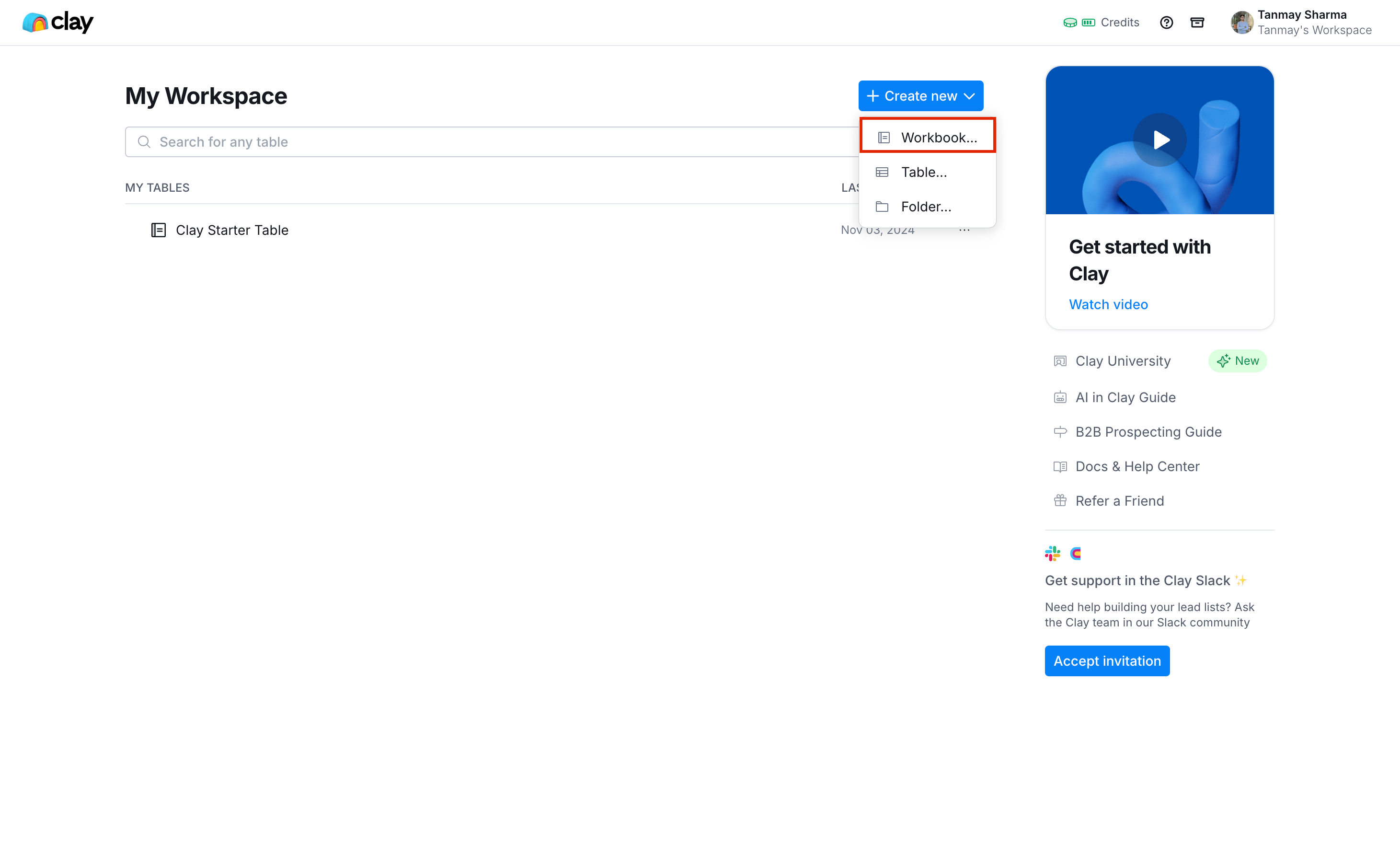
Choose the "Blank Canvas" option to start fresh.
Look for the "Import" button and select "Import from CSV file." Choose your Apollo export file (or whatever CSV file contains your company data).

When importing, we'll focus on these essential columns:
- Company Name
- Website
- Company LinkedIn URL
- Industry
- Company Size (# Employees)
- Company Location
- Technologies
- Founded Year
Step 2: Find prospects at target companies
Now that we have our company data imported, we'll use Clay to identify the right people to contact at these companies.
Look for the "Actions" button in the top right corner and select "Find people at these companies."

A configuration window will appear where you can set up your search parameters.
First, let's use Claude to help us identify the right decision-makers and then use Clay's powerful filtering system to find them.
Open Claude (or ChatGPT or Gemini) and use this prompt:
I'm selling [product/service] to companies in the [industry] space. Help me identify:
1. Key job titles and departments I should target (maximum 3-4 titles)
2. Any job levels I should include (e.g., Manager, Director, VP)
3. Key words or terms that might appear in their bio or experience
Keep the criteria focused and avoid over-filtering. Format your response as specific recommendations I can use in search filters.
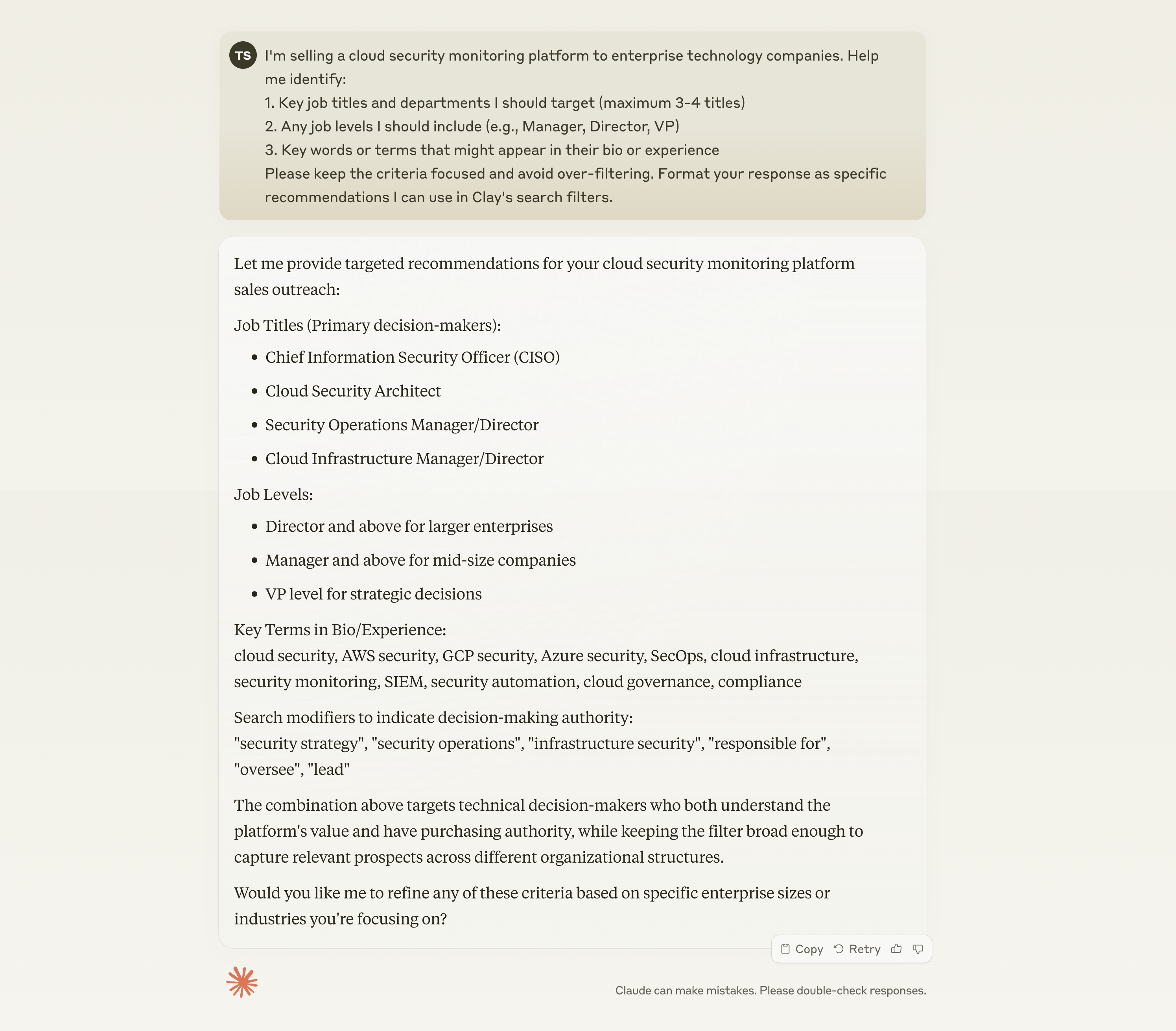
Based on Claude's recommendations, start with the most important 2-3 filters, typically focusing on job title and job level. You can always refine your search later if needed.

In Clay, choose "Search With Query" as your search method, and ensure you're searching using the company LinkedIn URL for the most accurate results.
Important search filters to consider:
- Job Level (e.g., Director, Executive, Manager)
- Job Function (e.g., Sales, Marketing, IT)
- Location
- Department
Step 3: Enrich contact information
After identifying your target contacts, we'll enrich their information with additional data points.
Click "Import" and select "Import to a new table." At this stage, you'll see the option to enable work email enrichment - turn this on to start gathering email addresses immediately.

Click "Save and Run" to create your new table of contacts. Clay will begin the email enrichment process using its waterfall system, checking multiple sources to find valid work email addresses.
Step 4: Add additional enrichments
Now we'll add more valuable context to our contact data. Click "Add Enrichments" and select "Enrich person info" from the left menu.
First, let's clean up our data:
Filter for rows where the work email is empty.

Select these rows. Right-click and select "Delete rows"

Let's start with bio-enrichment. Click on the bio enrichment option in the “Enrich person info” menu.
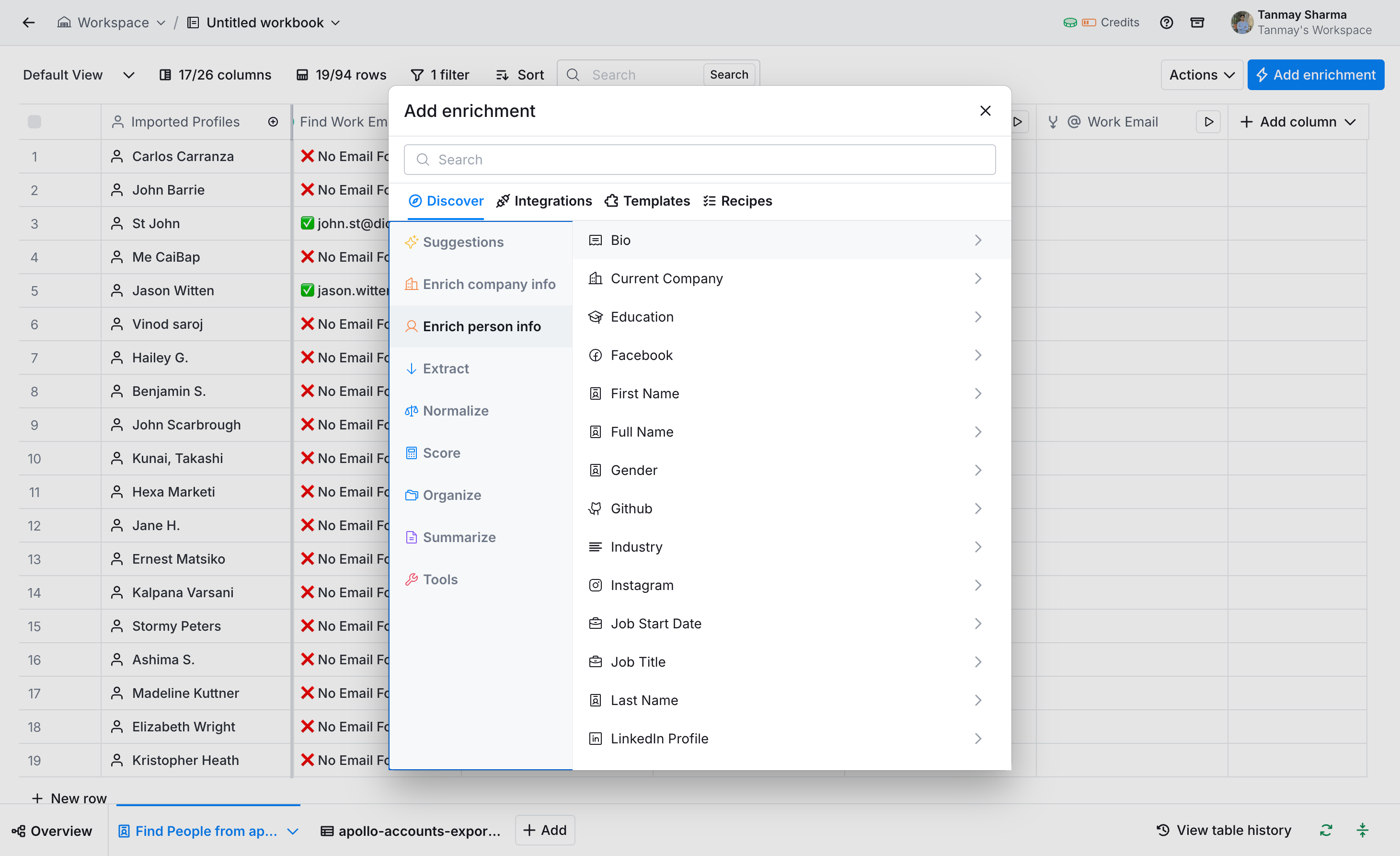
You'll see the waterfall sequence showing different data sources Clay will check. Map your Work Email and LinkedIn URL columns as input fields—having both significantly improves the quality of results. Click "Save and Run" but start with just 10 rows to test the enrichment quality.
For this tutorial, we are just enriching the prospects for their bio for the sake of simplicity, however, you can add more enrichments depending on your outreach efforts and strategies.
Step 5: Create personalized outreach emails
Now that we have enriched contact data, let's use Clay's AI capabilities to create personalized cold outreach emails that actually convert. We'll focus on brevity, specificity, and clear value proposition—elements proven to drive higher response rates.
In the top right corner, click "Actions" and select "Draft Email."

When the email drafting window appears, type "/ai" in the email body field to open the AI snippet option. Select GPT-4 as your model (or GPT-4o Mini to conserve credits).

In the prompt field, use this high-converting prompt template:
Write a personalized cold outreach email using these details:
1. Prospect's first name: {firstName}
2. Company name: {companyName}
3. Current role: {currentTitle}
4. Company background: {companyDescription}
5. Similar company case study: {caseStudyCompany}
6. Case study result: {caseStudyResult}
7. Your name: {senderName}
8. Your role: {senderRole}
9. Your company: {senderCompany}
Required Format:
1. First paragraph (2-3 sentences): Show you've done research by mentioning something specific about their role or company
2. Second paragraph (2 sentences): Present ONE clear problem you solve that's relevant to their context
3. Final paragraph (2 sentences): Share the case study result and request a brief call
4. Close with a simple question about availability
Critical Rules:
1. Keep the entire email under 100 words
2. Generate ONLY the email body - no subject line
3. No company backstory or feature lists
4. Focus 80% on their challenges, 20% on your solution
5. Use "you" and "your" more than "I" and "we"
6. Must be mobile-friendly (short paragraphs)
7. Include specific numbers/results
8. No industry jargon or buzzwords
9. Match the case study to the prospect's industry
Signature Format:
Best regards,
{senderName}
AI Solutions Architect | EmberLoop Services

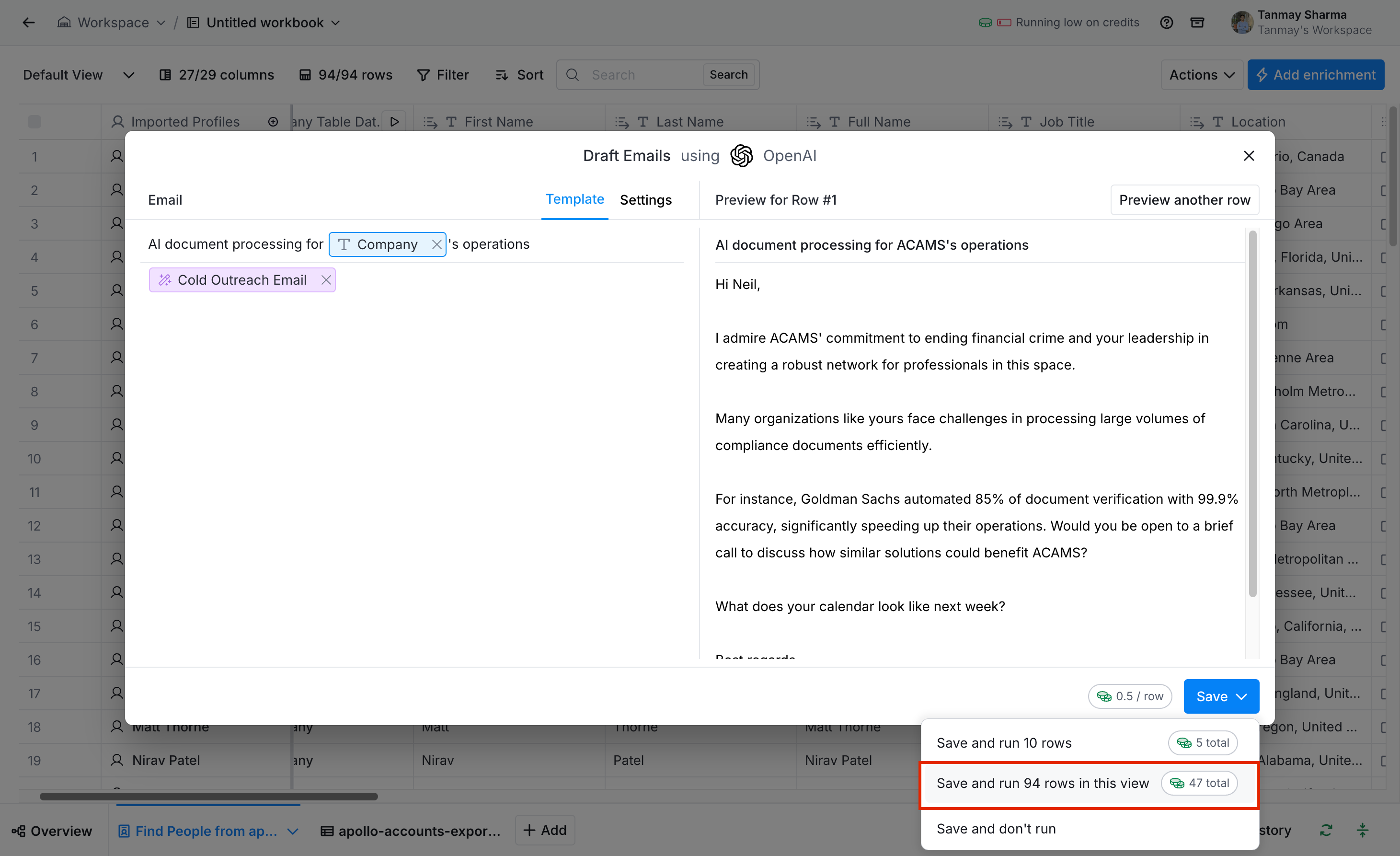
Click "Try on 5 rows" to preview the results. Review the generated emails for:
- Length (under 100 words)
- Specificity (mentions their company/role)
- Value focus (clear benefit/result)
Once satisfied with the email body, click "Save Changes."
For the subject line, click the subject field and type a template structure. Use dynamic placeholders by typing "/" and selecting relevant data points. Click "Save and Run" to generate emails for all prospects.
Next steps
You've now created a foundation for high-converting outreach that combines the power of AI personalization with proven B2B email principles. In our next tutorial, we will cover how to:
- Export these personalized emails to your email outreach platform
- Set up automated follow-up sequences
- Track open and response rates
Remember, successful cold outreach is an iterative process. Monitor your response rates and continuously refine your approach based on what resonates with your prospects.
Once you have completed drafting your personalized messages, proceed to the next tutorial.
This tutorial was created by Tanmay.