Generate operational process diagrams and presentations
Transform your process documentation into interactive workflow diagrams and presentations with Claude.
2024-11-13
In this tutorial, we’re going to transform process documentation into interactive workflow diagrams and slide presentations with just a few prompts using Claude Sonnet 3.5 and Artifacts.
Artifacts is the new Feature Preview that launched with Anthropic’s new model, Claude Sonnet 3.5. Artifacts generates code and then renders that code in a web preview pane within your chat window, allowing for one of the best coding experiences with an LLM chatbot. This will allow us to go from process documentation to workflow diagrams and slide presentations in minutes.
Steps we’ll follow in this tutorial:
- Step 1: Enable the Artifacts feature
- Step 2: Upload process documentation
- Step 3: Edit the process diagram
- Step 4: Enter in high-level process description for interactive diagramming
- Step 5: Generate a presentation and download or copy the code
Step 1: Enable the Artifacts feature
To get started, you need to enable the new Artifacts Feature Preview. If you’re in a chat window with Claude, you can click the little beaker icon below the chat text box.

The Feature Preview window will open. Toggle the Artifacts feature “On” to enable the feature. When you enable Artifacts, it will be enabled by default for your future chats.

Step 2: Upload process documentation
With Artifacts enabled, we will upload our process documentation and ask Claude to generate Mermaid code. To do this, either upload a document of your process documentation or copy/paste the process steps into the chat window.
Sample prompt:
Can you generate mermaid code process diagram for the below process? [attach/paste process documentation].

Claude will generate the Mermaid code in an Artifacts window to the right of your chat. It will also generate a rendered preview of the diagram. You can toggle between the code and the diagram by clicking on the buttons in the top right corner of the Artifacts window.

Step 3: Edit the process diagram
Now that we have an initial diagram created, we can ask Claude to update the code and diagram respectively via a prompt. We’re going to request that a certain step in our process connect to another and have our reporting and analysis procedure included in the main tree of the diagram.
Sample prompt:
Can you update the diagram so that:
- [insert request #1]
- [insert request #2]

Claude will update the code and diagram in the Artifact window accordingly. In addition, it will save each version of our code and diagram. You can toggle through the versions by clicking on the version arrows in the bottom left corner of the Artifact window.

Step 4: Enter in high-level process description for interactive diagramming
Not only can we have Claude diagram our own process documentation, but we can also ask it to diagram general processes with zero documentation provided based on its training data. In this example, we’ll ask Claude to diagram an interactive process chart for a car manufacturing process.
Sample prompt:
Generate an interactive process workflow diagram for an automobile manufacturing process.

Similar to the Mermaid code, you can ask Claude to update the process diagram, and with the interactive code, your requests can both be on the process and the interactive components of the diagram.
Step 5: Generate a presentation and download or copy the code
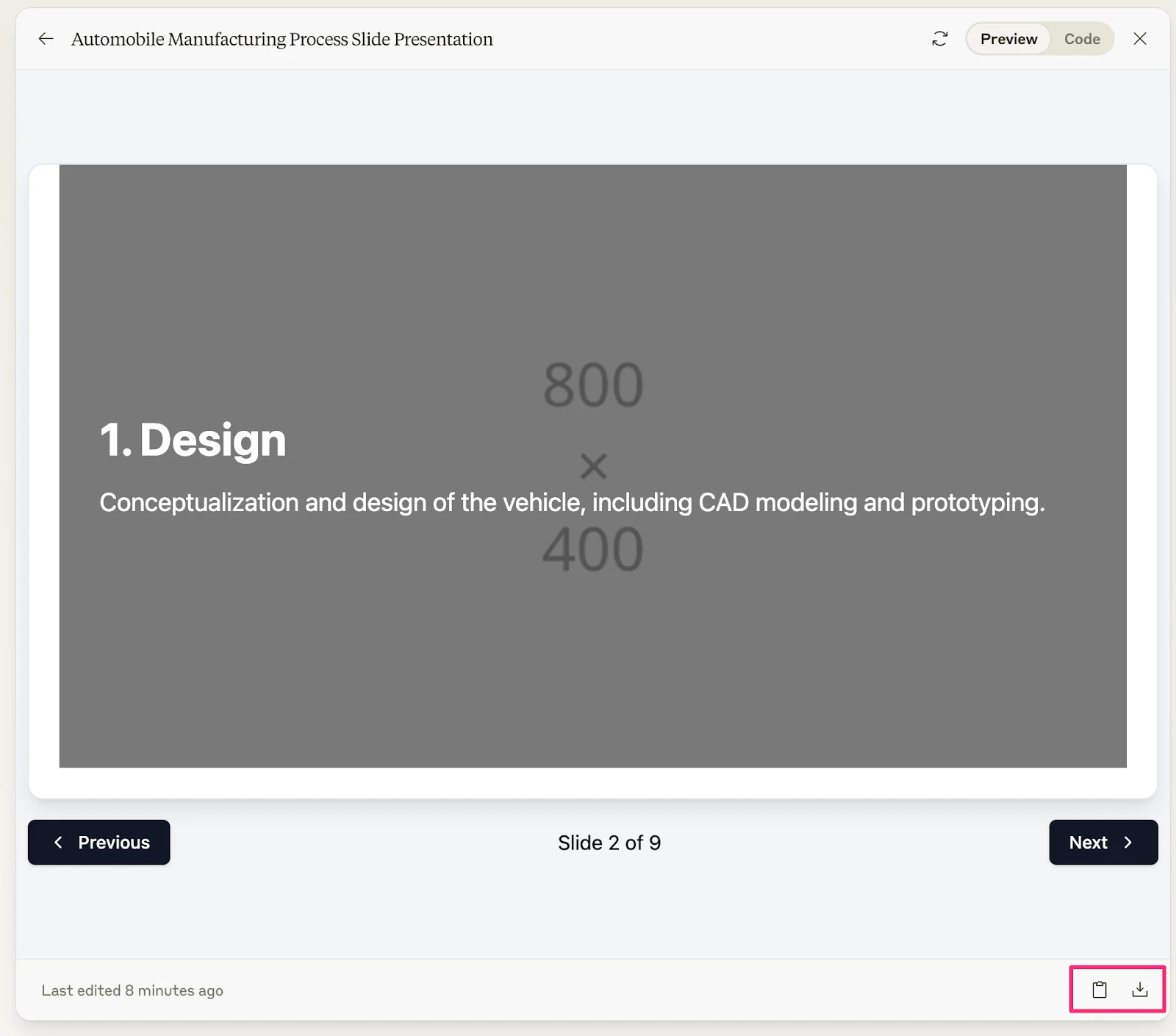
Now for some mind-blowing capabilities. We can ask Claude to transform our interactive workflow diagram into a slide presentation. When prompted, it will take the diagram code and translate it into an interactive web presentation with navigation buttons and all.
Sample prompt:
Can you turn this process into a slide presentation?

You can click on the buttons in the Artifact window to toggle between slides, and if needed, prompt Claude to make any adjustments to the presentation as well.
Once you’re happy with your output, you can click the Clipboard icon to copy the code or the Download icon to download a file of the code. These buttons can be found in the bottom right corner of the Artifacts window.
You can add the code for your slides or your process diagrams to a hosting service like GitHub Pages, Netlify, or Replit to host your content, publish it, and share it with colleagues.
This tutorial was created by Garrett.