Generate summaries of web pages
Speed up web research by using AI to automatically convert web pages into summaries.
2024-12-20
Aggregating web research just got a whole lot easier. You no longer need to copy and paste from a web page to a single research document. Now, with Zapier Central, you can quickly turn web pages into concise summaries and store them directly in a Google Doc with a single prompt. And even better - you never need to leave your browsing experience.
In this tutorial, we'll walk through how to automate summarizing web pages using Zapier Central. Whether you're conducting research, managing information overload, or just looking to streamline your workflow, this guide will help you go from web research to organized notes in seconds.
You’ll need:
- Chrome browser
- Zapier Central Chrome extension
Steps we’ll follow in this tutorial:
- Create a Zapier Central assistant and add summary instructions
- Add a Google Doc creation action
- Install and pin the Zapier Central Chrome extension
- Test the assistant on a web page
Let’s dive in.
Step 1: Create a Zapier Central assistant and add summary instructions
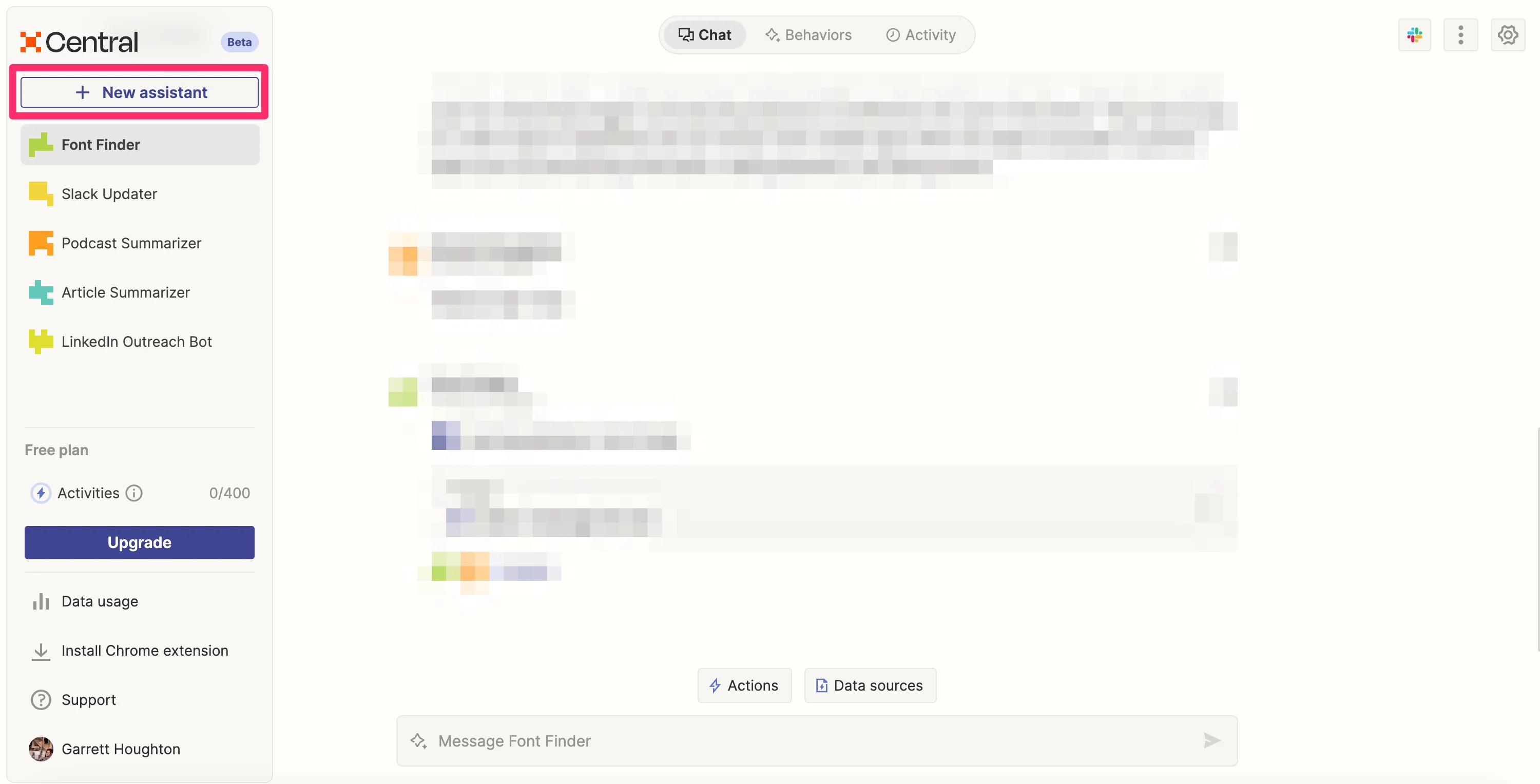
To get started, go to Zapier Central and create a new assistant by clicking the “New assistant” button in the left-side navigation.
A pop-up will appear where you can add a Name and Description for your assistant. We’re going to name ours “Web Page Summarizer.” After you add a Name and Description, you need to add Instructions for the assistant. These are the system instructions it will follow when prompted. For our tutorial, we’re going to instruct it to summarize the current web page and add the content to a Google Document.
Sample instructions:
Summarize the current web page and add your summary to a Google Document.
.webp)
Step 2: Add a Google Doc creation action
Now that the Instructions are added, we can add Actions to our assistant. Actions are automated steps the assistant can take in third-party apps. To add an Action, click the plus button in the Actions row.
.webp)
A pop-up will appear where you can select a third-party app to connect to your assistant. For this workflow, we are going to select Google Docs.
.webp)
Make sure to authenticate your Google Docs account to Zapier Central and then you will need to select an action. We are going to go with the “Create Document from Text” action.
.webp)
With our Google Docs action now added, click the “Create assistant” button in the top right corner of the page to create the assistant.
.webp)
Step 3: Install and pin the Zapier Central Chrome extension
Before we can use Zapier Central in our browsing experience, we’ll need to install the Zapier Central Chrome extension. To do this, go to the extension page and click the “Add to Chrome” button in the top right corner.
.webp)
Once the extension is added, you’ll want to pin it to your browser. To do this, click the puzzle icon in the top right corner of your browser window and click the pin icon next to the Zapier Central extension.
.webp)
The Zapier Central icon will then be pinned on your browser.
.webp)
Step 4: Test the assistant on a web page
Now that we have the Zapier Central Chrome extension added to our browser, we can navigate to a web page, click the Zapier Central icon to open the assistant window, and click the “Web Page Summarizer” assistant we made to open it in the side window.
.webp)
For the prompt, all we need to request is for it to summarize the page.
Sample prompt:
Summarize this page.
.webp)
The Zapier Central assistant will then provide the summary in the side window as well as generate the Google Doc with the added summary and provide a link to the Google Doc.
.webp)
If you click the link to the Google Doc, it will open a new tab with the newly created Google Doc with your web page summary.
.webp)
This tutorial was created by Garrett.