Getting started with Midjourney
Learn how to set up your Midjourney account and begin using it effectively.
2024-12-09
Welcome to the first lesson of our Midjourney mastery course!
Over the last several years, the world of AI image generation has evolved dramatically. We've witnessed an incredible leap from the rudimentary outputs of yesteryear to the breathtaking creations we see today. While numerous AI image generators have entered the arena, including offerings from industry giants like Google, OpenAI, and Adobe, one platform has consistently stood out from the crowd: Midjourney.
Midjourney has rightfully earned its reputation as the pinnacle of AI image generation. Its advanced features and robust built-in settings offer unparalleled control over your creative outputs. In this course, we'll embark on a journey from the basics of image generation to mastering the art of producing stunning and controllable outcomes with Midjourney.
Specifically in this lesson, you'll learn how to:
- Set up your Midjourney account and choose a subscription plan
- Navigate the Midjourney web interface
- Use Midjourney through Discord
- Explore different Midjourney versions and models (V5, V6.1, Niji)
Let’s dive in.
Let's start with a simple prompt to get a feel for what Midjourney can do:
A landscape with mountains and a lake at sunset
.webp)
This straightforward prompt will generate some basic landscape images with varied styles.
Now, let's tease a more complex prompt to showcase Midjourney's range:
Majestic alpine landscape, snow-capped peaks reflected in serene lake::2 golden hour lighting, wispy clouds, vibrant colors::1 --ar 16:9 --v 6.1 --q 2 --s 750 --no people, buildings --style raw
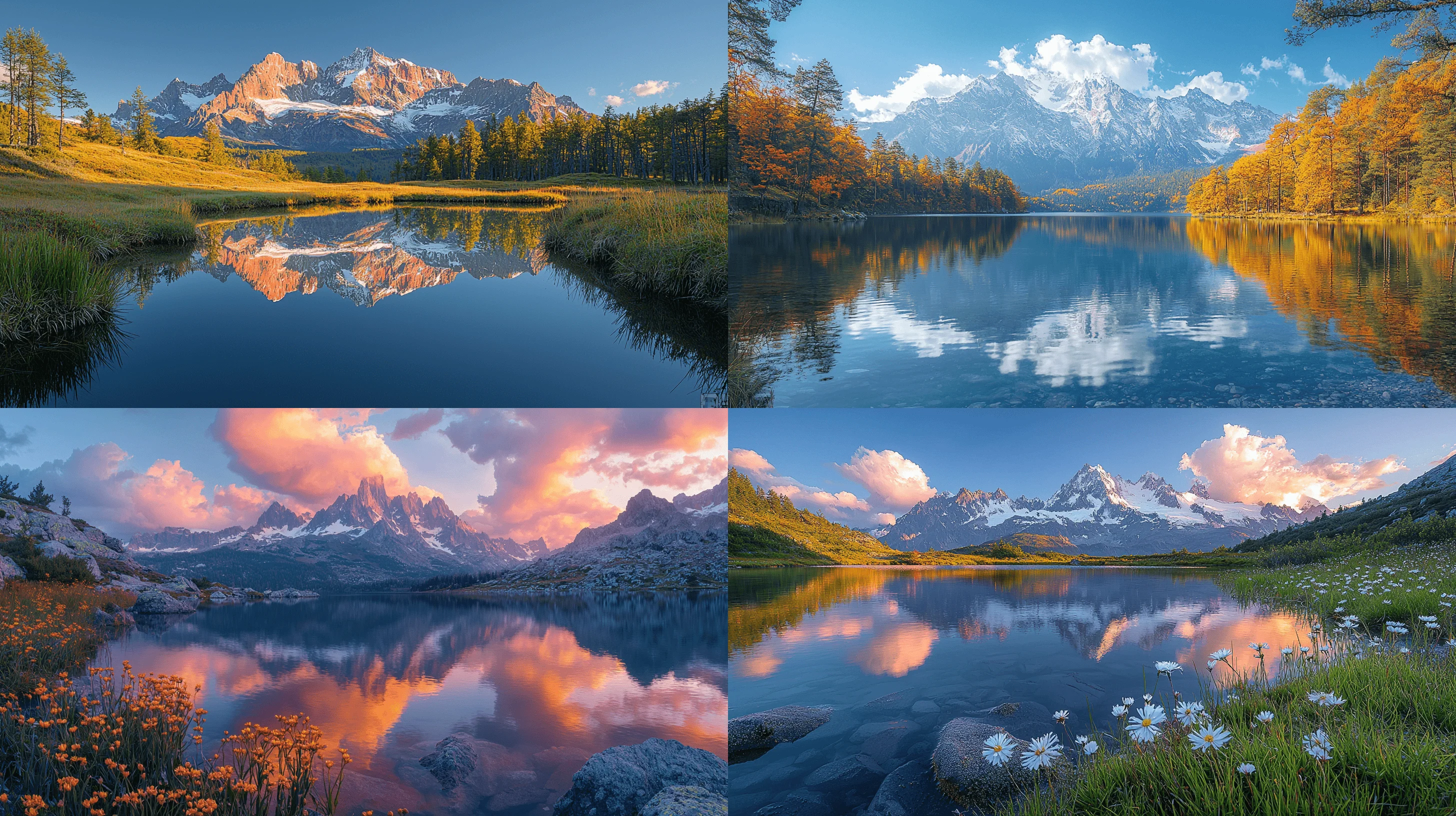
Both prompts aim to create a similar scene, but the difference in output quality and control is noticeable. The second prompt uses several advanced Midjourney practices:
- Detailed description of elements and atmosphere
- Weighted prompts (::2 and ::1)
- Aspect ratio parameter (--ar 16:9)
- Version specification (--v 6.1)
- Quality boost (--q 2)
- Stylization adjustment (--s 750)
- Negative prompting (--no people, buildings)
- Raw style (--style raw)
By the end of this course, you'll understand how to craft prompts that yield the images you're aiming for.
Setting up Midjourney
To get started with Midjourney, you'll need an account and a subscription plan. Here's how to set it up:
Head to the Midjourney website and sign up for a new account.
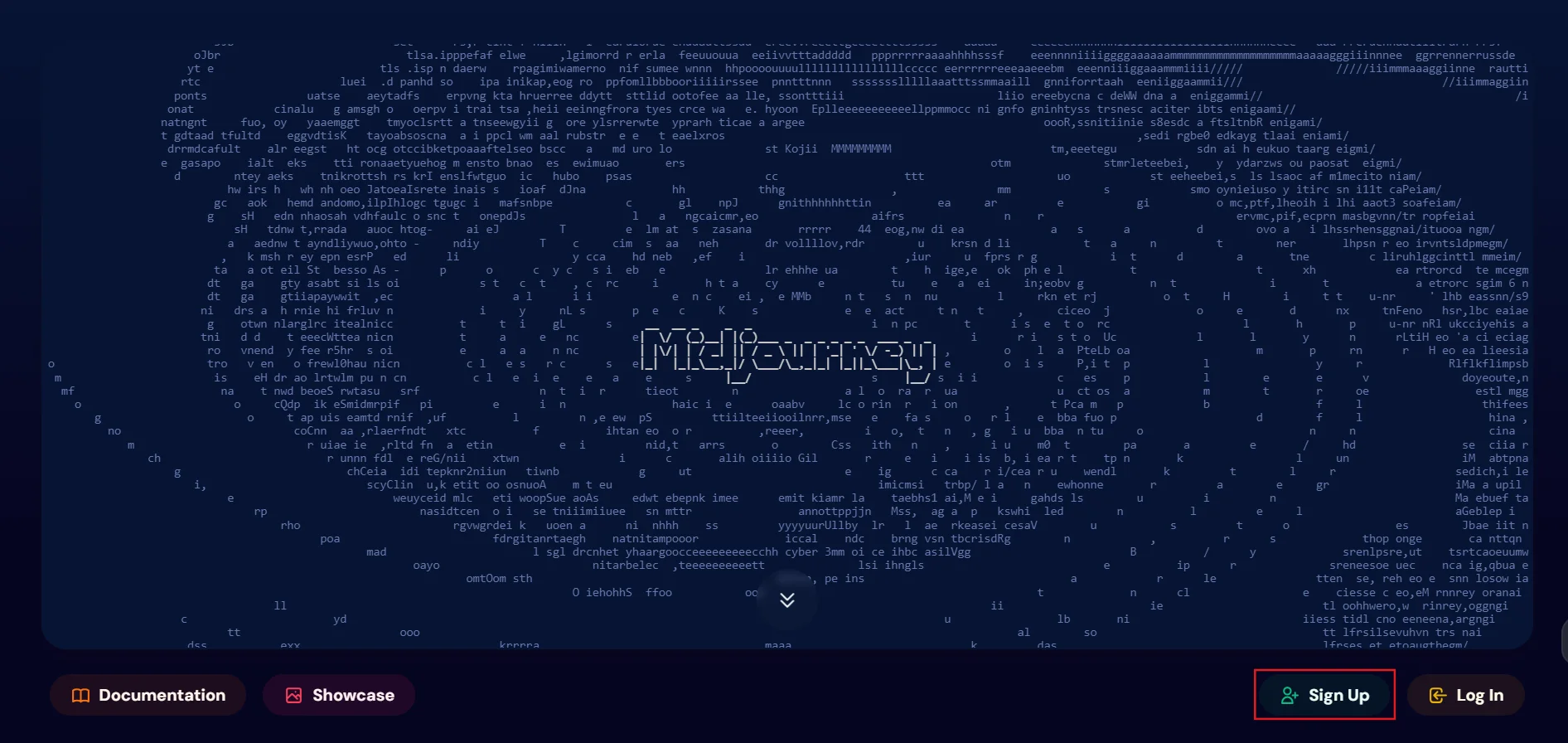
You'll be prompted to sign in with Discord or google account. Choose your preferred option and sign up.
Once you're signed in, you'll be taken to the Midjourney dashboard where you'll need to subscribe to a paid plan.
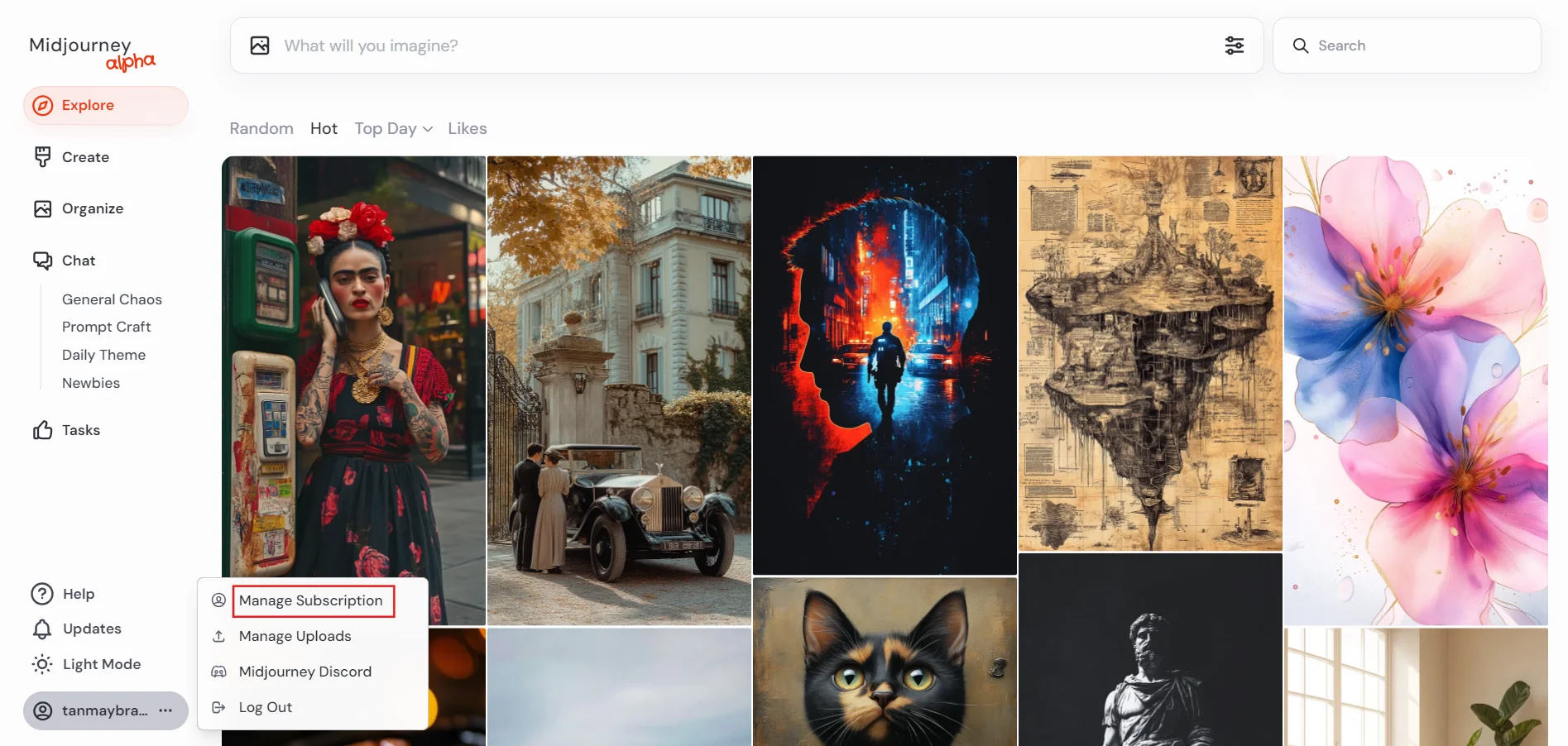
Click on your profile icon in the bottom left and select "Manage Subscription".
Let's briefly look at the available plans:
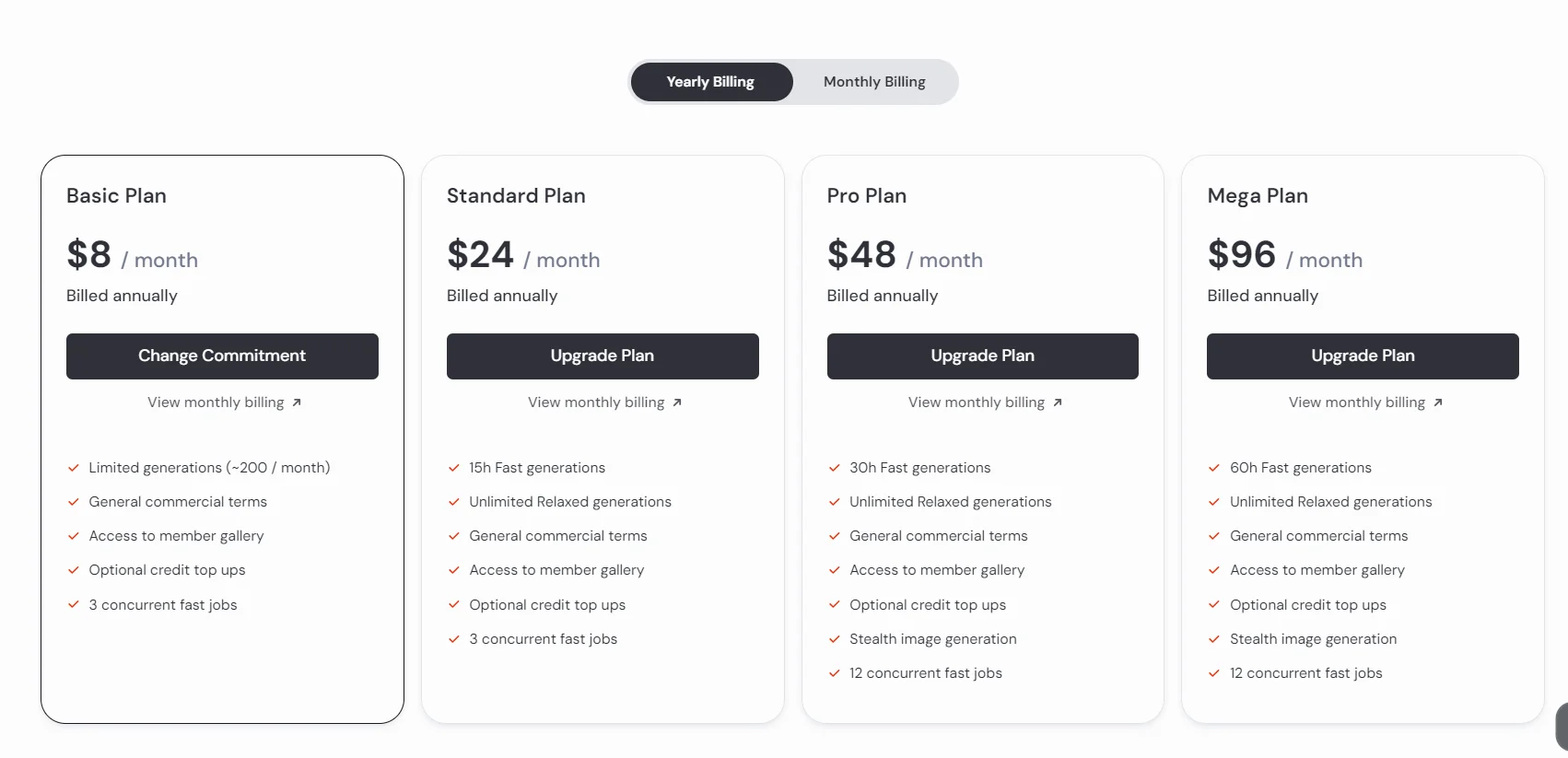
For those just starting to explore Midjourney, the Basic or Standard plan should suffice. As you become more experienced and require more generation time, you can consider upgrading to the Pro or Mega plan.
Understanding the Midjourney web interface
The Midjourney web interface is intuitive and user-friendly.
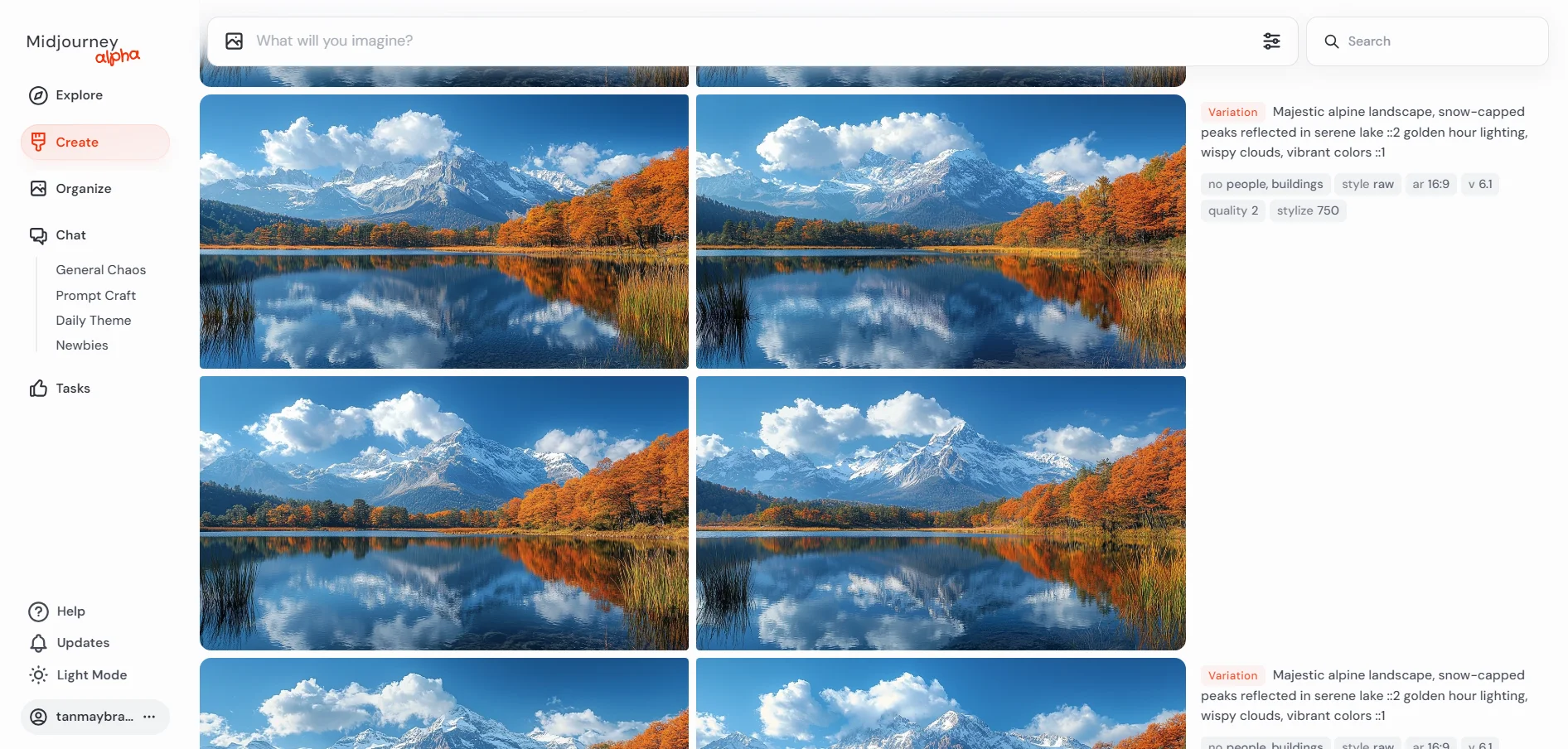
Here are the key elements:
- Imagine bar: At the top of the page, this is where you'll type your prompts.
- Settings: Next to the Imagine bar, you can adjust various parameters.
- Gallery: The main area displays your generated images.
- Image options: Hovering over an image reveals options like variations and upscaling.
To generate an image, simply type your prompt in the Imagine bar and hit Enter. For example:
Photorealistic astronaut on an alien planet, split by warm sun rays and cool lunar glow.
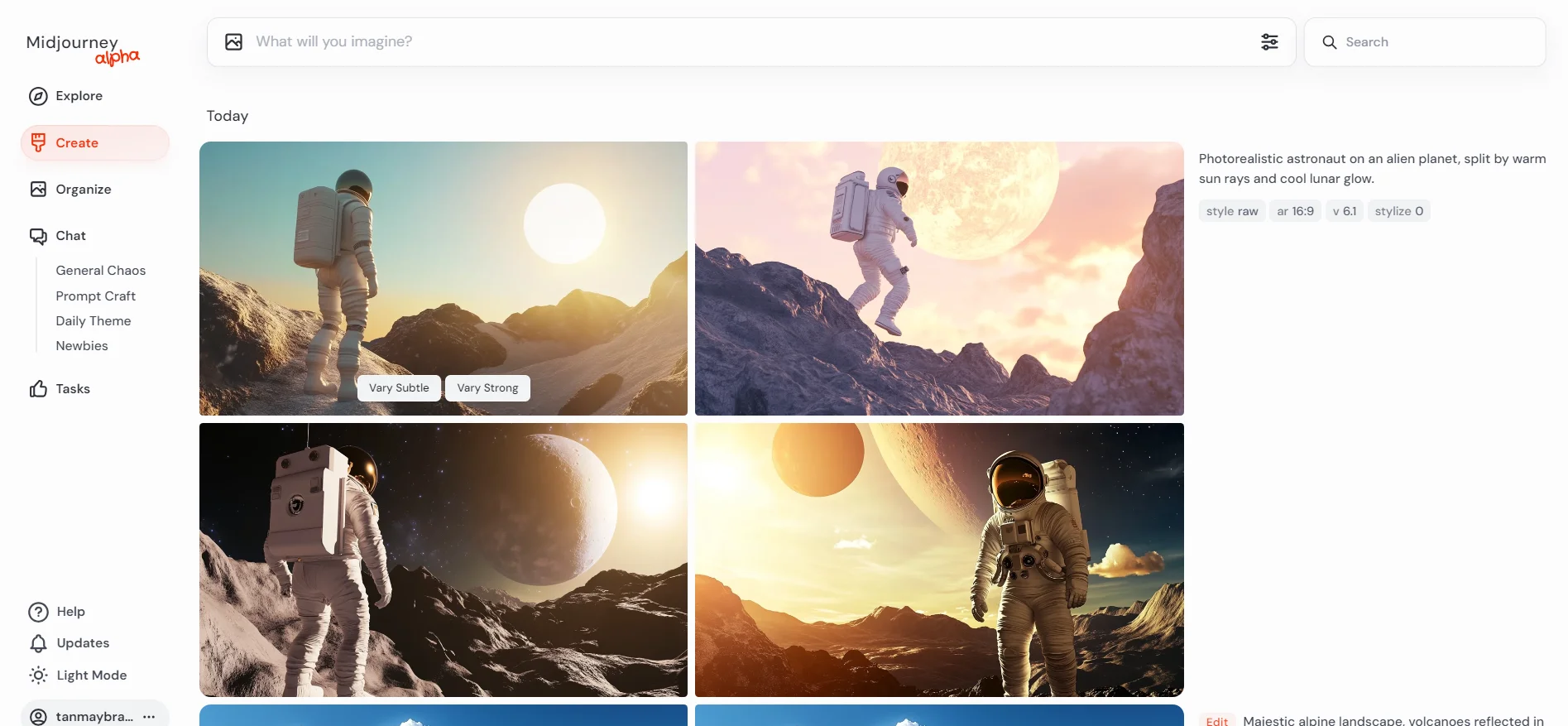
After entering your prompt, Midjourney will generate four image variations. You can then use the options that appear when hovering over an image to create variations of a particular result.
Using Midjourney through Discord
While the web interface is convenient, some users prefer using Midjourney through Discord. Here's a quick overview of how to set it up and use it.
To get started with Midjourney on Discord, first sign into your account on midjourney.com. Once logged in, click on your profile icon in the bottom left corner of the page.
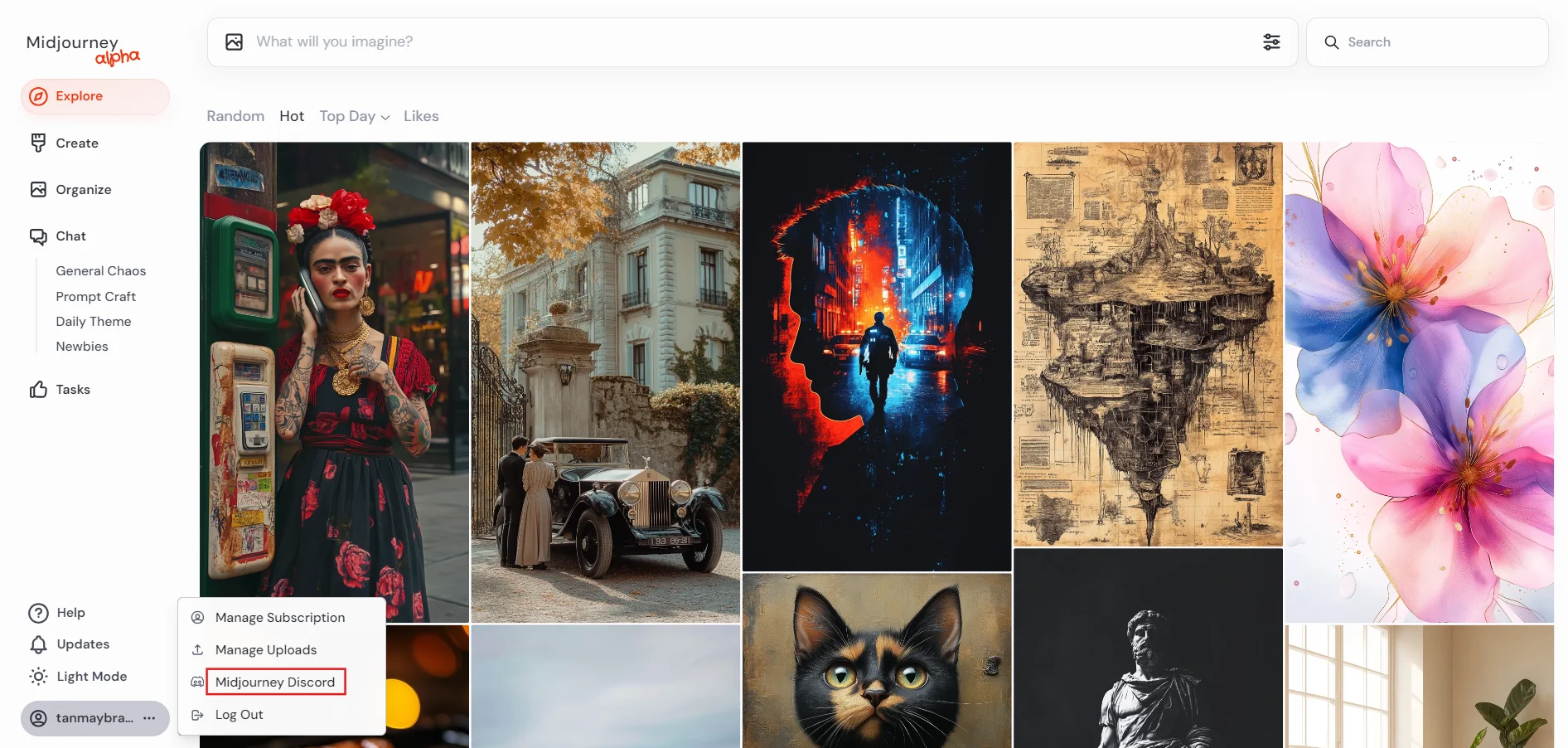
From the menu that appears, select "Midjourney Discord". This will take you directly to the official Midjourney Discord server.
Now, find the Midjourney bot on the official server and send a message to get started.
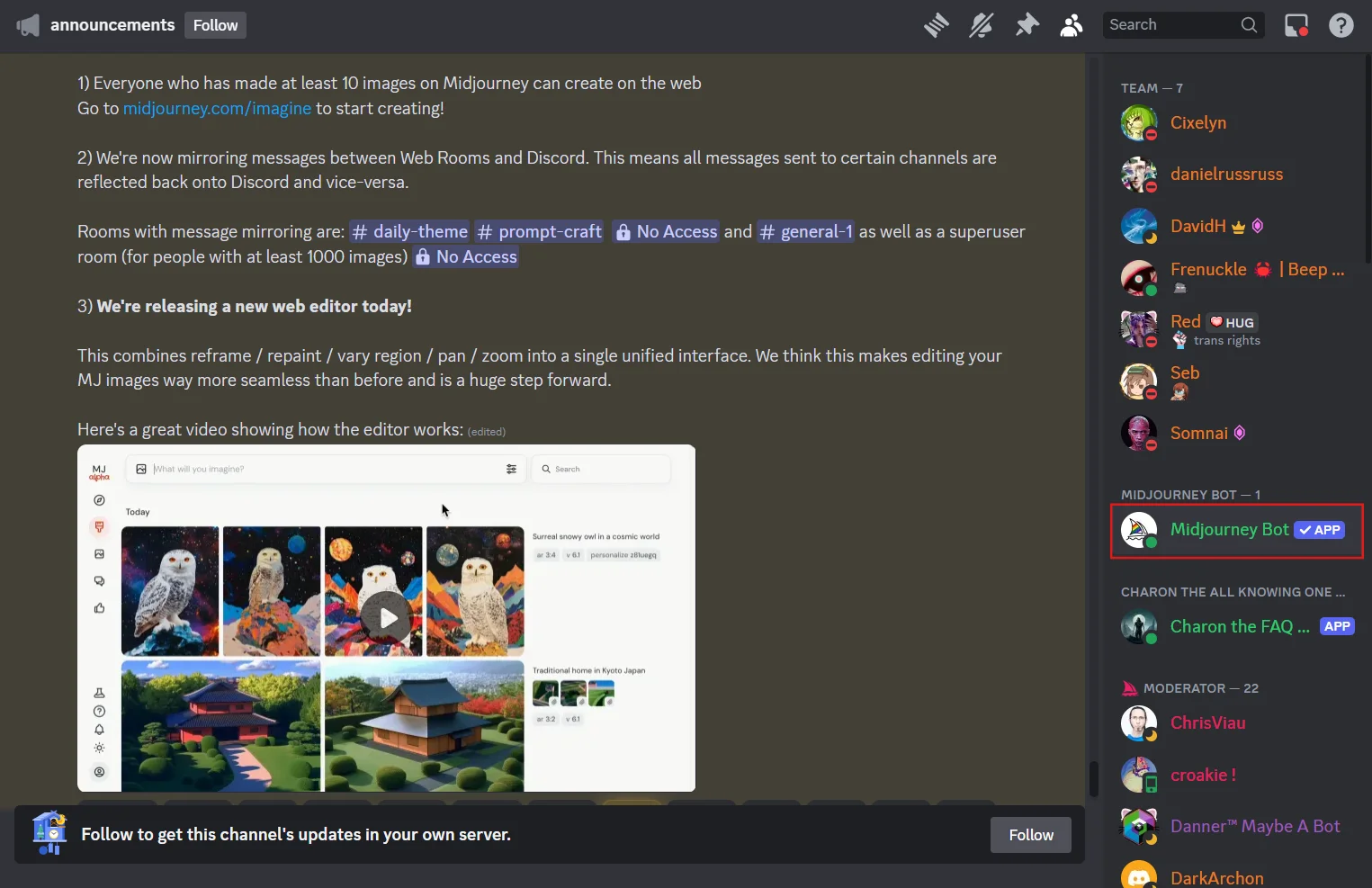
To generate an image, use the "/imagine" command followed by your prompt inside the Midjourney bot. For example:
/imagine Photorealistic astronaut on an alien planet, split by warm sun rays and cool lunar glow.
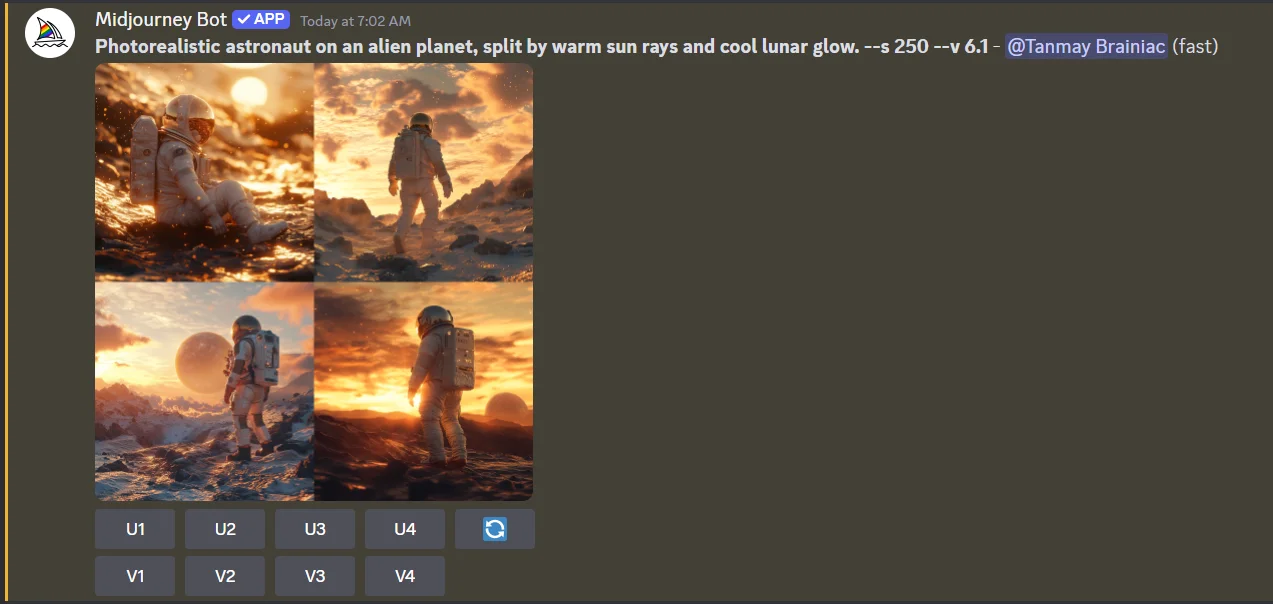
Midjourney will generate four image variations. Below each image, you'll see U1-U4 buttons for upscaling and V1-V4 buttons for creating variations of a specific result.
Exploring Midjourney versions and models
Midjourney offers different versions and models. At the time of writing this, the latest version, V6.1, represents significant improvements over previous versions in terms of image quality, detail, and prompt adherence.
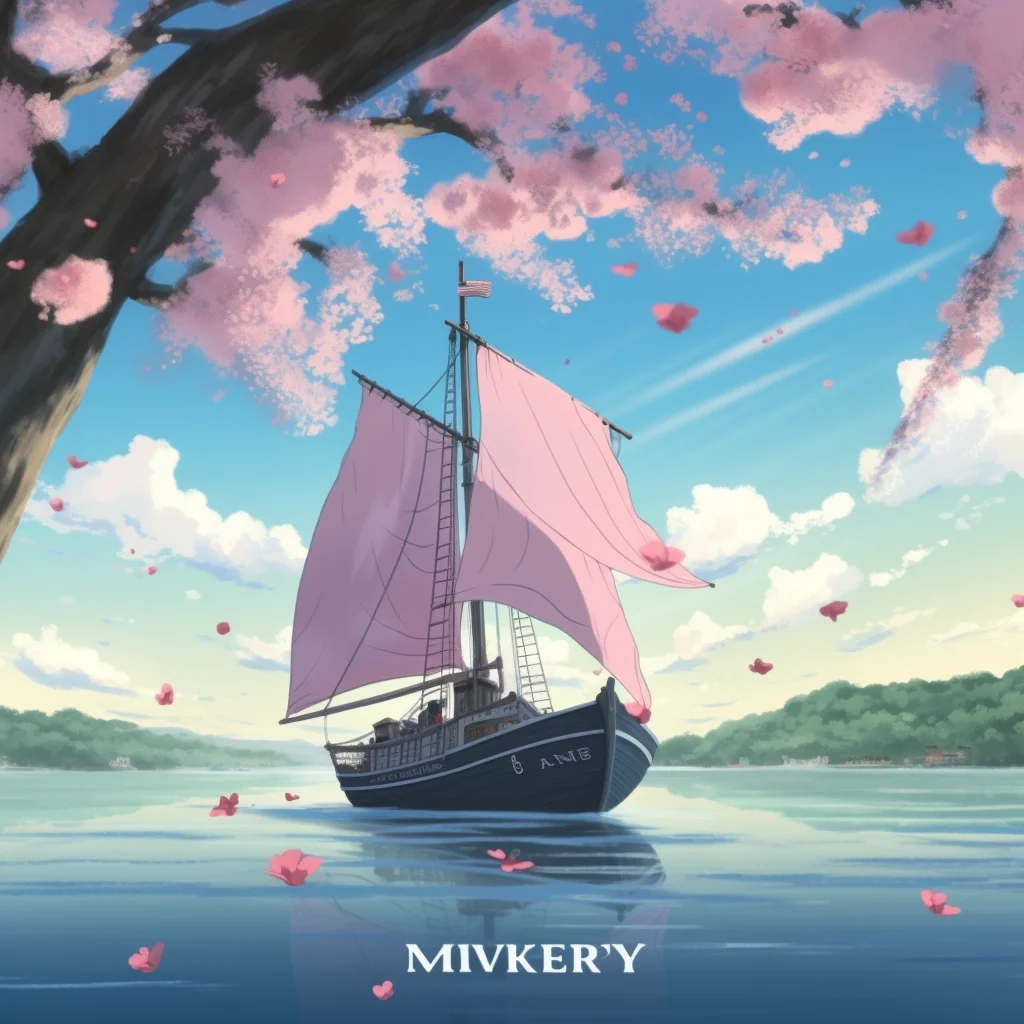
Let's compare outputs using a simple prompt with V5 and V6.1 versions:
An anime-style movie poster with the words “MIDJOURNEY V6”, with a small sailboat sailing on a lake, and cherry blossoms floating in the wind.
V5 Output
V6.1 Output
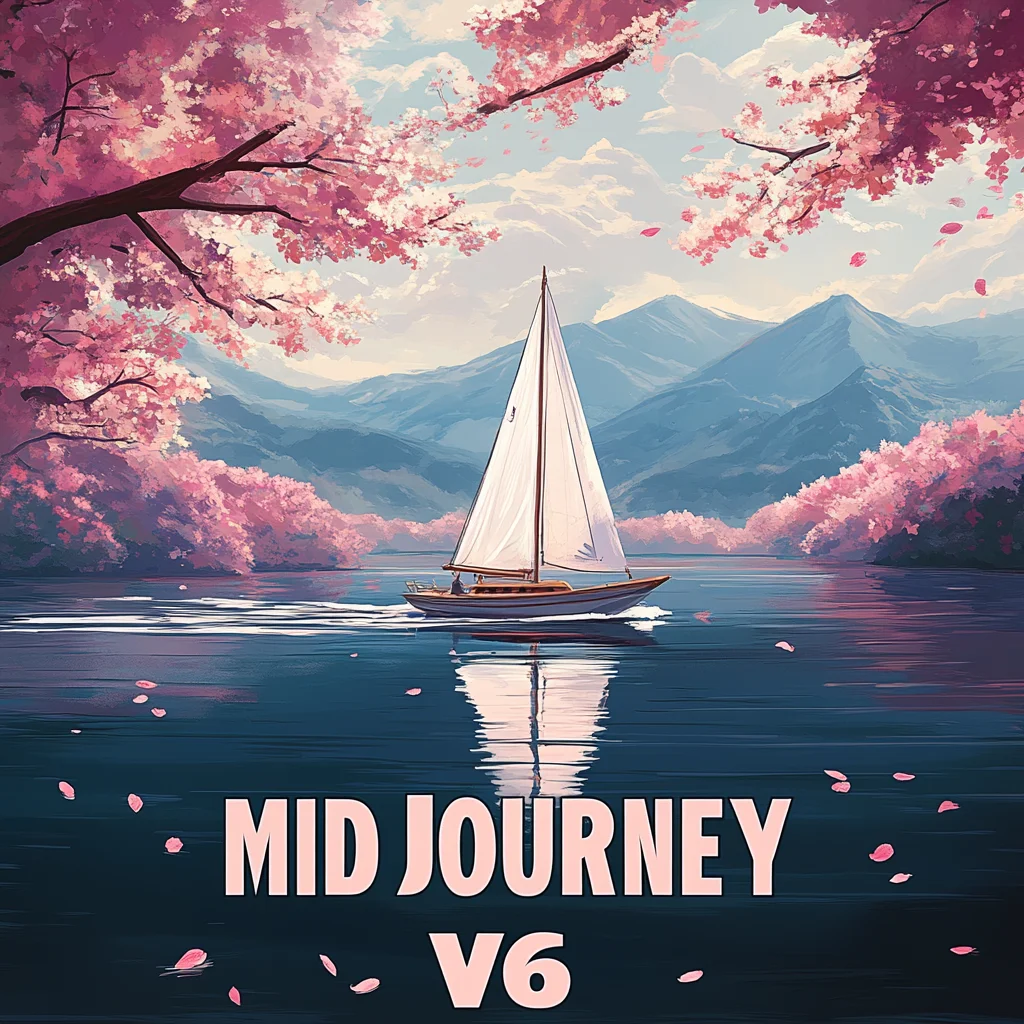
As you can see, V6 typically offers more realistic, detailed, and accurate representations of the prompt. While earlier versions may sometimes produce interesting stylistic variations, V6 is generally superior in most aspects, especially in rendering text in the images.
Midjourney also offers the Niji model, specifically designed for anime-style images. It excels at producing anime and manga-style artwork, while the standard model is more versatile for a wide range of styles and subjects. Each has its unique strengths depending on your specific needs.
The latest version is Niji V6. Let's compare the standard V6.1 with Niji V6:
A samurai warrior
V6.1 Output
.webp)
Niji 6 Output
.webp)
As we progress through this course, we'll delve deeper into these versions and models, learning how to leverage them for creating stunning and controlled artwork.
When you’re ready, head on to tutorial 2.
This tutorial was created by Tanmay.