Go from idea to pitched business plan with the Gemini sidebar
Learn how the Gemini sidebar and the Google suite of work apps can help you created a pitched business plan.
2024-11-13
Gemini, Google’s LLM-powered chatbot, is getting further embedded into the Google ecosystem of apps with their newest release of the Gemini sidebar. With this new feature, you can open up Gemini in the same window as Google Docs, Sheets, Slides, and Gmail — interfacing with Google’s best AI assistant without switching windows.
But it gets better, Gemini can actually insert generated content directly into Google apps. For instance, it can:
- Create a data table and automatically insert it into a Google Sheet or;
- Generate a slide and insert it directly into your Google Slides presentation
In this tutorial, we’re going to go from a business idea to a pitched email to an investor, working with the Gemini sidebar across Google Docs, Sheets, Slides, and Gmail.
Steps we’ll follow in this tutorial:
- Brainstorm and write a business plan in Google Docs
- Create a P&L for your business in Google Sheets
- Create a pitch deck for your business in Google Slides
- Send a pitch email in Gmail
Step 1: Brainstorm and write a business plan in Google Docs
To brainstorm and write our business plan, we’ll open a blank Google Document and click on the Gemini button in the top right corner of the screen.

This will open the Gemini sidebar, where we can prompt it to generate a business plan for one of our business ideas. For this example, we’re going to ask it to write a business plan for a dream interpreter application.
Sample prompt:
Write a business plan for [insert your business idea].

Like most chatbot experiences, Gemini will respond with generated text, but this is where the Google ecosystem gets powerful, rather than copying/pasting the response somewhere, you can click the Insert button at the bottom of the response to automatically insert the generated business plan into your blank Google Document.

Gemini will also follow up with additional prompt ideas that you can click on to further ideate on your business plan.

We’ll click on the prompt idea around potential partnerships and integrations for our business idea.
Sample prompt:
What are some potential partnerships or integrations that could enhance the value of the application for users?

Step 2: Create a P&L for your business in Google Sheets
Now that we have a business plan, we can create a profit and loss (P&L) table for our business. Similar to the Google Documents experience, you can open a blank Google Sheet and click on the Gemini icon in the top right corner to open the Gemini sidebar.

We’ll prompt Gemini to create a P&L table for our business plan. What’s powerful, is we don’t need to provide any additional context other than the Google Doc link of our business plan. Typically in the Gemini sidebar, you can use the ‘@’ symbol to search your Google Drive for documents within your prompt, but this feature did not work for us, so we copied/pasted the Google Doc link with our business plan into our prompt, which worked great.
Sample prompt:
Create a table for a P&L for the business outlined in this document: [insert Google Document link]

Gemini will generate a table that you can insert into your Google Sheet.

You might notice that the table is blank. No problem, we can ask Gemini to generate estimates for our business based on specific goals and parameters.
Sample prompt:
Can you insert rough estimates for each line item for each year into the table based on a business that wants to [insert business goals and descriptors]? Calculate totals as well.

Step 3: Create a pitch deck for your business in Google Slides
With our business plan and P&L generated, we can now head over to Google Slides to start working on a pitch deck. Similarly to the other app experiences, you can open the Gemini sidebar by clicking on the Gemini icon in the top right corner of the screen.
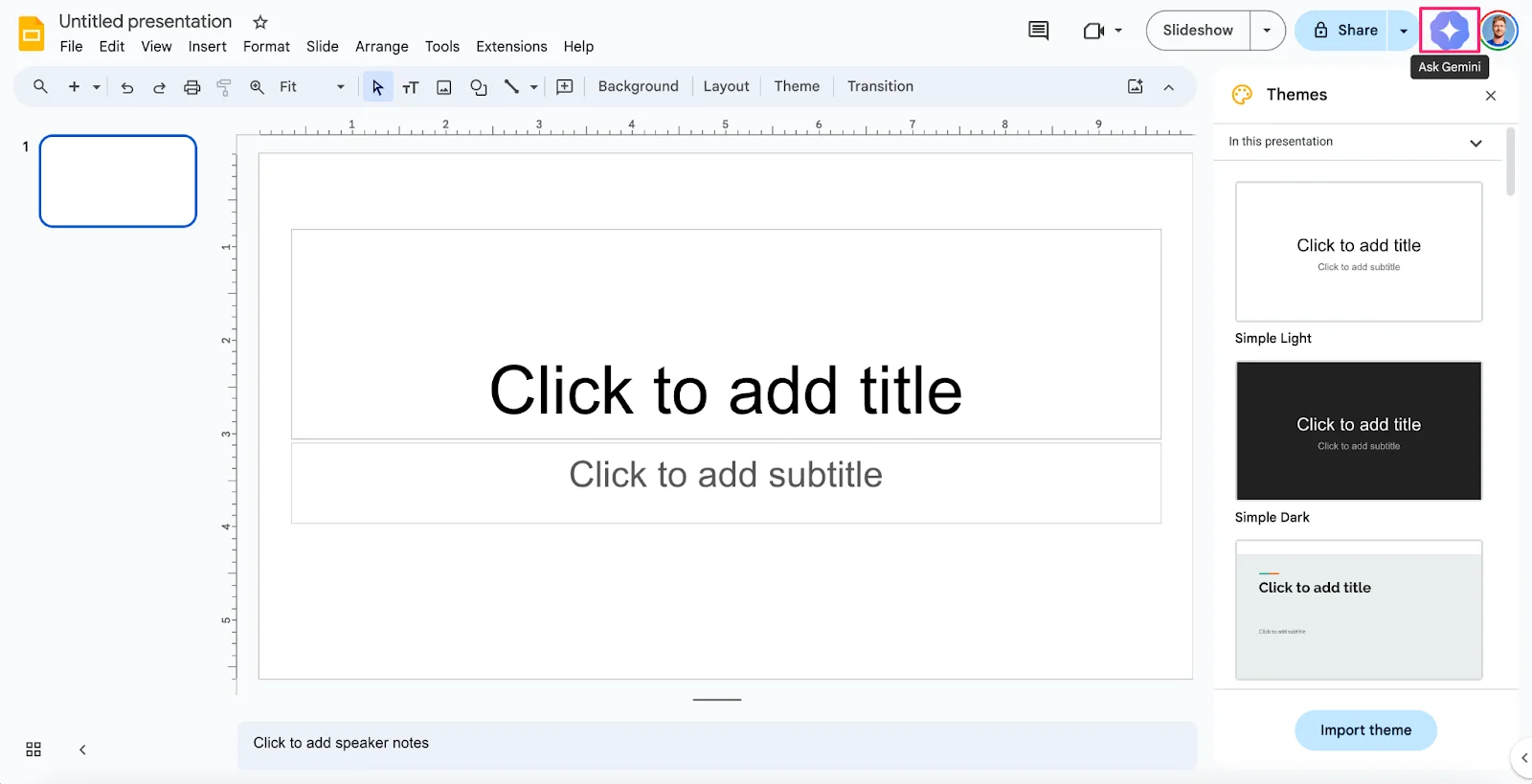
For our first slide, we’ll ask Gemini to create a business summary for a pitch deck based on both our business plan and P&L.
Sample prompt:
Create an intro summary slide for a pitch deck, targeted to venture capital investors, for my business plan and P&L.
Business Plan: [insert Google Doc link]
P&L: [insert Google Sheets link]

Gemini can only generate one slide at a time, so if you want to generate another slide, you will need to insert a new, blank side and prompt Gemini again.

For our second slide, we will ask Gemini to generate a financial overview of our business based on the P&L from our Google Sheet.
Sample prompt:
Create a financial overview slide for my business, based on the P&L.
P&L: [insert Google Sheets link]

Step 4: Send a pitch email in Gmail
Finally, with our business plan, P&L, and pitch deck created, we can generate a pitch email to a potential investor in Gmail with Gemini. Click on the Gemini button in the top right corner of Gmail to open the Gemini sidebar.

We’ll prompt Gemini to create a concise pitch email to an investor, referencing information from the pitch deck we created in Google Slides.
Sample prompt:
Draft an email to a prospective venture capitalist investor, providing a concise overview of my company and the opportunity to invest in it, using my pitch deck for reference.
Pitch Deck: [insert Google Slides link]

Unlike the other app experiences, there isn’t a way to one-click generate an email from Gemini’s response. Instead, you’ll need to compose a new blank email and copy/paste the email draft from the Gemini sidebar into your blank email.

That’s it! With the help of Google’s Gemini sidebar, we’ve gone from a business idea to a pitch email, using Gemini every step of the way, without ever leaving the Google app ecosystem.
This tutorial was created by Garrett.