How to create AI summaries of websites with Firecrawl & Replit
Learn how to use Firecrawl and AI to quickly scrape websites and produce a summary.
2024-11-13
In this tutorial, we’ll show you how to build a very simple app that can scrape and summarise websites in seconds. We’ll do it using a scraping tool called Firecrawl, the Groq API to create the AI summaries, and a little bit of code in Replit. If you need to scrape less than 500 websites, this solution will be completely free.
Steps we’ll follow:
- Create a simple app in Replit.
- Use Firecrawl to scrape a website.
- Use Groq to summarise the scraped content.
- Use Replit’s AI copilot to add input features to our app.
You’ll need:
- Replit account.
- Firecrawl account.
- GroqCloud account.
Let’s see how it’s done.
Step 1: Create a simple app in Replit
Go to the Replit dashboard and click the “Create Repl” button in the top left corner.
In the panel that appears, select “Python” from the ‘Template’ dropdown and give your Repl a title. You can also decide whether you want it public or private.
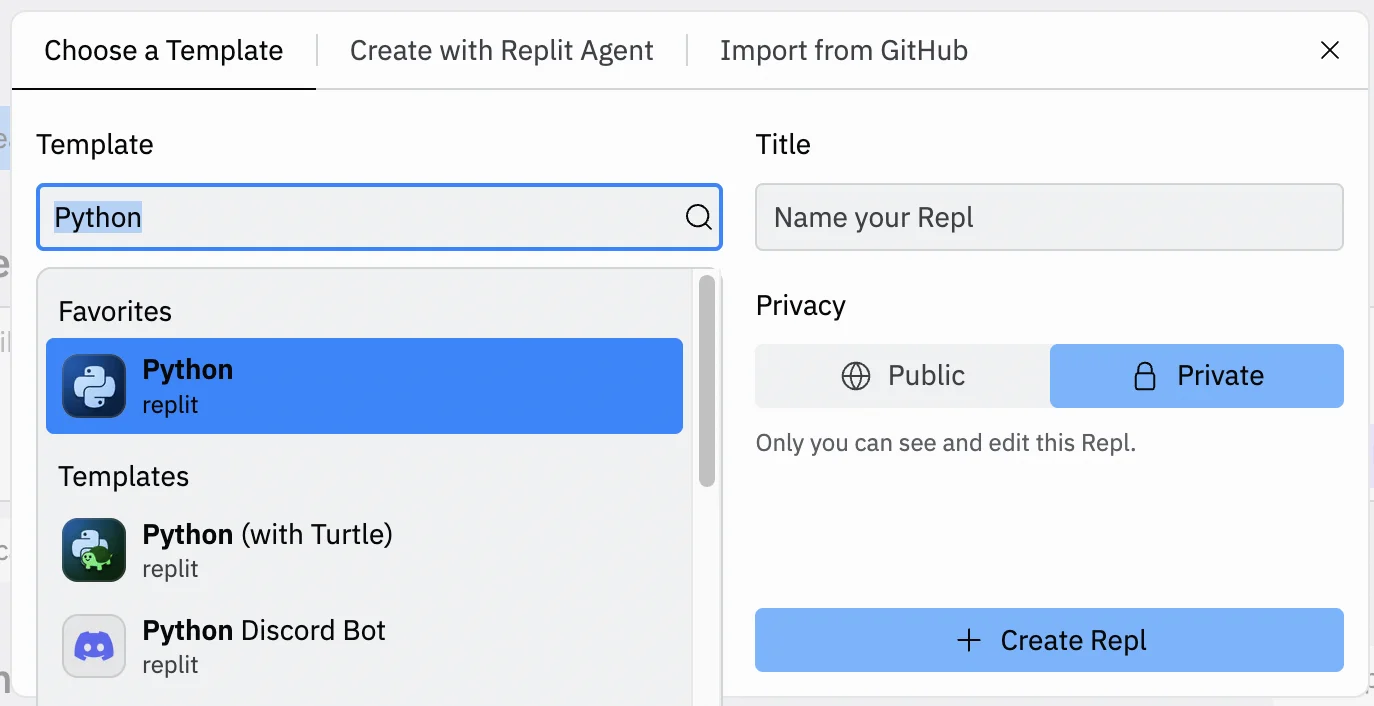
If all goes well, you’ll end up on a three-column page with a blank code pad in the centre column.
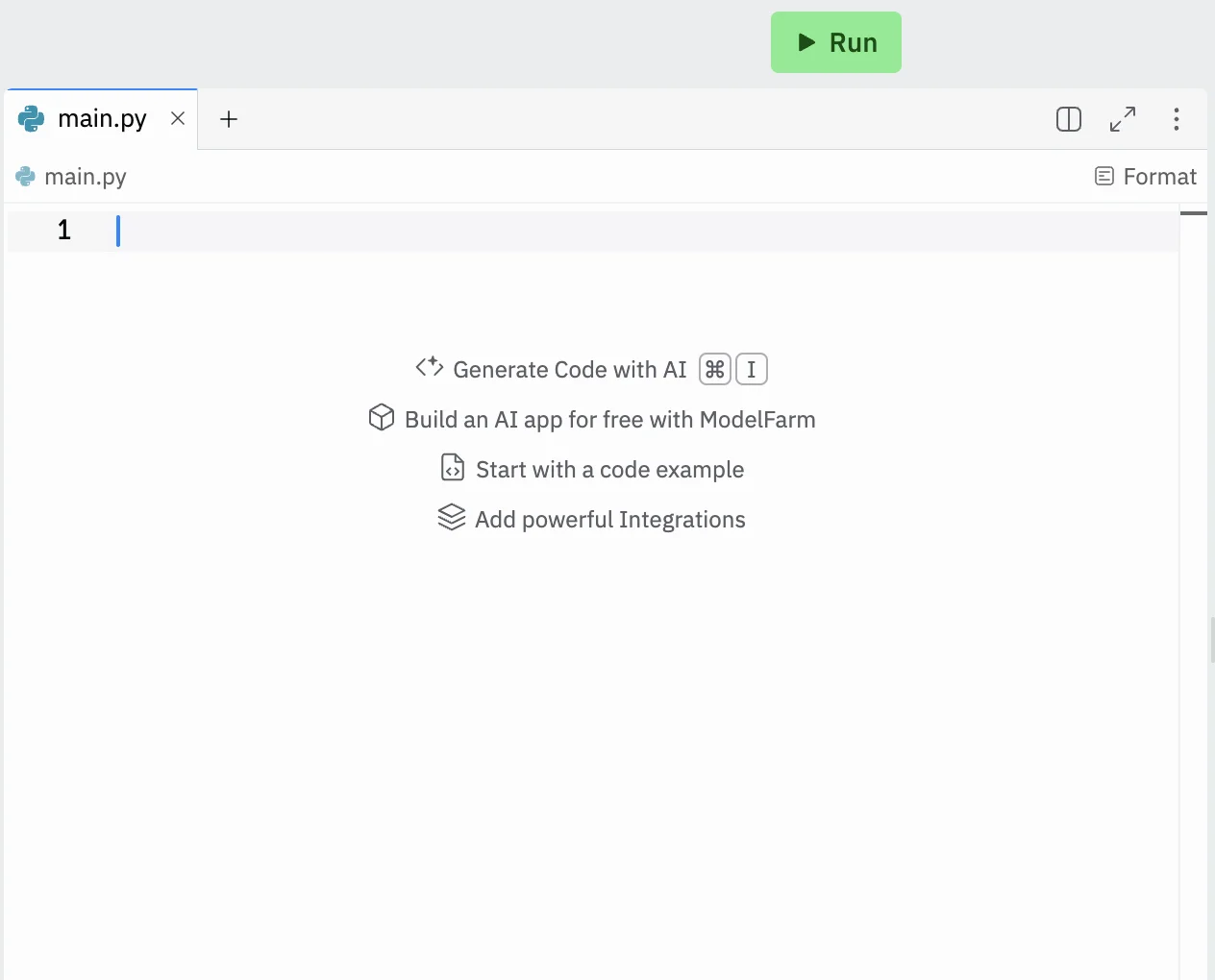
Step 2: Use Firecrawl to scrape a website
Firecrawl is a website crawling and scraping tool that can be used via an API.
Go to their website, sign up, or sign in and check that you have generated an API key. Their free plan gives you 500 free scraping credits (1 credit = 1 page).
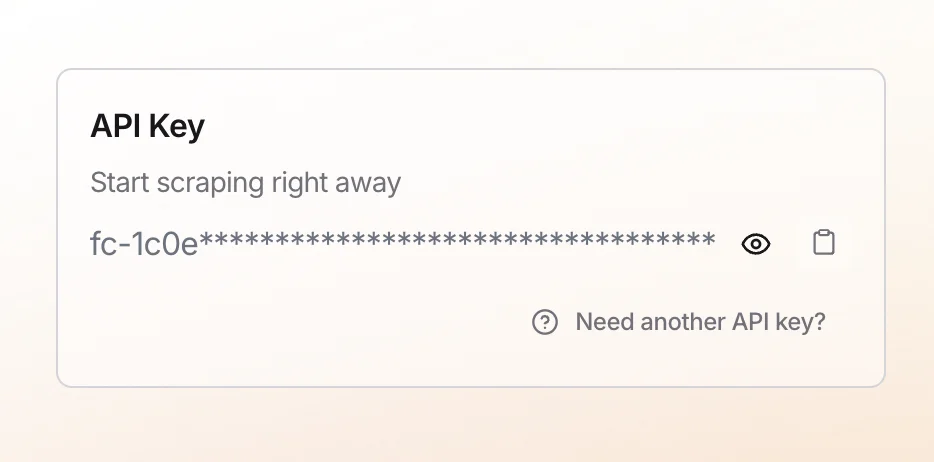
Now, since we are creating a Python app, we’re going to use Firecrawl’s Python documentation to guide us: https://docs.firecrawl.dev/sdks/python.
These are the important steps:
- In Replit, in the right-hand column, select the “Shell” tab, paste in the code below and then press enter/return. This installs Firecrawl’s features into our app.
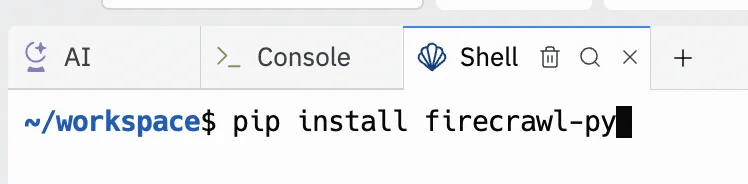
After a few seconds, the package will be installed.
- Firecrawl’s Python documentation linked above gives some sample code for scraping a website, which we’ve specified just below. Paste it into the centre column in Replit:
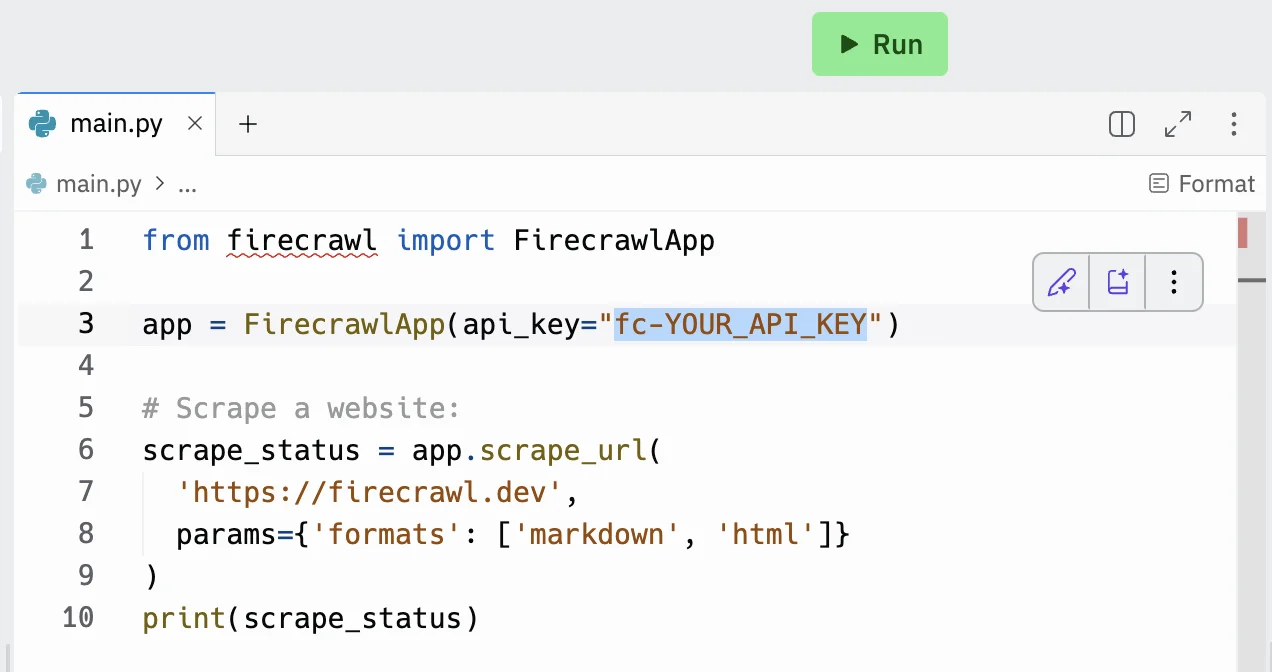
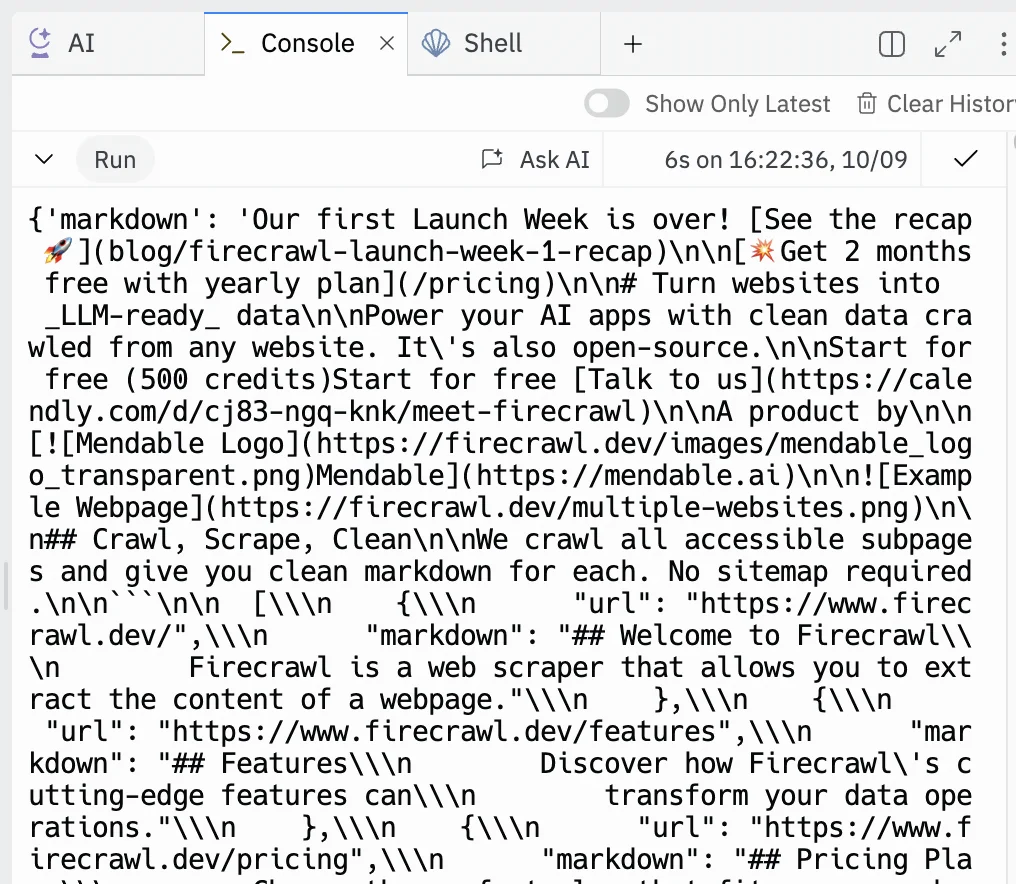
Once your API key is in place, hit the “Run” button at the top, and after a few seconds you’ll see content scraped from the site.
Step 3: Use Groq to summarise the scraped content
Groq is an API that lets you access a variety of LLMs. Two main advantages are that it’s super fast to respond, and right now it’s free to use.
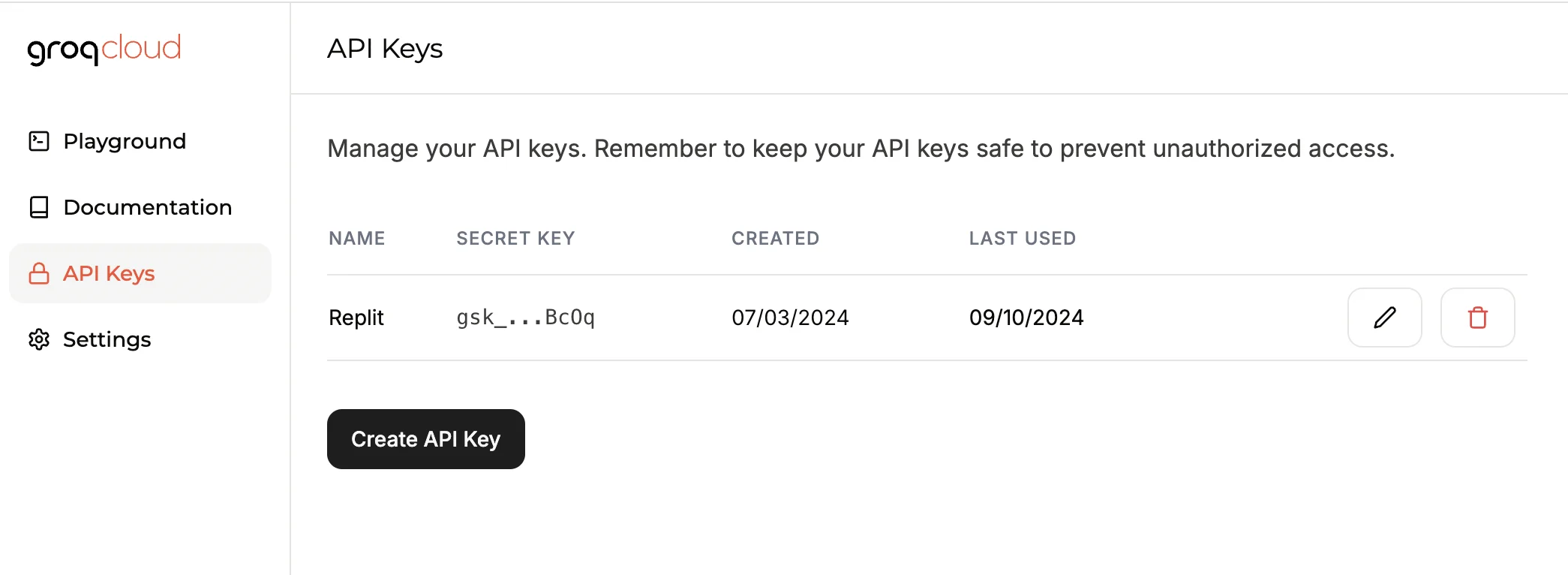
Create a GroqCloud account then go to the “API Keys” tab and create an API key.
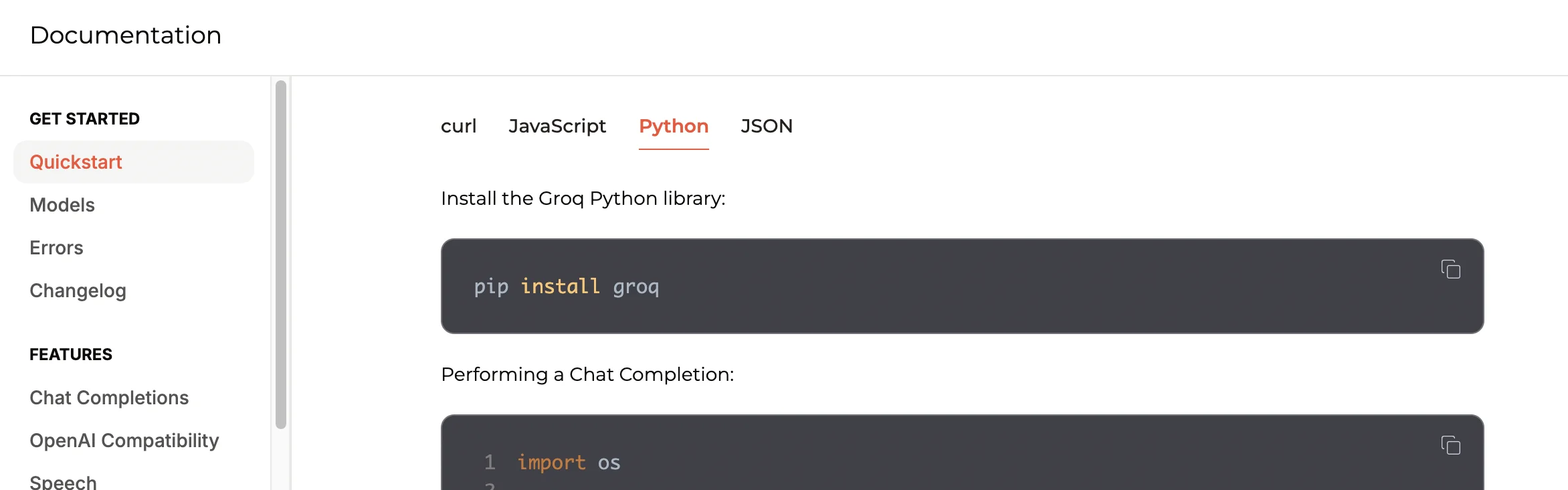
Similar to Firecrawl, we’re going to use Groq’s Python documentation to guide us: https://console.groq.com/docs/quickstart.
- As we did before, go to the “Shell” tab in the right column in Replit, paste in the following code and press enter/return:
- They provide some sample code to use to send a prompt to the Groq API and receive a response. For this tutorial, I’m making a few changes, so use the code below and paste it below the existing code in Replit:
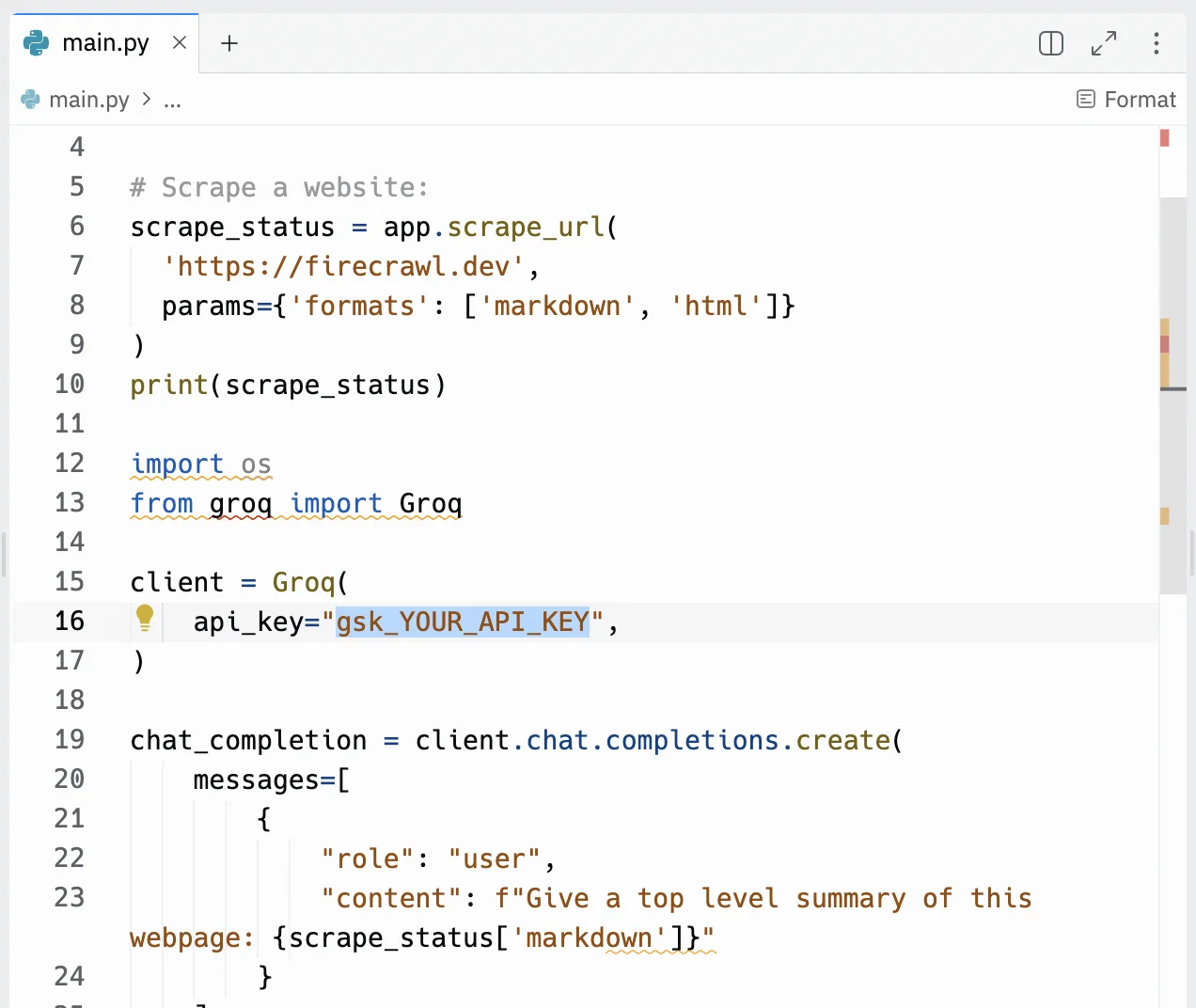
Again, once your API key is in place, click the “Run” button and after a few seconds, stuff will appear in the ‘Console’ tab on the right.
This will include the scraped content as before, but if you scroll all the way down you’ll also see the newly created summary.
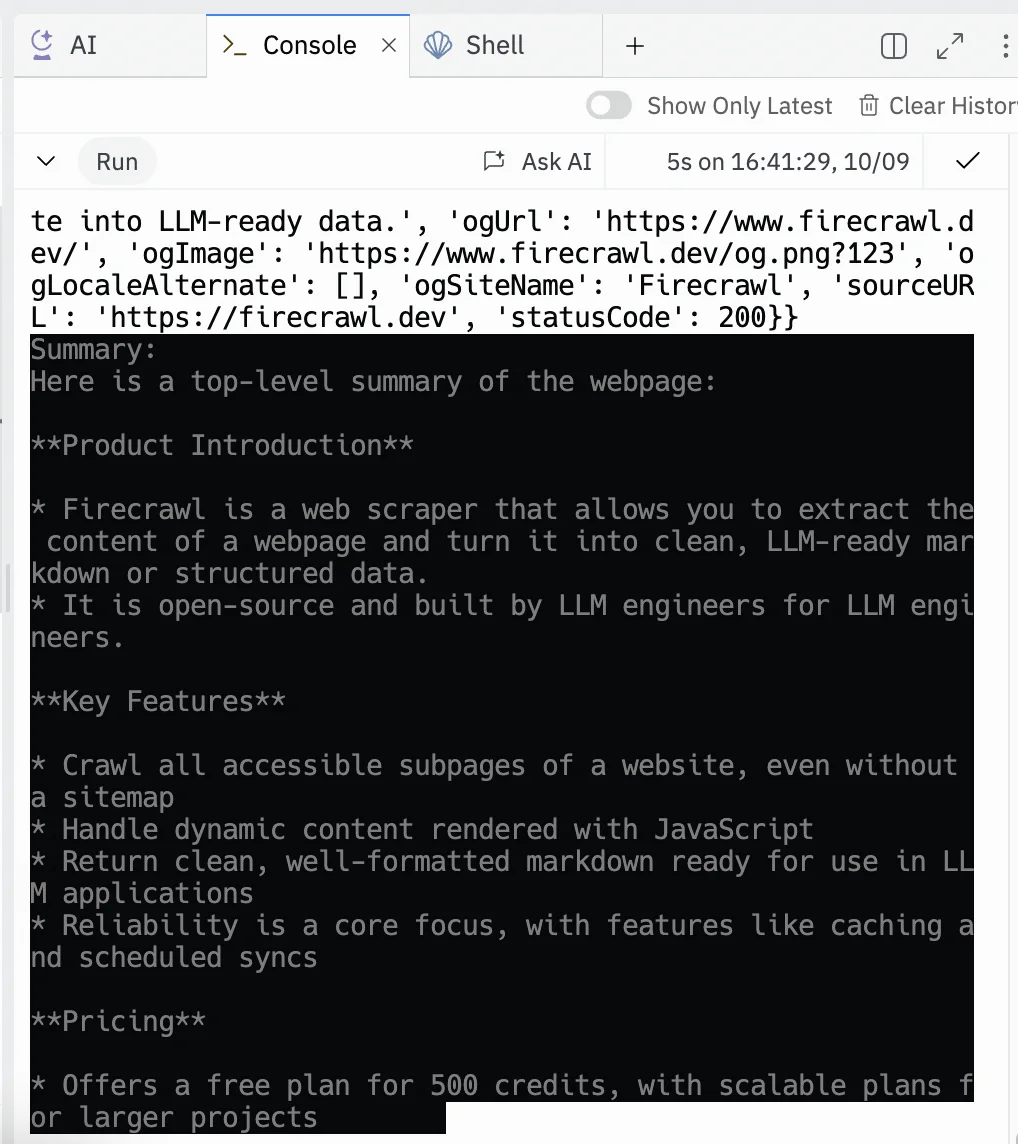
Step 4: Use Replit’s AI copilot to add input features to our app
Our app works, but right now the output is messy, and it has the URL we’re scraping hardcoded.
Let’s use Replit’s AI copilot to update the app so there is a way for us to input the URL ourselves.
Open the AI tab in the right column in Replit and use the following prompt:
Please update my code so that when it runs there is a way for me to input the URL I want scraped, and only the summary is displayed below - not the scraped content itself.
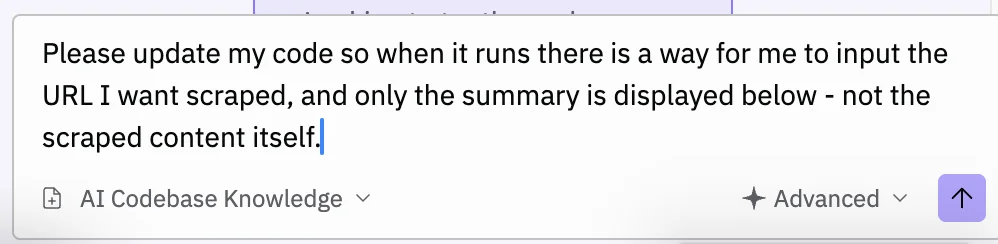
Press the purple arrow button and after a few seconds, the chat will respond. The response will include some new code for you to use.
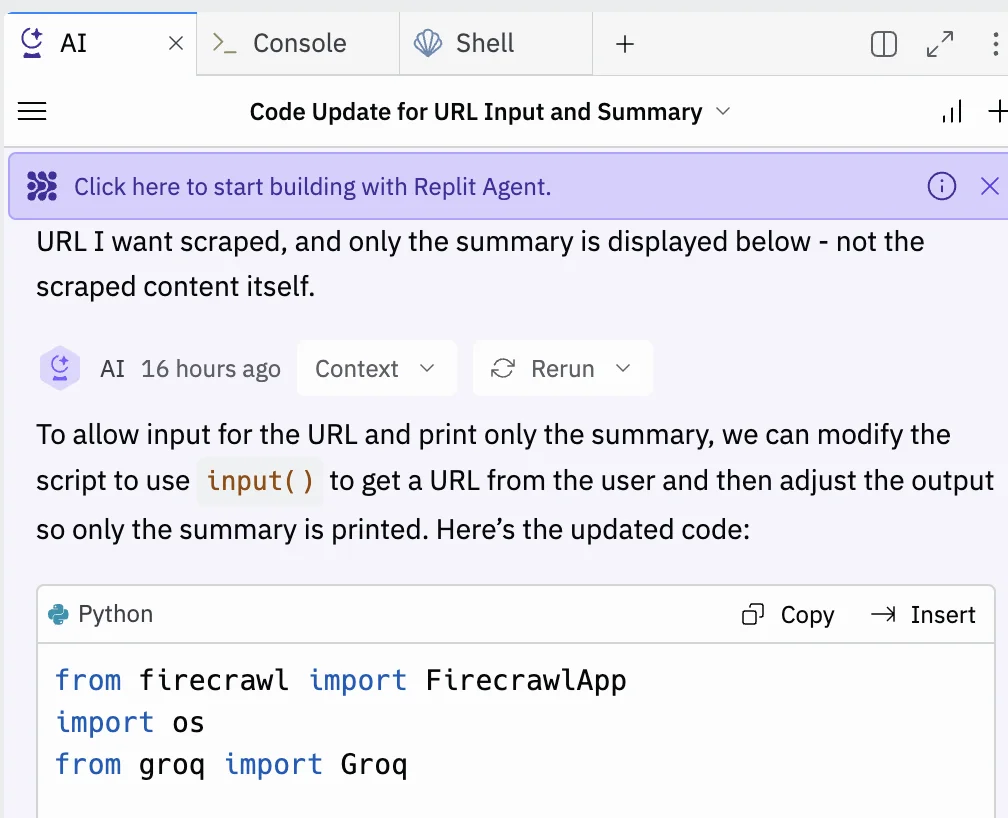
It will also include a summary of the changes.
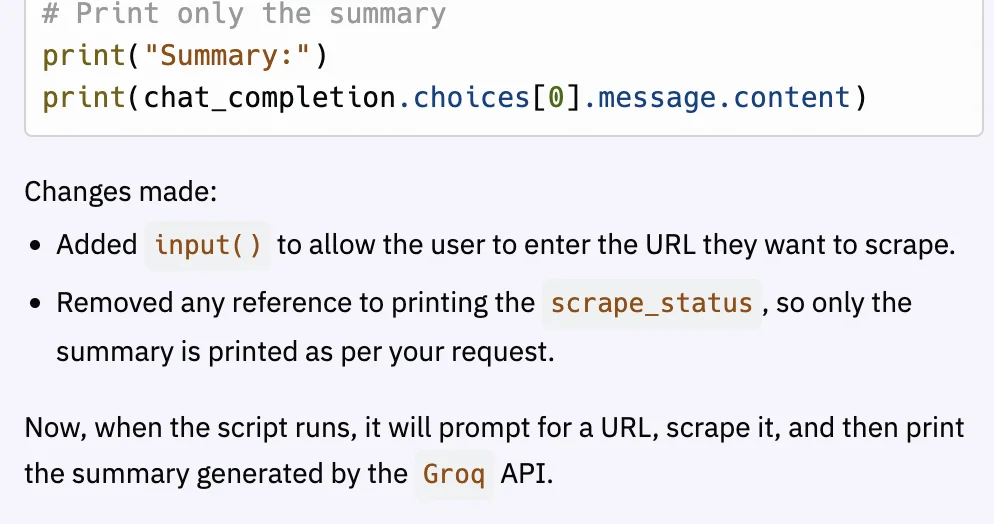
Click the “Copy” button at the top and paste the new code into the centre panel.
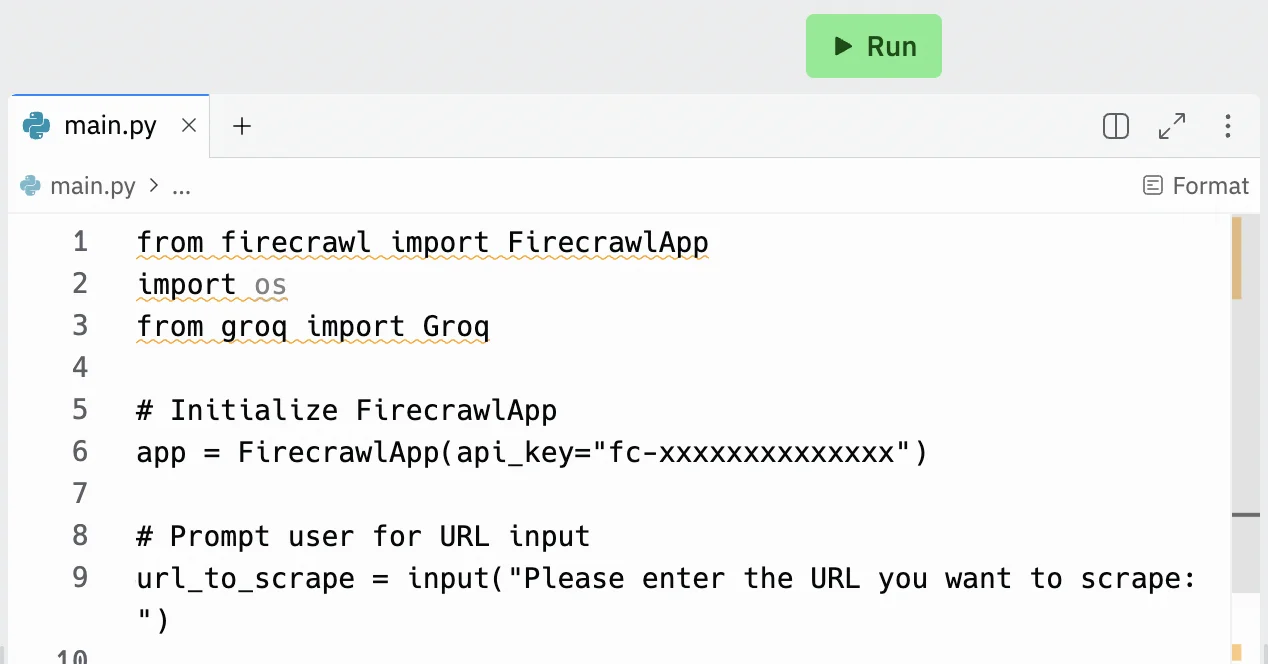
Click the “Run” button again, and this time in the ‘Console’ tab in the right column, you’ll see it asking for an input URL.
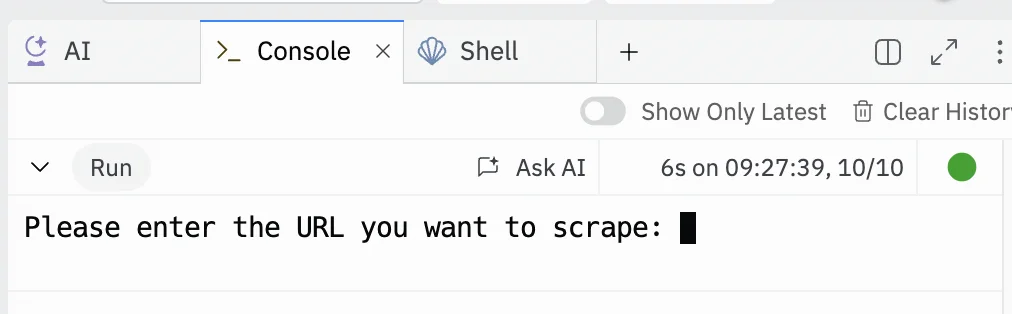
This time, let’s scrape https://bensbites.com/. Paste or type the URL in and press enter/return.
After a few seconds, the page summary will appear.

Going further
You’ve got a working app. But, if you want to take things further, here are some things you could ask the AI chat to do.
Turn this app into a mini-API where you can send it a URL and it’ll respond with the summary. That way you could integrate this into a zap you’re building.
Here’s a prompt:
I want to turn this app into an API.
It will have a single endpoint /scrape which will receive a single value input value ‘url’.
It should respond with a single output value ‘summary’ with the summary content contained inside it.
Add a web frontend to this app, so that rather than pasting the URL into the console in Replit, you can load this as a website with an input form for the URL.
Here’s a prompt:
I want to create a frontend for this app.
It should be a simple input form for the URL with a ‘Summarise’ button next to it to submit.
After I submit, it should show some sort of progress animation on the screen.
The summary should then be displayed below the input, with no page reload.
There should be a reset button so users can summarise another URL.
This tutorial was created by Andrew.