How to create multilingual dubbing with ElevenLabs
Create precise, natural-sounding dubbing in different languages for videos and films.
2024-11-13
This tutorial will guide you through the process of creating precise, natural-sounding dubbing for your videos and films. Whether you're:
- Localizing content,
- Creating multi-language versions,
- Or replacing dialogue in post-production
ElevenLabs offers a powerful solution that maintains the original speaker's voice characteristics while delivering high-quality translations.
We’ll use one of Ben Tossell’s video to demonstrate the steps in this tutorial. We’ll use ElevenLabs to create versions of the video in Spanish, Hindi, French, German, and Japanese.
- Set up your ElevenLabs account
- Prepare your video for dubbing
- Using elevenLabs dubbing studio
- Export and use your multilingual content
Let's get straight into it and transform your content for a global audience!
Step 1: Set up your ElevenLabs account
To access dubbing studio, you'll need to subscribe to ElevenLabs' Starter plan. Here's how to get started:
1. Go to Elevenlabs.io and click on "Go to App" in the top right corner.
.webp)
2. Create your account using your preferred method (email, Google, or Apple).
3. Once logged in, click on your profile icon in the bottom left and select "Subscription" from the dropdown menu.
.webp)
4. On the subscription page, scroll down to find the Starter plan ($5/month) and click "Choose Plan."
.webp)
Step 2: Prepare your video for dubbing
Before uploading your video to ElevenLabs, it's crucial to ensure your original content is of high quality. This will significantly impact the final dubbed version.
- Review your video for clarity and audio quality.
- If possible, use a high-quality microphone for the original recording to capture clear audio.
- Minimize background noise and echo in your recording environment.
- Speak clearly and at a consistent pace in the original video.
- If your video has multiple speakers, try to have clear separation between their voices.
For our example, we'll be using the following YouTube video:
This video is an excellent candidate for multilingual dubbing as it contains valuable information that could benefit a global audience interested in building AI applications without coding.
Step 3: Using elevenLabs dubbing studio
Now that your account is set up and your video is ready, let's dive into the dubbing process using ElevenLabs Dubbing Studio.
1. Log into your ElevenLabs account and navigate to the Dubbing Studio.
.webp)
2. Enter a name for your dubbing project in the "Dubbing Project Name" field. (e.g., "Ben's Bites AI App Tutorial - Spanish")
.webp)
3. Select the source language of your original video. If you're unsure, you can use the "Detect" option.
4. Choose your target language(s) for dubbing. ElevenLabs supports up to 29 different languages.
5. Upload your video file or paste a link to your video if it's hosted online.
6. In the Advanced Settings:
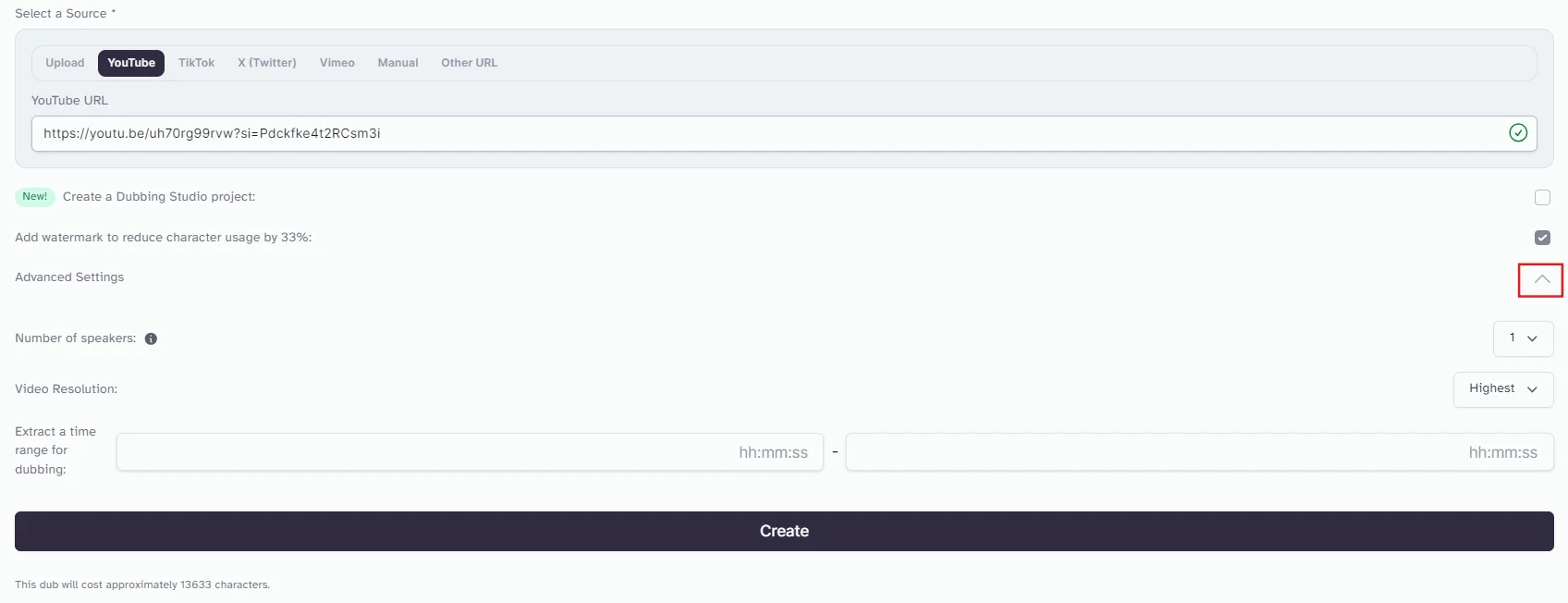
- Speaker Detection: Choose between automatic detection or manually specify the number of speakers.
- Video Resolution: Select the desired output resolution (higher tiers offer better quality options).
- Watermark: Decide whether to add a watermark (can decrease character usage by one-third).
7. Click "Create" to begin the dubbing process.
8. Repeat this process as many times as needed to dub your video in different languages.
Step 4: Export and use your multilingual content
After fine-tuning your dubbed audio, it's time to export your multilingual videos:
- In the ElevenLabs Dubbing Studio, you'll see a list of your dubbed projects.
- For each language version, you'll find three options on the right side: Remove, Download, and View.
- Click the "Download" button for each language version to save the dubbed video to your device.
- Repeat this process for all language versions.
.webp)
Resultant outputs in different languages
Now that we've created multiple language versions of the "Build an AI app without writing code" video, let's review our outputs:
1. Spanish
2. Hindi
3. German
4. French
5. Japanese
Congratulations! You've successfully created multilingual content using ElevenLabs' AI dubbing technology. Happy dubbing, and here's to your content reaching new audiences around the world!
This tutorial was created by Tanmay.