How to work efficiently with Copilot
Learn how to integrate Microsoft Copilot into your business workflows.
2024-12-06
This tutorial forms part five of our “Learn how to use Copilot” course. We'll explore how to leverage Microsoft Copilot to tackle common tasks at work, saving you time and increasing efficiency.
Steps we'll cover in this tutorial:
- Guidelines for using Copilot at work
- Example applications:
- Writing and editing in Word
- Data analysis in Excel
- Presentation creation in PowerPoint
- Email communication in Outlook
- Adding Copilot to your workflow
You’ll need:
Guidelines for using Copilot at work
Microsoft Copilot Pro can significantly streamline your workflow, making you more efficient and productive. However, it's crucial to use it strategically in a work context. Here are some guidelines to ensure Copilot becomes a valuable addition to your workday:
- Copilot is a tool: It's designed to assist, not replace your expertise. Copilot excels at automating repetitive tasks and providing suggestions, but it's not a substitute for your decision-making skills or professional judgment. View it as a powerful tool to use alongside your expertise.
- Privacy: Be mindful of sensitive information. Avoid sharing confidential company data, personal details of customers or colleagues, or anything that shouldn't be public. Remember that while Copilot adheres to Microsoft's privacy standards, it's best to err on the side of caution.
- Contextual use: Every job is different! Adapt the example prompts you'll find throughout this course to fit your specific tasks and industry. This might involve adjusting the tone, incorporating technical terms, or focusing on particular goals relevant to your field.
- Verification: Always review and verify Copilot's outputs. While it's highly capable, it's not infallible. Your expertise is crucial in ensuring the final product meets your professional standards.
Now that you have an understanding of how to think about partnering with Copilot Pro for work, we’re going to dive into different Microsoft 365 applications, using the AI assistant.
Writing and editing in Word
Copilot can be your writing partner, helping you craft everything from professional documents to creative pieces. We’ll get started in Microsoft Word.
To access Copilot, click on the Copilot icon in the top ribbon of a document.

Let’s dive into a few examples.
Drafting a cover letter
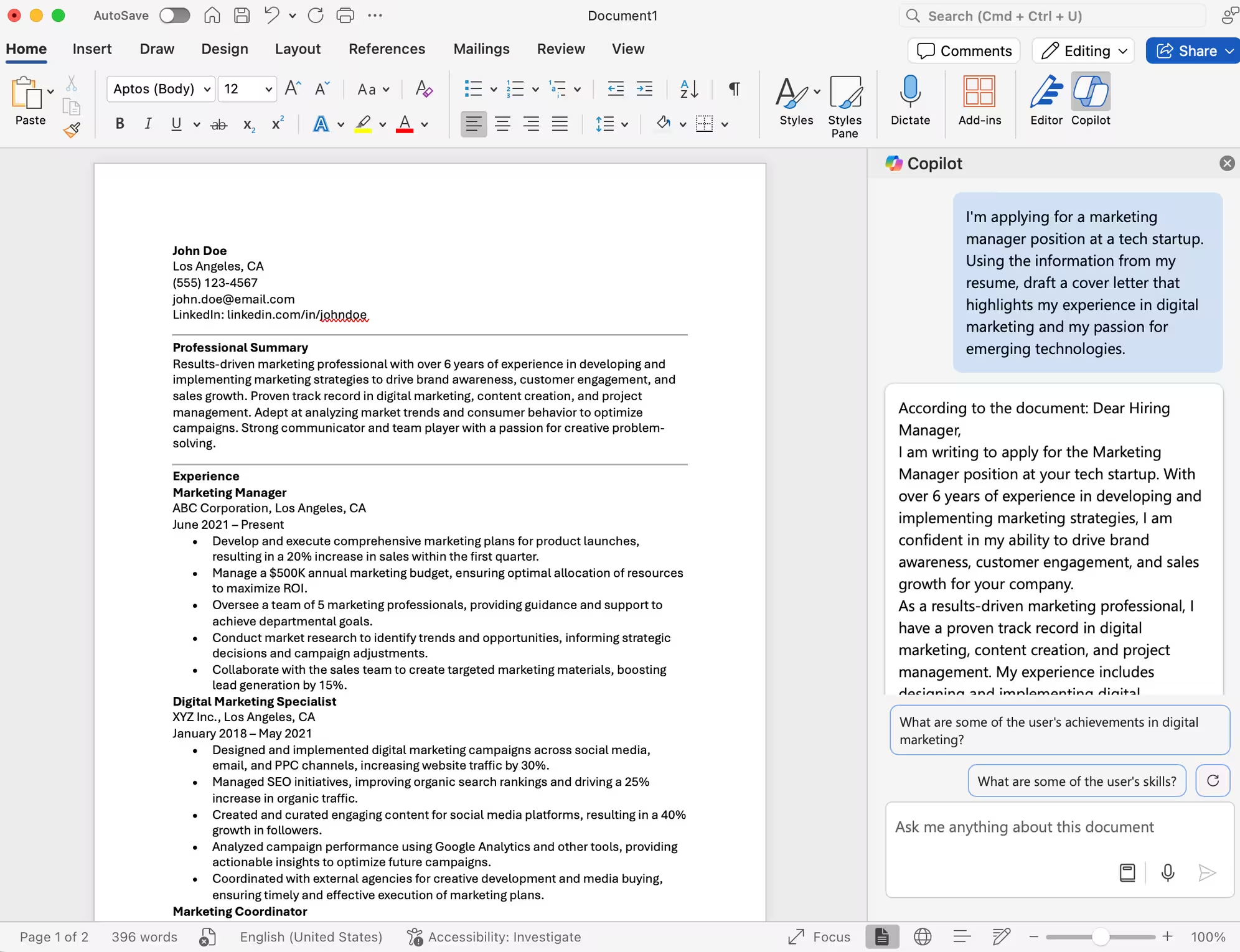
We’ll open a document with our resume and have Copilot draft a cover letter for a specific position. Since Copilot can reference the information in our document, it makes context sharing a breeze.
I'm applying for a marketing manager position at a tech startup. Using the information from my resume, draft a cover letter that highlights my experience in digital marketing and my passion for emerging technologies.
Editing and improving text
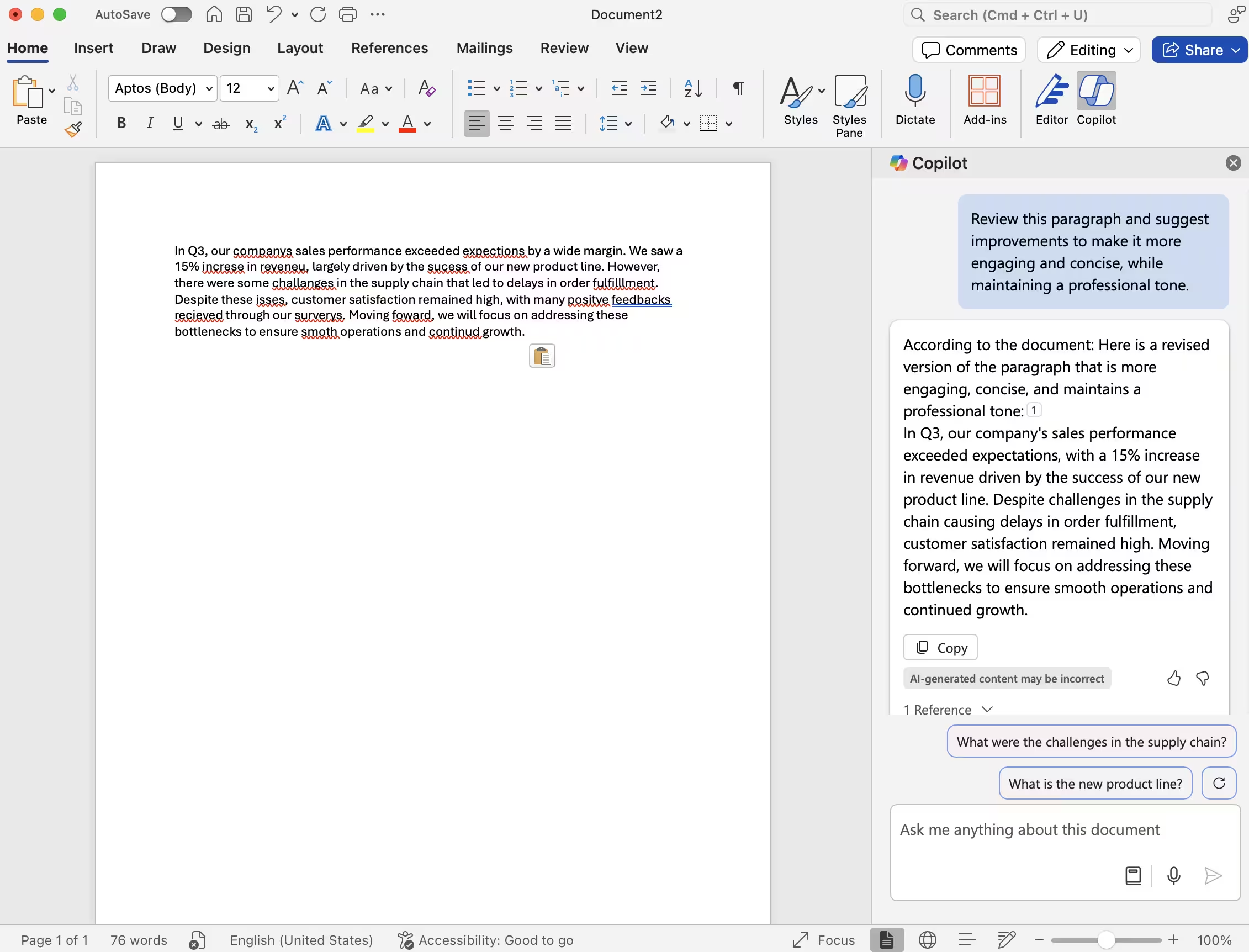
Copilot can also provide recommendations for editing and improving the content in our documents.
Review this paragraph and suggest improvements to make it more engaging and concise, while maintaining a professional tone.
Generating creative content
Copilot can also generate new content for you to use in your documents.
Help me write a short story about a time traveller who accidentally changes a major historical event. Include elements of humor and irony.

Data analysis in Excel
Copilot can assist you in Excel by making sense of your data, creating formulas, and generating insights.

Creating complex formulas
For instance, Copilot can create formulas for you within spreadsheet tables.
I need a formula to calculate the total sales for each quarter, considering different product categories and regional discounts. Can you help me create this?

We can insert the formula directly into our spreadsheet by clicking the “Insert column” button or requesting Copilot to insert the formula via the chat box.

Generating pivot tables
In addition, Copilot can create new Excel sheets with different data visualizations, including pivot tables.
Based on the sales data in columns A through F, create a pivot table that shows monthly sales by product category.

Then, you can click the “Add to a new sheet” button to insert the pivot table into your worksheet as a new sheet.

Data interpretation and chart generation
Copilot can also perform data analysis and plot that analysis onto visual charts and graphs.
Analyze the trends in this data and summarize the key findings in bullet points.

By clicking the “Add to a new sheet” button under the Copilot response, we can insert the new graph into an Excel sheet.

Presentation creation in PowerPoint
Copilot can help you create impressive presentations quickly in PowerPoint. Similar to the other Microsoft applications, you can access Copilot in the top ribbon of PowerPoint.
Create a presentation
To get started, we’ll click one of the provided examples in the Copilot window to “Create a presentation about…”, which will create an entire presentation from a single prompt.

Sample Prompt:
Create a presentation about the benefits of remote work, including an introduction, main points, and a conclusion.

Adding slides
In addition, you can also insert single slides into an existing presentation.
Add a slide about optimizing home office setups.

Generating presentation summaries
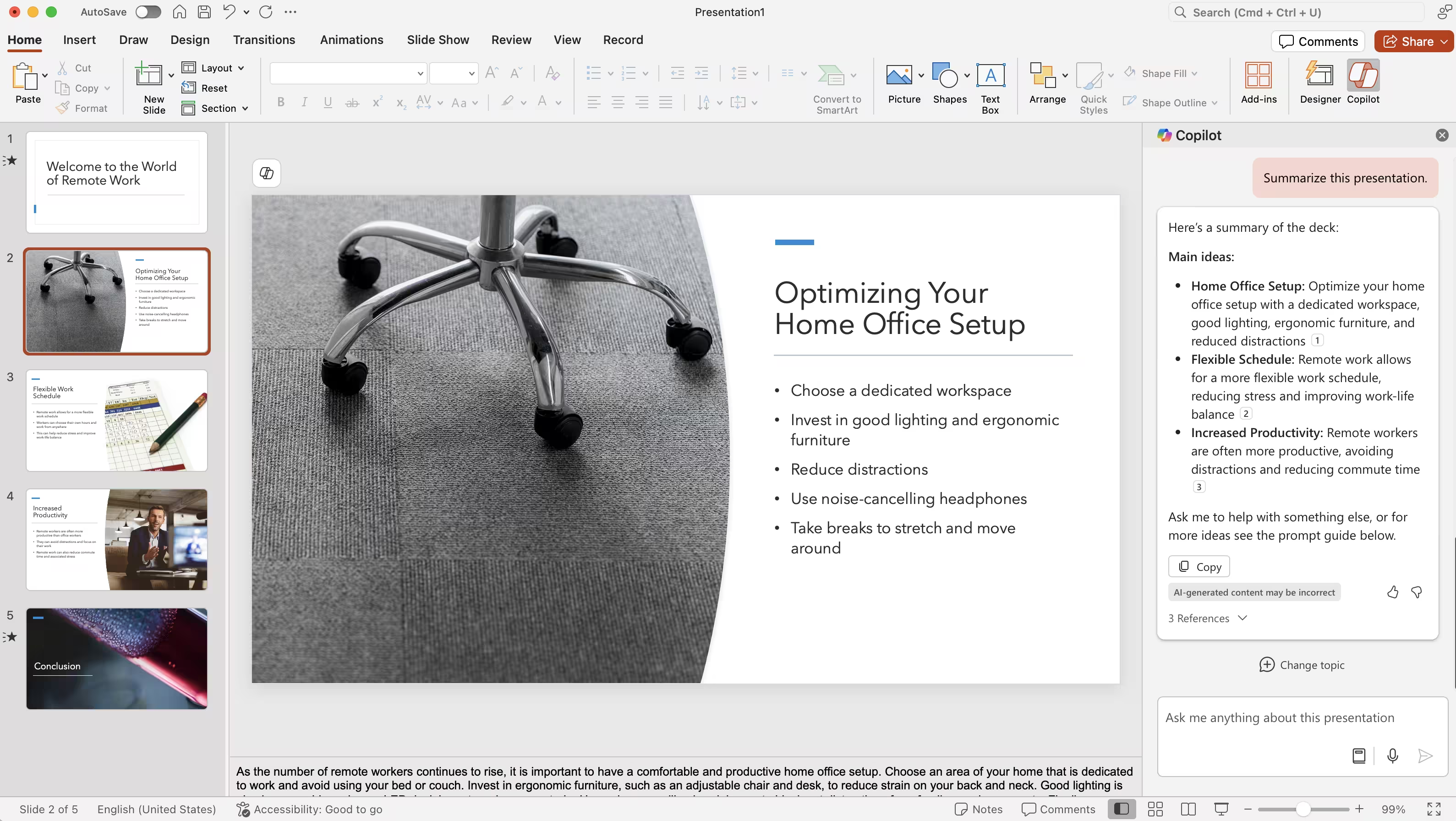
Copilot in PowerPoint can also read existing content from your presentations and provide you a summary. This is helpful if you’re looking to craft an email or prep for a meeting with your presentation content.
Summarize this presentation.
Email management in Outlook
Copilot can assist with various email-related tasks in Outlook, making communication less repetitive and time-consuming.
Drafting responses
Within Outlook, at the bottom of an email response, you can select suggested Copilot drafts to respond to emails.

In this instance, we’ll select the “Not interested, decline politely” option, and Copilot will create a draft response accordingly that we can update.

Summarizing long email threads
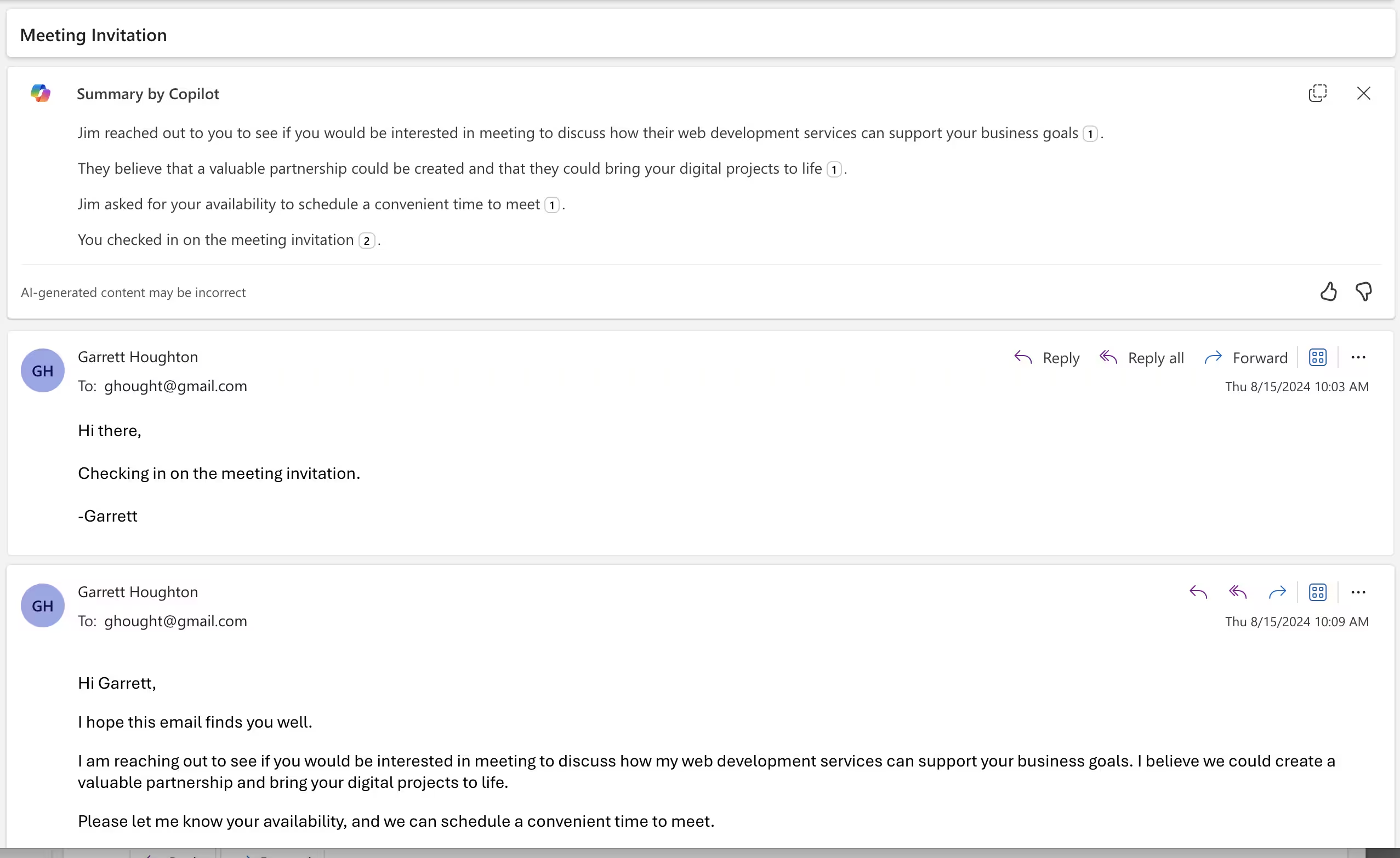
Copilot can also summarize long email threads. At the top of a chain, you’ll find a “Summary by Copilot” button.

When you click it, Copilot will output a summary of the entire chain. This is a great way to quickly catch up on emails you’ve missed.
Adding Copilot to your workflow
Now that you've seen Copilot's potential, it's time to make it an integral part of your workday. Think about your typical tasks and brainstorm where Copilot's language skills, data analysis capabilities, and creative suggestions could save you time or elevate your output.
To get started:
- Identify opportunities: Choose one workflow and dedicate half an hour to identifying 2 to 3 places where Copilot could assist. This could be drafting emails in Outlook, analyzing data in Excel, creating presentations in PowerPoint, or any task within the Microsoft ecosystem.
- Start small: Begin with simple, low-stakes tasks to get comfortable with Copilot's capabilities and limitations.
- Refine your prompts: As you use Copilot more, you'll learn how to craft more effective prompts. Keep refining your approach to get better results. Also check out the next tutorial in this course, Writing effective prompts for Copilot, for more advice.
- Integrate across applications: Look for opportunities to use Copilot across different Microsoft applications for a more integrated workflow.
- Regular practice: Commit to using Copilot at least 3 times a week. You'll quickly discover how it can become an indispensable tool within your overall processes.
- Share and learn: Discuss your experiences with colleagues. Share tips and learn from each other's use cases.
Remember, the key to efficiently working with Copilot is to view it as a collaborative tool that enhances your skills, not replaces them. With practice, you'll develop a workflow where Copilot seamlessly assists you across various tasks, boosting your productivity and allowing you to focus on higher-value work.
In the next tutorial, we'll dive deeper into advanced techniques for prompt engineering with Microsoft Copilot, helping you get even more out of this powerful AI assistant.
This tutorial was created by Garrett.