Introduction to Notion AI
Learn how to set up and use Notion AI in your business workspace.
2024-11-29
Welcome to the first lesson of our course on Using Notion AI for business workflows.
Notion recently supercharged its platform with Notion AI 2.0, introducing AI features that transform how teams work with their data. From seamless Slack and Google Drive connections to advanced document AI capabilities, these additions make your existing Notion workspace significantly more powerful and automated.
If you're new to Notion, this course will show you how AI can help you build and maintain an efficient workspace from day one.
This tutorial forms part 1 of the course. You'll learn:
- The fundamentals of Notion and its key features
- How Notion AI enhances your workspace
- Practical business use cases for Notion AI
- How to set up Notion AI in your workspace
You'll need:
- A Notion account (free or paid)
- Notion AI add-on subscription
Let's dive in.
What is Notion?
Notion is a document-based workspace where you can write, plan, and organize tasks, notes, and projects. It lets you create custom pages, databases, and templates for personal or professional use. You can collaborate with teams in real time, making it ideal for managing goals and projects.
What sets Notion apart is its flexibility. You can create simple to-do lists, complex project management systems, or a company-wide knowledge base – all on the same platform. This flexibility eliminates the need for multiple specialized tools and centralizes your work in one place.
Some Notion use cases for businesses and teams include:
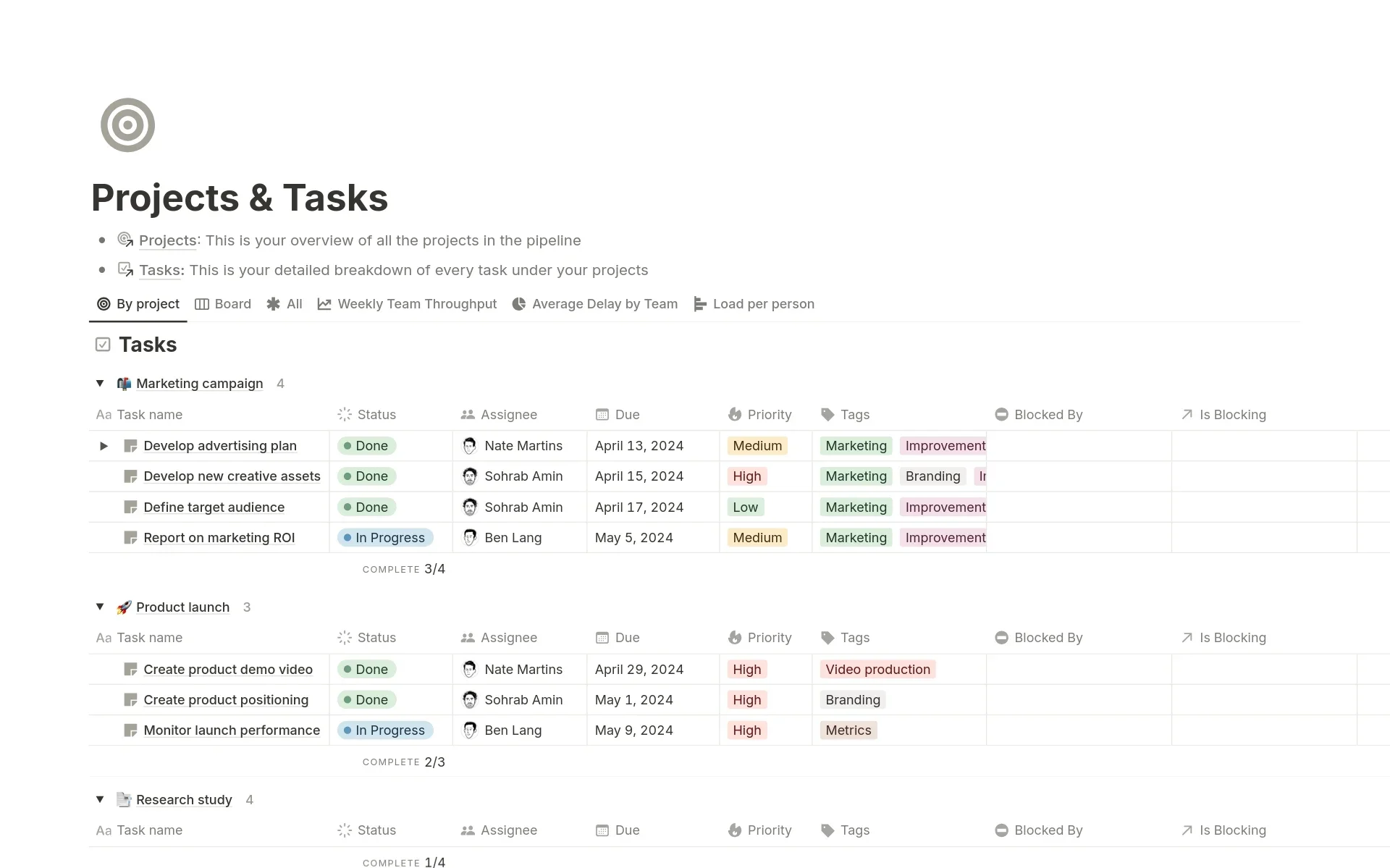
Project Management: Teams use Notion to track project progress, assign tasks, and manage deadlines. Its flexible views allow adaptation to various project management methodologies.
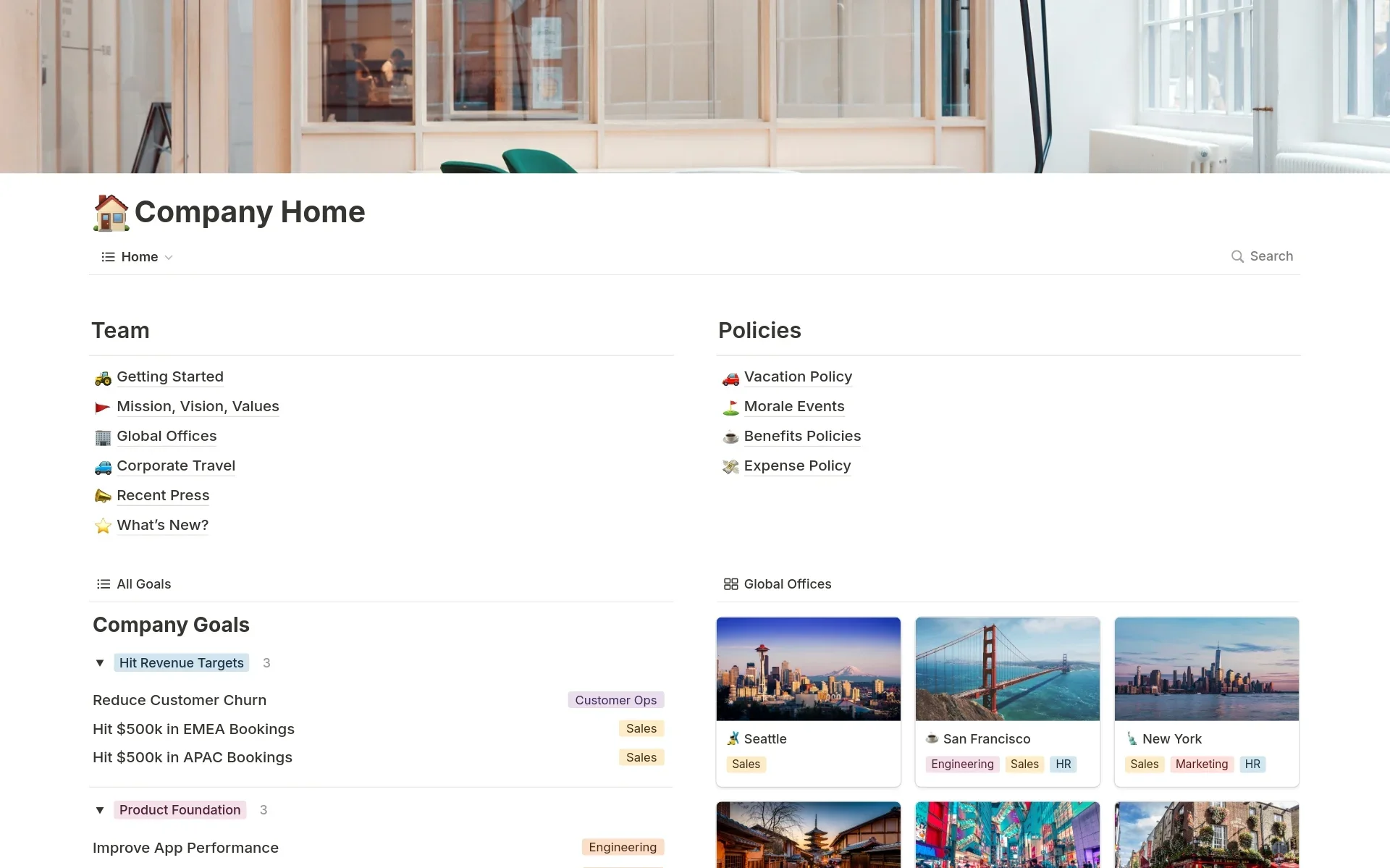
Knowledge Management: Companies create wikis and documentation hubs in Notion, ensuring easy access to important information across the organization.
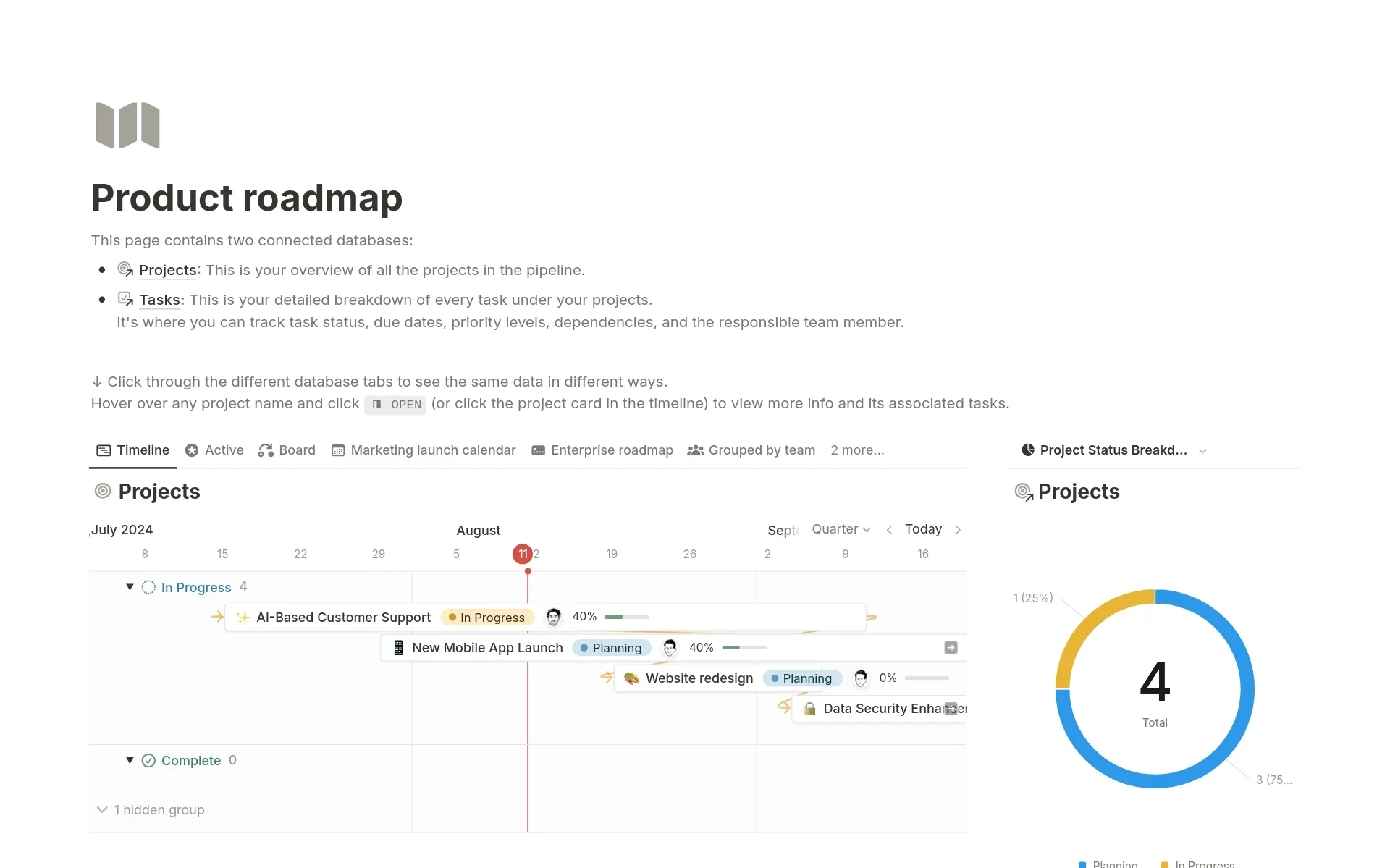
Product Development: Product teams use Notion to manage roadmaps, track feature requests, and collaborate on specifications.
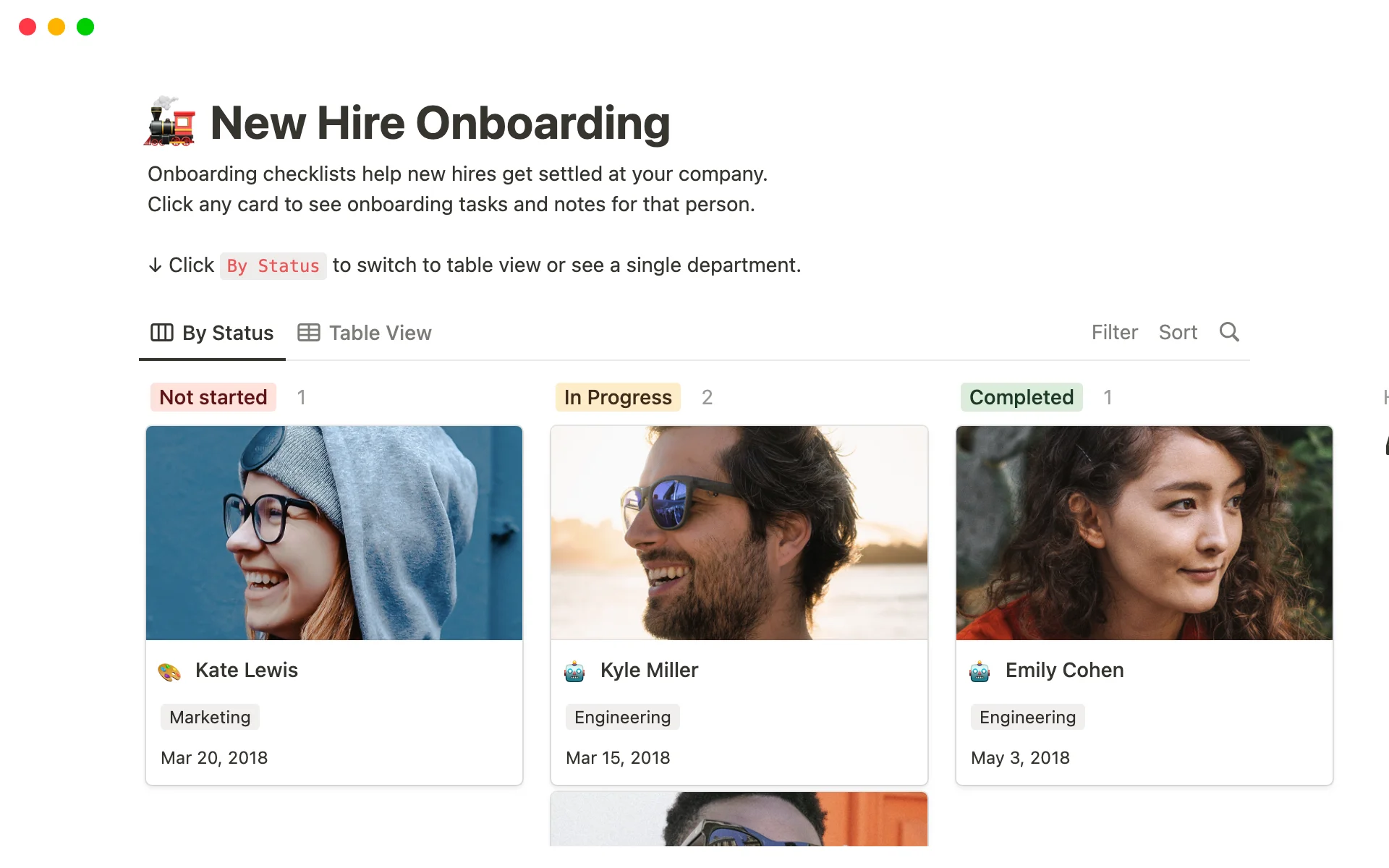
Human Resources: HR departments use Notion for employee onboarding, tracking applications, and managing company policies.
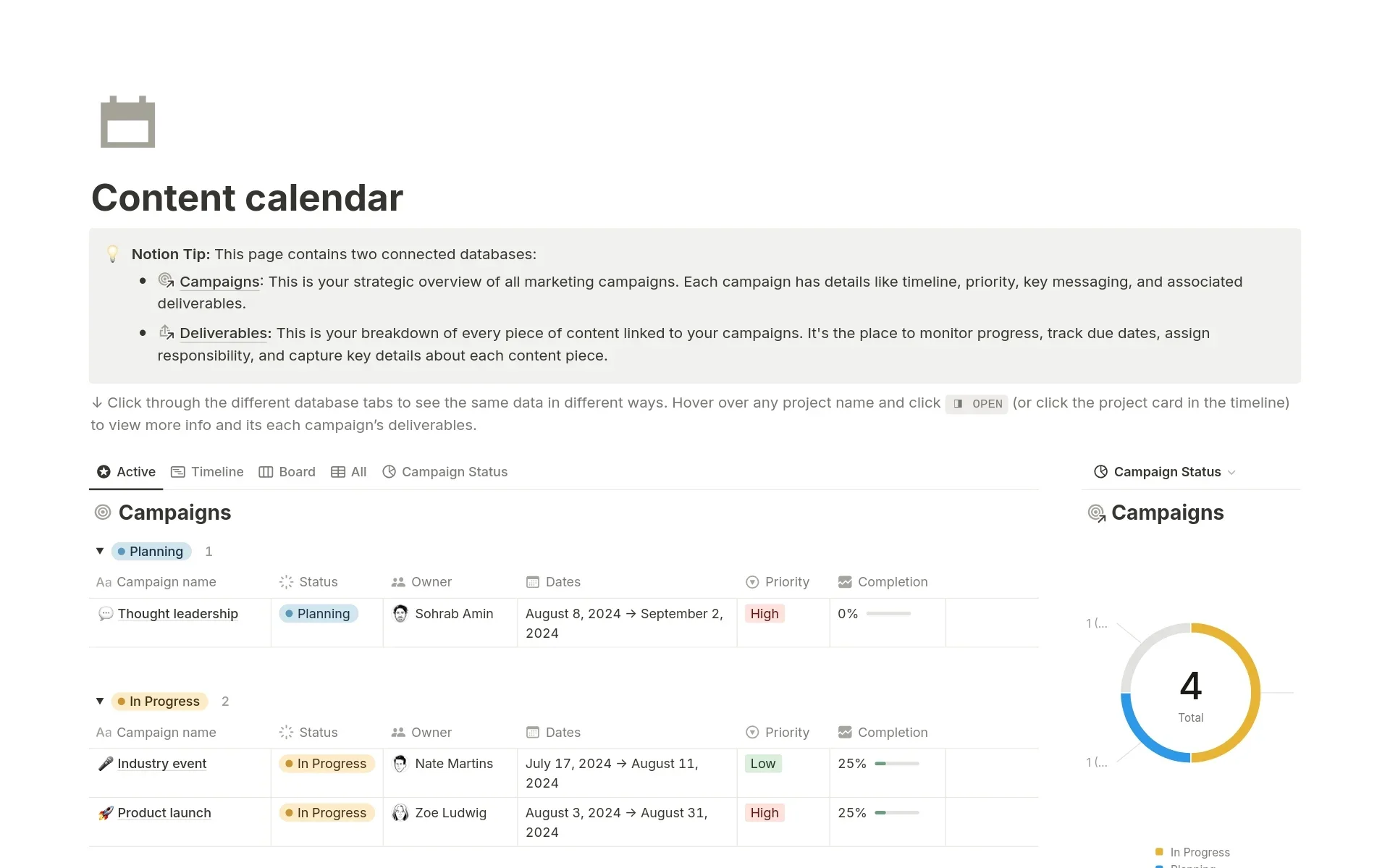
Marketing: Marketing teams use Notion to plan content calendars, track campaign performance, and collaborate on creative briefs.
Introduction to Notion AI
Notion AI is a powerful addition to the Notion platform, integrating AI capabilities directly into your workspace. It's not a separate tool, but a seamless part of your Notion experience. This integration means you can access AI-powered features where you're already working, without switching apps or disrupting your workflow.
With the recent revamp of Notion AI, its key standout features are:
- Contextual understanding: Notion AI can access and understand your entire workspace context. This provides more relevant and accurate responses based on your team's information, projects, and workflows.
- Selective knowledge integration: You can direct it to focus on specific pages, databases, or connected apps like Slack or Google Drive for targeted information retrieval and analysis.
- Brand voice maintenance: When generating content, it can adapt to your company's specific tone and style. You can reference existing documents or style guides to ensure AI-generated content aligns with your brand voice.
- Real-time data analysis: AI can give you instant insights and summaries into your Notion databases. This is particularly useful for tracking project progress, analyzing sales numbers, or monitoring team performance metrics.
- AI autofill for databases: It can automatically populate database fields based on your pages’ content. This feature saves time and ensures consistency across your workspace.
- PDF and image analysis: It extracts information from uploaded PDFs and images, making it easier to incorporate external data into your Notion workspace.
Setting up Notion AI in your workspace
Now that we've explored what Notion AI can do, let's set it up in your workspace and learn how to use its basic functionalities.
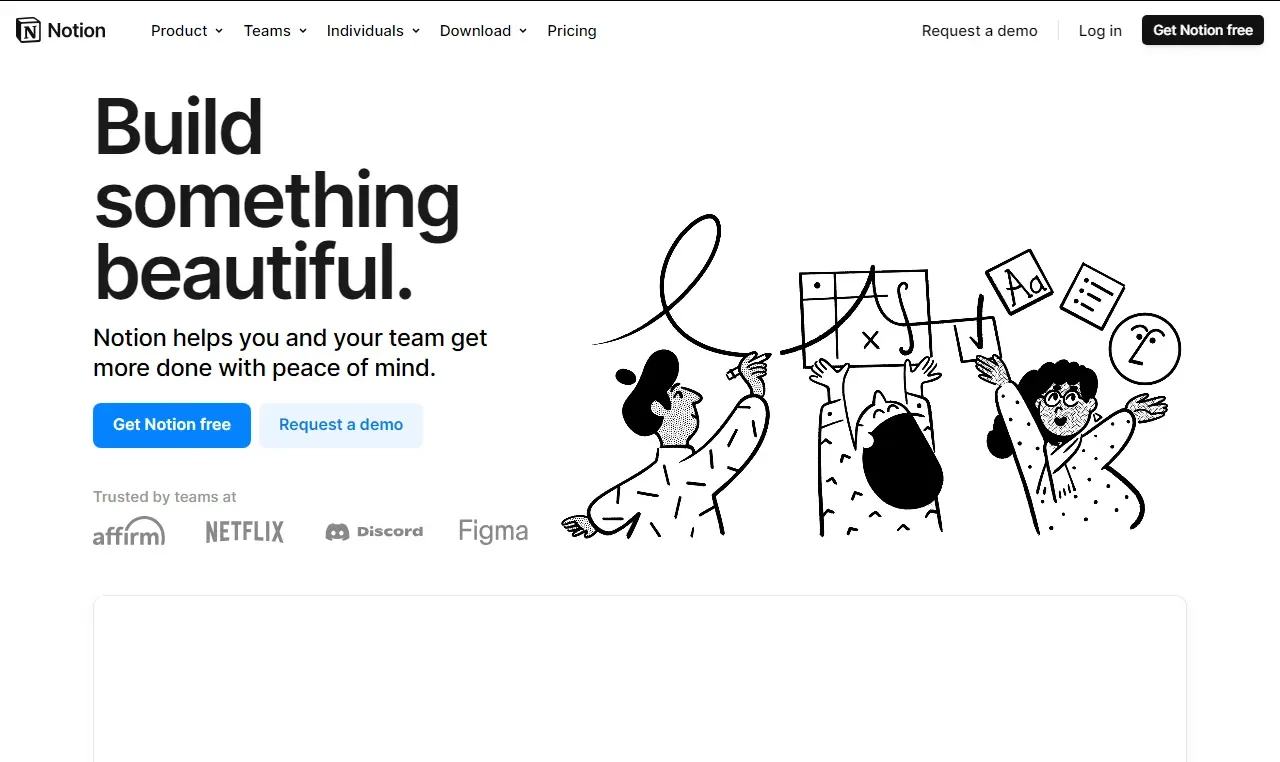
Head to Notion.so and click "Get Notion free" to create an account if you don't have one. Once logged in, we'll add the Notion AI feature to your workspace.
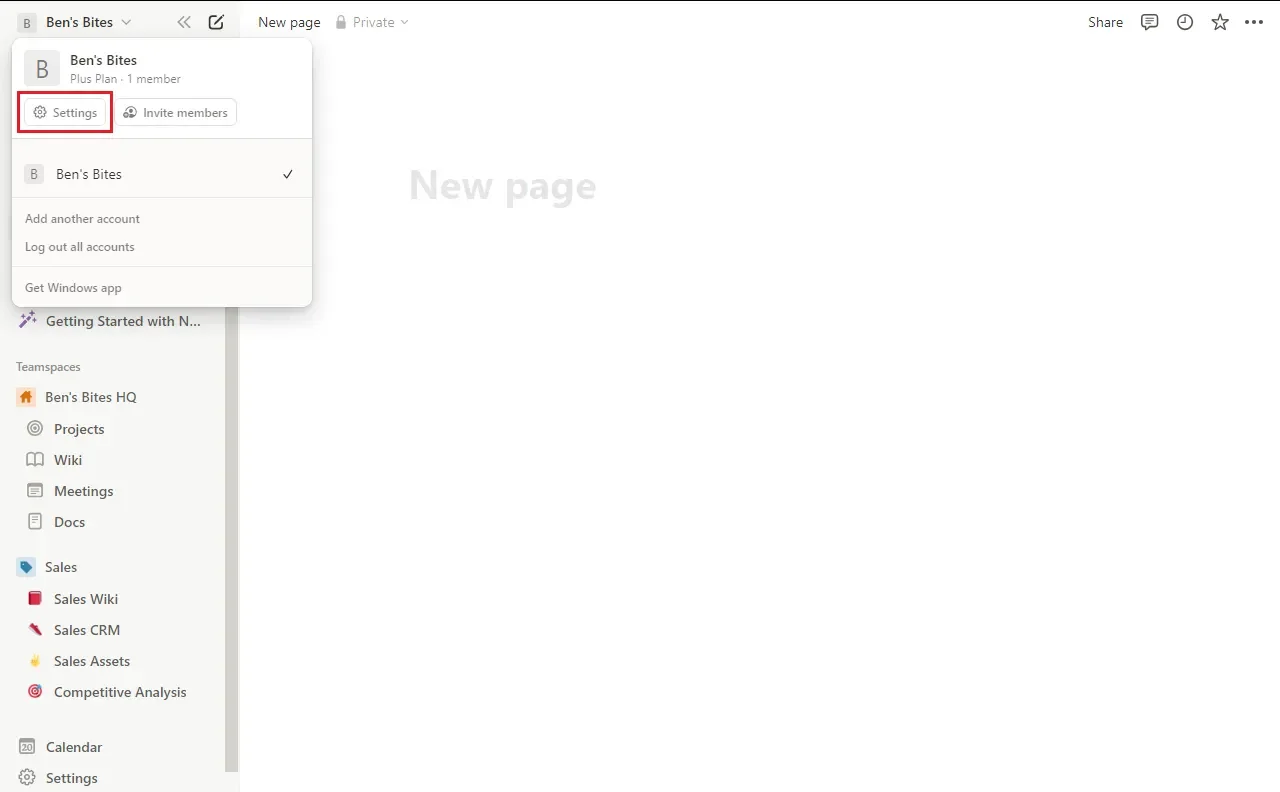
Click your workspace name in the top-left corner, then select "Settings" from the dropdown menu.
In the settings page, find the "Upgrade plan" tab. Click it to view the available plans. Here, you'll find an option to "Add to plan".
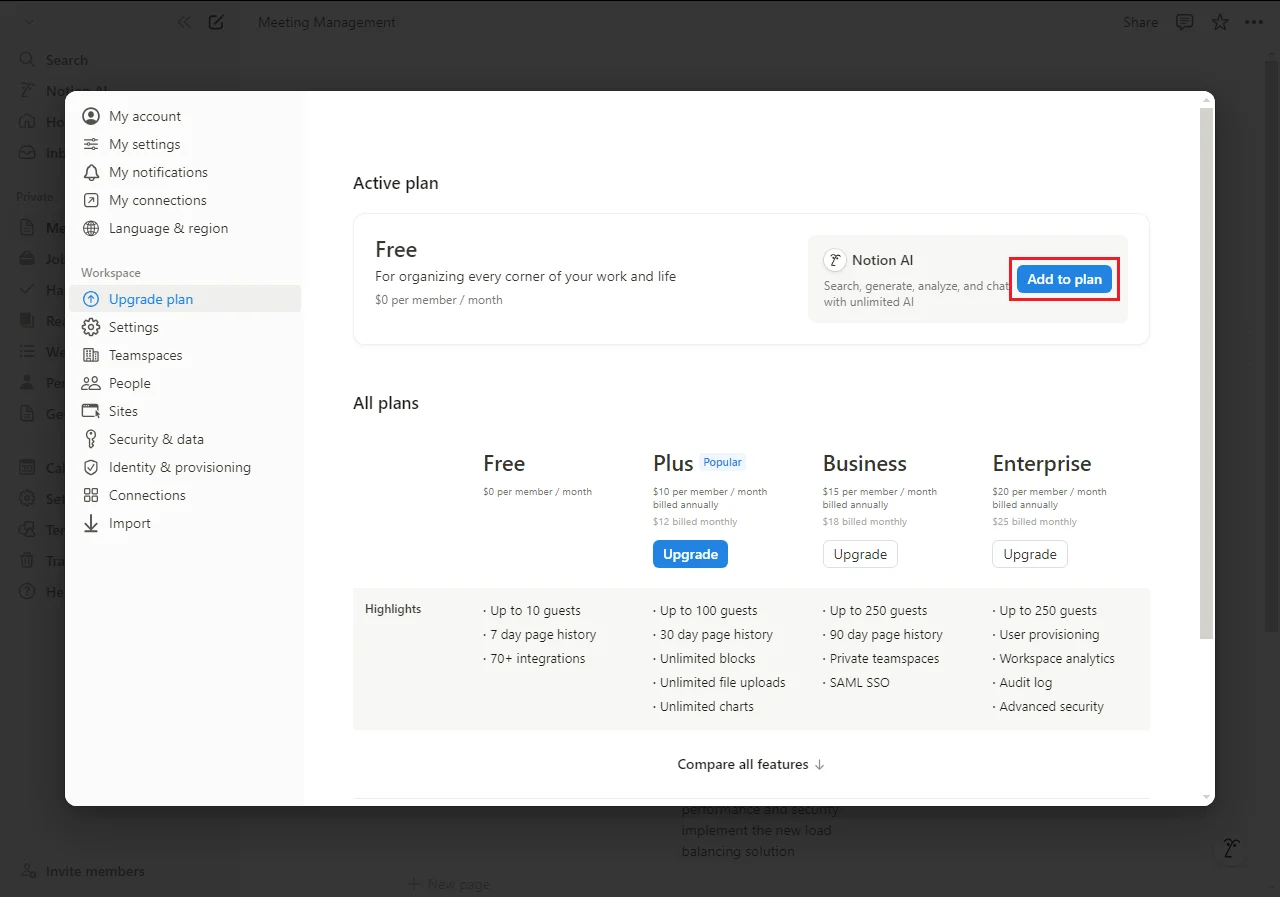
While Notion AI is available on all plans including the free plan, it has limited functionality on lower tiers. If you're new to Notion, you might start with the Plus plan, which includes a trial of Notion AI with 20 AI credits. However, for full access to the features covered in this course, we recommend using the Notion AI add-on.
Once you've selected your plan and completed the purchase, you're all set to start using Notion AI. Some of the different ways to access it within your workspace are:
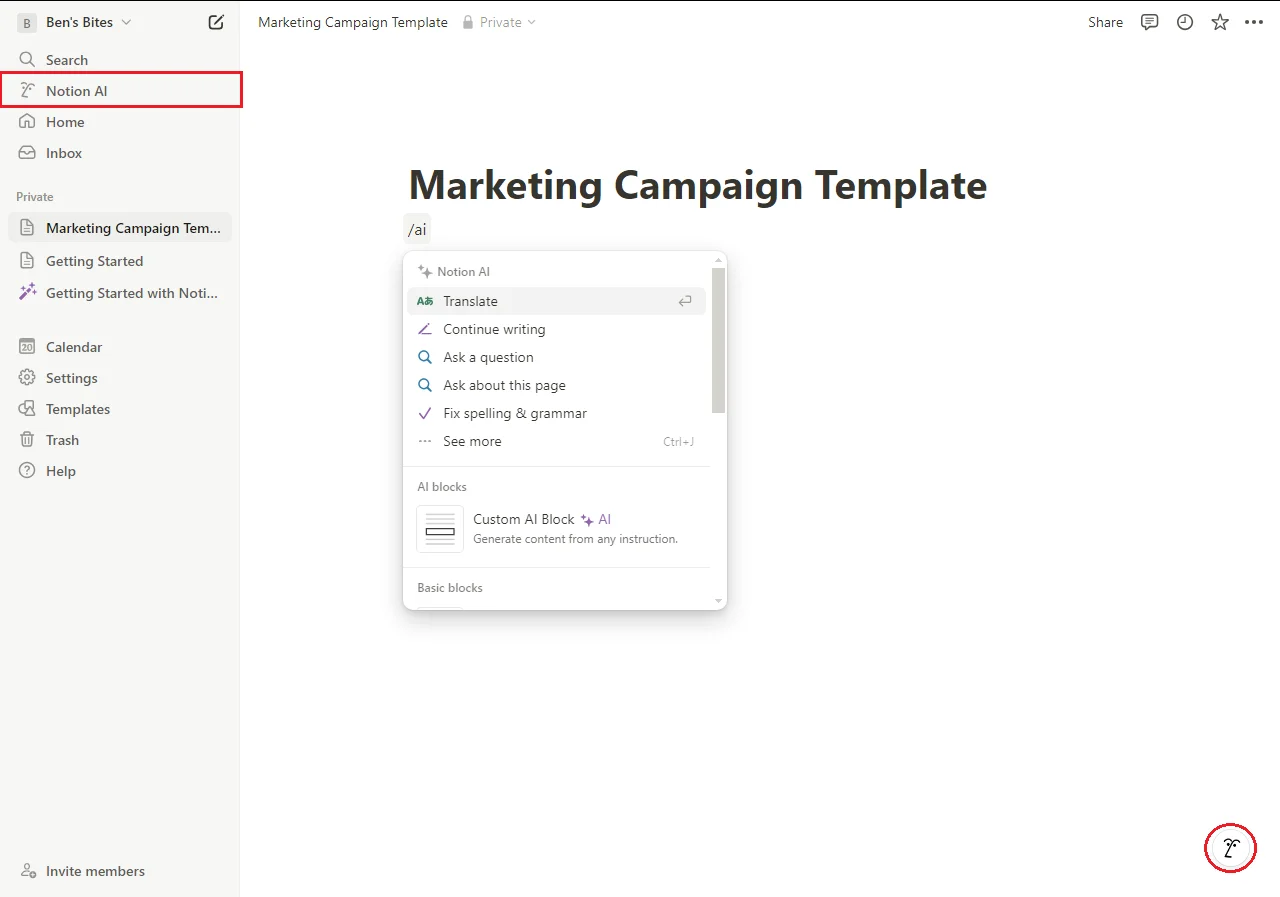
- Chat interface: Look for the AI face icon in the bottom-right corner of your Notion workspace. Clicking this opens a chat interface where you can ask questions, request summaries, or get help with various tasks.
- Sidebar option: You can find "Notion AI" in your sidebar. This opens a full-page chat for more in-depth conversations and complex tasks.
- In-page AI commands: While working on a page, type "/" followed by "AI" to see a list of AI-powered actions. These include summarizing text, translating content, generating ideas, and more.
- From text selection: Highlight any text on a page, and you'll see an "Ask AI" option in the popup menu. Use this for specific queries about the selected content.
- AI Autofill in Databases: When working with databases, you might see AI suggestions for properties or views. Notion AI can also help populate fields based on other information in your workspace.
Your first task: Creating a template with Notion AI
Let's kick things off with a practical task that showcases Notion AI's capabilities. We'll create a project kickoff template that you can use for future team projects.
Open a new page in your workspace and type "/AI". From the 'See more options' menu, select 'Draft anything.'
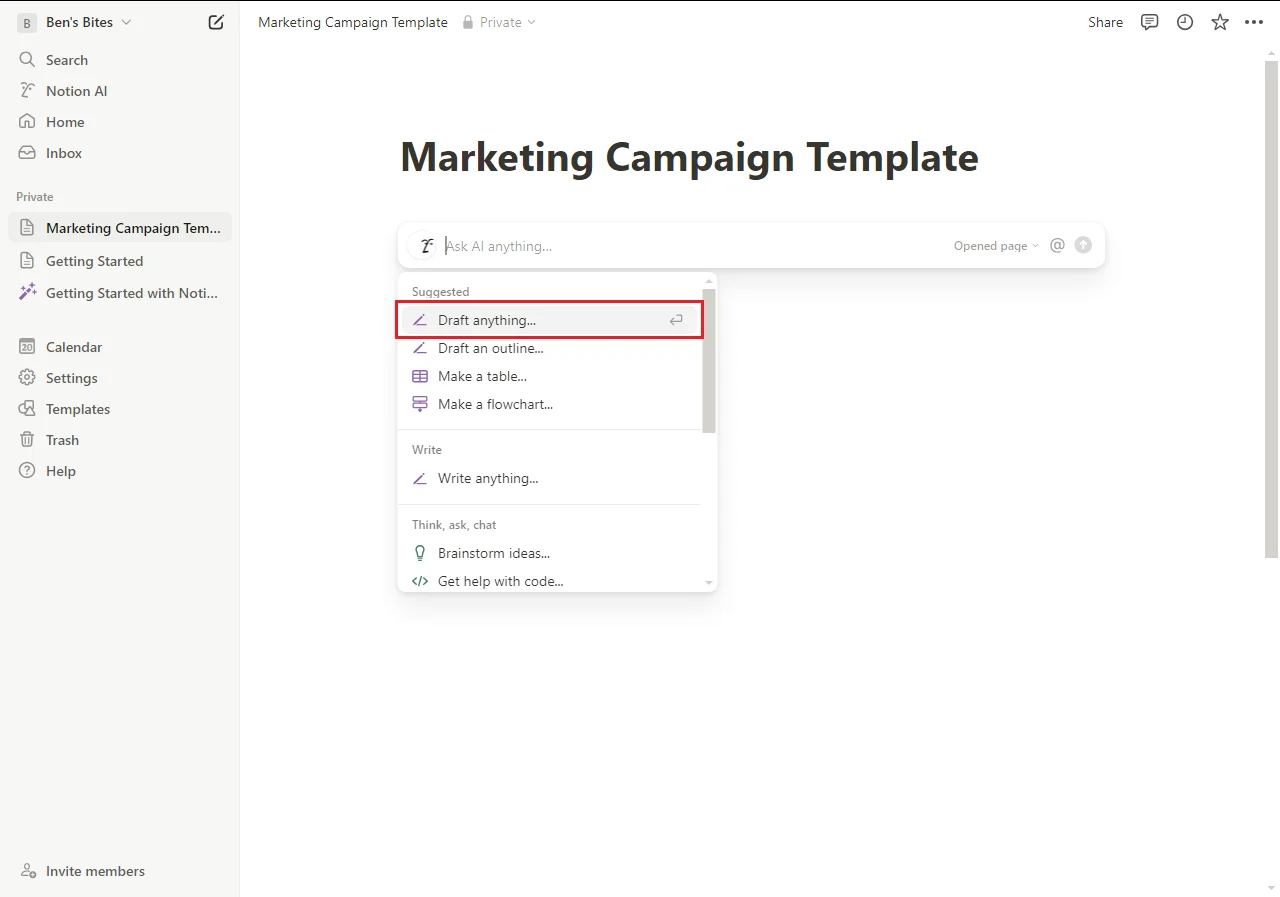
Now, let's craft a comprehensive project kickoff template using the following prompt:
Create a detailed project kickoff template for a new marketing campaign. Include sections for project overview, team roles and responsibilities, key milestones, budget overview, and potential risks. Format it in a clear, easy-to-read structure.
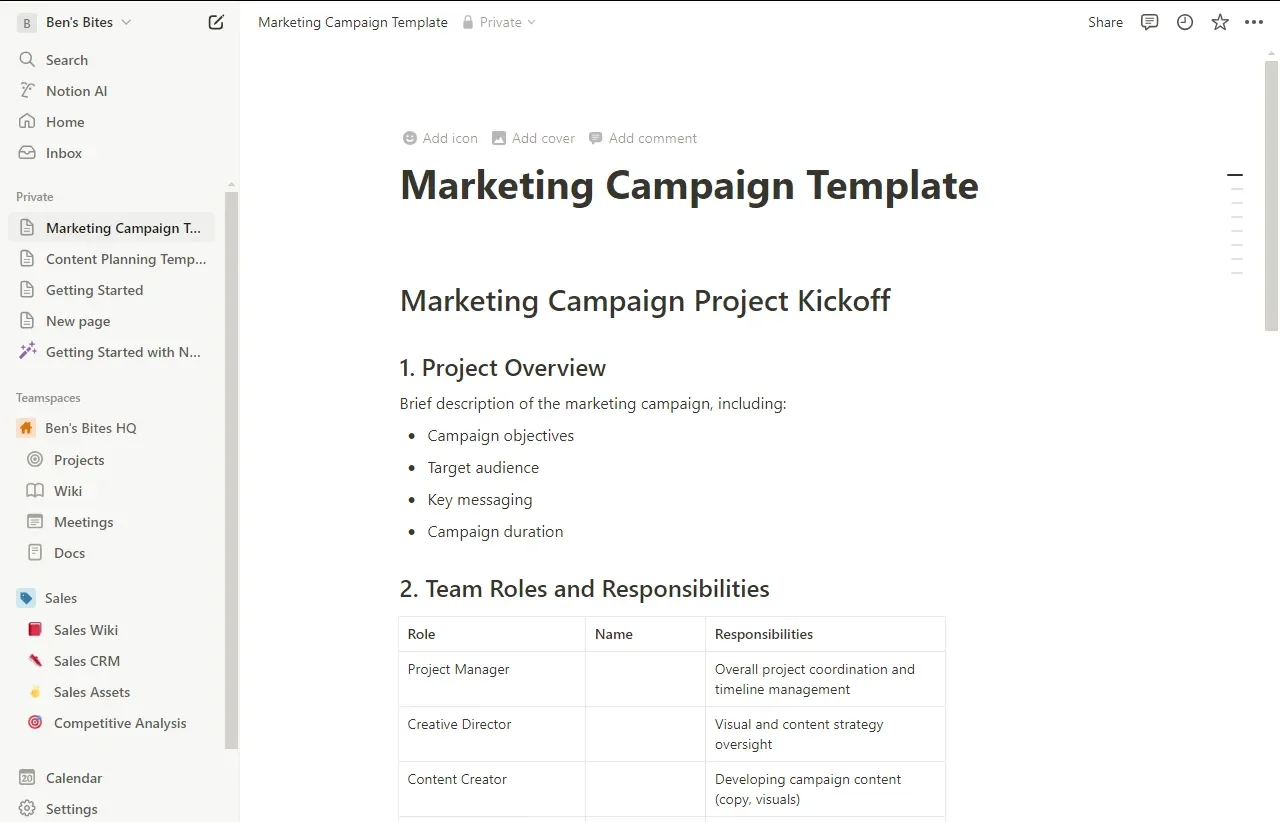
Press Enter and watch as Notion AI generates a structured template for you. Once it generates the template, you can further refine it by highlighting specific sections and asking Notion AI to expand or modify them. For example, you could highlight the "potential risks" section and ask:
Can you provide more specific examples of potential risks for a digital marketing campaign?

This exercise showcases how Notion AI can save you time in creating detailed documents, while still allowing for customization and refinement. It's a practical example of how you might use Notion AI in your day-to-day work to streamline project planning and documentation.
In our upcoming tutorials, we'll explore more advanced features and how to leverage them for various business workflows.
Head over to the next tutorial when you’re ready.
This tutorial was created by Tanmay.