Make how-to videos and guides
Learn how to quickly make the process and how-to guides with animation, video, and voiceovers.
2024-12-20
Creating user documentation is vital for educating your customers or employees, whether you’re looking to onboard people to your product or educate folks on a new feature. However, recording videos, writing documentation, and keeping your content library up to date can be an extremely time-consuming process.
But fear not! Guidde, a new AI-powered video and documentation tool, can help you create this content so much faster. In this tutorial, we'll walk you through the steps of recording and editing your first how-to video with the tool.
Steps we’ll follow in this tutorial:
- Download the browser extension
- Record process steps
- Edit your how-to video
- Share and save your content
This is a video we whipped up using Guidde
You can use Guidde to create guides for all sorts of use-cases, such as:
- New feature announcements
- Customer onboarding
- Employee training
- Knowledge and documentation
- Product how-to’s
- Frequently asked questions
- Support tickets
And more!
Let’s see how it’s done.
Step 1: Download the browser extension
To start, go to the Guidde website and install the free browser extension. The extension works on both Google Chrome and Microsoft Edge browsers.

Once the extension is installed, you’ll want to pin the extension to your toolbar for easy access. If you’re using Chrome, click on the puzzle piece icon in your browser toolbar and click the pin icon by the Guidde extension.

Step 2: Record process steps
Now that the extension is installed, we can record our first process. Guidde works by tracking and recording all of the actions in your browser tab during the capture process, so all you need to do to record a video is click the Guidde extension, click the “Capture” button, and then start walking through your process.

When you click the “Capture” button, Guidde will ask you what type of video you are recording and to provide a description — this will help it generate your video and documentation more accurately. In this example, we’re going to record a customer onboarding of the Ben’s Bites course catalog.
Sample Description:
How to navigate the Ben's Bites course catalog.

With that completed, the below splash screen will appear. Go to any tab you want to record and Guidde will start the capture process. If you want to record on the tab you are currently on, click anywhere on the screen and the capture process will begin.

As you’re navigating the page, you’ll see the Guidde icon in the bottom right of your screen tally the number of steps. When you are done recording, click this Guidde icon and click the “Done” button that appears.

Step 3: Edit your how-to video
Once you’ve completed your screen recording, a new tab will open with your how-to video and documentation.

You can edit and remove scenes from your video by scrolling down, clicking on a scene, and selecting the delete or edit icon. In this instance, Guidde captured a click we don’t care about, so we’re deleting this “Click Course” scene.

For advanced video editing, you can click on the “Edit Video” button in the top right corner of the app.

This will take you to a video timeline editor where you can make many detailed edits. For instance, we can edit the auto-generated intro voiceover transcript.

In addition, if you navigate to other scenes, you can record your voiceover or use Guidde’s text-to-voice feature to add AI-generated voiceovers to each scene.
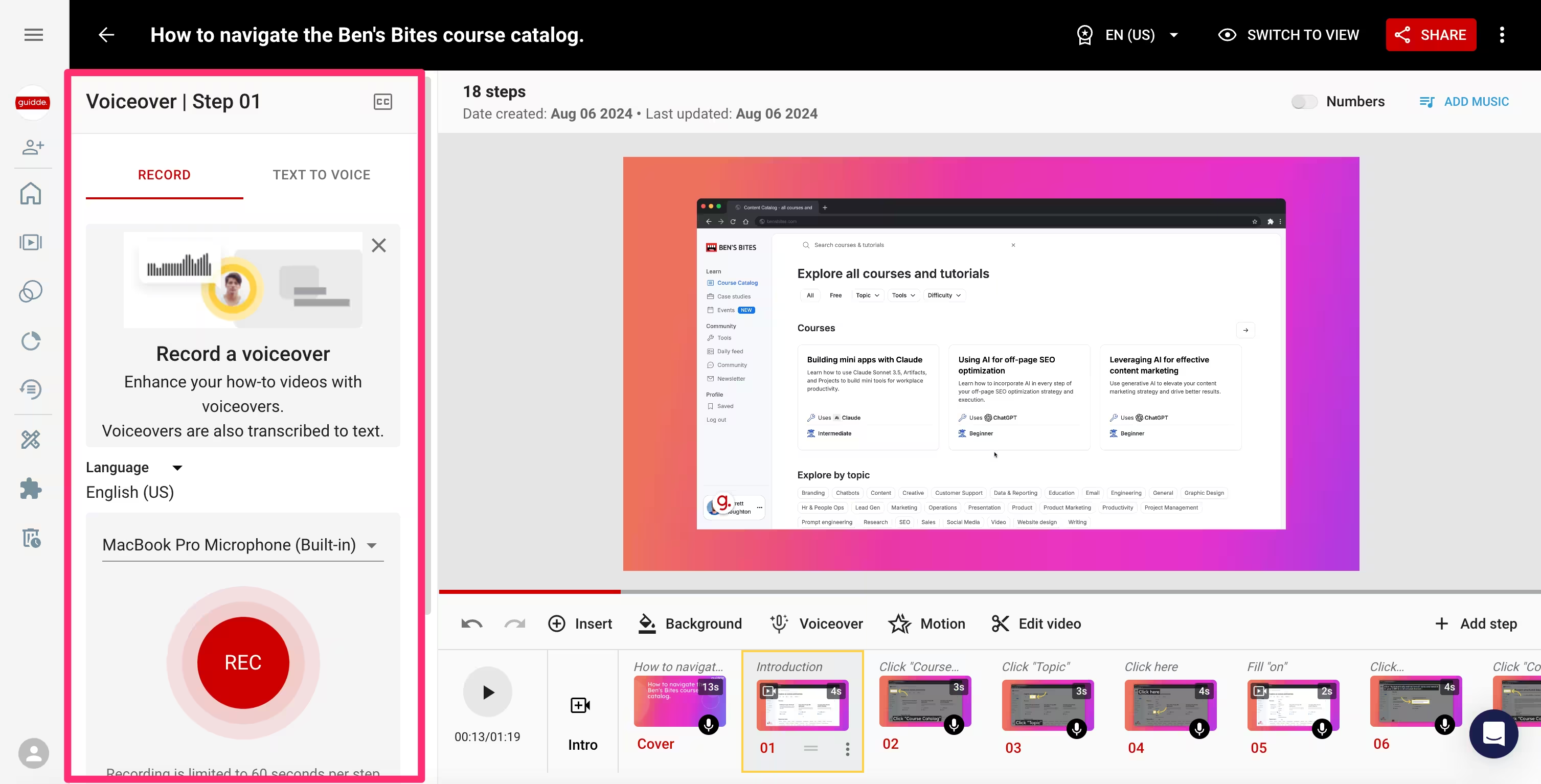
You can also edit any of the text and graphics Guidde generated for each scene by clicking on these items directly on the video.

Lastly, you can change the background, add motion, or crop the video via the icons above the video timeline editor.

Step 4: Share and save your content
Once you’re happy with your how-to video, you can click the “Done” button in the top right corner of the video editor and Guidde will regenerate your how-to video accordingly.

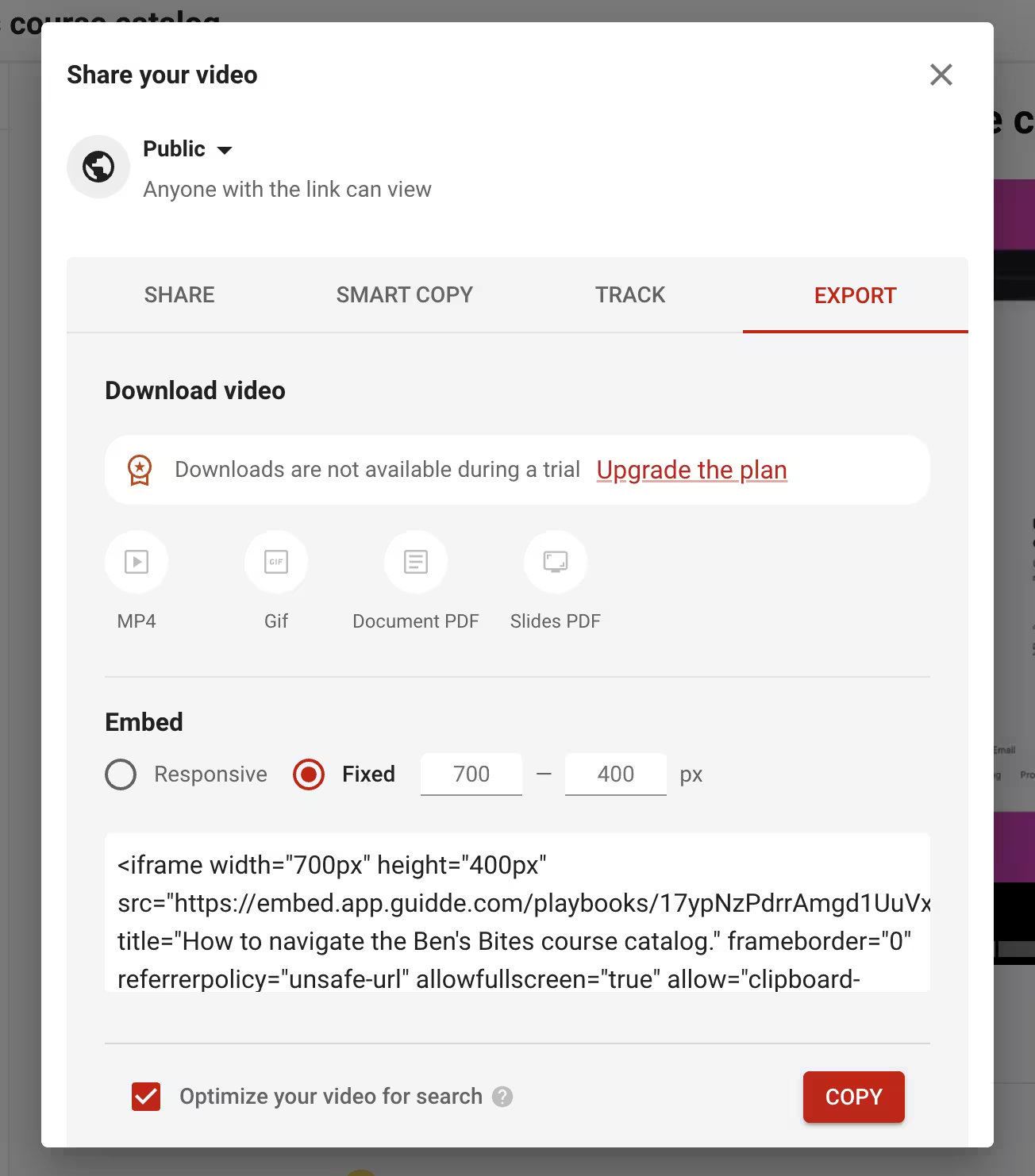
To share your video, click the “Share” button in the top right corner of the screen. You can share the Guidde as a link.

Or, with an upgraded plan, you can export the video as an MP4, GIF, or PDF.
This tutorial was created by Garrett.