Reformat documents, plans, and projects with Canva’s Magic Studio
Use Canva’s AI tools to quickly transform documents into creative projects and more.
2024-11-13
Communicating ideas and strategies across an organization is a critical aspect of most jobs. With it comes preparation, both in the ideas and the documents. You may need a slide deck to present to the executive team, a brief to distribute across the company, and a project plan to share with your team. Reformatting this content can be time consuming and tedious.
In this tutorial, you will learn how to:
- Use Canva to reformat various documents
- Enhance documents with visual elements
Step 1: Upload your document
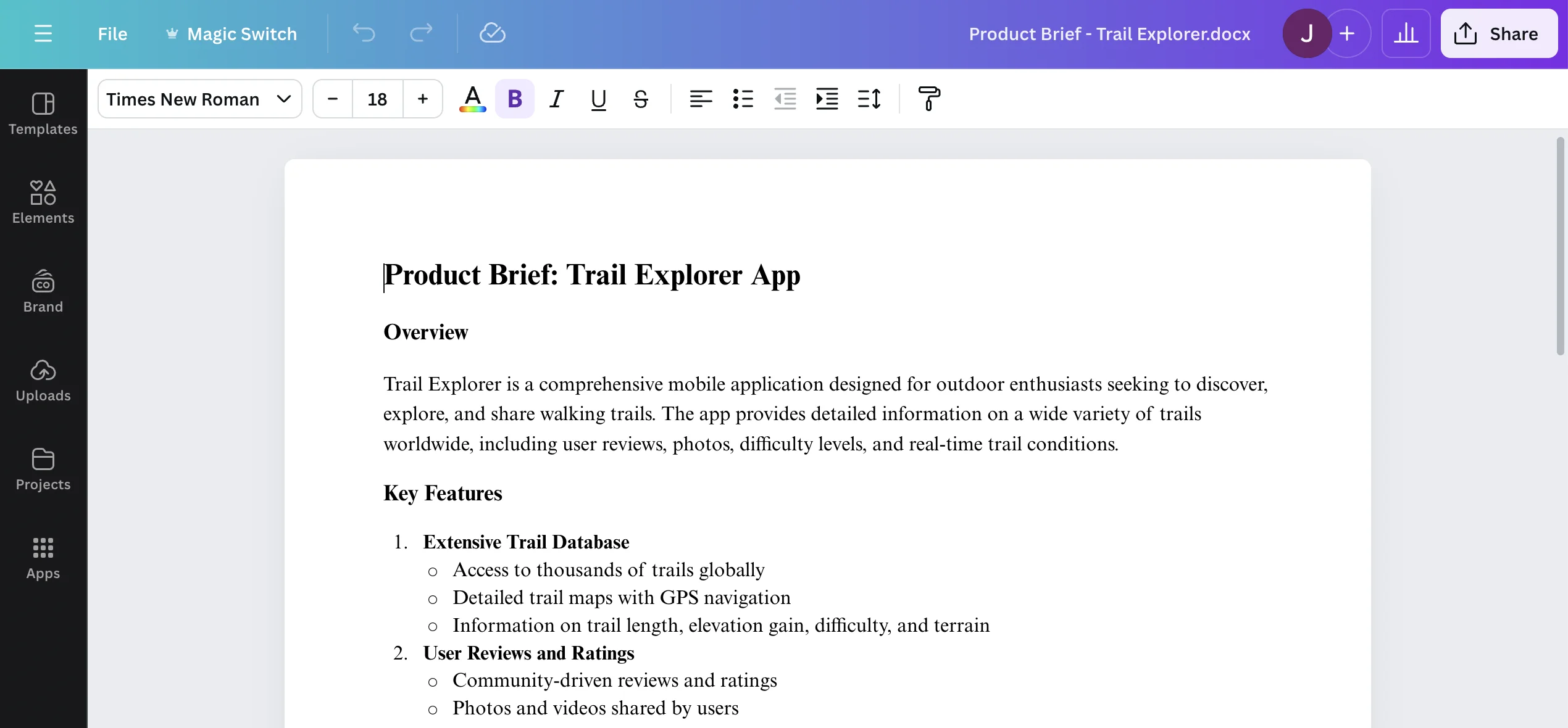
You’ll want to start by uploading a document you’ve created for the project. Whichever document you have that has the most information will serve you best. In this example, we’ll use a Product Brief.
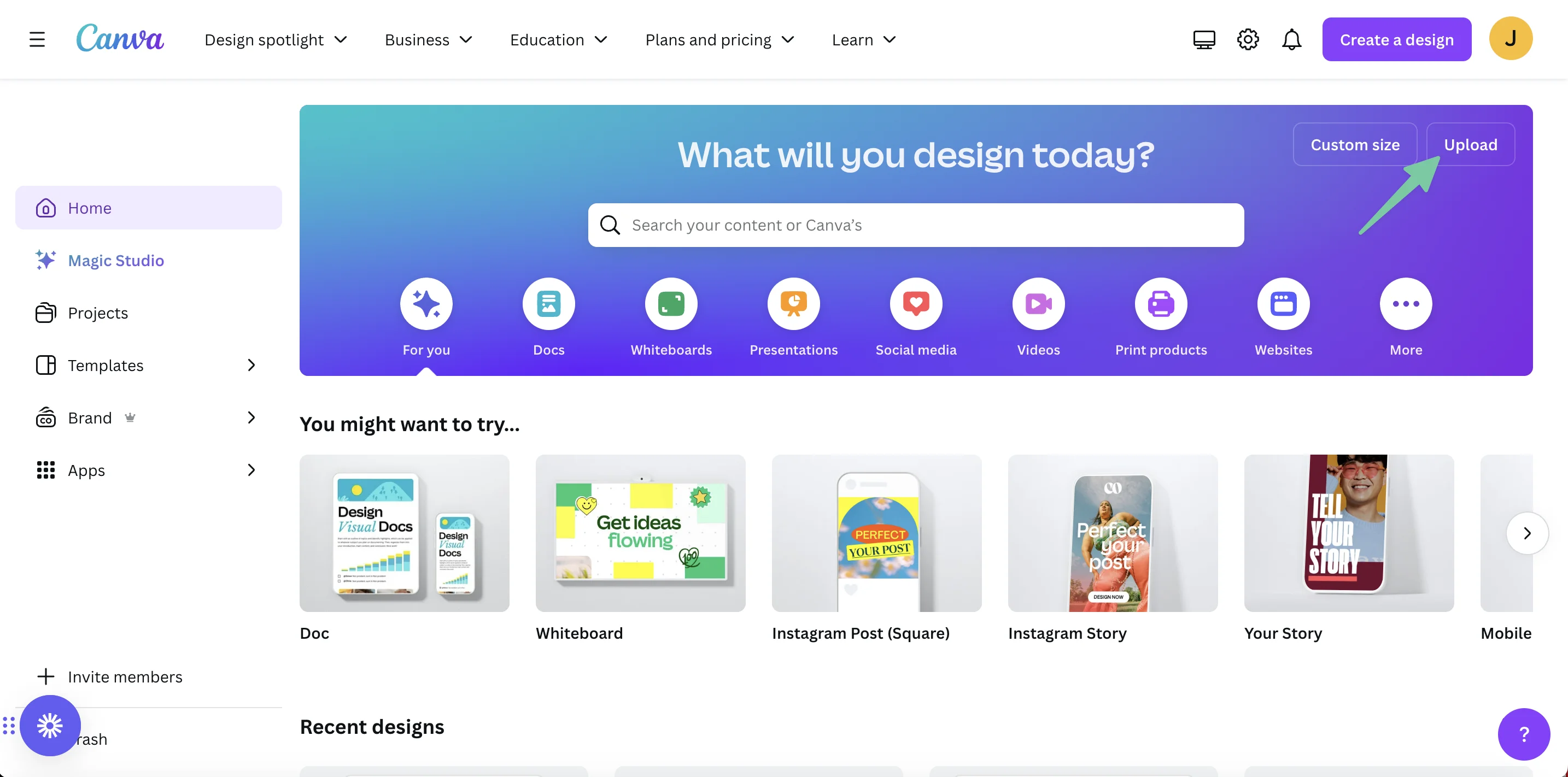
Go to Canva and select the Upload button in the top right corner. Upload the document you want to reformat.
You’ll see your document uploaded as a text file.
Step 2: Convert your file to new formats
Next, you’re going to convert files into the right format. Canva will make small edits to your text but most of the change is in the format and visuals Canva creates for you.
Convert to presentation
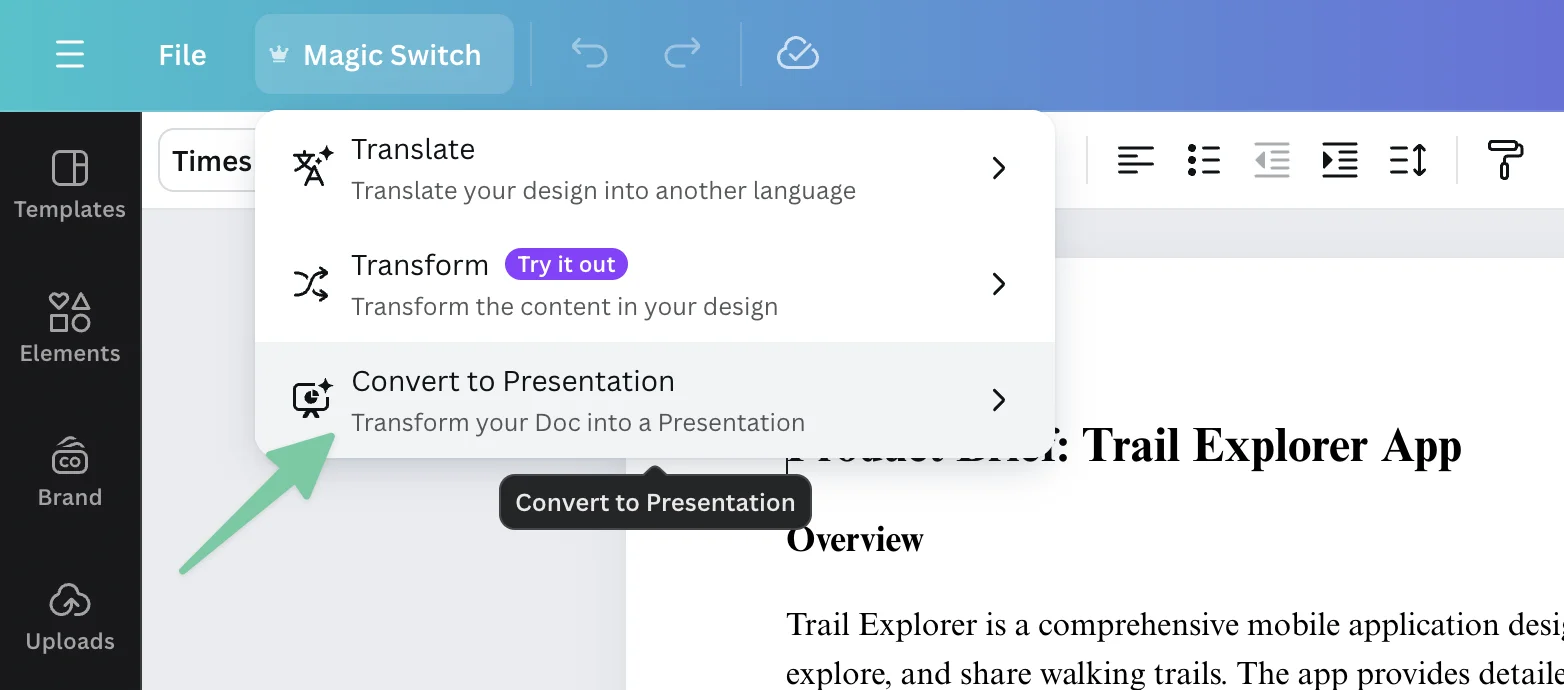
In the top left corner, go to Magic Switch. Here you can translate and transform your document. Let’s start by converting your product brief into a presentation.
You’ll be presented with a variety of designs on the left hand side and a preview on the right showing your presentation.
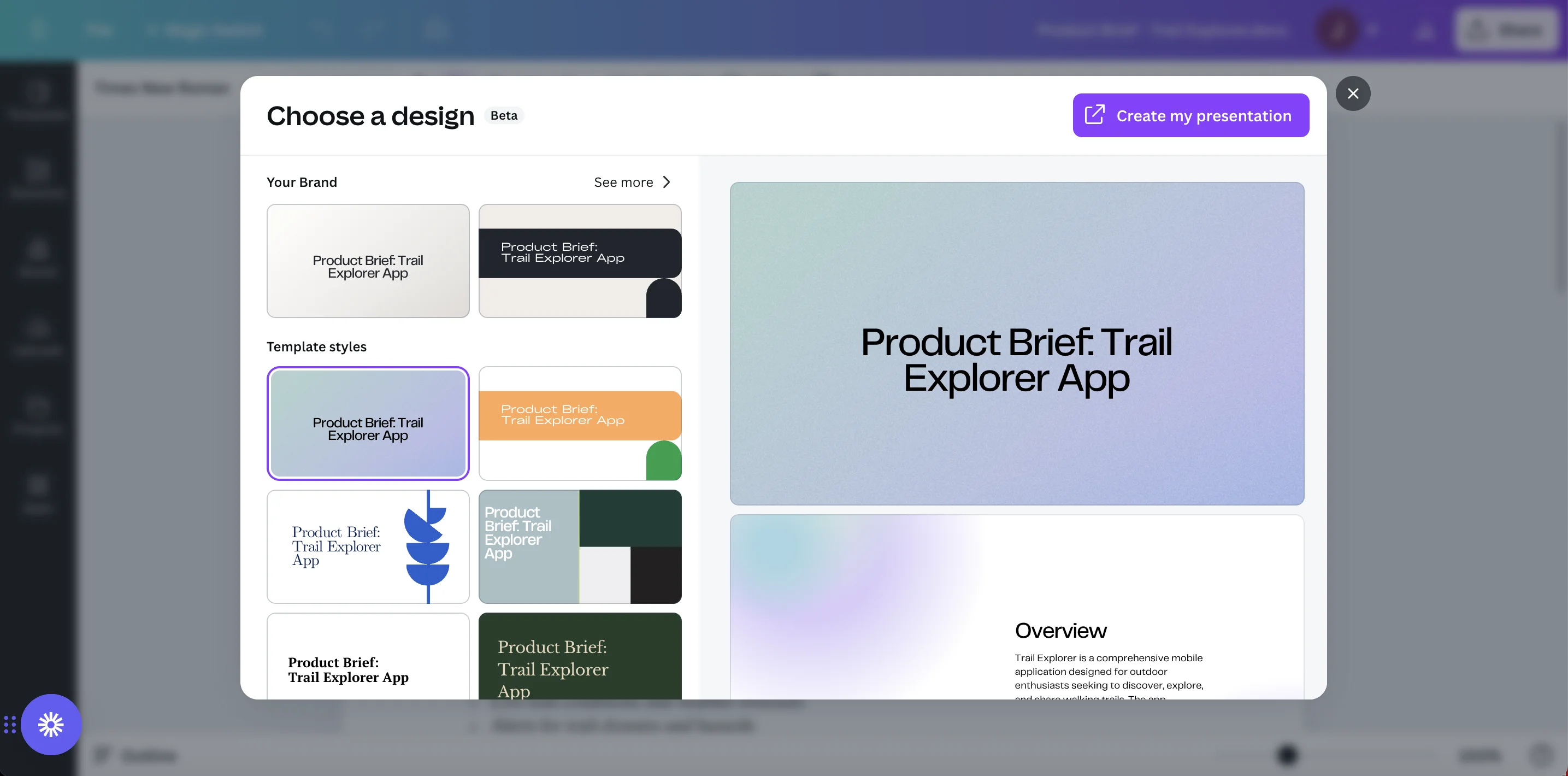
Once you’ve selected the design you like, click Create my presentation in the top right corner.
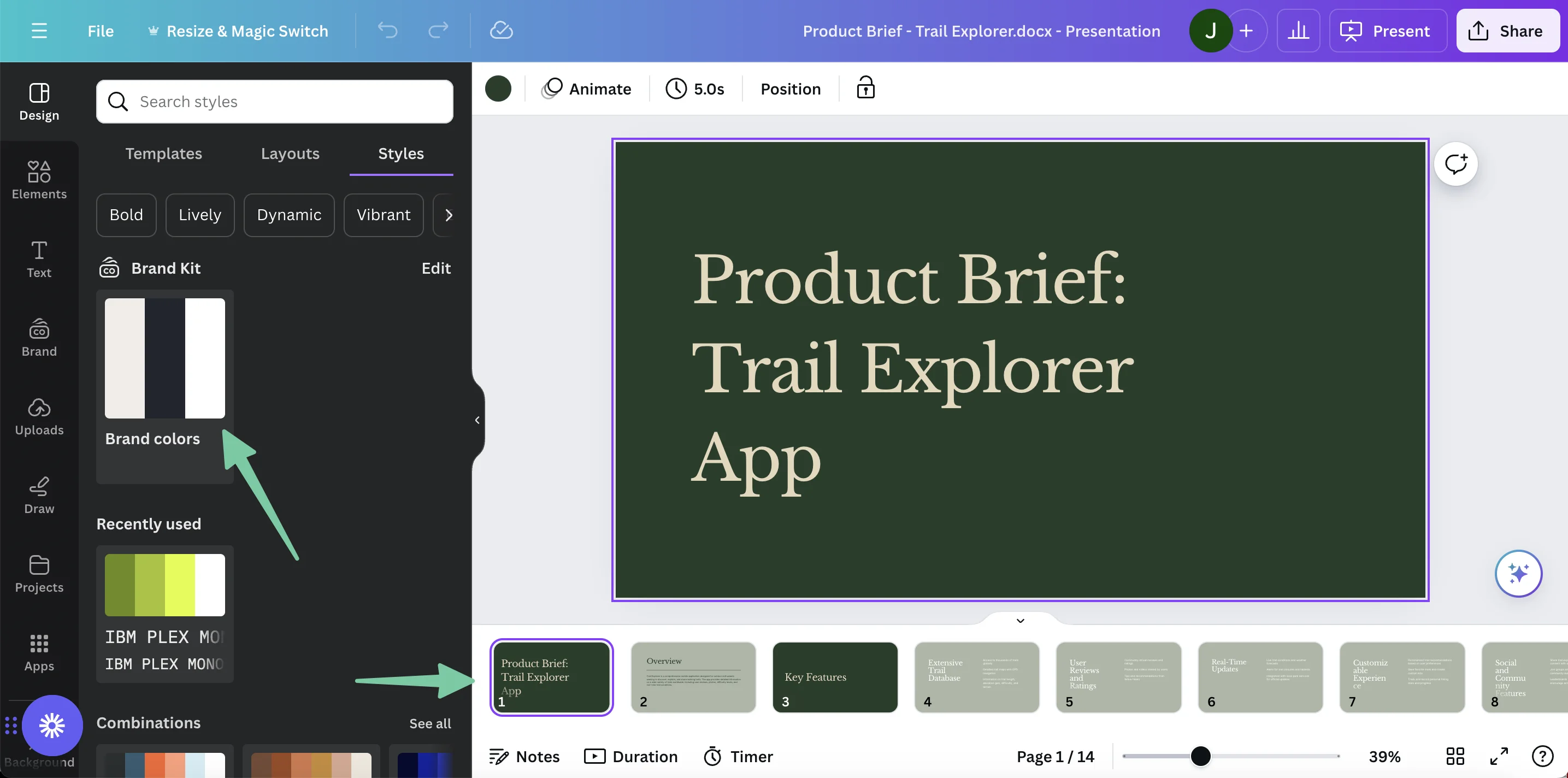
In the left panel, you can edit brand colors and design. Along the bottom you can click through each of the slides of your presentation to tweak the language and design. We’ll get into more of those details below.
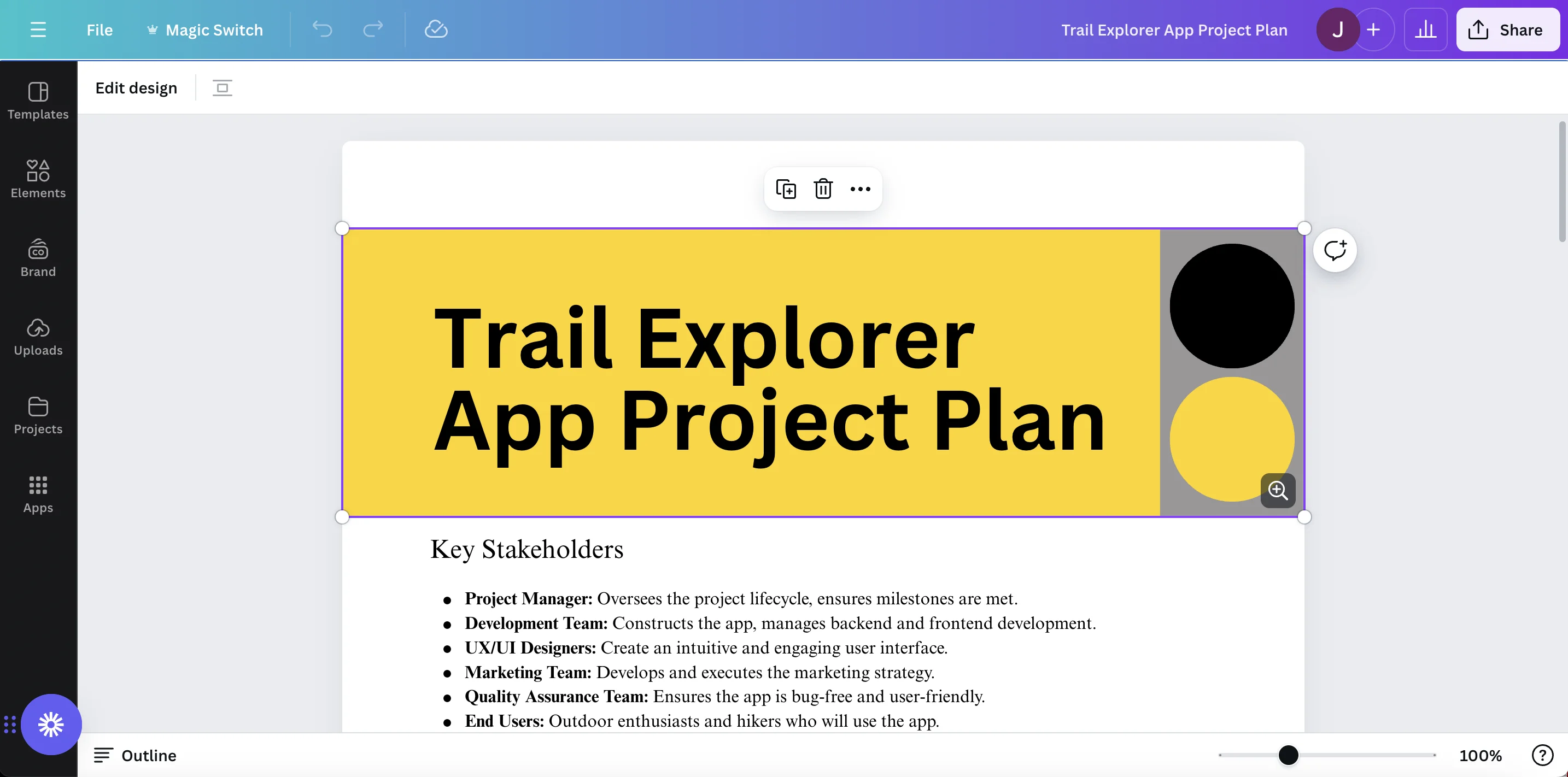
Convert to project plan
Another valuable document you’ll want to create for your team is a project plan. This is something you can distribute to your direct team that will give them a sense of timeline and the roles and responsibilities that need to covered.
Back in your original document, go to Magic Switch and select Transform.
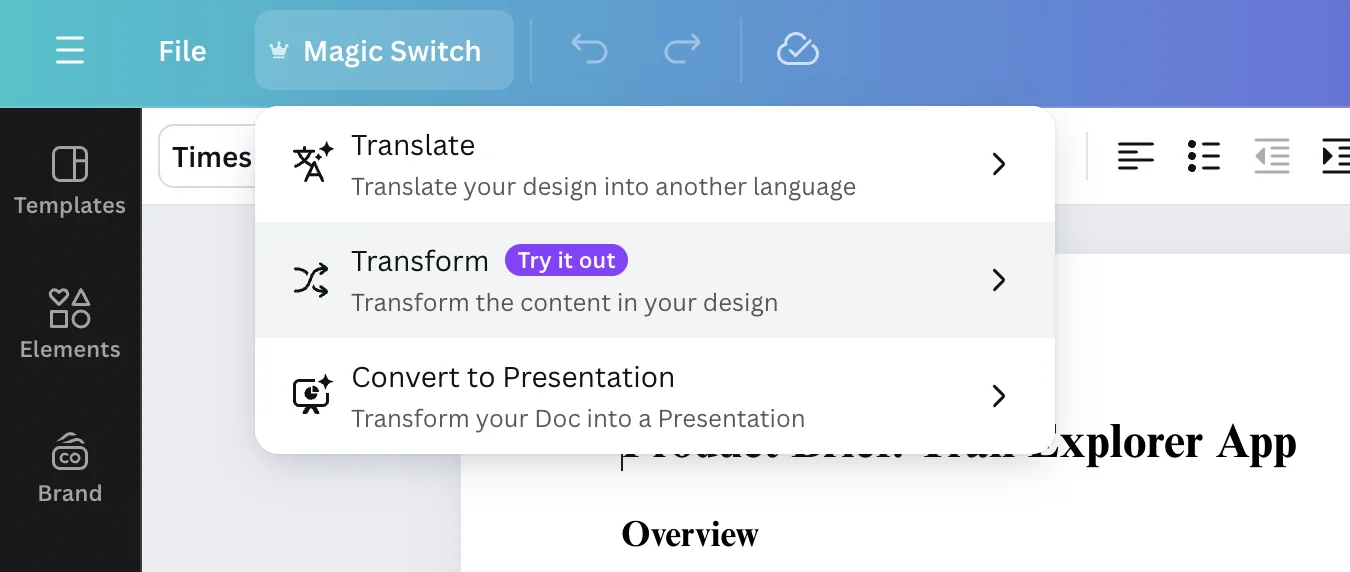
A menu will appear offering options. You can type in the document you want to create or select from the suggested list of options.
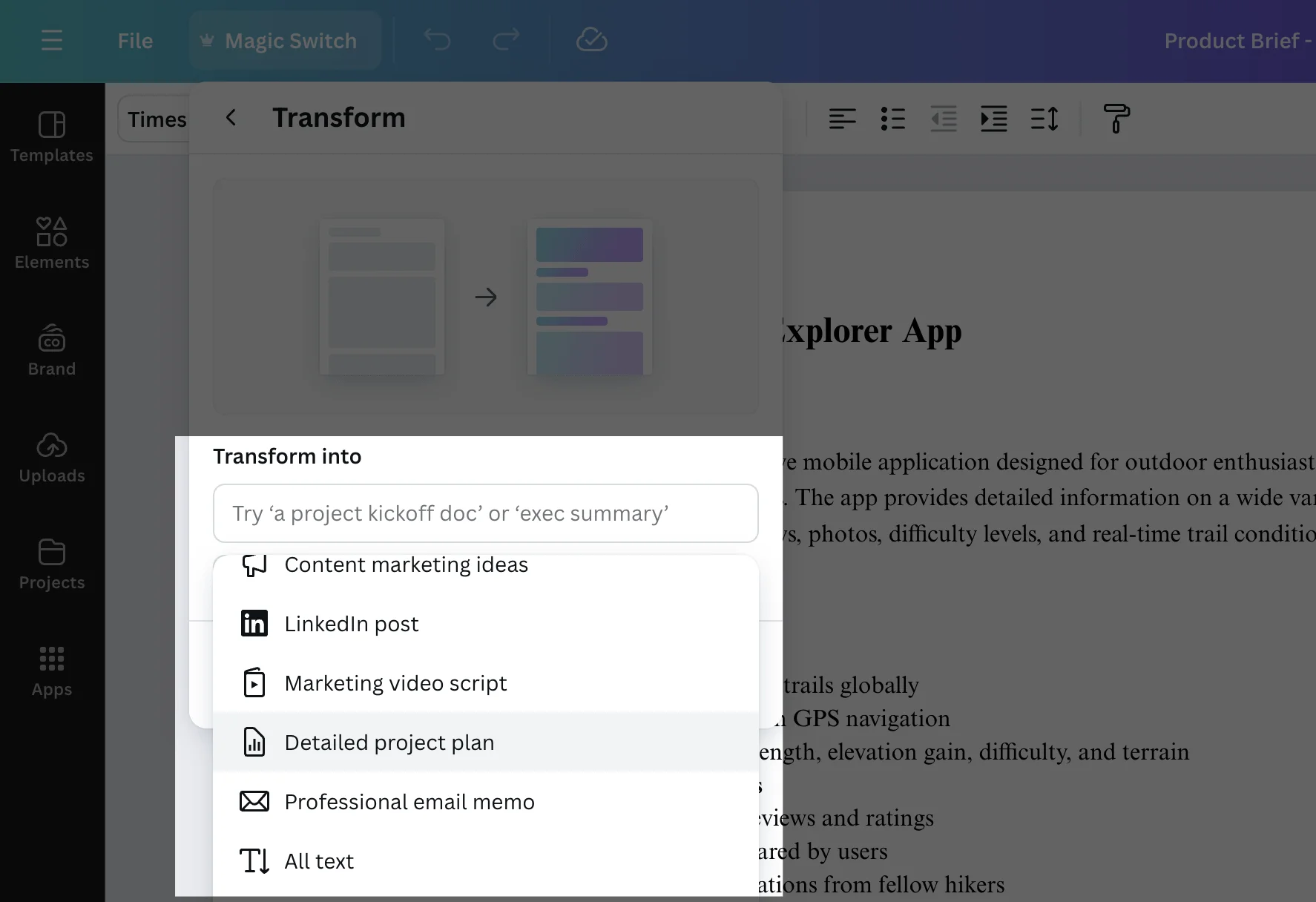
Canva will take 15-30 seconds to create your new document. Click Open Doc.
You’ll see your new project plan, ready for further editing.
Convert to content marketing ideas
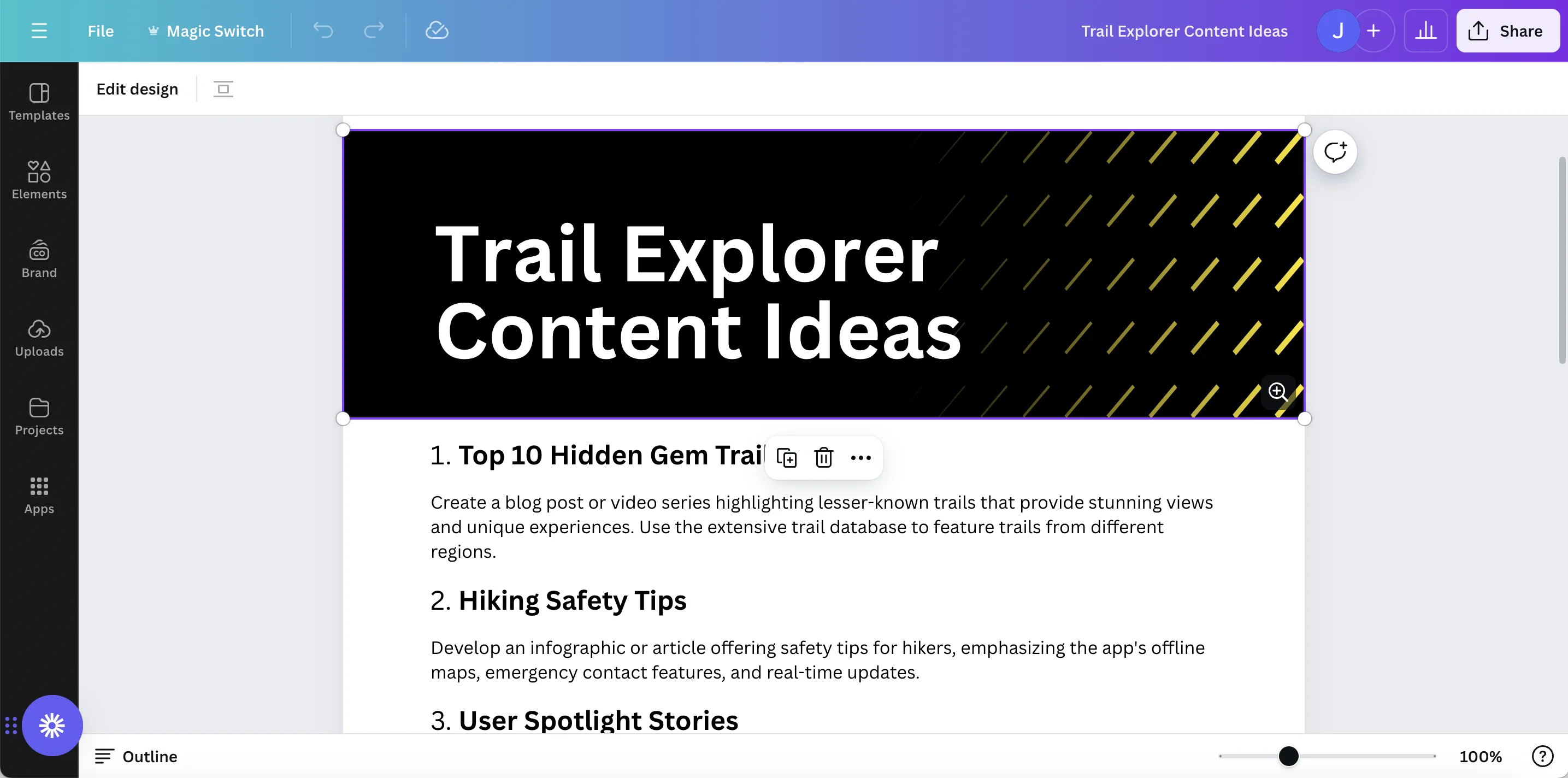
While ChatGPT and Claude are both great thought partners, Canva’s Magic Studio can also help you with some creative brainstorming.
Follow the same steps as above: Magic Switch → Transform, then go to Content Marketing ideas. Canva will generate a document for you with interesting and novel ideas to support your marketing plan.
Step 3: Enhancing your documents
Canva’s Magic Studio helps you transform simple text documents into a powerful communication artifacts. From there, you can continue to edit and improve your document. We’ll use the presentation as an example.
Improve layout and design
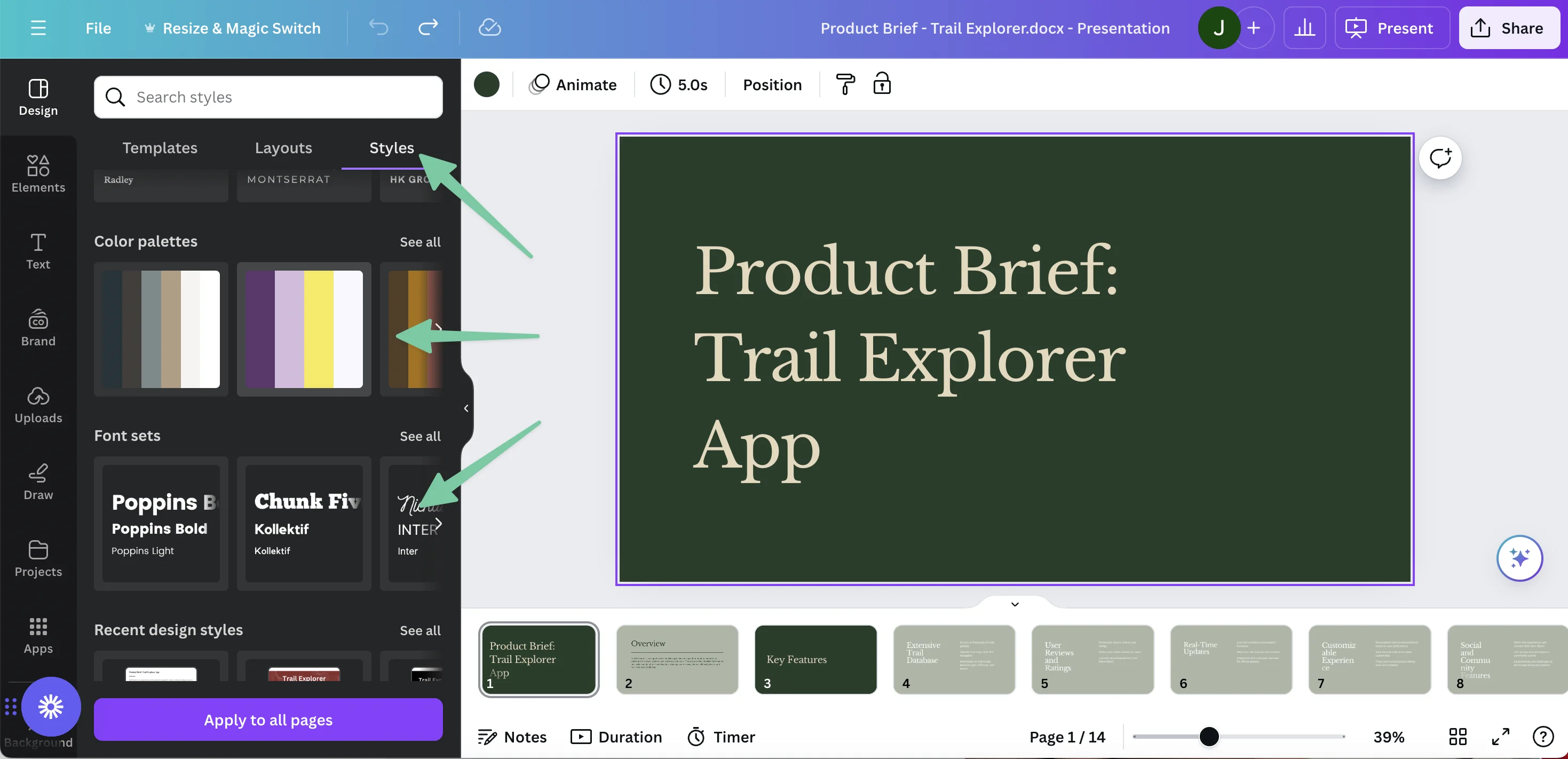
Start by going to the Styles section in the left panel. When you scroll down, you’ll find suggested color palettes and font sets. Select the font and colors that make sense for your brand.
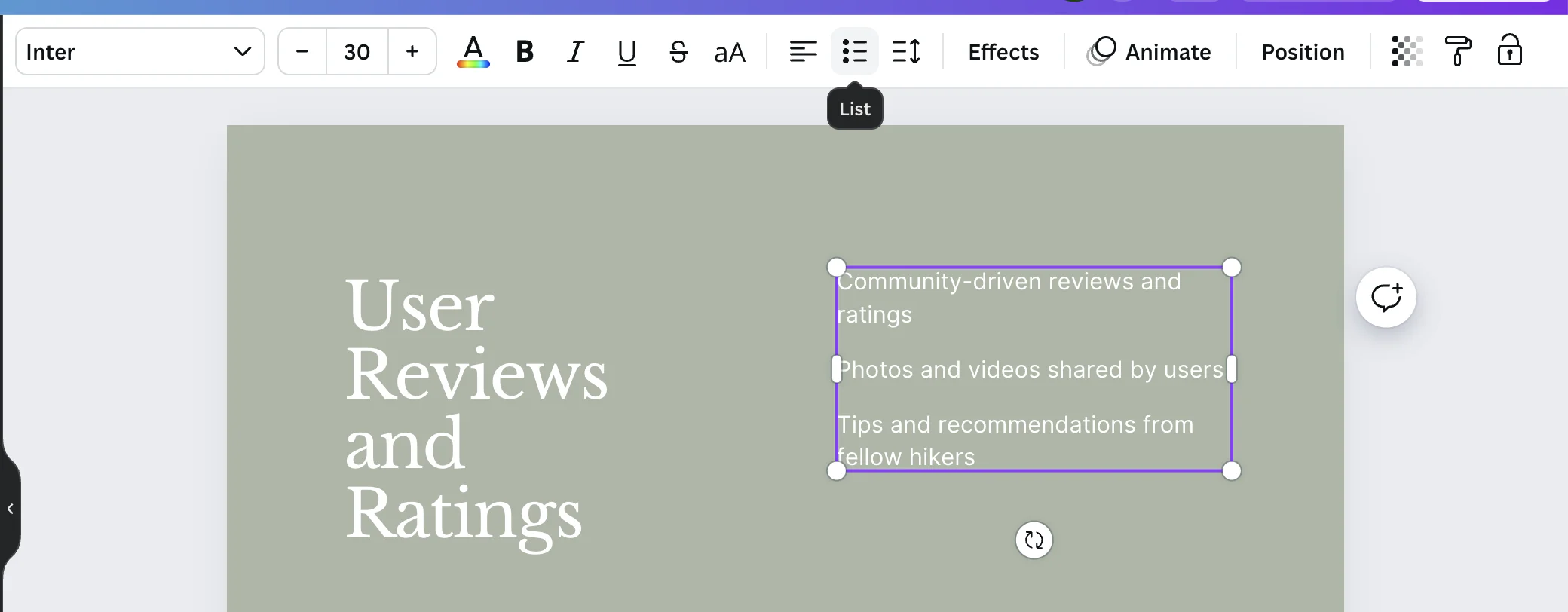
You’ll want to go through slides and make tweaks the font sizes and add bullet points where necessary.
Add graphics and images
To improve the quality of your slides, you can add design elements from Canva’s library. In Elements, search something that might add to your slide.
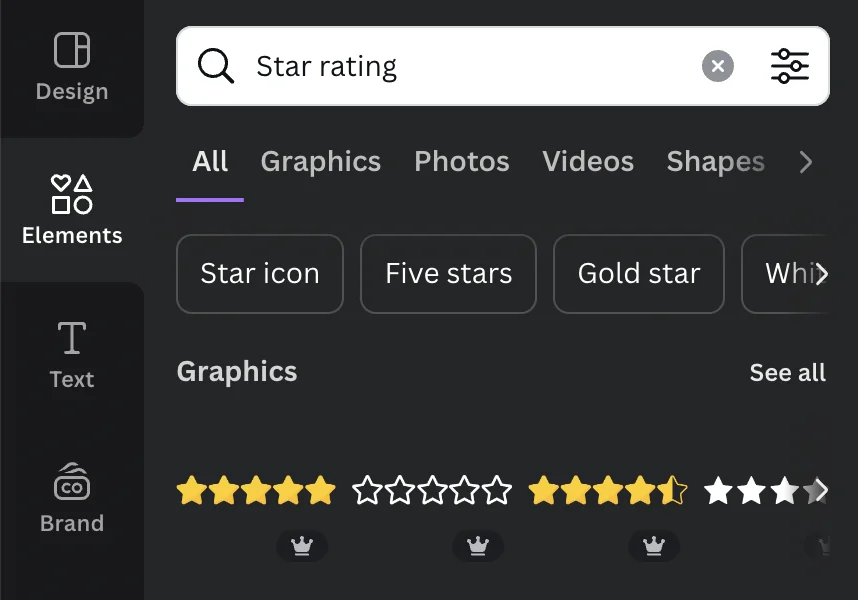
Most of the design elements you find in Canva can be adjusted and recolored so find the color scheme that makes sense for you.
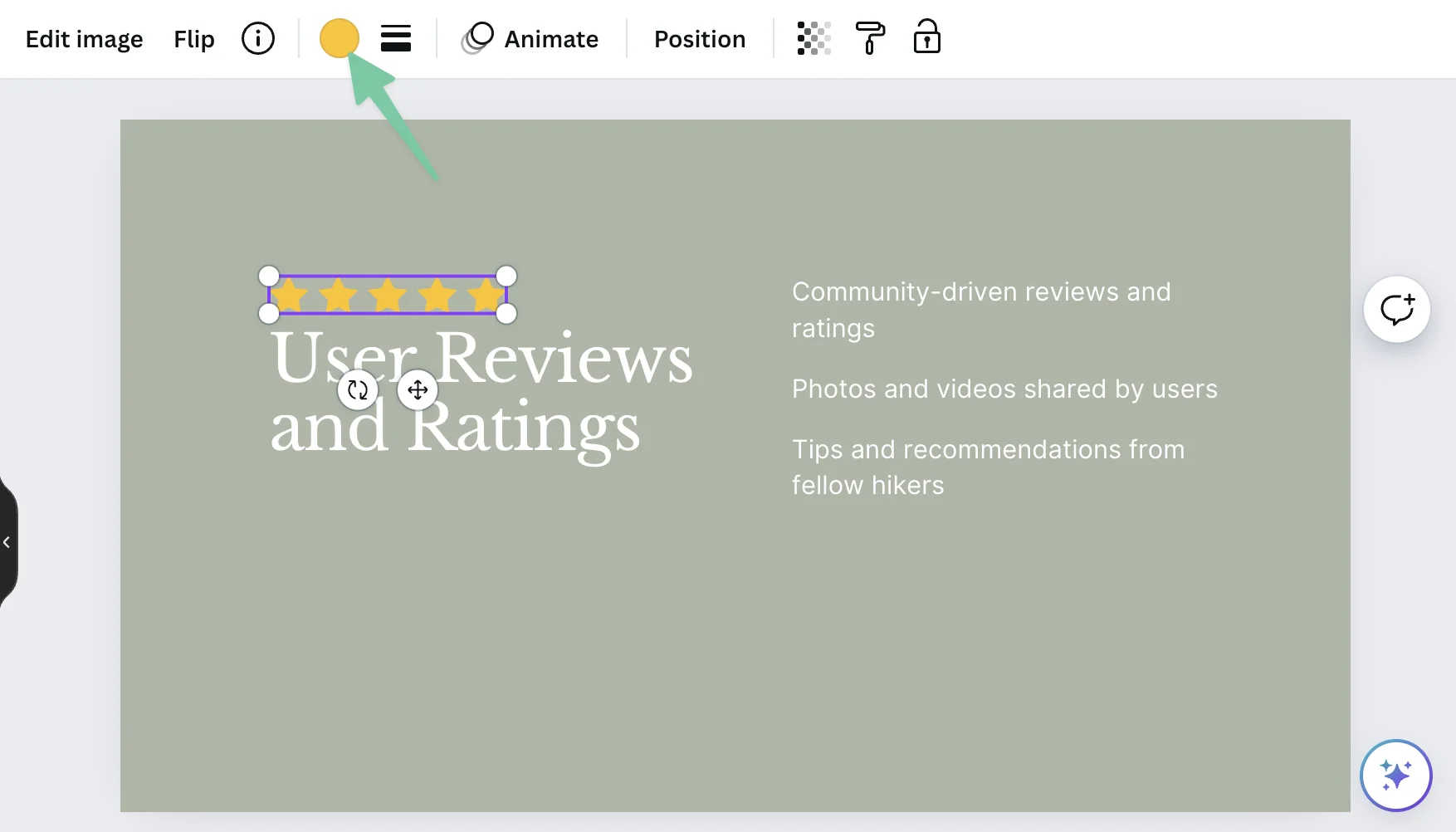
Continue editing all your new documents with Canva’s powerful design tools.
In a matter of minutes you can turn your text-only product brief into a valuable documents that will help you communicate your strategy across the organization.
This tutorial was created by Jonah.