Summarize Google alerts
Connect your Google Alerts to Lindy to summarize the content and route the data across your workspace.
2024-11-27
Setting up Google Alerts is a great way to stay up to date on topics that are important to you and your business, but once you set up several alerts, you run the risk of email overload, never-ending long-form articles you’ll never read, and ultimately, you’ll miss important news.
But have no fear, a little automation with Lindy can help organize and streamline all your Google Alerts into concise summaries — stored or routed to your app of choice.
Lindy is a powerful AI automation tool that lets you create personal AI assistants, known as Lindies, that can connect to your data and applications to perform complex tasks autonomously or with human-in-the-loop tasks.
In this tutorial, we’ll set up a Google Alert, route it to an RSS feed, parse the RSS feed with Lindy, and summarize the content with Lindy. We’re going to provide the summaries in the Lindy app, but you could route your summaries to Slack, Google Docs, or any other application integrated with Lindy.
You’ll need:
- Lindy
Steps we’ll follow in this tutorial:
- Step 1: Create a Google Alert with RSS delivery
- Step 2: Create a Lindy workflow to scrape the RSS feed
- Step 3: Summarize the content in Lindy
- Step 4: Test the workflow
Let’s dive in!
Step 1: Create a Google Alert with RSS delivery
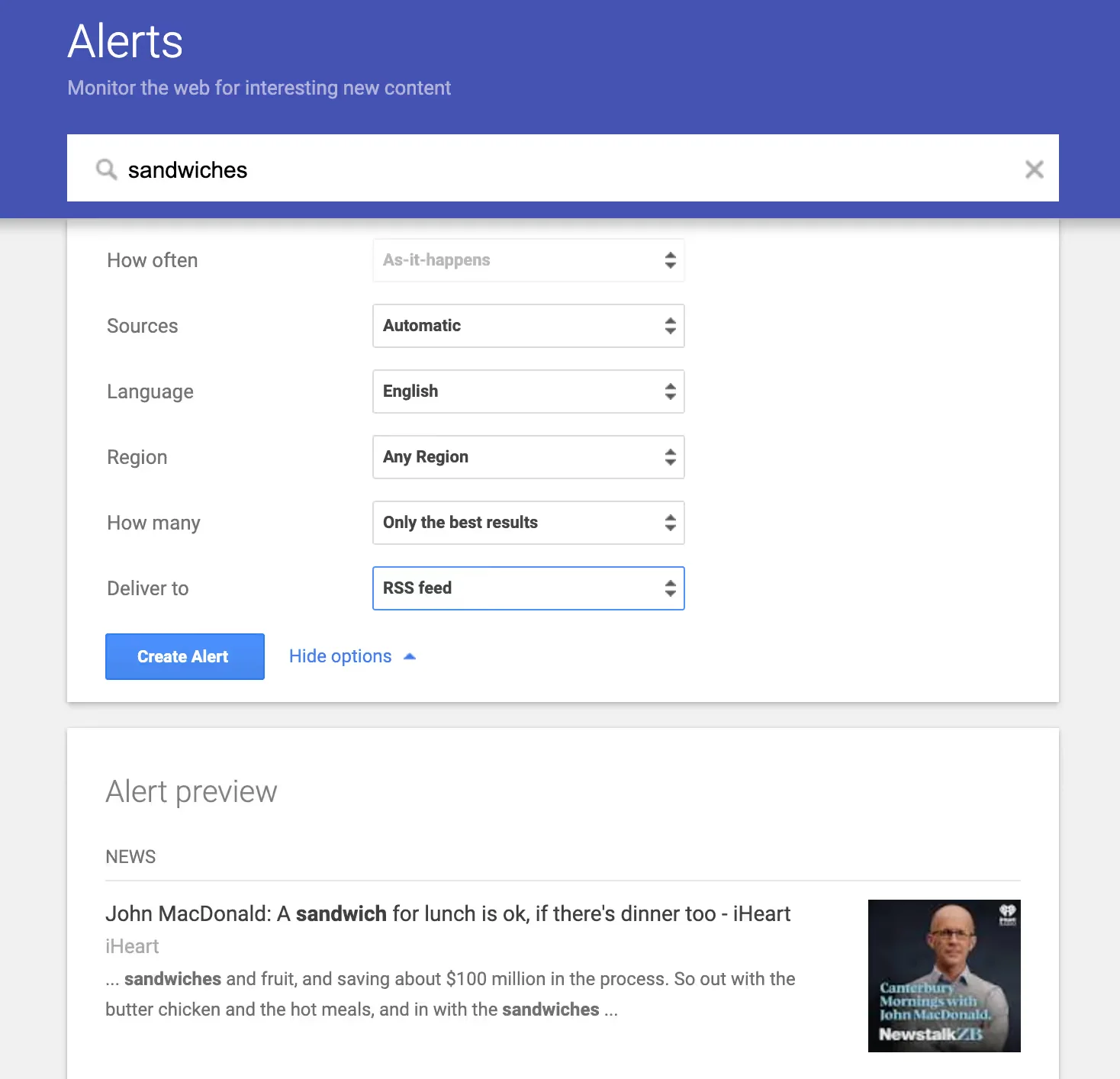
To get started, navigate to Google Alerts and create an alert that delivers to an RSS feed. In this example, I will create an alert about “sandwiches” (a very important alert!). To do this, type in your alert keyword(s) in the Google Alerts search bar, click the Show Options button below the search bar, and set the Deliver To setting to RSS feed.
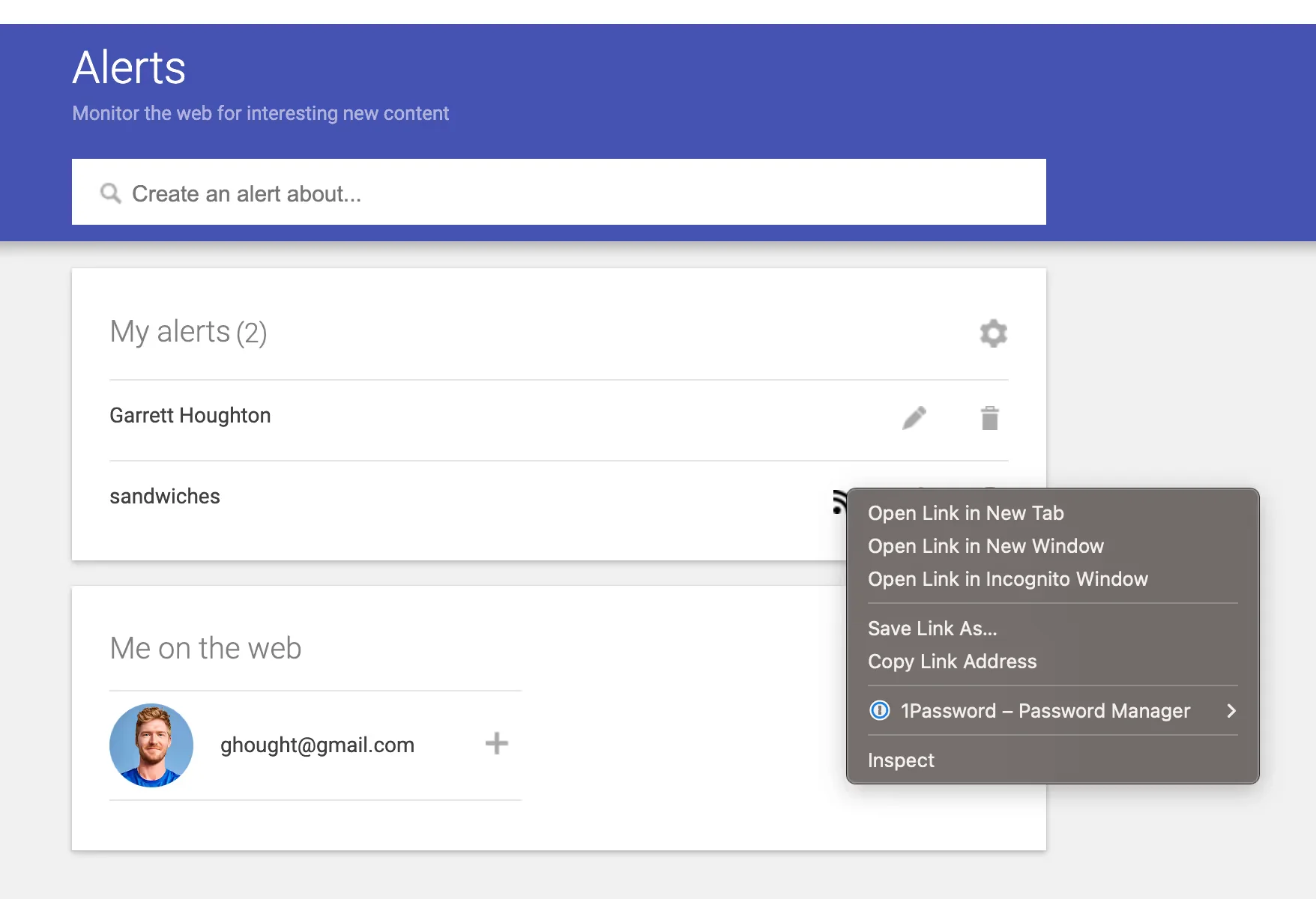
Next, we’ll need to get the RSS feed link from this alert. The quickest way to do this is to hover over the RSS feed icon of the created alert, right-click, and select Copy Link Address.
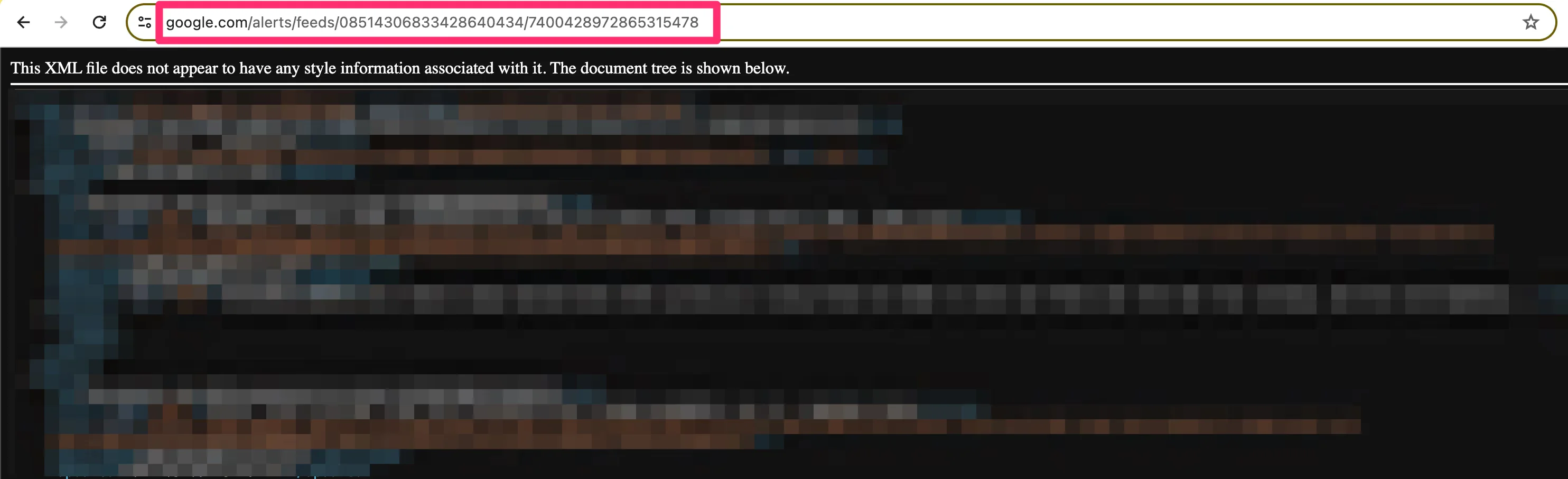
Alternatively, you can click on the RSS feed icon, which will take you to the RSS feed URL. You can then copy/paste the URL from this page.
Step 2: Create a Lindy workflow to scrape the RSS feed
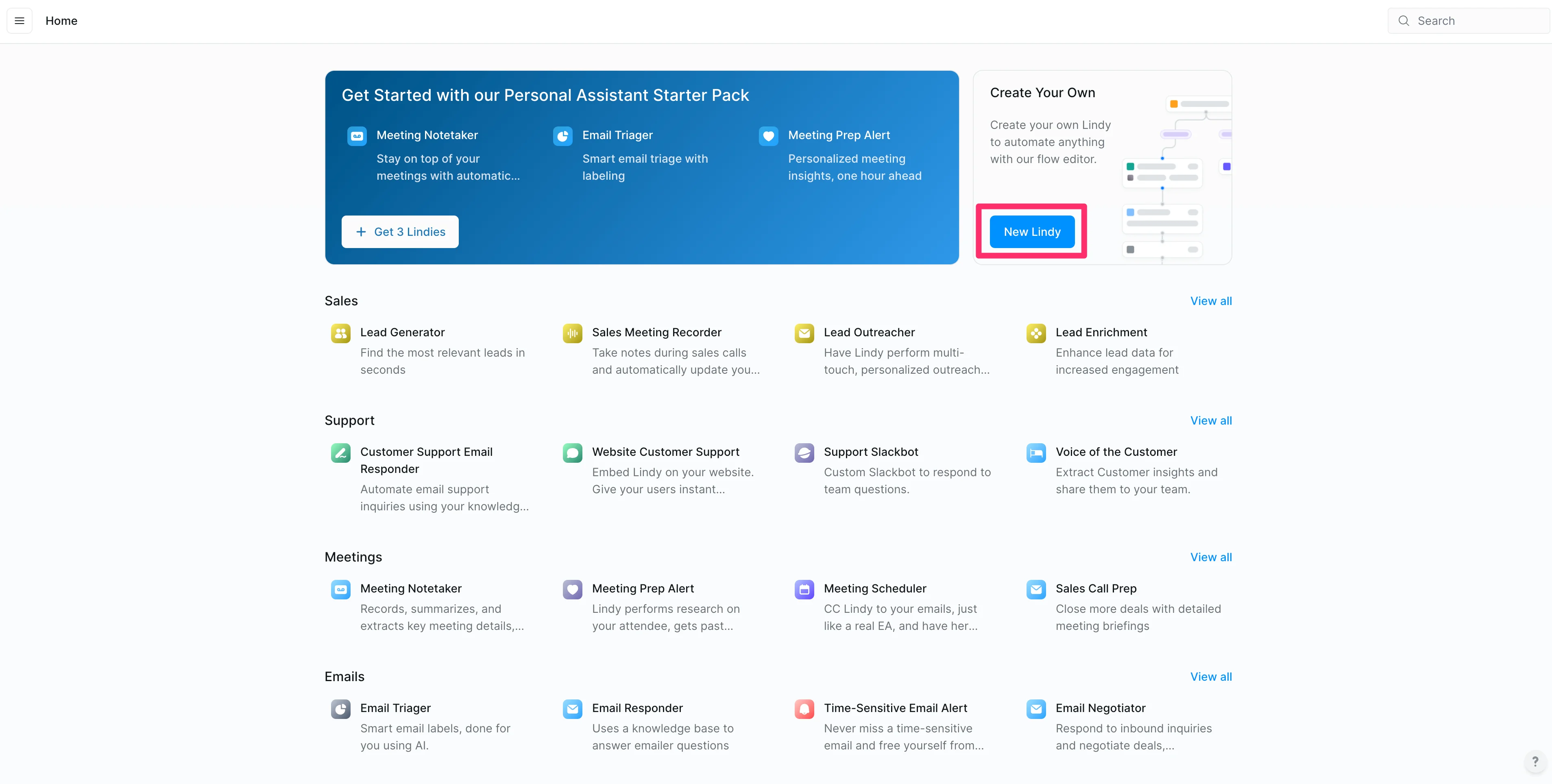
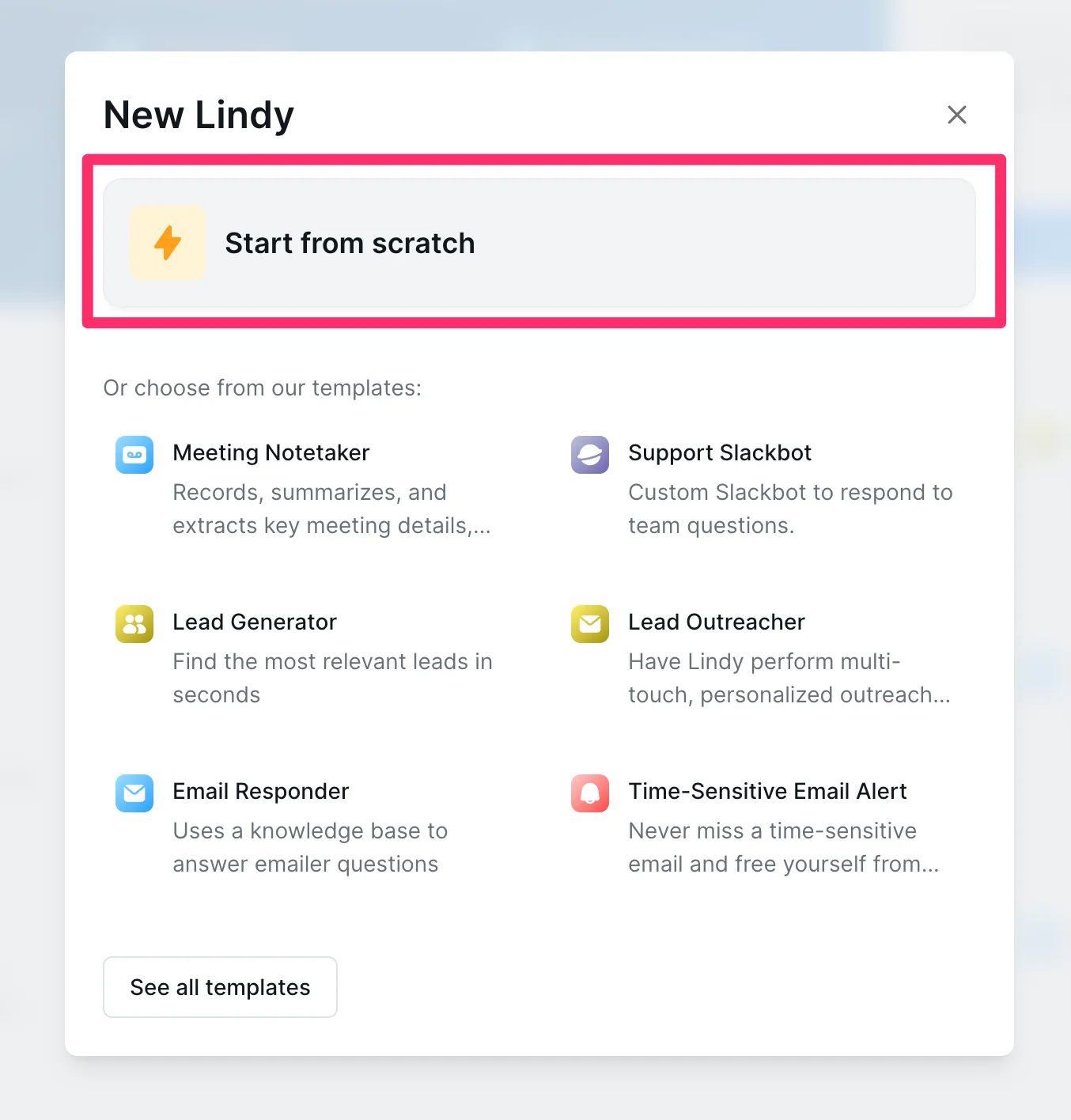
Now, we can head over to Lindy to set up our workflow to ingest the RSS feed. On the Lindy homepage, click the “New Lindy” button to create a new Lindy.
Select the “Start from scratch” option, as we’re going to build our Lindy flow from a blank canvas.
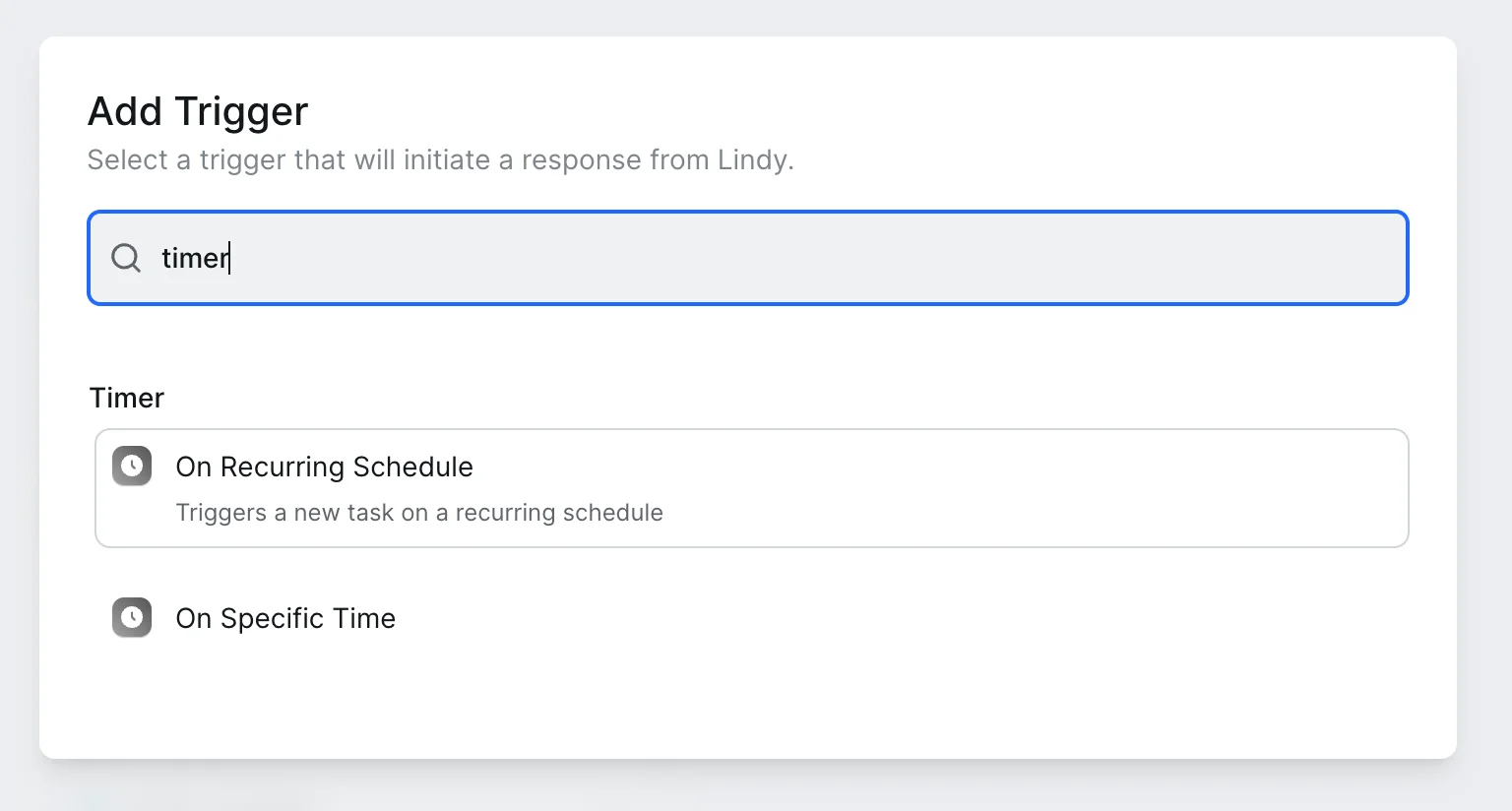
We’ll then be taken to the Lindy Flow editor, where we’ll start by adding a trigger to our workflow. This action will kick off the Lindy automation. To add a trigger, click the “Select Trigger” button in the middle of the screen.

We’re going to trigger our Lindy on a recurring schedule. To do this, search for “Timer” and select the “On Recurring Schedule” trigger.
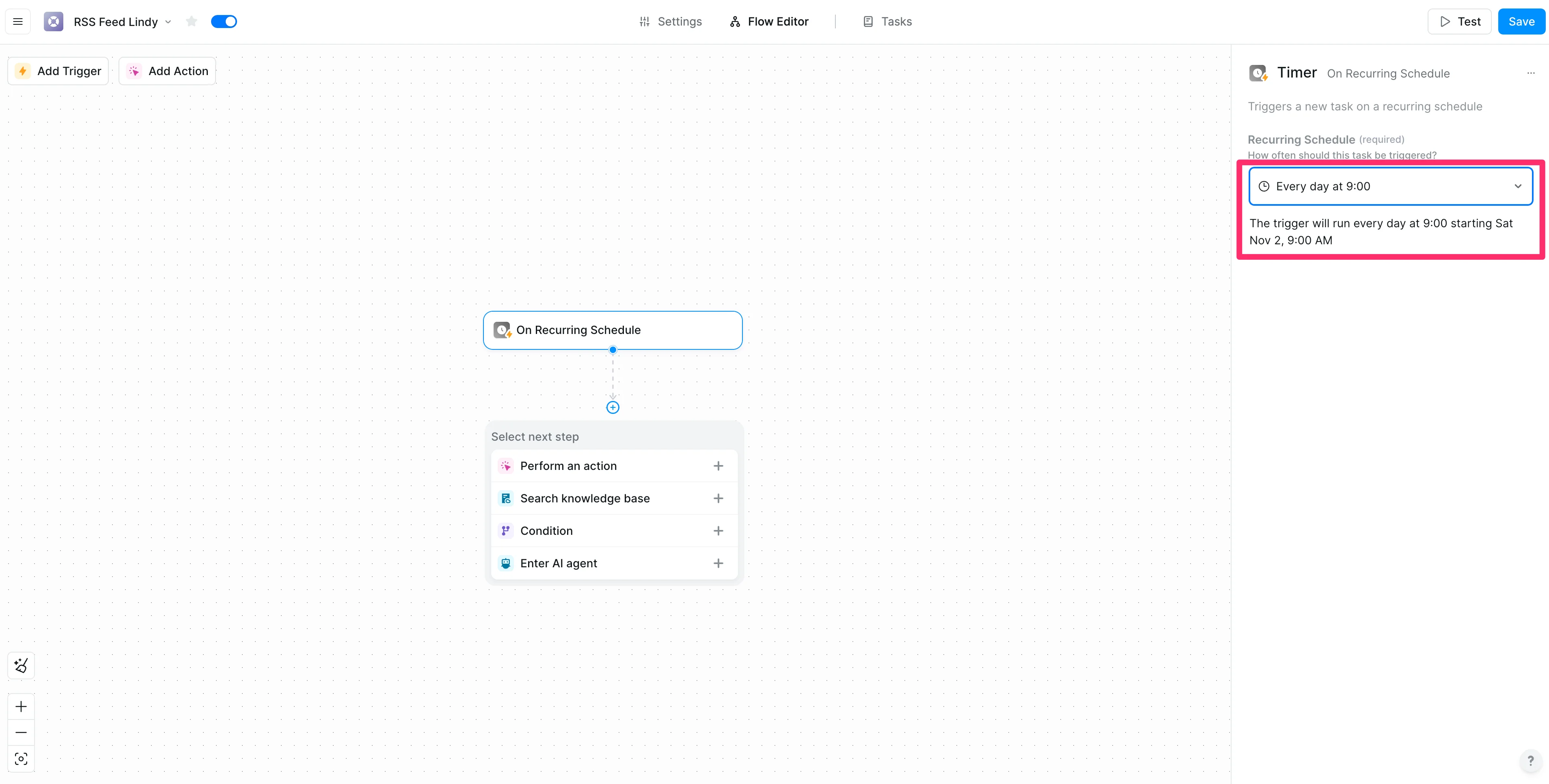
You can define your schedule in natural language on the right side of the screen. We’re going to set our schedule to “Every day at 9:00”.
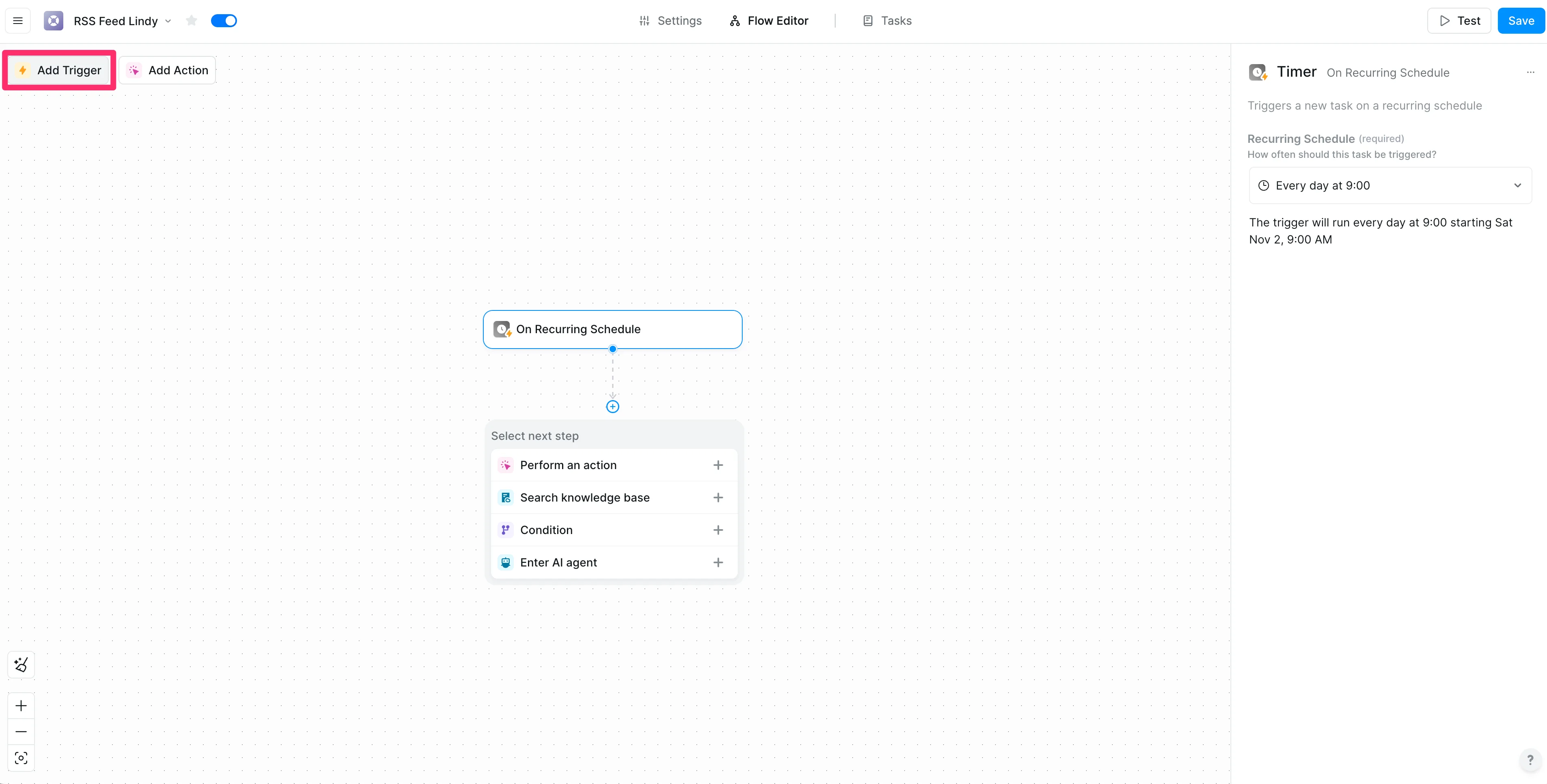
We’re not done adding triggers though. We’re going to add another trigger to this flow that will allow us to trigger it manually within the Lindy app. To do this, click the “Add Trigger” button in the top left corner of the screen.
Click the “Chat” option in the “Popular Triggers” section of the resulting pop-up window.
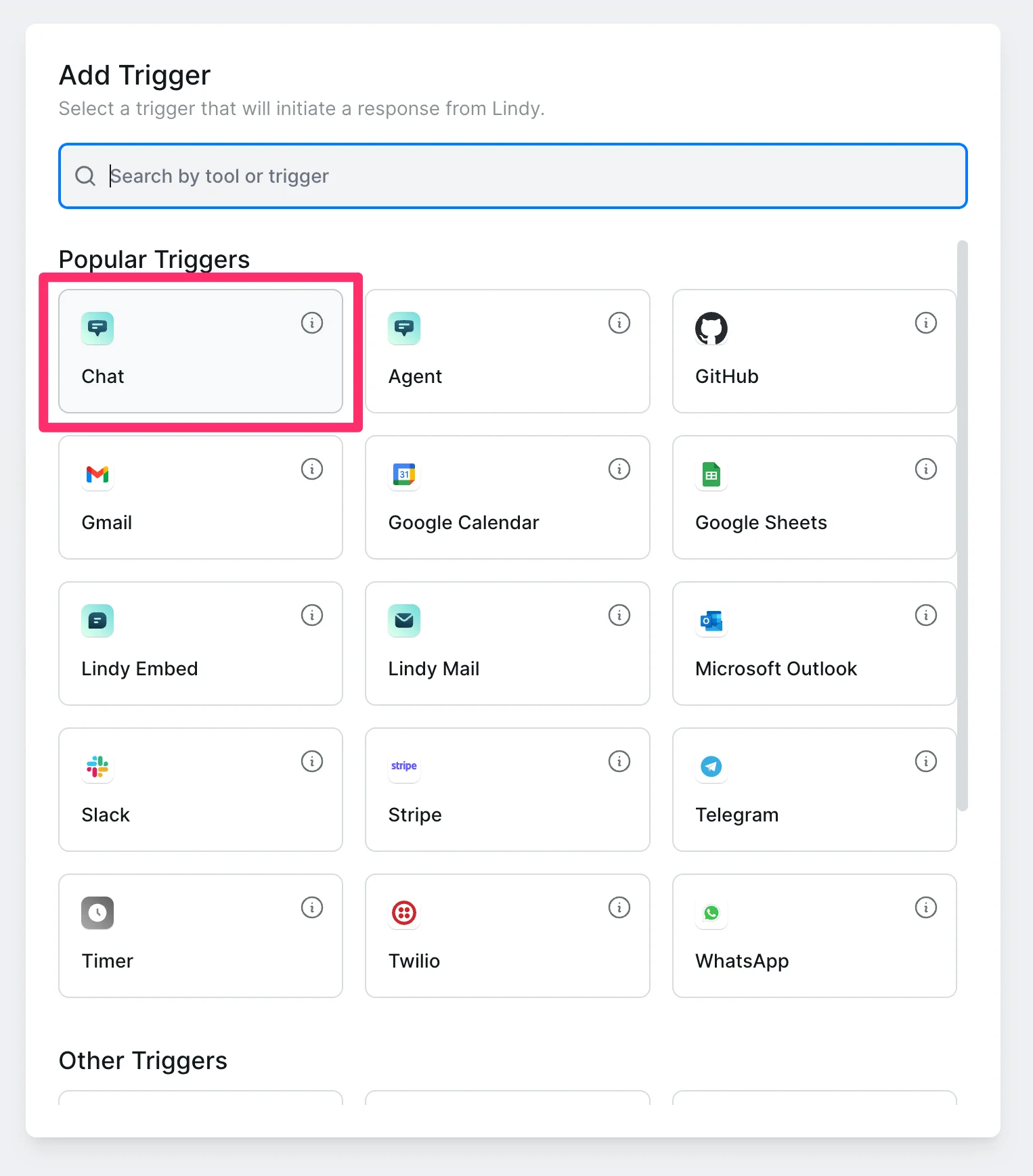
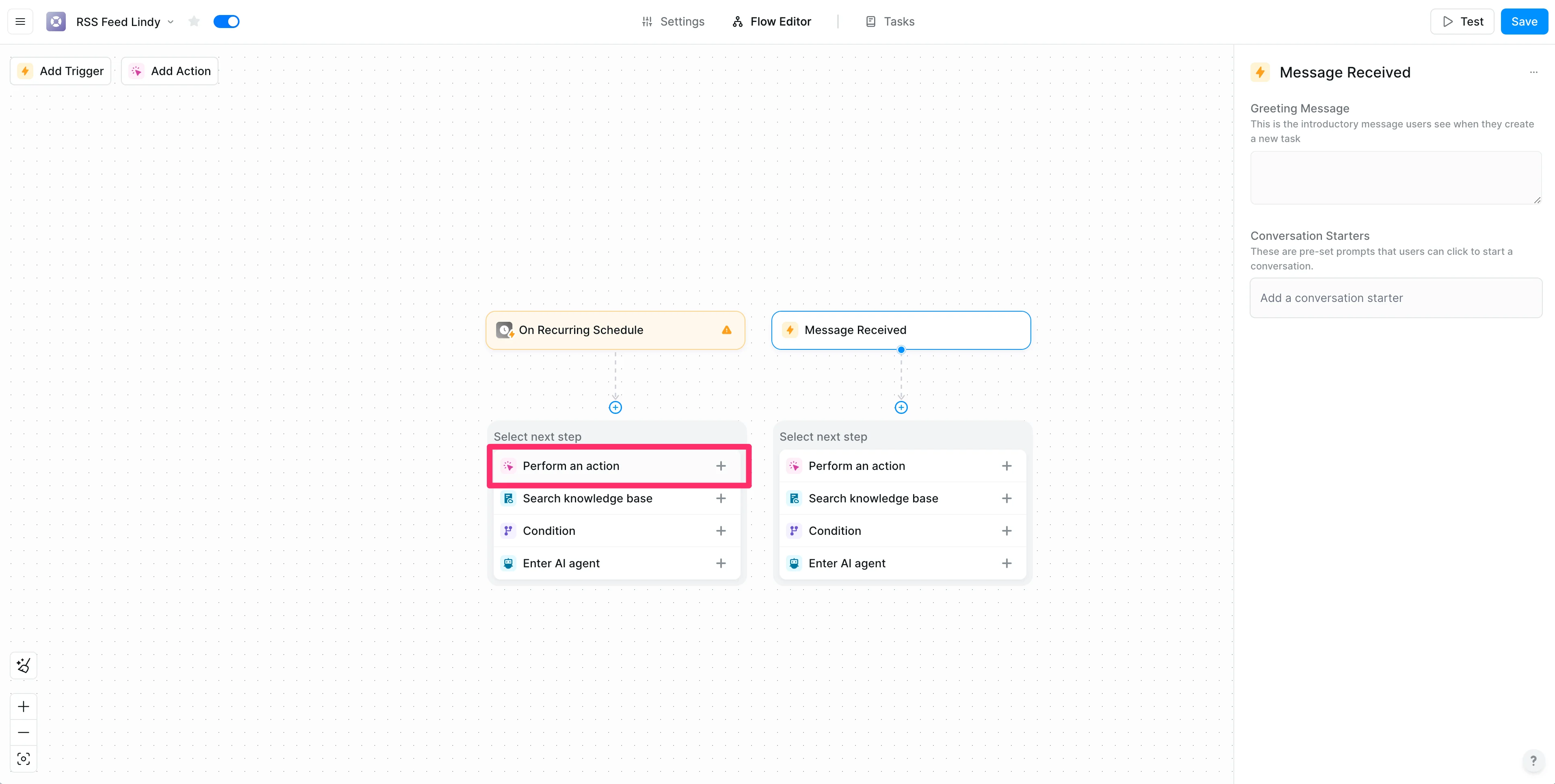
With the two triggers added, we can now add our first action. Under the “On Recurring Schedule” trigger, click the “Perform an action” option.
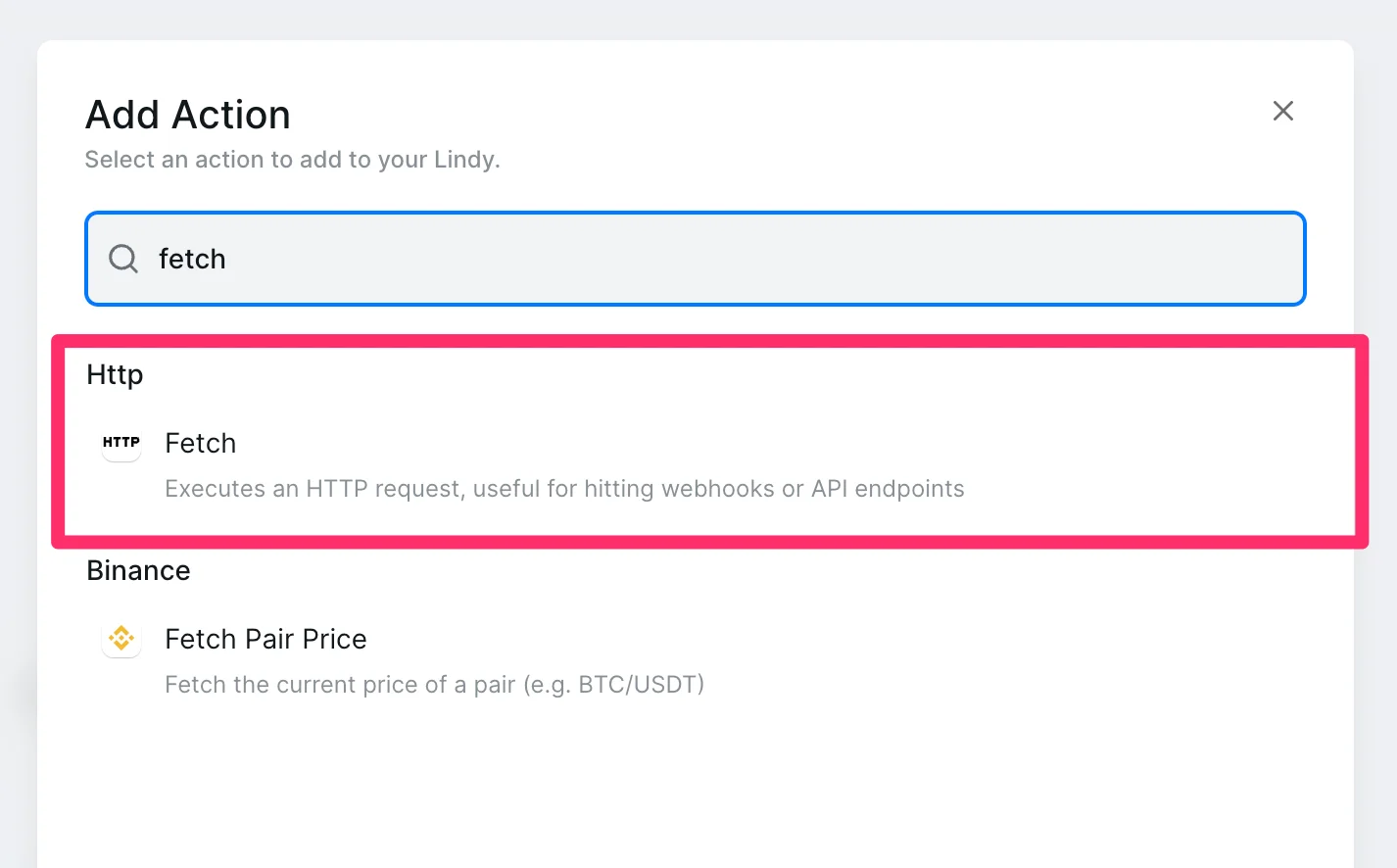
We’re going to add a “Fetch” action that will grab all of the content from our RSS feed URL. To do this, search for “Fetch” and select the “Fetch” action.
On the right side step editor, update the “Url” field to “Set Manually” mode and drop in the RSS feed URL of your Google Alert. You do not need to make any additional updates to this step.
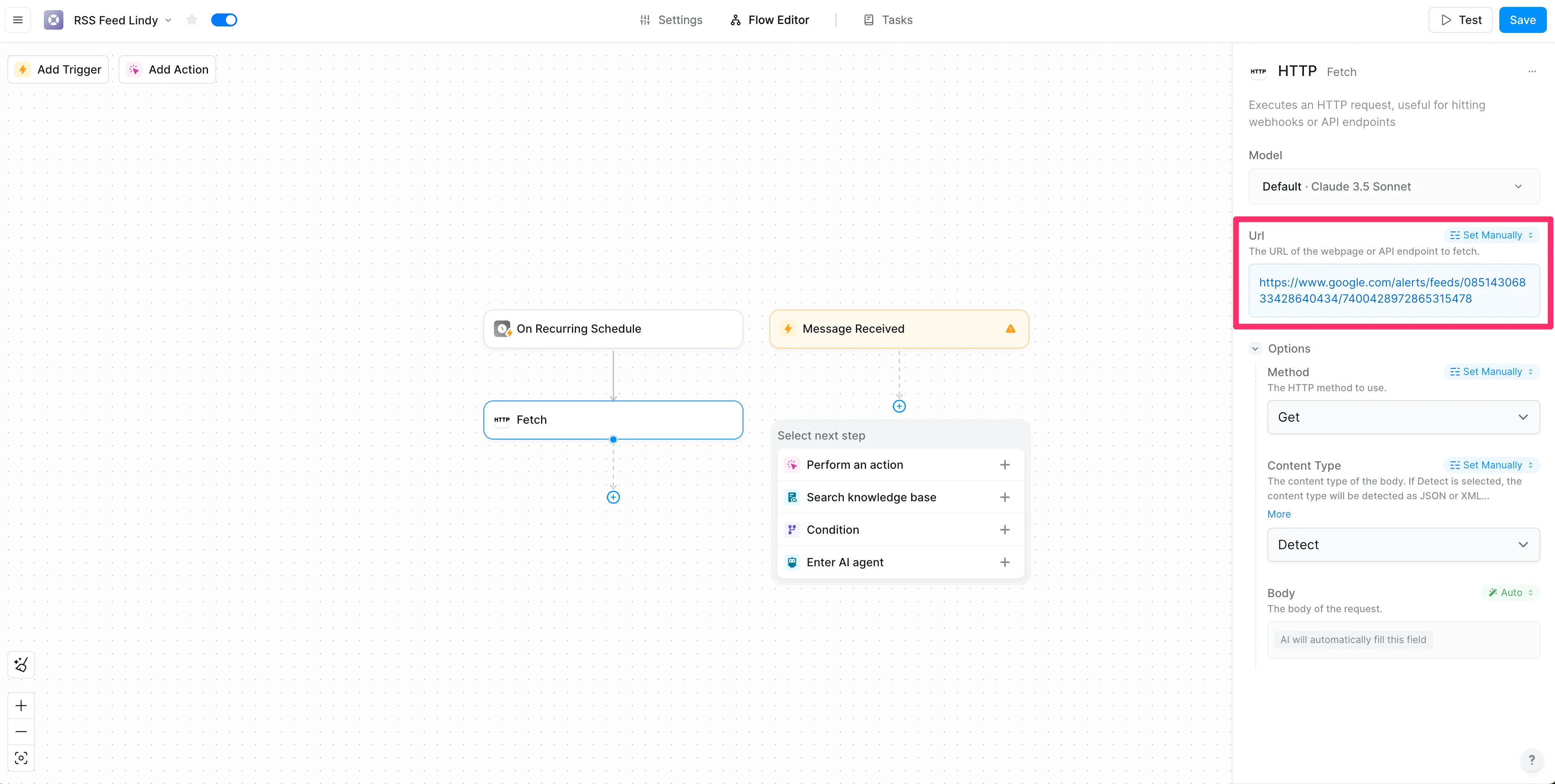
Now that our first action has been added, we need to connect our manual trigger to this action step. To do this, click and drag the arrow from the “Message Received” trigger to the “Fetch” step. This will make it so both our automated and manual triggers will flow into this action step.

Summarize the content in Lindy
Now that we’re fetching the content from our Google Alert RSS feed, we’ll add a step that extracts just the URLs from the RSS feed. To do this, click the “Add step” button below the “Fetch” step.
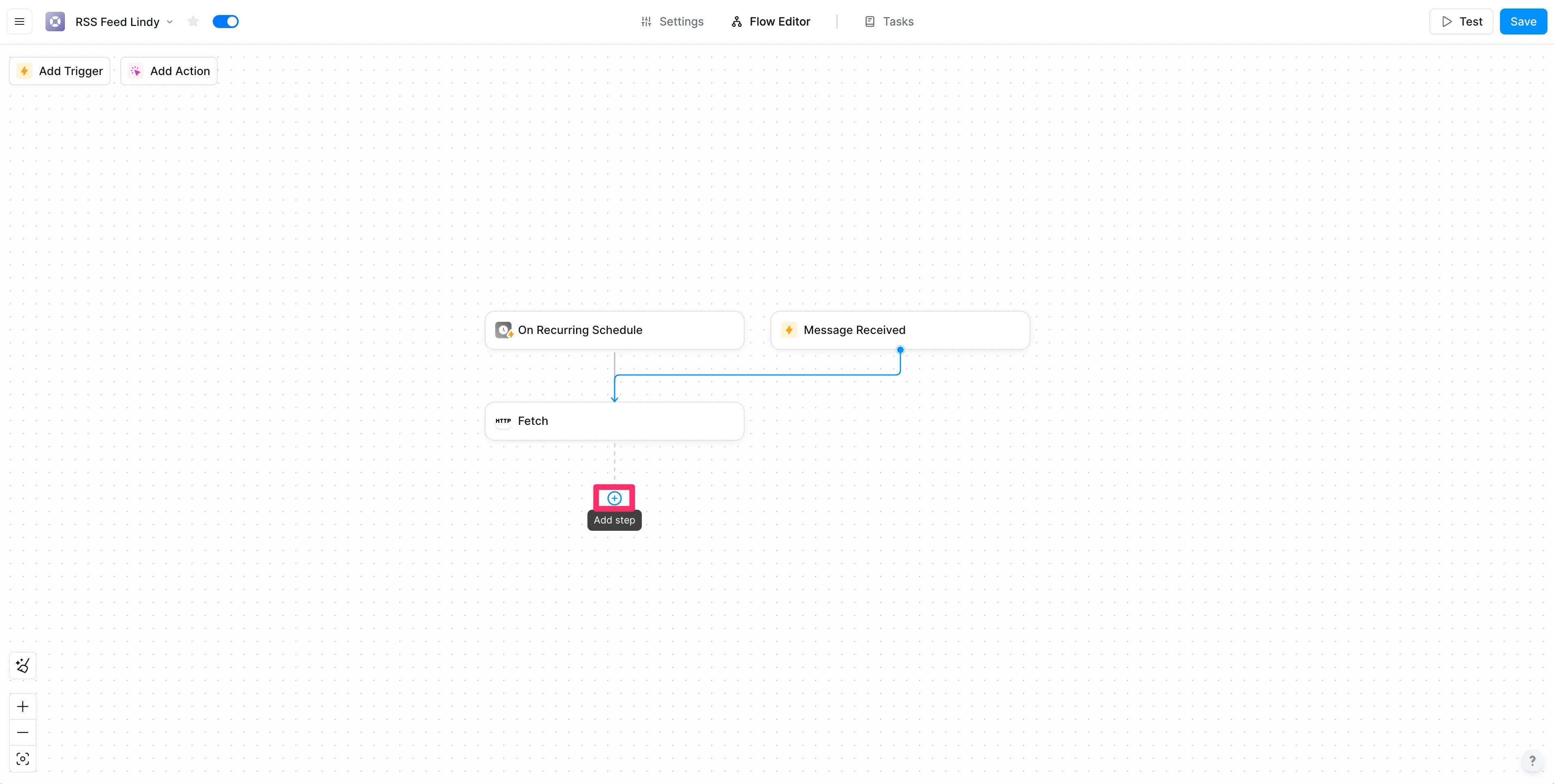
Select the “Enter AI agent” option.
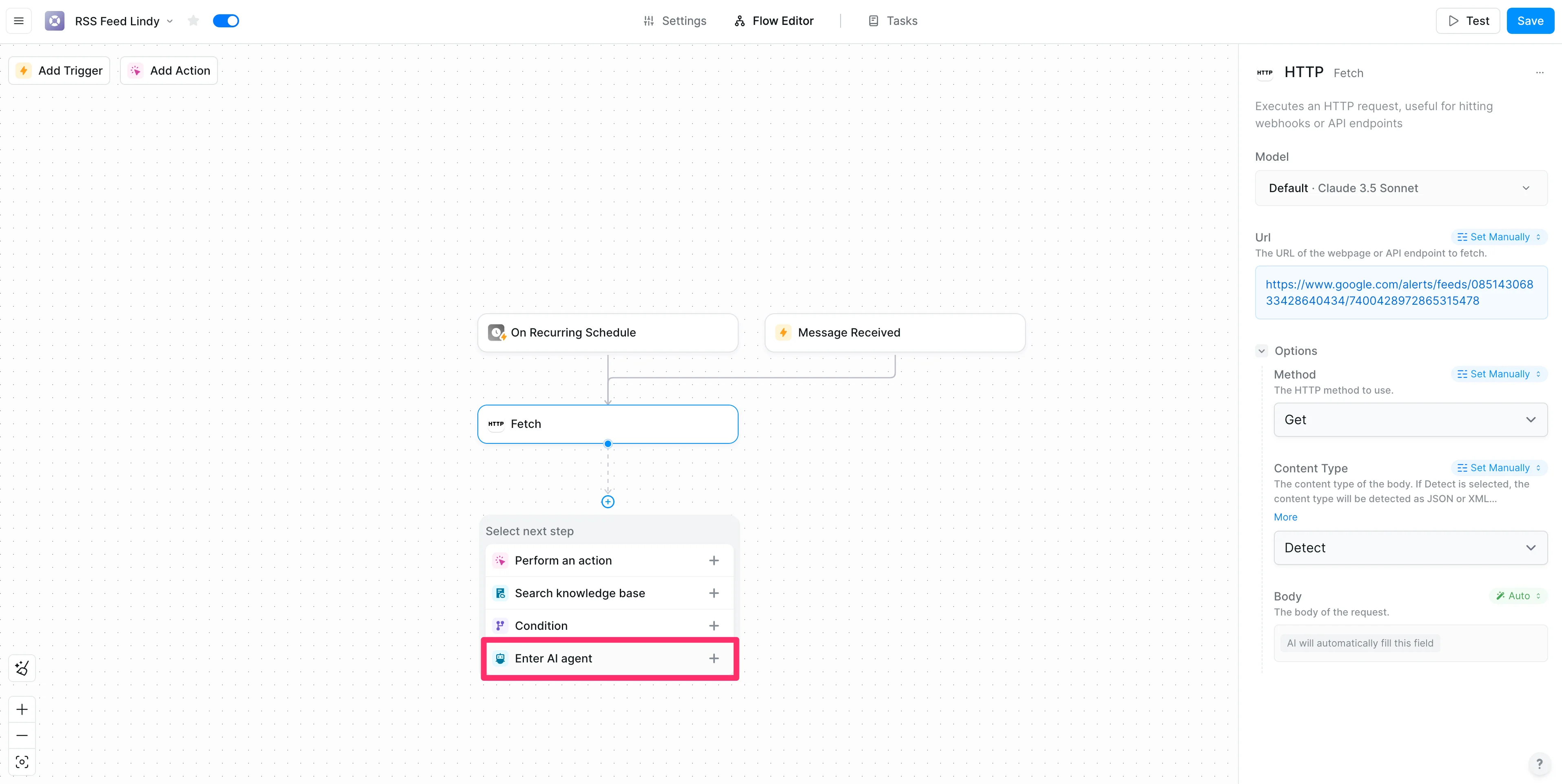
For the prompt for the AI Agent, we’re going to request it extract all the URLs from the previous step. We’re adding an AI Agent step instead of a vanilla LLM call because the AI Agent step will allow the AI to loop and iterate on the task until it’s complete. This is a great action when you have a complicated, ambiguous task.
Sample Prompt:
Extract all of the URLs from the previous step
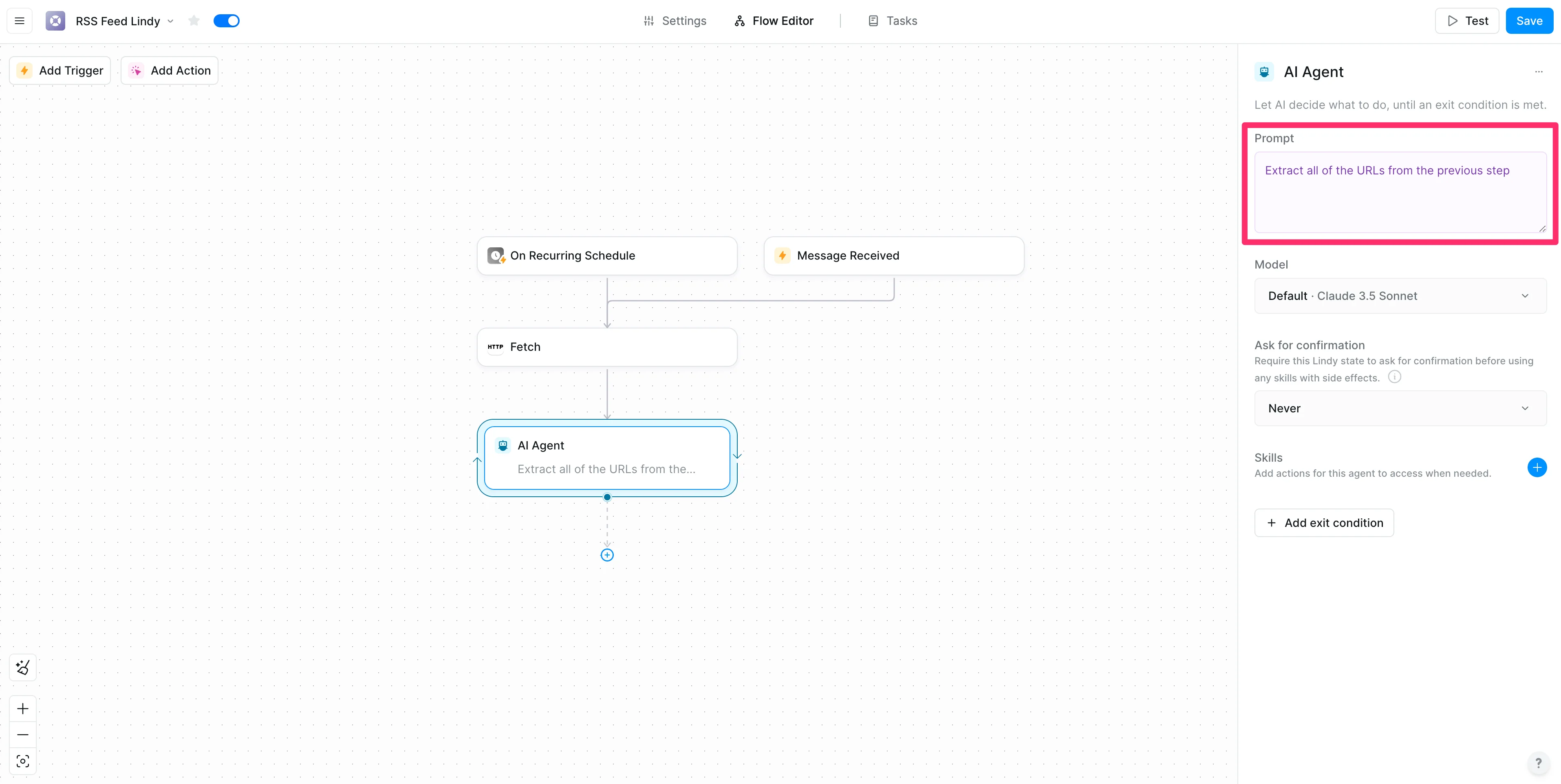
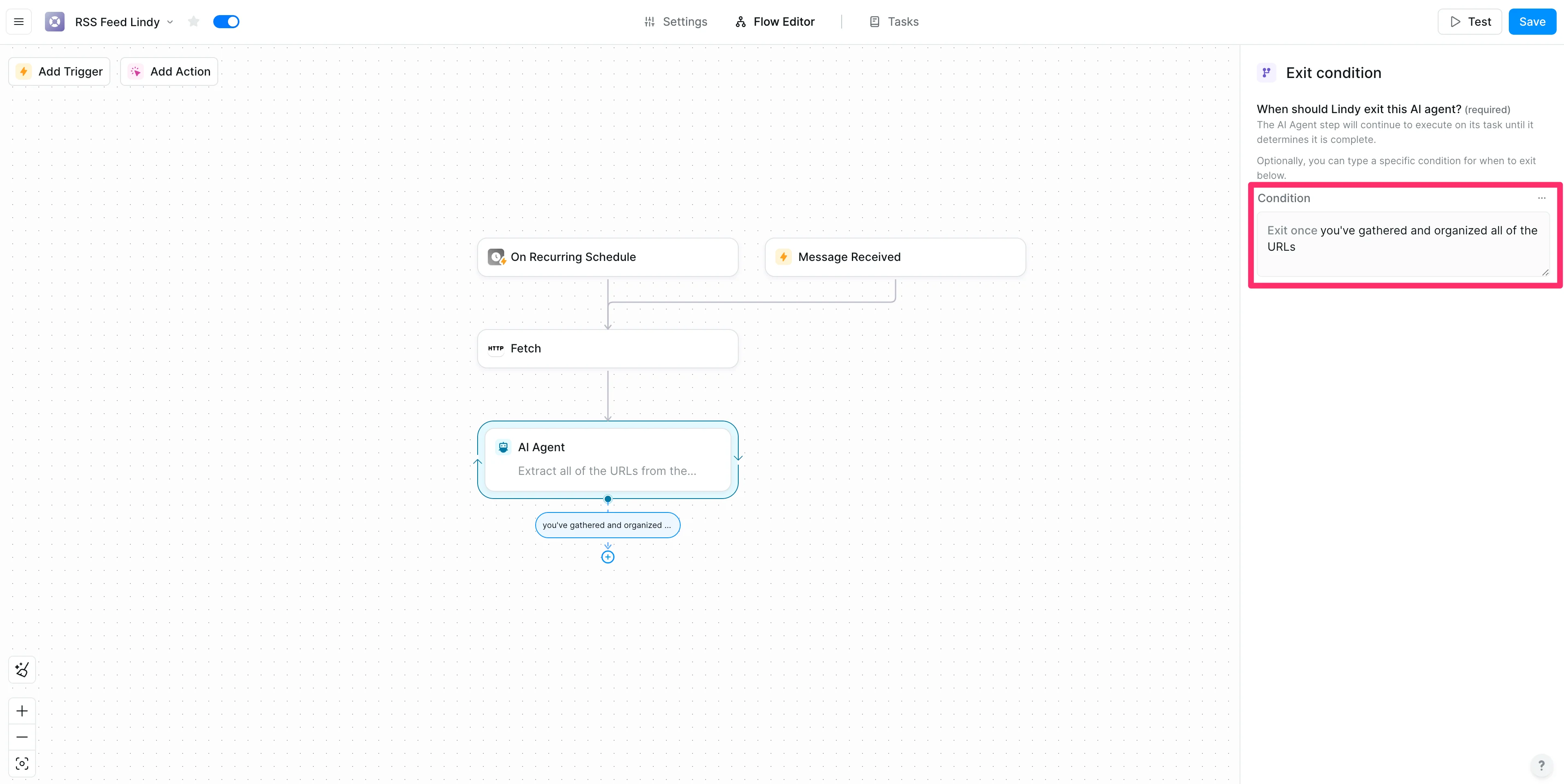
We also need to add a “Jump Condition” to the AI Agent step so the agent knows when to exit from its directive. To do this, click the “Add exit condition” button.
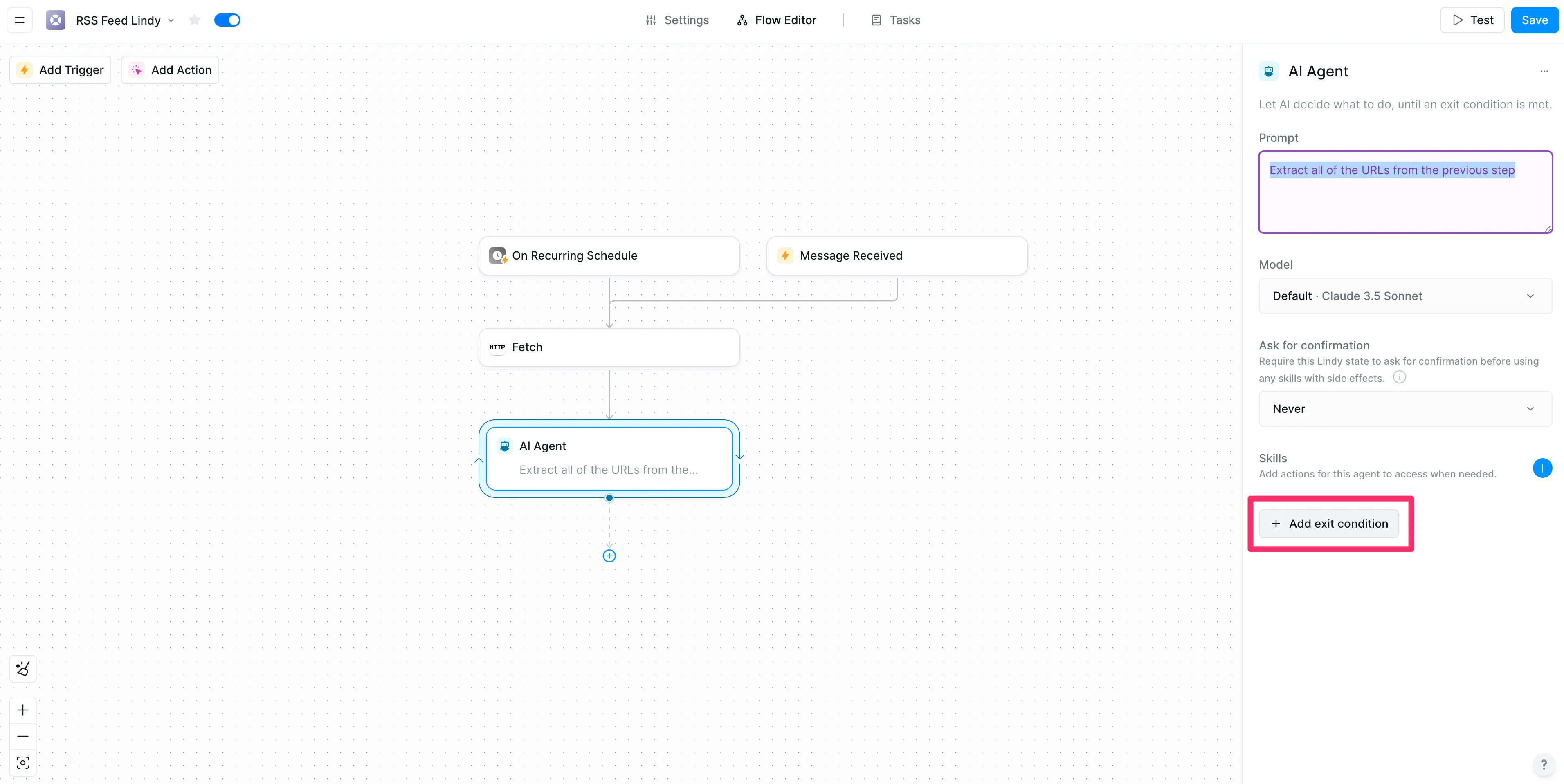
We’ll provide it with a simple prompt for when it should stop working.
Sample Prompt:
you've gathered and organized all of the URLs
With the AI Agent step added to extract the URLs from the RSS feed, we can add one more action to summarize all the content from the URLs. To do this, click the “Add step” button below the AI Agent step and click the “Perform an action” option.
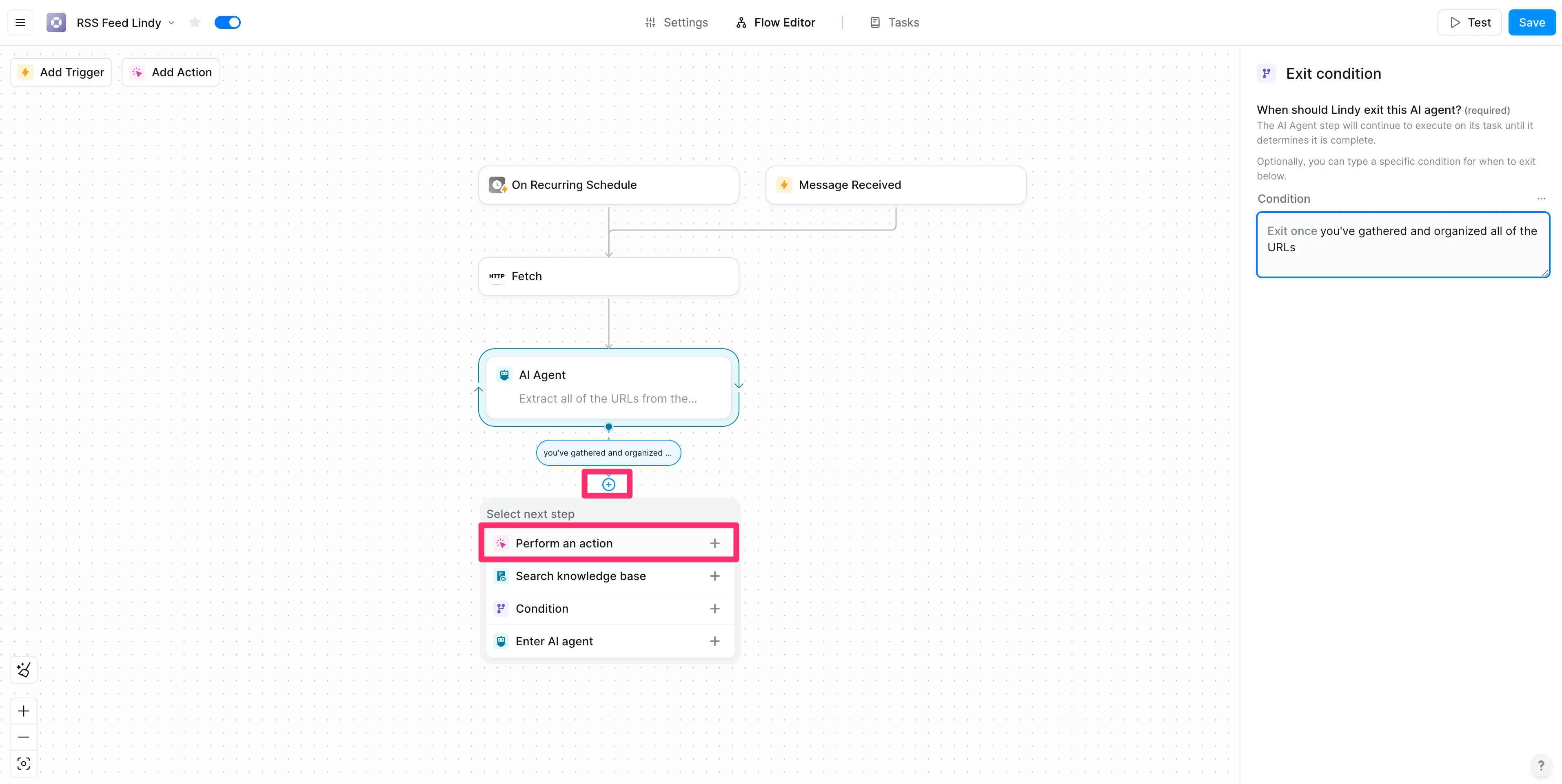
Select the “Chat” action in the “Recommended” section of the pop-up window.

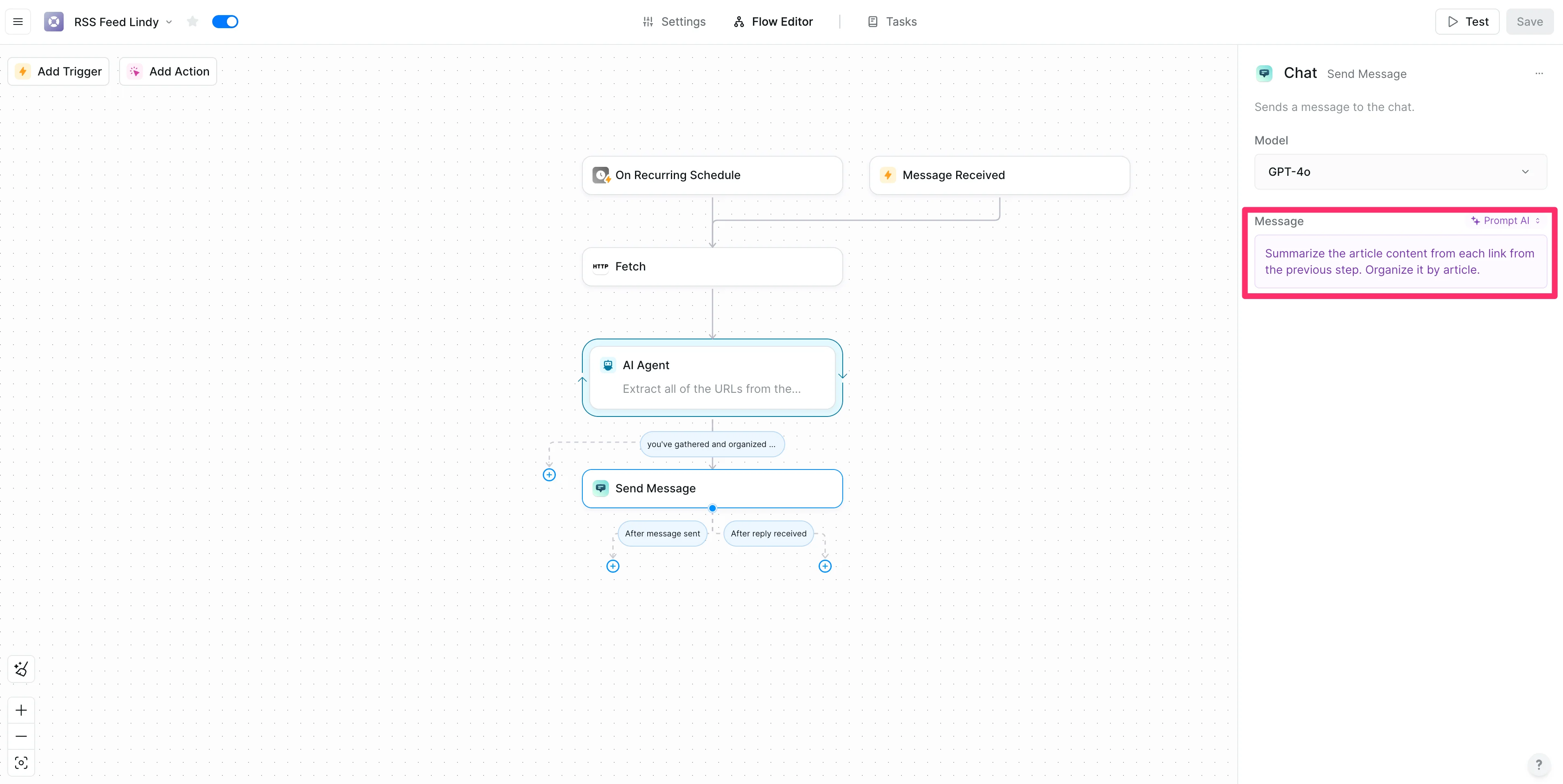
We’ll add a simple prompt to have the LLM call summarize the content from all of the gathered URLs in the previous step and send us the summaries via the Lindy Task view. To do this, update the “Message” field setting to Prompt AI mode and add a prompt like the one below. Also, we recommend updating the “Model” of this step to GPT-4o, as we found it performed better than the default model option.
Sample Prompt:
Summarize the article content from each link from the previous step. Organize it by article.
Test the workflow
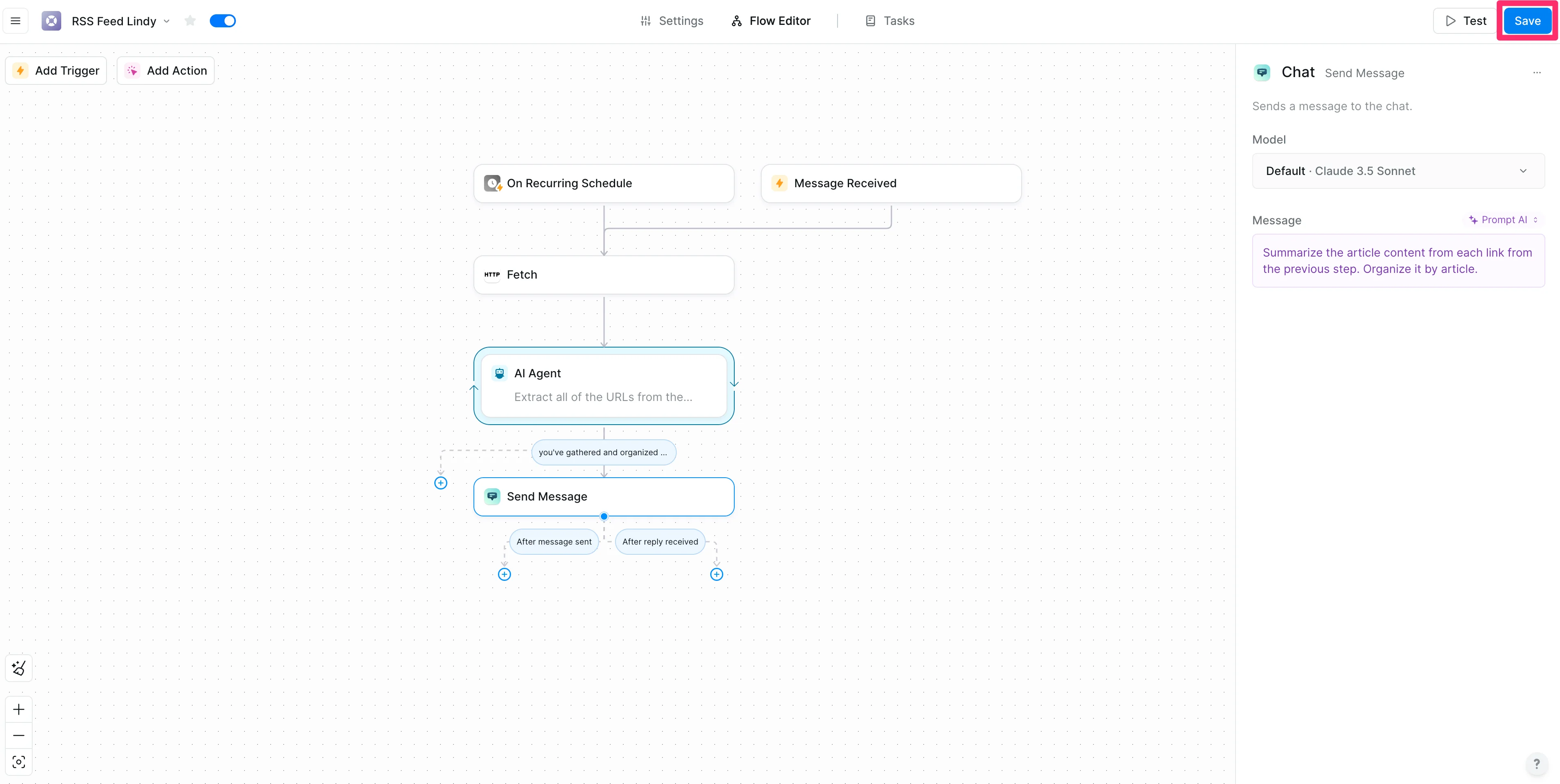
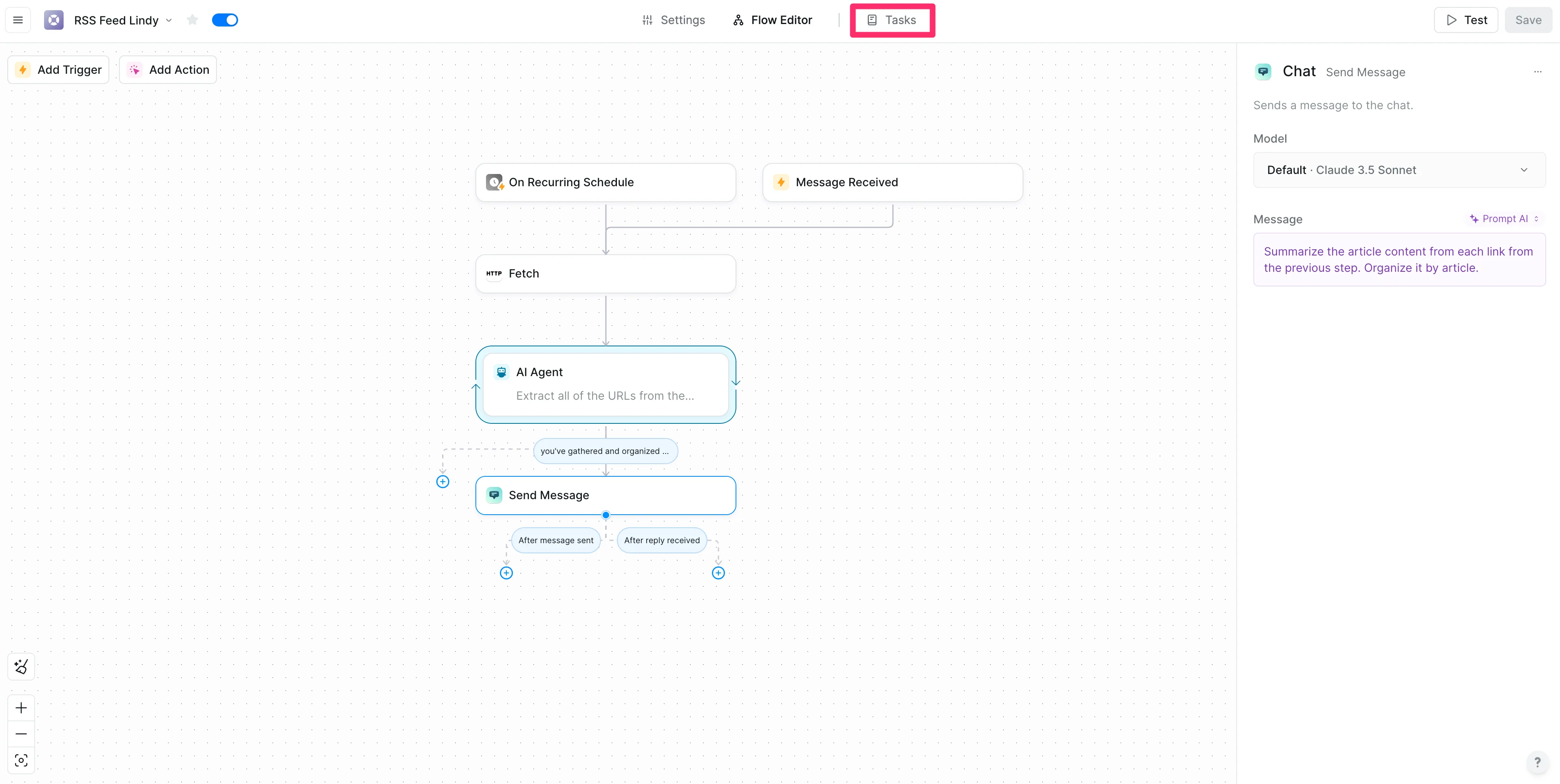
Now we can test our workflow. Make sure to click the “Save” button in the top right corner of the Flow Editor to save your workflow.
Then click the “Tasks” tab at the top of the page.
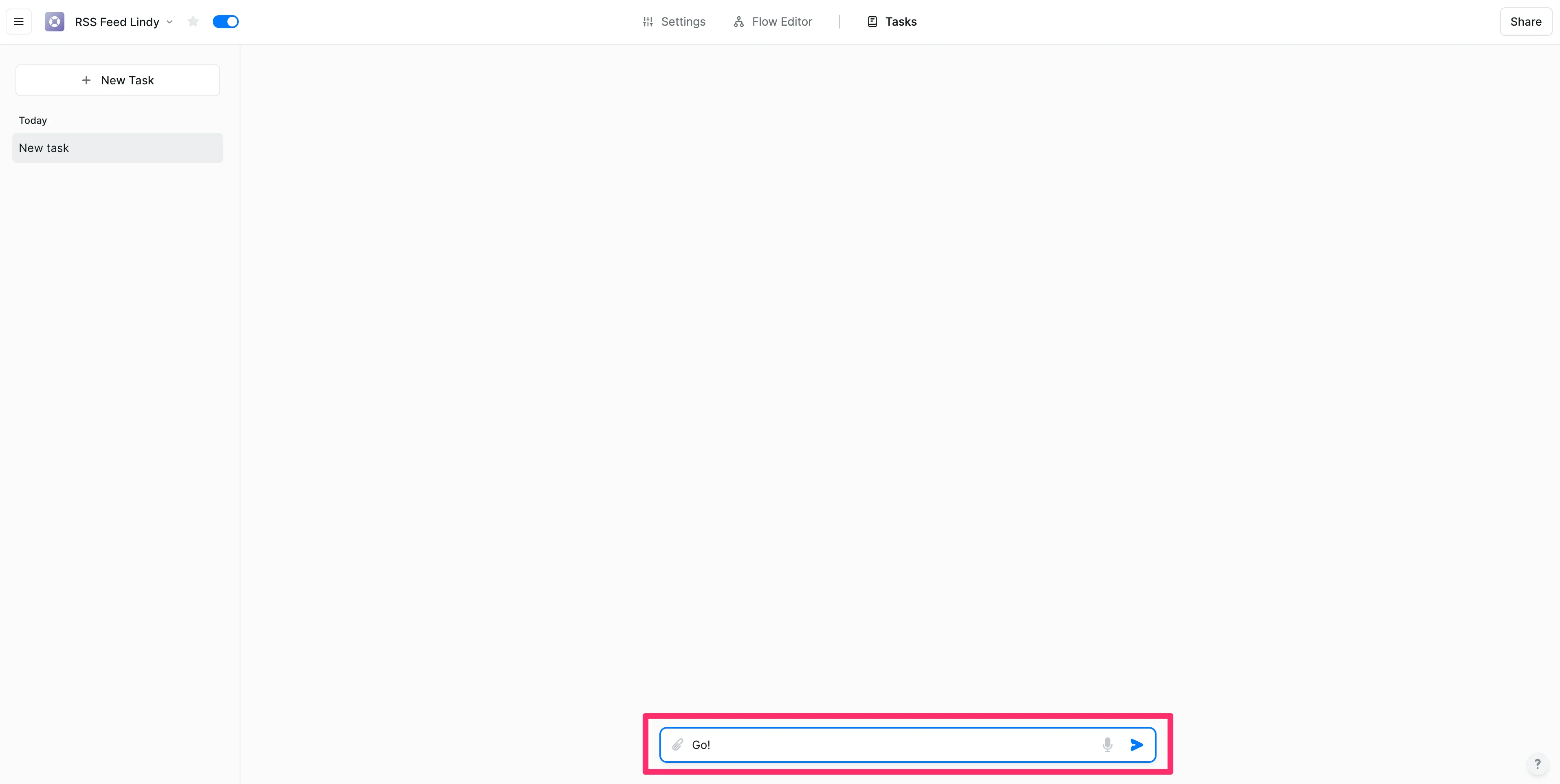
In the Task View, send any message to manually trigger the workflow. We’re going to send the message “Go!”.
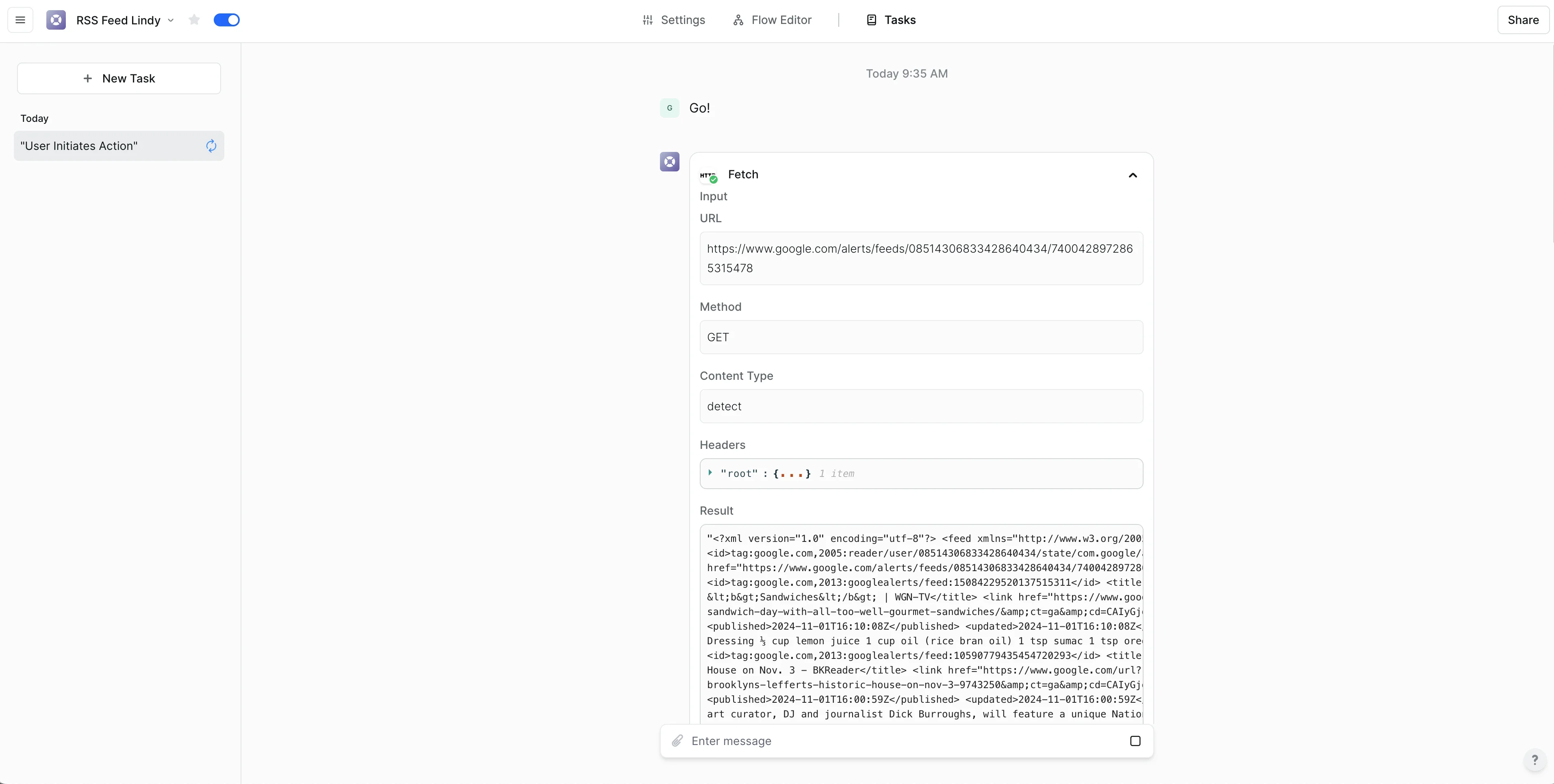
Lindy will fetch the content from the RSS feed.
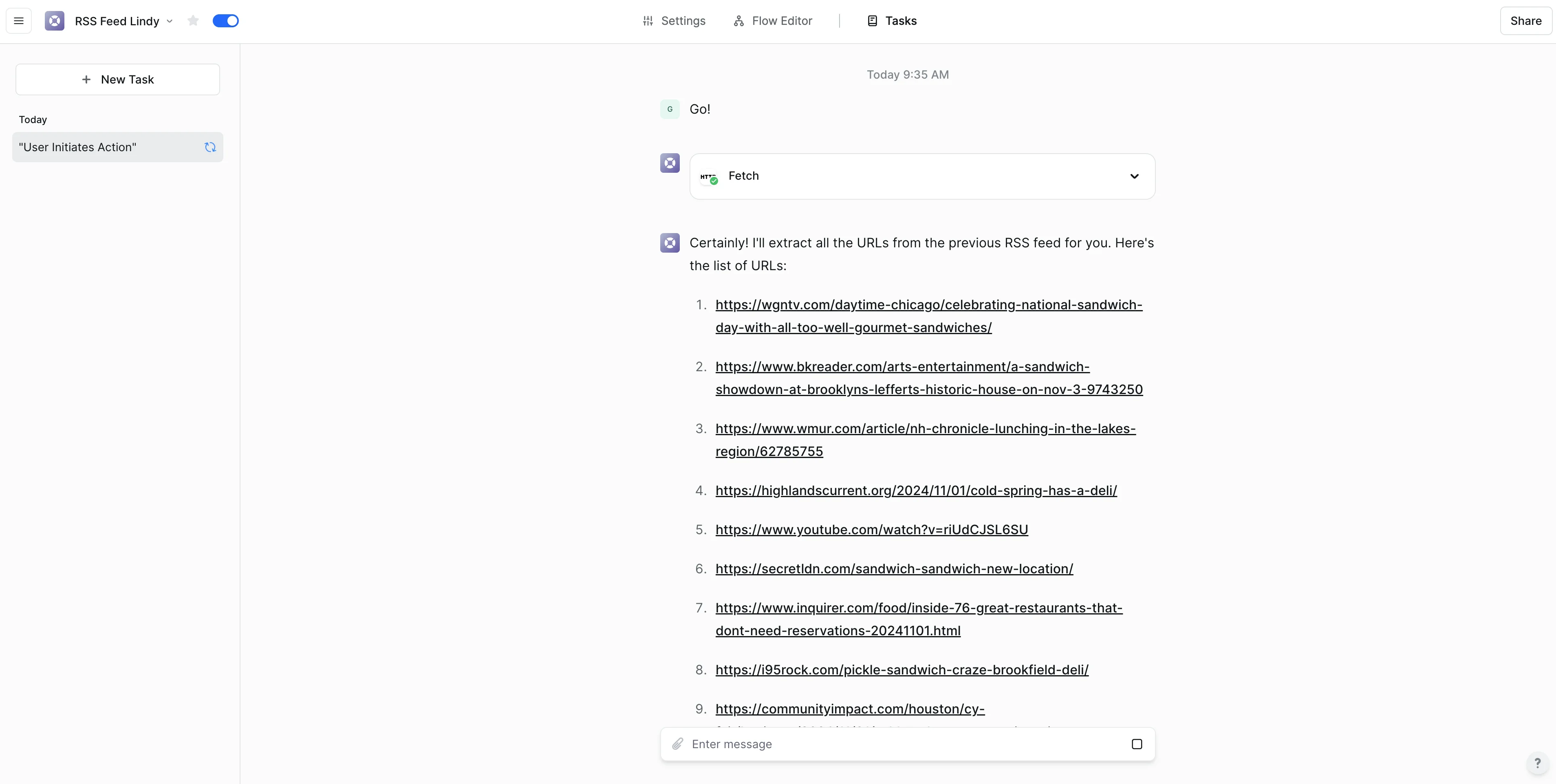
And extract all of the URLs from the RSS Feed.
And finally, send you a summary of all the RSS feed content.

You can add more detailed prompts to your workflow to have Lindy process and output the information differently. You can also add additional steps to your workflow, like having Lindy send the summarized data to platforms like Slack, Google Sheets, or Google Docs. You could even have Lindy check a data source like Google Sheets for previous updates, ensuring she doesn’t send you repeated summaries.
This tutorial was created by Garrett.