Tailoring outreach for different social platforms
How to automatically draft outreach messages for LinkedIn and X based on your leads’ personal information.
2024-11-29
Welcome to the fifth and final tutorial in our “Automating prospecting and outreach” course!
You’ll learn how to tailor your content outreach to different platforms, ensuring your messaging remains consistent while adapting to platform-specific norms. Specifically, we’re going to take email outreach drafts created in the previous lesson and build a few AI systems that can auto-convert them to content suitable for LinkedIn and X.
We’ll do this in both ChatGPT (using a custom GPT) and Lindy, so whether you want a chatbot experience or an automated workflow for this process, you’ll have the tools and prompts needed to make this happen.
Steps we’ll follow in this tutorial:
- Gather platform requirements and generate a system prompt
- Create a custom GPT for content transformation
- Update Lindy's workflow to auto-generate social copy
Tools needed:
Let’s see how it’s done.
Gather platform requirements and generate a system prompt
To get started, let’s determine the messaging requirements for our target platforms (e.g., LinkedIn, X/Twitter) using ChatGPT. Open a new window with ChatGPT and enable the web “Search” function.
.png)
Then, prompt ChatGPT to provide the direct messaging restrictions of your target platforms.
Sample Prompt:
What are the direct messaging restrictions on LinkedIn and X/Twitter? I will provide these parameters to an AI tool that will generate these DMs for me.

Now that we have the platform restrictions, we can follow up with ChatGPT to create a system prompt for us. We’re creating a system prompt because we’re going to use this as the basis of our custom GPT and Lindy instructions to automate this process moving forward.
Sample Prompt:
Create a system prompt for a custom GPT that will let me provide various email outreach messages and the platform I want to reformat it to (e.g., X/Twitter, LinkedIn), and have it reformat the message to remain consistent while adapting to the platform-specific norms you've previously defined.

Create a custom GPT for content transformation
Now, we’ll create a custom GPT, instructed on all of the material ChatGPT just generated for us. We’re creating a custom GPT for this process because it’ll speed up our process whenever we want to transform outreach into a platform-specific message.
To create a custom GPT, click the “Explore GPTs” tab in the left-side navigation of ChatGPT.

Then, click the “Create” button in the top right corner of the page.

You can create a custom GPT via a chat-based workflow or a form configuration. We’ll use the form, so click the “Configure” button at the top of the page.

Now, we can drop in our custom instructions into the “Instructions” field. You can use the content you generated from your thread with ChatGPT here, or feel free to copy our sample instructions below.
Sample Custom Instructions:
You are an AI language model tasked with reformatting email outreach messages for various social media platforms. When provided with an email message and a target platform (e.g., X/Twitter, LinkedIn), your goal is to adapt the message to align with the platform's specific norms and character limitations while preserving the original intent and tone.
LinkedIn Direct Messaging Restrictions:
-Connection Request Messages: When sending a connection request, you can include a personalized note with a maximum of 300 characters.
-InMail Messages: For users with premium accounts, InMail messages allow up to 200 characters for the subject line and up to 2,000 characters for the body.
-Standard Direct Messages: Once connected, you can send direct messages with a limit of up to 8,000 characters per message.
X (Twitter) Direct Messaging Restrictions:
-Character Limit: Direct messages can contain up to 10,000 characters, allowing for detailed conversations.
When crafting DMs, ensure that the generated messages comply with these character limits and daily quotas to maintain platform compliance and enhance user engagement.

Lastly, we’ll set the “Capabilities” for our custom GPT. We’ll just enable “Web Search” as we won’t need image generation or code interpretation. You can upload custom “Knowledge” to your GPT (e.g., example outreach, brand guidelines, etc.) to help further tailor your custom GPT.

Now, we can test our custom GPT. In the right-side panel of the page, ask for a specific message type and insert an email message draft.
Sample Prompt:
Generate a LinkedIn connection request message from this email message:[insert email message draft]

The custom GPT will respond with a message aligned to the message type requirements.

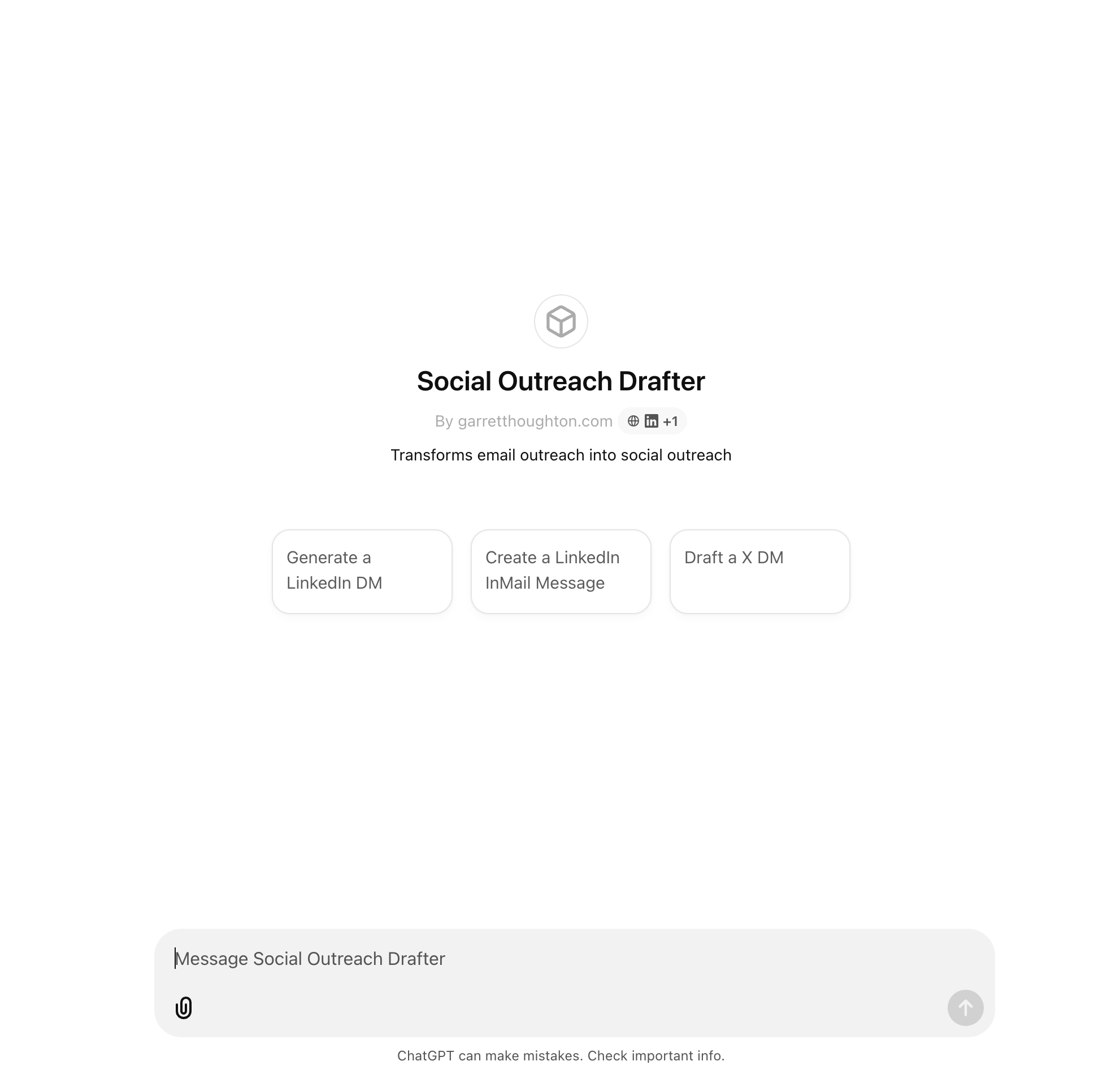
Once you’re happy with your custom GPT’s performance, you can publish it by clicking the “Create” button in the top right corner of the page.

You’ll then land on a new thread with your custom GPT where you can start providing messages for transformation.
Update Lindy workflow to auto-generate social copy
Now that we have a ChatGPT process, we can head back to the Lindy Outreacher we made in the previous lesson of this course, and update it to create social post transformations as well. This update will allow us to have social messages auto-generated in tandem with our automated email outreach.
To do this, navigate back to your Lindy Outreach workflow add an action step after your “First outreach email” step, and select the Lindy Chat > Send Message action.

In the action editor, we’ll modify the Custom Instructions prompt we used in ChatGPT to have Lindy transform the first outreach email into all of the social platform variants of interest.
Sample Prompt:
Adapt the first outreach email message to align with the below platforms' (LinkedIn, X/Twitter) specific norms and character limitations while preserving the original intent and tone.
LinkedIn Direct Messaging Restrictions:
-Connection Request Messages: When sending a connection request, you can include a personalized note with a maximum of 300 characters.
-InMail Messages: For users with premium accounts, InMail messages allow up to 200 characters for the subject line and up to 2,000 characters for the body.
-Standard Direct Messages: Once connected, you can send direct messages with a limit of up to 8,000 characters per message.
X (Twitter) Direct Messaging Restrictions:
-Character Limit: Direct messages can contain up to 10,000 characters, allowing for detailed conversations.
When crafting DMs, ensure that the generated messages comply with these character limits and daily quotas to maintain platform compliance and enhance user engagement.

Now, we can test our updated workflow. Click the “Save” button to save your workflow and then click the “Test” button in the top right corner. Select the “Message Received” step.

As we did in the previous lesson, in this test window, you can provide Lindy with lead data that would be on your lead list, like Name, Email, Website, Company, and Description.
Sample Prompt:
Name: [insert test contact name]
Email: [insert test contact email]
Website: [insert test contact website]
Company: [insert test contact company name]
Description: [insert test contact company description]

Lindy will then generate all the social outreach content based on the email draft. This content will be sent to you in the Lindy app during your email outreach sequences (not messaged directly into the social. platforms). You could update this step to be a Slack message or another type of alert channel to receive your social outreach messages that way.

You can then copy the message content and drop it into the various social platforms to DM your leads there.
And that’s it! You now have two different processes for transforming your email outreach messages into social platform-compliant outreach messages.
Congratulations! You’ve completed our “Automating prospecting and outreach” course. If you’ve made it this far, you should have all the AI tools you need to make your prospecting processes far more efficient and automated.
This tutorial was created by Garrett.