Transform unstructured voice notes into structured content
Use ChatGPT to create X threads, LinkedIn posts and blogs from simple voice notes.
2024-11-13
With the power of ChatGPT voice prompts, creating content on the go or away from your computer becomes a lot quicker and intuitive.
This tutorial will guide you through the steps of creating structured content from unstructured voice prompts. You’ll learn how to:
- Create a Twitter/X thread with your voice
- Edit the Twitter/X thread with your voice
- Create blog posts from a voice prompt
- Dictate a LinkedIn Post
Say goodbye to the hassle of typing and hello to a more efficient way of creating content with your voice with ChatGPT.
Create a Twitter thread with your voice
To get started, make sure you have the ChatGPT app installed on your phone or desktop computer. Voice mode is currently only available on the mobile or desktop versions of ChatGPT, not the web version.
In this tutorial, we’re going to create all of the content from our mobile device. To do this, click the microphone icon in the message bar at the bottom of the screen.
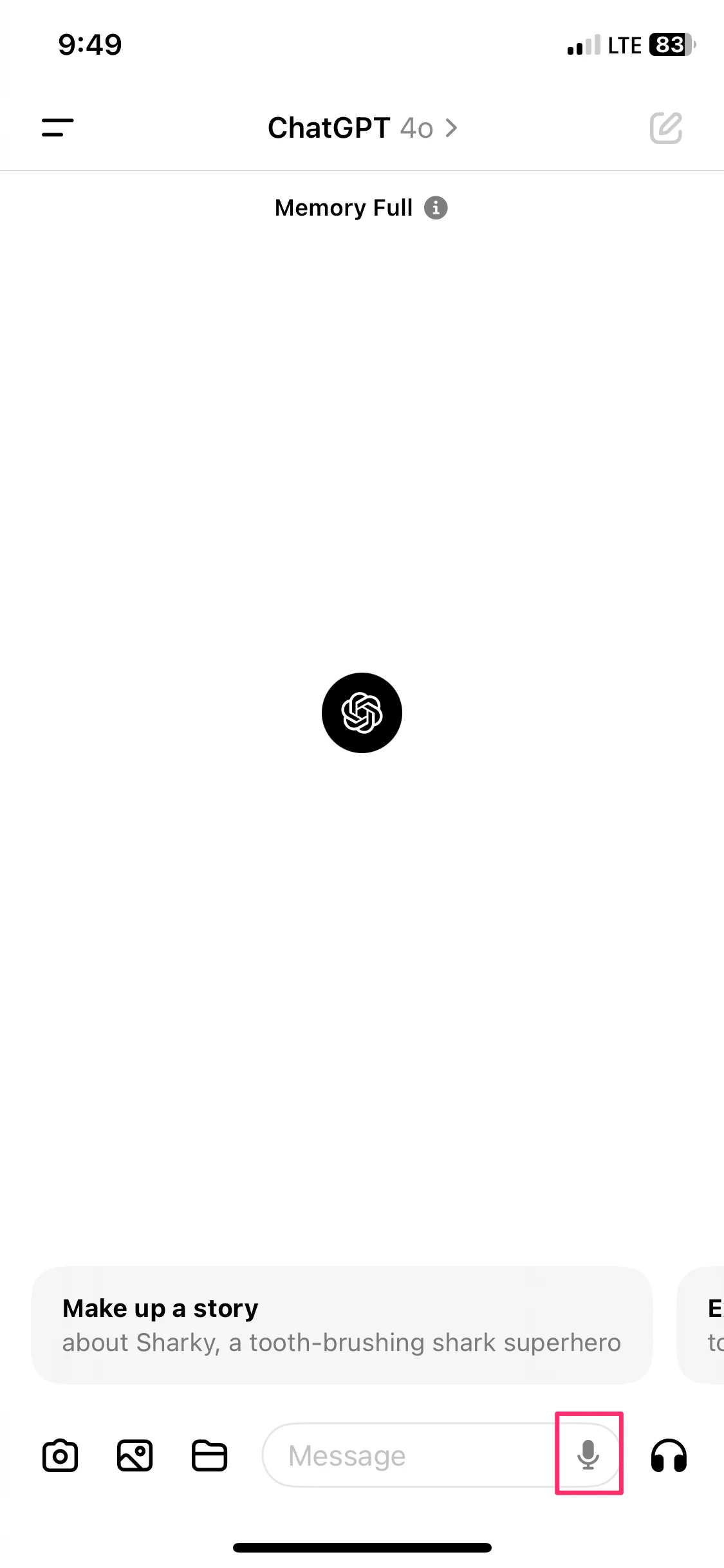
Then, start dictating what you want ChatGPT to create. For this example, we’re going to ask for it to create a Twitter/X thread about AI automation.
Sample prompt:
Write a Twitter thread about [insert topic].
.webp)
ChatGPT will then convert the audio file into a text prompt. Click the send button to send the prompt, or edit it manually via text if there are any changes you want to make.
.webp)
And voila! ChatGPT will generate the Twitter/X thread from your voice prompt. You can long press on your mobile phone to copy the text and paste it into Twitter/X.
.webp)
Edit the Twitter/X thread with your voice
Not only can you create content with your voice, but you can also edit generated content with your voice.
To do this, after ChatGPT has created your content, you can record another voice note with instructions for editing. In this example, we’re going to ask ChatGPT to remove a certain part of the generated Twitter/X thread.
Sample prompt:
Remove the section about [insert section to remove].
.webp)
ChatGPT will re-generate the Twitter/X thread based on your requested edits. You can long press to copy the updated text and paste it into Twitter/X.
.webp)
Create blog posts from a voice prompt
In addition to creating social posts, you can also create longer-form content from voice prompts, like a blog post. To get started, click the microphone icon again to record a note.
We’re going to ask for a blog post about using your voice with ChatGPT to create content (how meta of us!).
Sample prompt:
Write a blog post about [insert blog post content].
.webp)
ChatGPT will generate the full blog post from this short voice prompt.
.webp)
Dictate a LinkedIn post
Lastly, you can record much longer voice prompts (i.e. rambling various thoughts and notes) in ChatGPT and have it turn them into structured content. Click the microphone icon again to record your note.
.webp)
In this example, we’re going to dictate content about design briefs and request ChatGPT turn it into a LinkedIn post.
Sample prompt:
Turn this into a LinkedIn post: [insert voice dictated ramblings].
.webp)
In seconds, ChatGPT will come back with a structured LinkedIn post from your dictated notes.
.webp)
This tutorial was created by Garrett.