Turn documents into FAQs, summaries, briefing notes and podcasts using NotebookLM
Use NotebookLM to elevate company documentation into FAQs, summaries, briefing notes and podcasts.
2024-12-12
NotebookLM is a free tool from Google’s AI team that turns written content into other formats - like FAQs, summaries, study or speech notes and even engaging podcasts. You can also chat to your notes and ask questions about them, all through a single interface.
In this tutorial, we’ll explore how to:
- Upload sources to NotebookLM
- Ask questions about your sources
- Turn sources into FAQs
- Turn sources into a briefing note
- Create and edit notes.
- Create podcasts from your sources
Note: You’ll need a Google account to use NotebookLM.
Let’s dive in!
Step 1: Upload content to NotebookLM
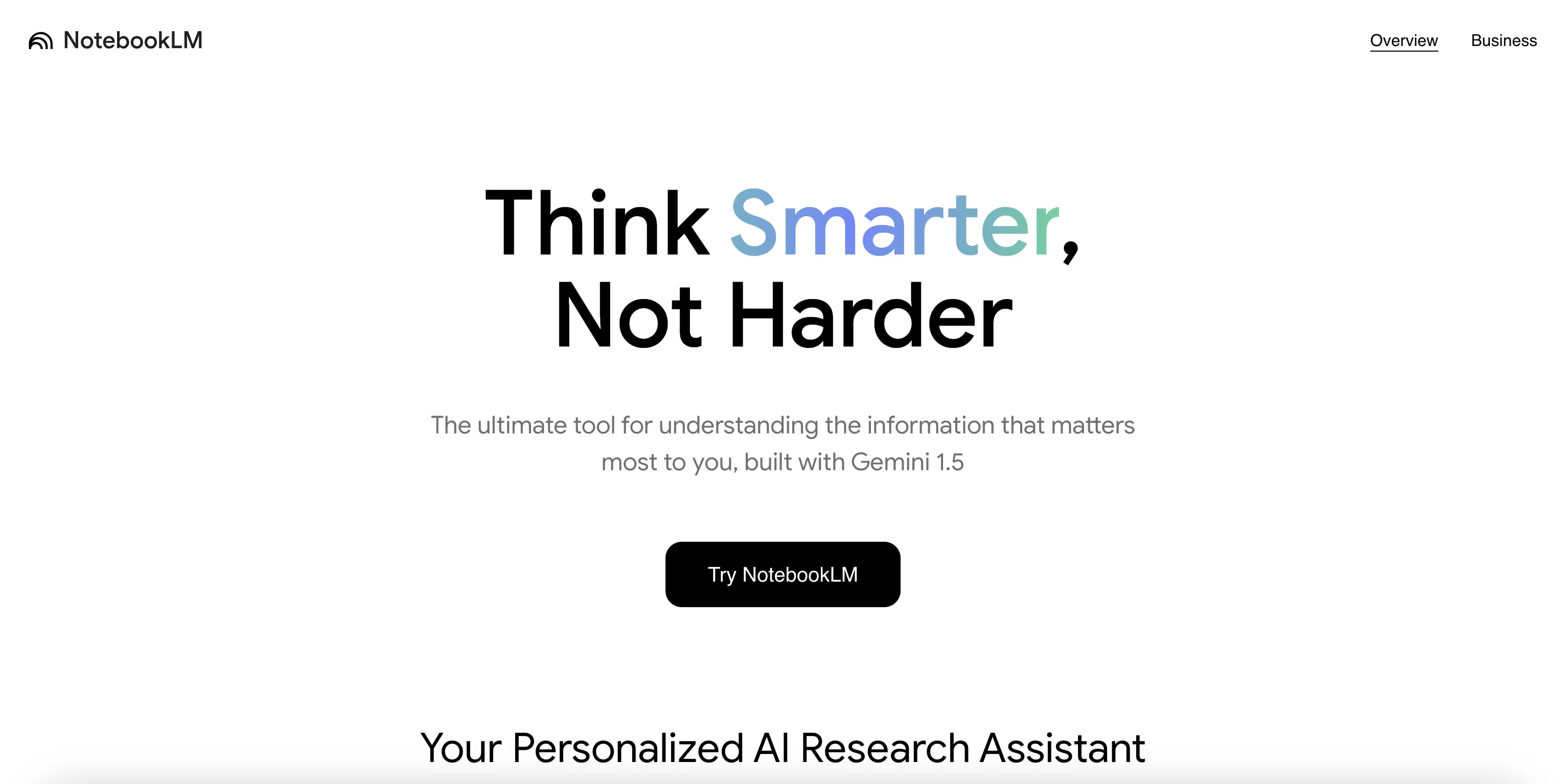
Go to https://notebooklm.google/ and click “Try NotebookLM”.
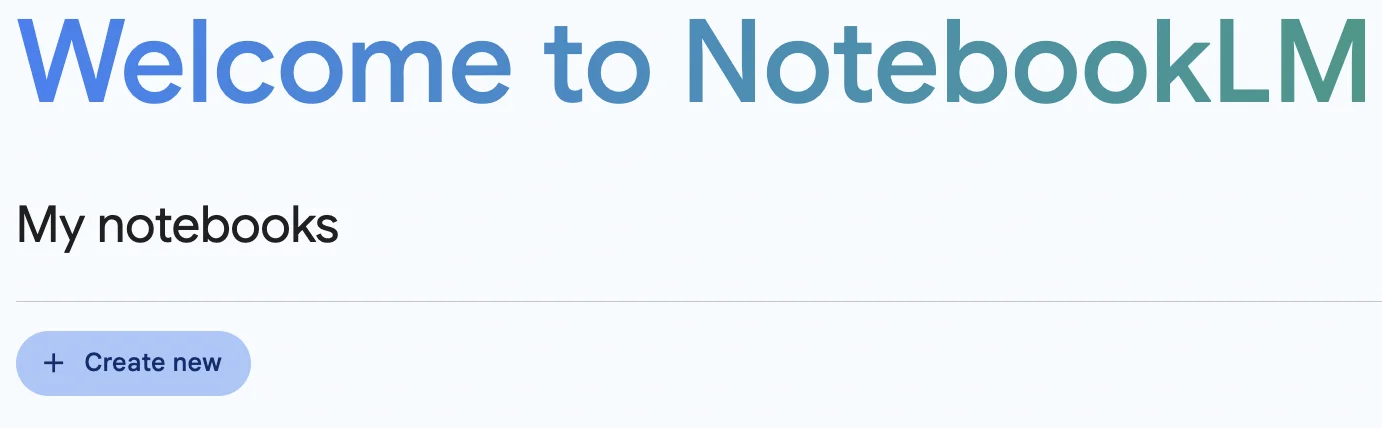
On the next page, click “Create new” to start a new notebook.
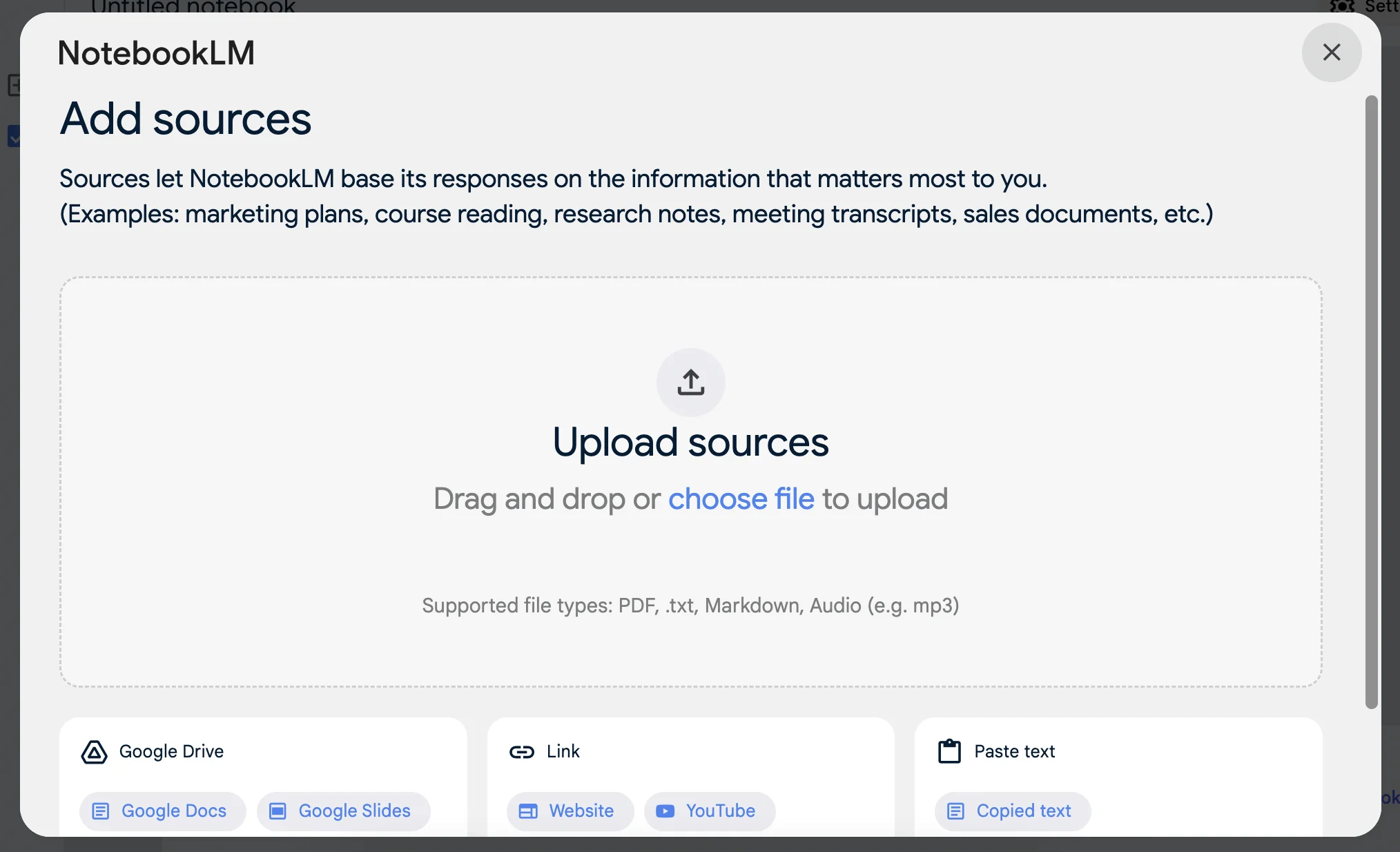
The first thing we need to do is upload some sources for NotebookLM to work with. These can be PDF, txt, markdown text or audio files.
Let’s use this blog post from Ben’s Bites about ChatGPT’s new canvas feature: /blog/chatgpt-evolves-introducing-the-canvas-feature/.
I’ll also use the official blog post from OpenAI: https://openai.com/index/introducing-canvas/.
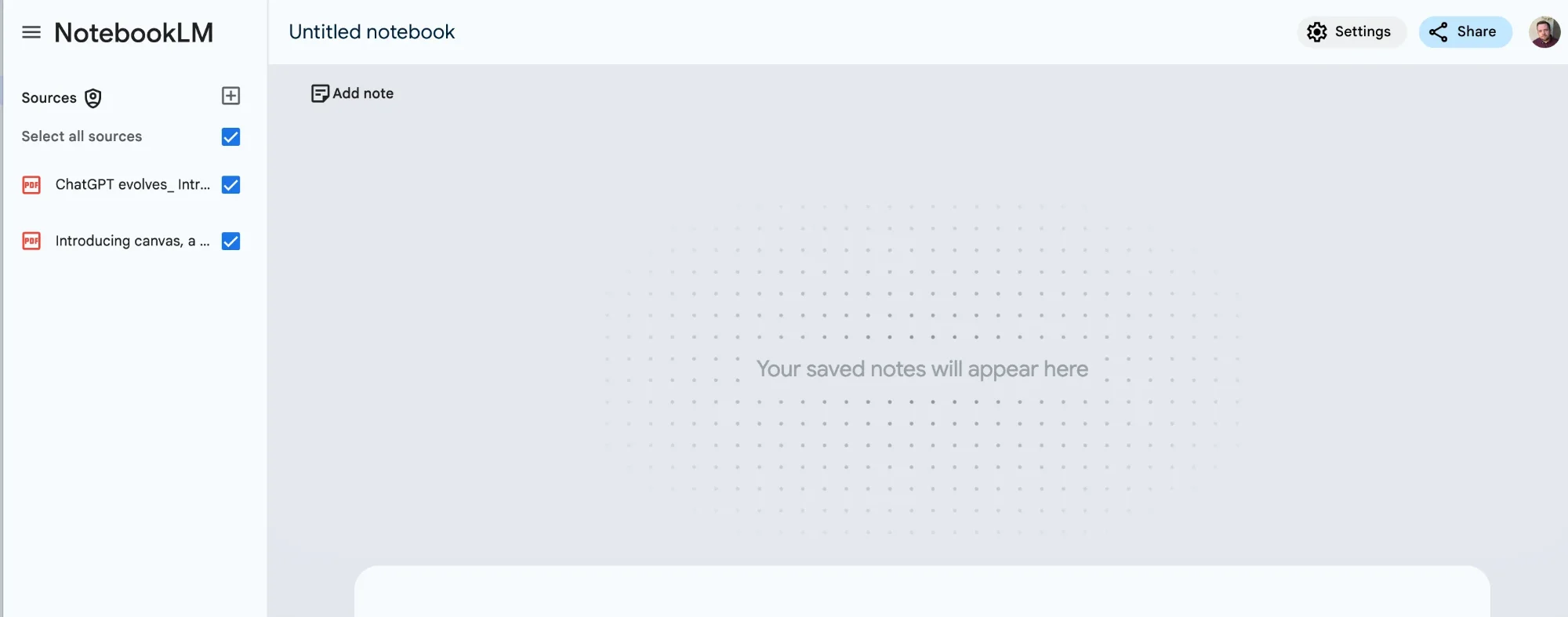
I’ve saved both as a PDF and uploaded them to NotebookLM. Once uploaded, sources show in the top left. You can add more, or remove existing ones at any time.
Step 2: Ask questions about your sources
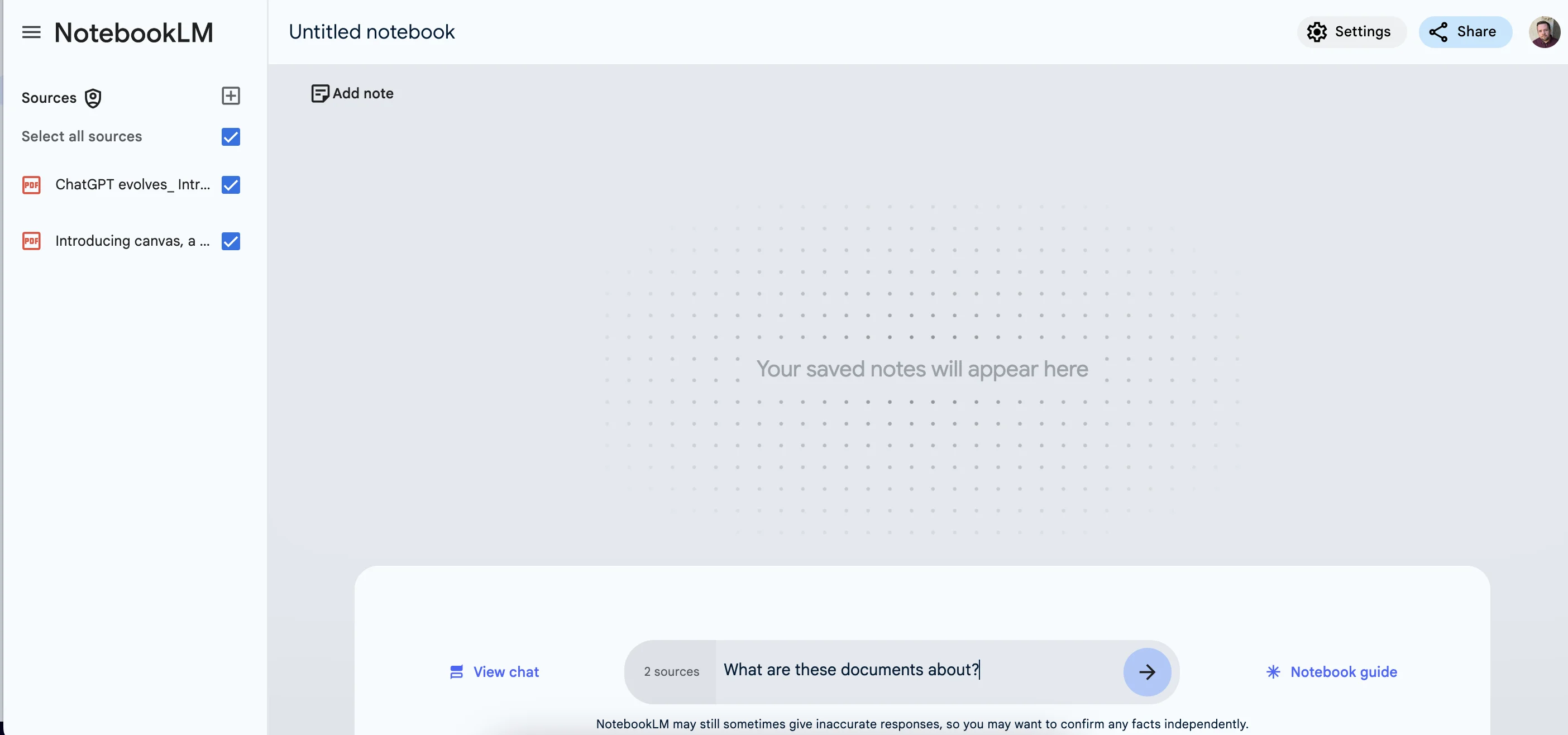
The NotebookLM interface is similar to ChatGPT.
To start, let’s ask a question “What are these documents about?”
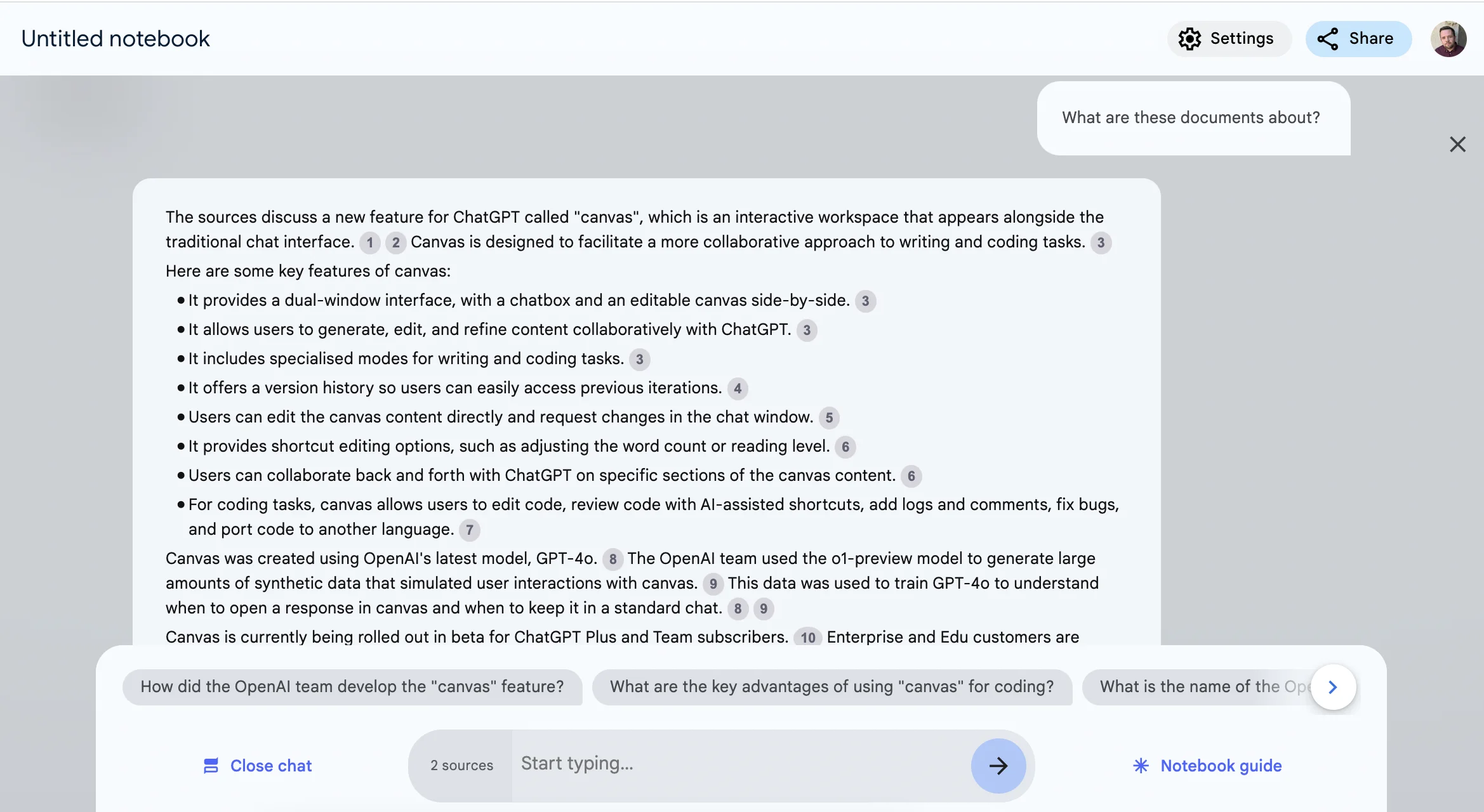
After just a few seconds, we get back a detailed answer, complete with source markers and suggested follow-up questions.
Step 3: Turn sources into FAQs
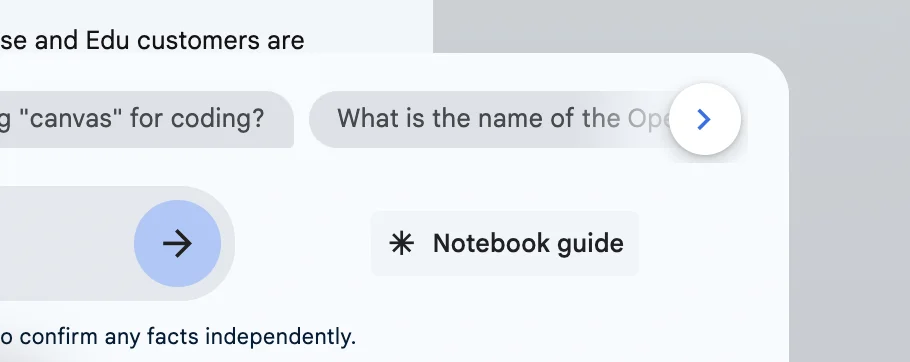
Next, click the “Notebook guide” button in the bottom right.
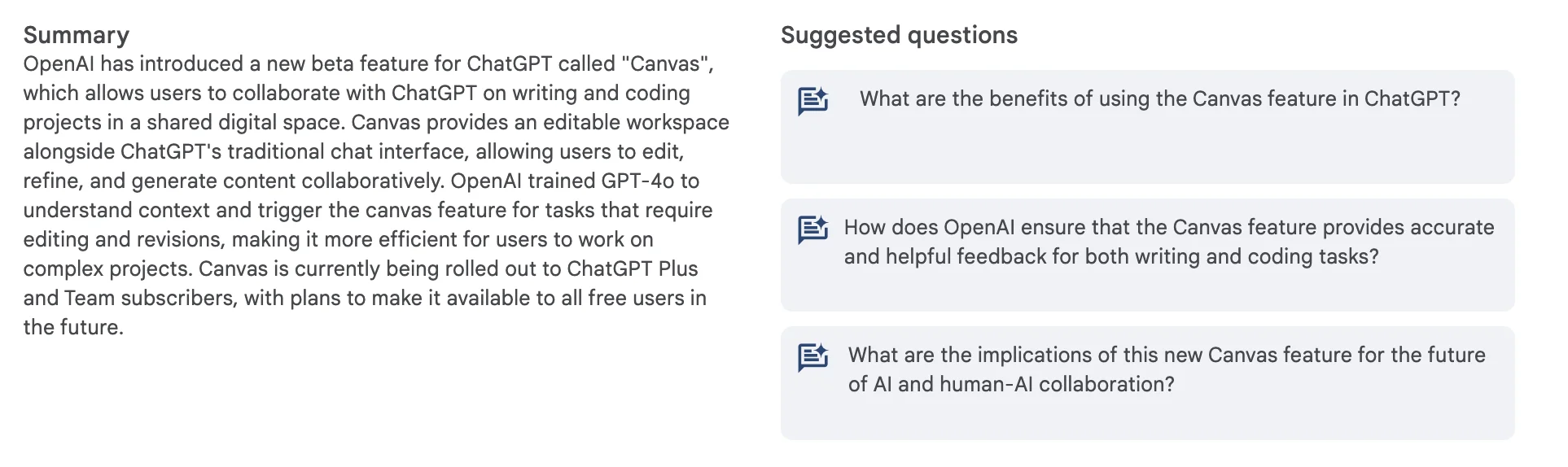
This will reveal a new screen with an overall summary of the sources you’ve uploaded - plus some more suggested questions for the chat.
Above that, there are options to create new types of content.
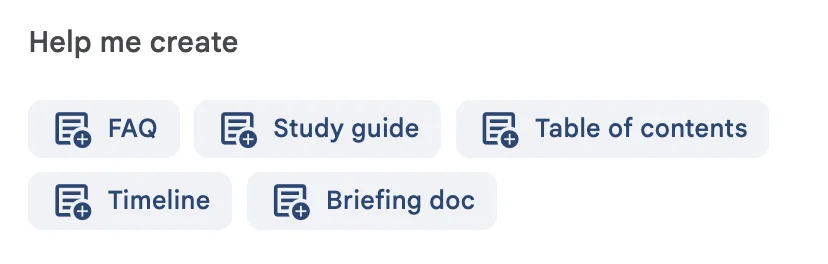
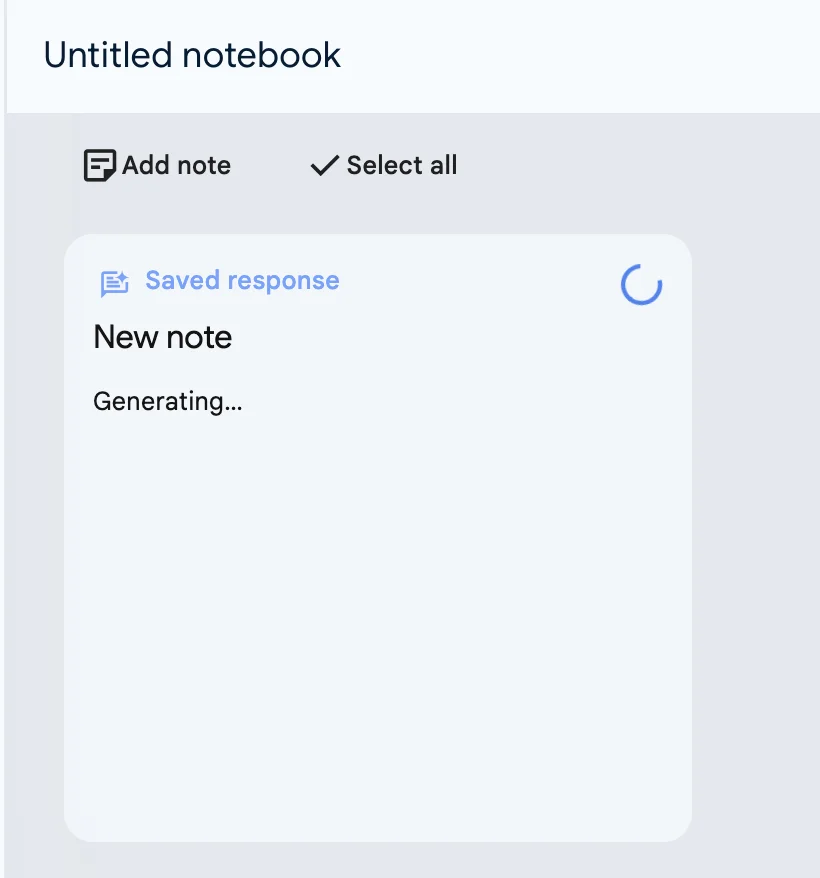
Click “FAQ”. You’ll see a box appear, entitled “New note” and a loading spinner while it works.
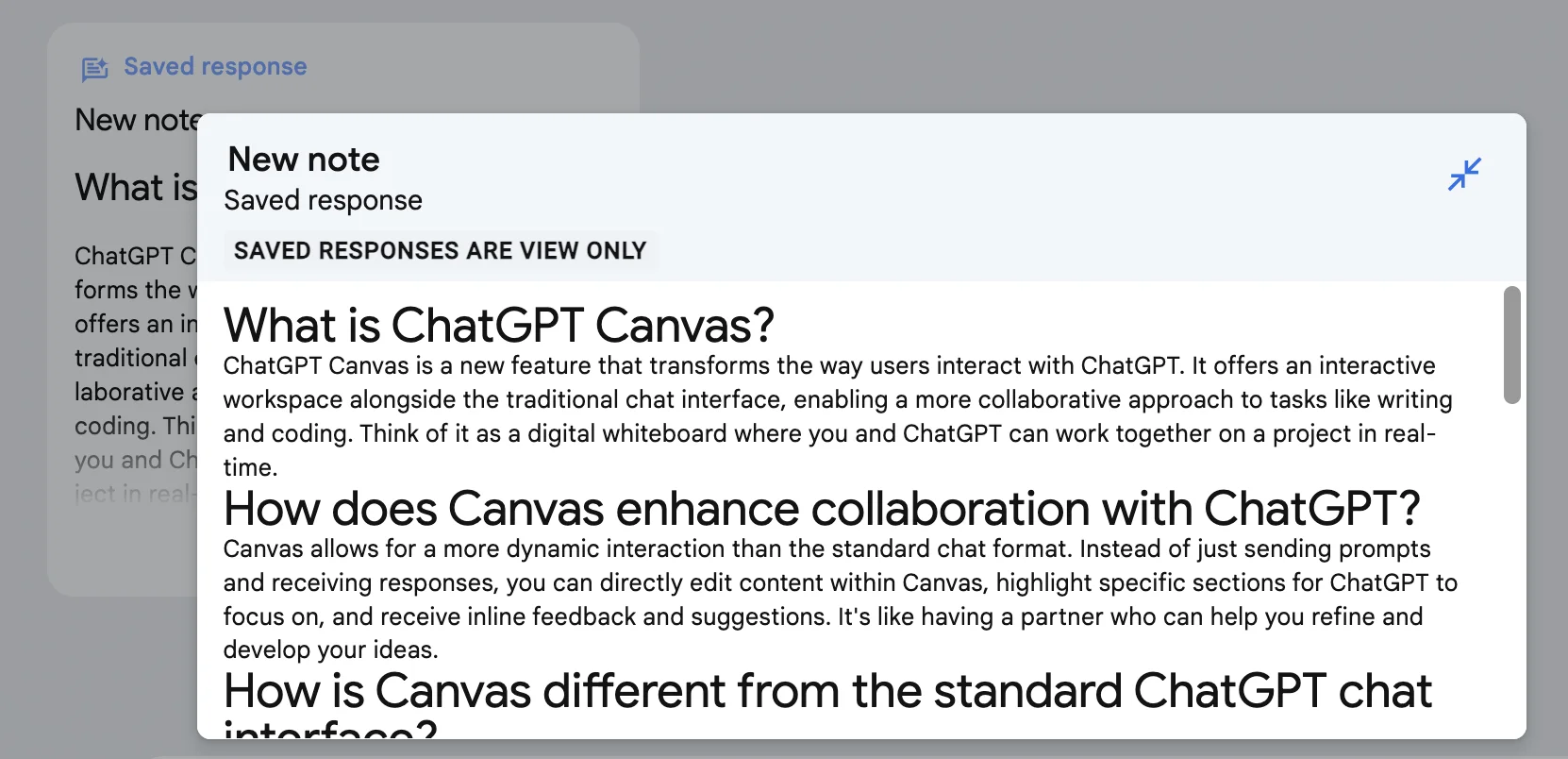
After a few more seconds, the FAQ is ready.
This is great content that could be immediately used for a new blog post, or appended to the existing blog post to improve SEO.
Step 4: Turn sources into briefing notes
Perhaps you’re going into a meeting and need some quick notes to help.
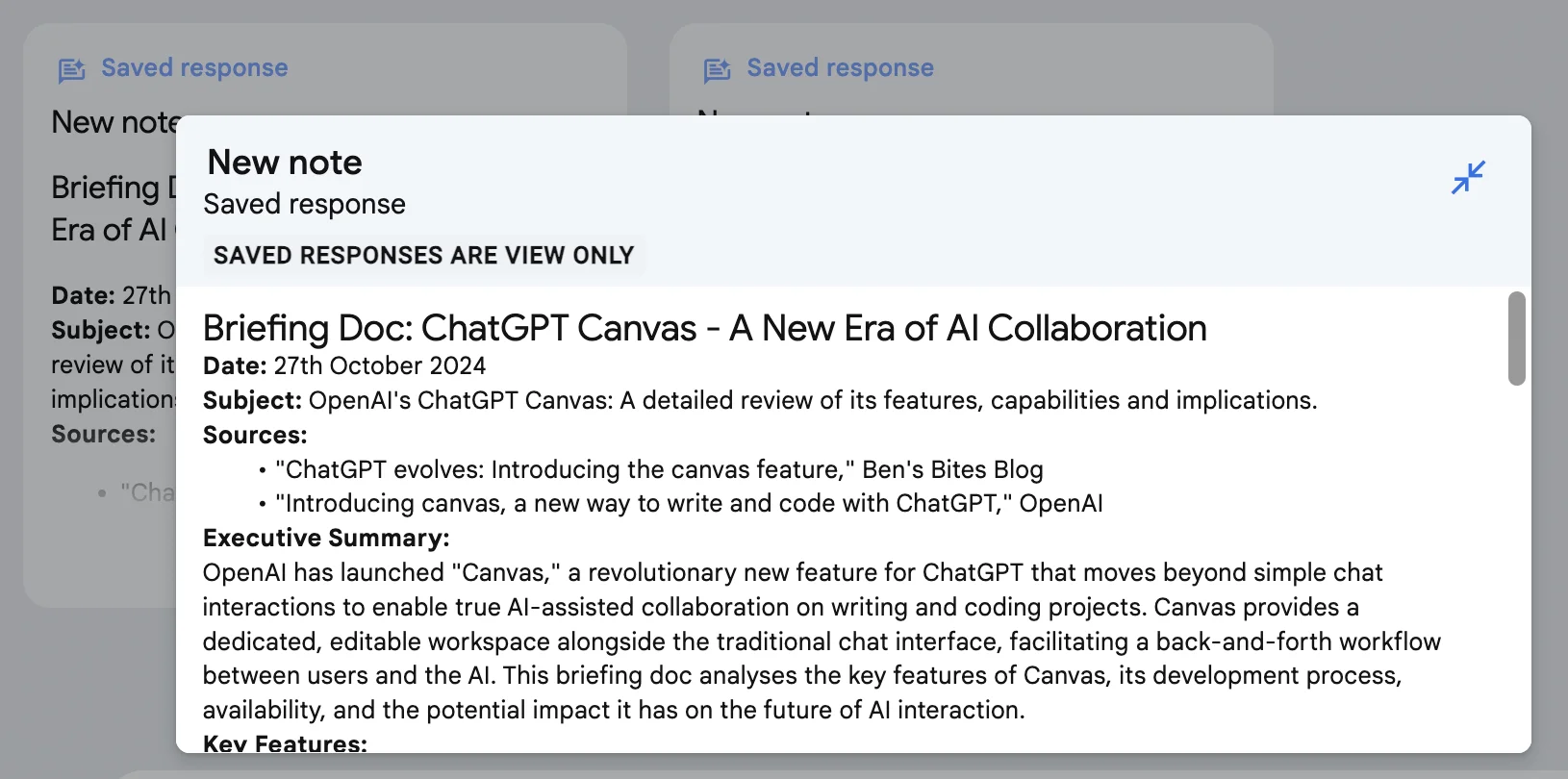
Let’s select “Briefing doc” this time.
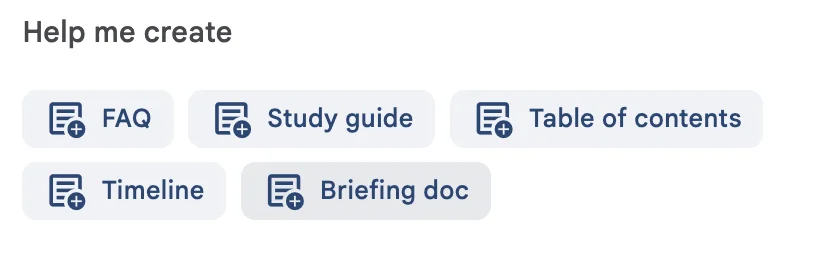
A few seconds wait, and we have what we need.
Step 5: Create and edit notes
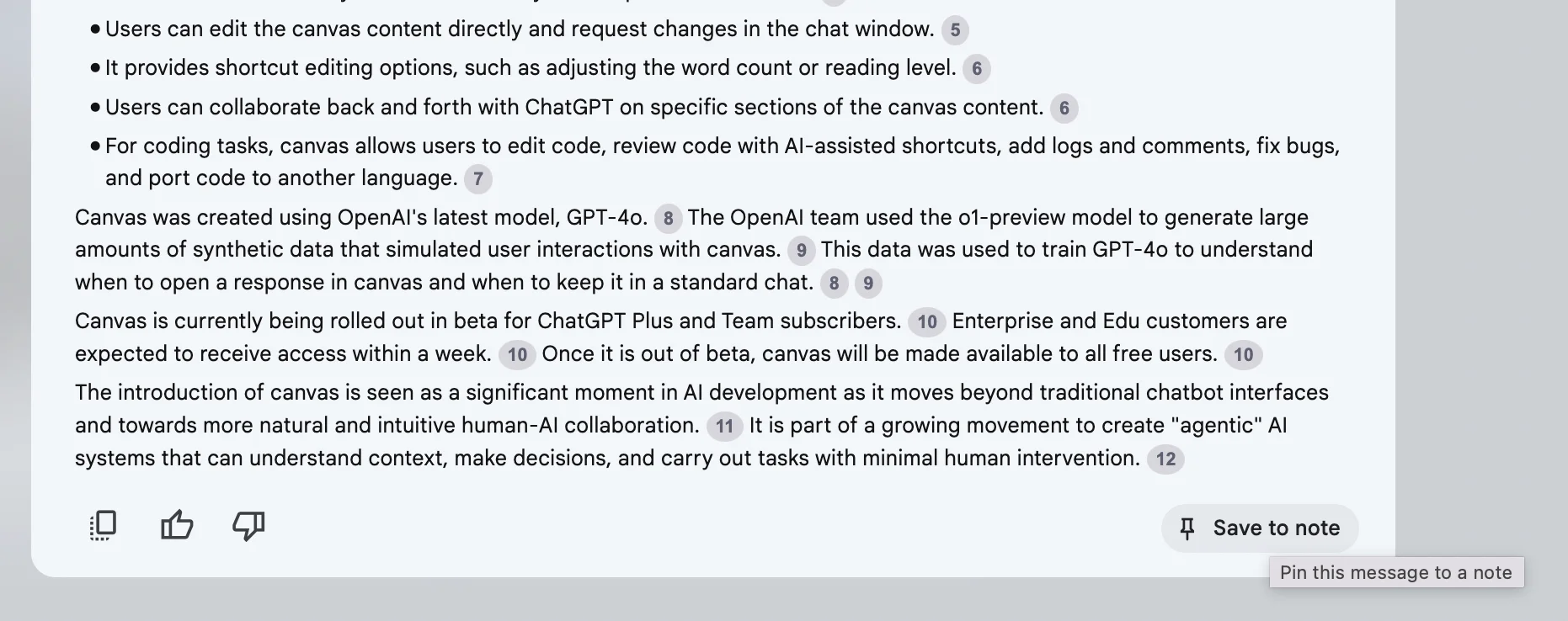
Speaking of notes, back in the chat view, any AI response can be turned into its own note by clicking the “Save to note” button on the bottom right.
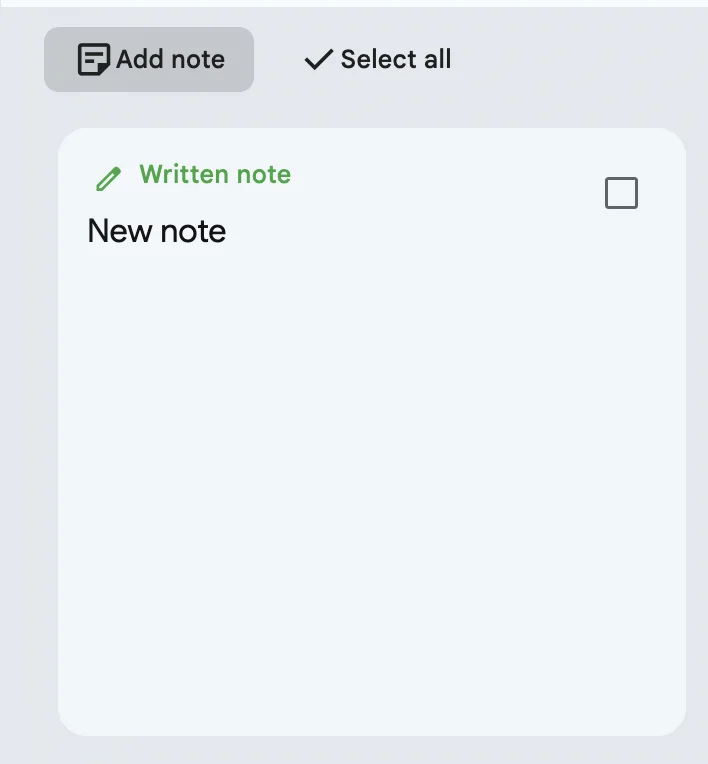
Notes saved this way can’t be edited, but if you want to create and edit your own notes, you can do that with the “Add note” button.
Each NotebookLM instance can store up to 1,000 notes.
Step 6: Create podcasts from your sources
Finally, one of the coolest features - and the one that got the most viral attention recently - is the ability to create 2 person in-depth podcast episodes from your content.
To do that, click “Generate” under the ‘Audio overview’ section.
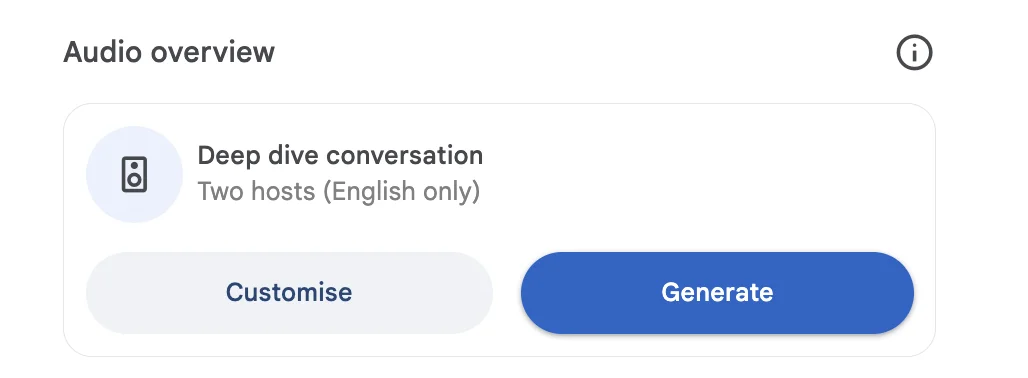
Or, if you want to give some guidance, click “Customise” and give the AI some notes.
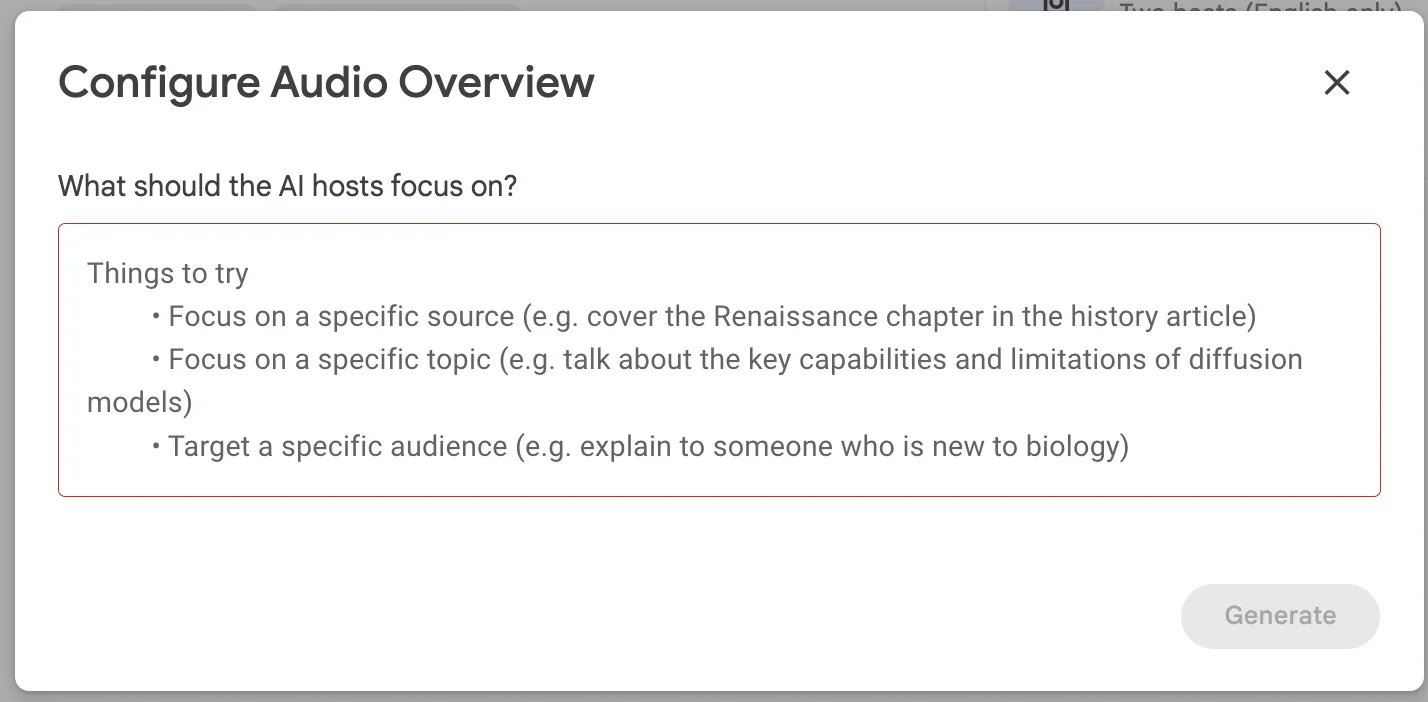
Let’s give it an audience focus.
The audience here are tech executives at medium-large size enterprises looking to boost their bottom line with AI. Focus on how ChatGPT Canvas can do that for them.

Once it’s ready, the “Load” button will appear. Click it.
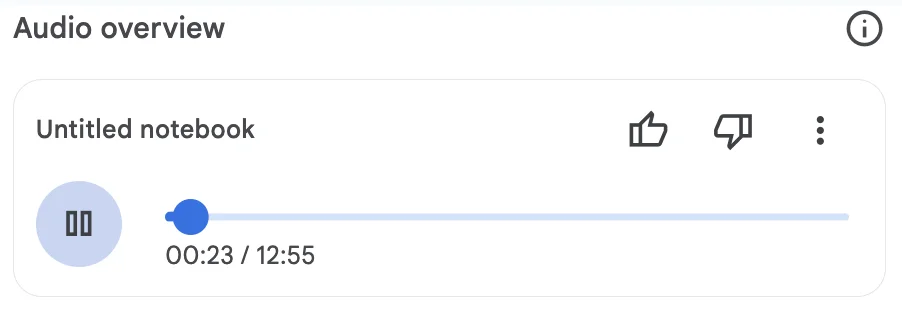
You can play the podcast right in the browser, or download it via the ellipses icon in the top right.
This tutorial was created by Andrew.