Use AI to analyse competitor Google reviews
Learn how to build an automation that uses AI to analyse your competitors’ Google reviews.
2024-11-13
If you’re running a shop, bar, restaurant or other physical location business, then it’s handy to find out what customers think of your competitors. One of the easiest ways to do this is via their Google reviews.
To save you time trawling through them manually, let’s use AI to create quick automated summaries of their reviews.
In this tutorial you will learn how to:
- Build an Airtable and Zapier workflow to manage the process.
- Use SerpApi to search for Google Maps locations and retrieve their reviews.
- Use OpenAI to summarise the reviews and add them back to Airtable.
You’ll need:
- Airtable account
- Zapier paid account.
- SerpApi account
- OpenAI Platform account and at least $10 of credit. Note: this is separate from their ChatGPT app.
Let’s see how it’s done.
Step 1: Build an Airtable and Zapier workflow to manage the process
For this tutorial, we’re going to run the process from an Airtable base. However, you could easily use Notion or even Google Sheets.
Go to Airtable and click to create a new Airtable from scratch.
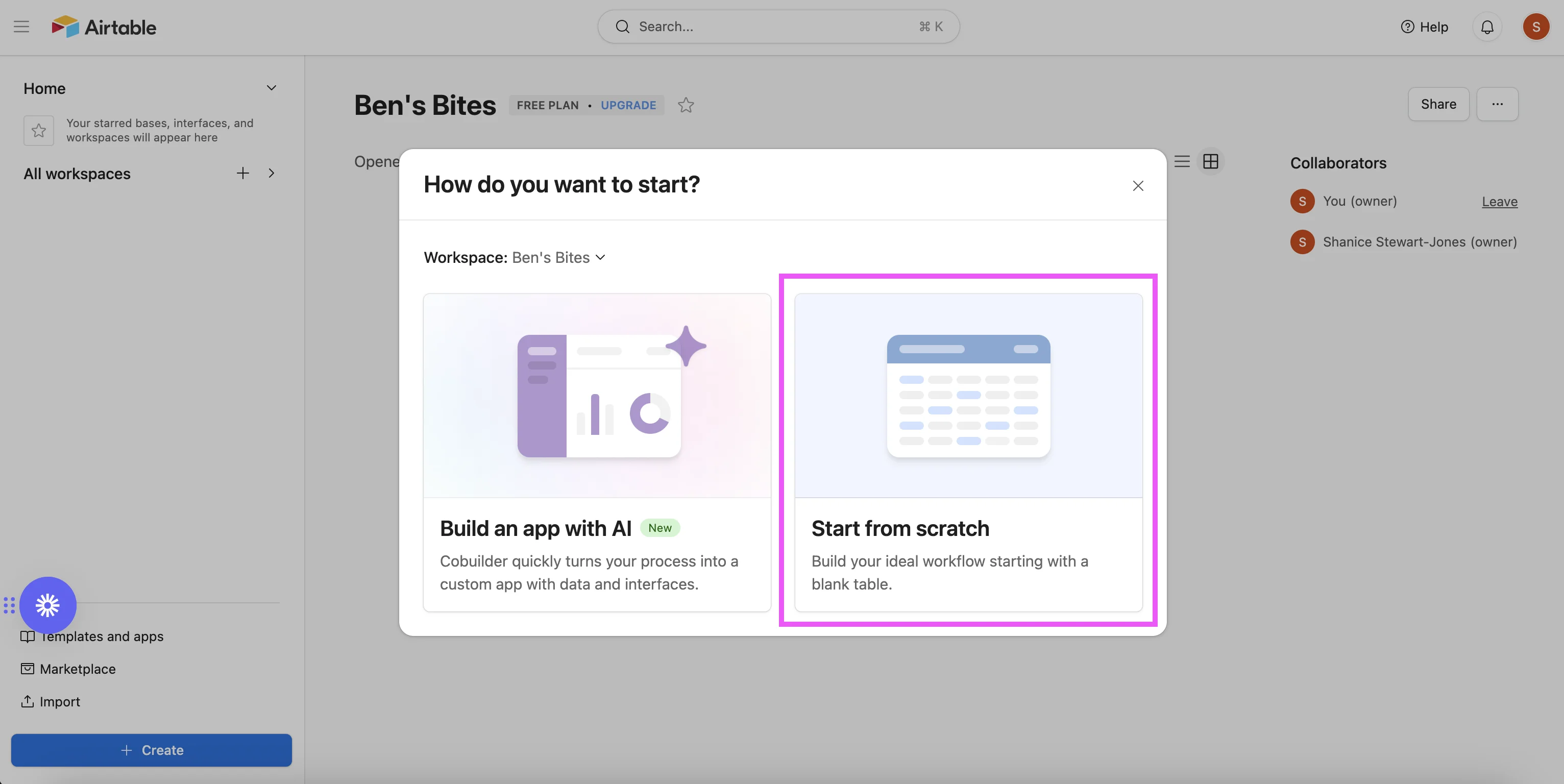
You can customise it to your needs, but at a minimum, you need the following fields/columns:
- Keyword - A Single line text field for the keyword we’ll search on Google to find locations.
- Status - A Single select field with one option called “Go”. Switching a record to this status will be used to trigger our automation.
- Location Name - A Single line text field for the name of the location found.
- Location URL - A URL field for the website of the location found.
- Review Summary - A Long text field; we’ll get Zapier to put the AI review summary here.

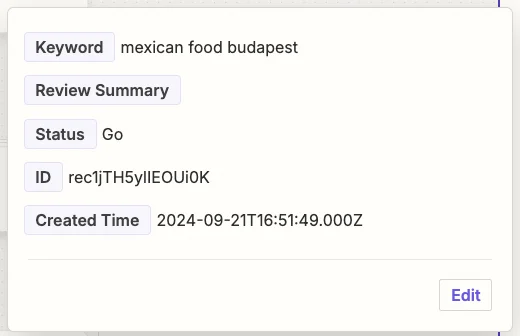
Let’s assume you run a Mexican restaurant in Budapest. I’ve added an example record with the keyword “mexican food budapest”.
Next, to the left of the screen under “Views”, the default view will be called “Grid view”. Right-click and rename it to “All”.
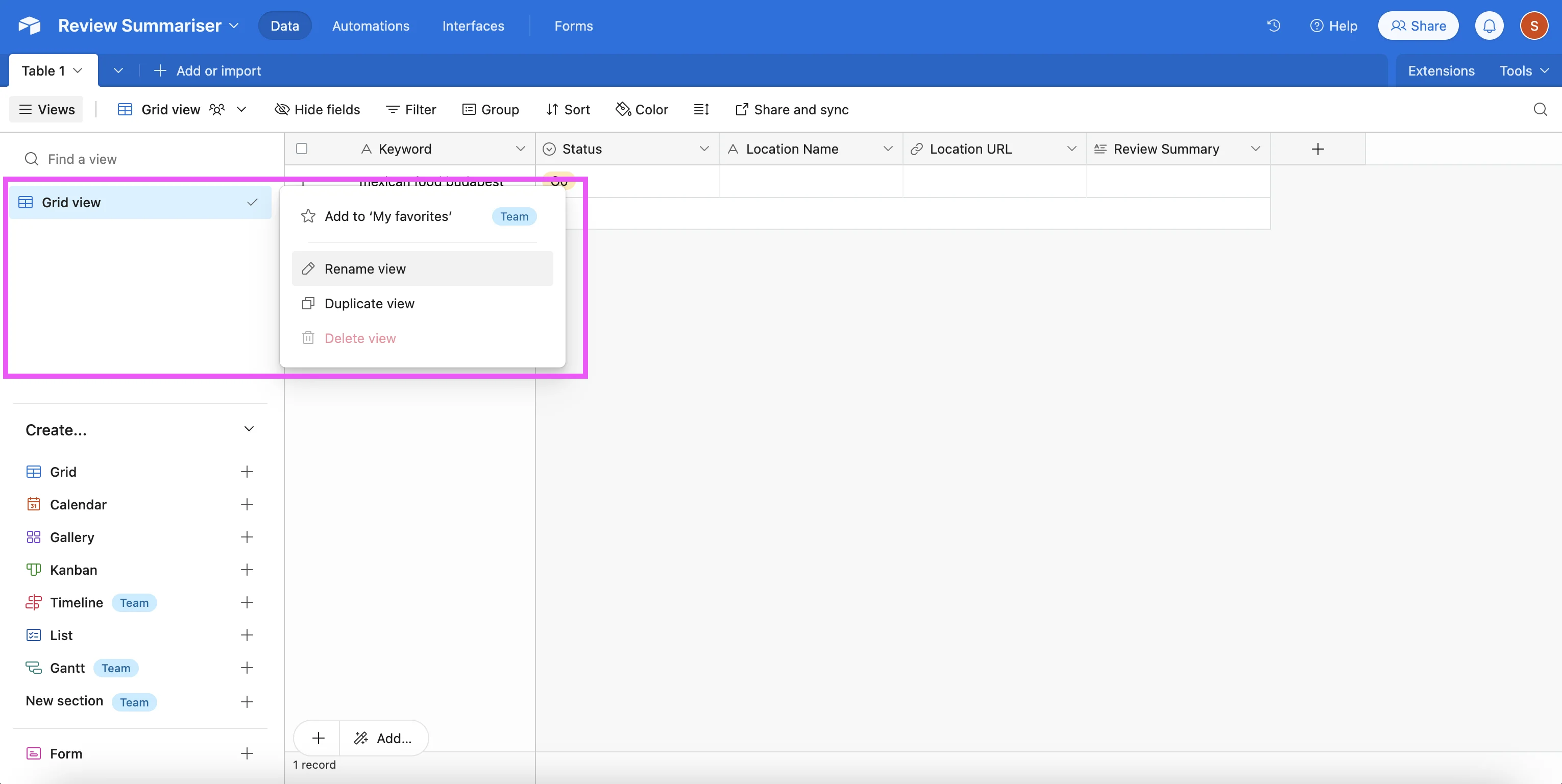
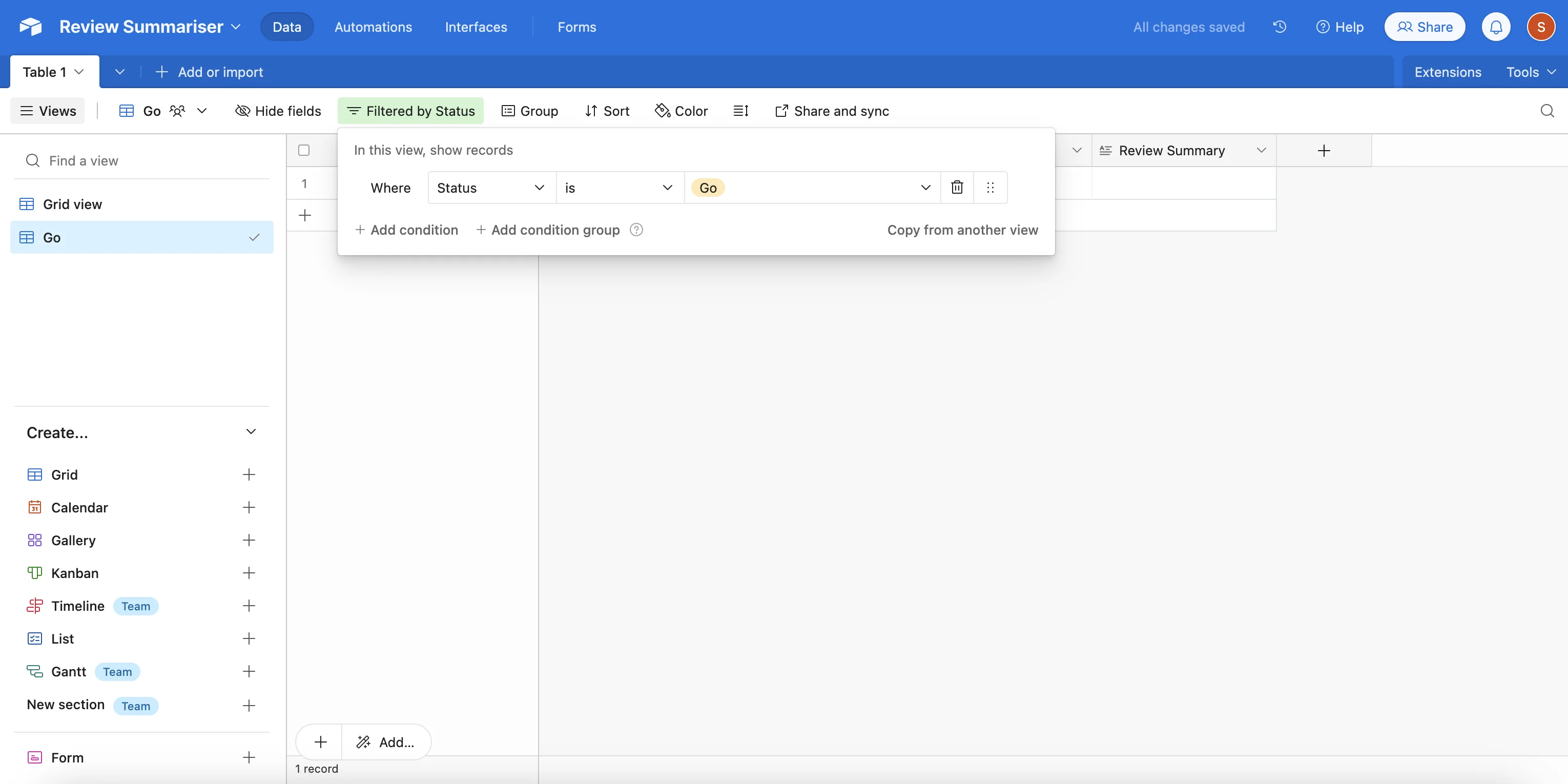
Then right-click again, select ‘Duplicate view’ and call the new view “Go”. Within this new view, apply a filter to only show records where ‘Status’ is “Go”.
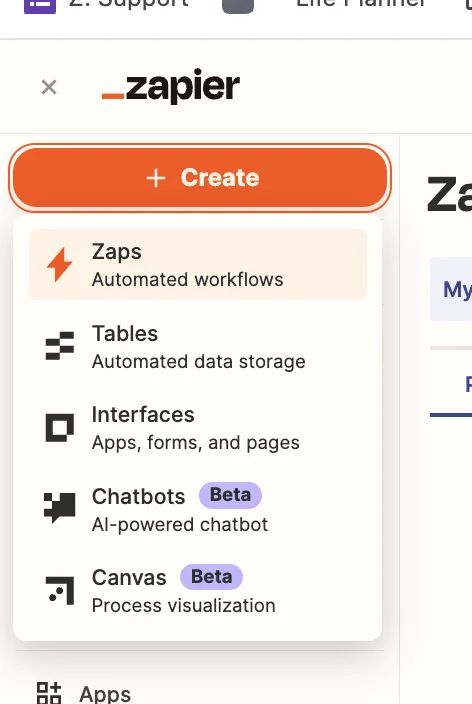
Now, log in to Zapier and in the top-left of the page, click the big orange ‘Create’ button and select ‘Zaps’.
Inside the zap editor, click on the box that says ‘Trigger’ and select/search for “Airtable” as the app. Then select ‘New Record’ as the trigger event.
Configure the step by selecting the base, table and view you just created in Airtable.
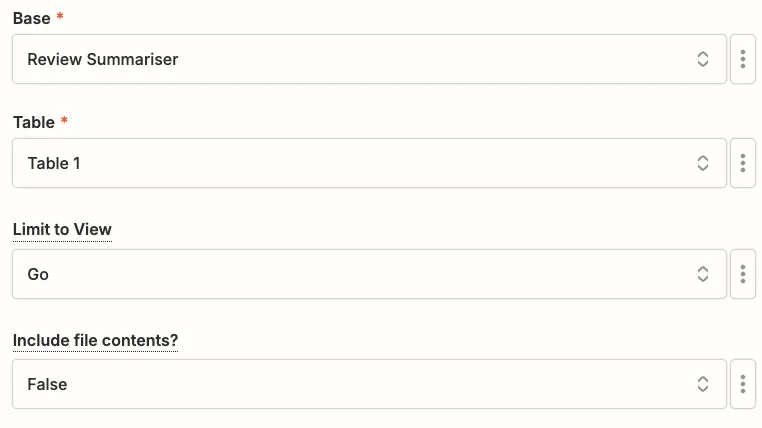
Records will only appear in this view when you change the status field to “Go”. Make sure you only do that once you’ve filled in the keyword column.
Test the trigger step and you’ll see our example keyword.
Step 2: Use SerpApi to search for Google Maps locations and retrieve their reviews
Now we need to find some locations on Google and pull their reviews. Google doesn’t have its own API which supports this, so we’re going to use a third-party tool called SerpApi.
Sign up (their free plan allows 100 searches per month) then once logged in, on the dashboard page, scroll down and you’ll find your API key:
SerpApi doesn’t have a Zapier integration, so we’ll connect to their API using a webhook step.
Add a new action step to your zap with ‘Webhooks by Zapier’ as the app and ‘GET’ as the action event.
When configuring the step, these are the important fields:
- URL
Use https://serpapi.com/search
- Query String Params
Add the following key+value pairs
- ‘api_key’ = Paste your API key here.
- ‘engine’ = ‘google_maps’
- ‘type’ = ‘search’
- ‘q’ = Map the “keyword” value from the trigger step here.
Test the zap step and in the output tab, you’ll see up to 20 locations returned by the API.
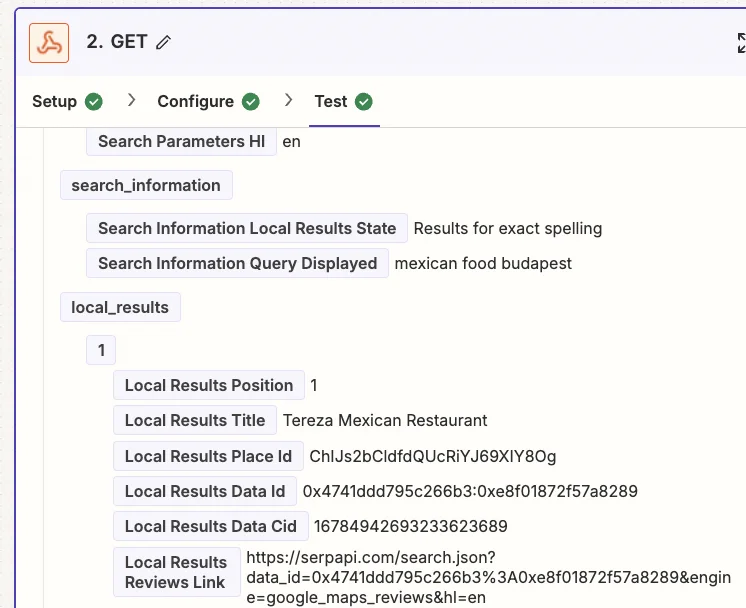
One of the things this data doesn’t include is a location’s reviews. We need to use another webhook step to get those. But first, we need Zapier to loop through each location individually, so we can get its place ID, which we’ll need.
Add a new action step to your zap with ‘Looping by Zapier’ as the app and ‘Create Loop From Line Items’ as the action event.
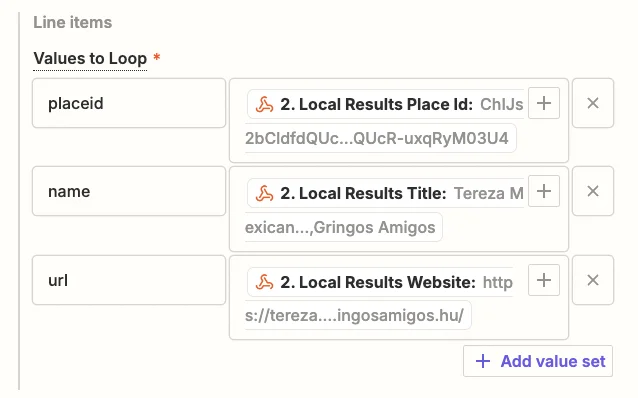
In the “Values to Loop” section, you should add the following line items:
- placeid
Map the ‘Local Results Place Id’ value from the webhook step.
- name
Map the ‘Local Results Title’ value from the webhook step.
- URL
Map the ‘Local Results Website’ value from the webhook step.
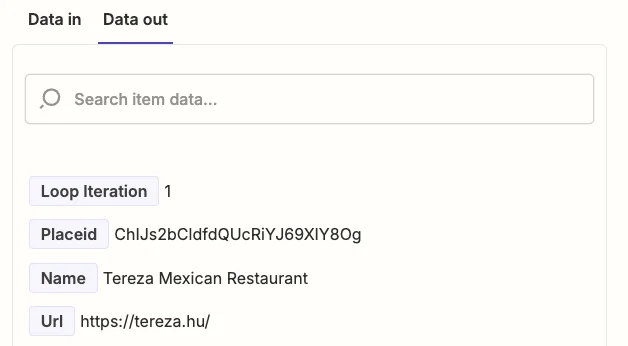
Test the zap step and you’ll see a single location ID, name and URL.
Now we have the place ID, it’s time to add the other webhook step.
Add a new action step to your zap with ‘Webhooks by Zapier’ as the app and ‘GET’ as the action event.
When configuring the step, these are the important fields:
- URL
Use https://serpapi.com/search
- Query String Params
Add the following key+value pairs- ‘api_key’ = Paste your API key here.
- ‘engine’ = ‘google_maps’
- ‘place_id’ = Map the “Placeid” value from the looping step here.
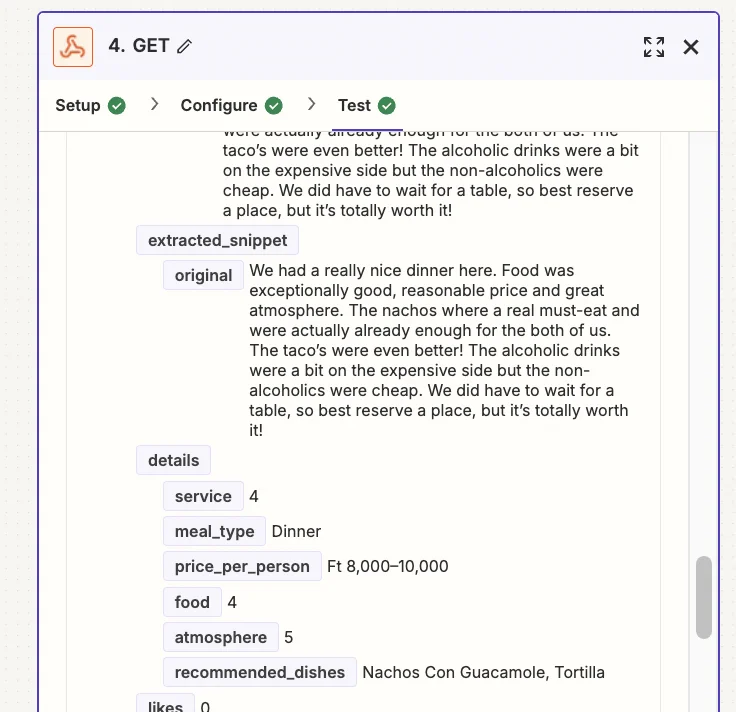
Test the zap step, and you’ll see reviews for this location.
Step 3: Use OpenAI to summarise the reviews and add them back to Airtable
We have the reviews - now let’s summarise them with AI.
Add a new action step to your zap, with “ChatGPT” as the app and ‘Conversation’ as the action event.
When configuring the step, these are the important fields.
- User message
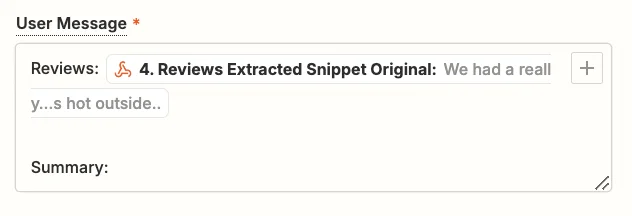
Map the ‘Reviews Extracted Snippet Original’ value from the second webhook step along with the following text.
Reviews:
{{Reviews Extracted Snippet Original}}
Summary:
- Model
Select the “gpt-4o-mini” model, OpenAI’s cheapest and quickest model.

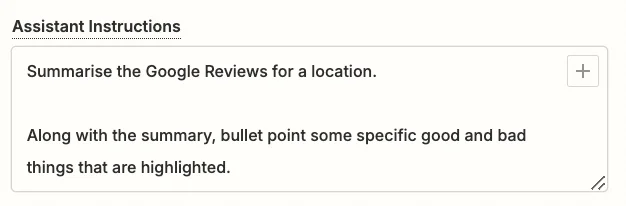
- Assistant Instructions
You can experiment here to get exactly what you want, but this prompt should work well:
Summarise the Google Reviews for a location.
Along with the summary, bullet point some specific good and bad things that are highlighted.
- Max Tokens
This sets the maximum output length. Anything around 1,000 should be suitable.
.webp)
Go ahead and test the step, then scroll down towards the end in the “Data out” tab, you’ll see the response generated by ChatGPT.
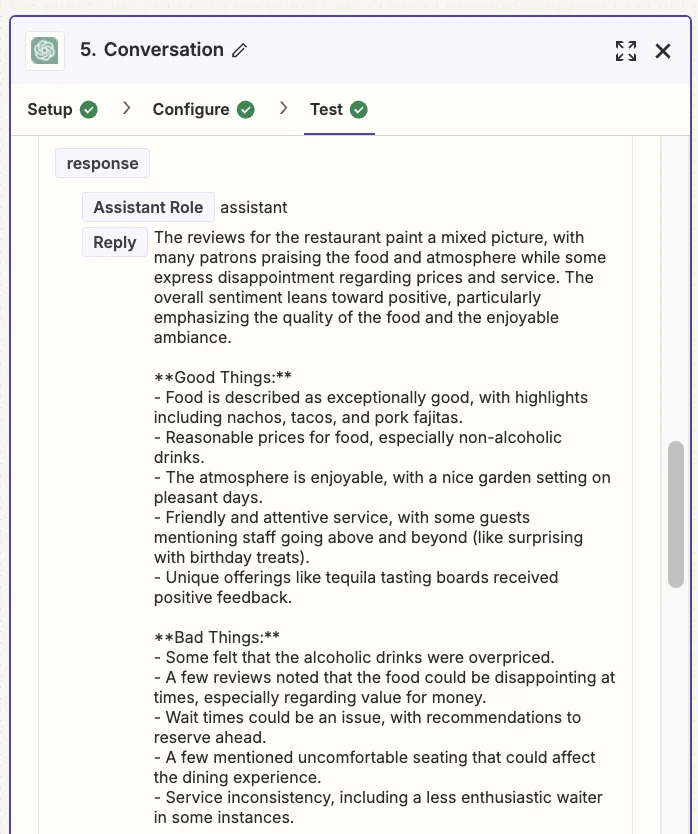
This summary looks thorough, so let’s add it back to Airtable.
Add a new step to your zap with “Airtable” as the app and ‘Update Record’ as the action event.
Select the same base and table as you did in the trigger and for the “Record” field, map the ‘ID’ value from the trigger step.
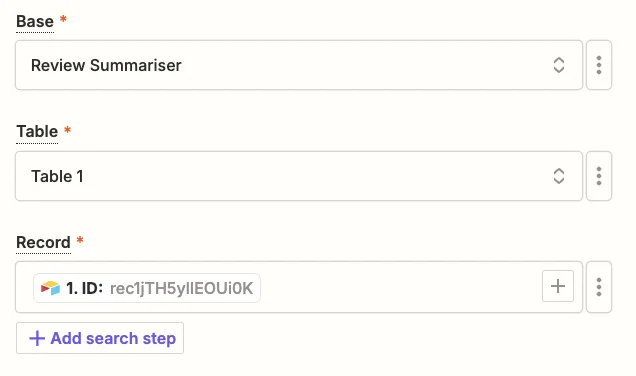
Then map the following fields:
- Location Name
Map the “Name” value from the looping step.
- Location URL
Map the “Url” value from the looping step.
- Review Summary
Map the “Reply” value from the ChatGPT step.
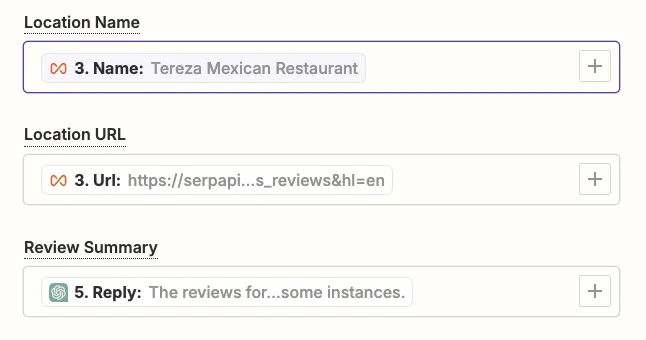
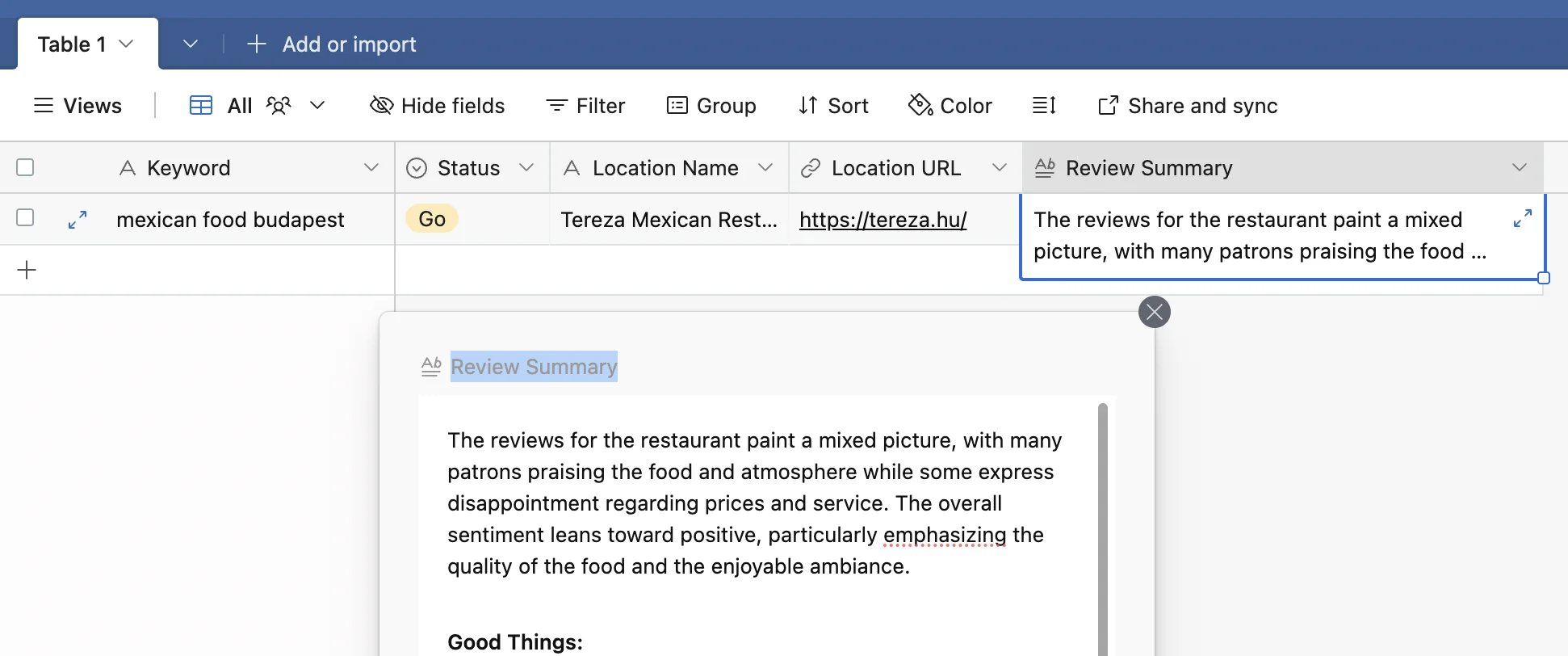
Test the zap, head back to Airtable, and you’ll see the data and summary added.
This tutorial was created by Andrew.