Use Jasper to create new marketing content based on existing content in a knowledge base
Quickly create marketing content using Jasper’s knowledge base feature.
2024-11-13
Jasper is an AI content writer, developed to allow brands to create consistent marketing content across channels.
One of its core features is ‘Knowledge Base’ which allows you to upload existing content about your business, that Jasper ingests and then references when creating new content.
In this tutorial you will learn how to:
- Upload content to your knowledge base.
- Create derivative content using Jasper’s Remix feature.
- Create new content referencing the knowledge base.
You’ll need:
- Jasper paid account.
Let’s see how it’s done.
Step 1: Upload content to your knowledge base
If you don’t have an account yet, go ahead and sign up to Jasper. To use the knowledge base feature, you need to be on their Pro plan. They offer a 7-day free trial.
Once you’re in, head over to the Knowledge Base tab.
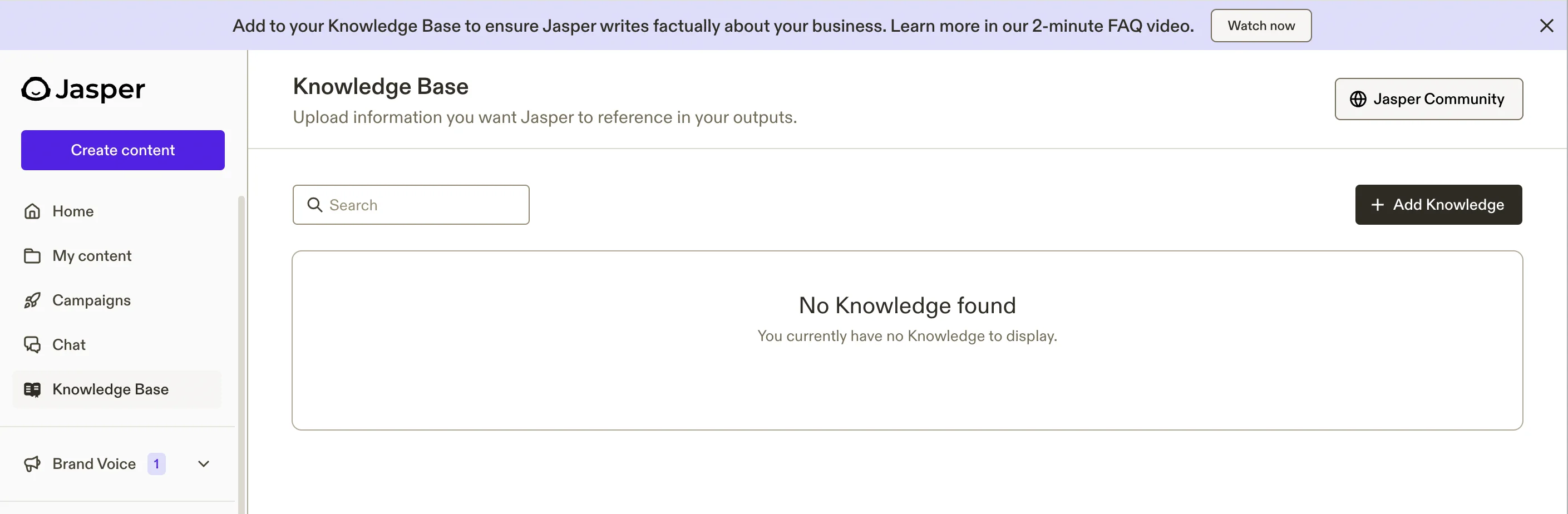
To start adding stuff, click “Add Knowledge”.
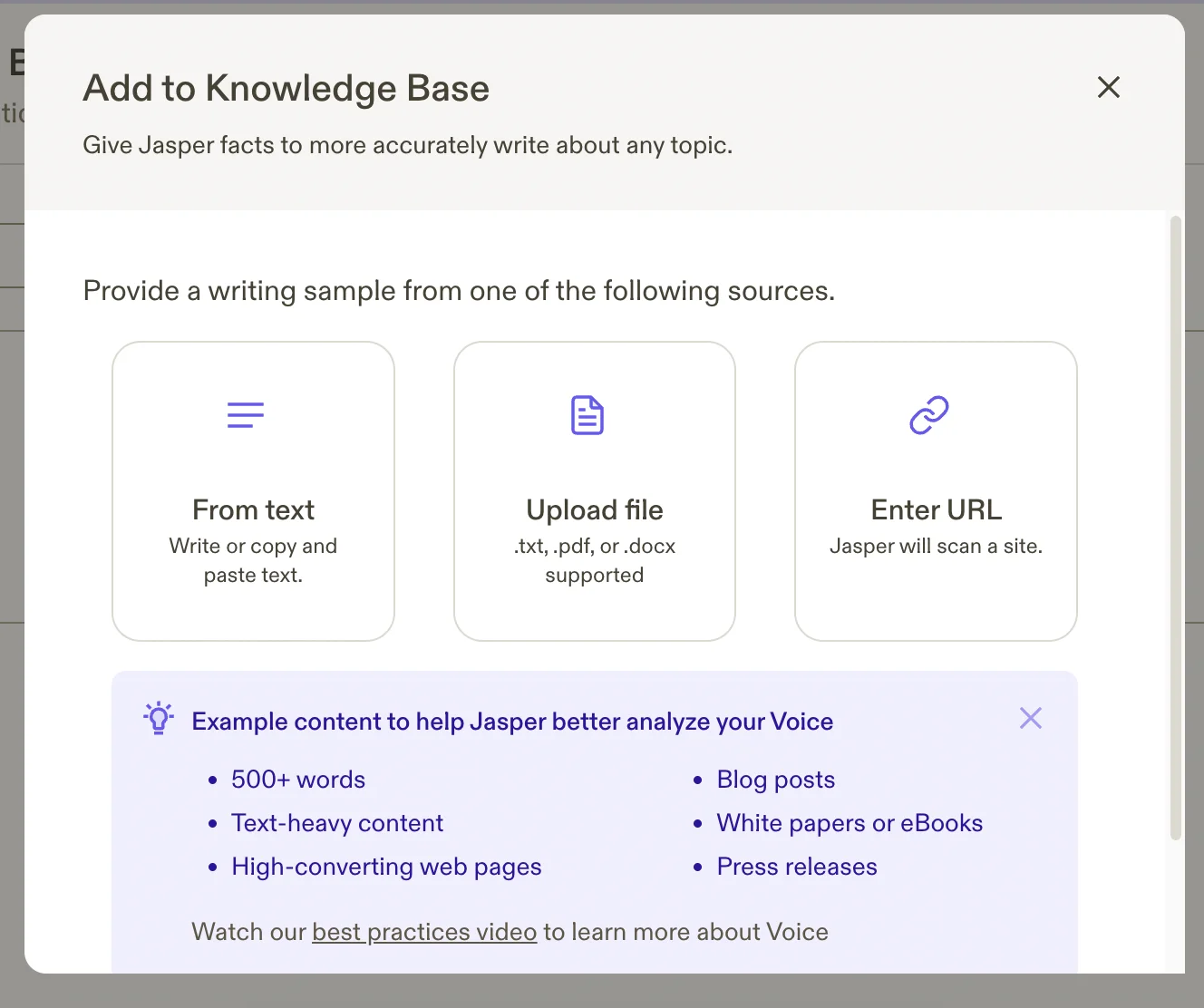
For this tutorial, we’re going to pretend we’re LlamaIndex an LLM data framework tool.
To start with, let’s add the homepage llamaindex.ai to our knowledge base.
Click “Enter URL”.
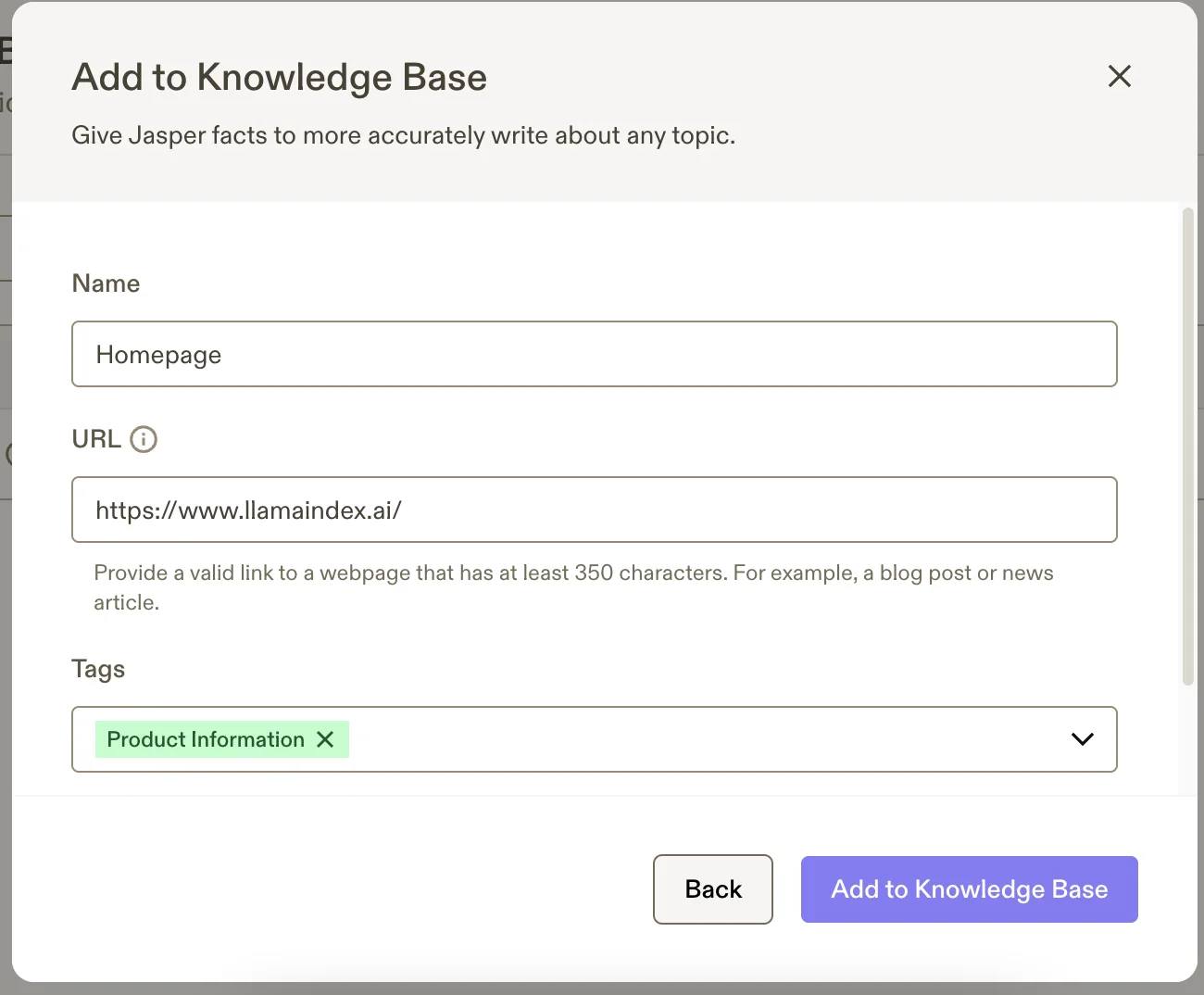
On the screen that appears, give the knowledge item a name, add the URL and optionally apply a tag. Let’s select ‘Product Information’ for this one. Click “Add to Knowledge Base” when you’re ready.
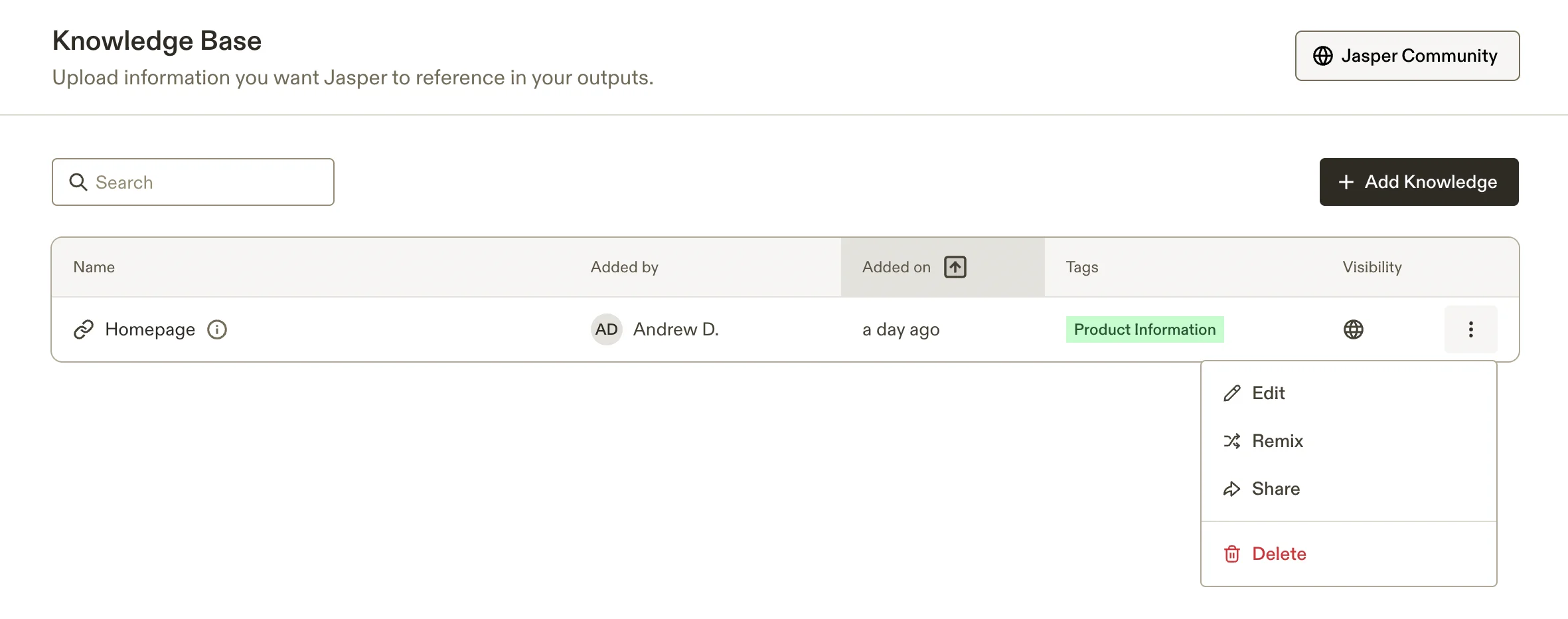
Wait a moment, then click the ellipsis on the right and then click “Edit”.
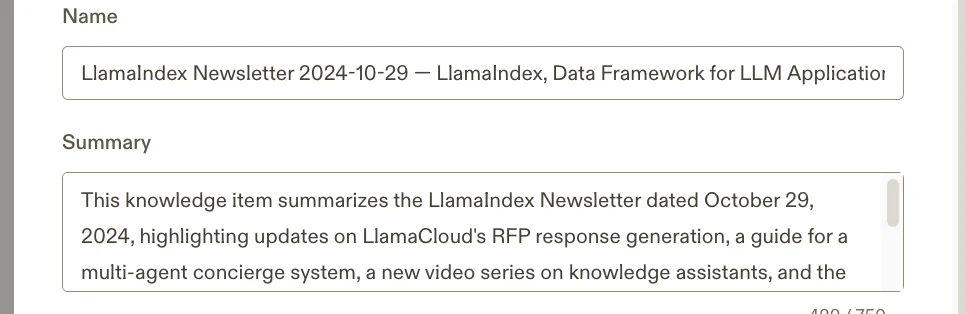
You’ll see the same popup as before, except this time it’s added a summary of the page after parsing it. This serves as a sense check that Jasper has successfully ingested the content.

If that happens you can save the website as a PDF to upload to the knowledge base, or copy the content and add the text to the knowledge base.
You can add links for as many pages as you want. But let’s also test uploading a PDF.
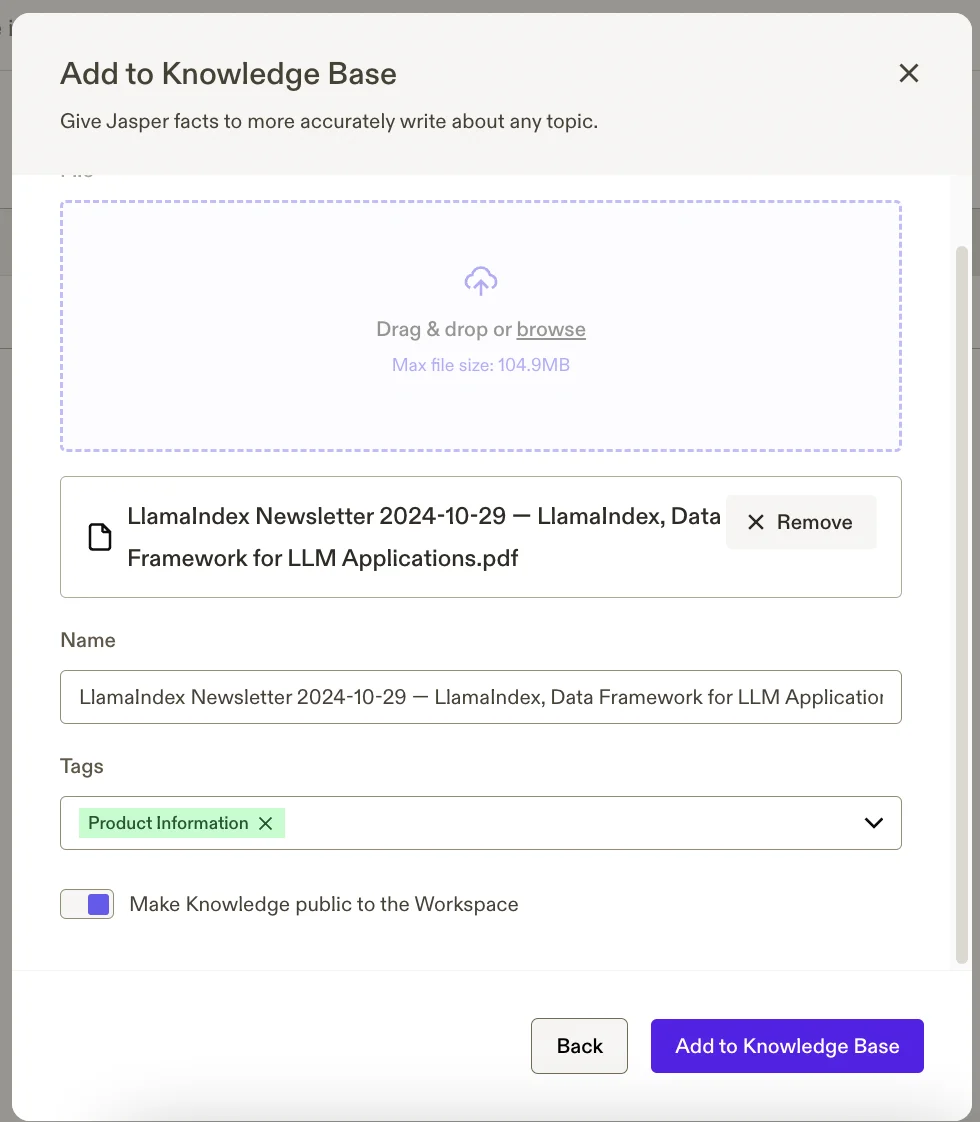
To do that, I found a recent issue of their newsletter (https://www.llamaindex.ai/blog/llamaindex-newsletter-2024-10-29) and saved it as a PDF.
Once again click “Add Knowledge” and this time select ‘Upload File’.
Then select the file from your computer, title it, add a tag if you want and click “Add to Knowledge Base”.
Once again, if you wait a moment and then click to edit the item, you’ll see a summary field.
Step 2: Create derivative content using Jasper’s Remix feature
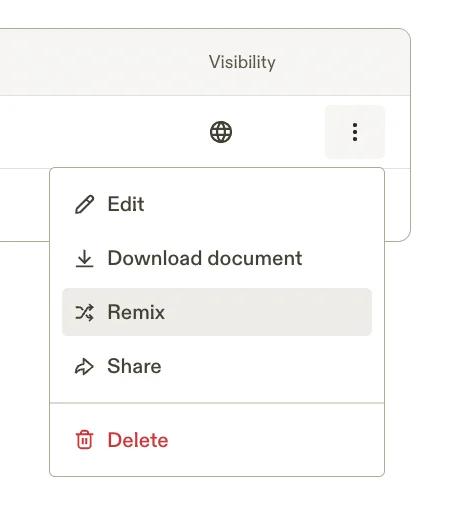
Say you want to create some derivative content from one of your knowledge base items - you can do that quickly by clicking the ellipses and then “Remix”.
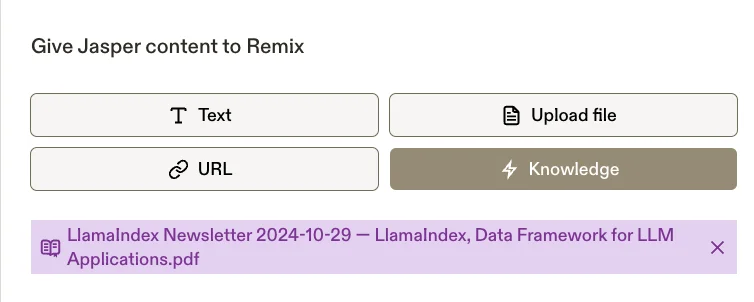
You’ll instantly be taken over to Jasper’s content editor in remix mode. In the top left, where it asks what content you want to remix from, you’ll see our newsletter from the knowledge base is pre-selected.
Below this, it asks what new content we want. Let’s create a news-in-brief piece.
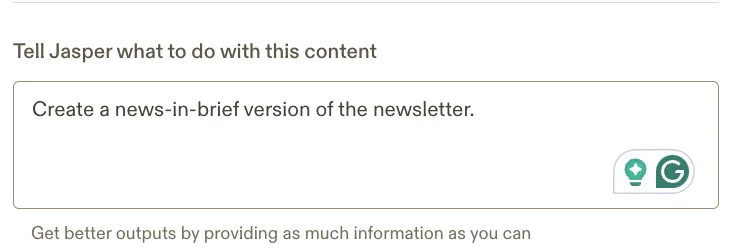
Click the “Generate” button at the bottom and after a few seconds, Jasper will draft your new content.
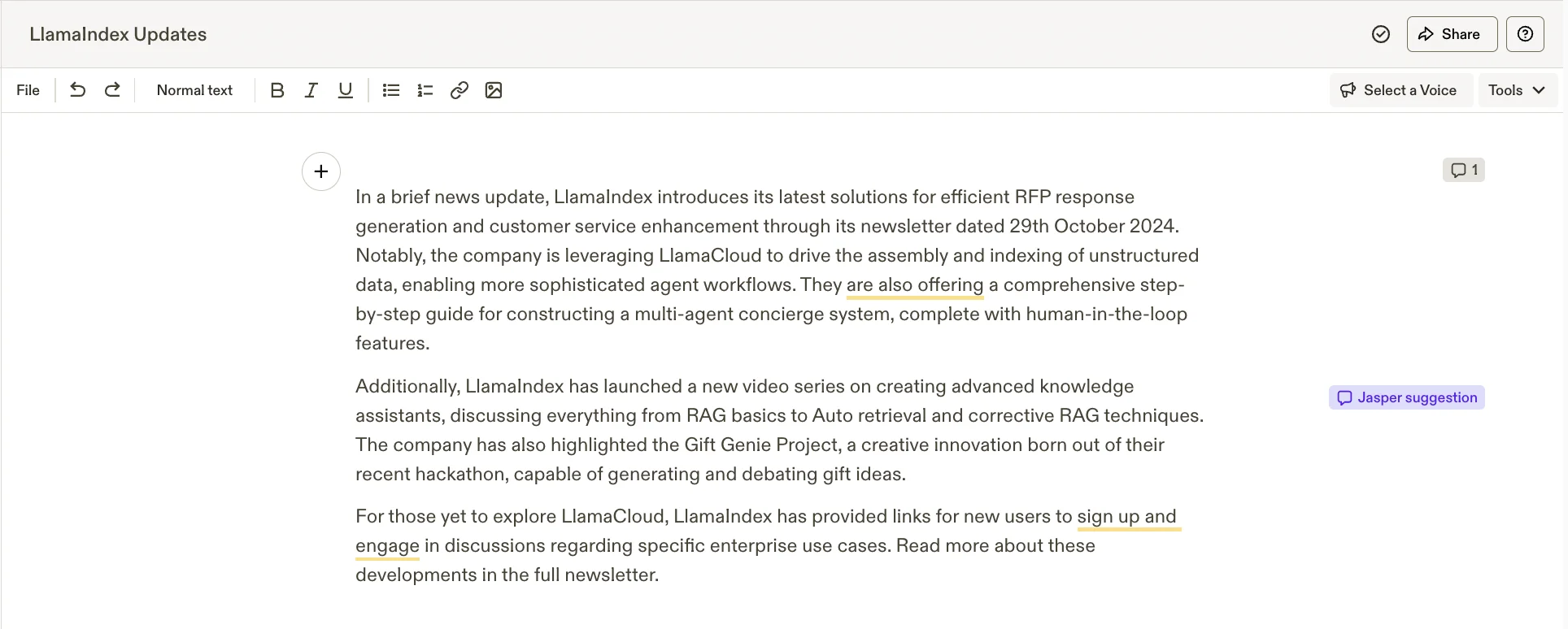
It’s a good start and from here you can use Jasper’s Google Docs-like features to edit and style the content.
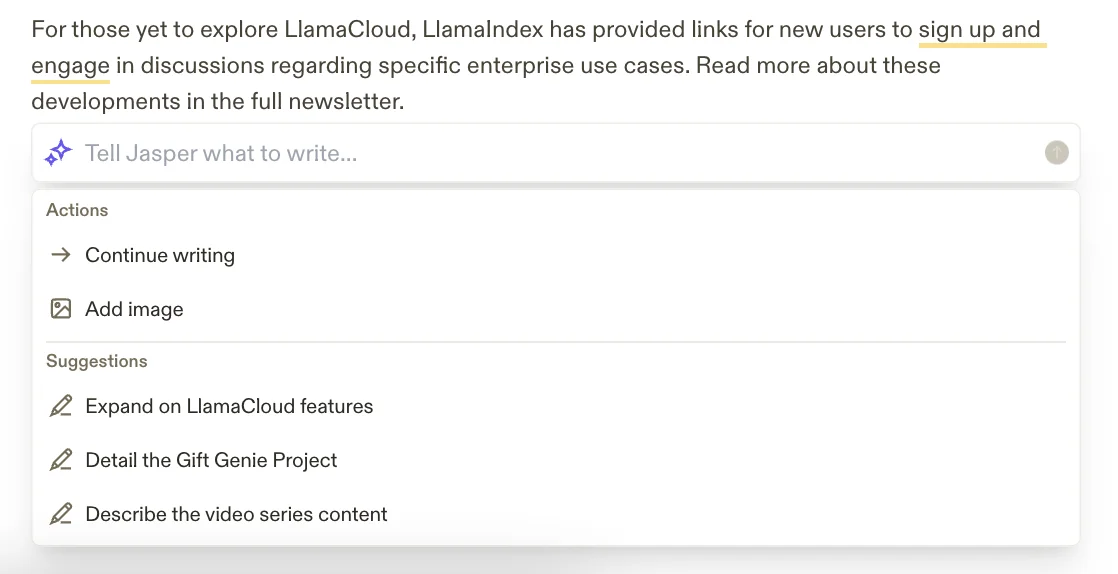
You can also press “/” at any point in the text to have Jasper write some more content for you. It’ll even suggest some prompts.
Step 3: Create new content referencing the knowledge base
Remixing existing content is one use case, but let’s use Jasper to create fresh content with contextual knowledge of our product.
Go back to the main dashboard and click the “Create content” button in the top left.
You’ll be back inside the Jasper editor, this time being asked what you want to create. Let’s select “Social Media Marketing”.
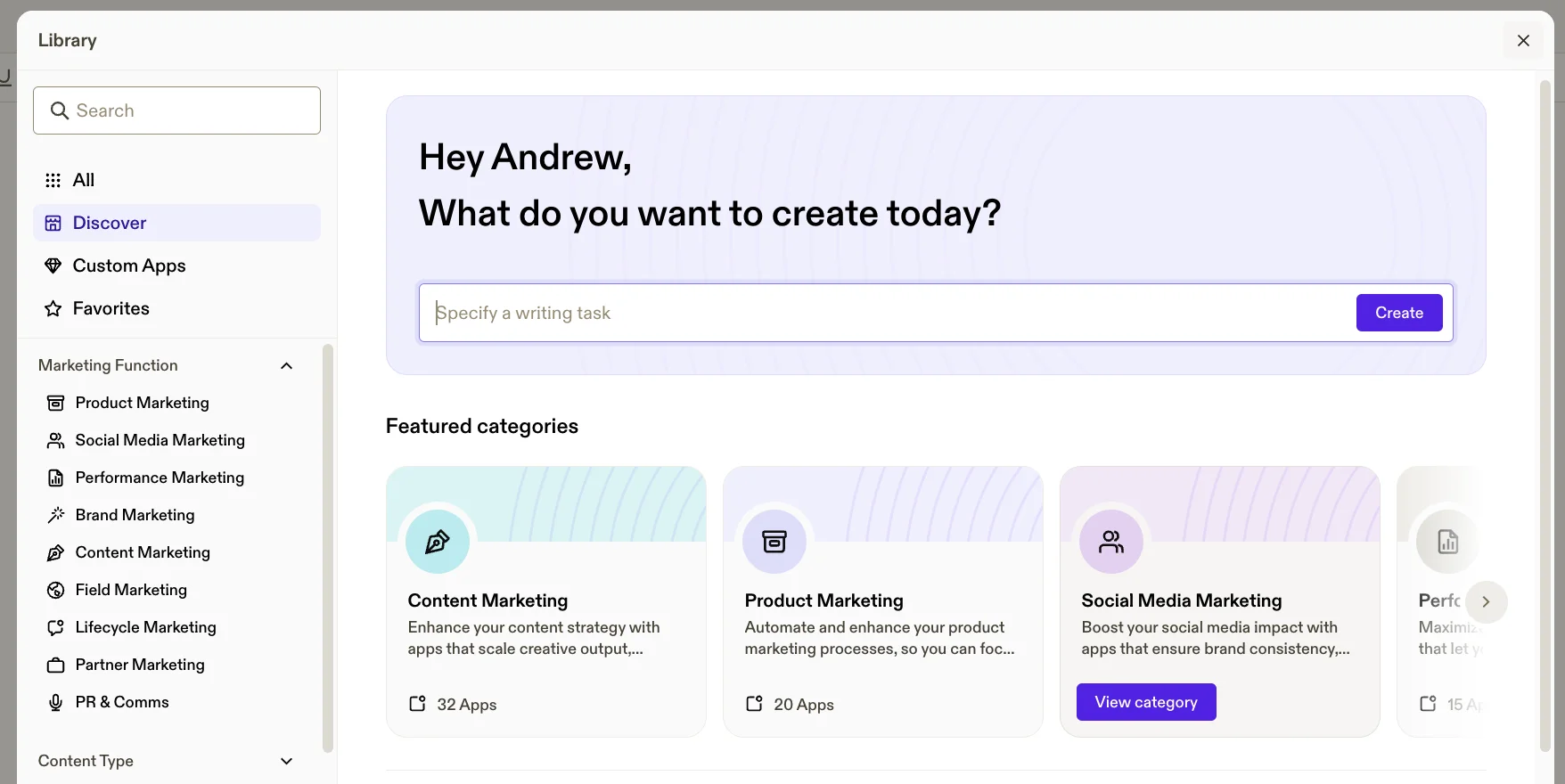
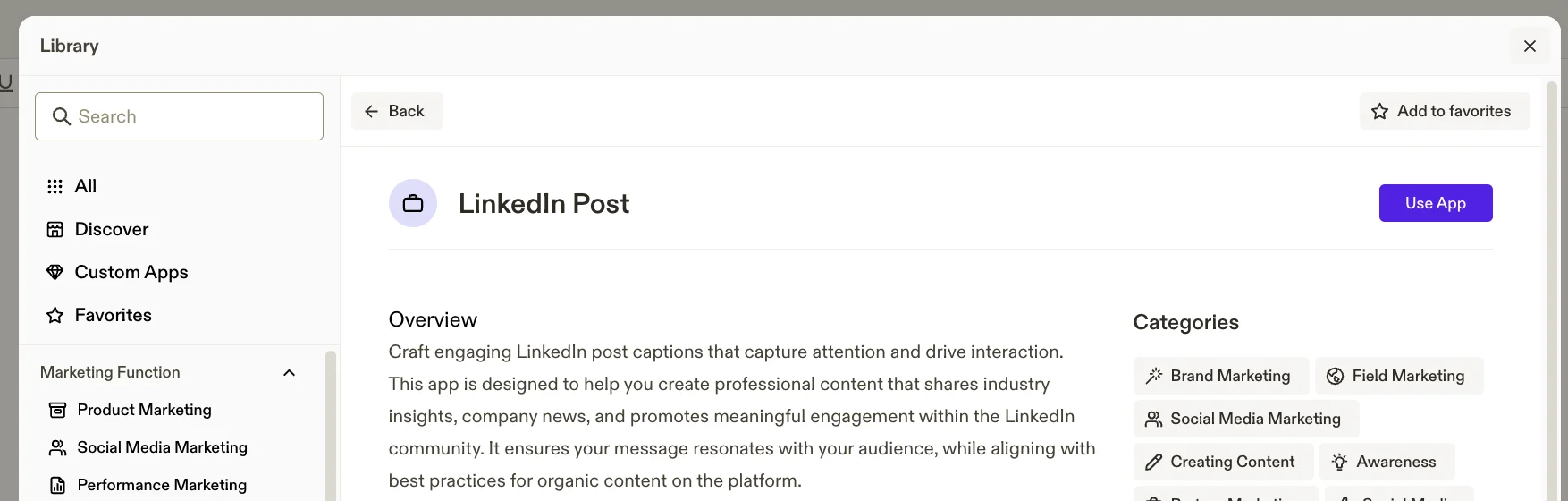
Specifically, let’s create a LinkedIn post to promote LlamaIndex. Click the “LinkedIn Post” option that appears.

On the next screen, click “Use App” to get started.
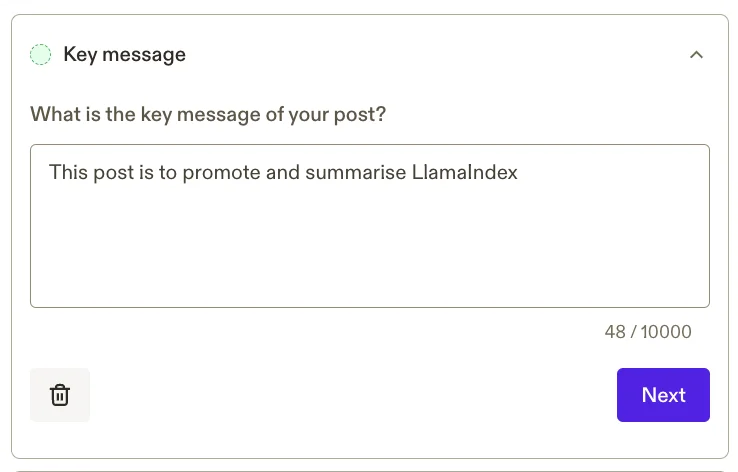
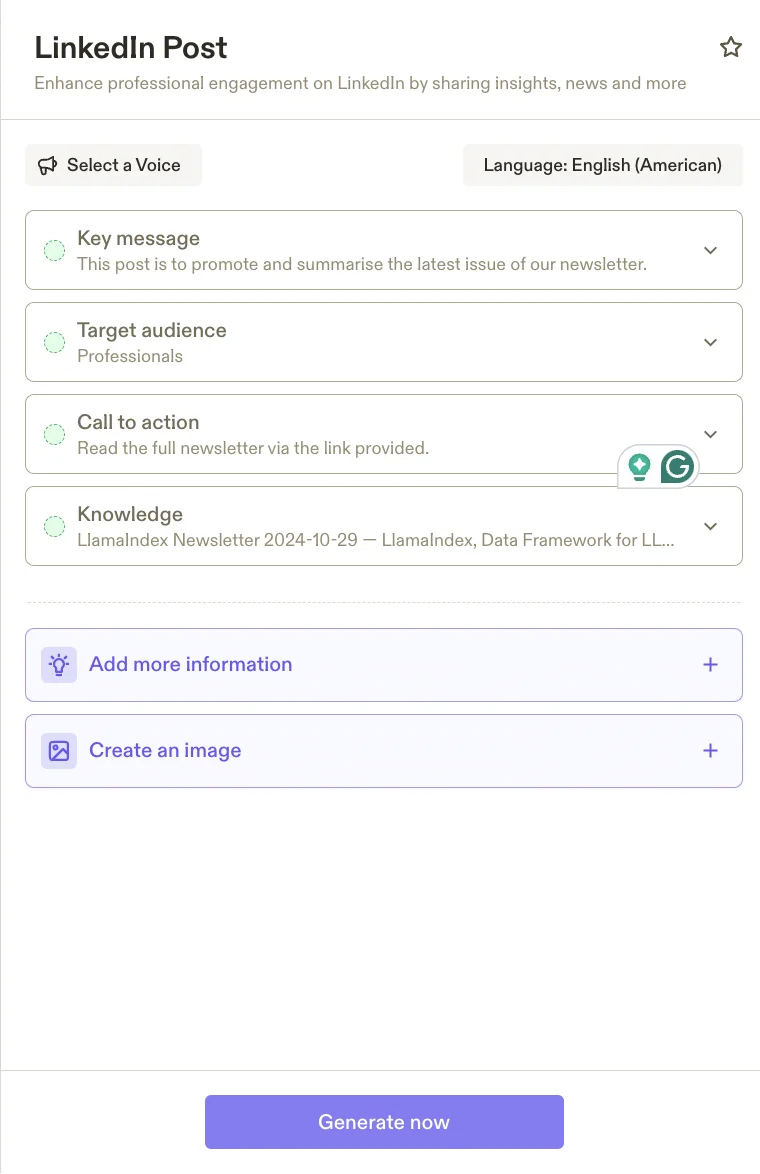
The familiar content editor will open, but this time on the left there will be some prompts to help shape the content.
First, state the purpose of the post.
This post is to promote and summarise LlamaIndex
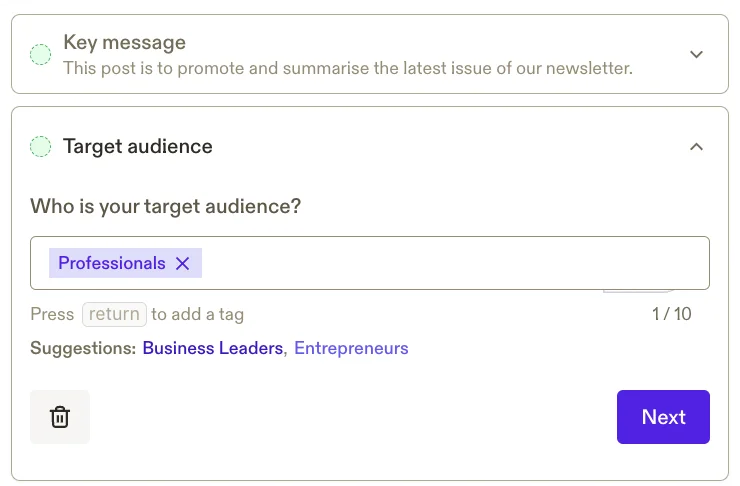
Then let’s select “Professionals” as our target audience.
And finally, we say what we want the call to action to be. Jasper will also suggest some options here.
Explore Llamalndex's open-source solutions today.

The next stage is crucial. Open the “Add more information” panel below and then click on the ‘Knowledge’ box.
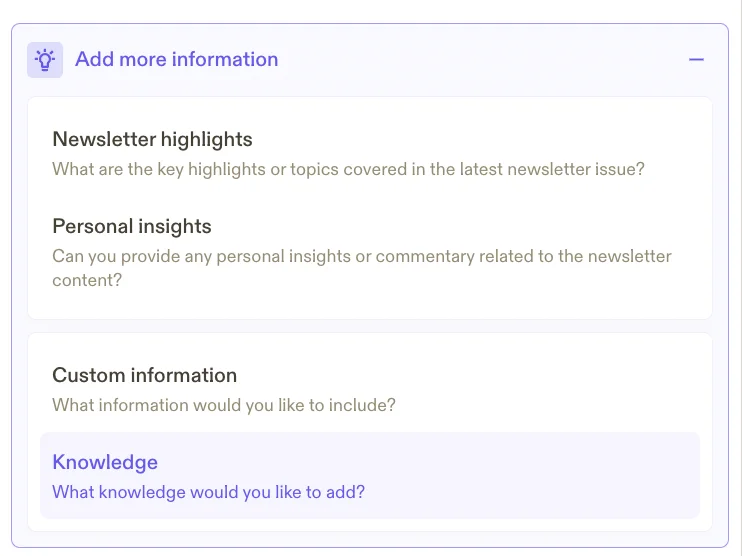
Then we select the “Homepage” item from our knowledge base like before. You can select multiple items if you want.
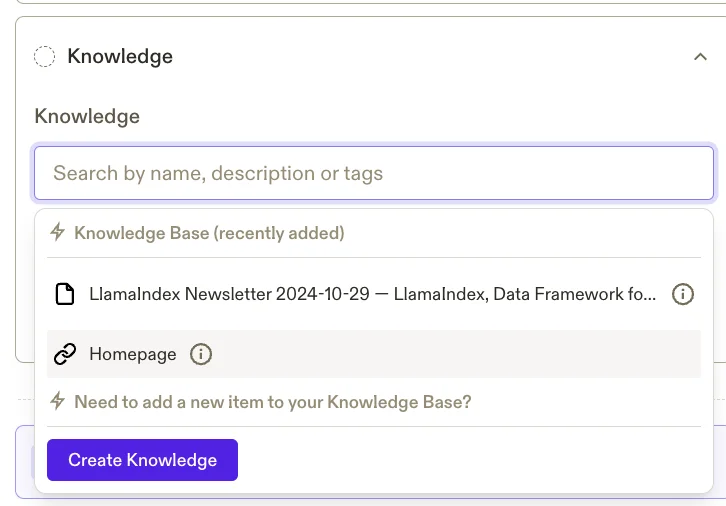
With everything set, click “Generate now”.
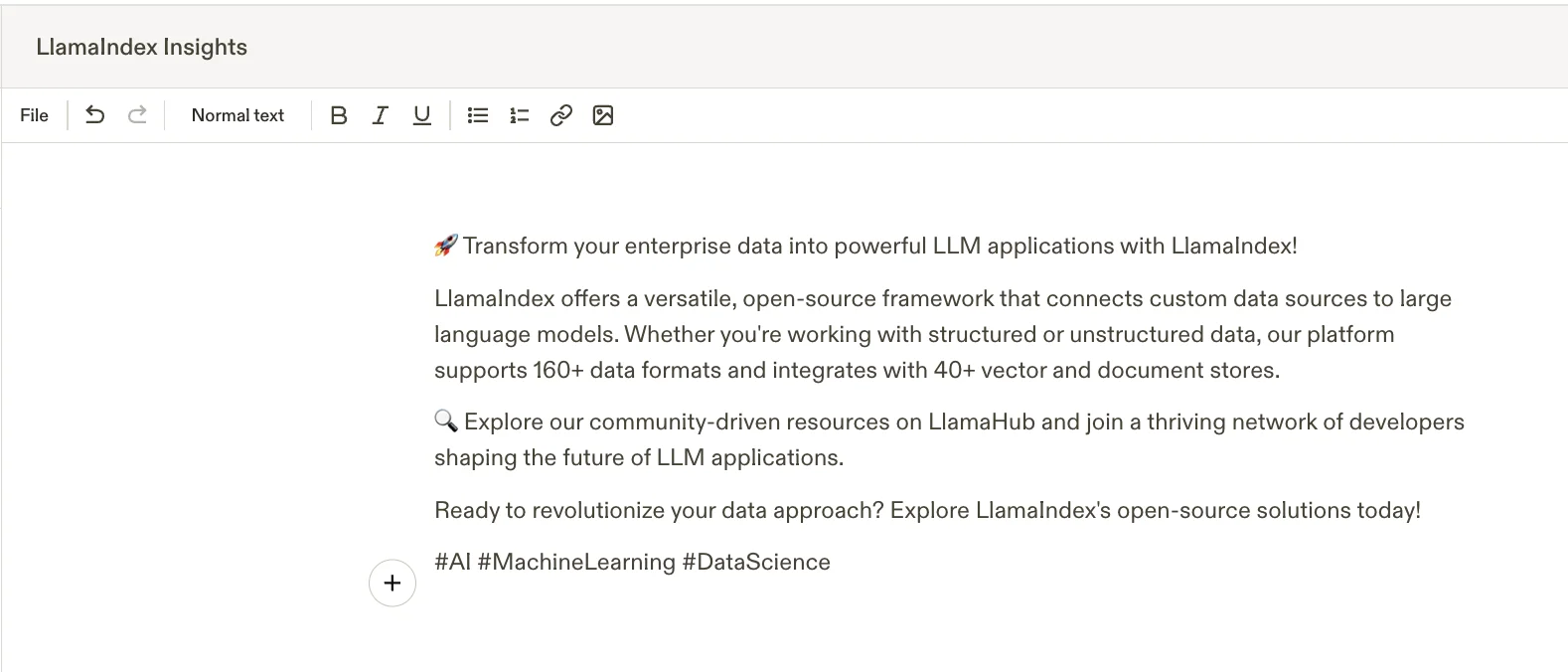
The result is pretty good for a LinkedIn post. It’s on-brand and uses emojis and hashtags as you’d expect.
Now, you can continue to use items in your knowledge base to repurpose existing content to generate new content.
This tutorial was created by Andrew.